What is Pyload and How to Use It
On this page ▾
What is pyLoad?
pyLoad is a lightweight, fully featured download manager which supports many one-click-hosters, container formats and video sites, as well as plain FTP/HTTP links. It runs as a small web application on your seedbox, so it uses very little RAM compared to heavier download managers.
How to use pyLoad
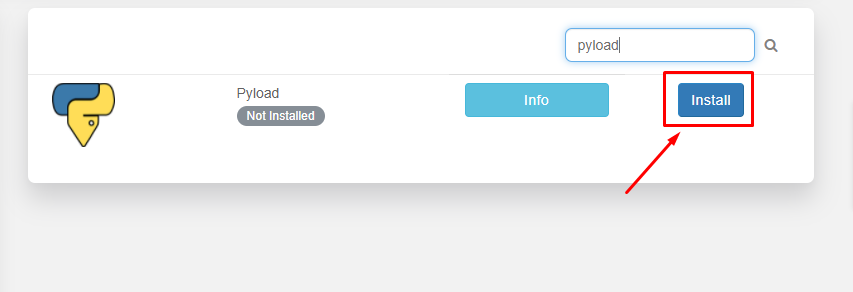
The first step is to install the app from the client area.
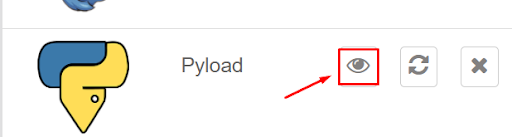
After the installation is complete, open the app from the installed apps section as shown below.
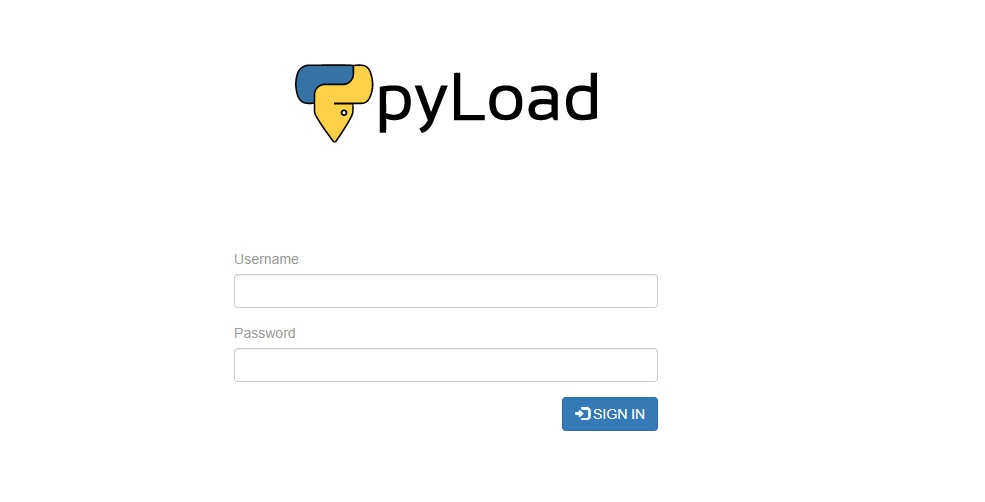
The pyLoad web interface will open in a new tab and you will be prompted for a username and password. Use the login credentials provided in your FTP details.
After a successful login you will see an interface like this:
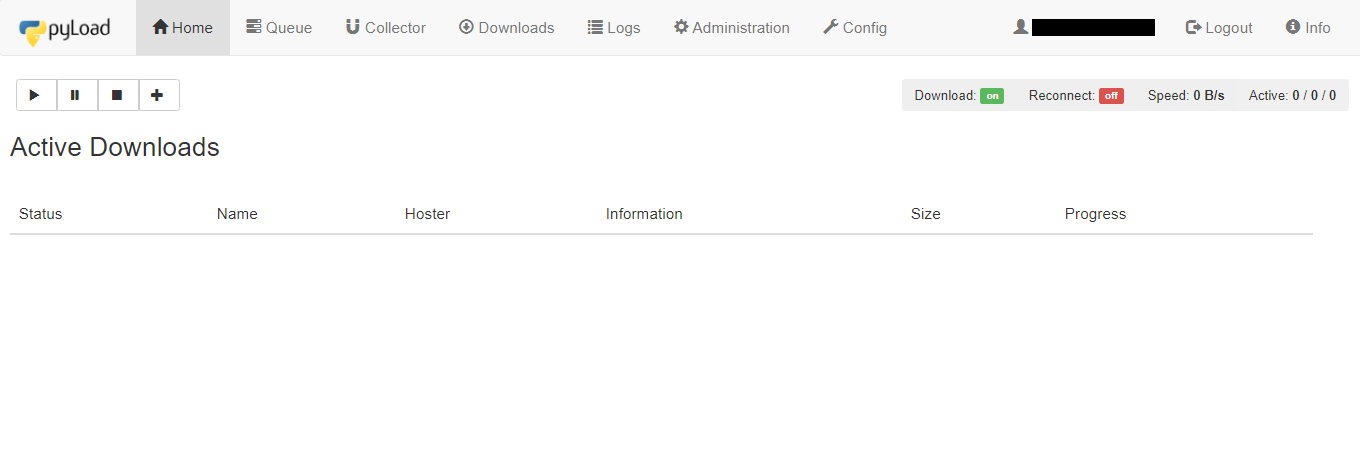
Let’s look at the available tabs in the app:
- Home: details about the currently active downloads
- Queue: files currently queued for download
- Collector: packages (files) you have added that can be moved to the queue once current downloads finish
- Downloads: the pyLoad download history on your seedbox
- Logs: pyLoad’s log output, useful for troubleshooting failed links
- Administration: manage users — add a new user or change a password
- Config: pyLoad settings and configuration, including connection limits and reconnect behaviour
Downloading a file
Now let’s try downloading a file using an HTTPS link. Copy the link of the file you want to download and open the Home tab.
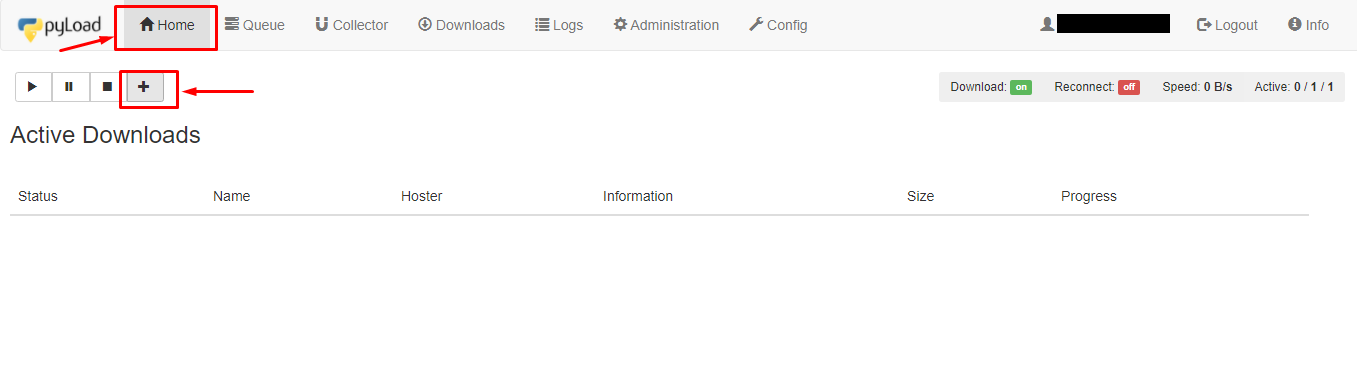
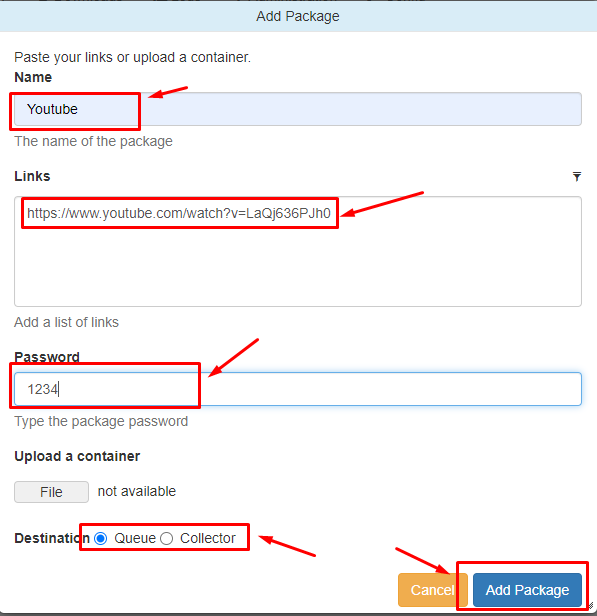
Click on the + button to add a package. A new window will open where you add the name of the package. In the links section, add the links to the files you want to download — you can also set a password for protected archives. In the destination section, choose either Queue (start now) or Collector (hold for later). Click Add package to start downloading.
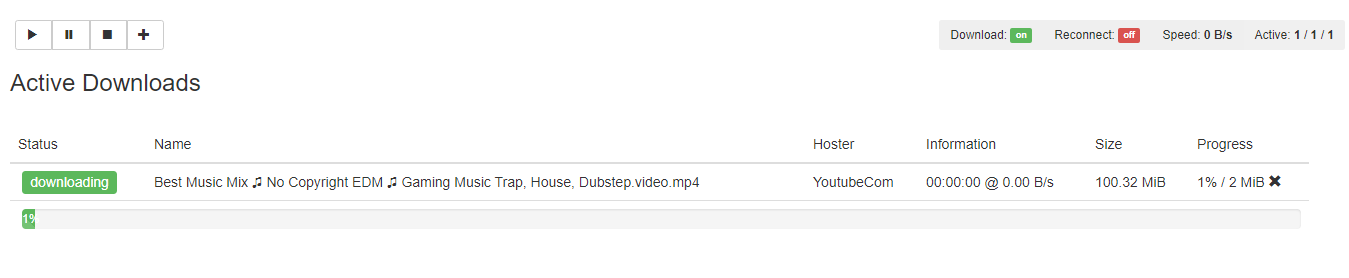
You can check the progress in the Home section.
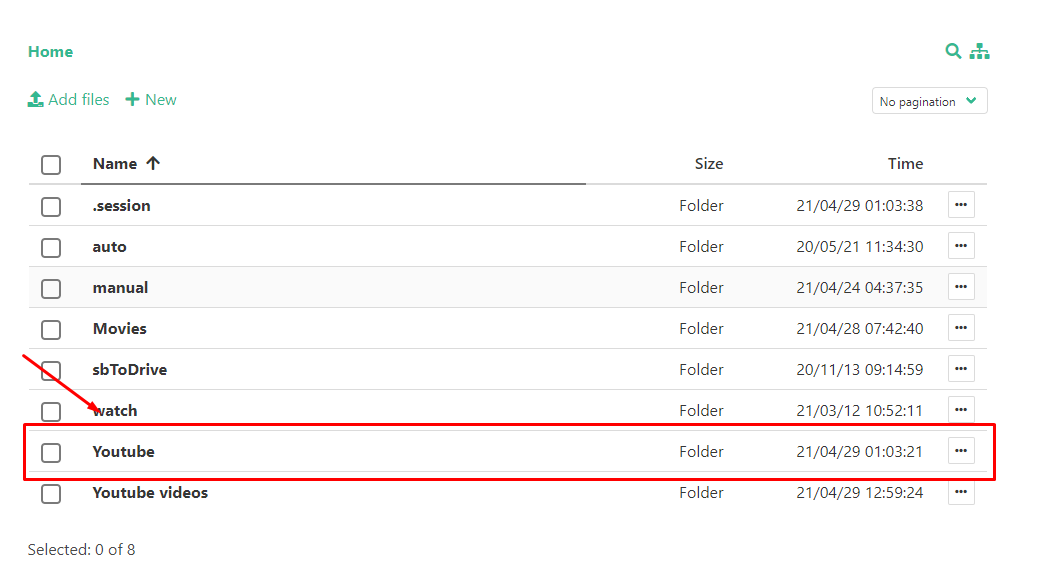
After the download is complete you can check the files using the file manager.
Related
- JDownloader guide — the heavier-duty alternative with premium hoster support
- JDownloader seedbox hosting
- FileGator web file manager — browse and download what pyLoad fetched
- All one-click seedbox apps
Frequently Asked Questions
What’s the difference between pyLoad and JDownloader?
Both handle direct-download and one-click-hoster links. pyLoad is much lighter on RAM and has a simple web UI; JDownloader has broader hoster/plugin coverage and richer features like My JDownloader remote control. On smaller plans, pyLoad is usually the smoother choice.
Can pyLoad download torrent files?
No — pyLoad handles HTTP/FTP and hoster links, not the BitTorrent protocol. For torrents, use the ruTorrent client that ships with every EvoSeedbox plan.
Where do my pyLoad downloads go?
Into the download folder configured under Config → General. On EvoSeedbox installs this defaults to a folder inside your home directory, which you can browse with the file manager or over FTP/SFTP.
Why does a link fail with “plugin out of date”?
Hosters change their pages frequently and pyLoad’s plugins occasionally lag behind. Check the Logs tab for the exact error, try updating pyLoad from your dashboard, and if a specific hoster keeps failing, open a ticket — or try the same link in JDownloader, whose plugins update more often.
Related articles
Put this into practice
EvoSeedbox ships with one-click app installs and up to 10 Gbps per box.


