Adding a server by hand
On this page ▾
By the end of this page you will have typed your seedbox details into evoftp, connected, and have the server saved in the sidebar for next time. If you have the .evoftp connection file from your client area, that is the quicker route; this page is for when you don’t have it, or when you want to connect to another server over SFTP, FTPS or FTP.
Overview: evoftp guide.
Opening the connect sheet
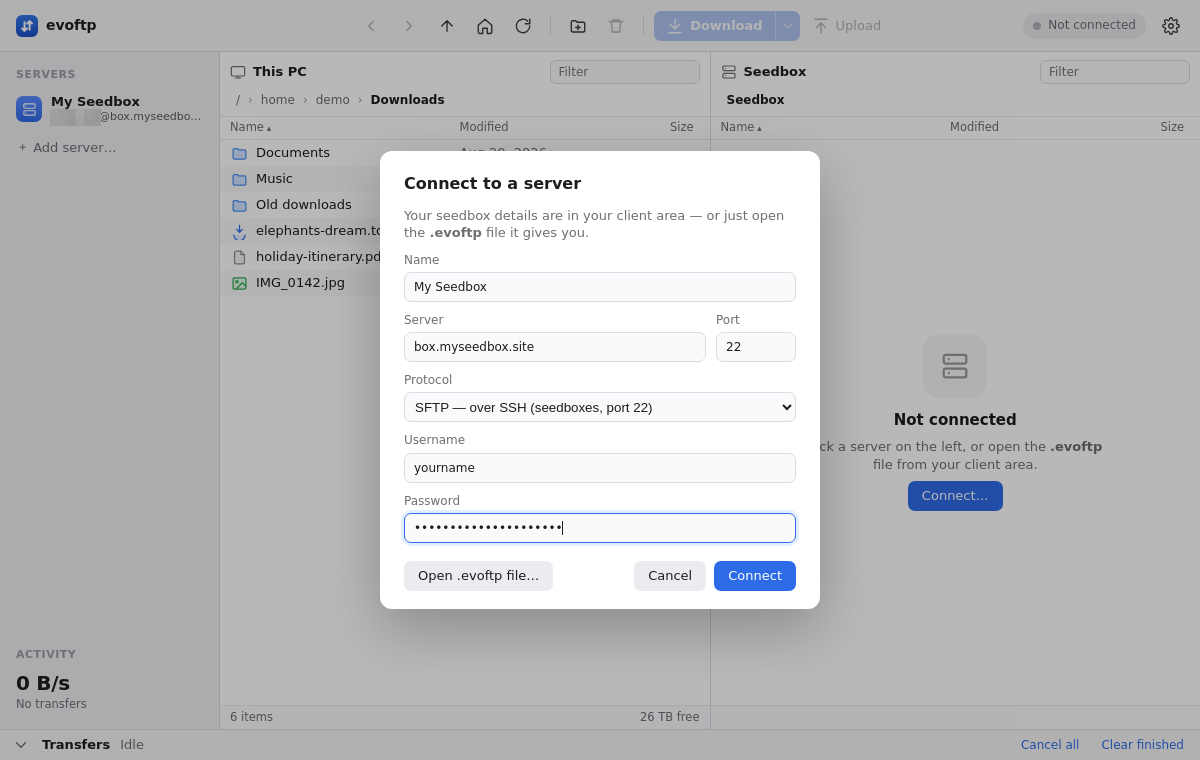
Click the evoftp Add server button — + Add server…, at the bottom of the Servers list in the sidebar. You can also click Connect… in the empty right pane, or click the Not connected pill at the top right. All three open the same Connect to a server sheet. It also opens by itself the first time you start evoftp with no servers saved.
Filling in the details
- Name — a label for the sidebar, such as “My Seedbox”. Leave it empty and evoftp shows the hostname instead.
- Protocol — leave it on SFTP — over SSH for your seedbox. FTPS, plain FTP and implicit FTPS are there for other servers (a NAS, a web host); picking one fills in that protocol’s usual port unless you have typed your own. Plain FTP shows a warning because it sends your password and files unencrypted; prefer FTPS if the server offers it.
- Server — the hostname from your service page in the client area, for example
box.myseedbox.site. Type it exactly as shown, with nosftp://in front and no slash at the end. - Port —
22for SFTP. evoftp fills in21for FTP and FTPS, or990for implicit FTPS, when you change the protocol; only edit it if the server uses a non-standard port. - Username — your seedbox username, as shown on the service page.
- Password — your seedbox password. This is not the password you log in to the client area with; copy it from the service page.
- Press Enter in any field, or click Connect.
Server and Username are required; evoftp tells you if either is empty. While it connects the button reads Connecting…. When it succeeds the sheet closes, the right pane switches to your seedbox, and the server appears in the sidebar, so next time you connect with one click.
If the login fails
“Login failed — check the username and password.” means the server answered but rejected the details. The sheet stays open with everything you typed; retype the password from the service page and press Enter again. Any other message (“Connection timed out”, “ECONNREFUSED”) points at the hostname, the port, or a firewall between you and the server, not at the password.
Note: your seedbox details are SFTP details — keep Protocol on SFTP and the port on 22. Plain-FTP details from another server only connect once you switch Protocol to FTP or FTPS. On FTPS, evoftp remembers the server’s TLS certificate the first time you connect; if it changes later, the connection fails with a “certificate … changed” message until you edit the server and clear the pinned certificate.
Overview: evoftp guide.
Related articles
Put this into practice
EvoSeedbox ships with one-click app installs and up to 10 Gbps per box.
