How to Add Libraries in Plex and Synchronize Your Streaming Content
On this page ▾
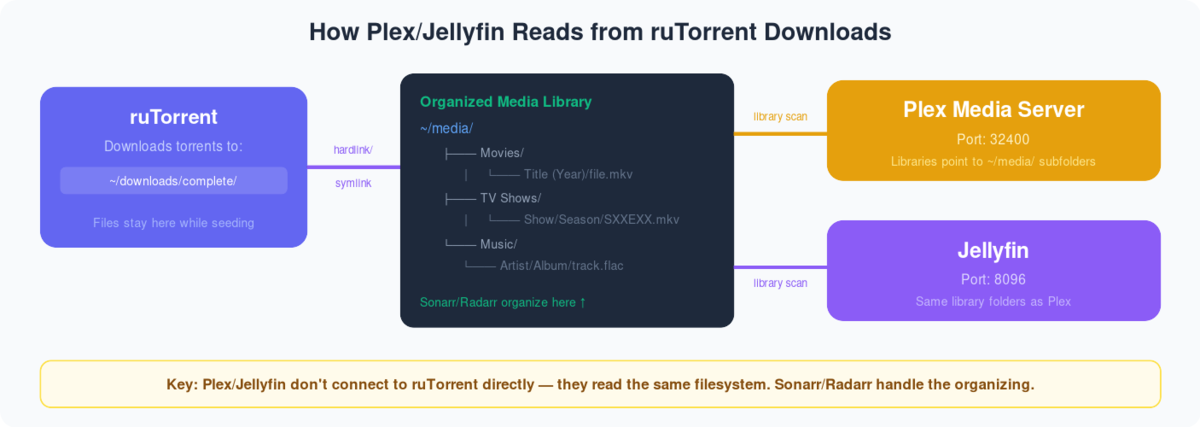
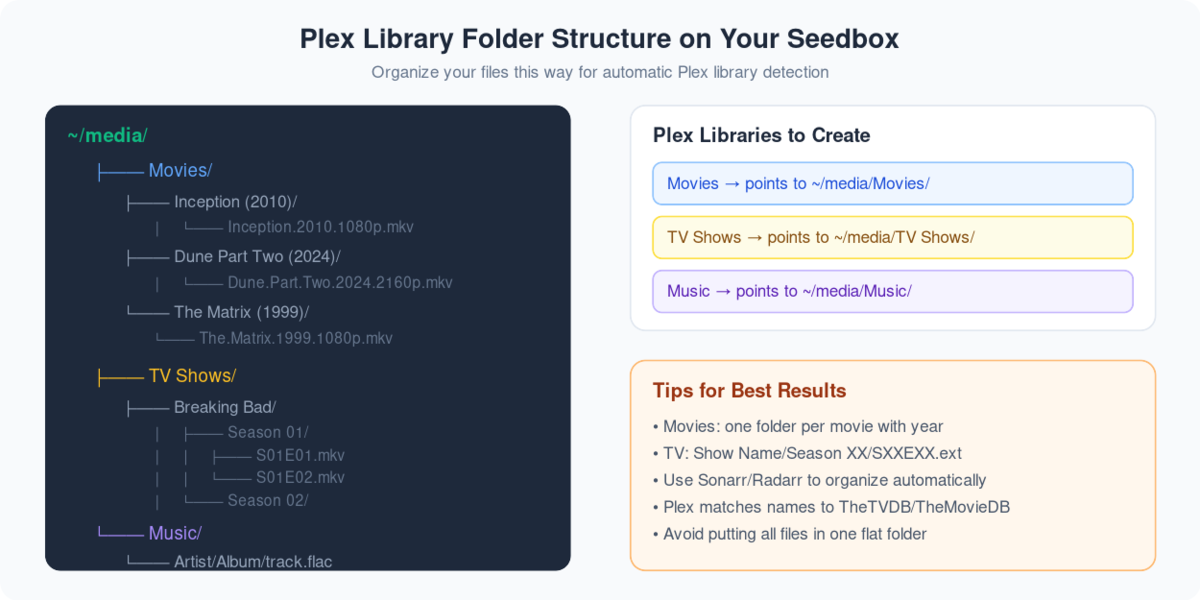
Once Plex is installed on your seedbox, the next step is telling it where your media lives. A Plex library is simply a category — Movies, TV Shows, Music — pointed at a folder on your seedbox. Getting the folders and library types right is what makes Plex show clean posters, correct episode order and accurate metadata instead of a messy list of filenames.
Before You Start: Organise Your Folders
On an EvoSeedbox account your downloads sit under your home directory, and the tidiest setup keeps media in separate top-level folders:
/downloads/movies//downloads/tv-shows//downloads/music/
If you run the *arr stack, Sonarr and Radarr already rename and file everything into this structure for you — which means Plex matches your media almost every time. Correct media naming matters here: Movie (Year) and Show/Season 01/Show – S01E01 are the patterns Plex expects.
Steps to Add a Library in Plex
- Log in to your Plex account and open your seedbox Plex server.
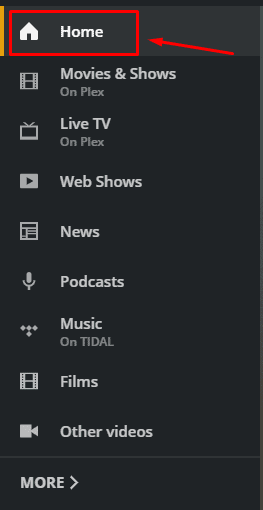
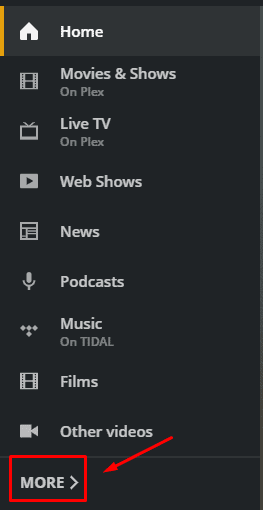
- Go to the Home section, then click More at the bottom of the left-hand palette.
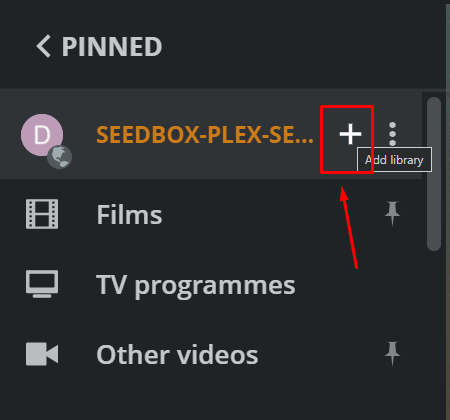
3. You’ll see your seedbox Plex server (your server name may differ). Click the + button to add a new library.
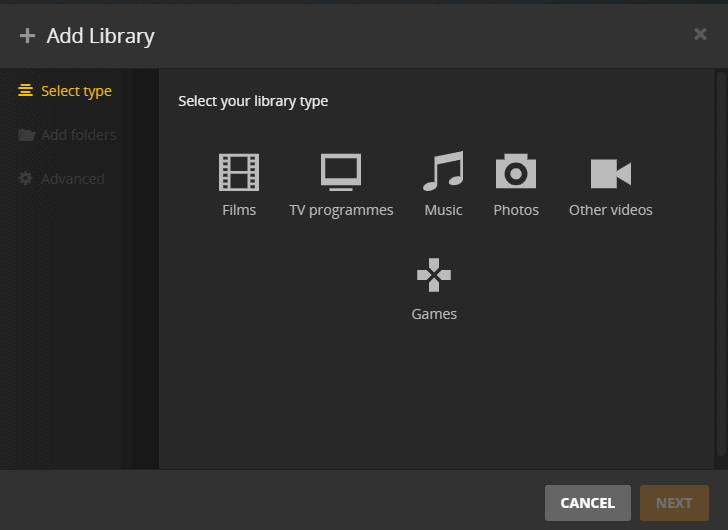
4. Choose the library type — Movies, TV Shows or Music — that matches your content, give it a name and set the library language.
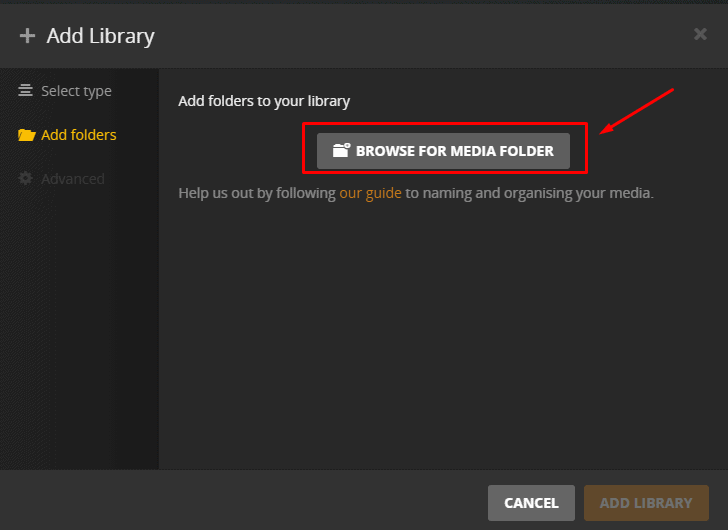
5. Click Next, then Browse for Media Folder and navigate to the folder where that content is downloaded (for example /downloads/movies/).
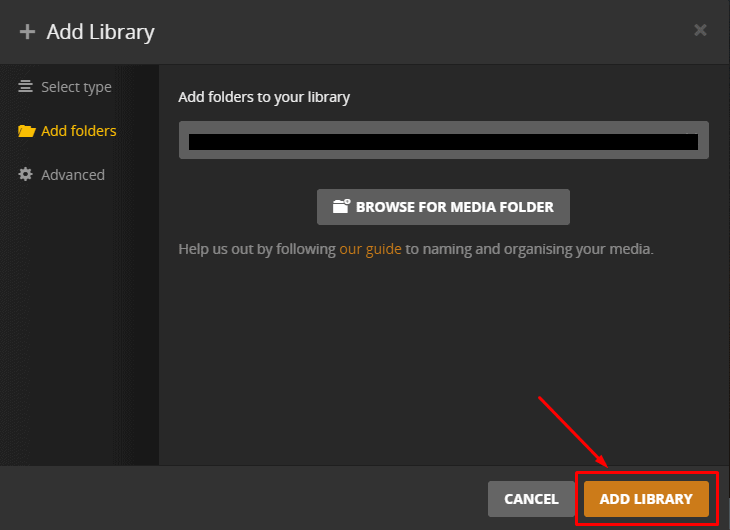
6. Select the folder, click Add, then Add Library to finish.
7. Plex now scans the folder and pulls in posters, summaries and metadata. Larger libraries take a few minutes the first time.
Keeping Libraries in Sync
New files you add later are not always picked up instantly. You have three options:
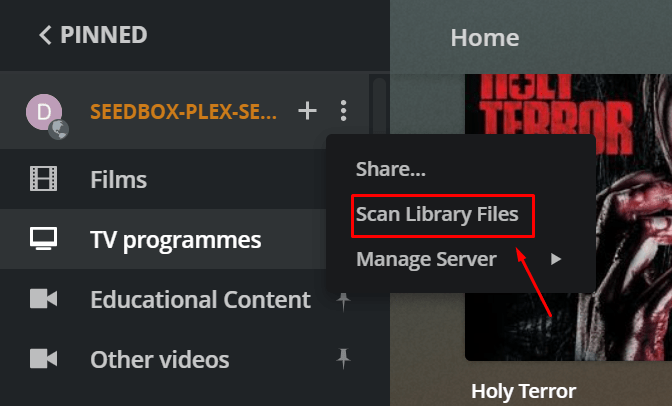
- Manual: open the server drop-down and click Scan Library Files.
- Automatic (recommended): Settings → Library → enable Scan my library automatically and Run a partial scan when changes are detected — new imports then appear within seconds.
- *arr-driven: Sonarr/Radarr can trigger a Plex scan the moment an import completes, so you never scan by hand.
Frequently Asked Questions
Why are some movies missing or wrongly matched?
Almost always a naming issue. Plex needs Title (Year) for films and a Show/Season xx structure for TV. Let Sonarr and Radarr handle naming, or fix the file name and use “Match” → “Fix Match” on the item. See our media naming guide.
Do I need a separate library for 4K?
It’s optional but tidy — many users keep a “Movies 4K” library so they can apply different sharing or quality rules. For playback tips see the 4K streaming guide.
New downloads aren’t showing up — what do I check?
Enable automatic scanning (Settings → Library), or trigger Scan Library Files manually. If a whole library looks empty after moving folders, it’s usually a permissions problem — see Plex library permissions.
Related Guides
Related articles
Put this into practice
EvoSeedbox ships with one-click app installs and up to 10 Gbps per box.


