Radarr Setup on a Seedbox
On this page ▾
Radarr is the engine that turns your seedbox into a self-driving movie library. You tell it what you want, and it hunts across your indexers, grabs the best-quality release that matches your rules, hands it to ruTorrent to download, then renames and files the finished movie exactly where Plex or Jellyfin expects it. No manual searching, no manual sorting — just movies appearing, correctly labelled, in the right folder.
On the EvoSeedbox fleet, Radarr is our second-most-installed application — 129 installs across 47 servers — and it is a one-click install from your control panel. Because it runs on the same box as your torrent client and your storage, there is no bandwidth wasted shuffling files between machines, and our App Doctor self-healing layer watches the process, restarts it if it dies, and re-publishes its proxy route if the port drops. This guide takes you from a fresh install to a fully automated pipeline: download client, root folders, indexers, quality profiles, and the media-server hand-off.
If you want the whole automation stack (Radarr + Sonarr + Prowlarr + Bazarr) wired up together in one pass, start with our Quick Arr Stack setup guide — this page is the deep dive on the Radarr half of it.
What Radarr Is (and Why It Belongs on a Seedbox)
Radarr began life as a fork of CouchPotato, rebuilt on the modern Sonarr codebase. If you ever wrestled with CouchPotato’s flaky matching and dated interface, the difference is night and day:
  RADARR  vs  COUCHPOTATO
  ─────────────────────────────────────────────
  Active development      │  Abandoned
  Sonarr-based UI/UX      │  Legacy interface
  Custom Formats (HDR/DV) │  Basic quality only
  Reliable TMDb matching  │  Frequent mismatches
  Prowlarr integration    │  Manual indexers
  Fast, responsive web UI │  Slow, clunky
  ─────────────────────────────────────────────
Radarr is a “PVR for movies.” It maintains a wanted list, monitors your indexers for releases that meet your quality bar, sends grabs to your download client, and — the part that saves the most time — imports the finished download: it hard-links or moves the file into your library, renames it to a clean scheme, and notifies your media server. Running it on a seedbox is the ideal deployment because every stage of that pipeline happens locally, on fast storage, over the server’s gigabit uplink rather than your home connection.
Here is the full loop Radarr orchestrates:
  RADARR AUTOMATION PIPELINE
  ─────────────────────────────────────────────
  You add a movie
        │
        ▼
  Radarr searches indexers  ◄── (via Prowlarr)
        │
        ▼
  Grabs best release  ──►  ruTorrent downloads
        │                        │
        ▼                        ▼
  Import + rename  ◄──────  Download completes
        │
        ▼
  Plex / Jellyfin picks it up  ──►  You watch
  ─────────────────────────────────────────────
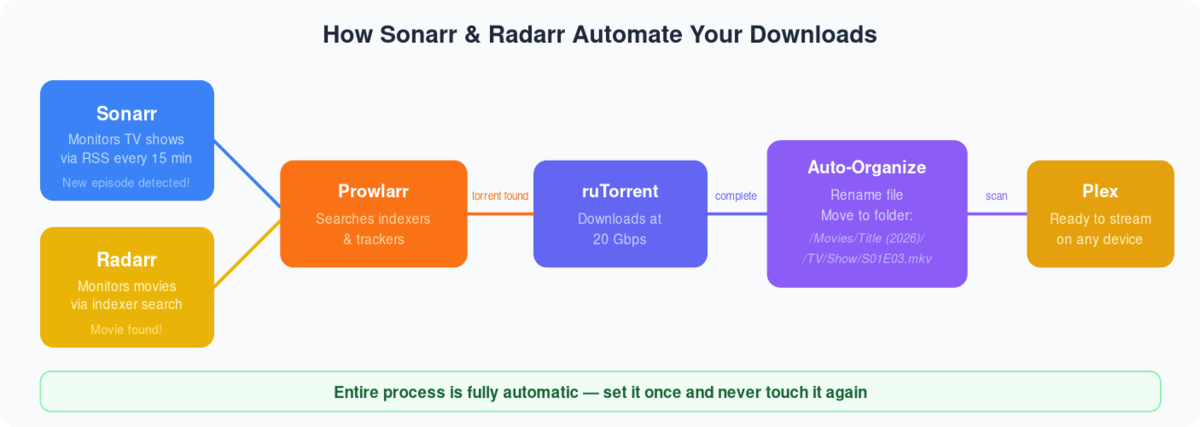
Radarr is the movie half of a matched pair. Its sibling, Sonarr, does exactly the same job for TV series, and both share the same indexers through Prowlarr. Set one up and the second is muscle memory.
Installing Radarr on Your Seedbox
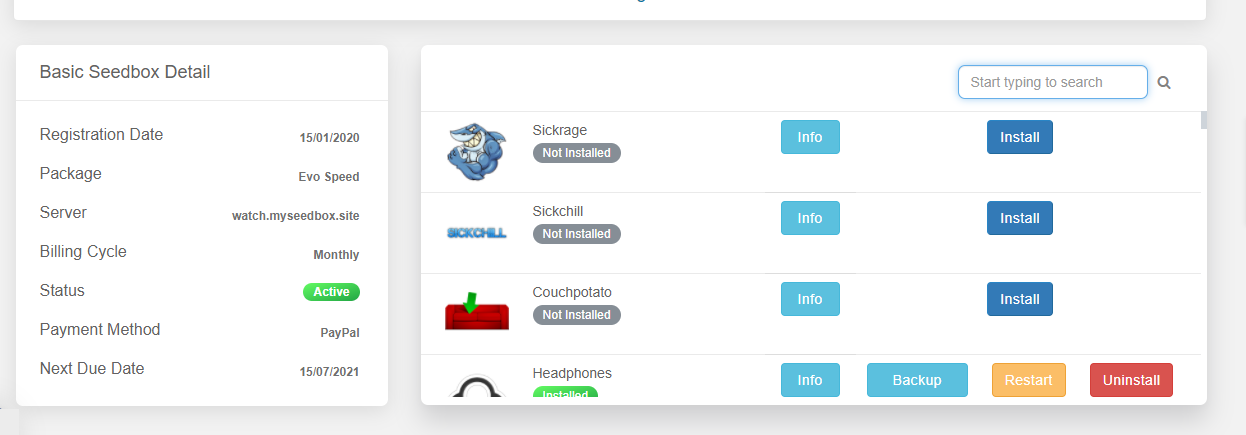
Installation is one click. From your EvoSeedbox control panel, open the Apps section, find Radarr, and install it — the app is provisioned, proxied, and secured automatically. Below is what you will see as you bring it online for the first time.
Step 1 — Install Radarr from the app catalogue. Locate Radarr in your one-click app list and start the install. The server sets up the service on port 7878 and publishes it behind your authenticated reverse proxy, so you never expose the raw port to the internet.
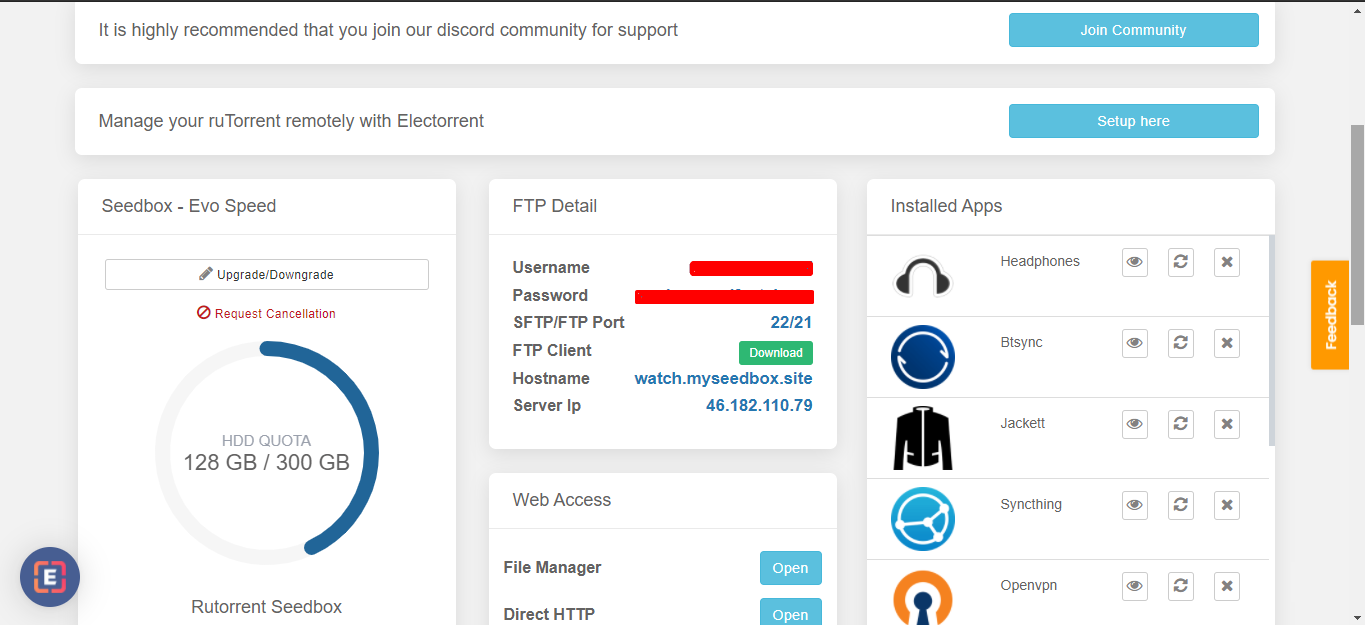
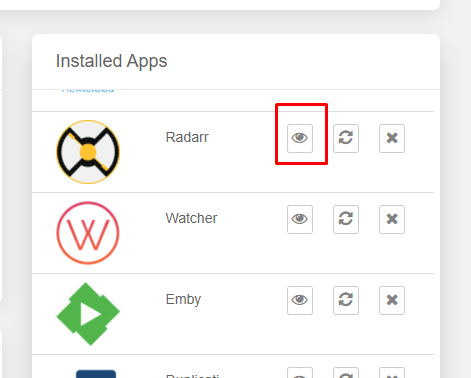
Step 2 — Open Radarr and log in. Once the install finishes, launch Radarr from your dashboard. Radarr has its own web login — use the Radarr username and password shown in your client area / app details, not your FTP credentials. (FTP logs you into file storage; it has nothing to do with the Radarr web interface.) After signing in you land on the empty Movies view, ready to configure.
Step 3 — Review general settings. Under Settings → General you will find Radarr’s API key — you will need it later when Prowlarr pushes indexers to Radarr. Leave the bind address and port as provisioned; the proxy already handles external access.
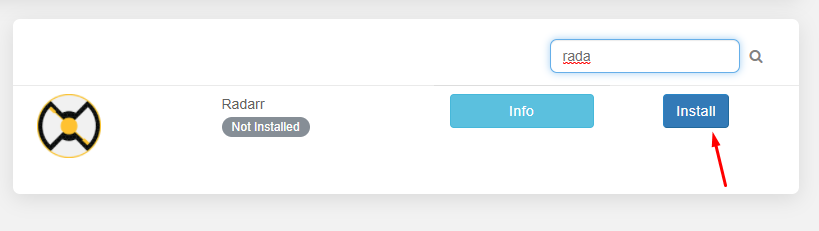
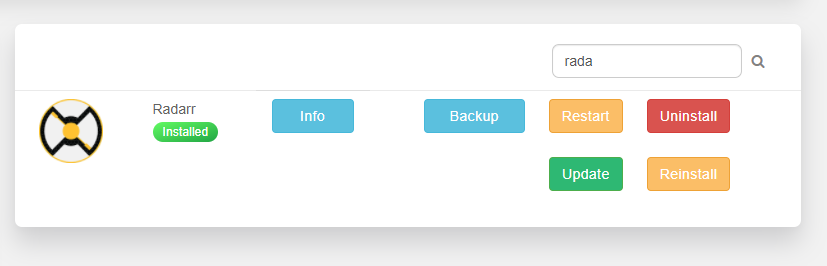
Step 4 — Confirm the app is healthy. A green health status means Radarr is running and reachable. If it ever isn’t, App Doctor will typically restart it and re-publish its route before you notice — but you can also see live status right in your panel.
Connecting ruTorrent as Radarr’s Download Client
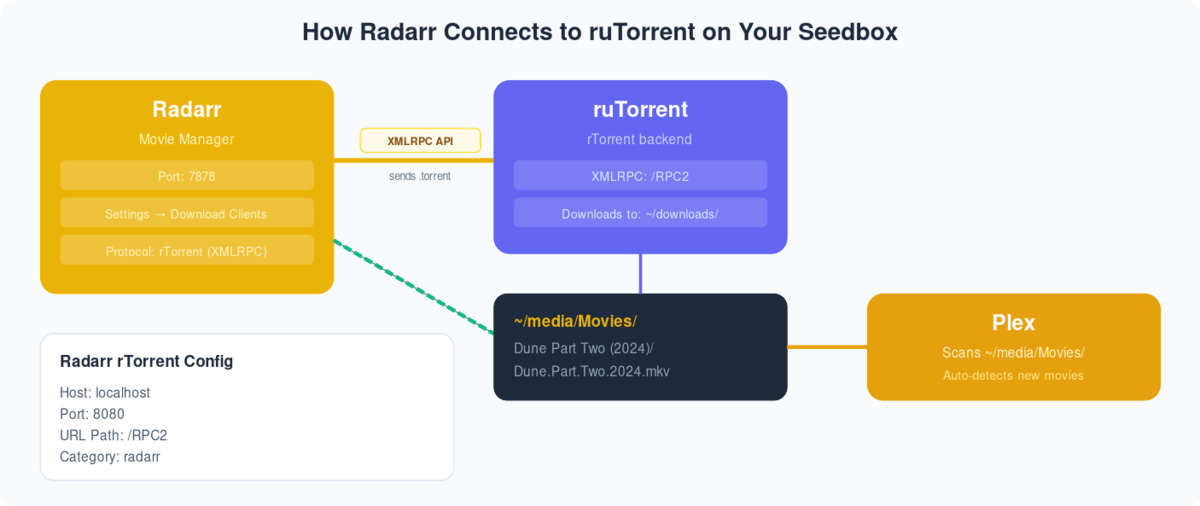
Radarr does not download anything itself — it delegates to your torrent client. On an EvoSeedbox server that client is ruTorrent (the web front-end for rTorrent), and connecting the two is the single most important step. Get this right and grabs flow automatically; get it wrong and Radarr will search and grab but nothing will ever download.
Go to Settings → Download Clients, click the +, and choose rTorrent (not “rTorrent (ruTorrent)” clones — plain rTorrent, which speaks to the same daemon). Fill in:
- Host:
localhost— Radarr and rTorrent live on the same server, so there is no network hop. - Port:
8080— the ruTorrent/rTorrent web port on our fleet. - URL Path: the RPC/SCGI path (typically
RPC2or the plugin RPC mount for your server — it is shown in your app details). - Username / Password: your ruTorrent web credentials.
- Use SSL: on, since the proxy terminates HTTPS.
Set a category or label (e.g. radarr) so Radarr can find its own downloads and so you can see at a glance in ruTorrent which torrents it manages. Click Test — a green tick means the handshake works. If you have never opened ruTorrent, our ruTorrent getting started guide covers the basics, and the Quick Arr Stack guide shows this connection wired alongside Sonarr and Prowlarr.
Root Folders and the Remote-Path Gotcha
A root folder is where Radarr keeps your finished, renamed movie library — for example /home/<user>/media/movies or your data/movies directory. Add it under Settings → Media Management → Root Folders. Every movie you add will be filed under this path, one clean folder per film.
Now the part that trips up almost everyone. The #1 cause of “Radarr grabbed it but never imported it” is a path mismatch between what the download client reports and what Radarr can see. rTorrent completes a torrent and reports a path like /downloads/radarr/Movie.2024.2160p/; if Radarr expects that same file at a different absolute path, it looks, finds nothing, and the download sits there “Completed” forever with an orange import warning.
On a single-server seedbox setup the paths usually line up because everything is local — but the moment your download directory and your library are referenced by different absolute paths (a very common outcome with custom folder layouts, or when the client’s path differs from Radarr’s mount view), you need a Remote Path Mapping. This tells Radarr “when the client says the file is here, it is actually there from my point of view.” Configure it under Settings → Download Clients → Remote Path Mappings. This concept is important enough that we gave it its own spoke — read Remote Path Mapping explained before you troubleshoot any import problem. Getting the folder structure and mappings right once means every future download imports silently and correctly.
Adding Indexers Through Prowlarr
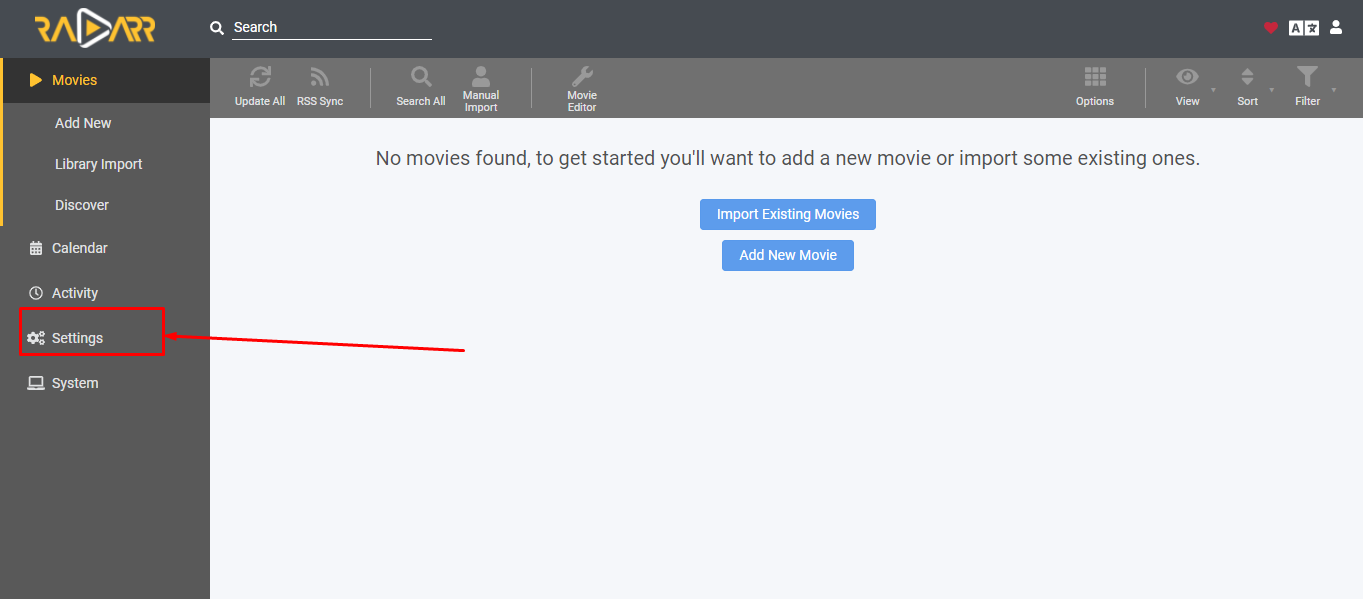
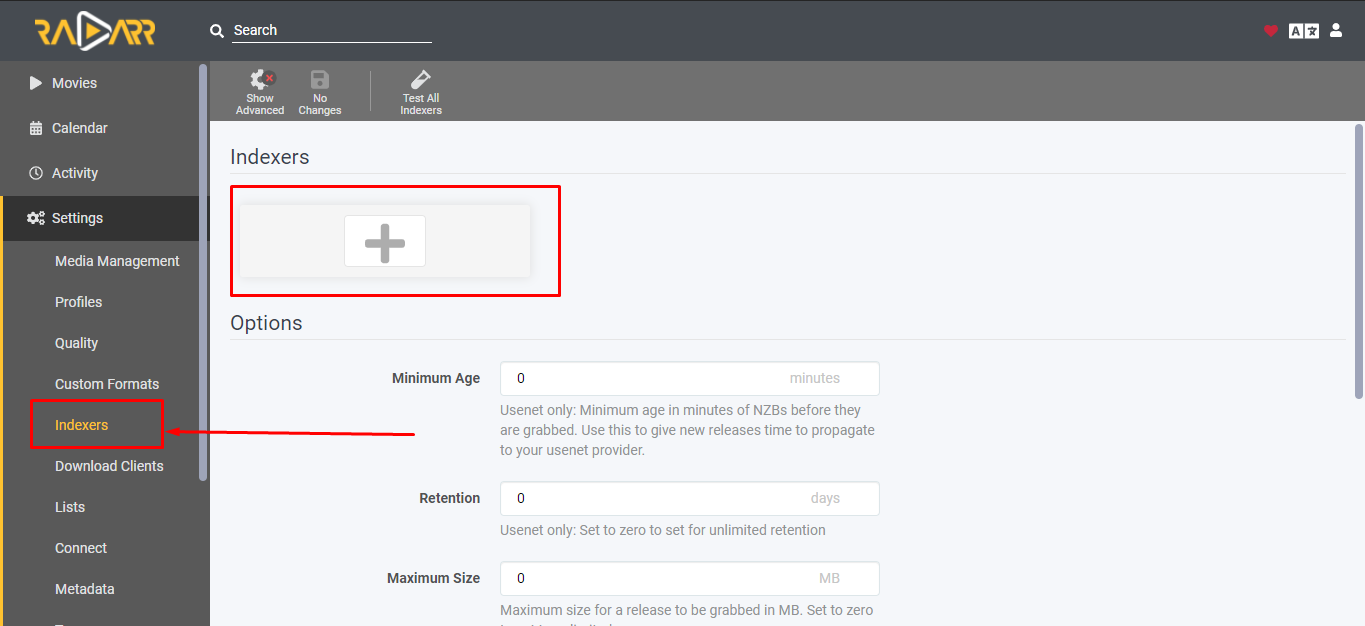
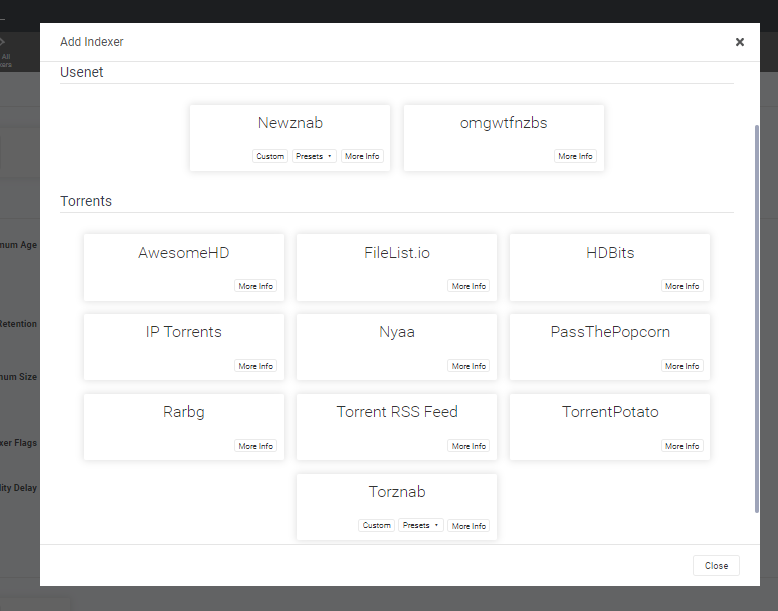
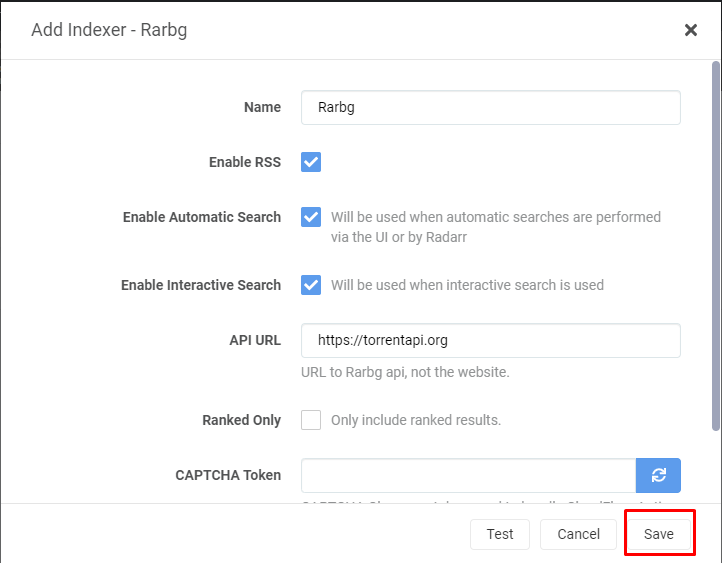
Radarr can only grab what its indexers can find, and you have two ways to feed it. You can add trackers one at a time inside Radarr under Settings → Indexers — but don’t. On a real setup you run several arr apps, and adding every tracker to every app by hand is tedious and drifts out of sync fast.
The right answer is Prowlarr. Prowlarr is an indexer manager: you add each tracker once in Prowlarr (port 9696), then Prowlarr pushes them to Radarr, Sonarr, and every other arr app automatically. Add a new tracker later and it appears everywhere with no extra work. This is the approach we recommend for every EvoSeedbox customer.
The screenshots below walk through connecting indexers so Radarr can search.
Step 1 — Open the Indexers settings.
Step 2 — In Prowlarr, add Radarr as an application using Radarr’s URL and the API key from Step 3 above, so Prowlarr can sync indexers into it.
Step 3 — Add your trackers in Prowlarr. Search the built-in definition list, add each indexer, and enter your credentials or API keys.
Step 4 — Confirm the indexers appear in Radarr. After a Prowlarr sync, your trackers show up automatically in Radarr’s Indexers list.
Step 5 — Test each indexer. A green tick means Radarr can query it. Red means bad credentials or a down tracker.
Step 6 — Run a manual search to verify results. Pick any movie and trigger an interactive search; you should see releases returned from your indexers.
For the full details on tuning Prowlarr — sync profiles, categories, and per-app tagging — see our Prowlarr setup guide and the deeper ultimate Prowlarr guide.
Quality Profiles and Custom Formats for Movies
Quality profiles are how Radarr decides which release to grab when a dozen are available. A profile is an ordered list of allowed qualities (e.g. Bluray-1080p, WEBDL-1080p, Bluray-2160p) plus an upgrade cutoff — the point at which Radarr stops looking for something better. Set a cutoff of Bluray-1080p and Radarr will grab a WEBDL now, then silently upgrade to a Bluray release when one appears, then stop.
For movies, the real power is Custom Formats. Where quality profiles handle resolution, Custom Formats let you score the things that matter for film: HDR10, Dolby Vision (DV), x265/HEVC encoding, audio formats (Atmos, DTS-HD), release groups, and repack/proper preference. You assign each format a score, and Radarr picks the release with the highest total. This is how you say “I want 2160p Dolby Vision x265, but never a release with burned-in hardcoded subs.”
Because 4K and HDR profiles have a lot of moving parts, we cover the recommended movie profiles and Custom Format scores in a dedicated spoke — Sonarr & Radarr quality settings for 4K. One caution specific to seedboxes: 2160p HDR/DV files are large, so match your profile to your storage plan — grabbing every movie in 4K remux will fill even a generous quota quickly.
The Full Automation Flow (Add Movie to Watching)
With the download client, root folder, indexers, and a quality profile in place, adding a movie is the last manual thing you ever do. Here is the end-to-end sequence.
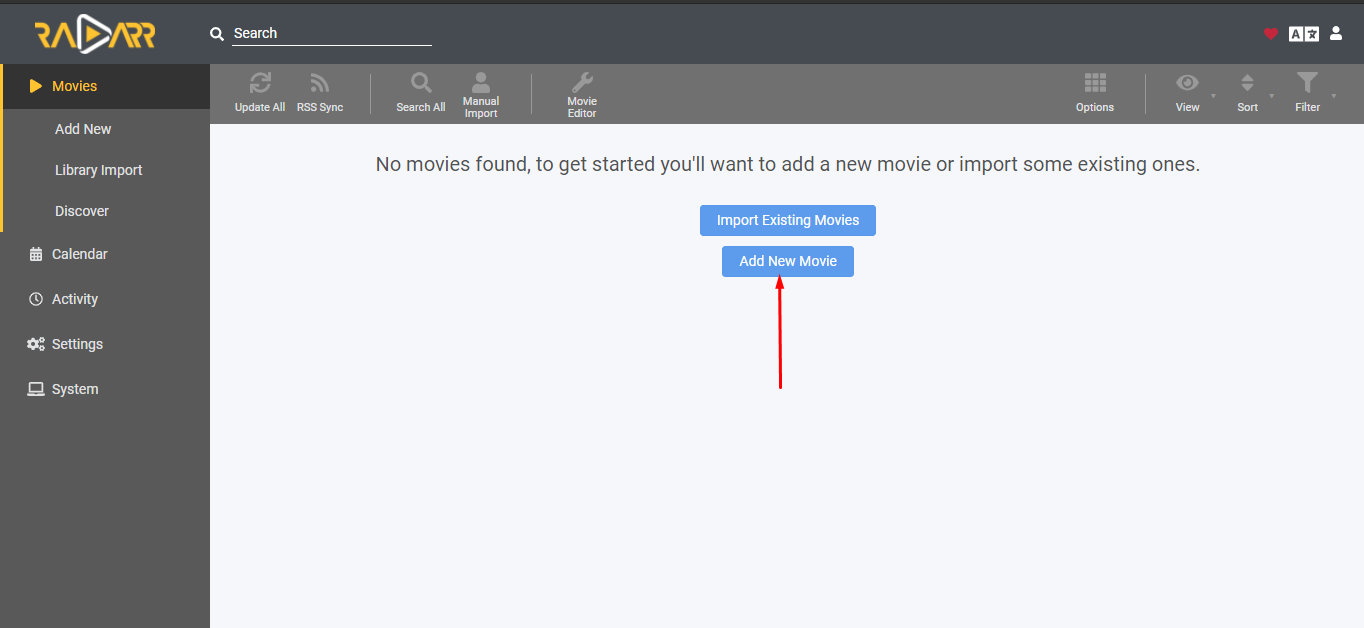
Step 1 — Search for the movie. Use Add New and search by title; Radarr matches against TMDb.
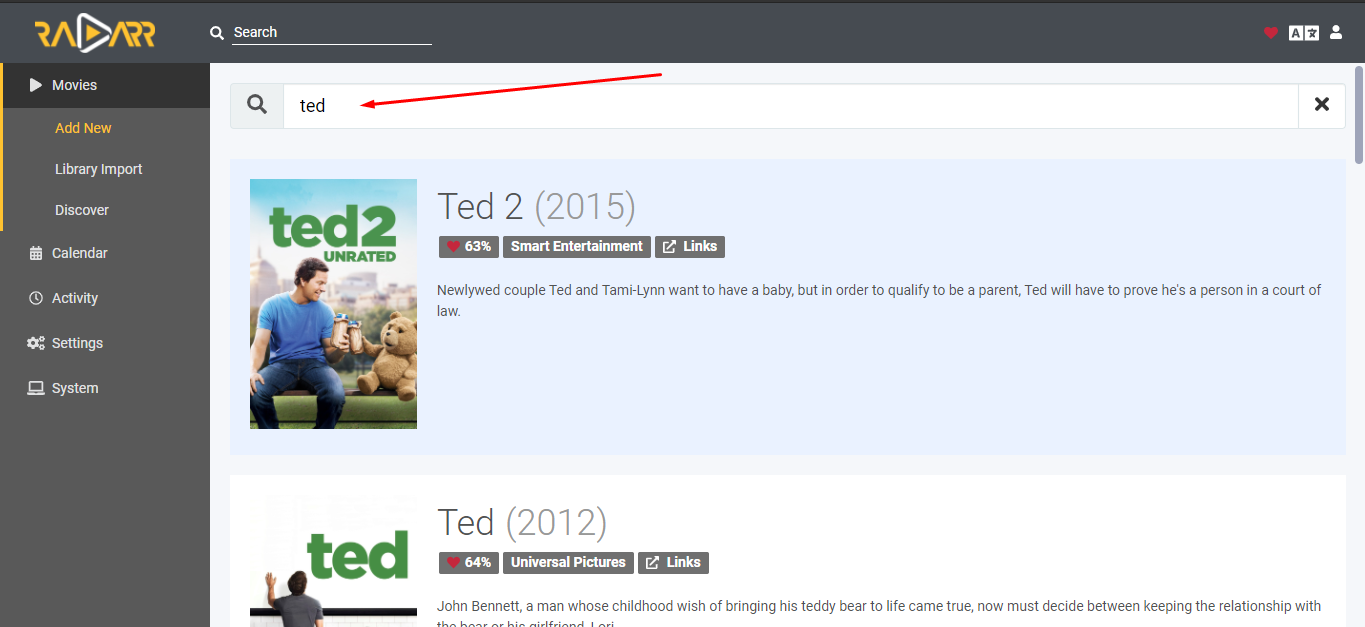
Step 2 — Pick the root folder, quality profile, and monitoring. Choose your library root, the profile you built above, and whether to search on add.
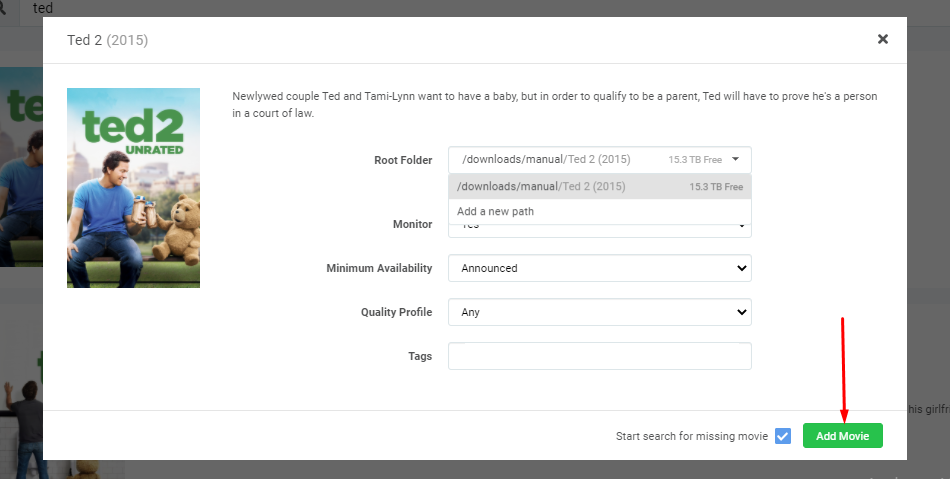
Step 3 — Radarr searches and grabs. It queries your indexers, picks the highest-scoring release that fits your profile, and sends it to ruTorrent.
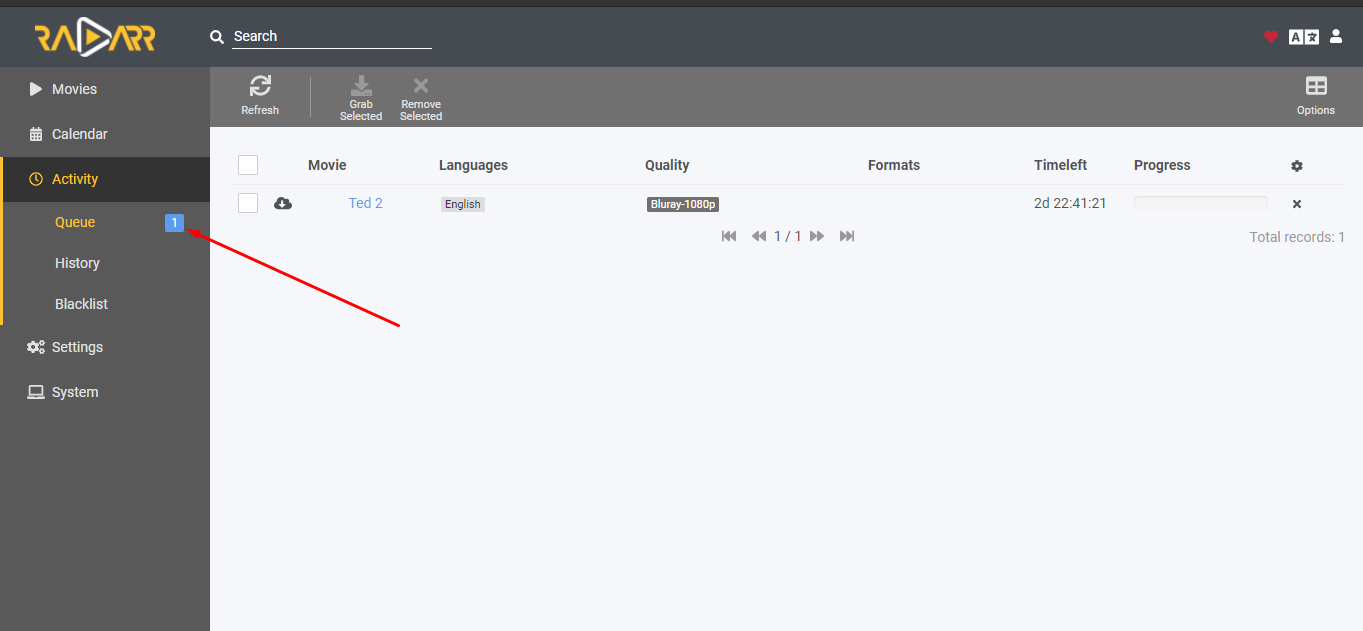
Step 4 — Download, import, and rename. ruTorrent downloads at seedbox speed; on completion Radarr imports the file into your root folder, renames it to your scheme, and marks the movie as owned.
Once the file lands in your root folder, hook Radarr into your media server with a Connect notification (Settings → Connect) so Plex or Jellyfin rescans instantly and the movie appears ready to stream. To finish the experience, add Bazarr — it watches your Radarr library and automatically downloads matching subtitles in the languages you choose, so every film arrives fully subtitled without a second thought.
Manage Radarr from your phone: Radarr in Dashboarr, the free Android and iOS app that connects straight to your seedbox apps.
Every option on every Settings tab, with defaults and seedbox values, is in the Radarr settings reference.
Troubleshooting
Grabbed but not imported (stuck in queue). This is almost always a path problem — the download client’s completed path doesn’t match what Radarr expects. Verify your root folder, your download client category, and add a Remote Path Mapping if the absolute paths differ. Also check that the release isn’t a disc image or archive Radarr can’t import directly.
Test fails on the download client. Recheck host (localhost), port (8080), the RPC/URL path, and your ruTorrent credentials. If ruTorrent itself is throwing errors, work through common ruTorrent errors and how to fix them first, then re-test.
No search results. The issue is upstream at the indexer layer — open Prowlarr, test each tracker, and confirm the sync into Radarr succeeded. Red indexers mean expired credentials or a tracker that’s offline.
Radarr web page won’t load. App Doctor watches Radarr and normally restarts it and re-publishes its port automatically. If it persists, check the app status in your panel — the process may be mid-restart. Remember Radarr’s own web login is separate from FTP; a login you can’t get past is a Radarr credential issue, not an FTP one.
Frequently Asked Questions
Radarr grabbed a movie but it never imported — why?
Nine times out of ten it’s a path mismatch: the download client reports the finished file at one absolute path and Radarr looks at another. Confirm your root folder and download-client category, then add a Remote Path Mapping so the two agree. Our remote-path-mapping guide walks through it. Occasionally it’s a release Radarr can’t import (a disc image or password-protected archive).
How do I make Radarr upgrade a movie to a better quality later?
Set an upgrade cutoff in your quality profile below the top allowed quality. Radarr grabs the best available now, keeps monitoring, and automatically replaces the file when a release above your current quality but below the cutoff appears — then stops. Custom Formats can further steer upgrades toward HDR, Dolby Vision, or x265.
What’s the difference between Radarr and Sonarr?
They’re the same automation engine for different content: Radarr manages movies, Sonarr manages TV series (tracking seasons and episodes). They share indexers via Prowlarr and the same download client, so most people run both side by side.
Which quality profile should I choose?
For most users a 1080p profile (Bluray-1080p / WEBDL-1080p) with a Bluray-1080p cutoff hits the sweet spot of quality and file size. Go 2160p/4K only if your storage plan and streaming setup support it — see our 4K quality settings guide and check your plan quota before grabbing 4K remuxes.
Do I need Prowlarr, or can I add indexers directly in Radarr?
You can add them directly, but Prowlarr is strongly recommended. Add each tracker once in Prowlarr and it syncs to Radarr, Sonarr, and every other arr app automatically — no duplicated config, no drift. See the Prowlarr setup guide.
What settings connect Radarr to my seedbox’s download client?
Under Settings → Download Clients, add rTorrent with host localhost, port 8080, your RPC/URL path, and your ruTorrent credentials, then set a category like radarr. Test for a green tick. The Quick Arr Stack guide shows the full wiring.
How do I get subtitles for my movies automatically?
Add Bazarr and connect it to Radarr. Bazarr watches your library and downloads matching subtitles in your chosen languages automatically as each movie is imported — no manual subtitle hunting.
Is Radarr hard to install on EvoSeedbox?
No — it’s a one-click install from your app catalogue. It’s our second-most-installed app (129 installs across our 47-server fleet), it runs on port 7878 behind an authenticated proxy, and App Doctor self-heals it if the process ever stops. For a broader overview of the whole stack, start with the Quick Arr Stack setup or the Radarr seedbox overview.
Related Guides
- Quick Arr Stack Setup — the master overview for the whole automation stack
- Setting Up Sonarr — the TV sibling to Radarr
- Prowlarr Setup and the Ultimate Prowlarr Guide
- Quality Settings & 4K
- Bazarr Subtitles
- Remote Path Mapping Explained
- ruTorrent Getting Started and Common ruTorrent Errors
- Setting Up Plex and Connecting Jellyfin
Related articles
Put this into practice
EvoSeedbox ships with one-click app installs and up to 10 Gbps per box.


