evoads for macOS: Ad-Blocking DNS with a Menu-Bar App
On this page ▾
evoads for macOS is a small app with a menu-bar icon that switches your Mac’s DNS to your personal evoads resolver and back. Every application on the Mac is covered, not only the browser, and the setting survives sleep, network changes and restarts. This page covers installation on Apple Silicon and Intel Macs, the first-run password prompt, the window and menu-bar controls, and the profile alternative.
How it works
The app has two halves. A background service runs a local DNS resolver on 127.0.0.1 that forwards every lookup to dns.evoseedbox.com over DNS-over-HTTPS with your ClientID, caches answers, and points each network service on the Mac (Wi-Fi, Ethernet, Thunderbolt) at itself, re-checking every minute so a new Wi-Fi network is covered too. The window and menu-bar icon are an ordinary user-level app that talks to that service. Only installing the service needs your password, once. Removing evoads restores the previous DNS settings exactly.
Which download
- Apple Silicon (M1, M2, M3, M4): evoads for Mac, the native app with a window and a menu-bar icon.
- Intel Macs: the classic version. It runs the same service on Intel and Apple Silicon and is controlled from a page in your browser at
http://127.0.0.1:5380/instead of a window.
Not sure which you have? Apple menu → About This Mac shows “Chip: Apple M…” or “Processor: Intel…”.
Step 1: install
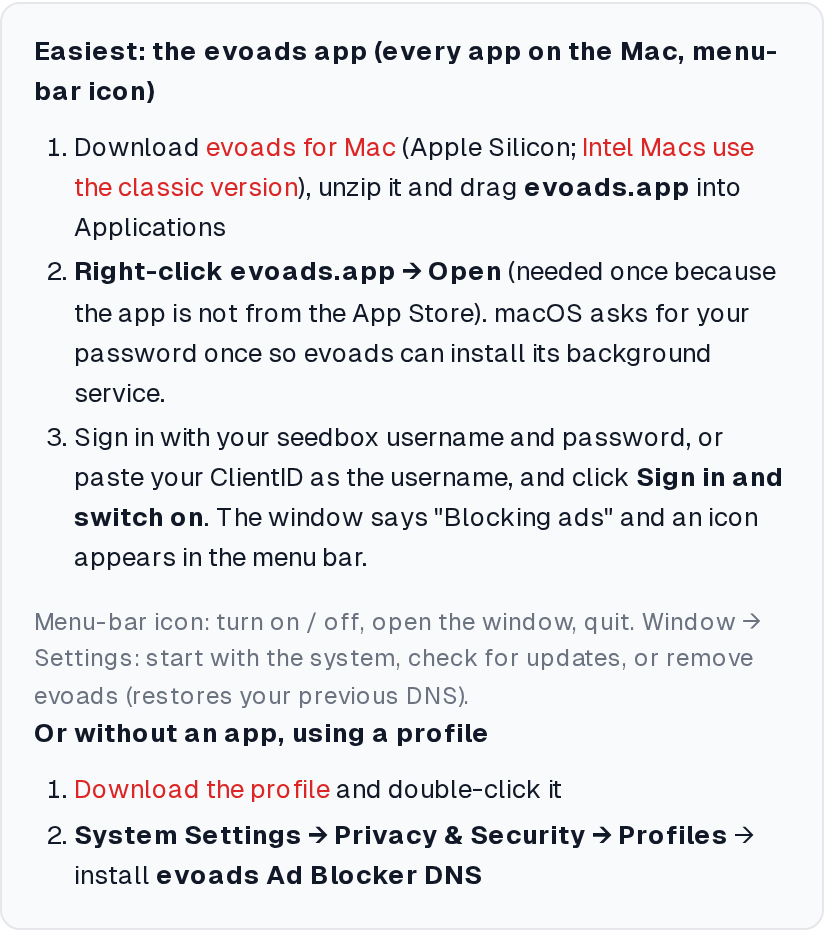
- Download the zip and double-click it. Drag evoads.app into Applications.
- Right-click evoads.app → Open. macOS warns that the app is from an unidentified developer because it is distributed outside the App Store; choose Open. On macOS Sequoia the first attempt may only show “Done” with no Open button: go to System Settings → Privacy & Security, scroll down and click Open Anyway, then open the app again.
- macOS asks for your login password: “evoads wants to make changes”. This installs the background service and points your Mac’s DNS at it. Enter the password once.
Step 2: sign in
- The evoads window opens on the Sign in view. Enter your seedbox username and password (the ruTorrent login), or paste your ClientID from the client area as the username and leave the password empty.
- Click Sign in and switch on.
- The window changes to Blocking ads and the evoads icon appears in the menu bar. The subtitle reads “Every app on this computer uses your evoads resolver” once the DNS switch has been confirmed.
Everyday use
- Menu-bar icon: Turn on, Turn off, Open evoads, Quit evoads window. Quitting the window does not stop blocking; the service keeps running.
- Window: the large button toggles blocking; counters show queries answered and blocked since the service started; Test asks the resolver for a known ad host and reports whether it came back blocked; Sign out switches blocking off and forgets the ClientID.
- Settings: Start with the system (on by default), Check for updates, and Remove evoads from this computer, which stops blocking, restores your previous DNS servers and uninstalls the service.
Checking it
Open evoseedbox.com/evoads-check in a private window. It should report that the Mac resolves through evoads. From Terminal, scutil --dns | head lists 127.0.0.1 as the nameserver and dig ads.doubleclick.net answers 0.0.0.0.
Things that bypass evoads on a Mac
- Safari with iCloud Private Relay: Safari’s lookups go through Apple’s relay. Turn Private Relay off in System Settings → Apple ID → iCloud or accept that Safari alone is unfiltered.
- Firefox DNS-over-HTTPS and Chrome’s “Use secure DNS” with a custom provider skip the system resolver. Set them to off, or paste your evoads DoH URL there as the custom provider.
- Another VPN pushes its own DNS while connected. Your seedbox WireGuard tunnel already uses evoads.
Without the app: a DNS profile
The evoads panel’s macOS tab also offers a configuration profile. Download it, double-click it, then install it under System Settings → Privacy & Security → Profiles. The profile sets encrypted DNS for the whole Mac like the iPhone version, with no menu-bar icon and no counters. Do not run the app and the profile together.
Troubleshooting
“evoads is not running” in the window
The background service did not start. Open the app again; it re-installs the service after another password prompt. The log is at /Library/Application Support/evoads/evoads.log.
Ads still show after installing
Close and reopen the browser so it drops cached lookups and open connections. Then flush the system cache: sudo dscacheutil -flushcache; sudo killall -HUP mDNSResponder.
Updating
Settings → Check for updates shows a Download link when a newer version exists. Quit the window, replace evoads.app in Applications with the new one and open it; the service is upgraded in place and your sign-in is kept.
Uninstalling by hand
Settings → Remove evoads does everything. If the app is already gone, run sudo networksetup -setdnsservers Wi-Fi empty (and the same for Ethernet) to return to automatic DNS.
Related articles
Put this into practice
EvoSeedbox ships with one-click app installs and up to 10 Gbps per box.
