OpenSSH Tutorial: Get a Shell on Your Seedbox
On this page ▾
Short answer: your seedbox login on port 22 is SFTP only — to get a real command line you install the OpenSSH app from your control panel. It gives you a Bash shell running as your own user, with your downloads folder mounted, and rsync and git already inside. This guide covers what the app is, how to install it, how to connect from Windows, macOS and Linux, and what you can and cannot do once you are in.
Two different SSH logins — read this first
| Port 22 (built in) | OpenSSH app (installed from the panel) | |
|---|---|---|
| What you get | SFTP file transfer only | A Bash shell |
| Port | 22 | Shown in the panel after install (a five-digit number) |
| Username / password | Same as ruTorrent | Same as ruTorrent |
| Sees | Your whole home directory | Your downloads folder, plus its own small home |
| Typical use | FileZilla, WinSCP, sftp, rclone, sshfs |
rsync, scripts, unpacking, poking at files |
If you type ssh username@your-server with no port, you will see “This service allows sftp connections only”. That is not an error — port 22 is doing its job. The shell lives on the app’s port.
Step 1: Install the OpenSSH app
- Log in to your client area and open your seedbox control panel.
- In the apps section, search for OpenSSH and click Install. It takes under a minute.
- Open the app from your installed apps. A window shows the hostname and the port you will connect to.
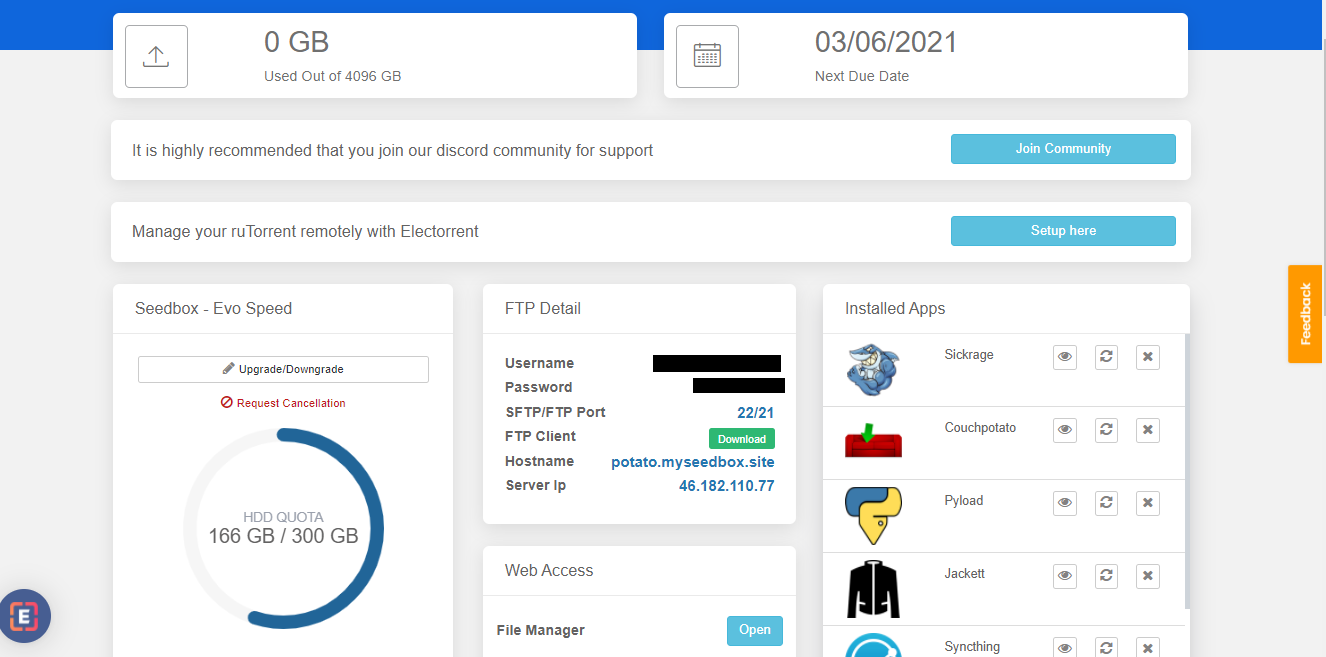
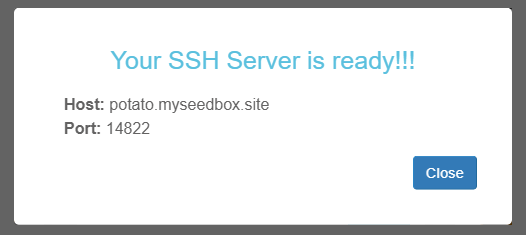
Your password is the one you use for ruTorrent and FTP. There is nothing else to configure.
Step 2: Connect
Windows
Windows 10 and 11 include an SSH client. Open PowerShell and run:
ssh username@hostname -p PORTReplace the three values with the ones from the app window. Accept the host key the first time, enter your password, and you are at a prompt. If ssh is not recognised, add the OpenSSH Client optional feature in Windows Settings, or use PuTTY with the same host, port and username.

macOS and Linux
Open Terminal — the SSH client is already installed — and run the same command:
ssh username@hostname -p PORTOn a Linux desktop without ssh, install it with sudo apt install openssh-client (Debian/Ubuntu) or your distribution’s equivalent.
What you can do in the shell
- Work with your files. Your torrent data is at
/home/username/downloads, exactly as SFTP shows it. Move, rename, unpack (unzip,tar) and check sizes withdu -sh. - Use rsync. The app includes
rsync, so a NAS or home machine can pull from the seedbox withrsync -avP -e "ssh -p PORT" username@hostname:/home/username/downloads/complete/ /volume1/media/. Point the schedule at the NAS end; see transferring files from your seedbox for the alternatives. - Use git to keep your own scripts on the box.
- Run one-off commands while you watch — a long move, a hash check of an archive, a quick
lsto see what finished.
What you cannot do
- No root, no
sudo, no package installs. The shell runs as your user inside its own container; the seedbox’s system is not visible from it. - No port forwarding or tunnelling.
ssh -L,-Dand-Rare disabled on both ports. - Not the whole home directory. App configuration folders and the rest of your home are not mounted in the shell — use SFTP for those.
- Nothing persists outside your files. No cron service runs in the app, and background processes are not kept between app restarts. Schedule from the machine that pulls, not from the seedbox.
- Not a torrent client. rTorrent is managed through ruTorrent and the panel; the shell cannot restart it. Use the Restart button in the panel.
Frequently asked questions
Why does port 22 refuse a shell?
Every account on a shared server is confined to its own home directory and limited to file transfer on port 22. That isolation is what keeps hundreds of accounts safely apart. The OpenSSH app gives you a shell without loosening it.
Can I log in with an SSH key?
Yes, on the app’s port. See SSH key authentication. Port 22 (SFTP) uses your password.
Can I mount my seedbox as a drive from the shell?
Mounting works the other way round — from your computer over SFTP on port 22. See mounting your seedbox.
Does the app use my storage or traffic?
Negligible storage; traffic counts only when you copy data through it, the same as any transfer.
Related articles
Put this into practice
EvoSeedbox ships with one-click app installs and up to 10 Gbps per box.


