The evoftp window explained
On this page ▾
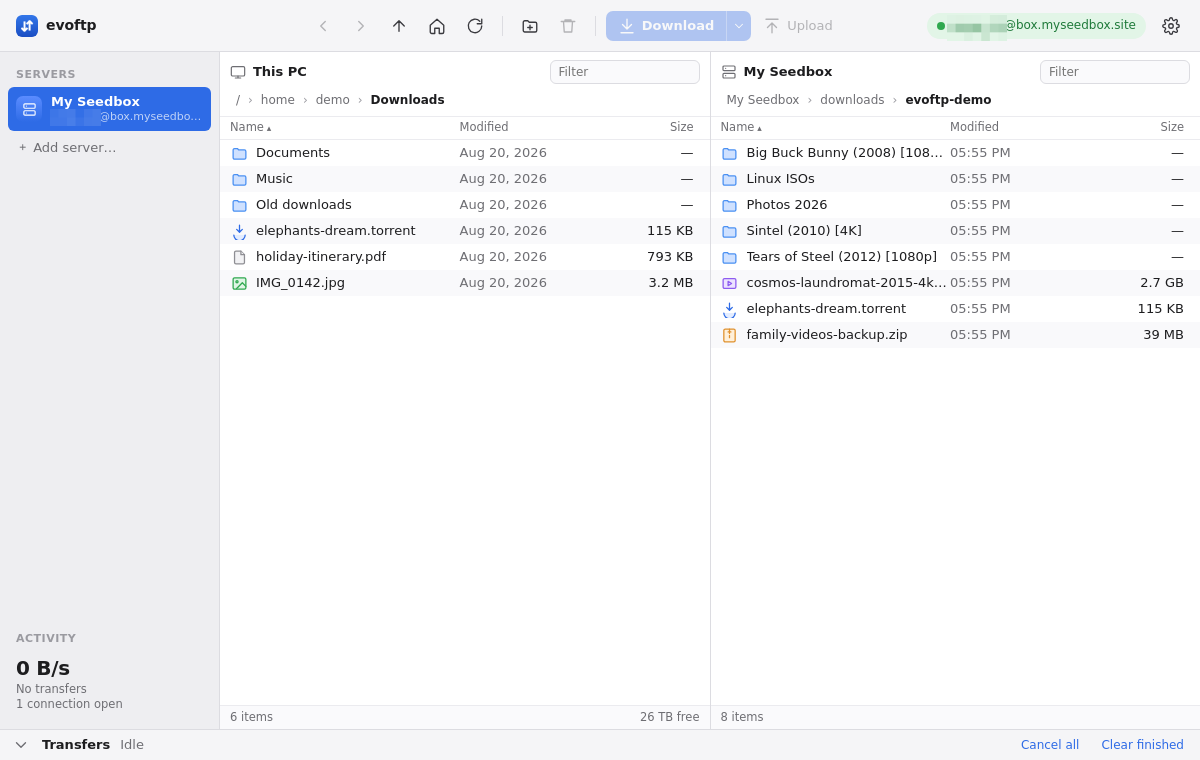
The evoftp window has four parts: a sidebar on the left, a toolbar across the top, two file panes in the middle, and a Transfers drawer along the bottom. This page names each control so the other help pages make sense.
Overview: evoftp guide.
Sidebar
- Servers — your saved servers; click one to connect, right-click for Edit… and Remove. + Add server… opens the connect sheet.
- Activity — three lines: the total transfer speed (
0 B/swhen idle), how many transfers are active and queued (“No transfers” when none), and how many SSH connections are currently open to the seedbox.
Toolbar
- Back / Forward — step through the folder history of the focused pane.
- Up (labelled “Enclosing folder”) — go to the parent folder.
- Home — the folder the connection opened in on the seedbox side; your user folder on the This PC side.
- Refresh — re-read the focused pane (Ctrl/⌘+R).
- New folder — create a folder in the focused pane.
- Delete — delete the selection in the focused pane; it asks first.
- Download ▾ — download what is selected on the seedbox into the folder shown on the left (Ctrl/⌘+D); the ▾ lets you pick 8, 4, 2 or 1 connections for this download.
- Upload — send the selection on the left to the folder shown on the right (Ctrl/⌘+U).
- Connection pill — reads Not connected, Connecting…, or
username@hostname; click it to disconnect, or to open the connect sheet when nothing is connected. - Gear — Settings: download folder, transfer profile, notifications, updates.
Buttons grey out when they cannot apply: Download needs a connection and a selection on the right, Upload a connection and a selection on the left, Delete a selection.
The two panes
The left pane, This PC, is your computer; it starts in the Download folder from Settings. The right pane is titled Seedbox until you connect, then takes the server’s Name, and starts in the folder your connection file pointed at. Each pane has a Filter box, a breadcrumb path bar, sortable Name, Modified and Size headers, the file list, and a status bar reading “N items, M selected (size)”. The This PC status bar also shows the free space on that drive. The pane whose selection is drawn in the full highlight colour is the focused pane; Back, Forward, Up, Home, Refresh, New folder and Delete act on it.
Transfers drawer
The bar along the bottom is collapsed until a transfer starts, then opens by itself. Its header has a chevron to open or close it by hand, a summary (Idle, “2 active · 45 MB/s · 3 queued”, or “5 finished”), Cancel all, and Clear finished, which removes done, failed and cancelled rows. Each row shows the file, how much has arrived, its speed, time left, and the number of segments in use; the × on a row cancels it, and a circular arrow on a failed or cancelled row retries it.
Note: The right pane shows one server at a time; connecting to another replaces it.
Overview: evoftp guide.
Related articles
Put this into practice
EvoSeedbox ships with one-click app installs and up to 10 Gbps per box.
