Sonarr Setup on a Seedbox
On this page ▾
Sonarr is the brain of an automated TV library. You tell it which shows you want and at what quality, and it watches your indexers around the clock — grabbing new episodes minutes after they air, sending them to your torrent client, then renaming, sorting, and handing the finished files to Plex or Jellyfin. No manual searching, no messy folders, no missed episodes. On the EvoSeedbox fleet it is our single most-installed automation app: 94 active Sonarr installs across 47 servers, all deployed with one click.
The reason to run Sonarr on your seedbox rather than on a home PC is simple: locality and uptime. When Sonarr lives on the same box as ruTorrent, a completed download is already sitting on the same disk — importing is an instant local move, not a slow copy across the internet. Your seedbox runs 24/7 on a gigabit line, so Sonarr keeps hunting while your home machine sleeps, and grabs land at datacenter speed. Pair it with Radarr for movies and Prowlarr for indexers and you have the full “arr” stack — see our Quick Arr Stack Setup for the master overview.
How Sonarr Works
Sonarr runs a continuous pipeline. It knows your series list and their air dates, checks your indexers for matching releases, grabs the best one that fits your quality rules, hands it to the download client, then imports and renames the finished file into your library where Plex or Jellyfin picks it up.
 ┌─────────┐   ┌──────────┐   ┌───────────┐   ┌────────────┐   ┌─────────┐
 │ Monitor │ → │  Search  │ → │   Grab    │ → │  Download  │ → │ Import  │
 │ RSS +   │   │ Prowlarr │   │ send to   │   │ ruTorrent  │   │ rename  │
 │ series  │   │ indexers │   │ dl client │   │ /rTorrent  │   │ + move  │
 └─────────┘   └──────────┘   └───────────┘   └────────────┘   └────┬────┘
                                                                    ▼
                                                            ┌──────────────┐
                                                            │ Plex/Jellyfin│
                                                            └──────────────┘
What You Need
Sonarr does not download anything itself and does not talk to trackers directly. It orchestrates three other pieces: an indexer manager (Prowlarr) to find releases, a download client (ruTorrent/rTorrent) to fetch them, and a media server (Plex or Jellyfin) to play them. All four install with one click on your EvoSeedbox panel and run on the same machine, on their own ports.
        ┌──────────┐
        │ Prowlarr │  indexers  (port 9696)
        └────┬─────┘
             │ syncs indexers
        ┌────▼─────┐    grabs      ┌────────────┐
        │  Sonarr  │ ────────────▶ │ ruTorrent  │
        │  (8989)  │ ◀──────────── │ HTTPS :443 │
        └────┬─────┘  completed    └────────────┘
             │ imports
        ┌────▼──────────┐
        │ Plex/Jellyfin │
        └───────────────┘
Each app runs in its own isolated container with its own port, which is why localhost will not work between them — a container that calls localhost is calling itself. Your exact per-app addresses are listed in your panel (and in appInfo.txt in your home directory); they look like https://yourbox.myseedbox.site:59157 and are unique to your account. ruTorrent is the exception: it is reached on the standard HTTPS port 443, at your seedbox hostname. Nothing here needs port forwarding or a firewall rule.
Connecting ruTorrent as the Download Client
This is the connection people get wrong most often, so get it right once and everything downstream just works. In Sonarr go to Settings → Download Clients → + → Torrents → rTorrent. rTorrent is the engine that powers ruTorrent, so you pick “rTorrent” here, not a web-UI option. Fill it in exactly like this:
 Download Client ── rTorrent (ruTorrent)
   Host ............ <yourbox>.myseedbox.site
   Port ............ 443
   Use SSL ......... Yes
   URL Path ........ rutorrent/plugins/httprpc/action.php
   Username ........ your seedbox username
   Password ........ your seedbox password
   Category ........ tv-sonarr
   Directory ....... /home/<user>/downloads/tv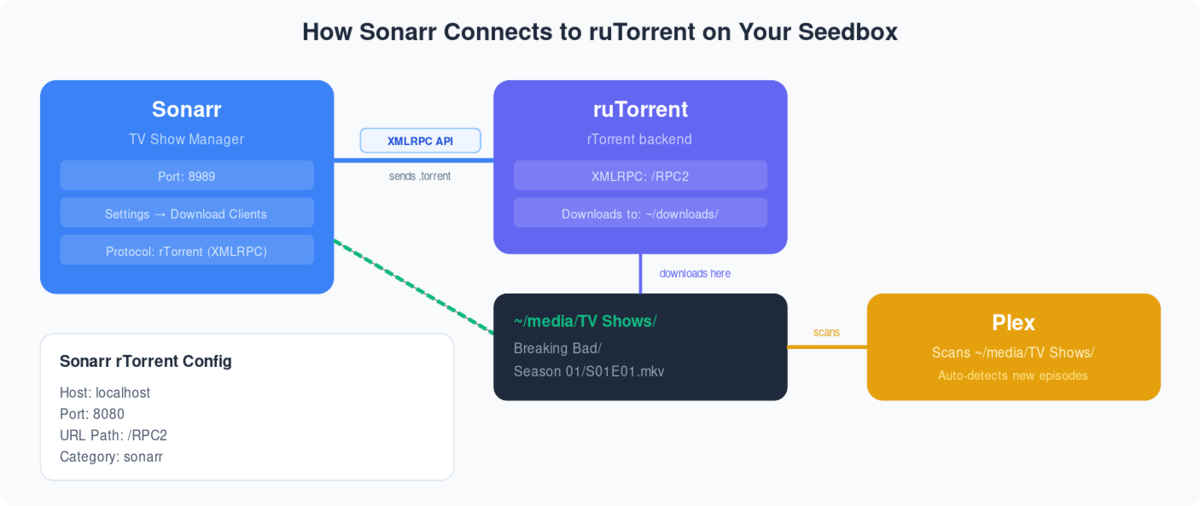
The URL Path is the single field that trips everyone up. On EvoSeedbox it is exactly rutorrent/plugins/httprpc/action.php — with no leading slash. RPC2 also works — we map it to the same endpoint, so the value you find in generic Sonarr guides is accepted here too. If you are following a guide from elsewhere and it says RPC2, that is fine. Set a Category like tv-sonarr so Sonarr’s downloads stay separate from anything you grab by hand in ruTorrent. Hit Test — a green checkmark means the handshake works. If you would rather have Prowlarr provision this automatically, the Quick Arr Stack guide wires the whole chain in the correct order, and ruTorrent Getting Started covers the client itself.
Root Folders & Remote Path Mapping
A root folder is where Sonarr keeps your finished, renamed library — for example /home/<user>/media/tv. Add it under Settings → Media Management → Root Folders. When you add a series, Sonarr creates the show folder here and imports every episode into it.
Here is the key distinction. If Sonarr and ruTorrent run on the same seedbox — the normal EvoSeedbox setup — you need no remote path mapping at all. Both apps see the exact same filesystem, so the path ruTorrent reports (/home/<user>/downloads/tv/...) is the same path Sonarr reads from. Import is a fast local hardlink or move. Only when Sonarr runs somewhere else — say on your home machine while ruTorrent stays on the seedbox — do the two see different paths, and you must translate between them. That is exactly what Remote Path Mapping Explained walks through, and connecting a home Sonarr to a remote seedbox covers that whole topology. Same box: skip it. Split box: read both.
Understanding Quality Profiles
Quality profiles are how you tell Sonarr what “good enough” means. Each profile is an ordered list of allowed qualities plus a cutoff — the point at which Sonarr stops upgrading. Set the cutoff too high and Sonarr keeps re-grabbing bigger files forever; set your allowed list sensibly and it grabs once, upgrades to your target, then leaves it alone.
 PROFILE        RESOLUTION   TYPICAL SIZE/EP   USE CASE
 ─────────────────────────────────────────────────────────
 SD             480p         ~150 MB           save disk
 HD-720p        720p         ~500 MB           tablets
 HD-1080p       1080p        ~1.5 GB           DEFAULT
 Ultra-HD       2160p / 4K   ~5-8 GB           home theatre
 Any            mixed        varies            grab anything
For most people HD-1080p is the sweet spot — great picture, sane file sizes, easy to stream. Only reach for Ultra-HD if you have the disk and a 4K-capable player; our Sonarr & Radarr quality settings for 4K spoke covers the codecs, HDR flags, and size limits that make 2160p behave. Beyond raw resolution, release profiles let you prefer or ban specific tags — favour a trusted release group, block x265 if your player struggles, or reject HDTV in favour of WEB-DL. A short must-not-contain list here saves a lot of re-downloads later.
Indexers via Prowlarr
You can paste indexers directly into Sonarr, but don’t. Add them once in Prowlarr and it syncs every indexer to Sonarr, Radarr, and the rest of the stack automatically — one place to manage API keys, one place to fix a broken tracker. When you add a new private tracker six months from now, Prowlarr pushes it to all your apps at once instead of you editing four separate config screens. Start with our Prowlarr setup guide, and for the deep dive read Prowlarr: the ultimate guide. Prowlarr runs on port 9696 on your seedbox.
Sonarr Key Settings
 Download Client ── rTorrent  →  localhost:8080  (RPC2)
 Root Folder ...... /home/<user>/media/tv
 Indexers ......... synced from Prowlarr (9696)
 Quality Profile .. HD-1080p (cutoff 1080p)
 Rename Episodes .. ON   ({Series} - S{season}E{episode})
 Completed Handling ON   (import + hardlink)
 Connect .......... Plex / Jellyfin / Bazarr
The Full Automation Flow, End to End
Once configured, here is what happens without you lifting a finger. You add a show and set it to Monitored. Sonarr checks its RSS feed and calendar; when a new episode airs, it searches your Prowlarr indexers and picks the best release matching your quality profile. It grabs that release and sends the torrent to ruTorrent under the tv-sonarr category. ruTorrent downloads it on your gigabit line. On completion Sonarr imports the file — renaming it cleanly and hardlinking it into your root folder so the torrent keeps seeding while your library stays tidy. Finally your media server indexes it, and the episode appears in Plex or Jellyfin ready to stream.
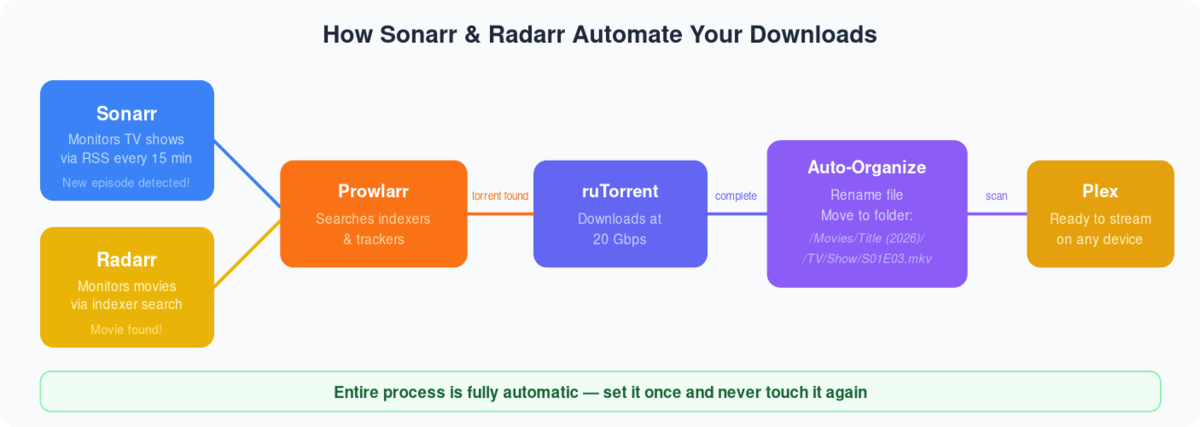
Add Bazarr to the chain and subtitles arrive automatically too — Bazarr watches the same libraries as Sonarr and Radarr and fetches matching subs in your chosen languages the moment an episode imports. For playback, follow Setting up Plex or connecting Jellyfin. Doing the same for films? Radarr is Sonarr’s movie sibling and shares this exact wiring.
Installing Sonarr
Installation is one click from your EvoSeedbox control panel — no dependencies, no compiling, no systemd editing. App Doctor watches the container afterwards and self-heals it if the process ever dies. Follow the numbered steps below.
Step 1. Log in to your EvoSeedbox dashboard and open the Apps / one-click installer.

Step 2. Find Sonarr in the application list.
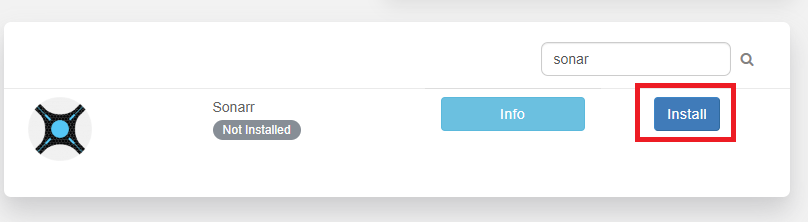
Step 3. Click Install to start the one-click deployment.

Step 4. Confirm the install and wait for the container to provision.
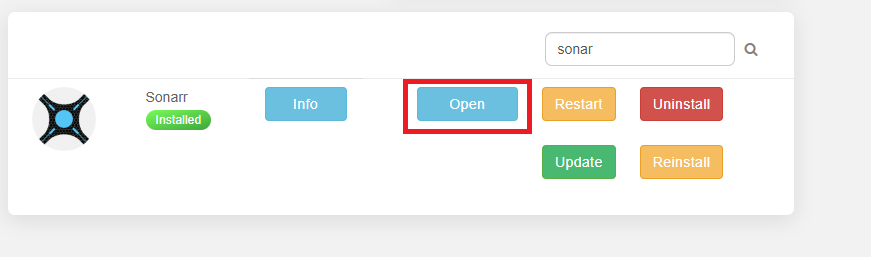
Step 5. When it finishes, open Sonarr from your app list (port 8989).
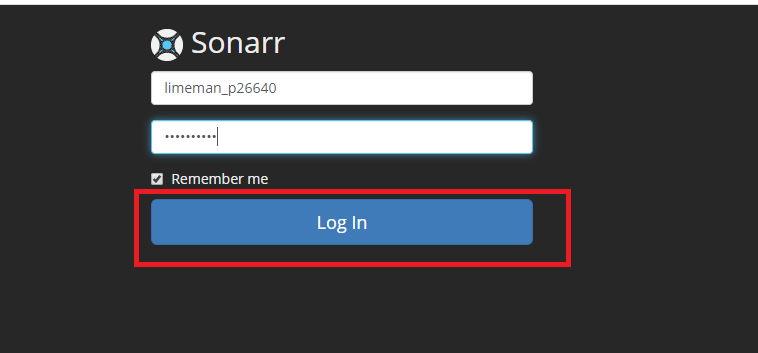
Step 6. The Sonarr web UI loads for the first time.
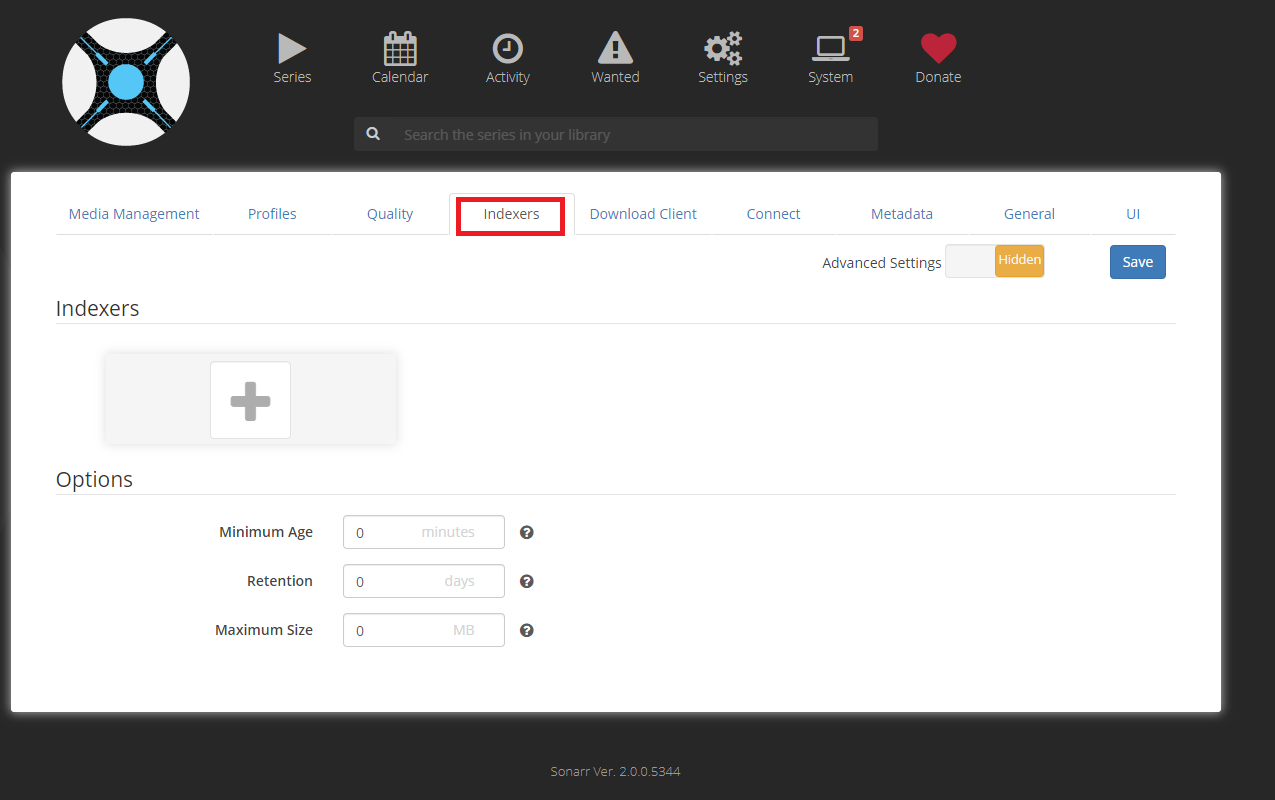
Step 7. Go to Settings → Media Management and add your root folder.

Step 8. Open Settings → Download Clients and add rTorrent.

Step 9. Enter host localhost, port 8080, and the RPC2 URL path.

Step 10. Click Test — a green tick confirms the connection.

Step 11. Go to Settings → Indexers to connect Prowlarr.

Step 12. Under Profiles, review or create your quality profile.

Step 13. Use the Series → Add New search to find a show.

Step 14. Pick the root folder and quality profile, then add the series.

Step 15. Sonarr begins monitoring and searching — you are live.

Confirm the Activity queue shows episodes grabbing and importing correctly.

Manage Sonarr from your phone: Sonarr in Dashboarr, the free Android and iOS app that connects straight to your seedbox apps.
Every option on every Settings tab, with defaults and seedbox values, is in the Sonarr settings reference.
Troubleshooting
Episode grabbed but not downloading. The grab reached Sonarr’s history but nothing appears in ruTorrent. Almost always the download-client connection or category is wrong: re-test the rTorrent client (your seedbox hostname, port 443, SSL on, URL path rutorrent/plugins/httprpc/action.php or RPC2), and check the torrent didn’t stall on a dead tracker in ruTorrent. Our common ruTorrent errors guide covers stuck and unregistered torrents.
Downloaded but not imported. ruTorrent shows the torrent at 100% but Sonarr never moves it into the library. On a same-box seedbox this is usually a permissions or category mismatch; on a split setup it is a path mismatch — Sonarr can’t find the file where ruTorrent says it is. Fix it with Remote Path Mapping.
Imported but not showing in Plex/Jellyfin. Sonarr’s history says “Imported” but the episode isn’t in your media server. Confirm the media server’s library path matches Sonarr’s root folder and trigger a library scan — or enable the Plex/Jellyfin connection under Settings → Connect so Sonarr notifies it on every import. See Setting up Plex.
Every option on every Settings tab, with defaults and seedbox values, is in the Sonarr settings reference.
Troubleshooting: Reinstall
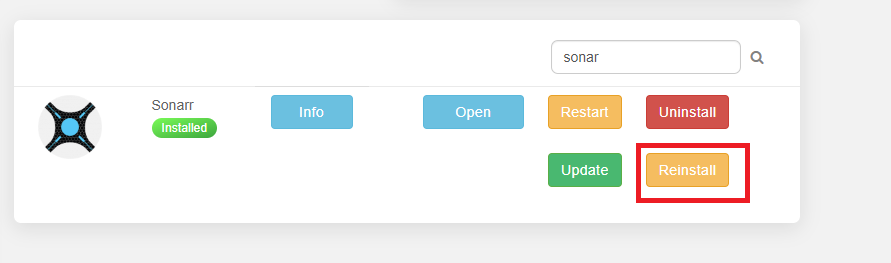
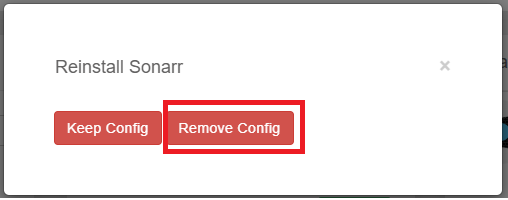
If Sonarr becomes unresponsive and App Doctor’s self-heal hasn’t recovered it, the fastest reset is a clean reinstall from the app panel — your library files and settings persist on disk. Remove the app, then install it again.
Related Guides
- Quick Arr Stack Setup — the master overview of the whole stack
- Radarr — the movie sibling of Sonarr
- Prowlarr Setup and the ultimate Prowlarr guide
- ruTorrent Getting Started and common ruTorrent errors
- Remote Path Mapping · Connect a home Sonarr to a remote seedbox
- Quality settings for 4K · Bazarr for subtitles
- Setting up Plex · Connecting Jellyfin
- Sonarr seedbox plans · Pricing
Frequently Asked Questions
Should I add indexers in Prowlarr or directly in Sonarr?
Use Prowlarr. Add each indexer once and Prowlarr syncs it to Sonarr, Radarr, and every other arr app automatically, so you manage API keys and fix broken trackers in one place instead of four. Direct indexers work but become a maintenance headache the moment you run more than one app.
Sonarr found an episode but it never downloads — why?
The grab reached Sonarr but not ruTorrent. Re-test the rTorrent download client (localhost, port 8080, URL path RPC2) and check the torrent isn’t stalled on a dead tracker inside ruTorrent. A failed client test is the number-one cause.
The episode downloaded but never appeared in my library.
Sonarr couldn’t import it. On a same-box seedbox this is a permissions or category mismatch; on a split home-Sonarr setup it’s a path mismatch that needs remote path mapping. Check Activity → Queue for the exact error message.
An episode imported but isn’t in Plex or Jellyfin.
Your media server hasn’t scanned it yet. Make sure its library path matches Sonarr’s root folder, then enable the Plex/Jellyfin connection under Settings → Connect so Sonarr triggers a scan on every import.
Can I grab existing seasons, not just new episodes?
Yes. When adding a show, set the monitor option to “All Episodes” (or pick specific seasons), then use the season or series search to fetch the back catalogue. Sonarr will hunt down everything that matches your quality profile.
Do I need remote path mapping on an EvoSeedbox server?
No — not for the standard setup where Sonarr and ruTorrent both run on the same seedbox. They share one filesystem, so paths match and imports are instant. You only need mapping if Sonarr runs on a different machine, such as a home PC pulling from a remote seedbox.
What quality profile should I start with?
HD-1080p is the best default — excellent picture at manageable file sizes. Move to Ultra-HD only if you have the disk space and a 4K-capable player; our 4K quality guide covers the codec and HDR settings that keep 2160p under control.
What happens if Sonarr crashes on my seedbox?
App Doctor, our fleet-wide self-healing system, detects a down or unresponsive Sonarr container and restarts it automatically. If it can’t recover, a one-click reinstall from your app panel resets the app while keeping your library and settings intact.
Related articles
Put this into practice
EvoSeedbox ships with one-click app installs and up to 10 Gbps per box.


