Settings: download folder and notifications
On this page ▾
By the end of this page you will have set where evoftp puts your downloads and whether it tells you when they finish. Both live in evoftp settings, behind the gear icon at the top right of the window.
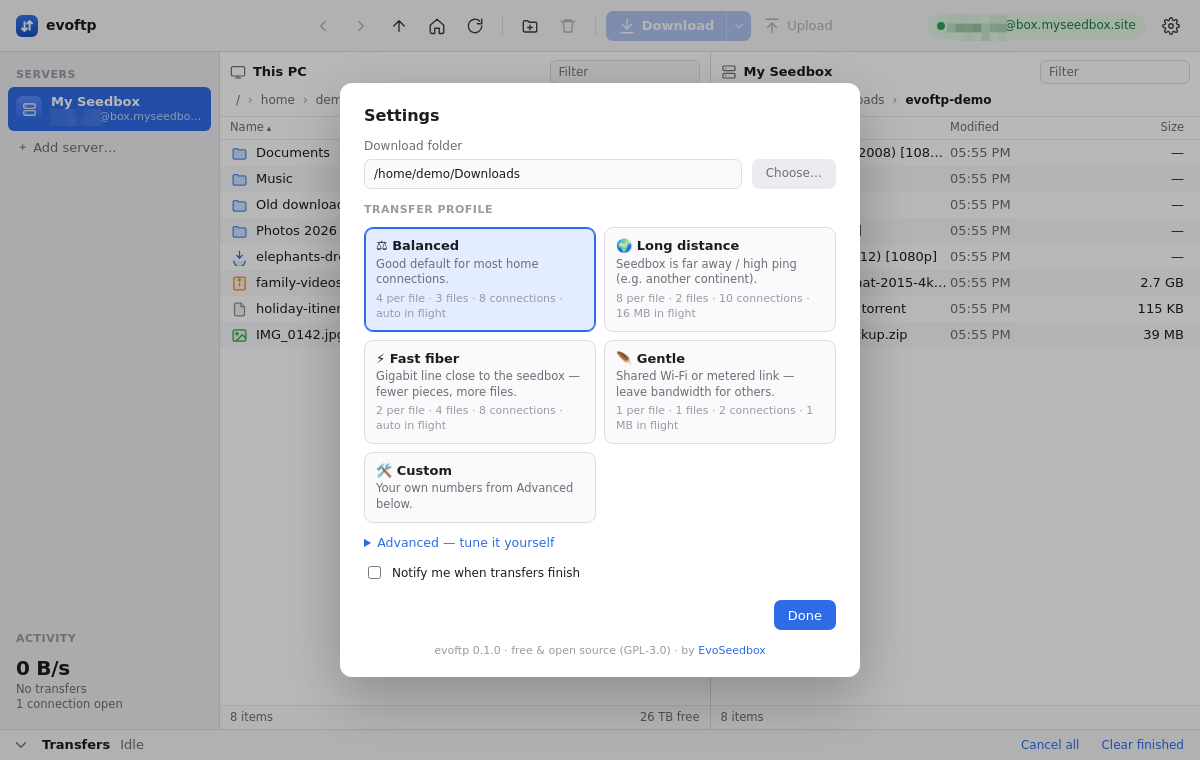
Opening settings
- Click the gear icon at the right end of the toolbar.
- Change what you need, then click Done. Nothing is saved until you click Done; pressing Esc closes the sheet and discards the changes.
Choosing the download folder
The Download folder is the folder on your PC that the left pane (This PC) opens in when evoftp starts, and therefore the place downloads land unless you navigate the left pane somewhere else first. The default is your user account’s Downloads folder.
- Click Choose… next to the folder path. The path field itself is not typed into.
- Pick a folder in the system dialog. You can create a new folder from inside the dialog.
- Click Done. If the folder changed, the left pane jumps to it straight away.
You can also change destination per download without touching settings: navigate the left pane to any folder before you press Download. The toast that appears when a download starts tells you where the files are going.
Turning notifications on or off
Notify me when transfers finish — when ticked, evoftp posts a normal operating-system notification once the transfer queue has drained. It is on by default.
- You get one notification per batch, not one per file: it says how many transfers finished (for example “3 transfers finished”) once nothing is left running.
- Nothing is posted if the queue empties without any file having finished, for example after you cancel everything.
- The notification uses your OS’s own system, so if Windows Focus Assist, macOS Do Not Disturb or your Linux desktop is silencing notifications, you will not see it.
Finding the version and checking for updates
The line at the bottom of the sheet shows the version you are running, a link to EvoSeedbox, and Check for updates. Click it to look for a new build now instead of waiting for the next startup check; if you are current, a toast says so. The next page in the troubleshooting set, Updating evoftp, covers the update dialog.
Note: there is no per-server download folder yet — one folder applies to every saved server.
Overview: evoftp guide.
Related articles
Put this into practice
EvoSeedbox ships with one-click app installs and up to 10 Gbps per box.
