Filegator: Web File Manager for Your Seedbox
On this page ▾
Filegator is a web-based file manager that lets you browse, upload, download, and manage files on your seedbox directly from your browser — no FTP client or SSH knowledge required. It’s the easiest way to access your seedbox files, with a clean interface that works on any device including your phone.
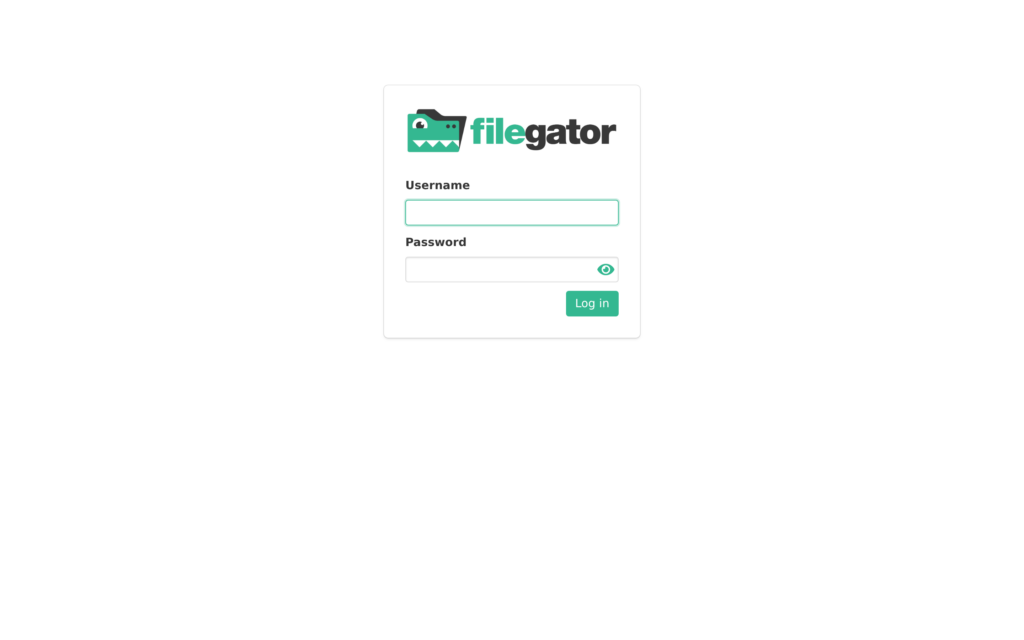
Why Use Filegator?
- No software to install — Works entirely in your browser
- Mobile-friendly — Full file management from your phone or tablet
- Upload & download — Transfer files without configuring FTP
- Batch operations — Select multiple files, create ZIP archives, move, rename, delete
- Secure — HTTPS access with your seedbox credentials
How It Works
  FILE ACCESS METHODS COMPARED
  ════════════════════════════════════════════════════════

  Method        Setup     Speed    Mobile   Best For
  ──────────    ─────     ─────    ──────   ──────────────
  Filegator     None ✓    Good     Yes ✓    Quick access,
                                            small uploads

  FTP/SFTP      Client    Fast ✓   No       Large transfers,
                needed              ✗       bulk downloads

  HTTP Access   None ✓    Good     Yes ✓    Streaming files,
                                            direct links

  SSH/SCP       Terminal  Fast ✓   No       Power users,
                needed              ✗       scripting

  ┌─────────────────────────────────────────────────┐
  │  Filegator is the recommended starting point    │
  │  for all users. Use FTP for large transfers.    │
  └─────────────────────────────────────────────────┘
Step 1: Access Filegator
Filegator is a shared service on your seedbox server — it’s always available, no installation needed. You can access it two ways:
From the Client Area
- Log in to your EvoSeedbox Client Area at client.evoseedbox.com
- Navigate to Services > click your active seedbox plan
- Find the Filegator link in your service details or apps section
- Click to open — you’ll be taken to the Filegator login page
Direct URL
Access Filegator directly via HTTPS:
https://YOUR-SERVER.myseedbox.site:14443Replace YOUR-SERVER with your server hostname (shown in your dashboard). The port is 14443 (HTTPS).
Step 2: Log In
Use your seedbox username and password — the same credentials you use for ruTorrent and FTP. Filegator automatically syncs its user list with your seedbox account every hour.
  LOGIN FLOW
  ──────────

  ┌──────────────────────────────┐
  │    Filegator Login           │
  │                              │
  │  Username: ┌──────────────┐  │
  │            │ your_user    │  │    Same credentials as
  │            └──────────────┘  │    ruTorrent and FTP
  │  Password: ┌──────────────┐  │
  │            │ ••••••••••   │  │
  │            └──────────────┘  │
  │                              │
  │     ┌────────────────┐       │
  │     │   Sign In      │       │
  │     └────────────────┘       │
  └──────────────────────────────┘
         │
         ▼
  ┌──────────────────────────────┐
  │  Your seedbox files          │
  │  (/home/your_user/downloads) │
  └──────────────────────────────┘
After logging in, you’ll see your downloads directory — this is where rTorrent saves completed torrents.
Step 3: Managing Your Files
The Filegator Interface
  FILEGATOR INTERFACE
  ═══════════════════════════════════════════════════════

  ┌─────────────────────────────────────────────────────┐
  │  📁 /your_user/                              🔍 ⬆️  │
  ├─────────────────────────────────────────────────────┤
  │                                                     │
  │  📁 movies/                          2.4 GB         │
  │  📁 tv-shows/                        8.1 GB         │
  │  📁 music/                           1.2 GB         │
  │  📄 ubuntu-22.04.iso                 3.6 GB         │
  │  📄 readme.txt                       2 KB           │
  │                                                     │
  ├─────────────────────────────────────────────────────┤
  │  ☑ 2 selected    📥 Download  📦 ZIP  🗑️ Delete     │
  └─────────────────────────────────────────────────────┘

  ⬆️ = Upload button (top right)
  🔍 = Search files
  ☑ = Select files for batch operations
Browsing Files
- Click a folder to navigate into it
- Click the path breadcrumb at the top to go back
- Files show their name, size, and modification date
- Use the search icon to find files by name
Downloading Files
- Single file: Click the file, then click the download icon
- Multiple files: Select files using checkboxes, then click Download or ZIP to download as an archive
- Entire folder: Select the folder and click ZIP — Filegator creates a ZIP archive and downloads it
Uploading Files
- Navigate to the folder where you want to upload
- Click the upload button (⬆️) in the top right
- Select files from your device or drag and drop into the browser window
- Upload progress shows for each file
Note: For large files (over 1 GB), FTP or SCP will be significantly faster than browser uploads.
File Operations
  AVAILABLE OPERATIONS
  ════════════════════

  Operation         How                      Notes
  ─────────         ───                      ─────
  Download          Select → 📥              Single or batch
  ZIP & Download   Select → 📦              Creates archive
  Upload            ⬆️ button or drag/drop   Browser upload
  Rename            Right-click → Rename     Single file/folder
  Move              Right-click → Move       Pick destination
  Copy              Right-click → Copy       Pick destination
  Delete            Select → 🗑️              Permanent delete
  New Folder        Right-click → New folder Creates empty dir
Where Are My Files?
When you log into Filegator, you see your seedbox’s home directory structure. Here’s what the typical layout looks like:
  YOUR SEEDBOX FILE STRUCTURE
  ═══════════════════════════════════════

  /home/your_user/
  │
  ├── downloads/          ◀── rTorrent saves here
  │   ├── movies/             (completed torrents)
  │   ├── tv-shows/
  │   └── music/
  │
  ├── watch/              ◀── Drop .torrent files here
  │                           for auto-download
  │
  ├── private/            ◀── Config files, VPN configs
  │   ├── SBinfo.txt          (your credentials)
  │   ├── peer1.zip           (WireGuard config)
  │   └── peer2.zip
  │
  └── .config/            ◀── App configurations
      ├── sonarr/             (managed by apps)
      ├── radarr/
      └── plex/
The downloads folder is your main working area. This is where torrents are saved and where Plex/Jellyfin look for media.
How User Sync Works
Filegator runs as a shared service on your server. Your user account is automatically kept in sync:
  AUTOMATIC USER SYNC (every hour)
  ═════════════════════════════════

  Your seedbox account
  (SBinfo.txt credentials)
       │
       ▼
  ┌─────────────────────────┐
  │ sync-users.sh           │
  │ • Reads all user        │    Runs automatically
  │   passwords             │    every hour via
  │ • Updates Filegator     │    seedbox maintenance
  │   user database         │
  │ • Creates home dirs     │
  └─────────┬───────────────┘
            │
            ▼
  ┌─────────────────────────┐
  │ Filegator users.json    │
  │ updated atomically      │
  │                         │
  │ Your login works with   │
  │ the same password as    │
  │ ruTorrent & FTP        │
  └─────────────────────────┘

  Changed your password?
  → Filegator updates within 1 hour ✓
Filegator vs Other File Access Methods
  WHEN TO USE WHAT
  ═══════════════════════════════════════════════════════

  "I want to quickly check       → Filegator ✓
   what downloaded"                 (browser, instant)

  "I need to download a          → Filegator ✓
   few small files"                 (click and download)

  "I'm downloading 50GB          → FTP with FileZilla
   of media"                        (much faster)

  "I want to mount my seedbox    → SSHFS / WebDAV
   as a local drive"                (see mount guide)

  "I need to run commands        → SSH terminal
   or scripts"                      (power users)

  "I want to stream a video      → HTTP Access
   before downloading"              (browser playback)
Troubleshooting
Can’t Log In
Symptom: Login fails with “Invalid credentials.”
- Make sure you’re using your seedbox username and password (same as ruTorrent)
- If you recently changed your password, wait up to one hour for the sync to update Filegator
- Try logging into ruTorrent first to confirm your credentials work
- Clear your browser cache and cookies for the Filegator URL
Upload Fails or Times Out
Symptom: Upload hangs at a percentage or fails with a timeout error.
- Browser uploads have size limits depending on your connection. For files over 1 GB, use FTP instead
- Check your seedbox disk usage — if you’re at quota, uploads will fail. See your dashboard for disk usage
- Try a different browser — some handle large uploads better than others
Files Not Showing
Symptom: You downloaded a torrent but it doesn’t appear in Filegator.
- Check if the torrent has actually completed in ruTorrent
- Filegator shows your
downloadsdirectory. If the torrent was saved elsewhere, navigate to that folder - Refresh the page (Filegator doesn’t auto-refresh the file list)
Slow Downloads from Filegator
Symptom: File downloads from Filegator are slow compared to FTP.
This is normal. Browser downloads use a single HTTPS connection, while FTP clients like FileZilla can use multiple parallel connections. For large or many files, FTP is recommended.
Tips & Best Practices
- Bookmark the URL — Save
https://your-server:14443for quick access anytime - Use ZIP for batch downloads — Selecting multiple files and downloading as ZIP is faster than downloading individually
- Mobile access — Filegator works great on phones. Bookmark it on your home screen for app-like access
- Don’t delete .config folders — These contain app settings. Deleting them will reset your Sonarr/Radarr/Plex configuration
- Watch folder — Drop
.torrentfiles into yourwatchfolder via Filegator and rTorrent will auto-start them - Use FTP for heavy lifting — Filegator is for convenience. For large transfers, set up FileZilla
Related Guides
- How to Get Faster FTP Downloads
- Maximum Transfer Speed in FileZilla
- Access Files Using HTTP Access
- SCP File Transfer Guide
- Mount via SSHFS and WebDAV
- Syncthing Peer-to-Peer Sync
- Beginner’s Guide to Nextcloud
- Rclone Browser for Cloud Sync
Frequently Asked Questions
Is FileGator the same as FileBrowser?
No — they’re two different web file managers, and both are available as one-click apps. FileGator is the default on most plans; FileBrowser offers a slightly different interface with built-in file previews. Use whichever you prefer.
Can I share a file with someone who doesn’t have a seedbox account?
FileGator itself manages files rather than public links. For sharing, download the file and use any transfer service — or ask support about HTTP access links for files in your web-accessible folders.
Why do large uploads through the browser fail?
Browser uploads are chunked and generally reliable up to a few gigabytes, but for very large files an interrupted connection means starting over. For anything above a few GB, FTP/SFTP with FileZilla is faster and resumable.
Can I extract archives with FileGator?
Extraction is better done with ruTorrent’s unpack plugin or over SSH. FileGator is best for browsing, moving, renaming, uploading and downloading files.
Related articles
Put this into practice
EvoSeedbox ships with one-click app installs and up to 10 Gbps per box.


