evoads for Windows: Ad-Blocking DNS with a Tray App
On this page ▾
evoads for Windows is a small app with a tray icon that points Windows at your personal evoads resolver, so ads, trackers and malware domains stop resolving in every program on the PC. It runs as a background service, starts with Windows, and puts your previous DNS settings back when you remove it. This page covers the SmartScreen warning, installation, sign-in, the tray and window controls, the built-in Windows 11 alternative, and what to check when a browser still shows ads.
How it works
A Windows service runs a local DNS resolver on 127.0.0.1. It forwards every lookup to dns.evoseedbox.com over DNS-over-HTTPS with your ClientID, caches answers, and sets the DNS server of your active network adapters to itself, saving what was there before. It checks again every minute, so plugging in Ethernet or joining a new Wi-Fi is covered. The window and tray icon run as your normal user and talk to the service; only installing the service needs administrator rights, once.
Requirements
- Windows 10 or 11, 64-bit.
- Administrator rights on the PC for the one-time install.
- Your seedbox username and password (the ruTorrent login), or your ClientID from the client area.
Step 1: download and run
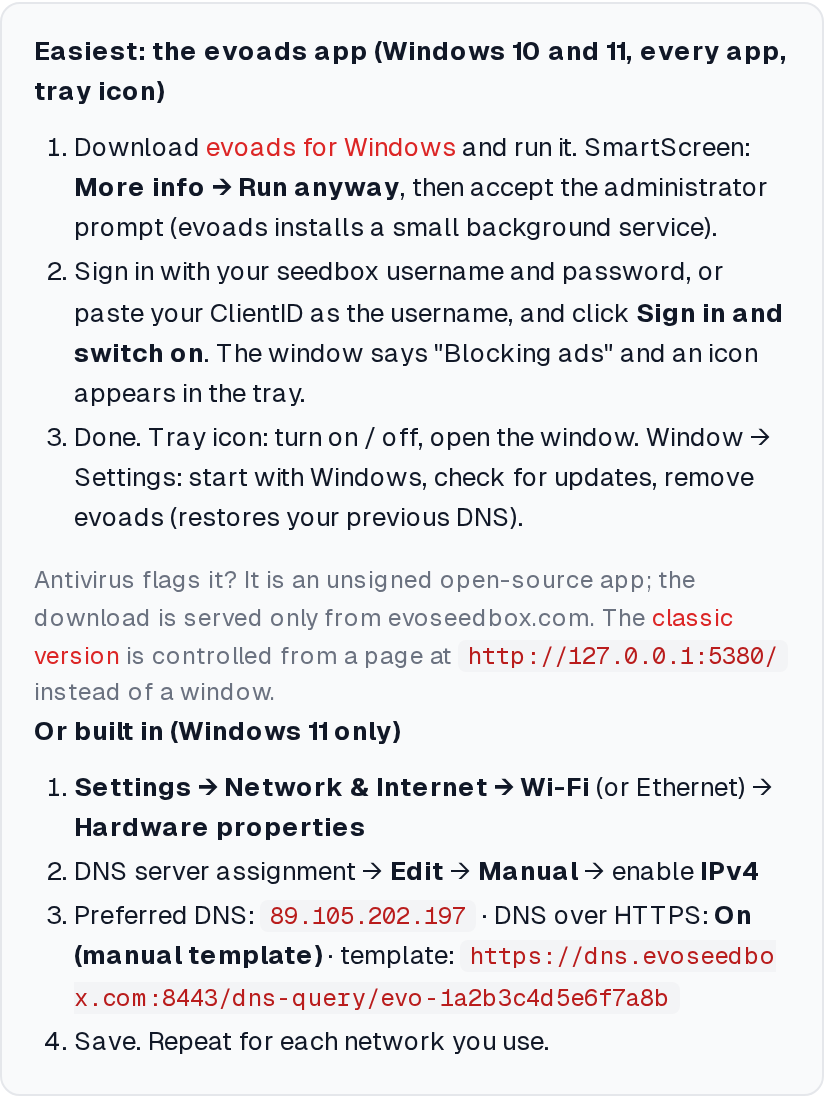
- Download evoads for Windows. The file is
evoads-…-windows-native.exe; keep it somewhere permanent such as Downloads or Documents, the installer copies itself to ProgramData anyway. - Double-click it. SmartScreen shows “Windows protected your PC” because the app is new and unsigned. Click More info, then Run anyway.
- Accept the User Account Control prompt. evoads installs its service, named evoads Ad Blocker, and starts it.
Some antivirus products quarantine unsigned executables on first sight. The file is served only from evoseedbox.com and its checksum is published next to it; restore it from quarantine and add an exception if needed.
Step 2: sign in
- The evoads window opens on Sign in. Enter your seedbox username and password, or paste your ClientID as the username with the password left empty.
- Click Sign in and switch on.
- The window shows Blocking ads and the evoads icon appears in the tray (click the ^ arrow if Windows hides it; drag it out to keep it visible). The subtitle reads “Every app on this computer uses your evoads resolver” once the switch is confirmed.
Everyday use
- Tray icon: right-click for Turn on, Turn off, Open evoads, Quit evoads window. Closing the window leaves the service running.
- Window: the large button toggles blocking; counters show queries and blocked answers; Test asks the local resolver for a known ad host; Sign out switches off and forgets the ClientID.
- Settings: Start with Windows, Check for updates (shows a Download link when a newer version exists), and Remove evoads from this computer, which restores your previous DNS and uninstalls the service.
Checking it
Open evoseedbox.com/evoads-check in a private window. From a terminal:
nslookup ads.doubleclick.netshould answer from 127.0.0.1 with 0.0.0.0. To see which adapters were switched:
Get-DnsClientServerAddress -AddressFamily IPv4 | Where-Object ServerAddresses | Format-Table InterfaceAlias,ServerAddressesBrowser still shows ads?
If the commands above are correct but a browser is unfiltered, the browser is bypassing Windows’ resolver:
- Firefox: Settings → Privacy & Security → DNS over HTTPS. “Default” or “Increased” protection sends lookups to Firefox’s provider. Set it to Off, or Max Protection with your evoads DoH URL as a custom provider.
- Chrome, Edge, Brave: Settings → Privacy and security → Security → Use secure DNS. Turn it off, or choose Custom and paste your evoads DoH URL.
- Close every browser window and reopen so cached answers and open connections are dropped, and run
ipconfig /flushdns.
Without the app: Windows 11 built-in DoH
Windows 11 can talk DNS-over-HTTPS itself, one adapter at a time. Open Settings → Network & Internet → Wi-Fi (or Ethernet) → Hardware properties, click Edit next to DNS server assignment, choose Manual, switch on IPv4, and enter 89.105.202.197 as the preferred DNS. Set DNS over HTTPS to On (manual template) and paste your DoH URL as the template. Windows requires the IP even though only the template is used. Repeat for each network you use. Windows 10 lacks this setting; use the app.
Troubleshooting
“evoads is not running”
The service is stopped. Open evoads again; it starts the service, and reinstalls it if needed after a UAC prompt. The log is at C:\ProgramData\evoads\evoads.log.
A VPN adapter or virtual machine is still answering
Windows asks every adapter’s DNS in parallel. evoads switches physical and virtual adapters but leaves deliberate tunnels (WireGuard, Tailscale, TAP) alone; a VPN connected at the same time uses its own DNS. Your seedbox WireGuard tunnel already uses evoads.
Updating
Run the new exe; it stops the old service, replaces the program and starts again. Your sign-in is kept.
Uninstalling by hand
If the app is gone but DNS is still 127.0.0.1: Settings → Network & Internet → your adapter → Hardware properties → Edit DNS → Automatic (DHCP). Then sc delete evoads from an administrator terminal removes the service entry.
← macOS · Next: Linux →
Related articles
Put this into practice
EvoSeedbox ships with one-click app installs and up to 10 Gbps per box.
