evoads on Your Router: Ad Blocking for Every Device
On this page ▾
Setting evoads on your router blocks ads and trackers for every device on the network at once, including smart TVs, consoles, streaming sticks and guests’ phones, none of which can run a DNS app themselves. The requirement is a router or firewall that can speak encrypted DNS, because evoads is offered over DNS-over-HTTPS and DNS-over-TLS only. This page explains why, which firmwares qualify, the generic settings, and per-brand notes.
Why encrypted only
Classic router DNS fields take a plain IP address on port 53. A resolver that answers plain DNS from anyone on the internet becomes an open resolver within hours and is used for amplification attacks, so evoads accepts lookups only over TLS and HTTPS with your ClientID in the request. That rules out routers whose firmware only offers plain DNS fields, but includes every serious home and small-business firmware of the last few years.
If your router cannot do DoT or DoH, set up each device individually (Android, iPhone, Mac, Windows, Linux pages in this section), or route the household through your seedbox’s WireGuard tunnel on a router that supports WireGuard, which already uses evoads.
What to enter
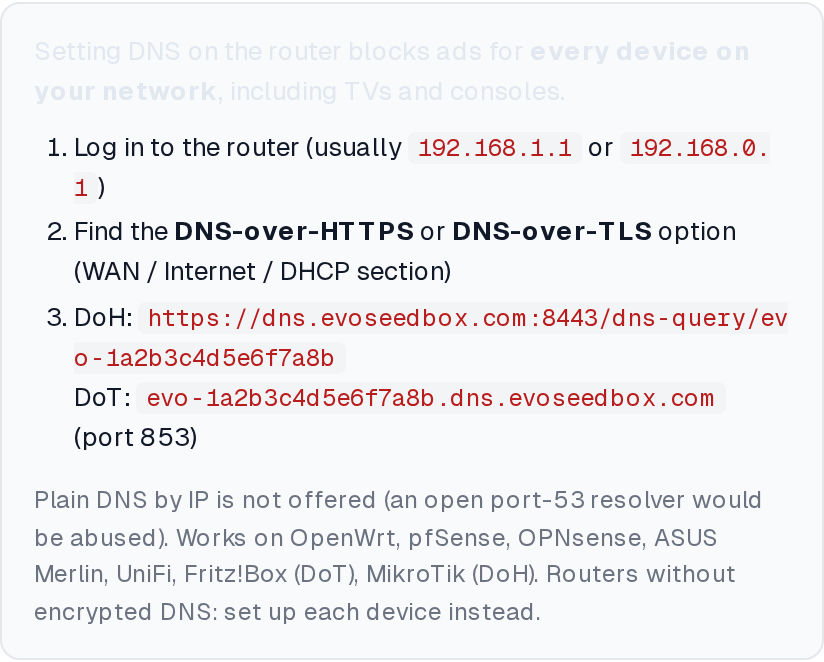
From the evoads panel in your client area:
| Router asks for | Use |
|---|---|
| DNS-over-TLS server / hostname | Your Private DNS hostname evo-….dns.evoseedbox.com, port 853 |
| DNS-over-TLS IP (if required alongside the hostname) | 89.105.202.197 (or any node from dig dns.evoseedbox.com) |
| DNS-over-HTTPS URL / resolver | Your DoH URL https://dns.evoseedbox.com:8443/dns-query/evo-… |
| Bootstrap DNS (to resolve the hostname itself) | 1.1.1.1 or 9.9.9.9 |
| Plain DNS | Not supported |
After saving, reconnect one device (toggle its Wi-Fi) so it picks up the router’s DNS, then open evoseedbox.com/evoads-check on it.
Devices with a hard-coded DNS (many smart TVs and Google devices try 8.8.8.8 directly) bypass the router’s setting. Most firmwares below can intercept or block outbound port 53 so those devices fall back to the router; look for “DNS hijack”, “redirect DNS” or a firewall rule for destination port 53.
Per firmware
OpenWrt
Install https-dns-proxy (LuCI: System → Software). Under Services → HTTPS DNS Proxy, remove the default Google and Cloudflare entries and add one with your DoH URL and a bootstrap DNS of 1.1.1.1. The package rewrites dnsmasq to use it. Alternatively install stubby for DoT with tls_auth_name set to your hostname.
pfSense and OPNsense
Unbound (Services → DNS Resolver) supports DNS-over-TLS forwarding: enable Use SSL/TLS for outgoing DNS queries, and under General → DNS servers add 89.105.202.197 with port 853 and your hostname as the verification name. Turn off “DNS Query Forwarding” fallbacks to your ISP. For DoH, OPNsense has an os-ddclient-style plugin ecosystem; DoT via Unbound is the simpler path.
ASUS (Merlin firmware)
WAN → Internet Connection → DNS Privacy Protocol: DNS-over-TLS, preset “None”, then add a server with IP 89.105.202.197, port 853 and TLS hostname set to your Private DNS hostname. Set “DNS-over-TLS profile” to Strict. Stock ASUS firmware also has this option on recent models.
UniFi (Network application 8+)
Settings → Internet → your WAN → DNS Server: enable “Encrypted DNS”, choose Custom DoH and paste your DoH URL (or DoT with your hostname). Older UniFi gateways without the option: run the setup on each device instead.
Fritz!Box
Internet → Account Information → DNS Servers: enable “Encrypted name resolution in the Internet (DNS over TLS)”, enter 89.105.202.197 as the DNSv4 server and your Private DNS hostname in the “Resolved names of DNS servers” field. Tick “Enforce certificate check”. Fritz!OS 7.20 or newer.
MikroTik (RouterOS 7)
/ip dns set servers="" use-doh-server="https://dns.evoseedbox.com:8443/dns-query/evo-YOURID" verify-doh-cert=yes and add a static entry so the router can reach the DoH hostname before DNS works: /ip dns static add name=dns.evoseedbox.com address=89.105.202.197. Import the ISRG Root X1 certificate for verify-doh-cert.
Synology, QNAP and other NAS DNS servers
Synology DNS Server forwards plain DNS only. Run the evoads command-line resolver in a container on the NAS instead (see the Linux page) and point the NAS DNS Server’s forwarders at that container.
Consoles, smart TVs and streaming sticks
PlayStation, Xbox, Nintendo Switch, Fire TV and most TVs accept only a plain DNS IP, which evoads does not offer. Cover them at the router as above, or through a WireGuard router.
Troubleshooting
Nothing resolves after saving
The router cannot resolve dns.evoseedbox.com to reach the resolver: set a bootstrap DNS (1.1.1.1) or the static entry shown for MikroTik. Check the hostname for typos; a wrong ClientID makes the TLS name mismatch.
Some devices still see ads
They have their own DNS configured or a browser with DNS-over-HTTPS enabled. Block outbound port 53 except from the router, and check browser secure-DNS settings.
Rate limit
Each ClientID is limited to a few hundred queries per second per source address, far above a household’s needs. Do not share your ClientID with other networks.
Related articles
Put this into practice
EvoSeedbox ships with one-click app installs and up to 10 Gbps per box.
