Beginner’s Guide to Nextcloud
On this page ▾
Want to use your seedbox as your own cloud — sharing files, managing media remotely, syncing documents — without handing everything to Google or Dropbox? That’s exactly what Nextcloud does: it turns the storage you’re already paying for into a private, self-hosted cloud platform.
In this guide we’ll install Nextcloud on your seedbox and walk through its core features: files, sharing, apps, users, and activity tracking.
Installing Nextcloud
Nextcloud installs with one click from your EvoSeedbox dashboard — find it in the Apps section and click Install. It runs in its own container and gets an HTTPS-secured URL.
Open the app and you will be asked to log in. Use the FTP credentials shown in your seedbox’s dashboard.
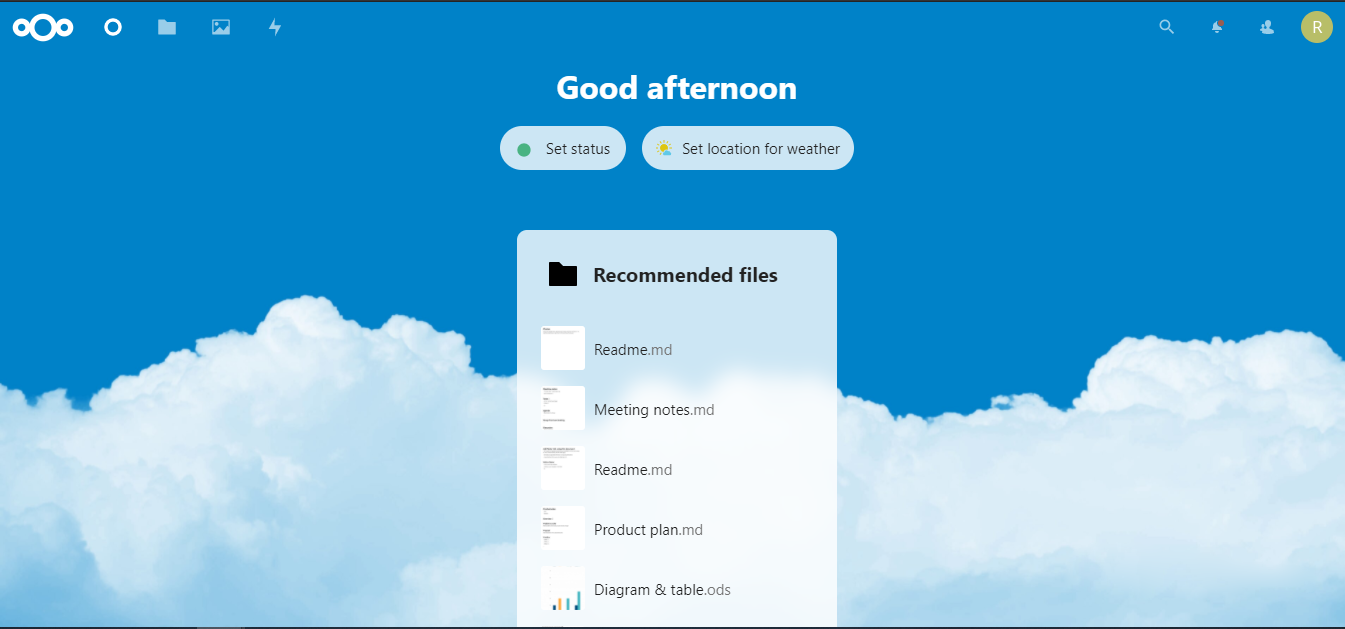
Once you sign in, you land on a window like this:
Customizing the Dashboard
The dashboard is customizable. Scroll down a bit to find the customize button.
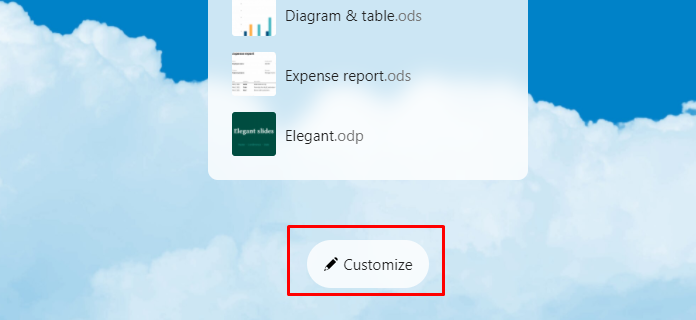
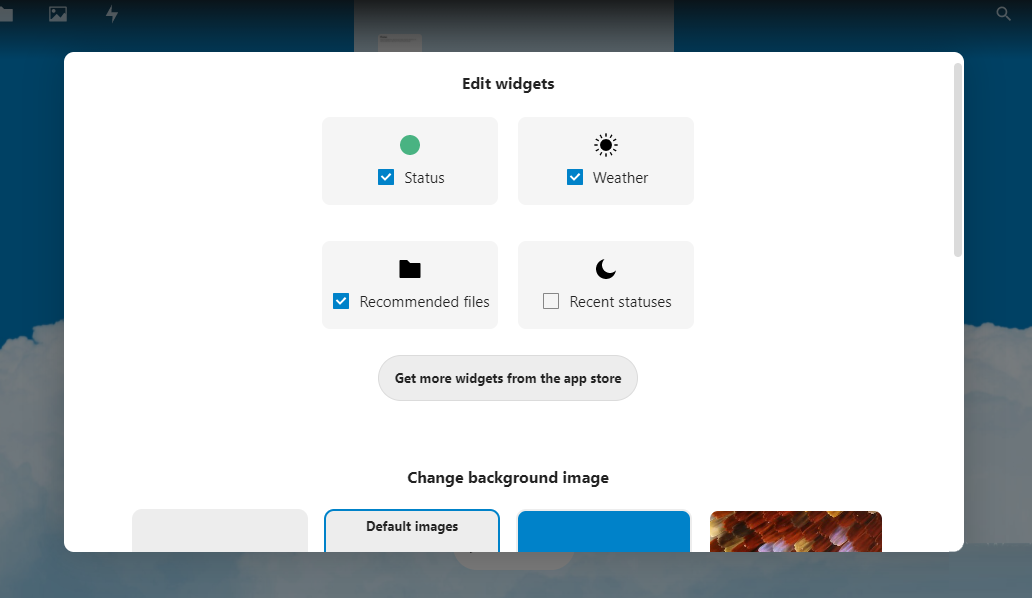
A pop-up appears where you can add widgets like weather or recommended files — and more widgets are available from the Nextcloud app store.
Scrolling a little further, you’ll find built-in options for the background. If none of them suit you, you can use your own image.
Note: The image must be in your Nextcloud space.
Managing Files
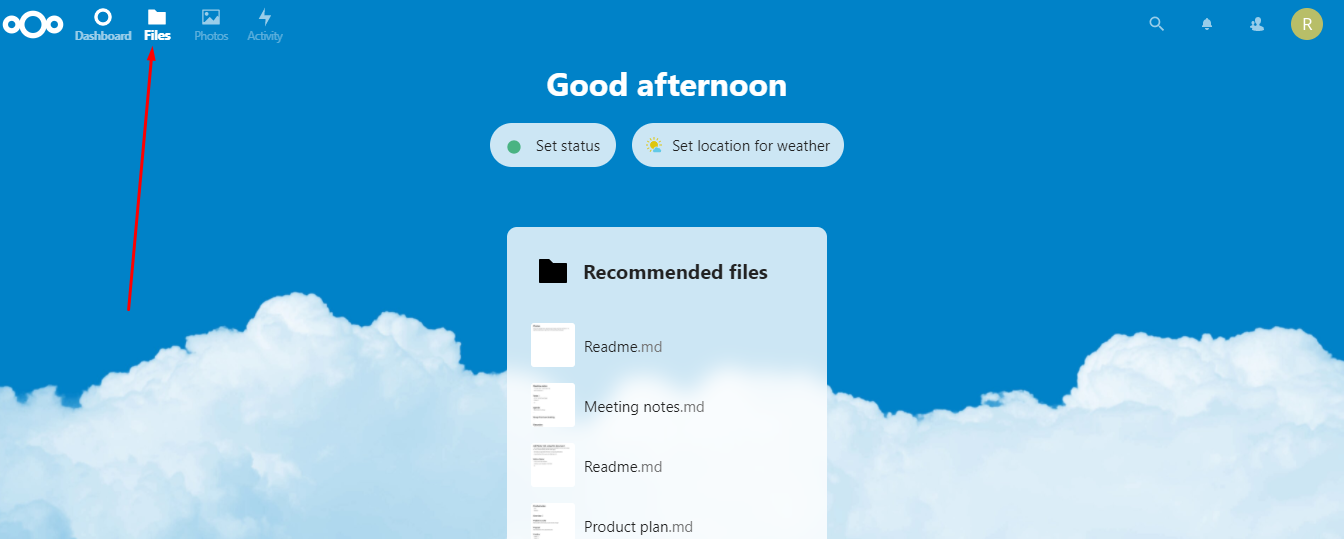
Now the genuinely useful part: file management. On the top-left side of the dashboard, click the Files icon.
By default, a few files are pre-added to your account — sample content plus the Nextcloud manual and documentation, worth a skim.
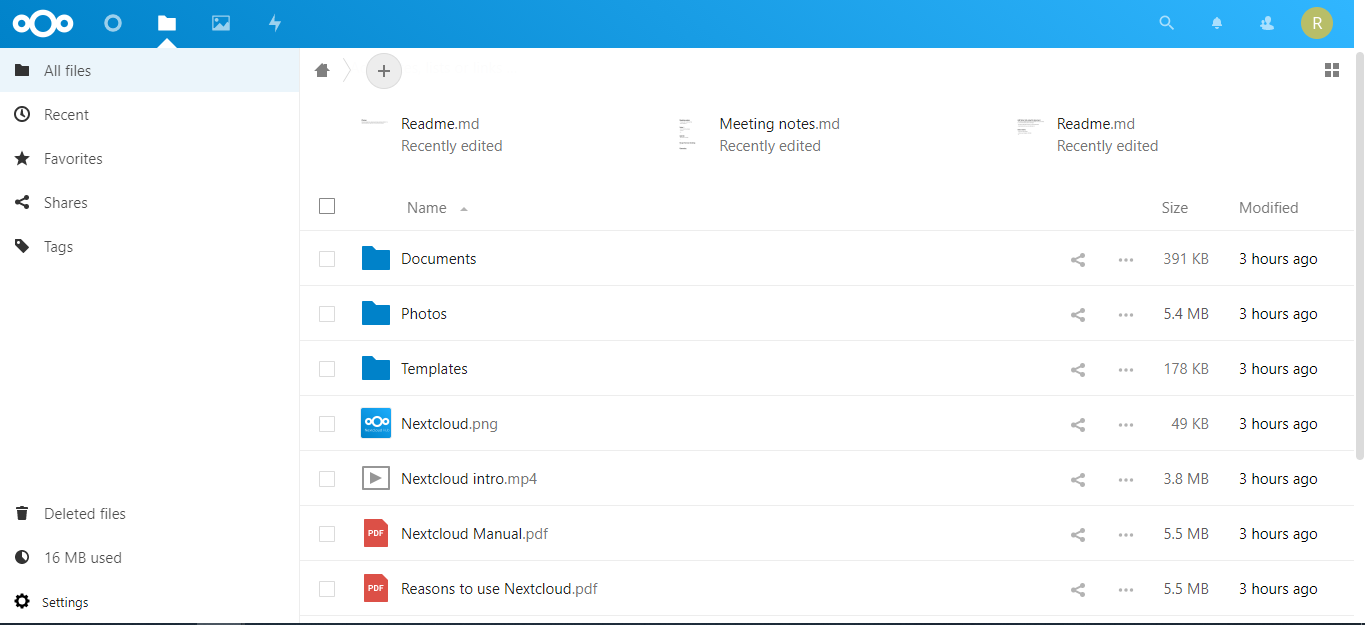
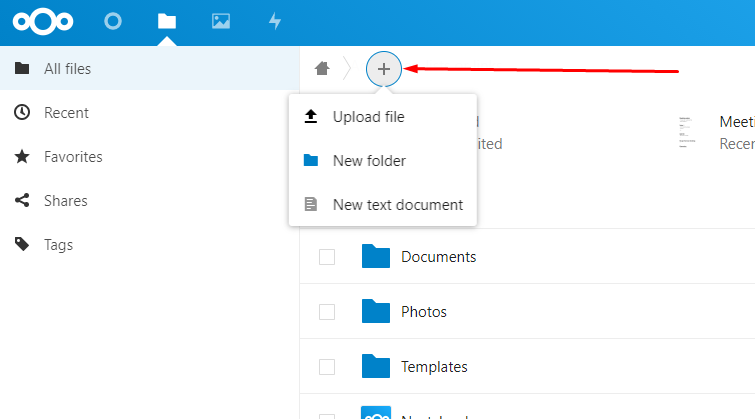
From the “+” button you can create a new document or folder, or upload a file. Everything you upload lives on your seedbox — it’s the server behind the application, so your Nextcloud storage is your seedbox disk, not a third-party cloud.
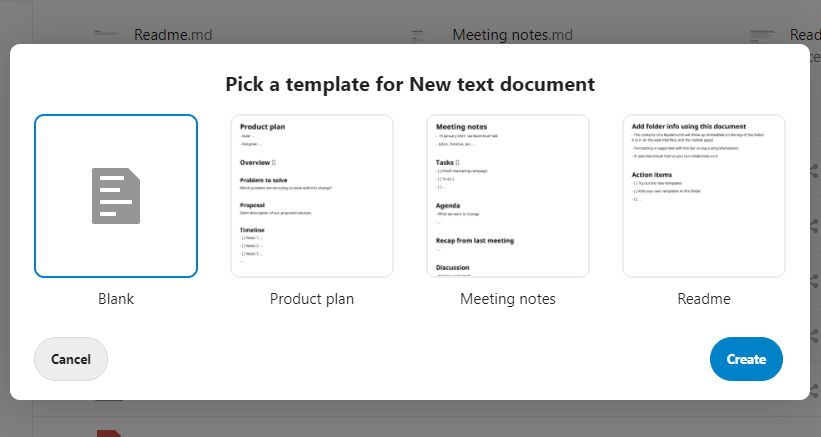
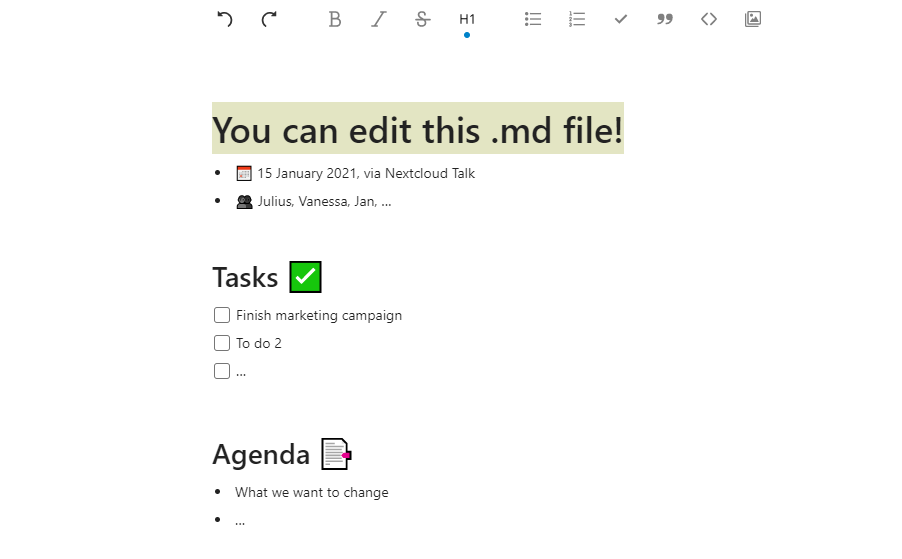
When creating a new document, you can start from premade templates and edit them right in the browser.
To browse only media — videos and images — use the Photos option in the main menu.
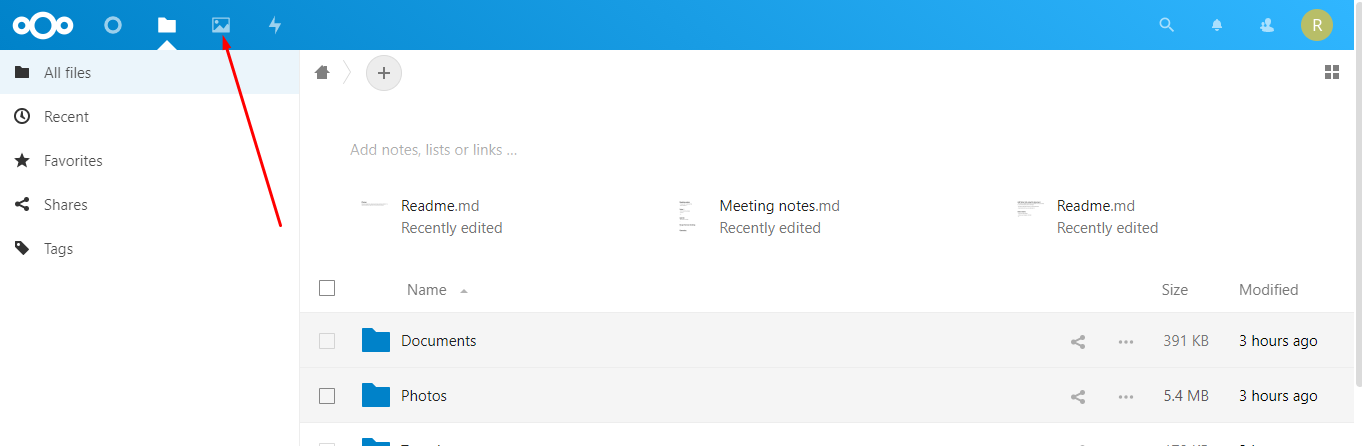
Some photos and videos are pre-added as examples; upload your own and manage them the same way. (For streaming a large media library to TVs and phones, a dedicated media server is the better tool — see Plex or Jellyfin; Nextcloud shines for documents, photos and file sharing.)
Sharing Files from Nextcloud
Sharing is where Nextcloud beats plain FTP. Find the file you want to share — say, the Nextcloud manual — and click the share icon on it.
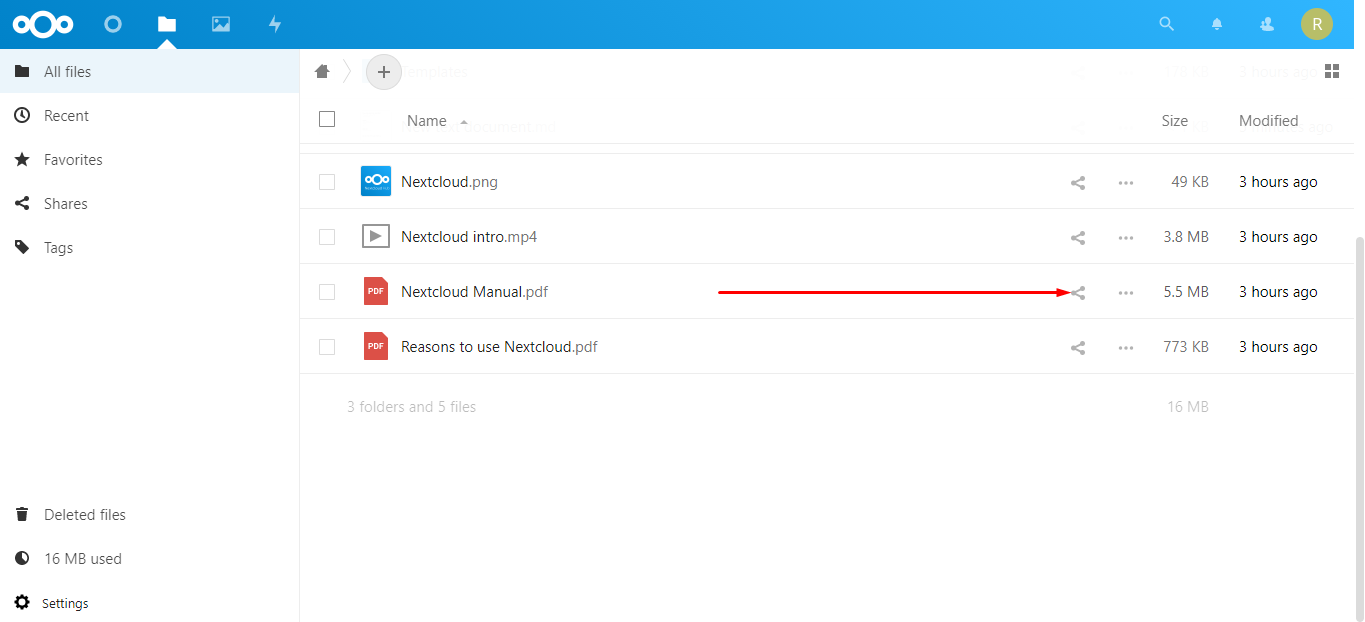
A sidebar appears; click the plus button to create a shareable link for the document.
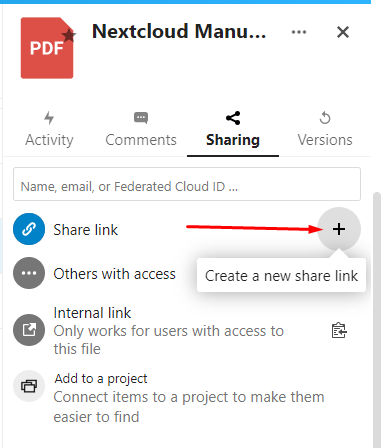
Copy the link and send it to anyone — they can view and download the file with no account needed.
To keep the link secure, click the 3 dots that appear after the link is created.
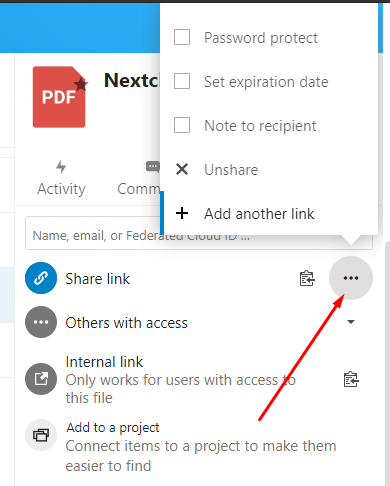
Here you can password-protect the link, set an expiration date, add a note to the receiver, or unshare the document. Password + expiry is the sensible default for anything you share outside your circle.
Adding Apps and Plugins
On the top-right corner of the application is your user profile menu. From here, click the Apps menu.
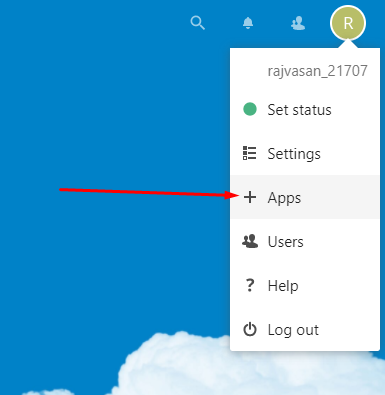
A few apps come pre-enabled. On the left-hand side, a sidebar shows the app categories.
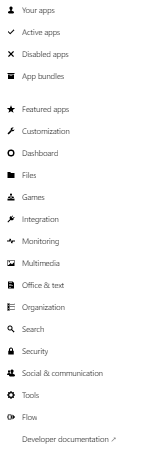
Browse whichever category fits and add what you need — calendars, contacts, notes, Kanban boards. As an example, let’s install the Analytics app: go to the dashboard category and click “Download and Enable”.
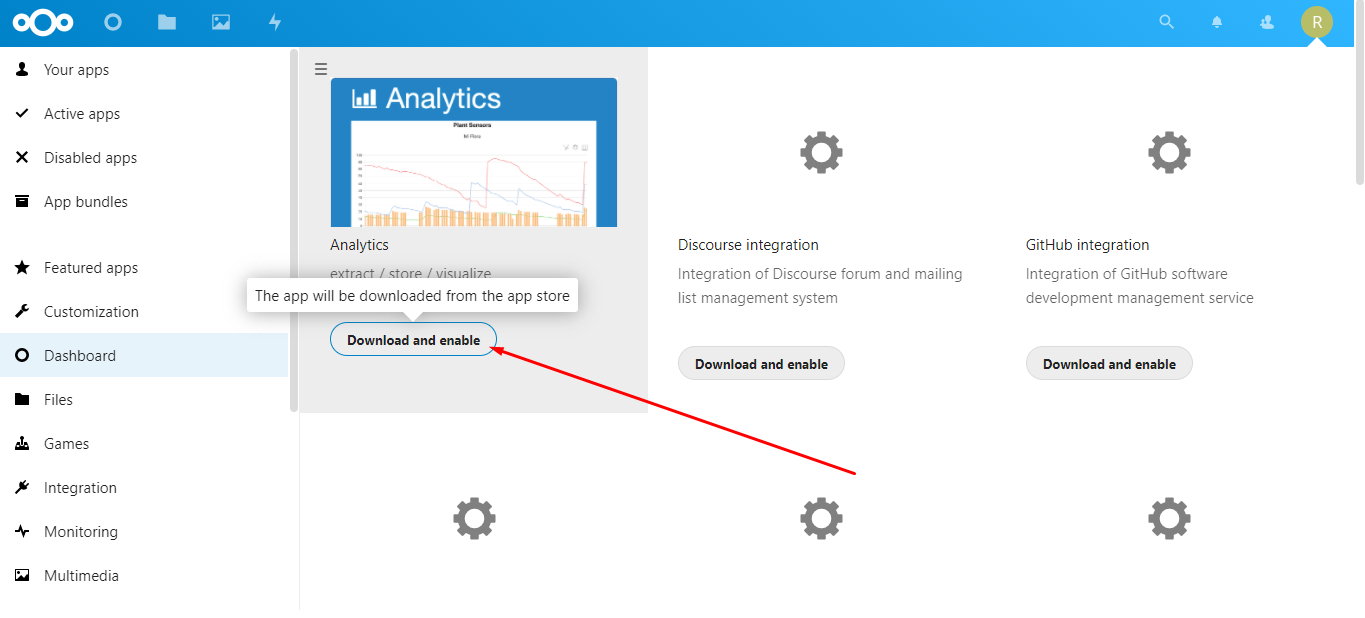
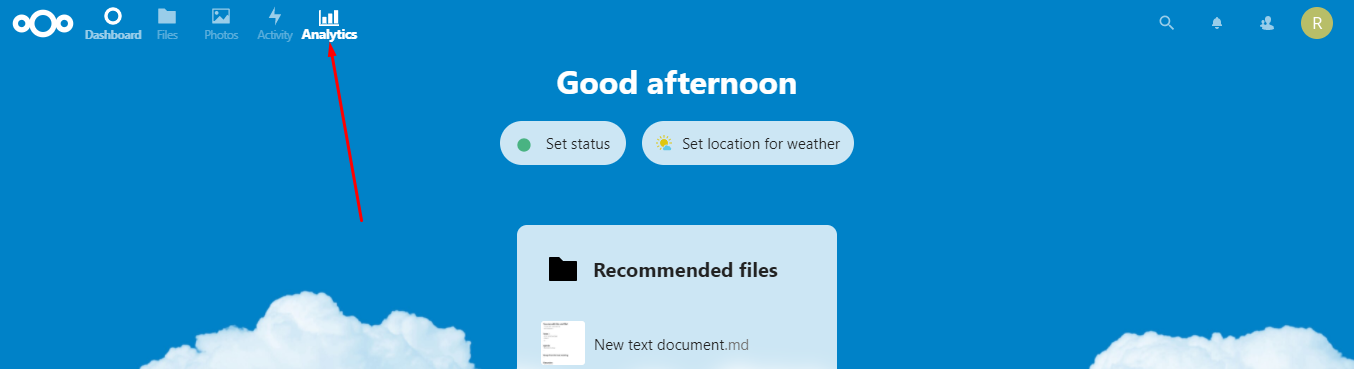
It asks for your password — the same one you logged in to Nextcloud with — and the app is installed.
Adding Users and Groups
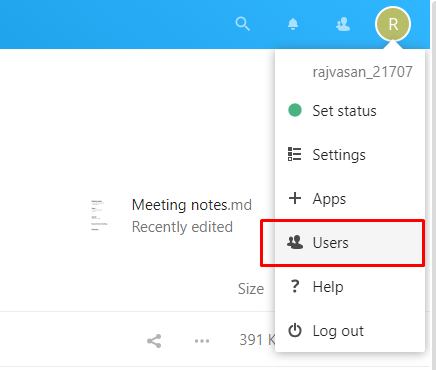
Want to give someone their own login instead of a share link? On the top-right section, click your account, then the “Users” tab.
You’ll see all existing users with their username, group, and allocated space. On the left sidebar is the button to add a new user — click it and fill in the basics.
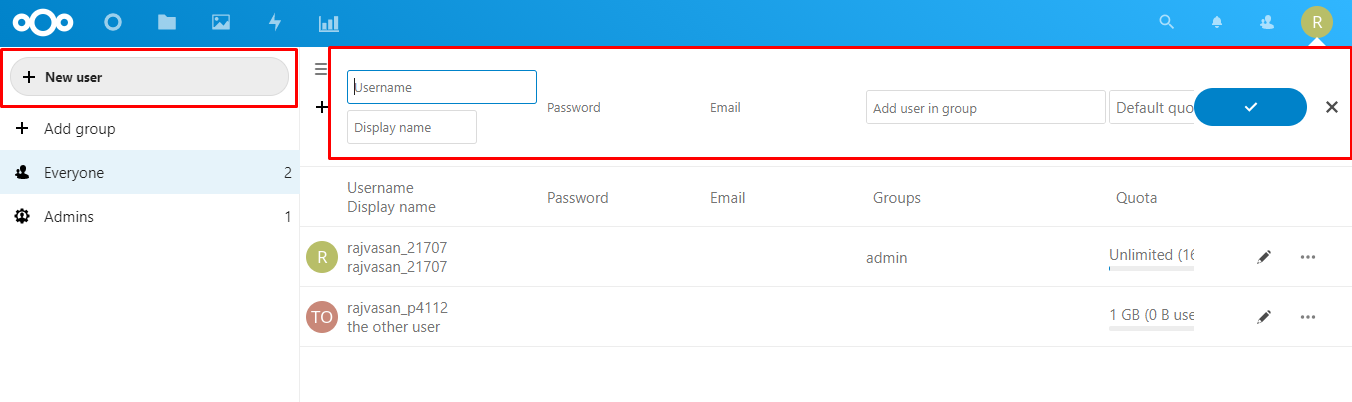
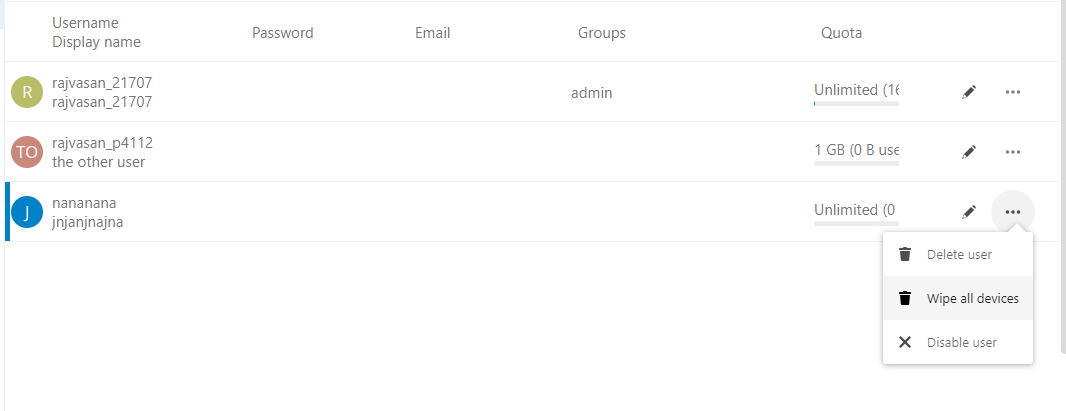
Click the blue tick to save, and the user is created. Set a storage quota for each user — remember they’re sharing your seedbox’s disk space. To remove or disable a user, click the 3 dots beside them and pick the action.
Tracking Activity
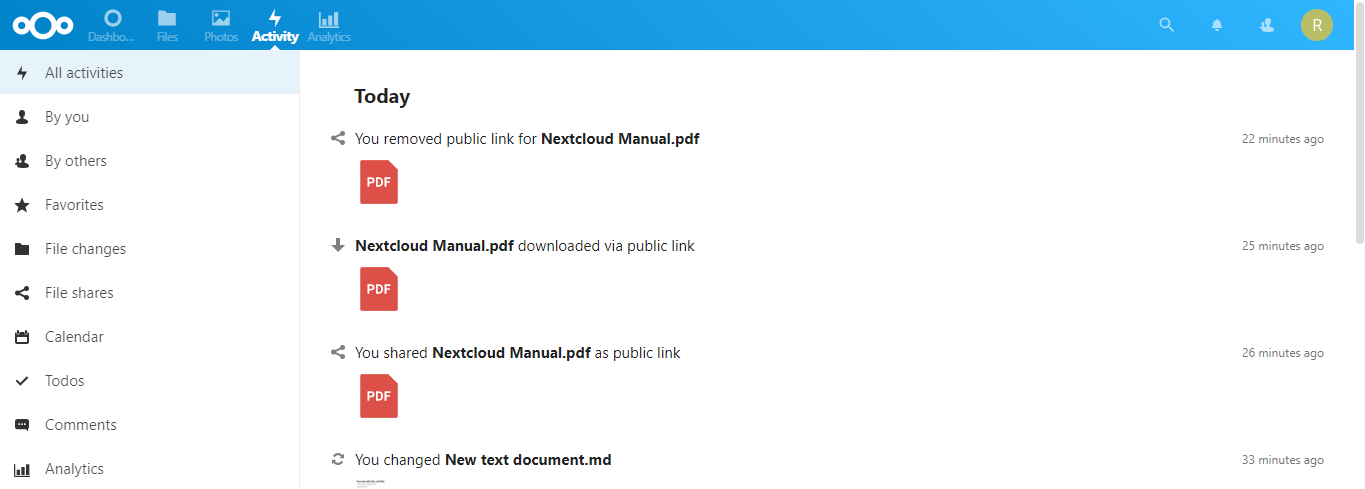
As the admin, you’ll want visibility into what’s happening in your Nextcloud. Click the “Activity” tab in the top-left menu to see every upload, share, edit and login.
That covers the day-to-day of Nextcloud. It’s one of the deeper apps in the catalog — most users on our fleet who run it pair it with a torrent client and use Nextcloud purely as the polished sharing/viewing layer over the same files. If you get stuck anywhere, hit us up on chat or raise a ticket and we’ll guide you through.
Frequently Asked Questions
Where are my Nextcloud files actually stored?
On your seedbox’s own disk, inside your home directory. Nothing goes to a third-party cloud — your plan’s storage quota is the limit, and the same files remain reachable over FTP/SFTP.
Can people I share links with see my other files?
No. A share link exposes exactly the file or folder it was created for. Add a password and expiration date from the link’s 3-dot menu for anything sensitive.
Can I sync my computer or phone with Nextcloud on the seedbox?
Yes — the official Nextcloud desktop (Windows/macOS/Linux) and mobile (Android/iOS) clients sync selected folders automatically. Point them at your Nextcloud URL and log in. For syncing raw download folders between machines, Syncthing is the lighter-weight tool.
Is Nextcloud a replacement for a file manager like Filegator?
They overlap on basic file operations, but serve different jobs: Filegator is the quick web file manager for your seedbox storage, while Nextcloud adds accounts, sync clients, share links with passwords/expiry, and an app ecosystem. Run Nextcloud when you want a private cloud, not just a file browser.
Related Guides
Related articles
Put this into practice
EvoSeedbox ships with one-click app installs and up to 10 Gbps per box.


