Creating an Archive with ruTorrent
On this page ▾
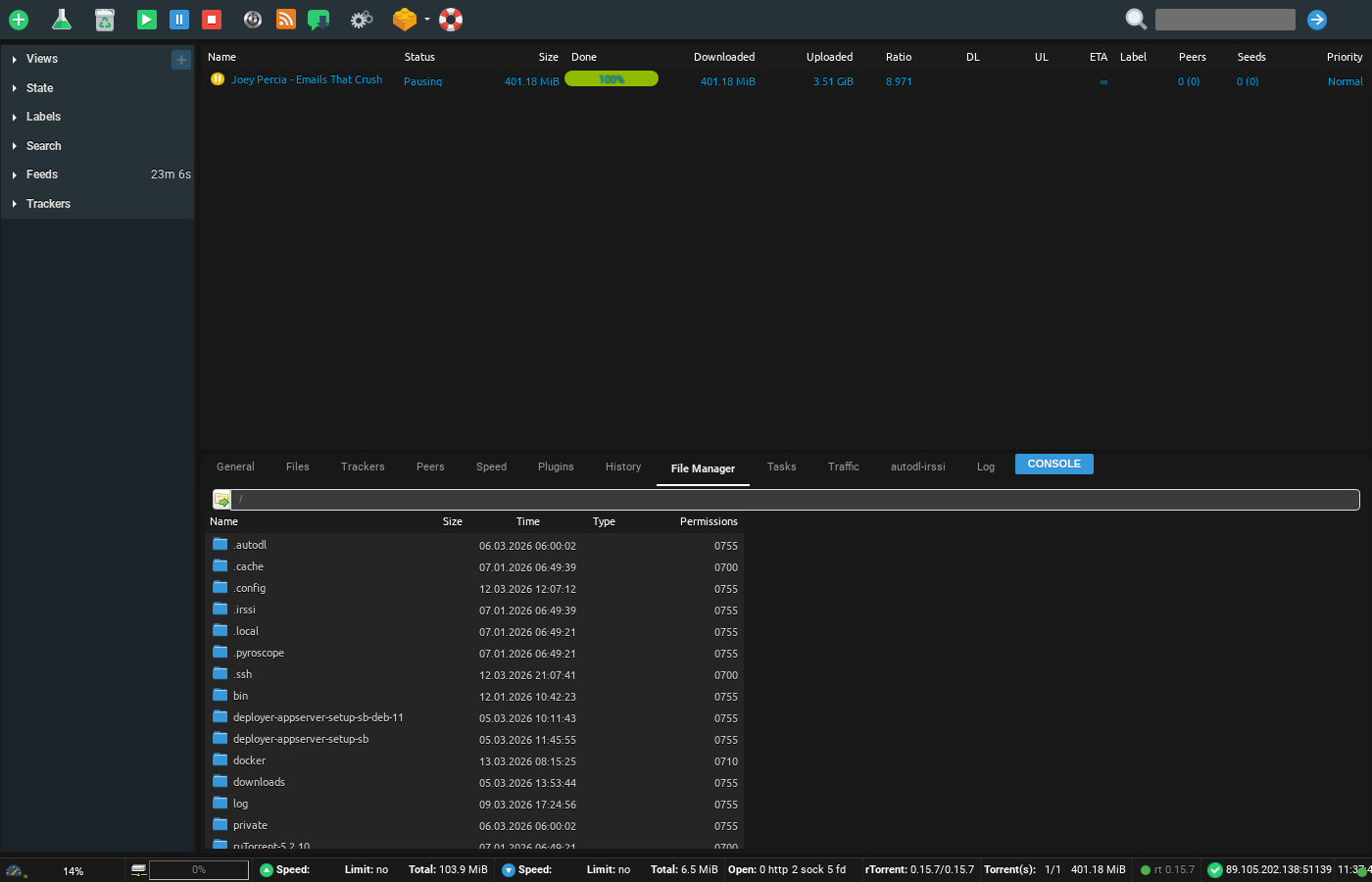
1. With ruTorrent running, click on the File Manager tab. Navigate to the folder you wish to create an archive from.
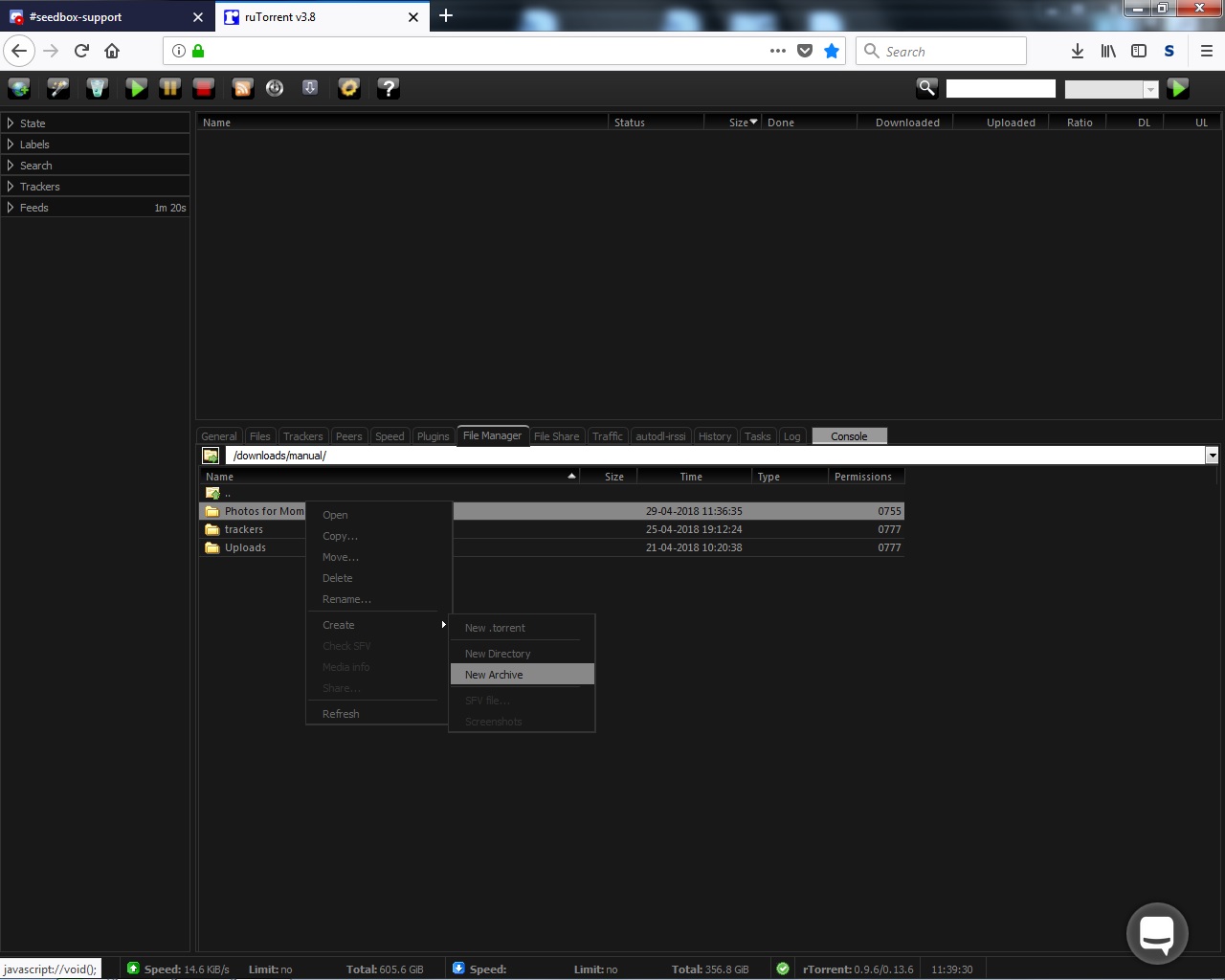
2. Right Click on the folder and select "Create > New Archive"
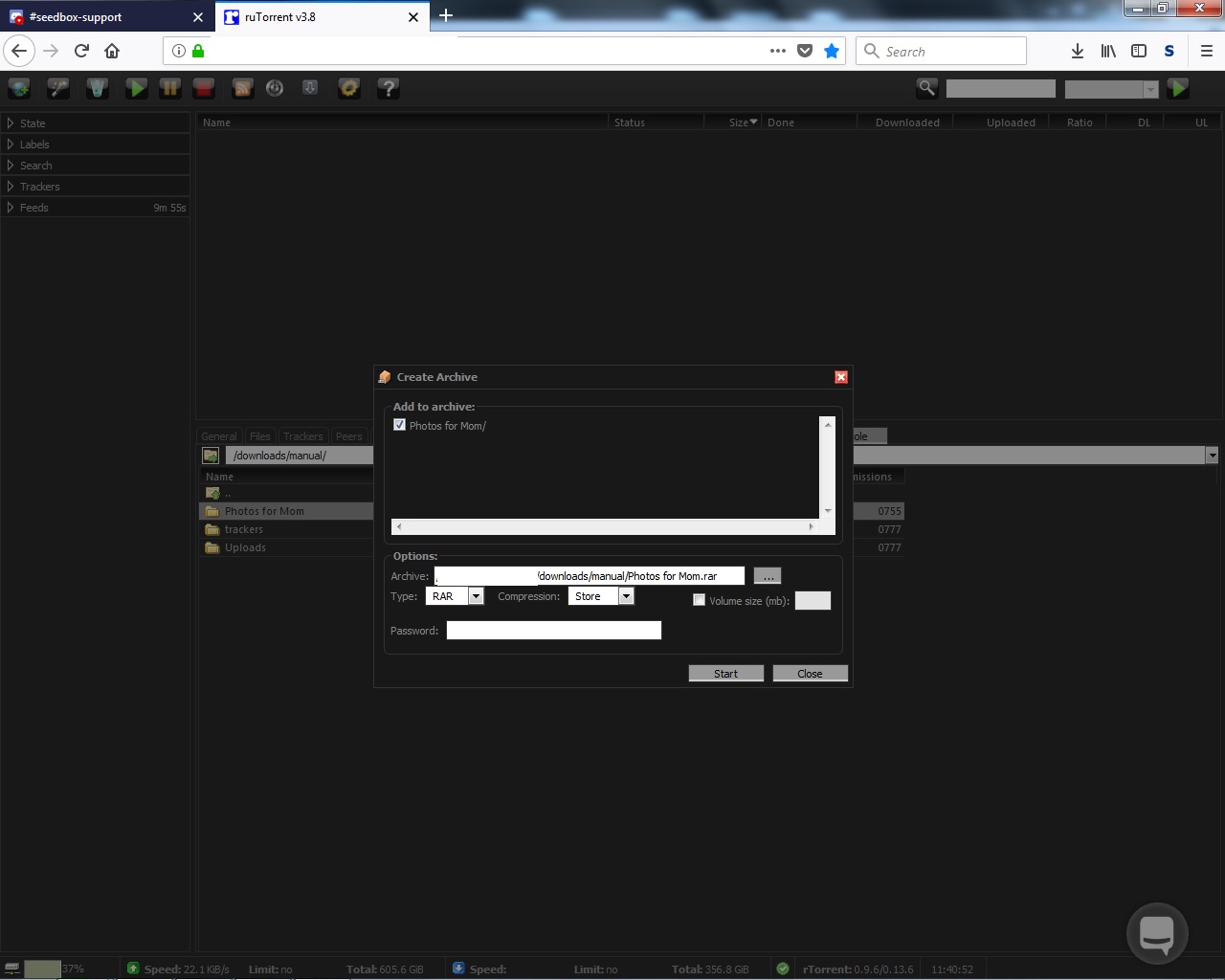
3. Make sure the folder is checked. Name the archive, Select type of archive to use, and password if desired.
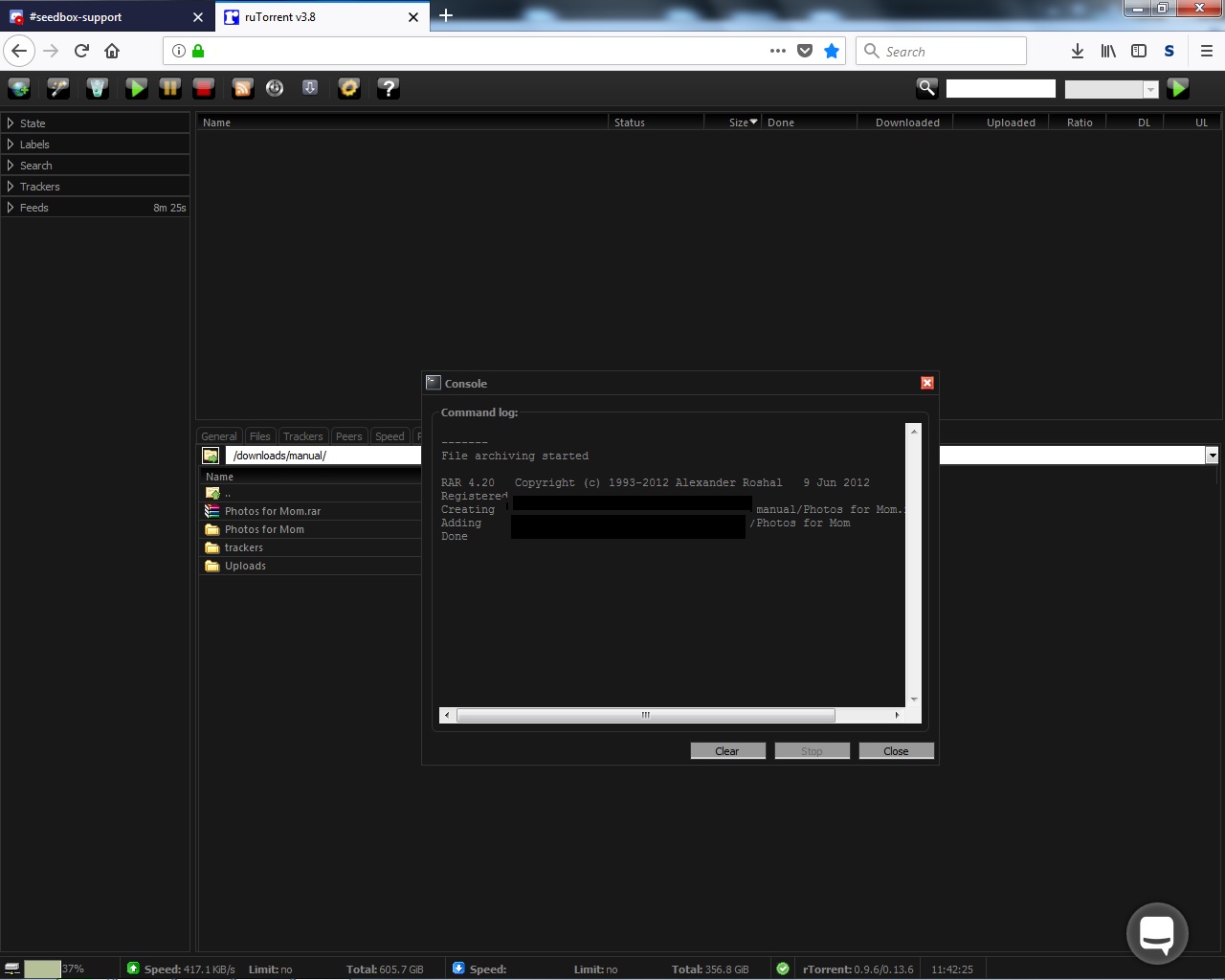
4. Click Start. A dialog box should pop up as the server created your archive. When it finishes, click close and your archive will be in the directory.
Creating Archives on Your Seedbox
Archiving compresses files or folders into a single file (.zip, .tar.gz, .rar), making them easier to download or share.
Steps to Create an Archive
- Open ruTorrent and click the File Manager tab at the bottom
- Navigate to the folder or files you want to archive
- Right-click on the folder and select Create → New Archive
- Choose your settings:
- Archive name: Give it a descriptive name
- Format: ZIP (most compatible) or TAR.GZ (smaller, Linux-friendly)
- Password: Optionally set a password to encrypt the archive
- Ensure the folder checkbox is selected and click Create
When to Use Archives
- Downloading via HTTP: Archive a folder so you can download it as a single file through your browser instead of one file at a time
- Sharing: Create a password-protected archive for sharing sensitive content
- Saving space: Compressible file types (text, documents) can shrink significantly
Related
To extract an existing archive, see Extracting an Archive.
Related articles
Put this into practice
EvoSeedbox ships with one-click app installs and up to 10 Gbps per box.


