Uploading files and folders
On this page ▾
By the end of this page you will have sent files or folders from your PC to your seedbox. Uploads go into whatever folder the right pane is showing, so browse there first.
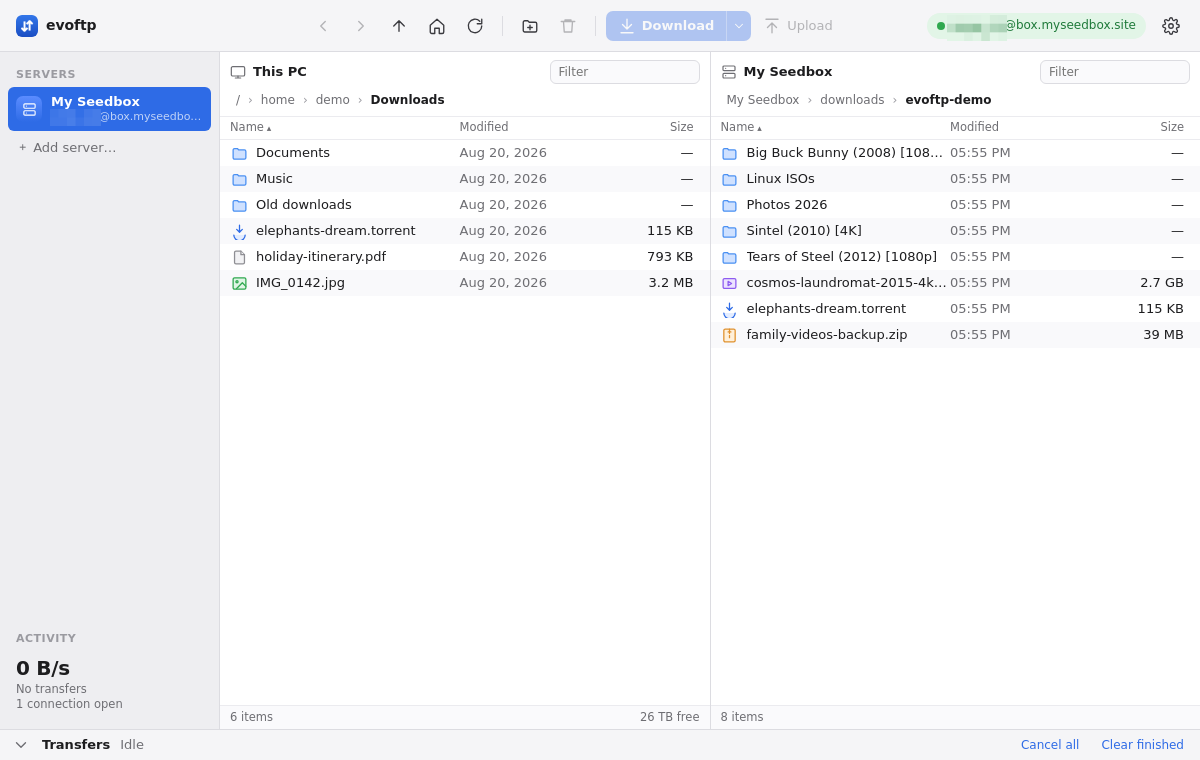
Uploading selected files
- In the right pane, open the seedbox folder you want the files to land in.
- In the left pane, select the files or folders to send (click, Ctrl/⌘-click, Shift-click).
- Click Upload in the toolbar or press Ctrl/⌘+U.
A toast confirms how many items were queued. The Upload button is greyed out until you are connected and have something selected on the left.
You can also drag the selected items from the left pane and drop them onto the right pane; the evoftp upload starts the same way. Right-click a local file and choose Upload to seedbox for a single item.
Dropping files from Explorer or Finder
Drag files or folders straight from your desktop or file manager and drop them anywhere on the right pane. They are uploaded into the folder the pane is showing. This is the quickest way to add a .torrent file to the watch folder; see Adding a torrent by dropping it in the watch folder.
Uploading folders
A folder is uploaded whole: evoftp creates the folder on the seedbox, then every subfolder, then queues each file inside as its own row in the Transfers drawer. Rows show as folder/file so you can tell them apart. Empty subfolders are created too.
Watching progress
Every upload gets a row in the Transfers drawer, marked with an up arrow, showing bytes sent, speed and time left. Up to the “files at once” number from your transfer profile run in parallel (three in the default Balanced profile); the rest wait as Queued. Uploads and downloads share the same queue and the same limit. Cancel a row with its ×; a cancelled or failed upload shows a Retry arrow that sends the file again from the beginning.
What arrives on the seedbox
- Name — the same name as on your PC, in the folder the right pane showed when you started.
- Existing files — a file with the same name on the seedbox is replaced without a prompt; evoftp does not ask before overwriting yet.
- Permissions — the seedbox defaults; evoftp does not copy Windows or macOS permissions, so the file is readable by your apps as any other file you add.
Note: uploads use a single connection per file. Only downloads are split into segments, so a large upload runs at whatever one connection manages on your line.
Overview: evoftp guide.
Related articles
Put this into practice
EvoSeedbox ships with one-click app installs and up to 10 Gbps per box.
