Cancelling, retrying and clearing transfers
On this page ▾
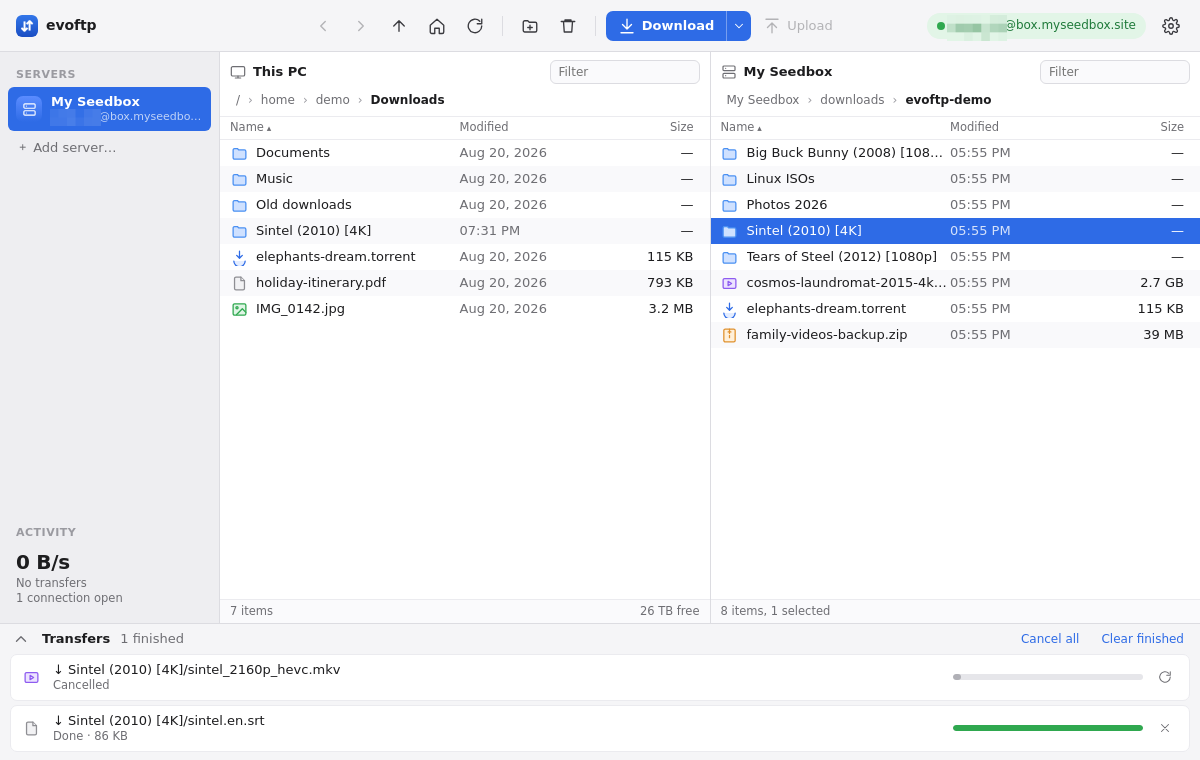
By the end of this page you will know how to stop a transfer in evoftp, start a failed or cancelled one again, and tidy the Transfers list. Everything happens in the Transfers drawer at the bottom of the window: click its title bar to open or collapse it.
Cancelling one transfer
- Open the Transfers drawer.
- Find the row and click the × at its right-hand end.
The evoftp cancel transfer action is immediate: the row turns to Cancelled at once, the connections that file was using are dropped, and the slots go to the next queued file. A queued file that has not started yet is simply marked cancelled. Nothing is deleted from your seedbox or your PC.
A cancelled download leaves two things on disk: the partial file and a small filename.evoftp-part next to it. Keep both if you plan to finish the download later; see Resuming an interrupted download.
Cancelling everything
Click Cancel all in the drawer’s title bar. Every running and queued transfer is cancelled the same way; rows that were already finished are left alone.
Retrying a failed or cancelled transfer
A row that failed shows Failed with the reason; a row you cancelled shows Cancelled. Both replace the × with a circular Retry arrow.
- Fix the cause if there was one (reconnect, free some disk space, wait for a torrent to finish on the box).
- Click the Retry arrow on the row.
The row goes back to Queued and starts when a slot is free. For a download, evoftp reads the .evoftp-part sidecar and continues from where it stopped; the bytes already on disk are counted as done as soon as it starts. For an upload, Retry sends the file again from the beginning, since uploads are not resumable.
You can also start again from the file list: select the same file on the seedbox and download it into the same local folder. That resumes too.
Clearing finished rows
Click Clear finished in the drawer’s title bar. Every row marked Done, Failed or Cancelled is removed from the list; running and queued rows stay. Clearing a row does not touch the files themselves, and it does not delete a cancelled download’s .evoftp-part, so you can still resume that file later by downloading it again.
On a Done row the × is labelled Remove; in the current build it clears every finished row, the same as Clear finished.
Note: a cancelled or failed row that you clear can no longer be retried from the drawer. Download the file again instead.
Overview: evoftp guide.
Related articles
Put this into practice
EvoSeedbox ships with one-click app installs and up to 10 Gbps per box.
