Rclone Google Drive Setup
On this page ▾
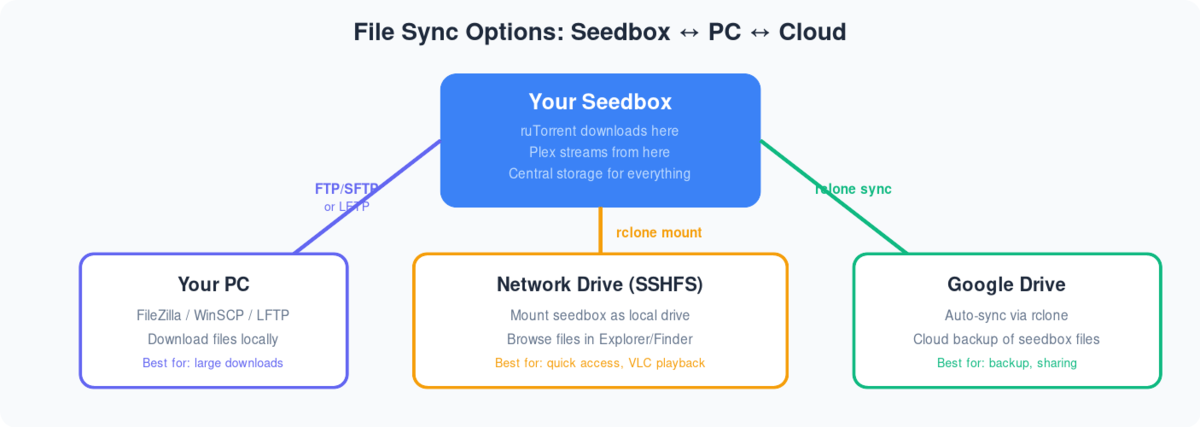
What This Guide Covers
Rclone connects your seedbox to Google Drive (and 70+ other cloud providers), so completed downloads can be copied or moved off the box automatically — the most common use on our fleet is Drive as overflow or backup storage next to the seedbox’s own disk. This guide sets up the Google Drive remote through Rclone Browser, the visual frontend, so you never have to touch a terminal. The one-time authorization takes about five minutes.
Step-by-Step: Connect Google Drive
- Install Rclone Browser from your client area dashboard
- Visit the Rclone Browser URL shown on your dashboard and log in
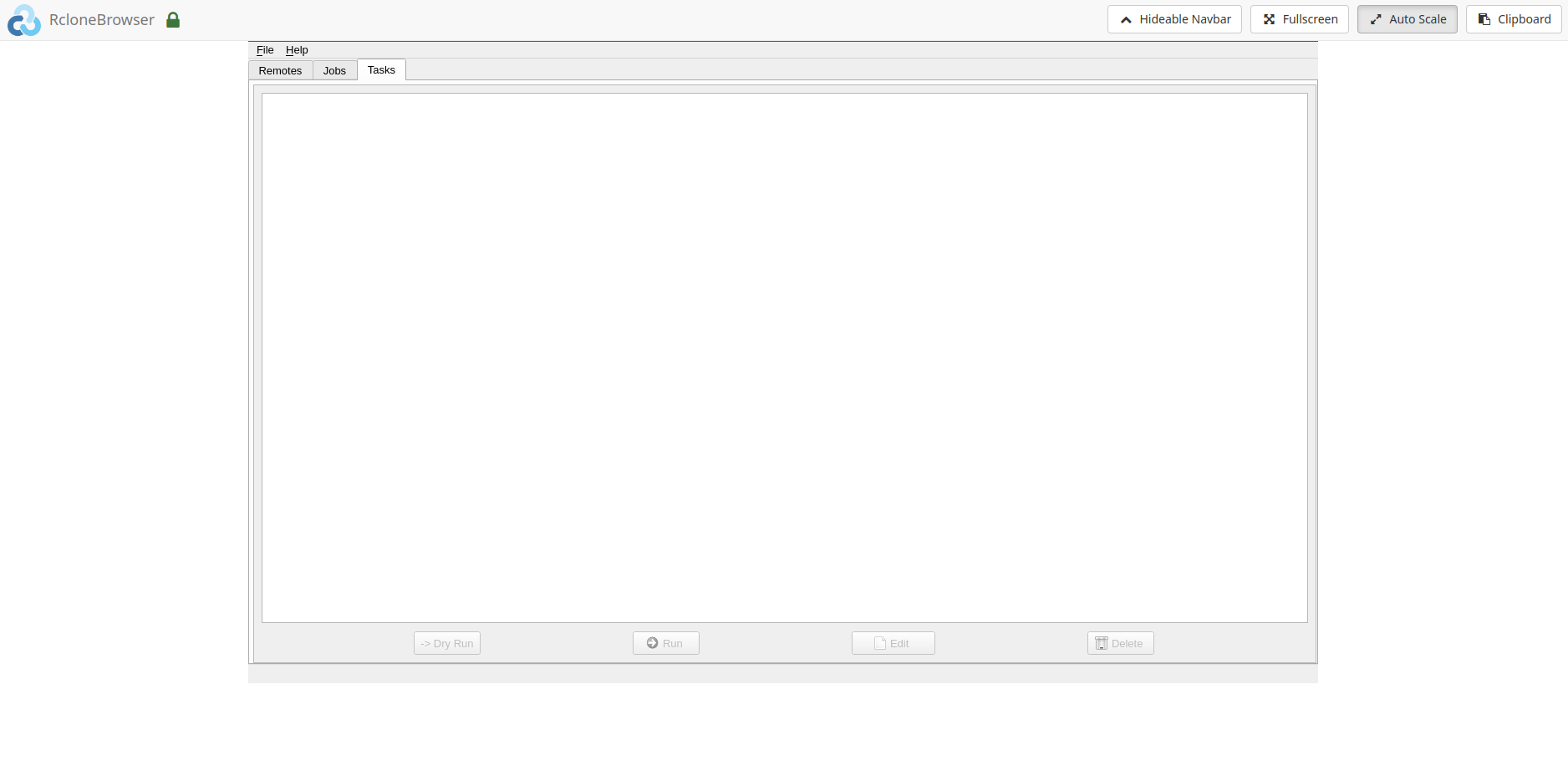
- The initial window has three tabs
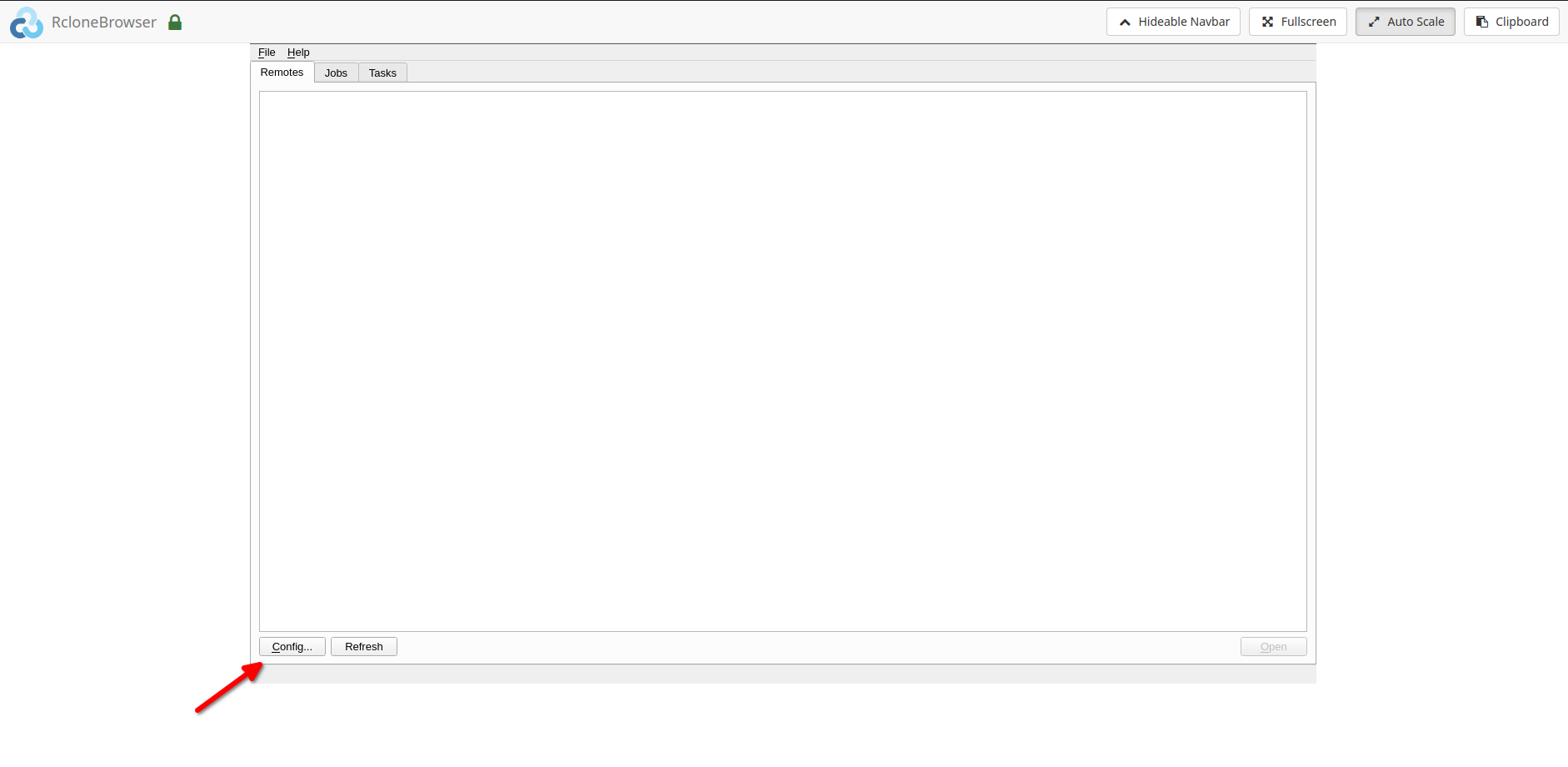
- Go to the Remotes tab and click Config
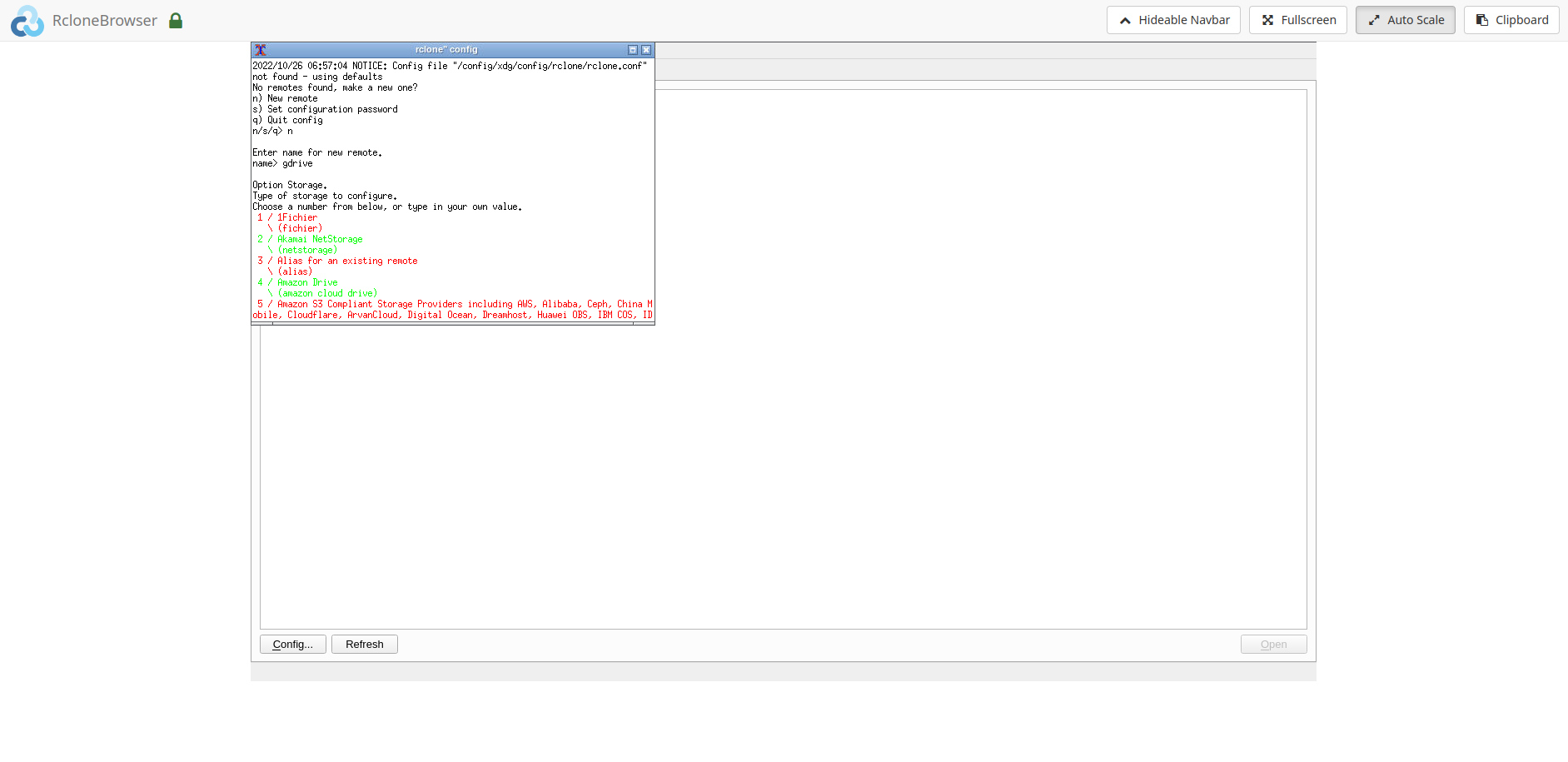
- Follow the on-screen instructions — choose n) New remote, give it a name (e.g.
gdrive), and pick drive (Google Drive) from the storage list. The defaults are fine for the client ID and secret prompts — just press Enter
- The final step is authorizing rclone against your Google account:
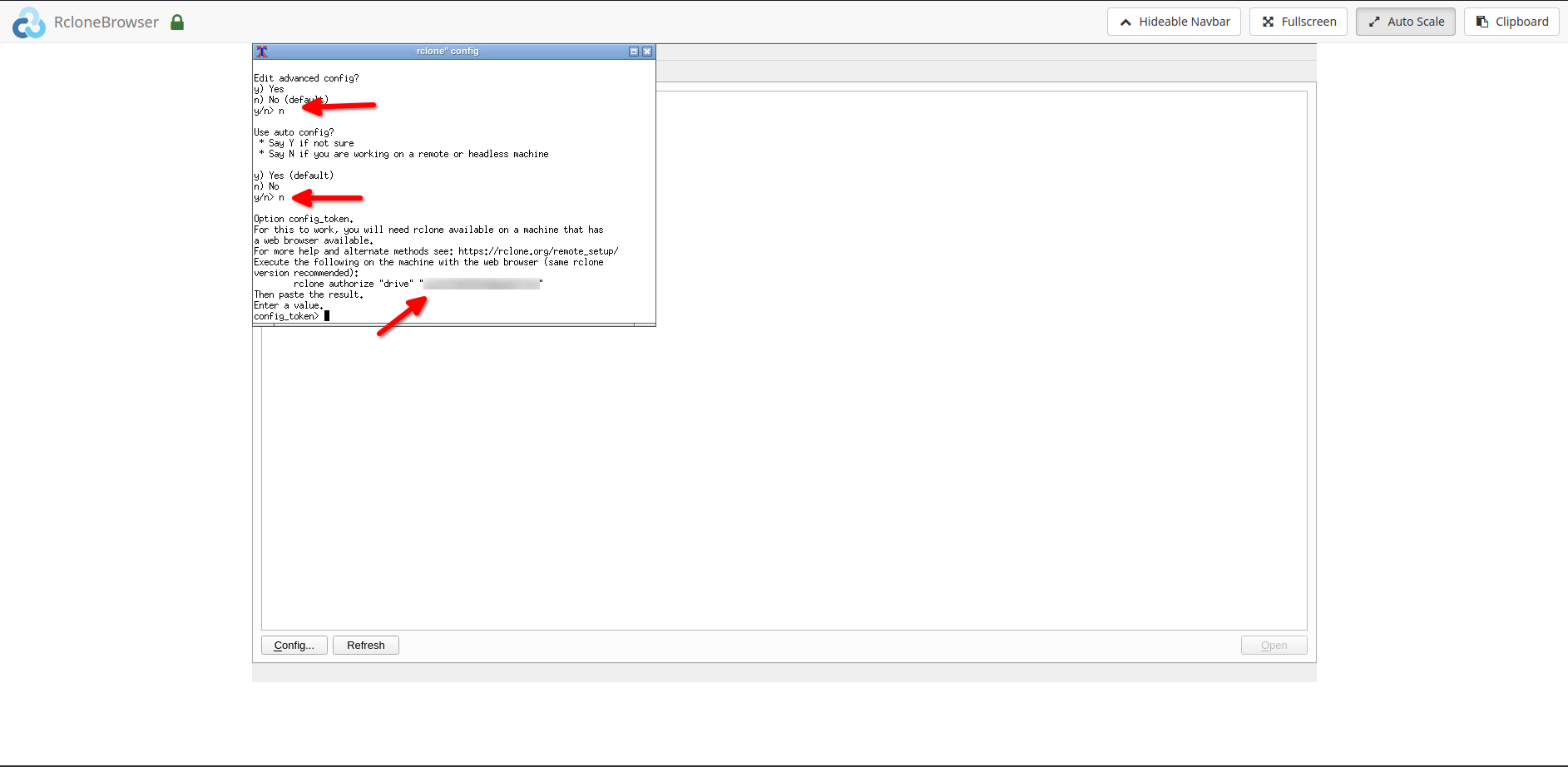
6.1. Enter n when asked about auto config — the seedbox has no browser of its own, so the authorization has to happen on your local machine.
6.2. Then, on your own computer:
- Install rclone locally (from rclone.org)
- Copy the command the config wizard shows you, i.e.
rclone authorize "drive" - Run it on your local system — your browser opens and asks you to grant rclone access to your Drive
- Copy the config token from your local command window and paste it back into Rclone Browser
Note: for copying and pasting inside the remote session, use the clipboard option in Rclone Browser.
- After the token is accepted, the remote is ready. Select it in the Remotes tab and click Open to browse your Drive
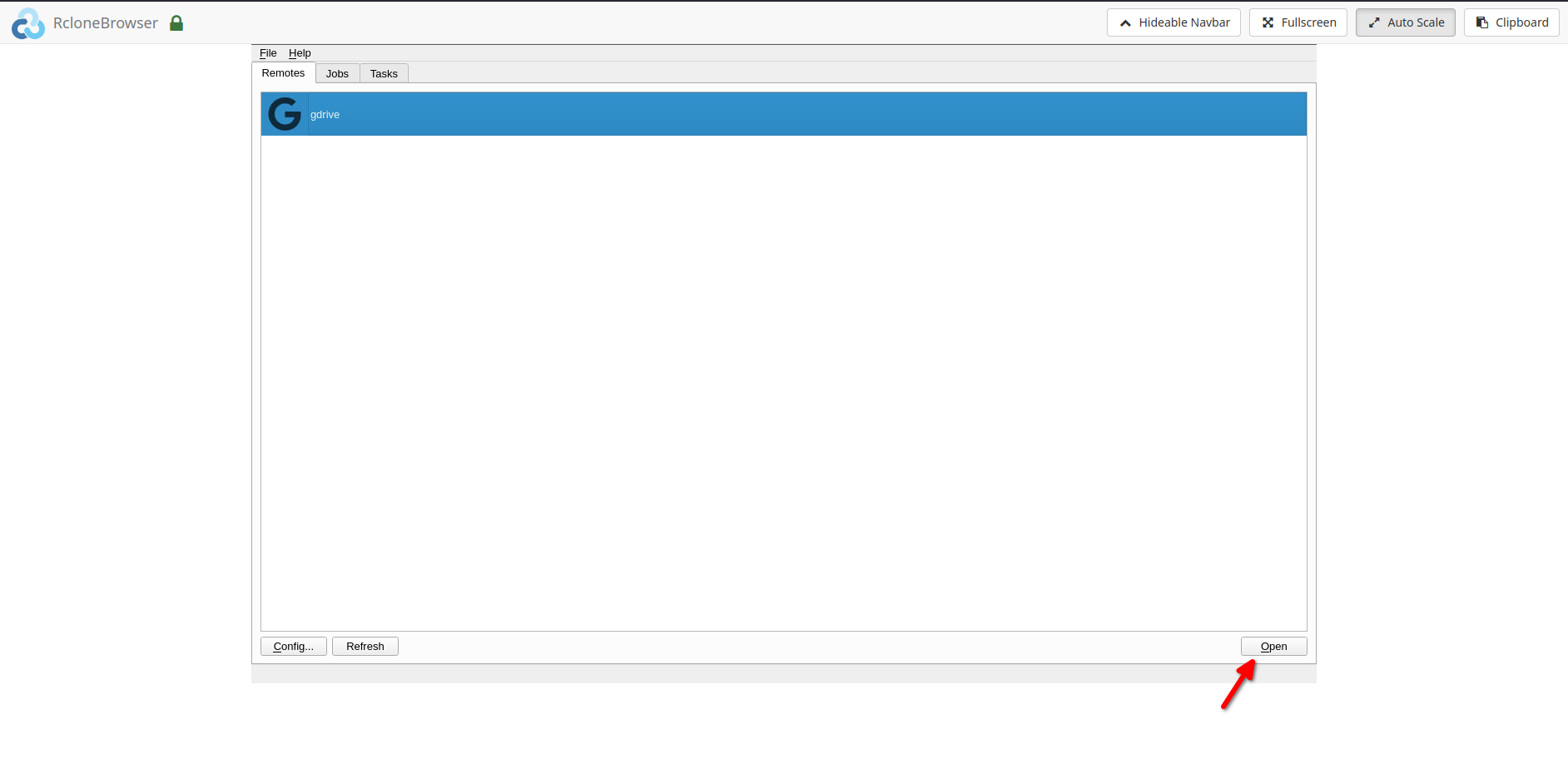
- Your remote opens in a new tab — you can now drag files between the seedbox and Drive
Mount Option and Data Sharing
- You can mount your remote under the
/mediadirectory in Rclone Browser - The same mount is accessible under
/home/<username>/rcloneon your seedbox — so ruTorrent, FTP and any other app on the box can see your Drive files - Your seedbox
downloadsdirectory is visible inside Rclone Browser under/home/<username>/downloads. This view is read-only from the Rclone Browser side; writes happen from the seedbox itself
Frequently Asked Questions
Why do I have to run a command on my own computer during setup?
Google’s OAuth authorization needs a web browser, and your seedbox is a headless server. Running rclone authorize "drive" locally does the browser dance on your machine and hands the resulting token back to the seedbox. It’s a one-time step.
Is there a size limit on what I can send to Google Drive?
Google enforces a rolling upload quota of roughly 750 GB per day per account. Large libraries transfer fine — they just spread across days. Rclone handles the throttling gracefully and resumes on its own.
Can I automate the transfer of completed downloads?
Yes — once the remote exists, a scheduled rclone copy ~/downloads/complete gdrive:seedbox via cron does it hands-free. See the CLI section of our Rclone Browser guide for the exact recipe.
Does this work with clouds other than Google Drive?
Yes. The same config flow supports Dropbox, OneDrive, S3, Backblaze B2 and dozens more — pick a different storage type at step 5. Google Drive is simply the most common choice among the rclone users on our fleet.
Related Guides
Related articles
Put this into practice
EvoSeedbox ships with one-click app installs and up to 10 Gbps per box.


