Managing saved servers
On this page ▾
Your evoftp saved servers live in the Servers list at the top of the sidebar. From there you connect, edit a login, remove an entry, or disconnect. evoftp holds one connection at a time.
Overview: evoftp guide.
Connecting to a saved server
Click the entry. evoftp connects, highlights it in the list, renames the right pane to the server’s Name, and opens the folder the connection file pointed at (or your home folder on the box). Each entry shows its Name on the first line and username@hostname underneath, so two logins on the same box are easy to tell apart.
When exactly one server is saved, evoftp connects to it by itself on startup. If a login fails, the connect sheet opens with the details filled in and the error shown, so you can correct the password and press Enter.
Editing a server
- Right-click the entry in the sidebar.
- Choose Edit….
- Change what you need. The cursor lands in the Password field, since a changed password is the usual reason to be here.
- Click Connect or press Enter.
Connect saves the changes and connects in one step; Cancel discards them. There is no way to save an entry without connecting to it.
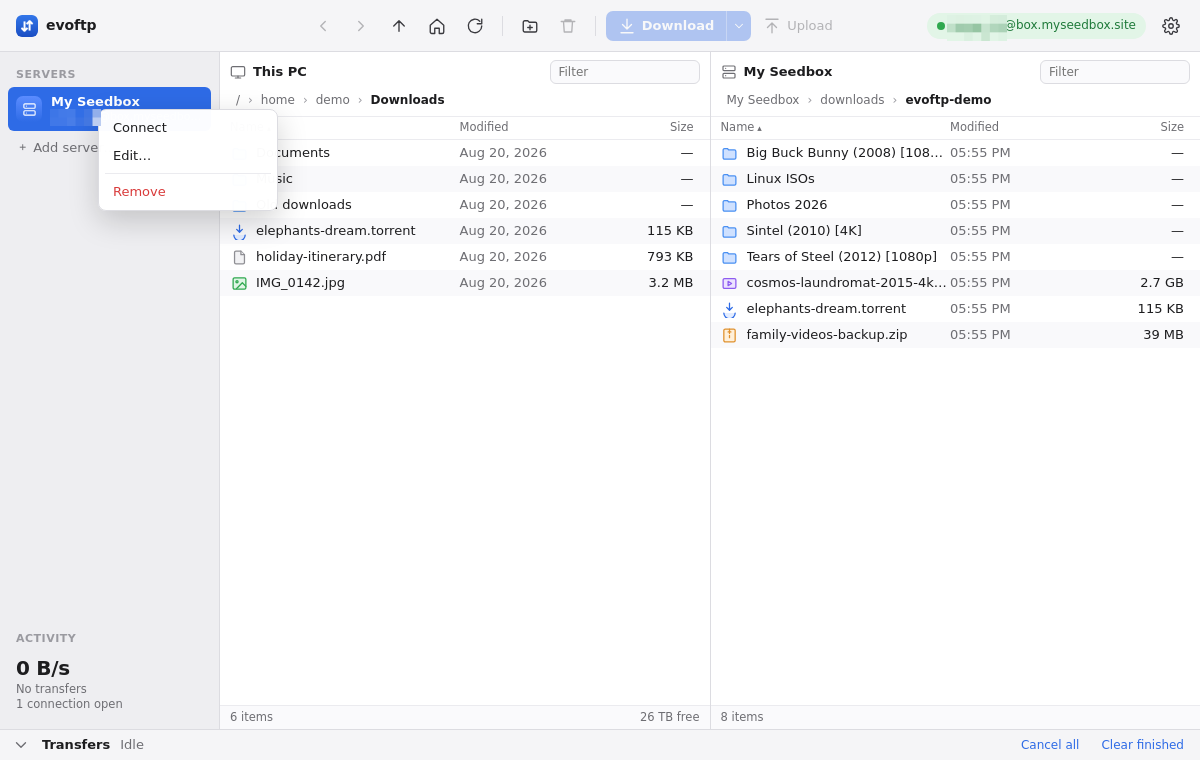
Removing a server
Right-click the entry and choose Remove. It disappears from the sidebar and from the servers file on disk.
Note: Remove acts at once. There is no confirmation and no undo; to get the server back, add it again or re-download the connection file from your client area.
Disconnecting
Click the connection pill at the top right (it reads username@hostname while connected) and choose Disconnect. The right pane returns to “Not connected” and the sidebar highlight clears. Disconnecting cancels any transfers still running, so wait for the Transfers drawer to read Idle if you want them to finish.
Clicking a different server does the same thing: because evoftp keeps a single connection, the new server replaces the old one and running transfers are cancelled. A cancelled download can be picked up later by downloading the same file into the same folder again.
Where the list is stored
The list is a file called servers.json in evoftp’s config folder. On Windows and Linux the passwords in it are encrypted with your OS login; on macOS the current unsigned build stores them unencrypted. Paths and details: Where evoftp stores servers, settings and passwords.
Overview: evoftp guide.
Related articles
Put this into practice
EvoSeedbox ships with one-click app installs and up to 10 Gbps per box.
