Selecting files and folders
On this page ▾
By the end of this page you will be able to pick one file, several files, or a whole run of them in either pane of evoftp, with the mouse or the keyboard. Every action in evoftp — Download, Upload, Delete, Rename — works on what is selected in a pane, so selection is the first step of every task.
Selecting with the mouse
- Click a row to select it. Anything else that was selected in that pane is dropped.
- Ctrl-click (Windows, Linux) or ⌘-click (macOS) a row to add it to the selection, or to remove it if it was already selected.
- Shift-click a row to select everything between the last row you clicked and this one.
- Click empty space below the last row to clear the selection.
Right-clicking a row that is already selected keeps the whole selection, so you can right-click any one of five selected files and act on all five.
Selecting with the keyboard
Click once in a pane so it has the focus highlight, then:
- ↓ / ↑ — move the selection one row down or up. Hold Shift to extend it instead of moving it.
- Ctrl/⌘+A — select every row currently shown. If the Filter box is in use, only the rows that match the filter are selected.
- Enter — open the selected folder; on the seedbox side, download the selected file; on the This PC side, open the selected file with its usual program.
- Backspace — go up one folder.
- Delete — delete the selection, after a confirmation.
Double-clicking a row does what Enter does.
Reading the status bar
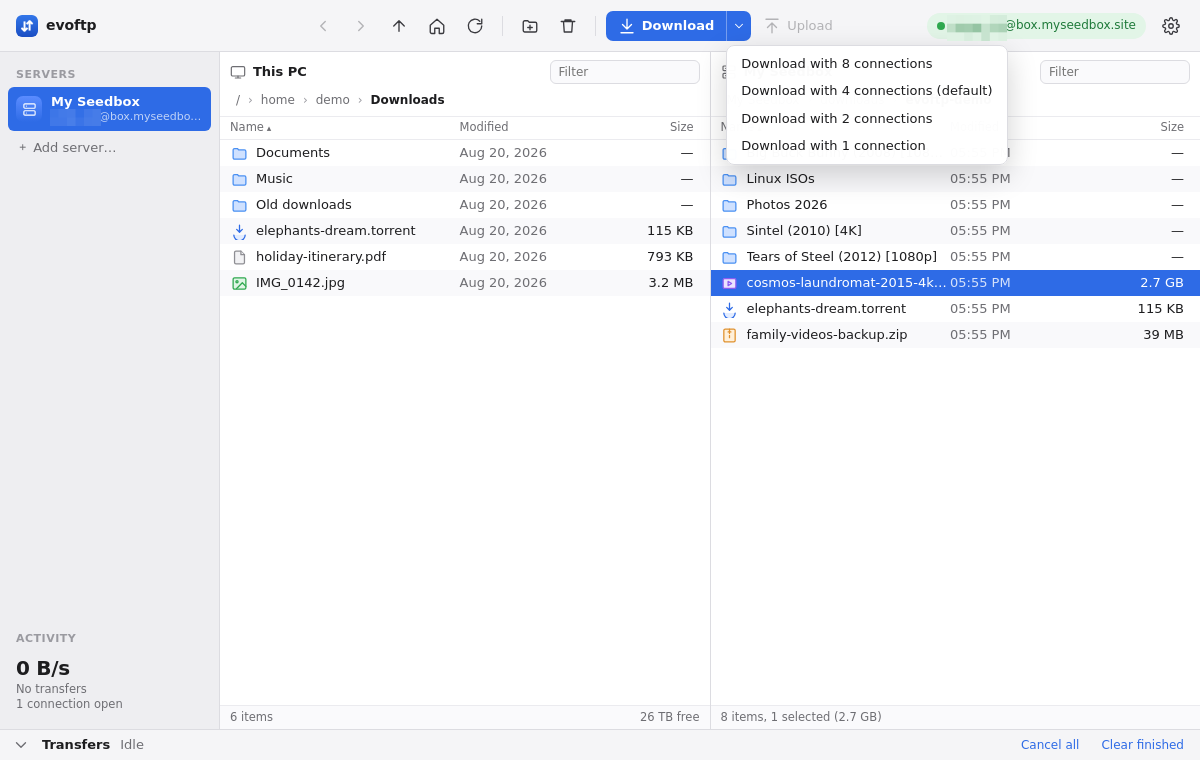
The bar under each pane shows how many items are in the folder and, once something is selected, how many are selected and their combined size — for example 42 items, 3 selected (8.6 GB). Folders count as items but add no size until they are downloaded.
What the selection enables
- Download and Download ▾ light up when you are connected and at least one row is selected in the seedbox pane.
- Upload lights up when you are connected and at least one row is selected in the This PC pane.
- Delete lights up when the focused pane has a selection.
- Rename… appears in the right-click menu only when exactly one row is selected.
Each pane keeps its own selection. Clicking in the other pane moves the focus but does not clear what you had selected.
Note: Opening another folder clears the selection and the Filter box; there is no way to carry a selection across folders.
Overview: evoftp guide.
Related articles
Put this into practice
EvoSeedbox ships with one-click app installs and up to 10 Gbps per box.
