ruTorrent Settings Explained: Every Tab of the Settings Dialog
On this page ▾
This is the setting-by-setting reference for the ruTorrent Settings dialog as it appears on an EvoSeedbox: every tab, what each option does, and the value that suits a seedbox where rTorrent runs natively on a fast line, with Sonarr, Radarr or Lidarr importing from the downloads folder. Labels were captured from the running interface. The basics of adding torrents, labels and the plugin bar are in the ruTorrent complete guide; this page is for the dialog behind the cog icon. Two things to know first: everything on the General, Format, Developers and File Manager tabs is stored in your browser and per-user ruTorrent config, while Downloads, Connection, BitTorrent and Advanced change the live rTorrent process and are reset to the values in .rtorrent.rc whenever rTorrent restarts.
How rTorrent and ruTorrent fit together on the seedbox
rTorrent is the client that actually downloads and seeds; it reads /home/<user>/.rtorrent.rc at start and keeps its session in /home/<user>/.session. ruTorrent is the web front end talking to it over SCGI. Settings that ruTorrent sends to rTorrent apply immediately but are not written back to .rtorrent.rc, so a value you want to survive a restart must also be edited in that file. Completed downloads live in /home/<user>/downloads, the same folder the *arr apps hardlink from.
General
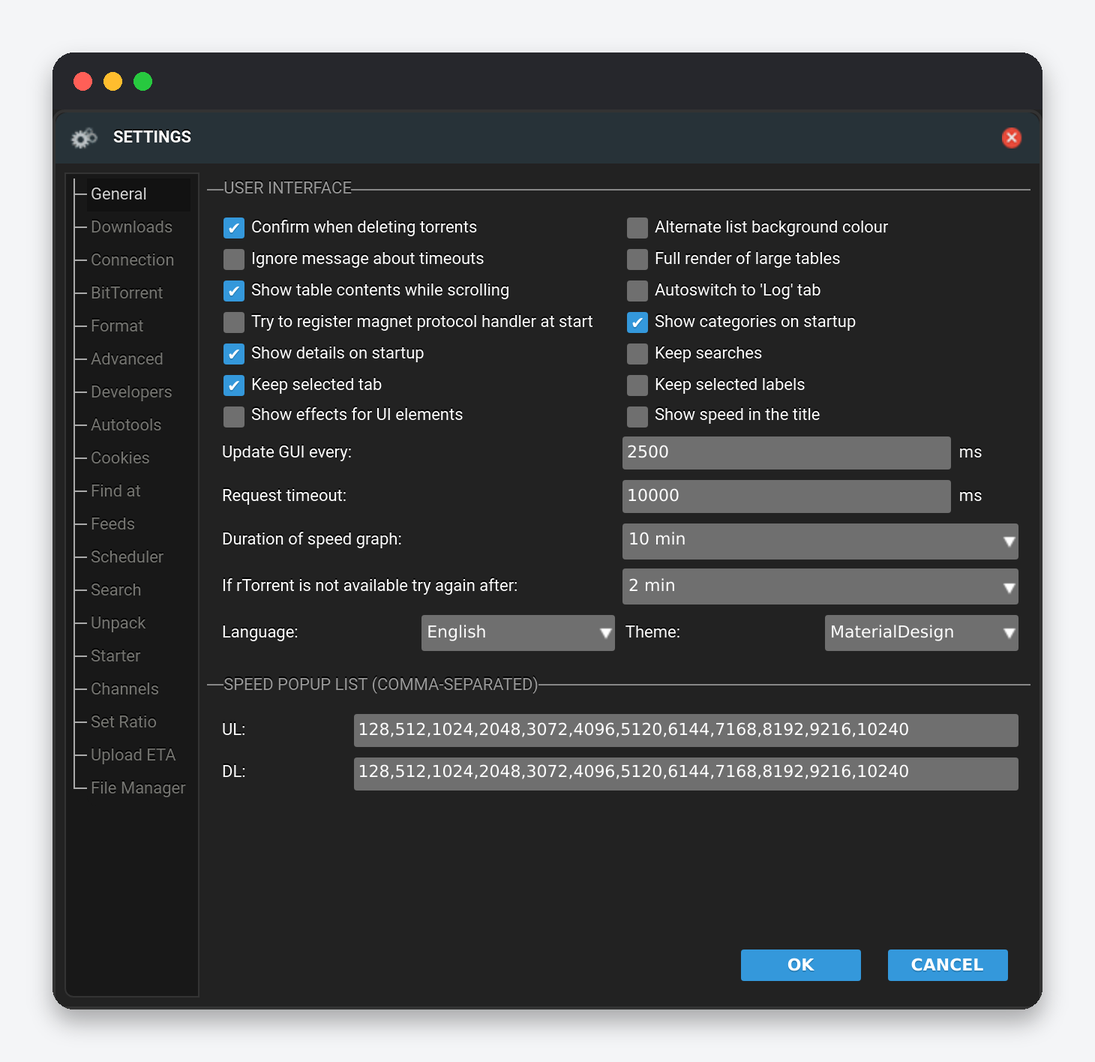
| Setting | What it does | Seedbox |
|---|---|---|
| Confirm when deleting torrents | Ask before removing a torrent. | On. “Remove with data” is one click away from a mistake. |
| Alternate list background colour / Show effects for UI elements | Cosmetics. | Your choice. |
| Ignore message about timeouts | Hide the “request timed out” popup. | Off. The message tells you rTorrent is busy, which matters on big libraries. |
| Full render of large tables / Show table contents while scrolling | Draw every row of a long torrent list, or only the visible rows. | Full render off on a list of more than a few hundred torrents; the browser stays responsive. |
| Autoswitch to ‘Log’ tab | Jump to the log when something is written to it. | Off. |
| Try to register magnet protocol handler at start | Ask the browser to open magnet links in ruTorrent. | On if you add torrents from a browser on your PC. |
| Show categories on startup / Show details on startup | Open the left panel and the bottom detail panel. | On. |
| Keep searches / Keep selected tab / Keep selected labels | Remember the search box, the detail tab and the label filter between visits. | Keep selected labels on; it is what makes “my Sonarr label” the default view. |
| Show speed in the title | Current speeds in the browser tab title. | Your choice. |
| Update GUI every | Refresh interval in ms. | 2500 (the default here) or 5000 on a large list. Every refresh is a full list request to rTorrent. |
| Request timeout | ms before a request to rTorrent is abandoned. | 10000. Raise to 30000 on libraries of thousands of torrents, where rTorrent’s session save can stall for several seconds. |
| Duration of speed graph | Window of the speed graph in the Speed tab. | Your choice. |
| If rTorrent is not available try again after | How long ruTorrent waits before reconnecting. | 2 min. rTorrent restarts take that long on a big session. |
| Language / Theme | Interface language and skin (Standard, Acid, Blue, Dark, DarkBetter, Excel, MaterialDesign, Oblivion). | MaterialDesign is the installer default. |
| Speed popup list: UL / DL | The values offered in the throttle menus, in KiB/s. | Default list. Add larger steps (20480, 51200) on a 10 Gbit plan. |
Downloads
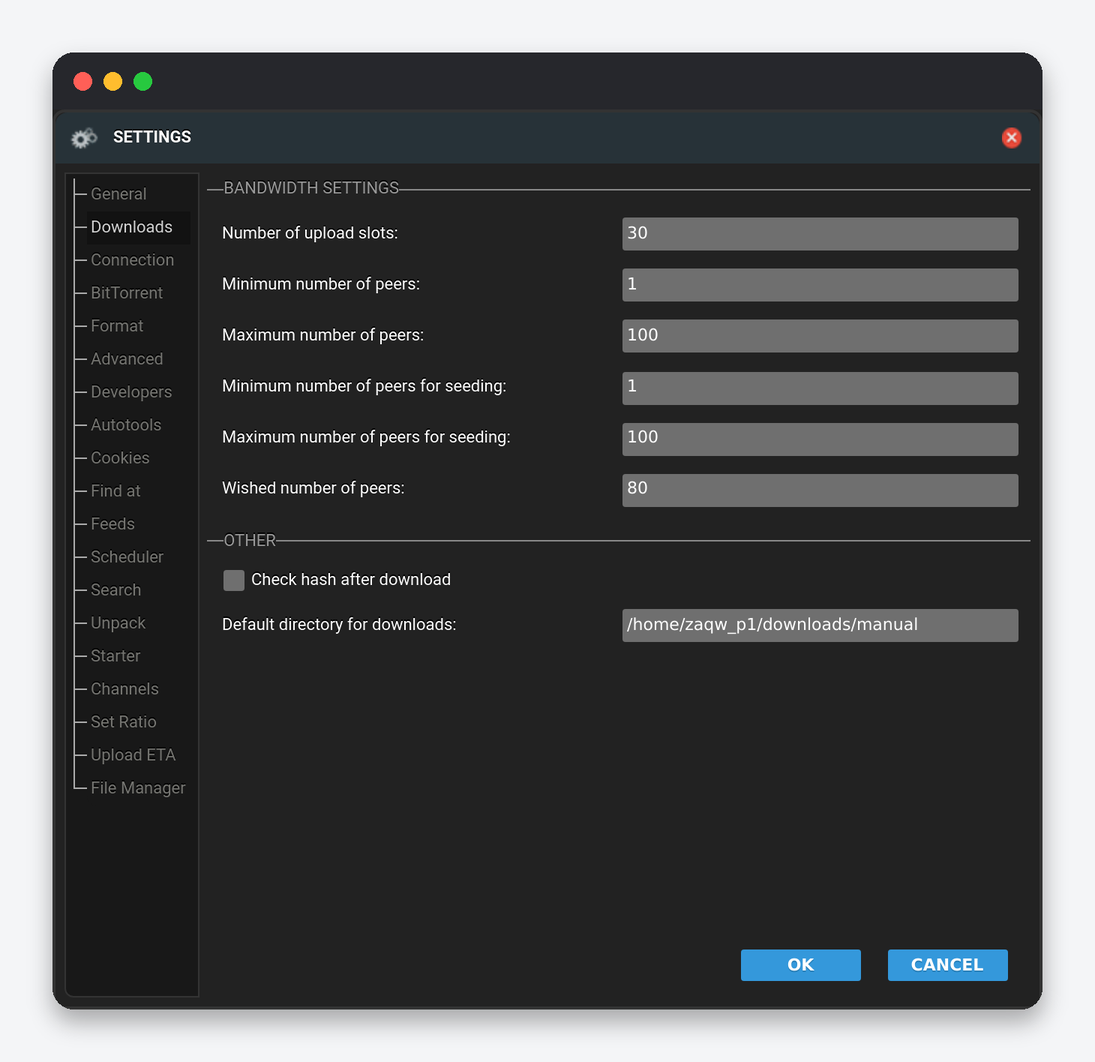
| Setting | rTorrent key | What it does | Seedbox |
|---|---|---|---|
| Number of upload slots | throttle.max_uploads |
Peers a torrent uploads to at once. | 15 to 50. A seedbox’s upload is shared across many torrents, so more slots per torrent do not add speed. |
| Minimum / Maximum number of peers | throttle.min_peers.normal / max_peers.normal |
Peer count targets while downloading. | Min 40, max 100. Higher maximums spend memory on idle peers. |
| Minimum / Maximum number of peers for seeding | throttle.min_peers.seed / max_peers.seed |
Peer targets while seeding. | Min 10, max 50. |
| Wished number of peers | trackers.numwant |
How many peers to request from the tracker. | -1 (tracker decides) or 50. |
| Check hash after download | pieces.hash.on_completion |
Re-hash every finished torrent. | Off. Pieces are already verified as they arrive; a re-hash of a 50 GB torrent delays the *arr import by minutes and doubles disk reads. |
| Default directory for downloads | directory.default |
Where new torrents are saved when no label rule applies. | /home/<user>/downloads. Keep everything under this folder so hardlinks work. |
Connection
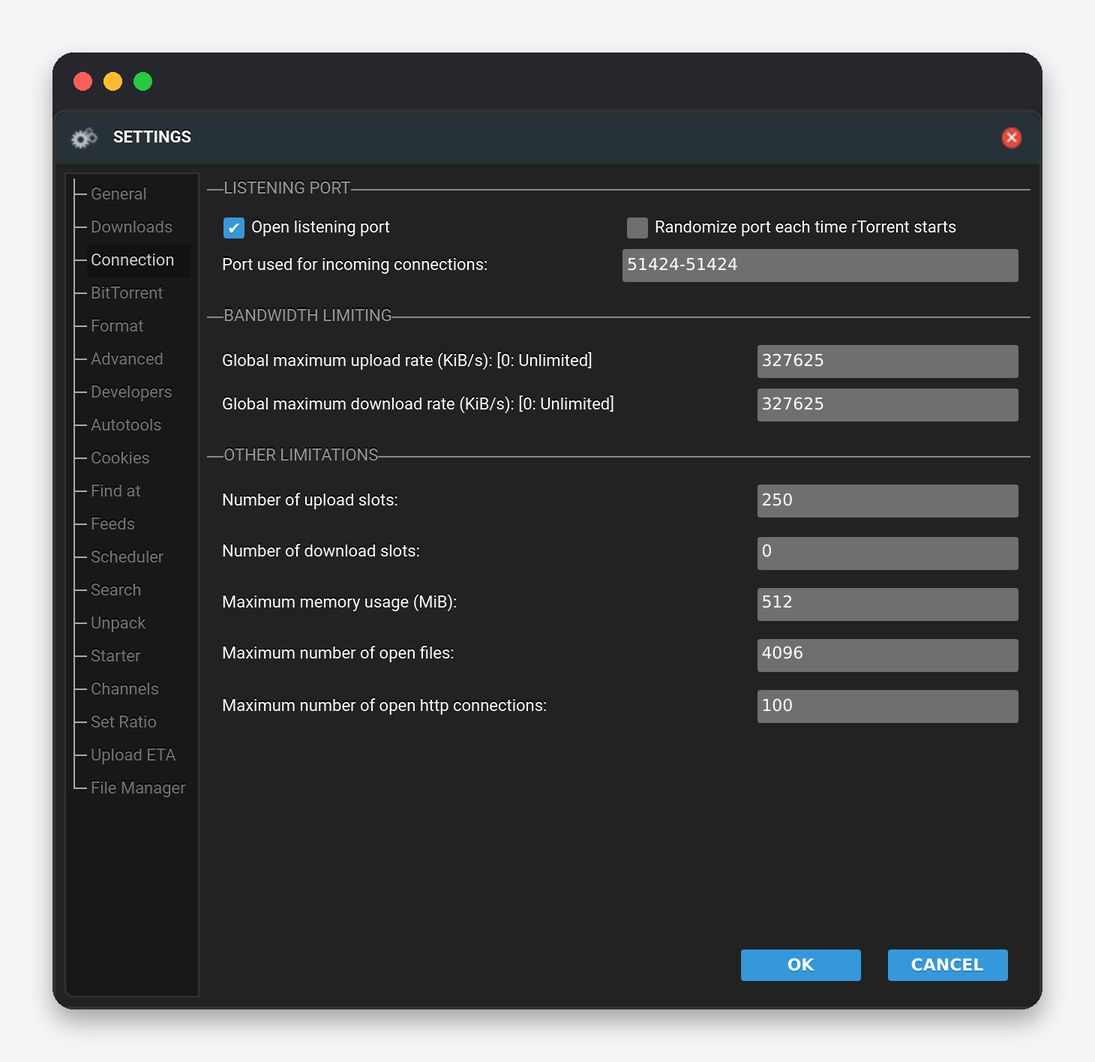
| Setting | rTorrent key | What it does | Seedbox |
|---|---|---|---|
| Open listening port / Randomize port / Port used for incoming connections | network.port_range, network.port_random |
The port peers connect to. | Leave the installer’s port and randomize off. The seedbox firewall opens exactly that port; a random port is unreachable and you seed only through outgoing connections. |
| Global maximum upload / download rate | throttle.global_up.max_rate / global_down |
Hard caps in KiB/s, 0 for unlimited. | 0 both. Use the Channels tab or the Scheduler for temporary limits. |
| Number of upload slots / download slots | throttle.max_uploads.global / max_downloads.global |
Upload and download slots across all torrents. | Upload 200 or more when seeding hundreds of torrents; download 100. |
| Maximum memory usage (MiB) | pieces.memory.max |
RAM for mapped pieces before rTorrent starts syncing to disk. | Set by the installer according to your plan; raising it past the plan’s memory limit gets rTorrent killed. |
| Maximum number of open files | network.max_open_files |
File handles for torrent data. | Leave the installer value. Too low produces “Too many open files” on large multi-file torrents. |
| Maximum number of open http connections | network.http.max_open |
Parallel HTTP requests for trackers and RSS. | 32 to 64. Private trackers with many torrents announce more smoothly. |
BitTorrent
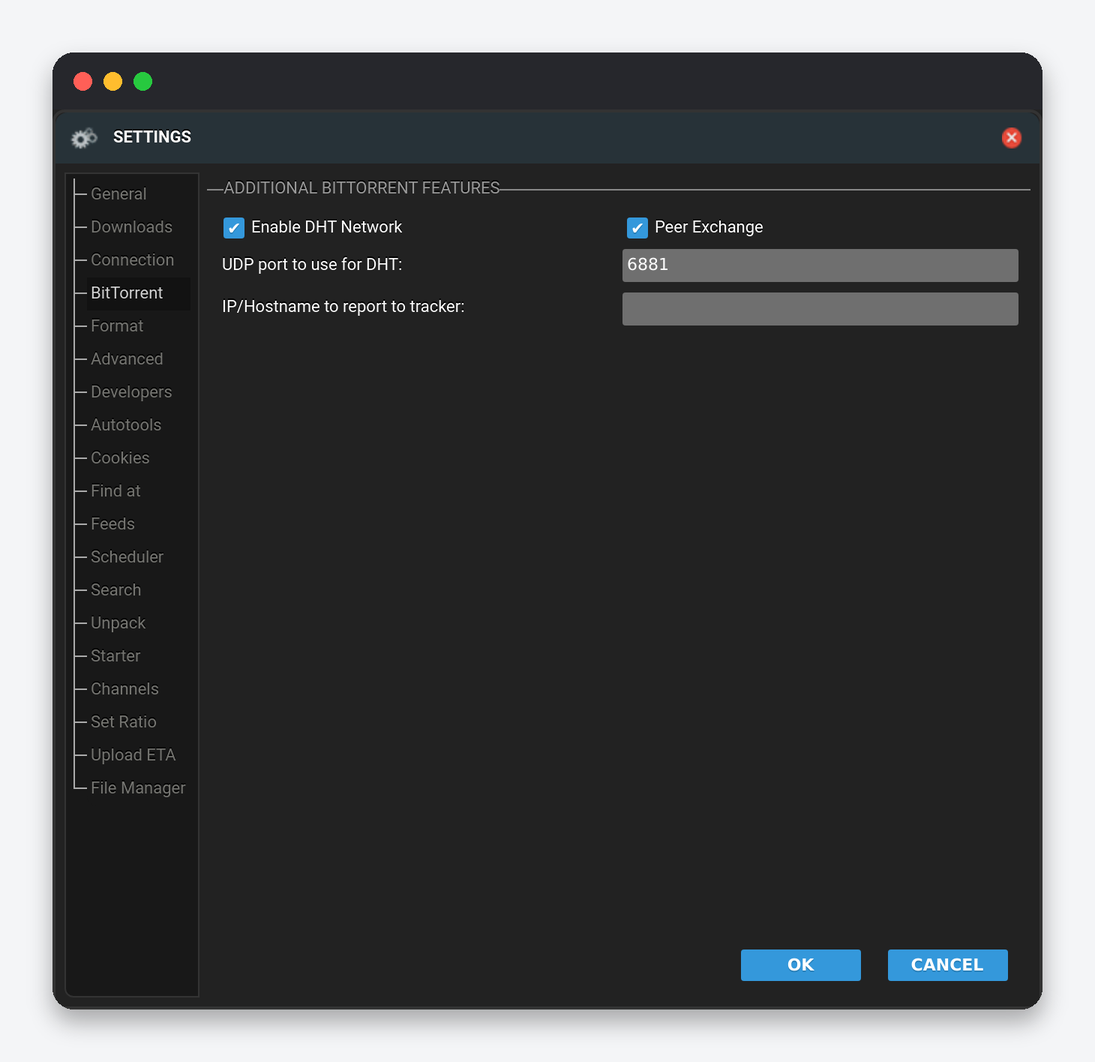
| Setting | What it does | Seedbox |
|---|---|---|
| Enable DHT Network / UDP port for DHT | Trackerless peer discovery. | Off if you use private trackers: most of them ban clients with DHT on. Turn it on only for public torrents, and note that the installer’s .rtorrent.rc resets it at restart. |
| Peer Exchange | Swap peer lists with connected peers. | Same rule as DHT: off for private trackers. |
| IP/Hostname to report to tracker | network.local_address: the address announced to trackers. |
Empty. The server’s public IP is reported automatically; setting it wrong makes you unconnectable. |
Format
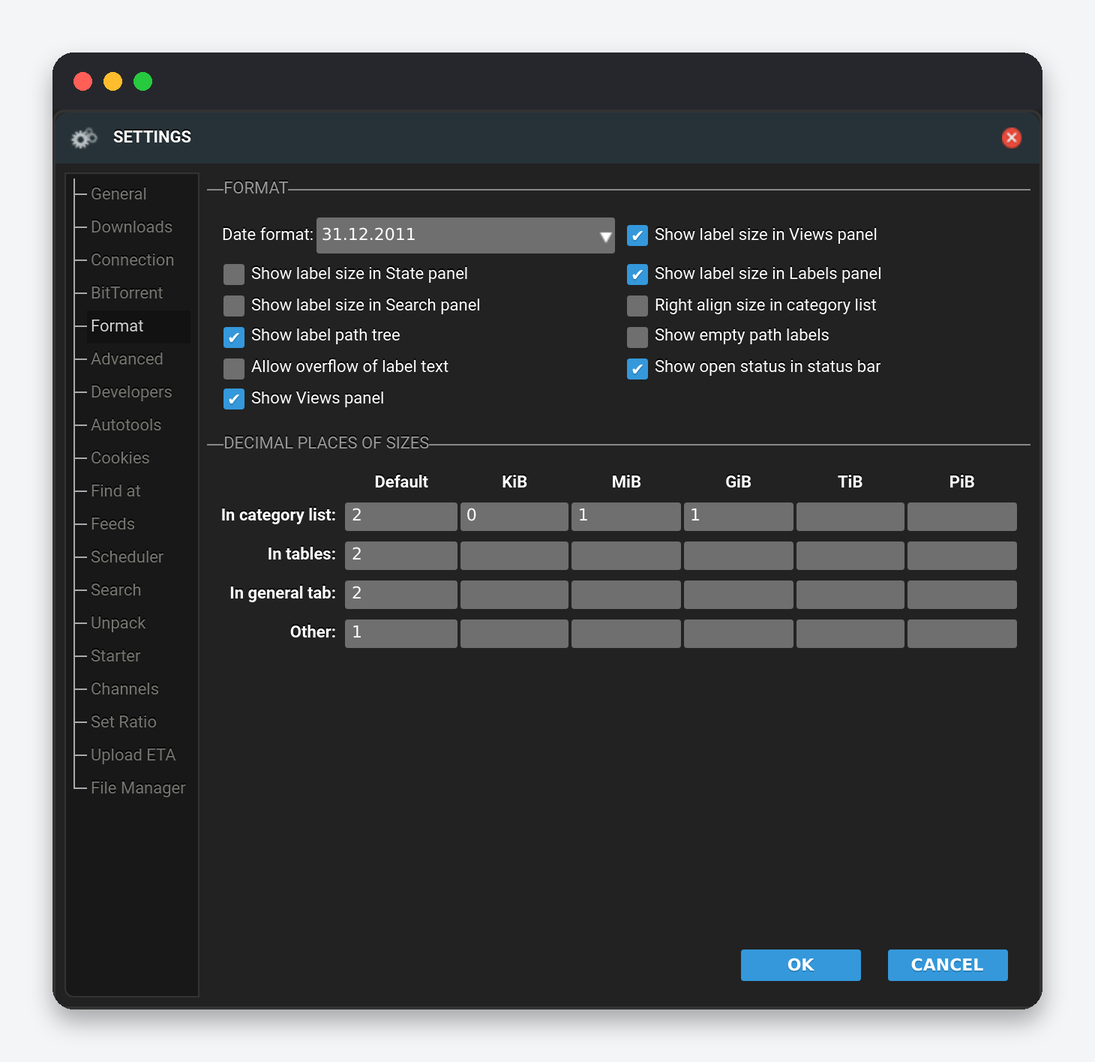
Date format, whether label sizes are shown in the Views, State, Labels and Search panels, right alignment of sizes, a path tree in the label panel (useful once you have downloads/tv, downloads/movies and so on), empty path labels, overflow of long label names, the open-status indicator in the status bar, the Views panel, and decimal places per unit. None of this touches rTorrent.
Advanced
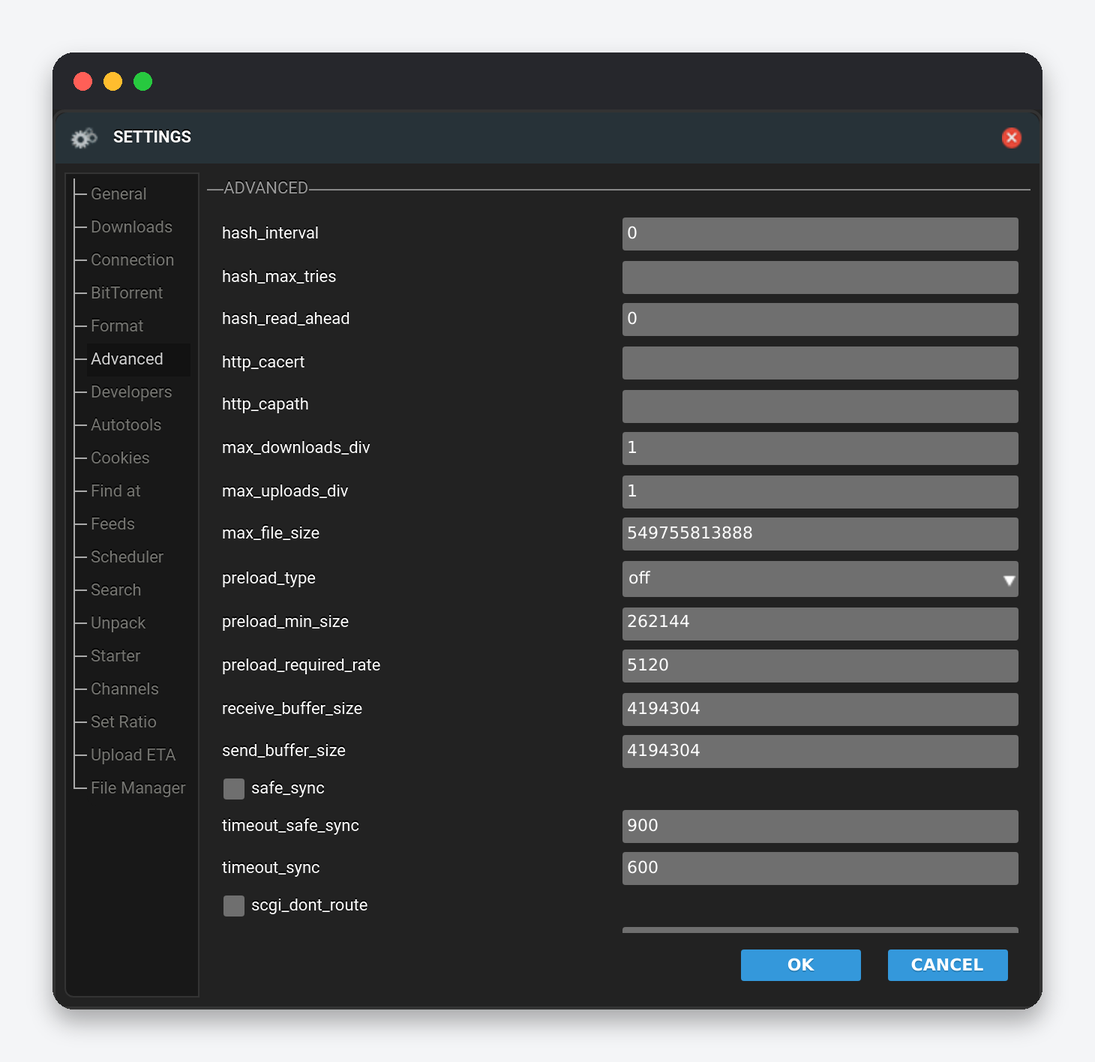
| Option | What it does | Seedbox |
|---|---|---|
| hash_interval / hash_max_tries / hash_read_ahead | How aggressively rTorrent hashes. | Installer values. Raising read-ahead makes rechecks faster at the cost of RAM. |
| http_cacert / http_capath / http_proxy / proxy_address | TLS trust store and proxy for tracker and RSS requests. | Empty. A proxy is only needed when a tracker blocks the server’s country. |
| max_downloads_div / max_uploads_div | Divisors used to derive per-torrent slots from the global slots when the per-torrent value is 0. | Default. |
| max_file_size | Largest single file accepted. | Default (effectively unlimited). |
| preload_type / preload_min_size / preload_required_rate | Read-ahead strategy for uploading (off, madvise, direct paging) and when it kicks in. | madvise, the default. Direct paging helps only on spinning disks with few peers. |
| receive_buffer_size / send_buffer_size | Socket buffers; 0 uses the kernel default. | 0. The seedbox kernel is already tuned. |
| safe_sync / timeout_safe_sync / timeout_sync | How often mapped pieces are flushed to disk. | Default. Do not lower the timeouts; more fsyncs stall a busy client. |
| scgi_dont_route | Do not route SCGI through the proxy. | Default. |
| session / session_lock / session_on_completion | Session folder, lock file, and saving the session when a torrent completes. | Leave all three. The session is what restores your torrents after a restart. |
| split_file_size / split_suffix | Split very large files into parts. | -1 (off). |
| use_udp_trackers | Allow UDP tracker announces. | Yes. |
| bind | Interface address rTorrent binds outgoing connections to. | Empty unless you run a VPN app and want traffic pinned to it. |
Autotools
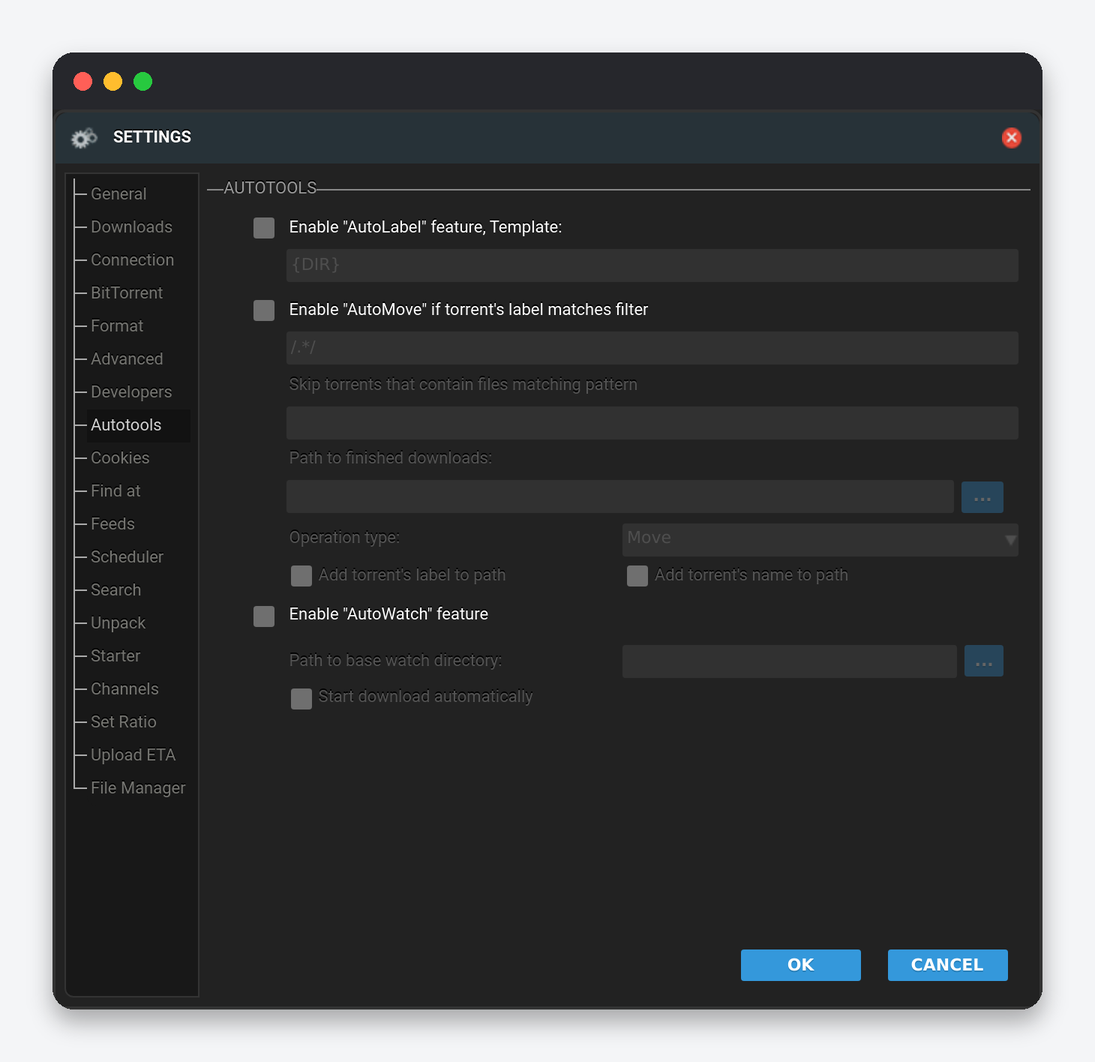
| Setting | What it does | Seedbox |
|---|---|---|
| Enable “AutoLabel”, Template | Assign a label from the torrent’s path using a template such as $(dir) or $(name). |
Off with Sonarr or Radarr; they set the label themselves. |
| Enable “AutoMove” if label matches filter | Move finished torrents whose label matches (comma-separated, wildcards) to Path to finished downloads, using Move, Hard link, Copy or Soft link, optionally adding label and name to the path. | Off for labels an *arr app manages. AutoMove changes the torrent’s path after the app was told where the files are, and the import fails or copies. If you want a per-label folder, set it in the app’s download client (category) instead. For manual labels, use Hard link so seeding continues from the original. |
| Skip torrents that contain files matching pattern | Exclude torrents from AutoMove by file pattern. | Only with AutoMove on. |
| Enable “AutoWatch”, Path to base watch directory, Start download automatically | Load .torrent files from a folder tree; a subfolder name becomes the label. |
On with /home/<user>/downloads/watch if you drop torrents by SFTP. The autodl-irssi plugin has its own watch handling and does not need this. |
Scheduler
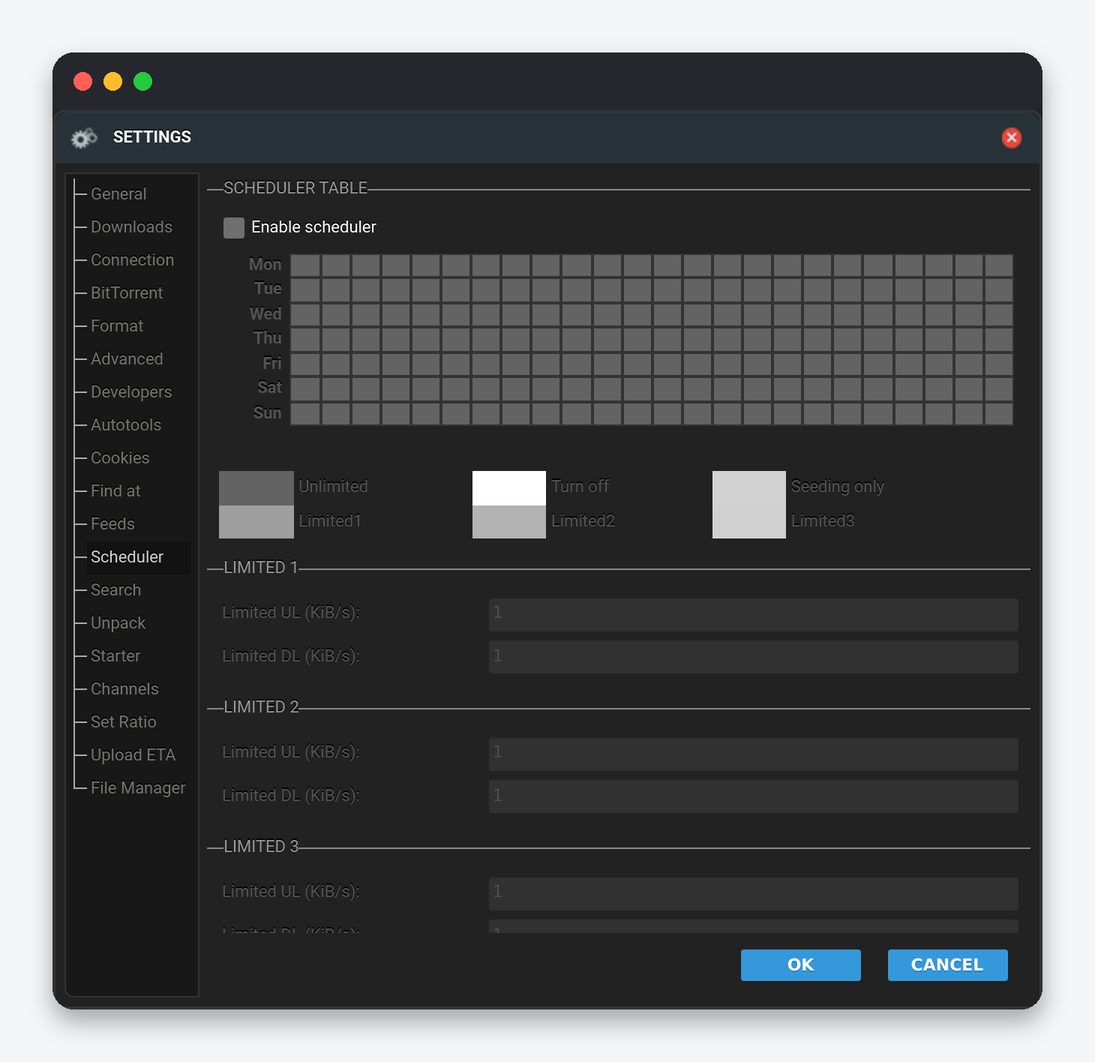
A weekly grid, one cell per hour, where each cell is Unlimited, Turn off, Seeding only, or one of three Limited profiles with their own upload and download caps in KiB/s. It is built for shared home lines. On a seedbox the practical use is Seeding only during the hours you do backups or streaming from the same box, so downloads do not compete for disk. Leave the scheduler disabled otherwise; a forgotten “Turn off” cell is a common reason for “my torrents stop every night”.
Search
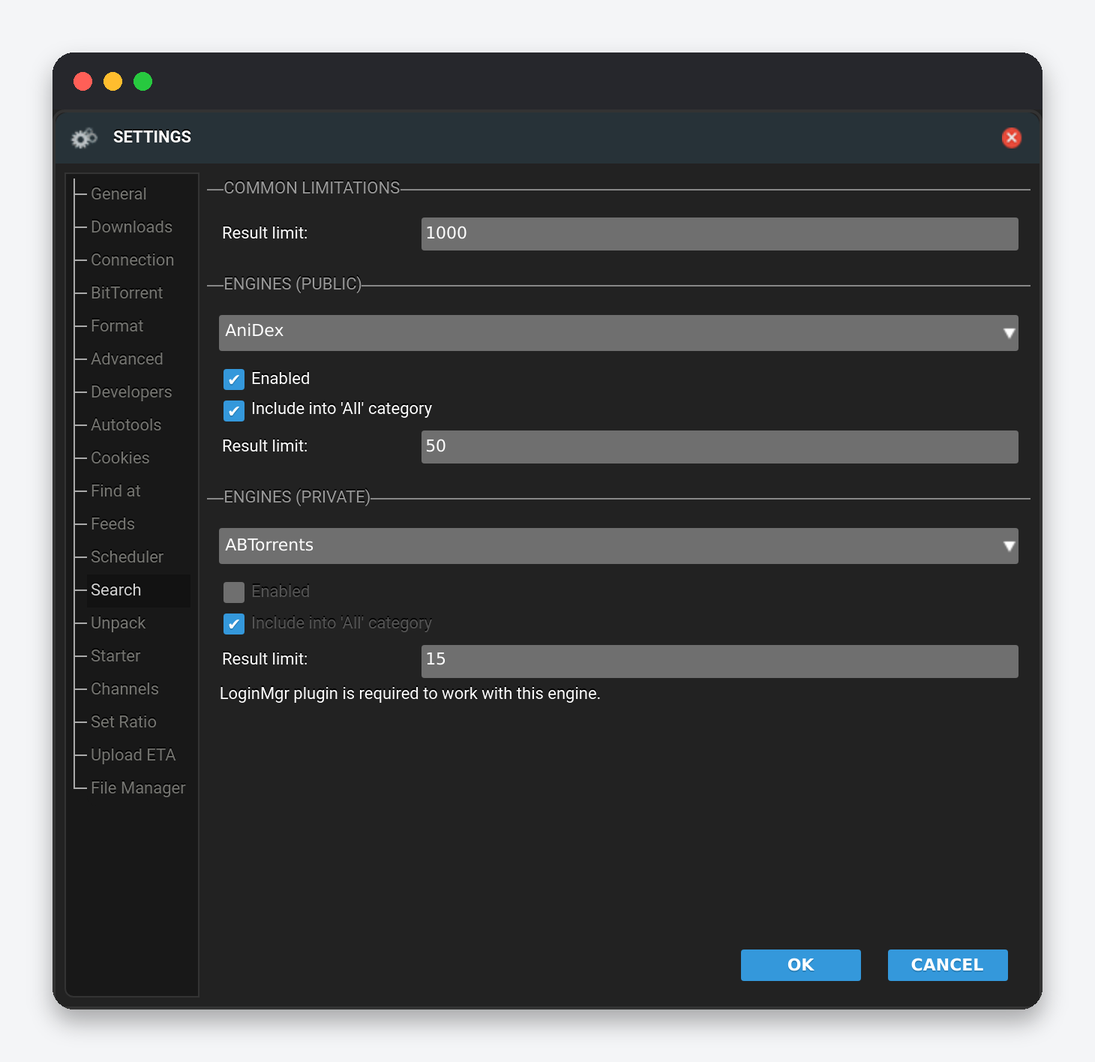
A global result limit, then every engine of the built-in search plugin with Enabled, “Include into All category” and a per-engine result limit. Public engines work without login; private engines need the LoginMgr plugin with your tracker credentials. Enable only the trackers you have accounts on; every enabled engine is queried for every search and a dead engine slows the whole box. With Prowlarr or Jackett installed you rarely need this: they search the same trackers and hand the result to Sonarr or Radarr, which is more useful than a list in ruTorrent. The separate TV/Movie Search tab on the seedbox is EvoSeedbox’s own plugin and is configured there, not here.
Unpack
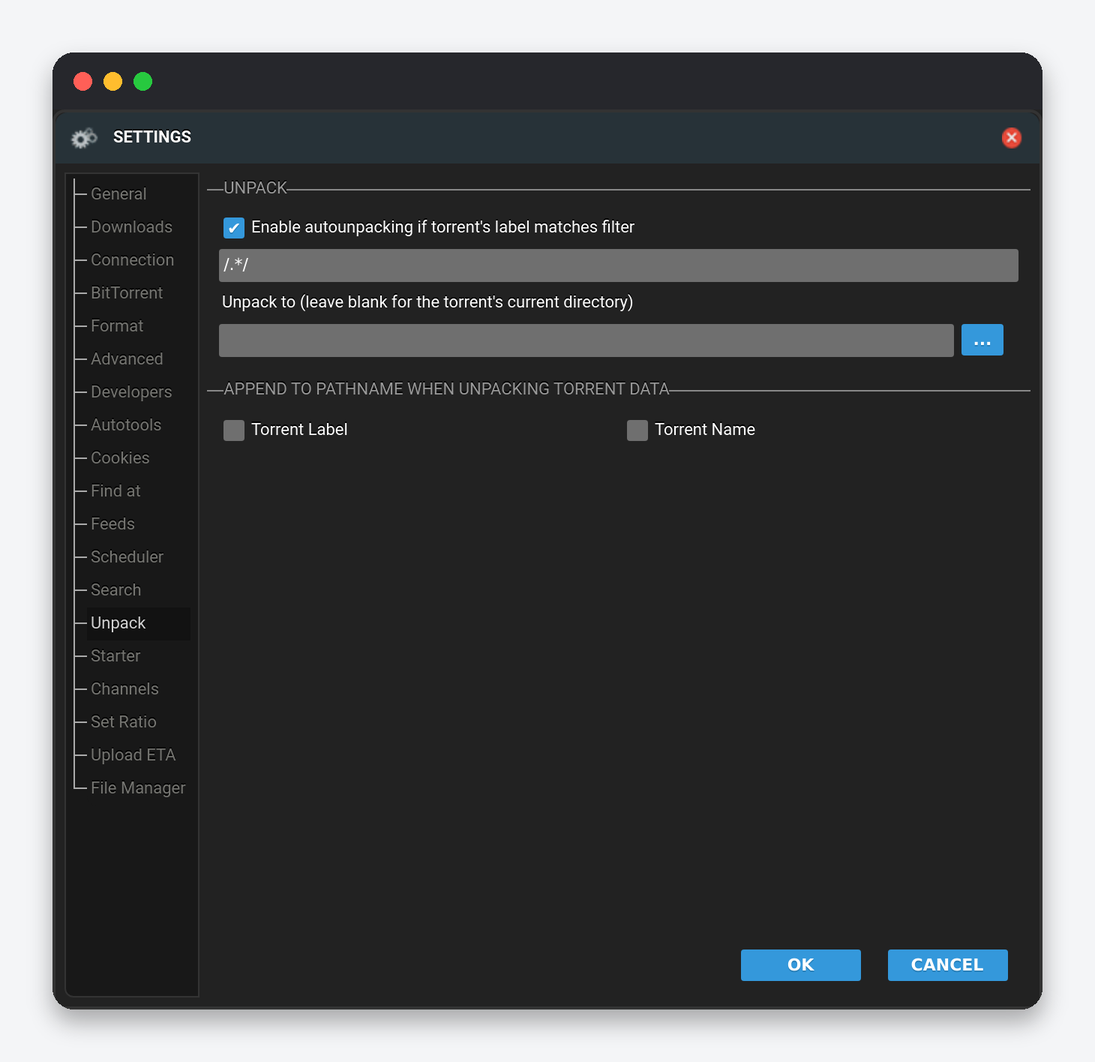
Enable autounpacking if torrent’s label matches filter extracts RAR and ZIP archives when a matching torrent finishes, into the torrent’s own folder or into Unpack to, optionally appending the label or torrent name. Use it for a manual label such as archives. Do not enable it for Sonarr or Radarr labels: they do not import from scene RARs anyway and the extracted copy doubles the disk use until you delete it. Manual extraction is in the right-click menu and explained in extracting an archive with ruTorrent.
Channels
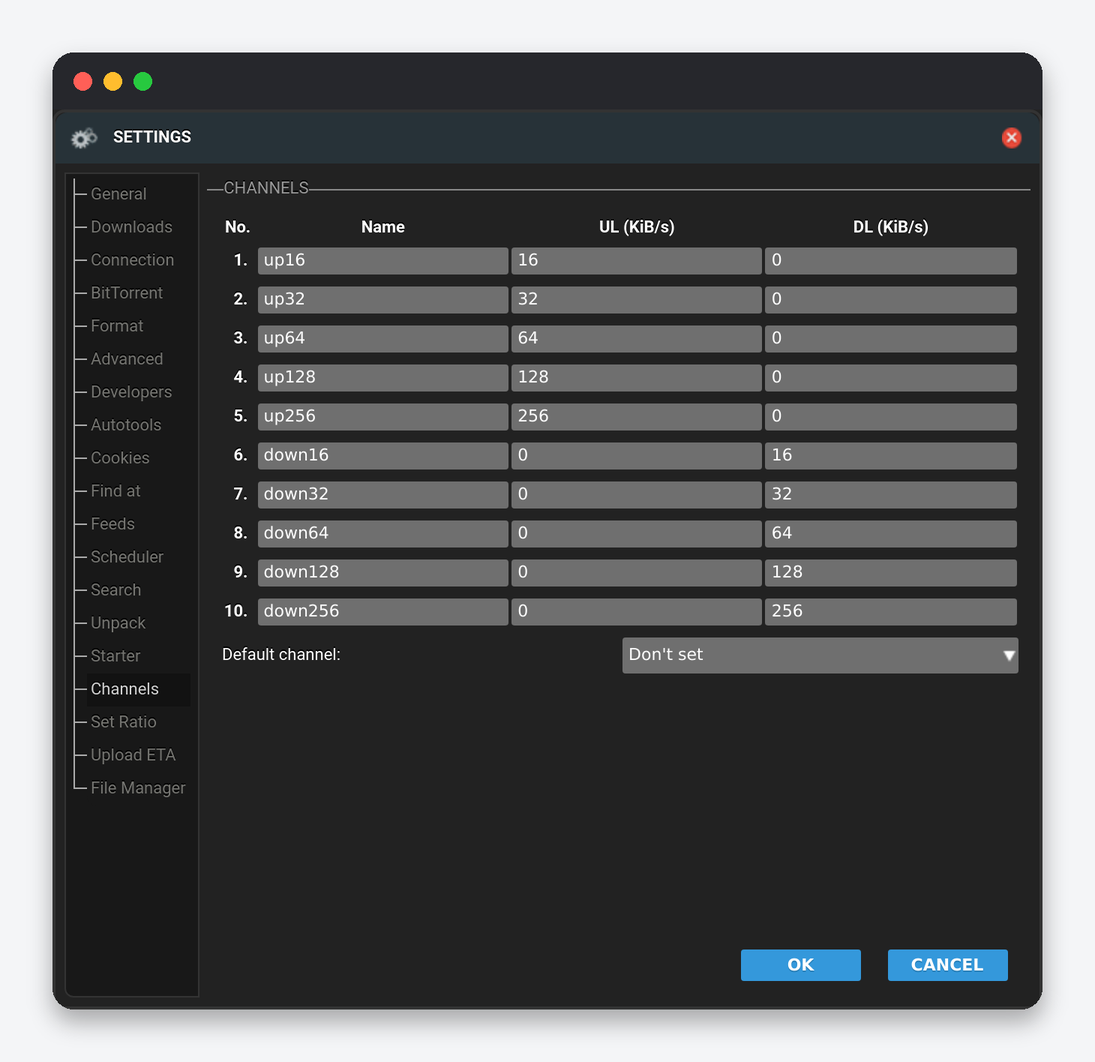
Ten named throttle channels, each with an upload and download limit in KiB/s, and a default channel for new torrents. Assign a channel from a torrent’s right-click menu. This is how you give one group of torrents a slice of the line: for example a channel “public” capped at 5 MiB/s upload so public torrents never crowd out your private-tracker seeding. Leave Default channel at “Don’t set” so new torrents run unthrottled.
Set Ratio
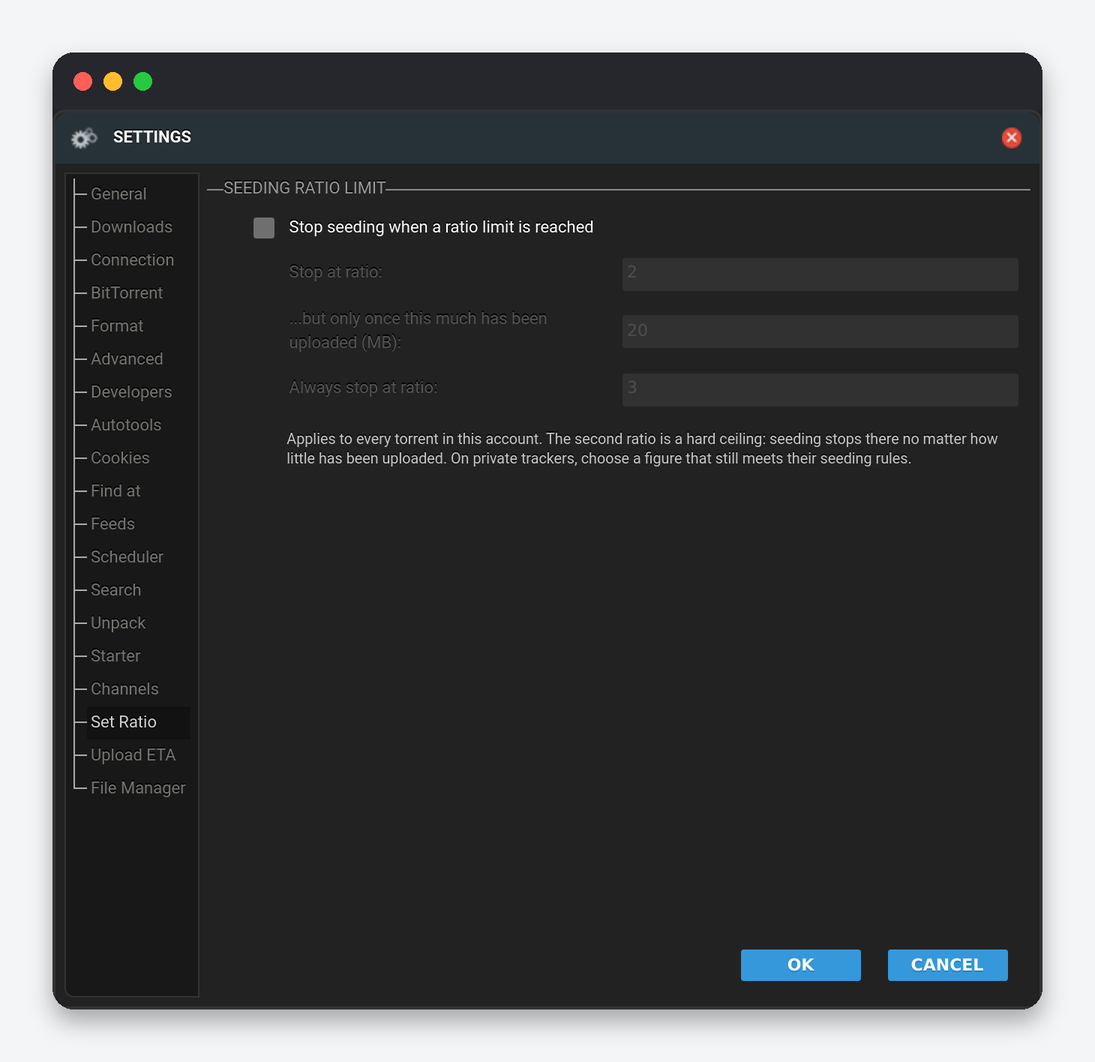
| Setting | What it does | Seedbox |
|---|---|---|
| Stop seeding when a ratio limit is reached | Enable the account-wide ratio rule. | On if you want torrents to stop by themselves; off if you seed everything indefinitely. |
| Stop at ratio | The ratio (uploaded divided by downloaded) at which a torrent stops, but only once the minimum below has been uploaded. | 2.0 for most private trackers; check the tracker’s rules. |
| …but only once this much has been uploaded (MB) | Minimum upload before the first ratio applies, so tiny torrents are not stopped at ratio 2 after 10 MB. | A few thousand MB. |
| Always stop at ratio | Hard ceiling regardless of the amount uploaded. | 5.0 or higher. Anything lower stops well-seeded torrents your tracker still counts. |
Per-torrent ratio groups (the classic ratio plugin) are set from the right-click menu; see stop seeding at a ratio for the two mechanisms and how they interact with Sonarr’s and Radarr’s own seed limits.
Upload ETA
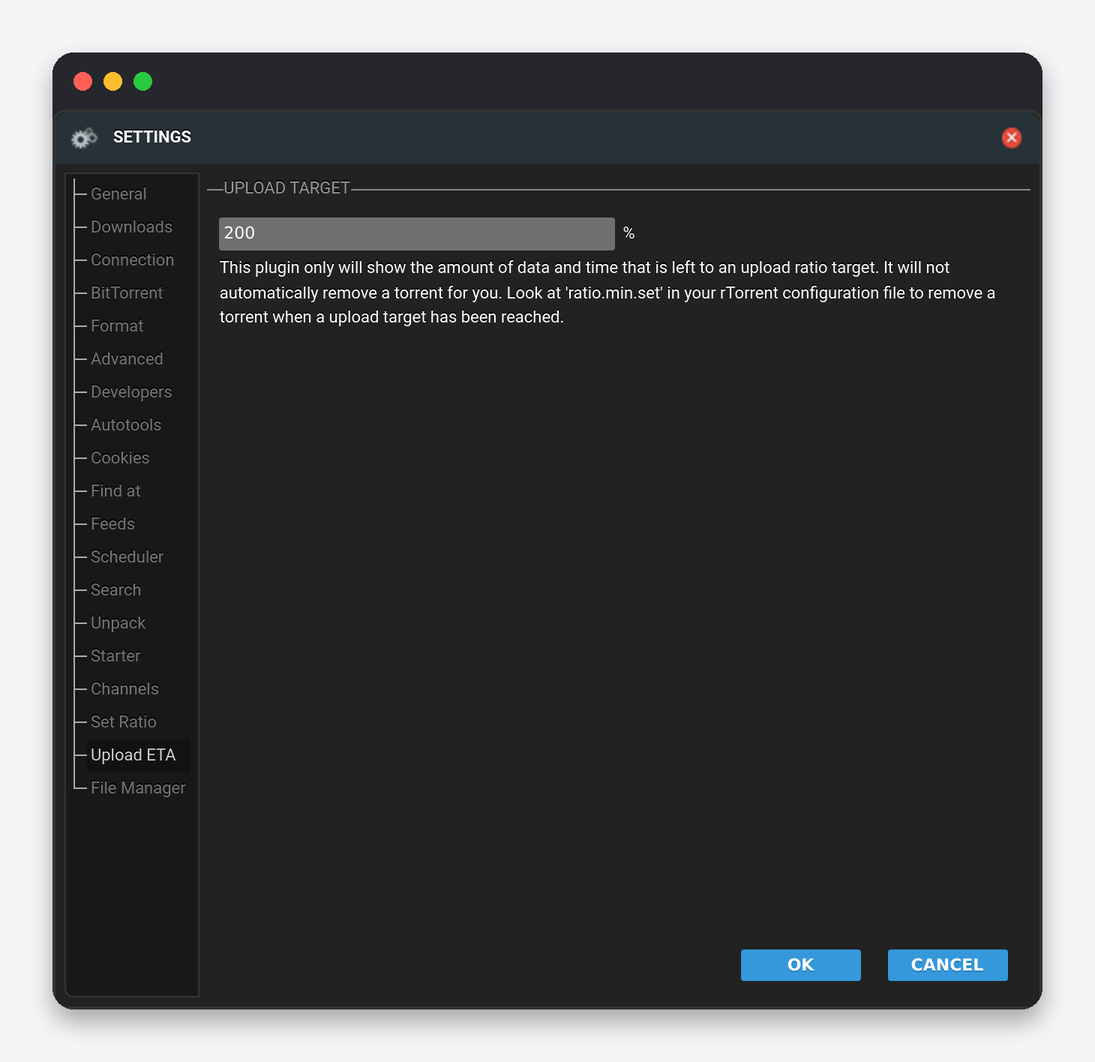
A single field: the upload target in percent (100 means ratio 1.0). The plugin adds columns showing how much data and time remain until each torrent reaches the target. It only displays; it never stops a torrent. Set it to your tracker’s required ratio so the column tells you which torrents are still owed upload.
Feeds
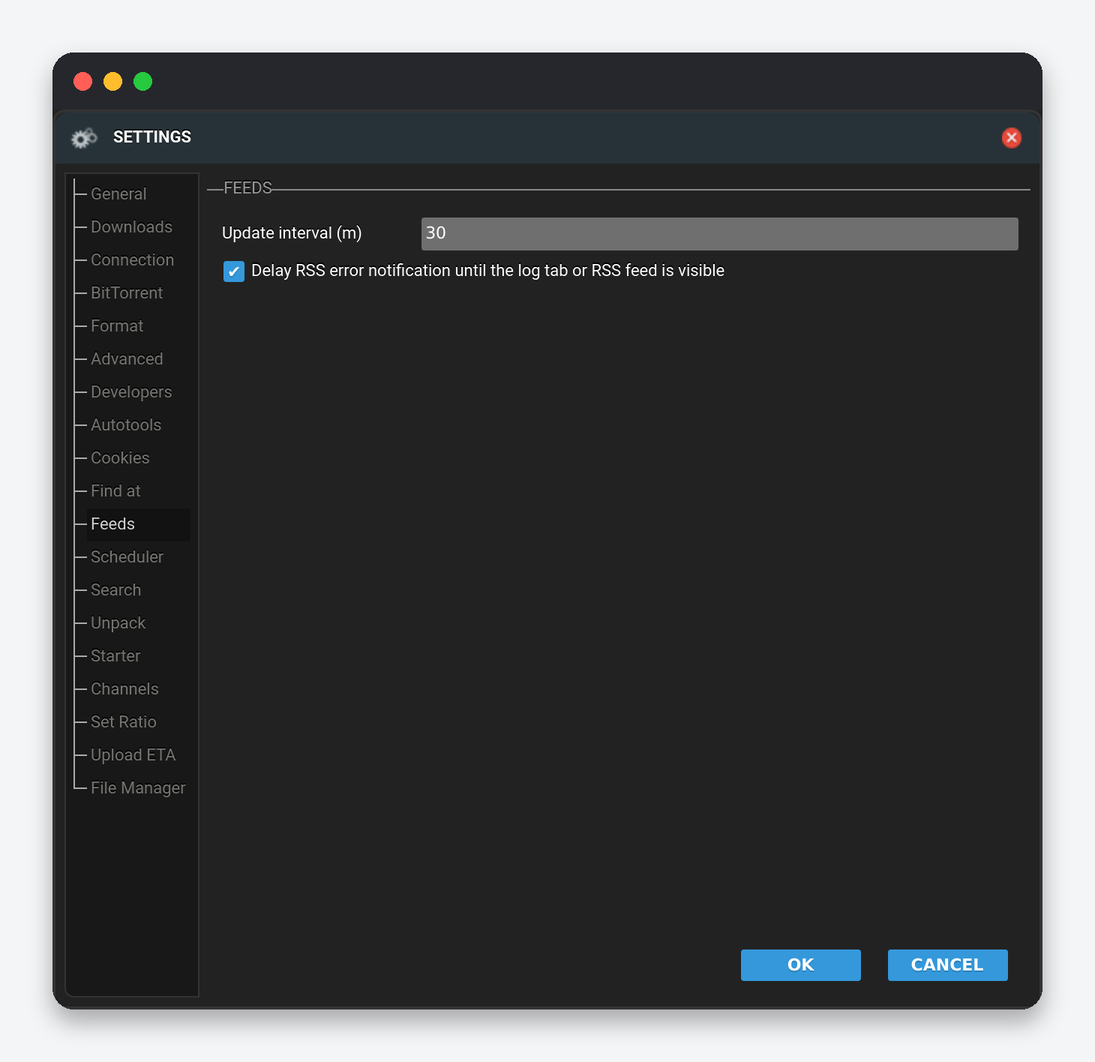
Update interval in minutes for all RSS feeds added through the Feeds panel, and whether RSS errors are held back until you look at the log or feed. Feeds and their download filters are managed from the RSS panel on the left, not from this tab. Sonarr, Radarr and Lidarr replace ruTorrent RSS for anything they manage; keep ruTorrent feeds for trackers’ personal feeds (freeleech, bookmarks) and use autodl-irssi for racing, as described in setting up autodl-irssi.
File Manager
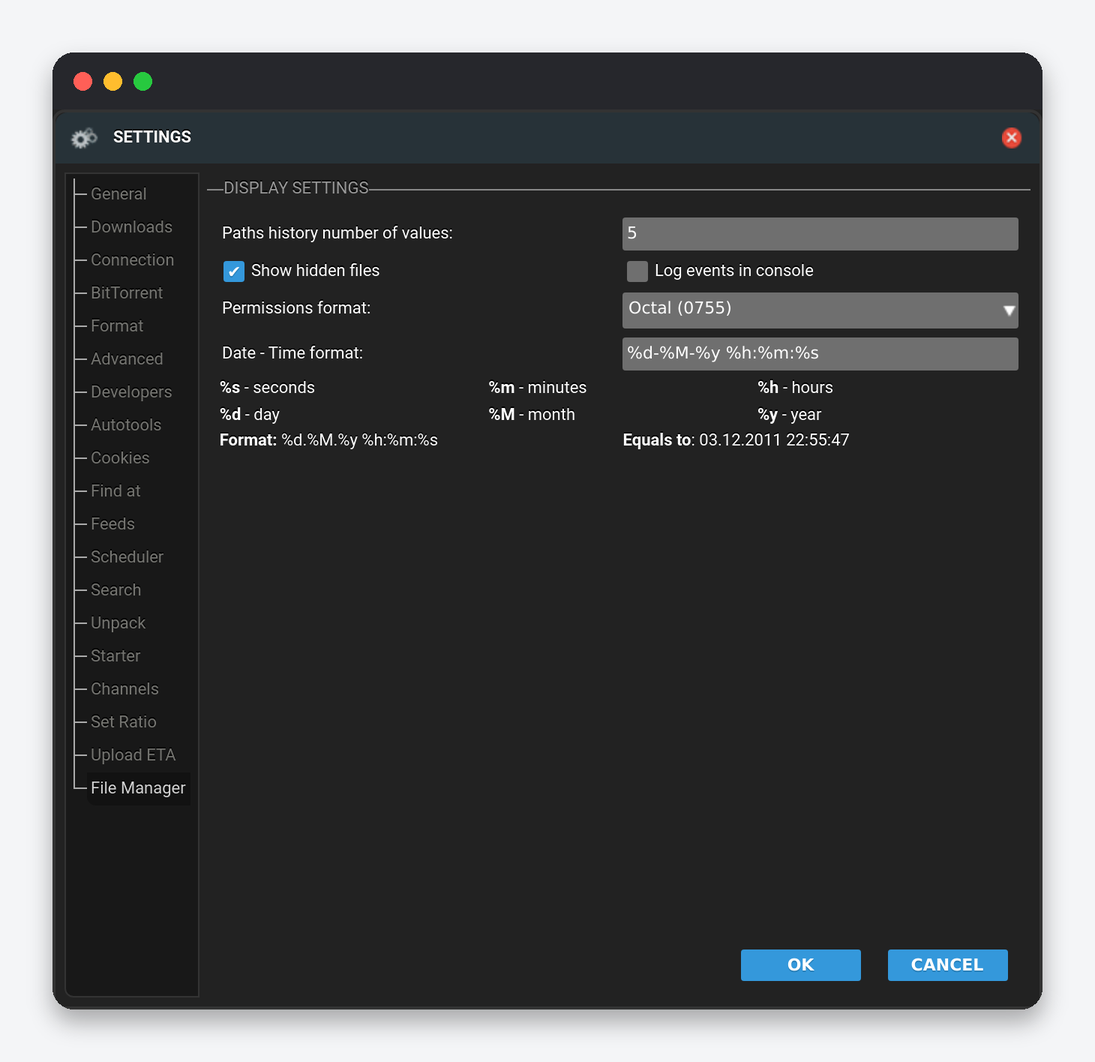
How many paths the file manager remembers, whether hidden (dot) files are shown, whether operations are logged to the console, permissions in octal or symbolic form, and the date format. Turn Show hidden files on when you need to reach .rtorrent.rc or .session from the browser.
Cookies, Find at, Developers, Starter
Cookies holds tracker cookies in the form host|name=value;name2=value2, needed when a tracker’s .torrent download or announce requires a logged-in session; the LoginMgr plugin fills it for supported trackers. Find at is a list of Name|URL pairs that appear in the right-click “Find at” submenu, with $(name) replaced by the torrent name. Developers sets the minimum and maximum width of the side panel and the minimum height of the list. Starter is empty on the seedbox because the restart of rTorrent is handled for you; see restarting rTorrent.
Settings that are not in the dialog
- Right-click → Labels, Priority, Channels, Ratio group: per-torrent versions of the settings above.
- Plugins tab (bottom panel): enable or disable plugins per user; a disabled plugin’s tab disappears from Settings.
- .rtorrent.rc: the permanent home of every Downloads, Connection, BitTorrent and Advanced value. Editing it and restarting rTorrent is the only way to make those changes stick.
- Client area: the ruTorrent password (also in how to change your ruTorrent password).
FAQ
Why does a setting go back to its old value after a restart?
Because ruTorrent sends it to the running rTorrent but does not write .rtorrent.rc. Put the same key in that file (for example throttle.max_uploads.global.set = 200) and restart rTorrent.
Which settings should every seedbox user check?
DHT and Peer Exchange off for private trackers, Check hash after download off, Request timeout raised on big libraries, Set Ratio matching the tracker’s rule, AutoMove and Unpack off for labels an *arr app manages, and the Scheduler disabled unless you set it on purpose.
Is the listening port really open?
Yes, for the port the installer put in .rtorrent.rc. Changing it in the Connection tab or turning on randomisation does not change the firewall, so peers can no longer reach you.
Related: ruTorrent complete guide · Stop seeding at a ratio · Common ruTorrent errors · rTorrent in Dashboarr
Related articles
Put this into practice
EvoSeedbox ships with one-click app installs and up to 10 Gbps per box.
