Navigating folders
On this page ▾
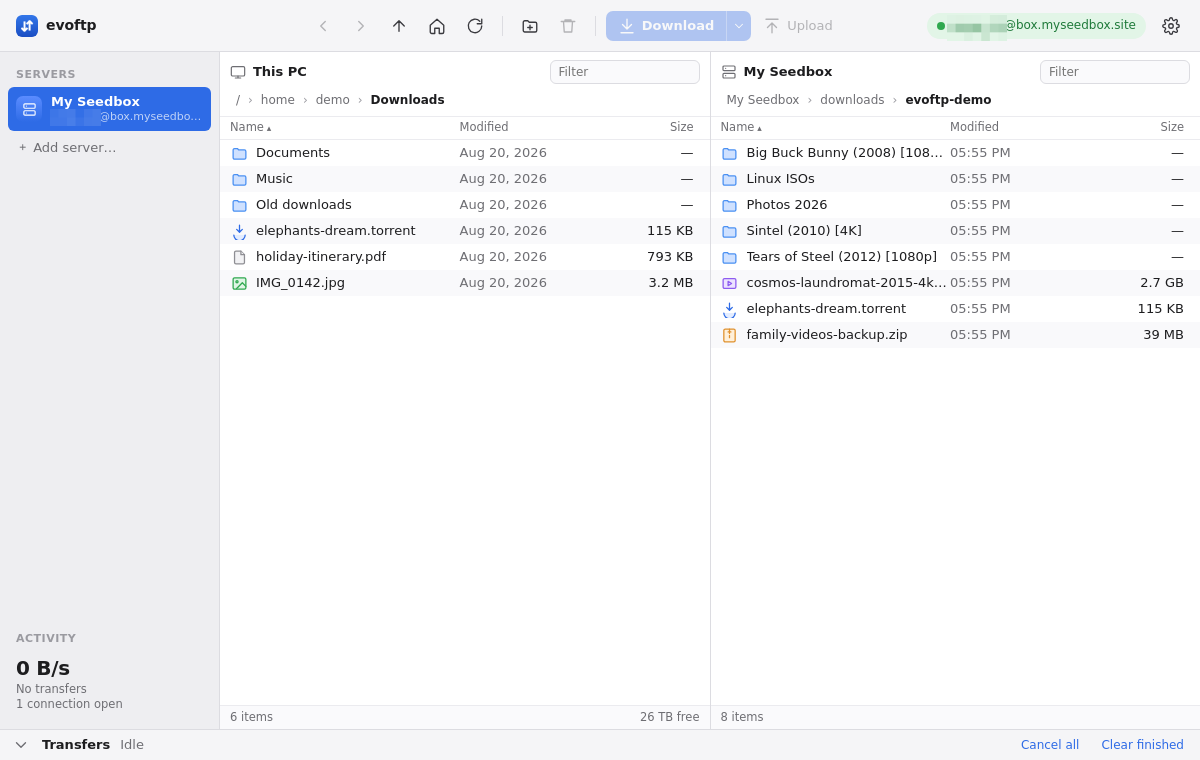
There are six ways to make evoftp navigate folders — double-click, the breadcrumbs, Back and Forward, Up, Home, and the keyboard — and they work the same in the This PC pane and the seedbox pane. Filtering and sorting a folder are covered at the end.
Overview: evoftp guide.
Opening a folder
Double-click it, or select it and press Enter. Folders are always listed above files, whatever the sort order.
Using the breadcrumbs
The path bar above each list shows where you are, one segment per folder. Click any segment to jump straight to it. On the seedbox side the first segment carries the server’s Name and stands for the root of the box; on Windows the first segment is This PC, which lists your drives.
Going back, forward and up
Back and Forward walk through the folders you have visited, like a browser; each pane keeps its own history. Up (the ↑ button, labelled “Enclosing folder”) goes one level up. You can also press Backspace to go up when the list has keyboard focus.
Going home
Home means something different on each side:
- Seedbox pane — the folder the connection opened in: the path in your connection file, or your home folder on the box if the file had none.
- This PC pane — your user folder. This is not the Download folder from Settings; that folder is only where the left pane starts when evoftp opens.
Refreshing
Click Refresh or press Ctrl/⌘+R to re-read the focused pane. You can also right-click empty space in a list and choose Refresh. The left pane refreshes itself while downloads land, and the seedbox pane refreshes after an upload finishes.
Filtering a folder
Type in the Filter box at the top right of a pane. The list narrows as you type to names that contain the text, upper or lower case. Clear the box, or open another folder, and the full list returns.
Note: Filter matches names in the current folder only; it does not look inside subfolders.
Sorting
Click the Name, Modified or Size header to sort by it; click the same header again to reverse the order. The active header is marked. Name order is number-aware, so episode2 comes before episode10. Each pane remembers its own sort.
Which pane is focused
Click anywhere in a pane’s list to focus it. Its selected rows switch to the full highlight colour, and Back, Forward, Up, Home, Refresh, New folder and Delete then act on that pane. After you connect, focus moves to the seedbox pane by itself.
Overview: evoftp guide.
Related articles
Put this into practice
EvoSeedbox ships with one-click app installs and up to 10 Gbps per box.
