Get a Telegram Message When a Torrent Finishes on Your Seedbox
On this page ▾
This is the most popular Liteflow flow: the moment a download completes on your seedbox, your phone buzzes with the torrent’s name, size and ratio. It uses the Torrent Finished trigger on your seedbox and a Telegram bot that only talks to you.
Set Up Telegram (Complete Guide)
You need two things from Telegram: a bot token (so Liteflow can send messages) and a chat ID (so it knows where to send them). Both take about two minutes and you only do this once — every Telegram flow can reuse the same connection.
1. Create your bot with BotFather
- In Telegram, search for @BotFather (the official one has a blue verification tick) and open the chat.
- Send
/newbot. - When asked for a name, type anything — this is the display name, for example My Seedbox.
- When asked for a username, it must be unique and must end in
bot, for examplejohns_seedbox_bot. If Telegram says it is taken, try another. - BotFather replies with a message containing your token. It looks like
7123456789:AAF3k9…— a number, a colon, then a long string. Copy the whole thing.
Keep the token private. Anyone who has it can send messages as your bot. If it ever leaks, send /revoke to BotFather to get a new one, then update the connection in Liteflow.
2. Start a chat with your bot
Telegram bots cannot message you until you message them first. Open the chat with your new bot (BotFather gives you a t.me/… link) and press Start or send any message. Skipping this step is the number-one cause of a “chat not found” error later.
3. Find your chat ID
Either method works — use whichever you prefer.
Method A — the official way, no third-party bot. In a browser, open this address with your token in place of YOUR_TOKEN:
https://api.telegram.org/botYOUR_TOKEN/getUpdatesYou will see text like this — your chat ID is the number after "chat":{"id"::
{"ok":true,"result":[{"update_id":12345,"message":{"message_id":1,"from":{"id":987654321,…},"chat":{"id":987654321,"first_name":"John","type":"private"},"text":"/start"}}]}If the result is empty ("result":[]), send your bot another message and reload the page.
Method B — a helper bot. Search for @getmyid_bot in Telegram, press Start, and it replies with Your user ID. For a private chat with your own bot, your user ID is the chat ID. This is the method the Telegram step in Liteflow suggests in its hint box.
Sending to a group or channel instead
- Group: add your bot to the group, send a message in the group, then use Method A — the group’s chat ID is a negative number (for example
-1001234567890for a supergroup). By default bots only see messages that mention them or start with/; to let the bot read everything in a group, send/setprivacyto BotFather, pick the bot, and choose Disable. - Channel: add the bot as a channel administrator (Post Messages permission), then use
@yourchannelnameas the chat ID for public channels, or the numeric ID from Method A for private ones.
4. Connect Telegram in Liteflow
- In the flow, click the Telegram step. Under Connection choose Create connection.
- Give it a name (for example My Telegram bot) and paste the bot token. Save.
- Enter your Chat ID in the Chat Id field.
- Click Test step. A message should appear in your Telegram chat within a few seconds. If it does, you are done — the same connection is now available to every other Telegram flow you build.
Formatting the message
- The Message box accepts plain text with values from earlier steps; click into it to insert fields such as the torrent name or ratio.
- Set Format to Markdown or HTML if you want bold or links. In Markdown, characters like
_and*in torrent names can break the message — use HTML (<b>…</b>) for anything that includes release names. - Turn on Disable Web Page Preview if your messages contain links and you do not want big preview cards.
- Disable Notification sends the message silently — handy for the daily report.
Telegram errors and what they mean
| Error in the run | Cause | Fix |
|---|---|---|
Unauthorized |
Wrong or revoked token | Copy the token again from BotFather (the whole string including the part before the colon) and update the connection. |
chat not found |
You never messaged the bot, or the chat ID is wrong | Open the bot, press Start, then re-check the chat ID with Method A. |
bot was blocked by the user |
You blocked or deleted the bot chat | Unblock it and press Start again. |
not enough rights / CHAT_WRITE_FORBIDDEN |
Bot is not an admin of the channel, or the group restricts bots | Make the bot a channel administrator, or allow bots in the group settings. |
can't parse entities |
Markdown broken by _ or * in a torrent name |
Switch Format to HTML, or leave it unset for plain text. |
Open the template
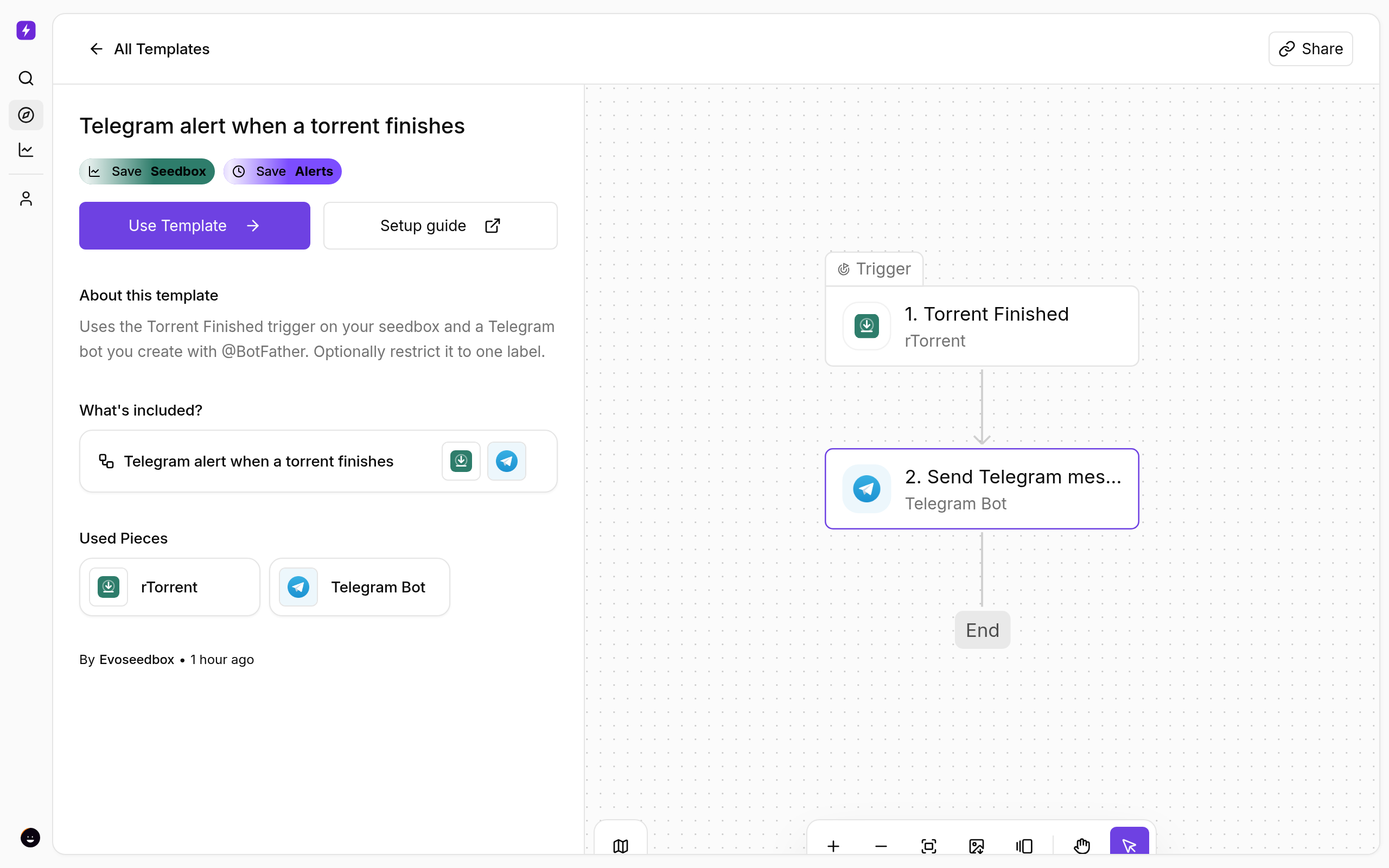
- From the client area, open your seedbox service and click Open Liteflow on the Automation card.
- Click Create New → Start from Template and choose Telegram alert when a torrent finishes.
- Click Use Template, keep Personal Project, and Confirm. The flow opens in the builder with every step in place.
Fill in the Telegram step
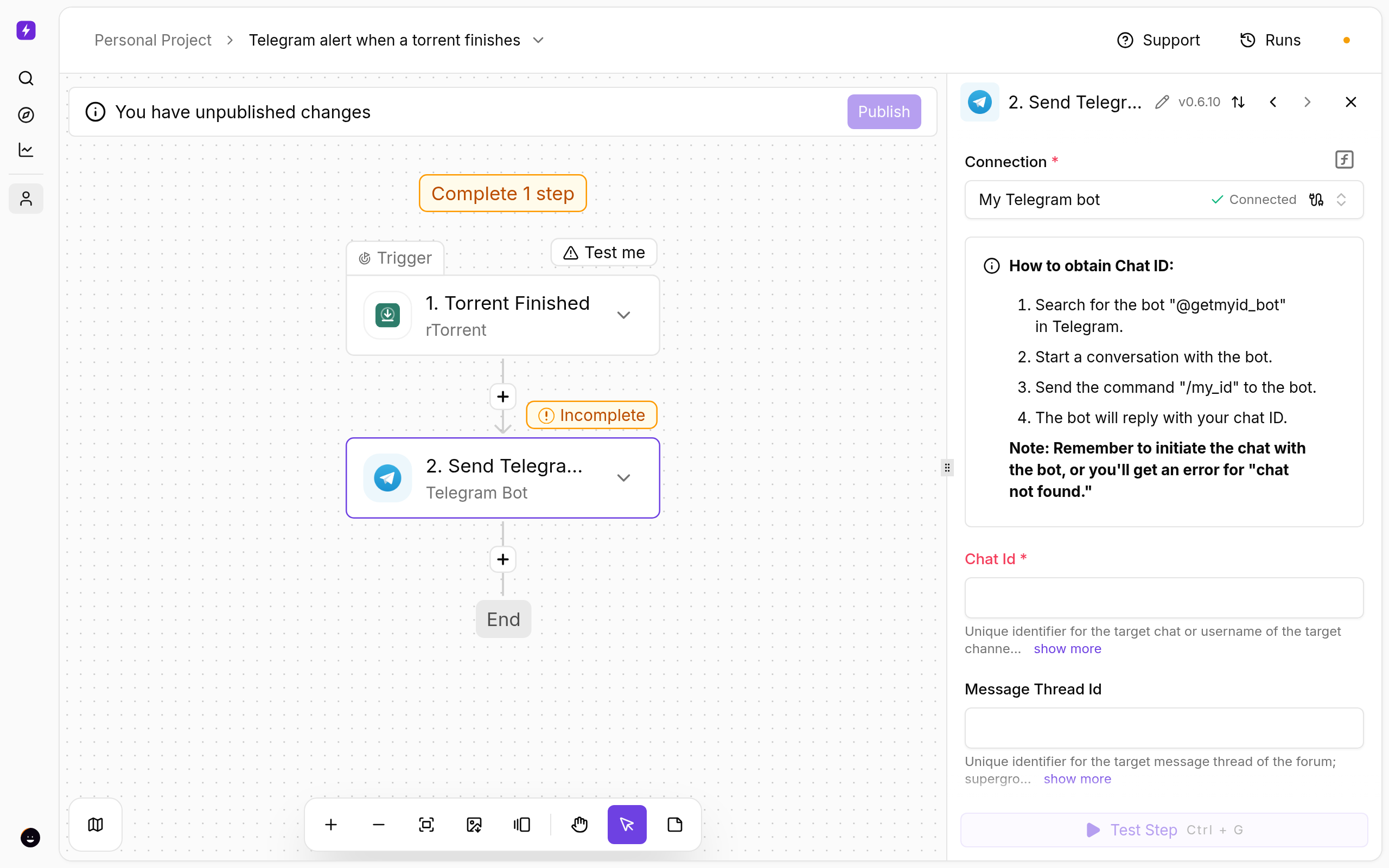
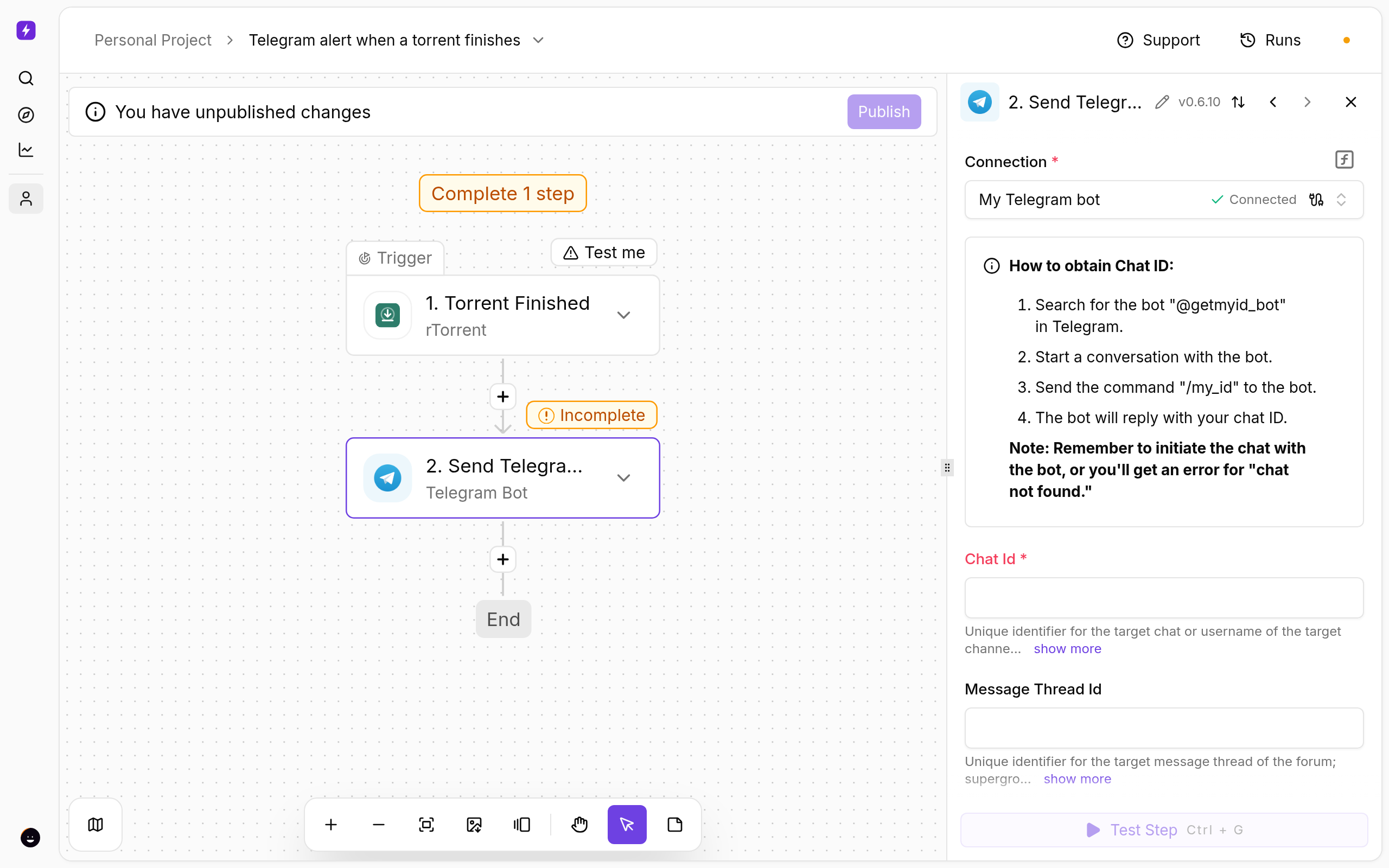
- Click Send Telegram message. Under Connection choose Create connection and paste your bot token.
- Enter your Chat ID.
- The Message is pre-filled with the torrent name, size and ratio. Click into it to add or remove fields from the trigger.
Optional: only some torrents
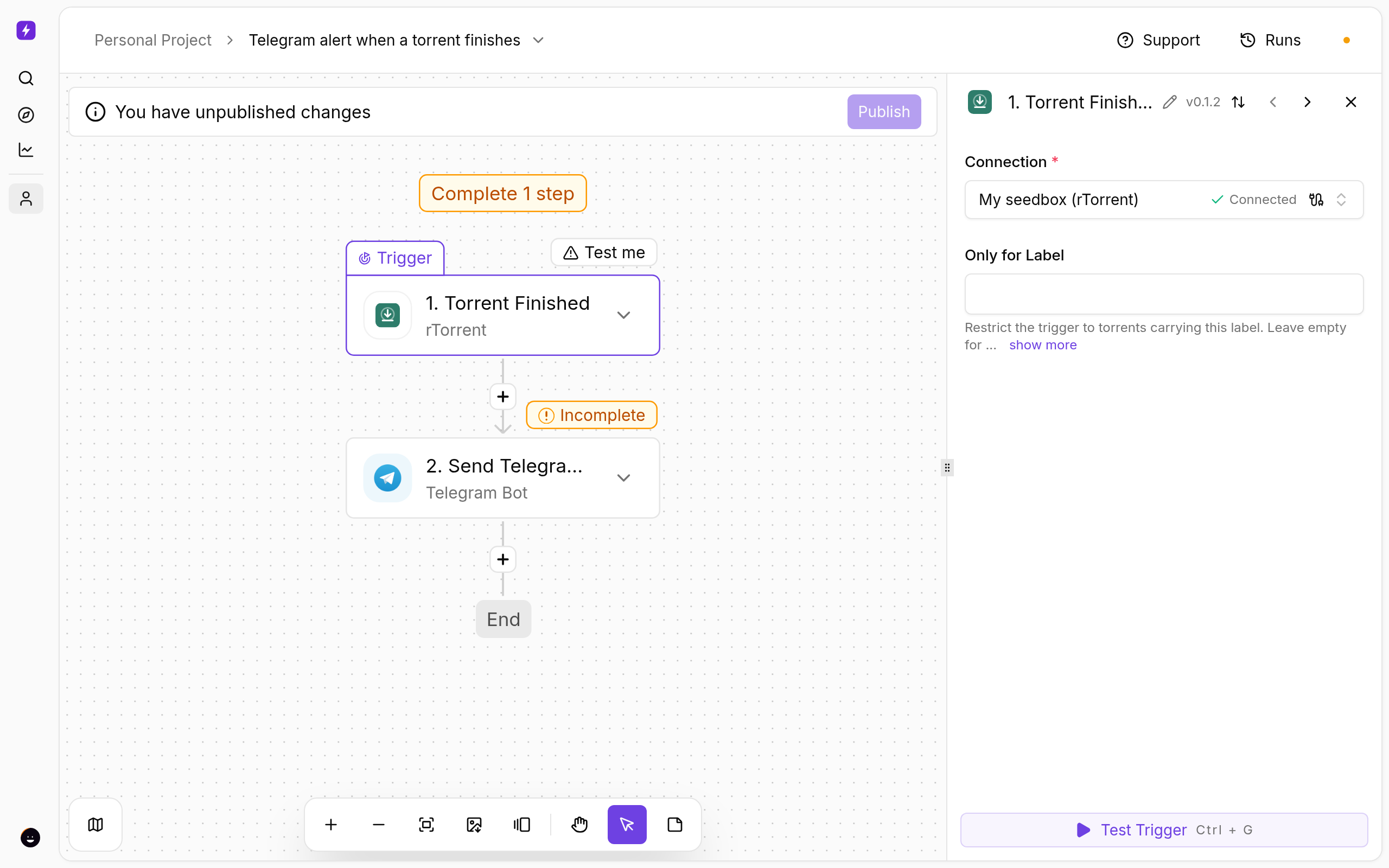
Click the Torrent Finished trigger and enter a label under Only for Label (for example tv) to be told only about that label. Leave it empty for everything.
Test and publish
- Click a step and use Test step to see real data from your seedbox before going live.
- Click Publish. The flow is now on; the switch on the Automations page turns it off again.
- Open Runs whenever you want to see what fired and what each step returned.
If Something Does Not Work
- No message arrives — open Runs. A red Telegram step usually means a wrong chat ID, or you never sent the bot a first message.
- The seedbox step fails — open Connections and reconnect My seedbox (rTorrent). It uses the same username and password as ruTorrent.
- Messages for old torrents — the trigger only fires for torrents that finish after you publish.
Variations
- Prefer Discord or email? The same template exists for both: Discord alert and Email me when a torrent finishes.
- Want it only at night or only for big files? Add a Router step between trigger and message.
More
New to Liteflow? Start with Liteflow: Automate Your Seedbox. Want a template that is not here? Click Suggest it on the Automation card in the client area.
Related articles
Put this into practice
EvoSeedbox ships with one-click app installs and up to 10 Gbps per box.
