EvoSeedboxBot — rename and organise your media (complete guide)
On this page ▾
EvoSeedboxBot renames and organises your movies, TV shows and anime into the layout Plex, Jellyfin, Emby and Kodi expect, fetches subtitles and artwork, and can do all of it automatically for every download that finishes. This guide covers every tab and setting, with screenshots from a live seedbox.
1. Install and sign in
- In the client area open your seedbox → Apps → Automation → EvoSeedboxBot → Install. It takes about half a minute.
- Click the app link that appears (it looks like
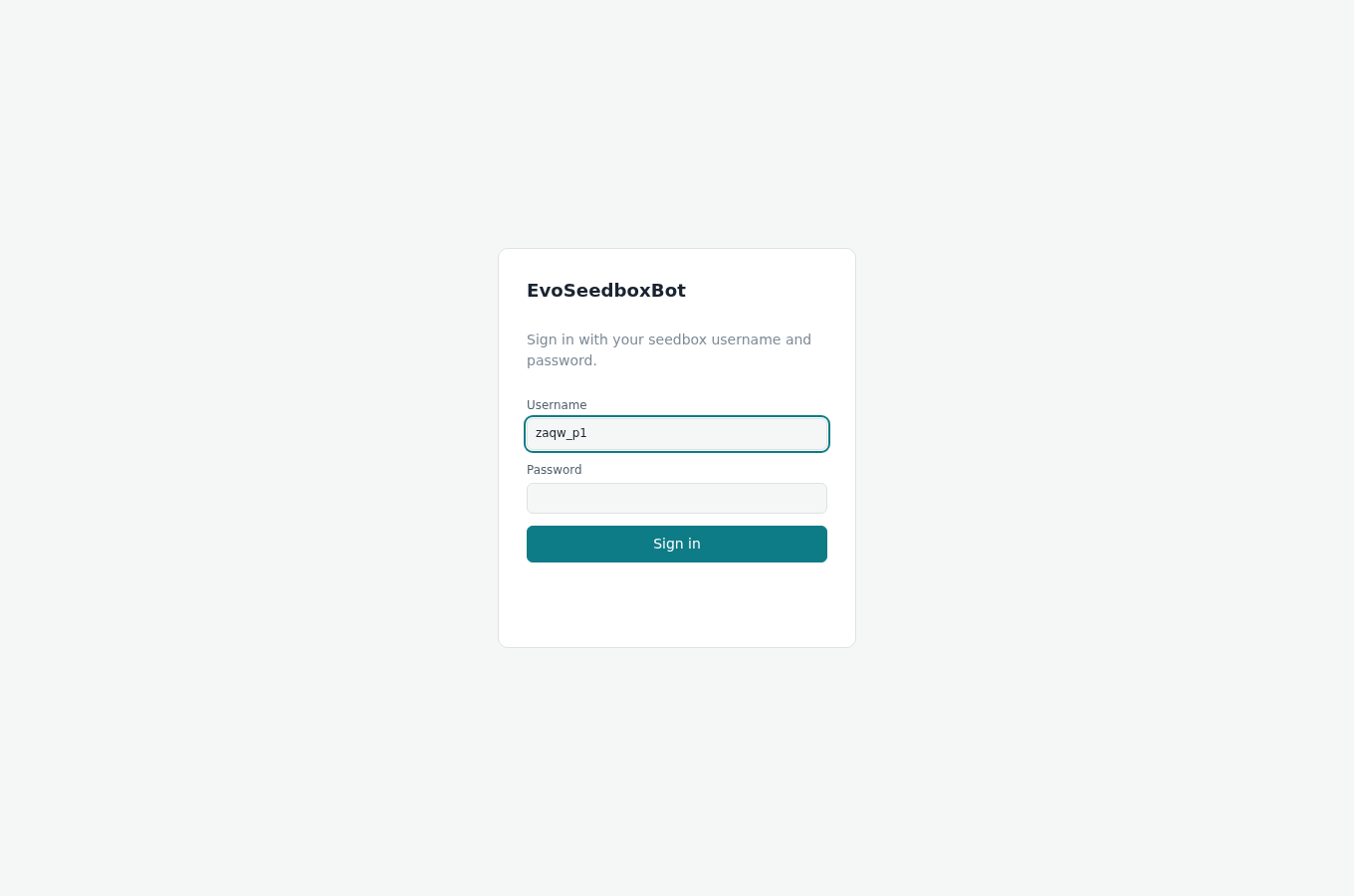
https://server.myseedbox.site:13185). - Sign in with your seedbox username and password — the same ones you use for ruTorrent.
2. Rename
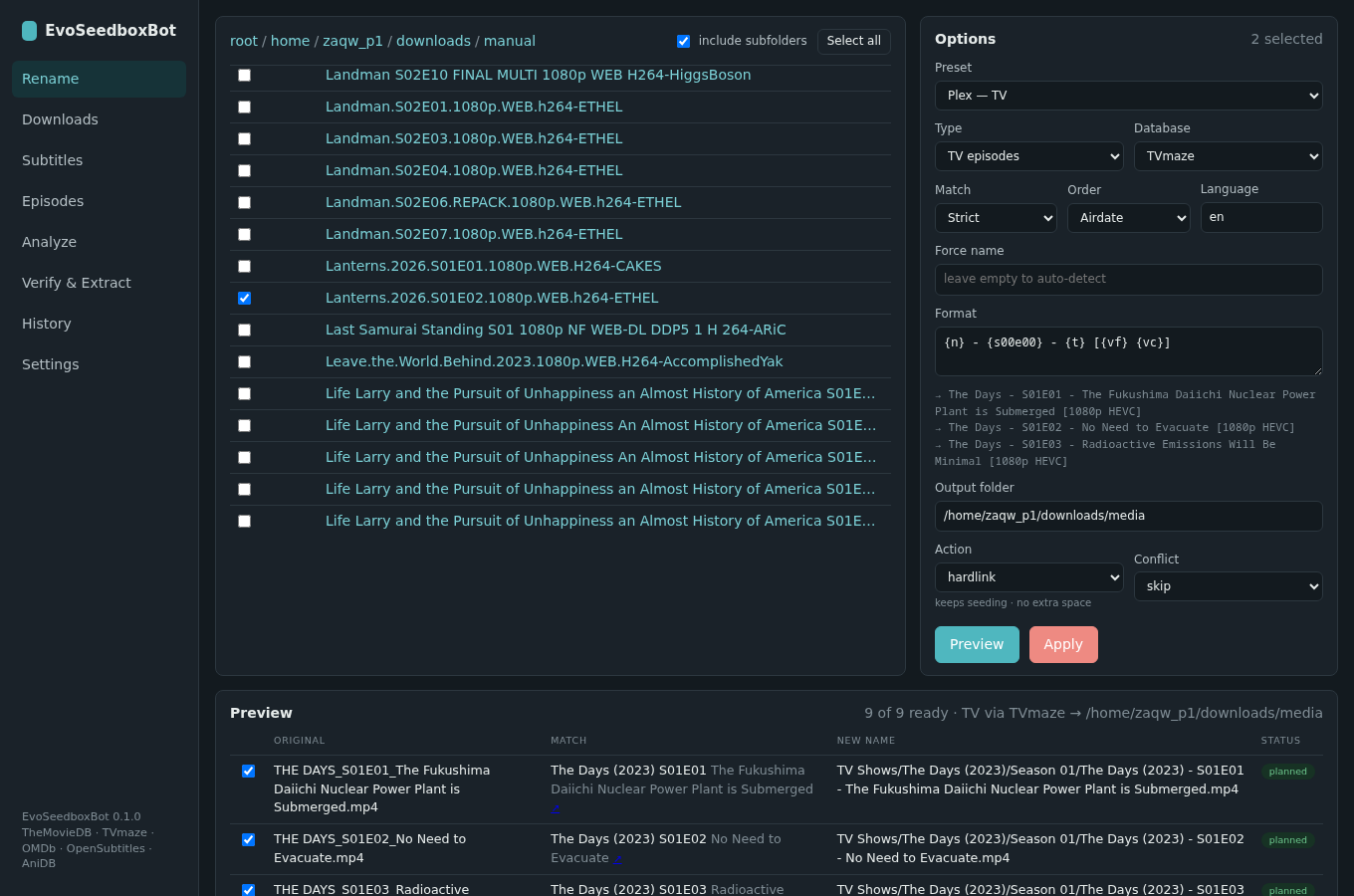
The Rename tab is the manual tool: pick files, see what they are, choose the new names, apply.
Pick files
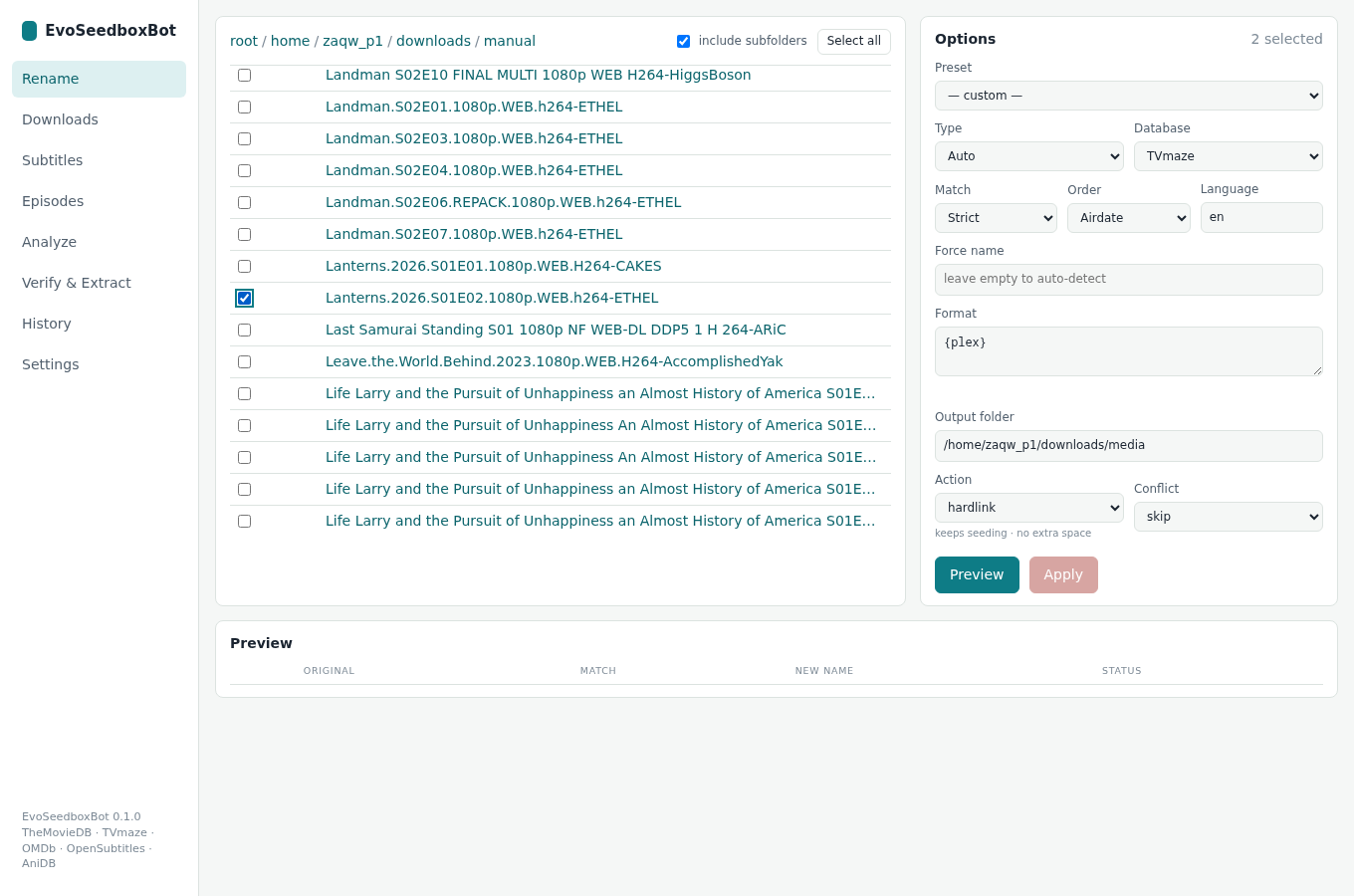
The left pane is your downloads folder. Click folder names to go in, use the breadcrumb to go back, tick files or whole folders. include subfolders (on by default) means a ticked folder includes everything inside it. Select all ticks the current folder.
Options
- Preset fills in the options below for a common layout: Plex (TV / Movies), Jellyfin / Kodi, a flat “name with quality” style, and Anime with absolute numbering.
- Type — Auto works out whether the selection is TV episodes or movies. Force it when a file name is ambiguous.
- Database — where the names come from: TVmaze or TheMovieDB for TV, AniDB for anime, TheMovieDB or OMDb for movies.
- Match — Strict only accepts a confident, unambiguous identification; Opportunistic takes the best guess. Start strict; switch to opportunistic for messy names.
- Order — Airdate (normal), Absolute (anime, “episode 1071”), DVD.
- Force name — type the series or movie title when auto-detection cannot work it out (for example
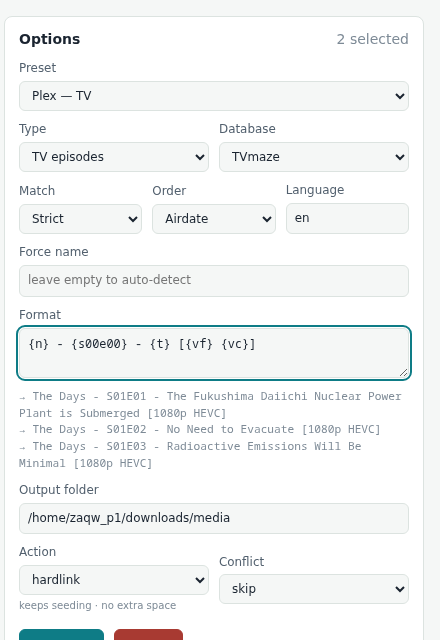
The Office (US)). - Format — the naming pattern (see Format reference). The grey lines under the box show the result for your first files as you type.
- Output folder — where organised files go. Empty means “next to the original”.
- Action and Conflict — see below.
Preview
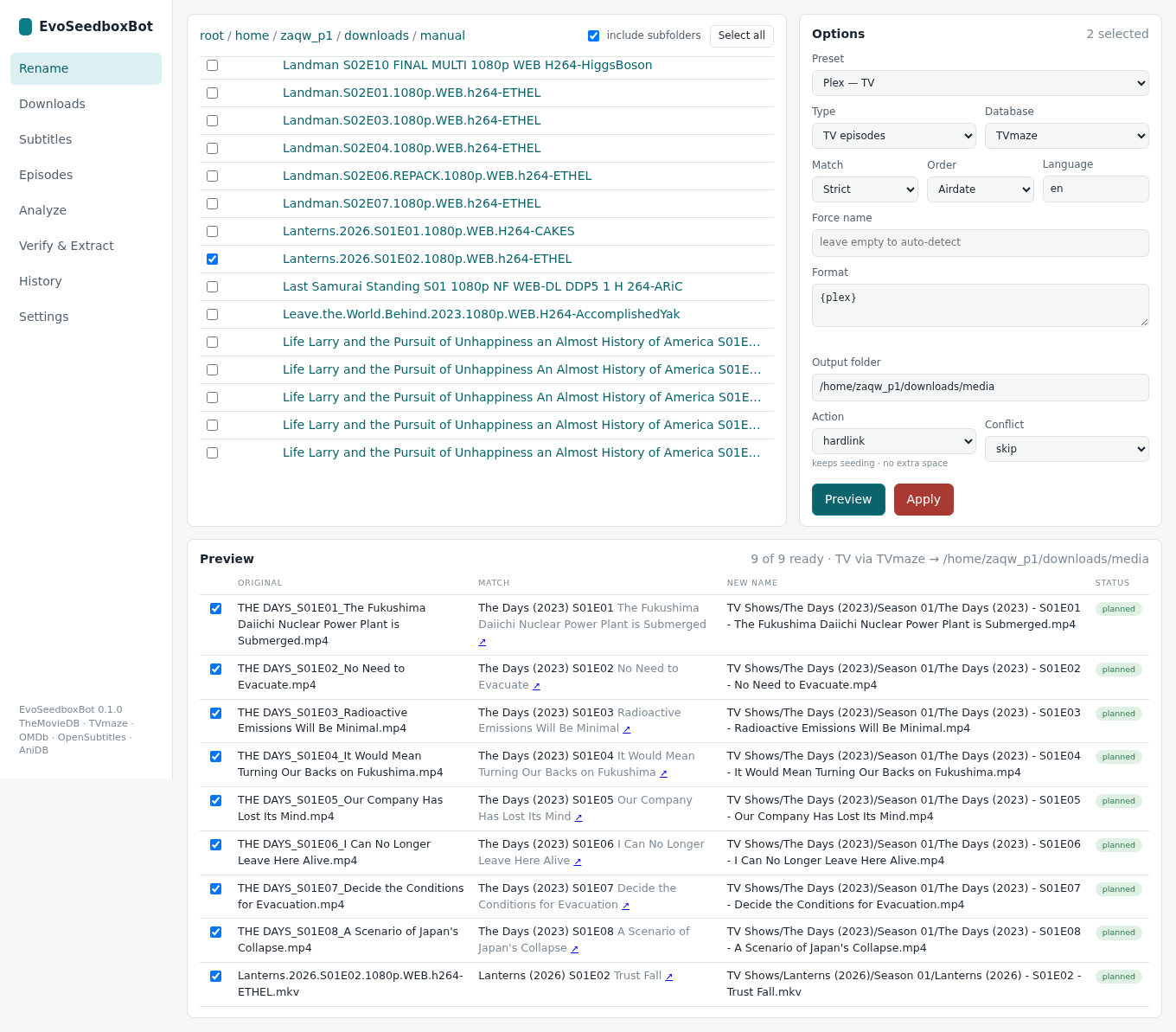
Preview identifies every selected file and shows, side by side, the original name, what it was matched to (with a link to the database entry) and the new path. Untick any row you do not want. Files that could not be identified are listed underneath with the reason — usually fixed by Opportunistic matching or a forced name.
Action: why hardlink is the default
| Action | Torrent keeps seeding? | Disk | Use when |
|---|---|---|---|
| hardlink (default) | yes | none extra | Always, on a seedbox. The library gets a second name for the same bytes. |
| copy | yes | doubles | You want a fully independent file. |
| symlink / keeplink | yes | none | Special cases; media servers prefer hardlinks. |
| move | no | none | Only after you are done seeding — rtorrent loses the file and the torrent stops. |
| duplicate / reflink | yes | none | Same as hardlink with fallbacks. |
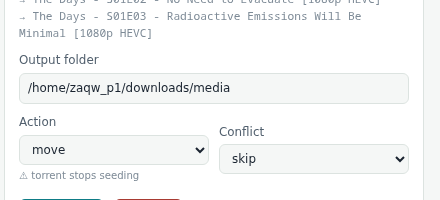
Conflict decides what happens if the new name already exists: skip (default), override, auto (keep the larger file), index (add ” (1)”), fail.
Apply
Apply asks once, then does it. Subtitle files next to a video (.en.srt and friends) are renamed with it. Every run is recorded in History and can be reverted.
3. Downloads and auto-organise
The Downloads tab talks directly to your rtorrent and lists every finished torrent with its label, size and finish date.
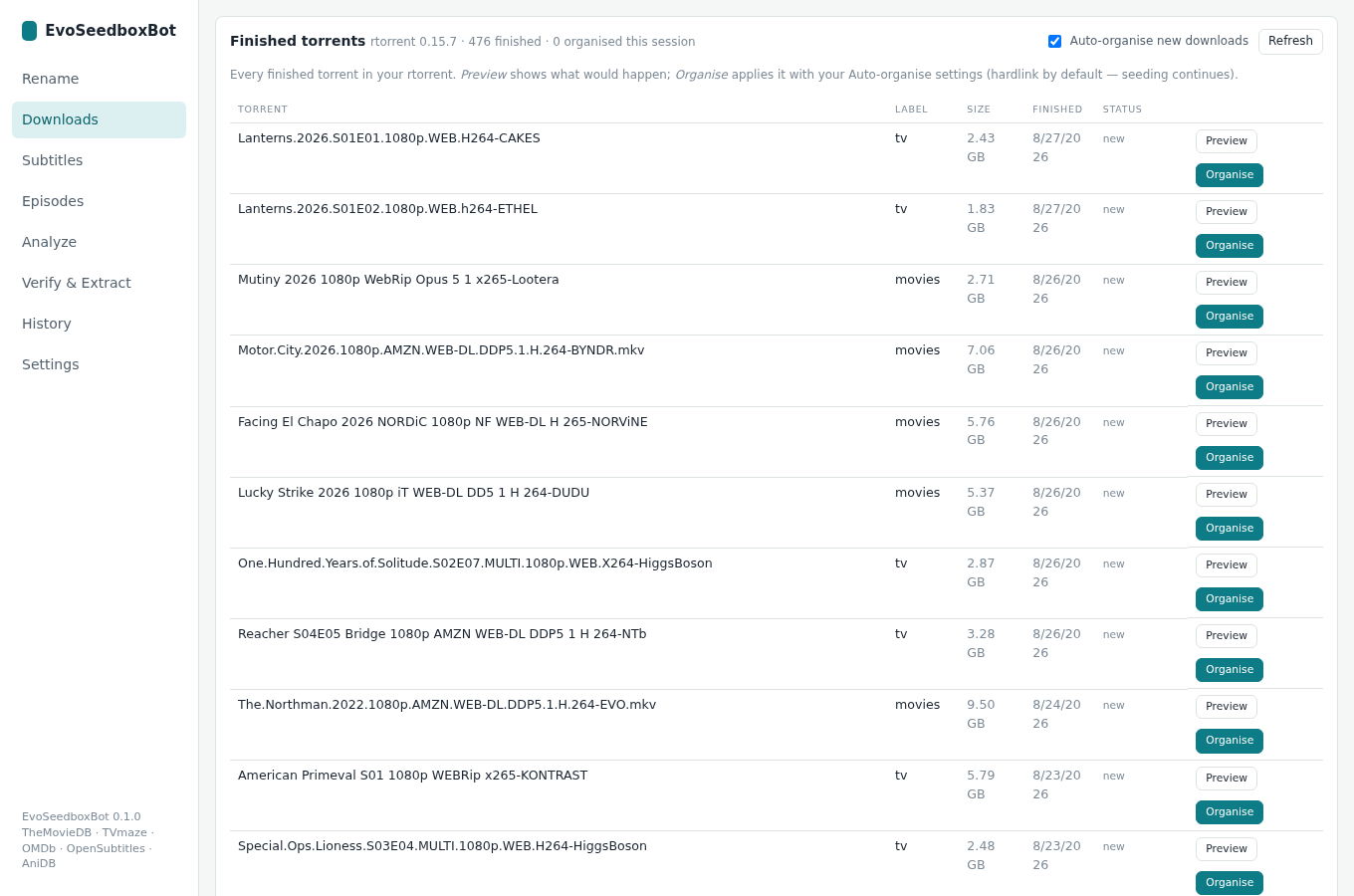
- Preview shows what organising that torrent would do — identification, new paths, anything skipped and why.
- Organise does it, using the rules in Settings → Auto-organise (hardlink by default). The status column remembers what was processed; ↺ forgets it so it can run again.

Switch on automatic organising
Tick Auto-organise new downloads. From then on, every torrent that finishes with an accepted label is identified, renamed into your library, your Plex / Jellyfin / Emby / Kodi library is refreshed, and you can be notified. Only torrents that finish after you switch it on are touched — tick “also process torrents that finished before enabling” in Settings if you want the backlog done too.
tv, movies, anime; empty = all), “Ignore labels” which to leave alone, and “Label → type map” (tv=episode, movies=movie, anime=anime) forces the kind. Torrents managed by Sonarr/Radarr are usually best left to them — give those their own label and ignore it.4. Subtitles
Select videos in Rename, then open Subtitles. Enter the languages you want (en, de) and click Search for selected videos. The search uses the file’s hash first — that finds subtitles made for exactly your release — and falls back to the title.
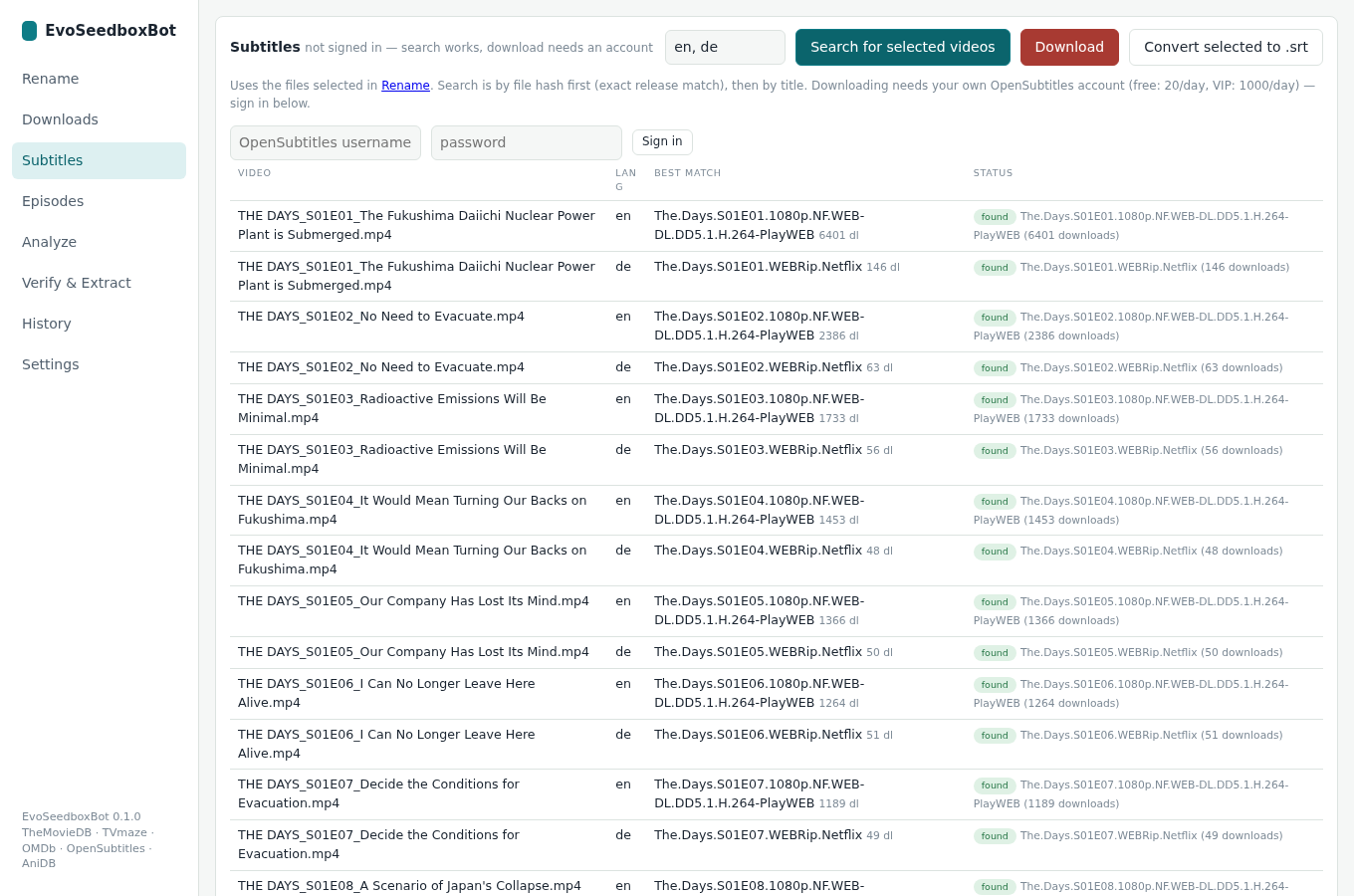
- Download saves each best match next to the video as
Name.en.srt. Downloading needs your own free OpenSubtitles.com account — sign in once with the fields above the table (free: 20 per day, VIP: 1000). - Convert selected to .srt turns
.sub,.ass,.ssa,.smiand.vttfiles into SubRip. - view next to an existing subtitle shows its lines.
- Auto-organise can fetch subtitles for everything it organises: Settings → Auto-organise → “Subtitles to fetch”.
5. Episodes
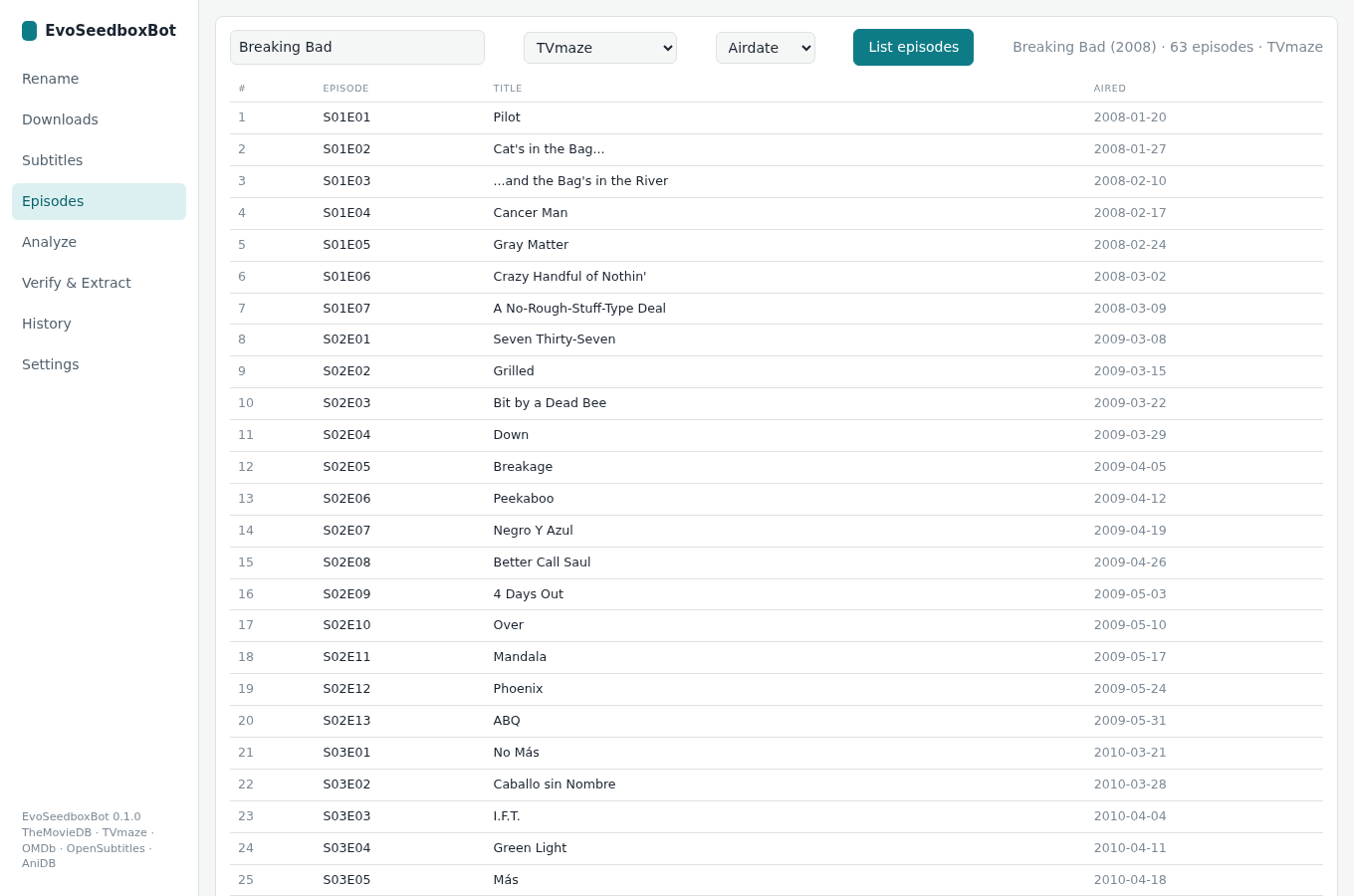
Type a series name, pick the database, and get the full episode list with numbers, titles and air dates — handy for checking what a season should contain before renaming, or for anime absolute numbers.
6. Analyze
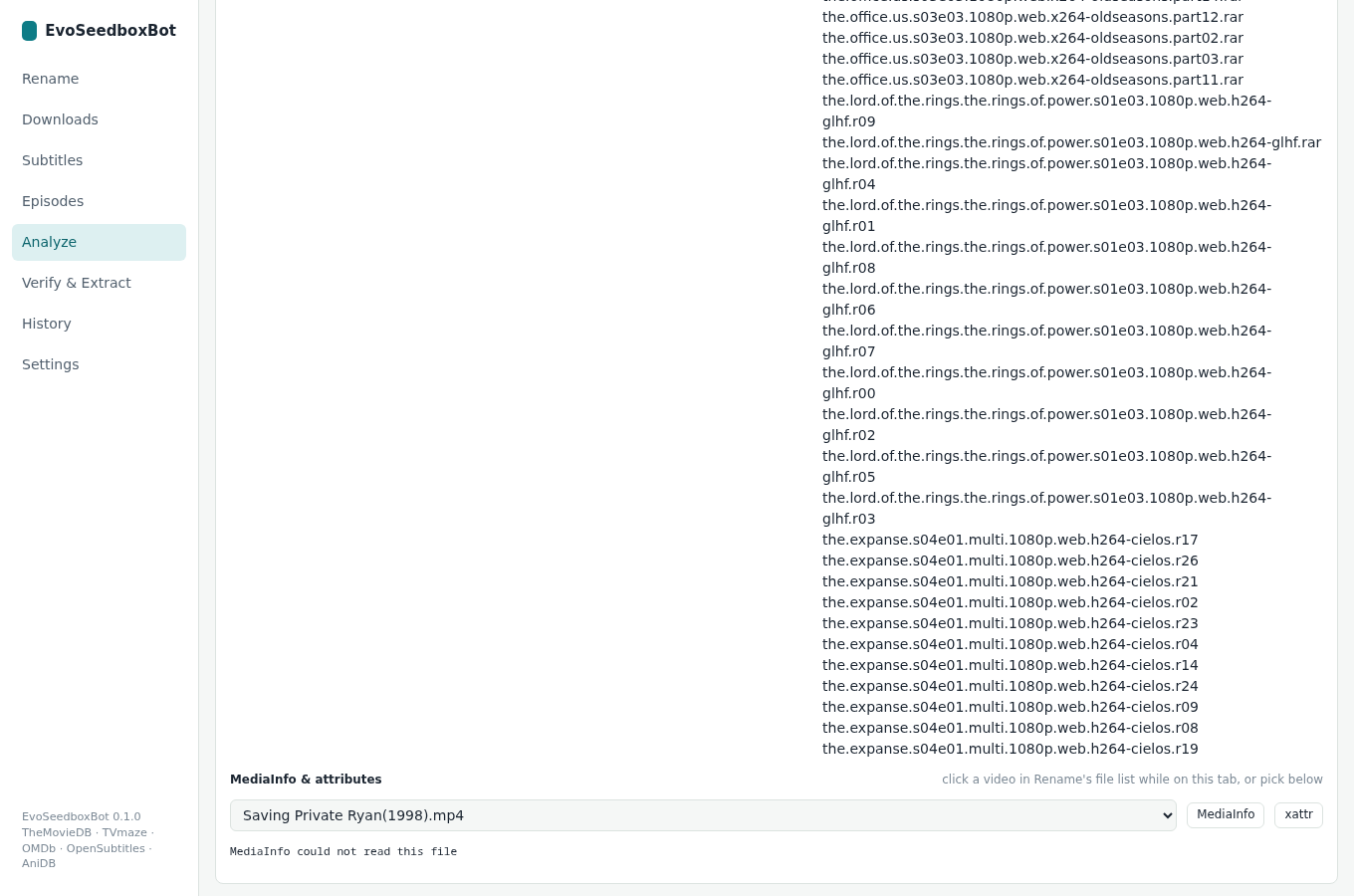
Analyze looks at the folder you are in on the Rename tab and breaks it down: file types, which series and seasons are present, archives, and full MediaInfo for any video (resolution, codecs, audio channels, HDR, languages) plus extended attributes.
7. Verify & Extract
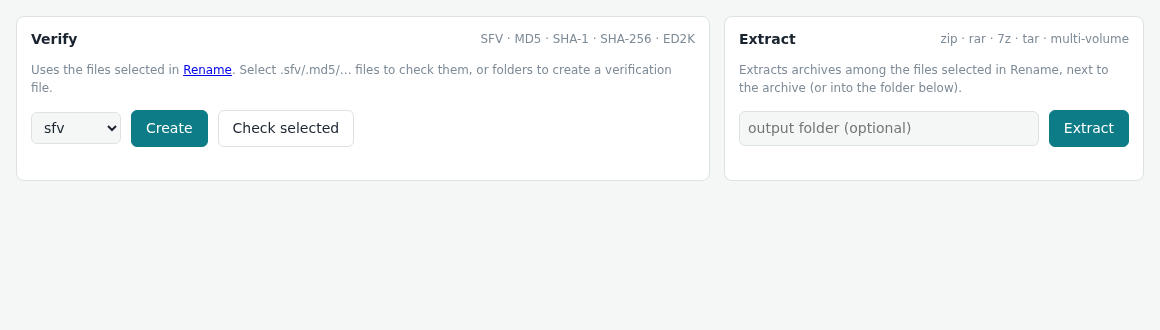
Both work on the files selected in Rename. Verify creates or checks SFV, MD5, SHA-1, SHA-256 and ED2K files. Extract unpacks rar (including multi-volume), zip, 7z, tar and gz archives next to the archive or into a folder you name. Auto-organise extracts archives on its own before organising.
8. History and revert
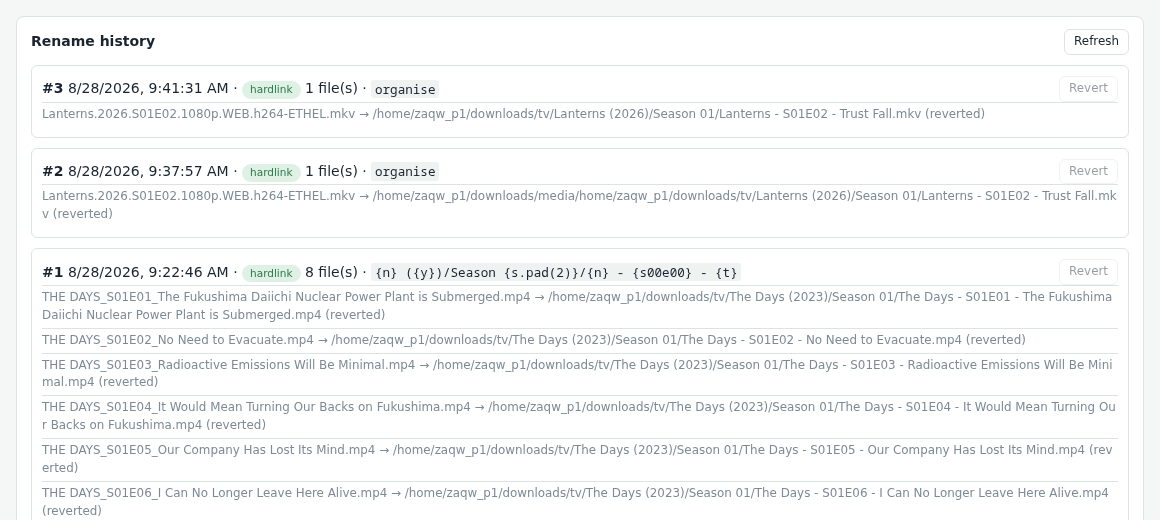
Every apply and every auto-organise run is listed with its files. Revert undoes a run: moved files go back, hardlinks and copies are removed, empty folders cleaned up. Reverted entries stay listed, greyed out.
9. Settings
Defaults
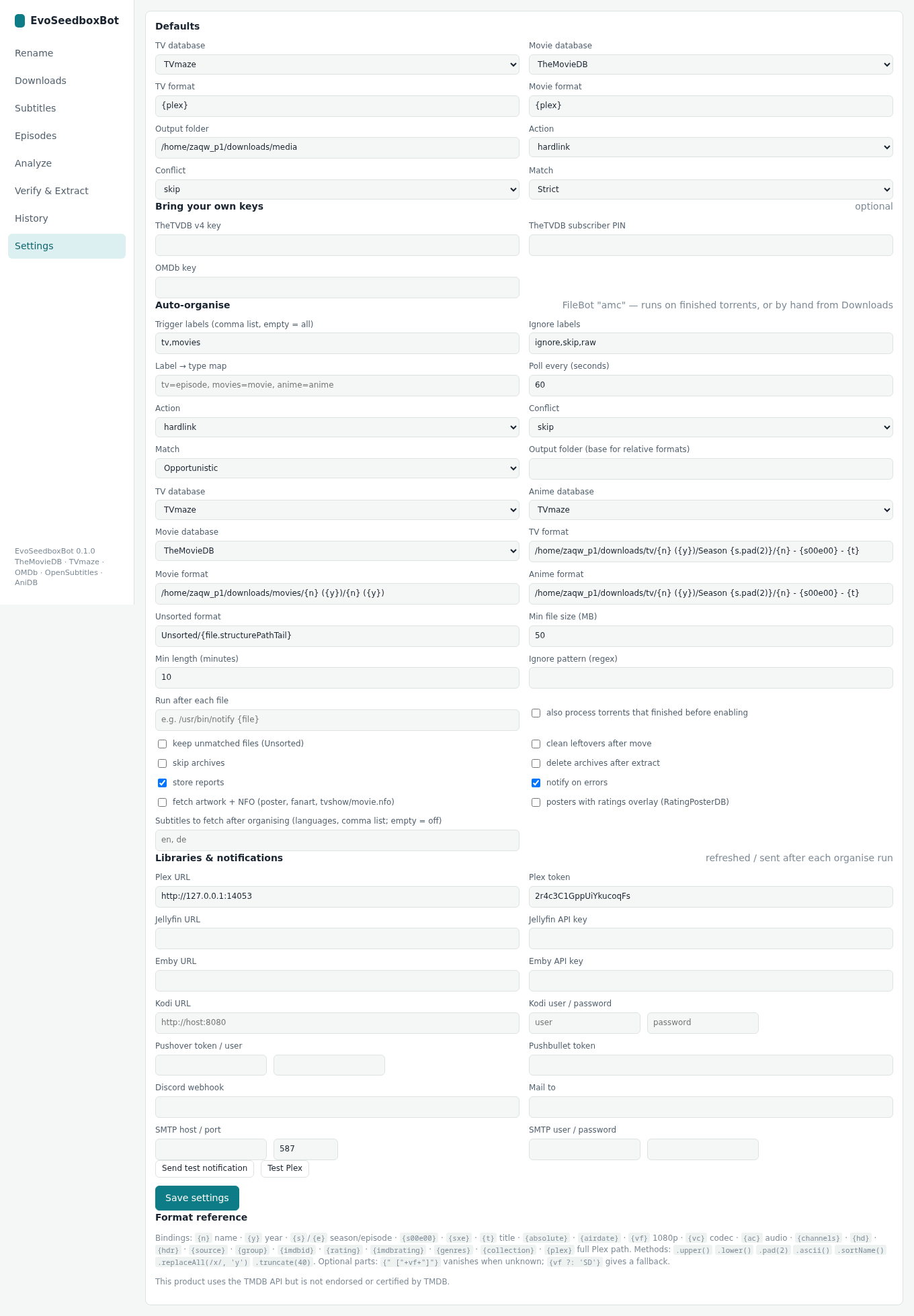
Database, format, output folder, action, conflict and match mode used by the Rename tab when you do not pick a preset.
API keys
Access to TheMovieDB, OMDb, OpenSubtitles search and AniDB is included. If you want your own OMDb quota, paste your key — clear the field to go back to the included one. TheTVDB is optional and needs your own subscription key and PIN.
Auto-organise
| Setting | What it does |
|---|---|
| Trigger / ignore labels, label → type map | Which rtorrent labels are processed and how they are interpreted. |
| Poll every | How often rtorrent is checked for newly finished torrents (60 s default). |
| Action, conflict, match | Same meaning as on the Rename tab; opportunistic matching by default. |
| Output folder, TV / Movie / Anime / Unsorted formats | Where each kind of file goes. On first start these are set from your Plex libraries. |
| Min file size / min length | Skips samples and clips (50 MB / 10 min by default). |
| Ignore pattern | A regular expression; matching paths are never touched. |
| Run after each file | A command run for every organised file — {file}, {folder}, {name} are replaced. |
| Keep unmatched (Unsorted) | Files nothing could identify go to an Unsorted folder instead of being left behind. |
| Clean leftovers | After a move, deletes samples, nfo/txt/jpg clutter and empty folders. |
| Archives | Skip archives, or delete them after a successful extract. |
| Artwork + NFO | Posters, fanart and Kodi-style .nfo files next to the media; optionally posters with rating overlays. |
| Subtitles to fetch | Languages to download after organising. |
| Store reports / notify on errors | Keep a text report per run; send a notification when something fails. |
Libraries & notifications
Plex is pre-filled from your seedbox. Add Jellyfin, Emby or Kodi with their URL and key. Notifications: Pushover, Pushbullet, Discord webhook, email — Send test notification and Test Plex confirm the setup. Remember to Save settings.
10. Format reference
A format is text with {…} parts. Inside the braces you use bindings and methods; anything in braces that has no value simply disappears, which is how optional parts work.
| Binding | Meaning | Example |
|---|---|---|
{n} {y} {ny} |
name, year, “name (year)” | Breaking Bad · 2008 · Breaking Bad (2008) |
{s} {e} {s00e00} {sxe} {e00} |
season/episode numbers | 1 · 1 · S01E01 · 1×01 · 01 |
{t} {airdate} {absolute} {special} |
episode title, air date, anime number, special number | Pilot · 2008-01-20 · 1 |
{vf} {vc} {ac} {channels} {hd} {hdr} {bitdepth} |
from MediaInfo | 1080p · x264 · AAC · 5.1 · HD · HDR · 10 |
{source} {group} {tags} |
from the file name | BluRay · DEMAND · Directors Cut |
{imdbid} {tmdbid} {rating} {imdbrating} {genres} {collection} {certification} |
metadata | tt0078748 · 348 · 8.1 · Horror · Alien Collection · R |
{plex} |
the complete Plex path | TV Shows/Breaking Bad (2008)/Season 01/Breaking Bad (2008) – S01E01 – Pilot |
{fn} {ext} {file.name} {folder} |
the original file | — |
Methods: .upper() .lower() .pad(2) .ascii() .colon(' - ') .replaceAll(/x/, 'y') .truncate(40) .sortName() .acronym(); lists: .take(2) .join(', '). Conditions: {vf ?: 'SD'} (fallback), {anime ? absolute.pad(3) : s00e00} (if/else).
Examples
{n} - {s00e00} - {t}→ Breaking Bad – S01E01 – Pilot{n} ({y})/{n} ({y}){" ["+vf+"]"}→ Alien (1979)/Alien (1979) [1080p] — the bracket part vanishes if the resolution is unknownAnime/{n}/{n} - {absolute.pad(3)} - {t}→ Anime/Kimetsu no Yaiba/Kimetsu no Yaiba – 019 – Hinokami{n.upperInitial().space('.')}.{s00e00}.{vf}-{group}→ Breaking.Bad.S01E01.720p-DEMAND
11. Nuplex
Nuplex (the EvoSeedbox app for phone and TV) has a Seedbox Library that shows every folder under downloads that is not a torrent’s own folder, and works out what each one is from its name: a Name (Year) folder, S01E01 episode files, Title 01 - Episode for anime. That is exactly the layout the Nuplex + Plex presets write, so anything you organise — by hand or automatically — shows up in Nuplex on its own within about two minutes, as one tile per show or movie, with its episodes listed. No refresh or setting is needed; the tile links play the organised copy, and because it is a hardlink the torrent keeps seeding. EvoSeedboxBot also leaves a small movie.nfo / tvshow.nfo with the IMDb and TMDb ids next to the files, which Nuplex reads — so the poster and details are exact, not guessed from the name.
- Use the Nuplex + Plex presets (TV, Movies, Anime) or the default auto-organise formats — they are the same layout.
- Keep the output inside
downloads(the defaultdownloads/mediais fine); Nuplex does not look outside it. - Plex and Nuplex can share the same folders, so one organised copy serves both.
Help centre
One task per page, in the order you will need them:
- Rename format examples for EvoSeedboxBot
- Naming schemes: Plex, Jellyfin, Kodi, Emby, flat and anime
- Jellyfin and Kodi: folder layout and NFO files
- Organising finished downloads automatically
- Using rtorrent labels to route downloads
- Hardlink, copy or move: keeping torrents seeding
- Downloading subtitles automatically
- Renaming anime with absolute episode numbers
- One library for Plex and Nuplex
- Checking and creating SFV, MD5 and SHA files
- Extracting rar and zip archives automatically
- Command-line reference
- Coming from FileBot
- When a file is not recognised or matched wrongly
- Undoing a rename with History
- EvoSeedboxBot FAQ
12. Coming from FileBot
The bindings and methods above use FileBot’s names, so your saved formats work as they are. The auto-organise settings are FileBot’s amc script parameters under the same names (excludeList, seriesFormat, minFileSize, plex, pushover, …), and the command line inside the container keeps FileBot’s flags: evoseedboxbot -rename … --db TVmaze --format "…" --action hardlink, -get-subtitles, -check, -extract, -revert, -organise --def seriesFormat=…. Differences: no licence, no Groovy scripting (use the API or the “Run after each file” hook), and Strict matching is a little stricter.
13. Questions
- Will my torrents stop seeding? Not with hardlink (the default), copy or symlink. Only move takes the file away from rtorrent.
- Does hardlinking use my quota twice? No. Both names point at the same data.
- Something went wrong. History → Revert. Nothing is ever deleted by a rename.
- A file is not recognised. Try Opportunistic matching, type the title in Force name, or choose a different database. Anime: AniDB with Absolute order.
- Sonarr / Radarr already organise my downloads. Keep it that way; give their torrents a label and put it in “Ignore labels” so both tools stay out of each other’s way.
- Does it work with Nuplex? Yes — organised folders appear in its Seedbox Library automatically within about two minutes.
- Dark mode? Follows your system setting.
Metadata: TheMovieDB, TVmaze, AniDB, OMDb, OpenSubtitles. This product uses the TMDB API but is not endorsed or certified by TMDB.
Related articles
Put this into practice
EvoSeedbox ships with one-click app installs and up to 10 Gbps per box.
