Best Indexers for Prowlarr + The Complete Setup Guide
On this page ▾
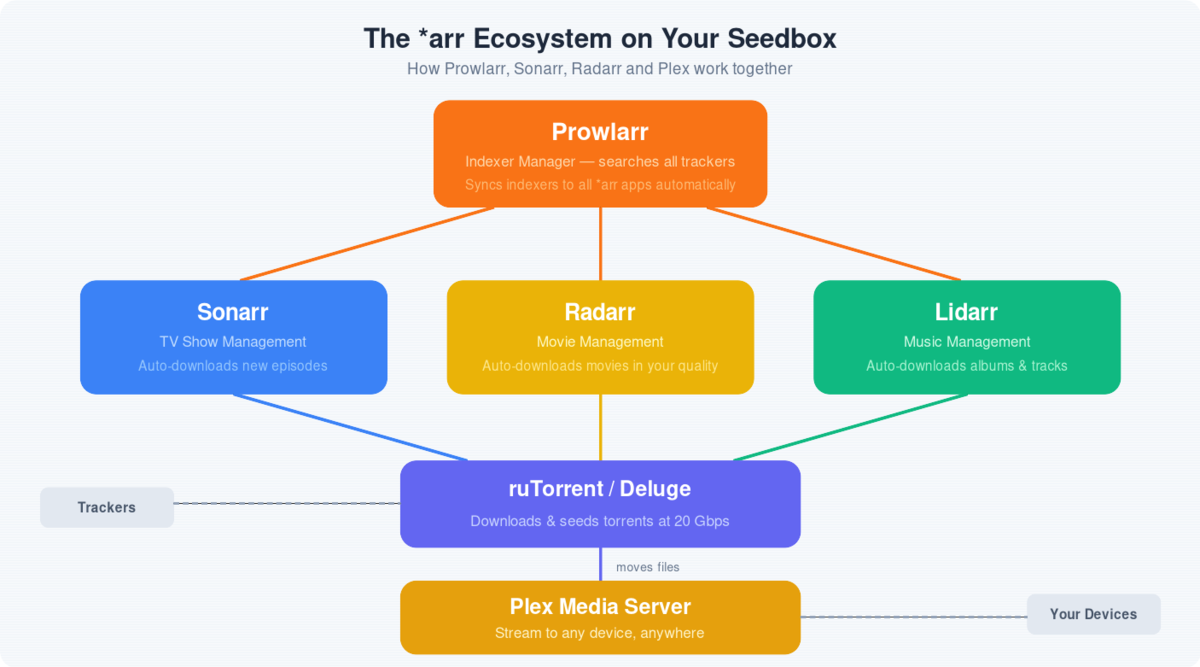
Imagine this:
- Movies and Shows Galore: Your favorite content magically appears on your server, ready to watch, without you lifting a finger.
- Lightning-Fast Searches: Prowlarr scours the depths of the internet, unearthing the best torrents and Usenet releases in record time.
- Quality Control: No more blurry videos or crackling audio. Set your quality standards, and Prowlarr delivers.
With Prowlarr, building your ultimate media library is a breeze. It works hand-in-hand with your trusty tools like Sonarr, Radarr, Lidarr, and Readarr, finding and grabbing those must-have files while you sit back and relax.
Unleash the power of automation. Try Prowlarr today and watch your media server transform!
Best indexers for Prowlarr in 2026
Prowlarr 2.3 ships 622 indexer definitions — 602 torrent and 20 Usenet, split into 87 public, 63 semi-private and 472 private trackers. You do not want all of them. Enabling dozens of overlapping indexers slows every search, multiplies failed grabs and gets you rate-limited. A tight set of five to ten healthy indexers beats fifty noisy ones every time.
Here is how to choose, by what you actually download.
Public indexers — the best starting set
No account, no ratio, instant to add. These are the public definitions that consistently return the most usable results:
- 1337x — the broadest general-purpose public indexer: movies, TV, games, software. Cloudflare-protected.
- The Pirate Bay — huge catalogue, thin metadata. Useful as a fallback rather than a primary.
- YTS — small, well-encoded movie releases. Ideal if you are storage- or bandwidth-limited; not for archival quality.
- EZTV and showRSS — TV only, and both expose clean RSS that Sonarr picks up reliably.
- Nyaa.si, SubsPlease and Tokyo Toshokan — anime. Enable Nyaa first.
- Knaben, Torrent Downloads and LimeTorrents — general-purpose backups that fill the gaps when 1337x misses.
- Internet Archive, LinuxTracker and BT.etree — fully legal sources: public-domain media, Linux ISOs and trade-friendly live recordings.
Private trackers — the best results, if you have access
472 of Prowlarr’s definitions are private trackers, and they beat public indexers on every axis that matters: release quality, retention, seed counts and metadata accuracy. Each needs an account plus either an API key or cookie authentication — the full walkthrough is in the private tracker section further down this page, using IPTorrents as the worked example.
Prowlarr covers the well-known ones by category: MyAnonamouse for books and audiobooks, AvistaZ and CinemaZ for Asian and arthouse cinema, PrivateHD and BroadcasTheNet for TV, Redacted and Orpheus for music. Only enable trackers you actually hold accounts on — a private indexer with bad credentials fails every search and drags your whole search time down with it.
Usenet indexers
Just 20 of the definitions are Usenet, and they are a different trade-off: you pay a provider, but you get near-instant, fully saturated downloads with no seeding obligation. NZBgeek, NZBFinder, DrunkenSlug and NzbPlanet are the usual picks. Setup is covered in the Usenet section further down.
Cloudflare-blocked indexers: already solved on EvoSeedbox
The most common Prowlarr complaint by far is a public indexer that tests fine one day and returns “Request failed — Cloudflare” the next. 1337x, YTS and most large public trackers sit behind Cloudflare’s bot protection, and Prowlarr cannot answer that challenge on its own. It needs FlareSolverr: a headless browser that solves the challenge and hands the cookie back.
On EvoSeedbox this is already done for you. Installing Prowlarr from the one-click app installer also deploys a FlareSolverr companion container and pre-registers it as an indexer proxy inside Prowlarr, pointed at your own private instance with a 60-second request timeout. There is no second container to install, and no proxy settings to fill in — Cloudflare-protected indexers work out of the box.
You can confirm it under Settings → Indexers → Indexer Proxies, where a FlareSolverr entry is already present. If a public indexer ever fails its test, attach the FlareSolverr proxy to it with a tag rather than disabling the indexer.
How many should you actually enable?
Start with three or four: one broad public indexer, one category specialist for whatever you watch most, any private trackers you hold accounts on, and a Usenet indexer if you have a provider. Run Test All Indexers after every change, and check System → Health weekly — Prowlarr automatically disables indexers that fail repeatedly, and a silently disabled indexer is the usual reason people say “Sonarr stopped finding things”.
Installing Prowlarr
- Windows : Installing prowlarr in windows is pretty straightforward from the official site : Prowlarr
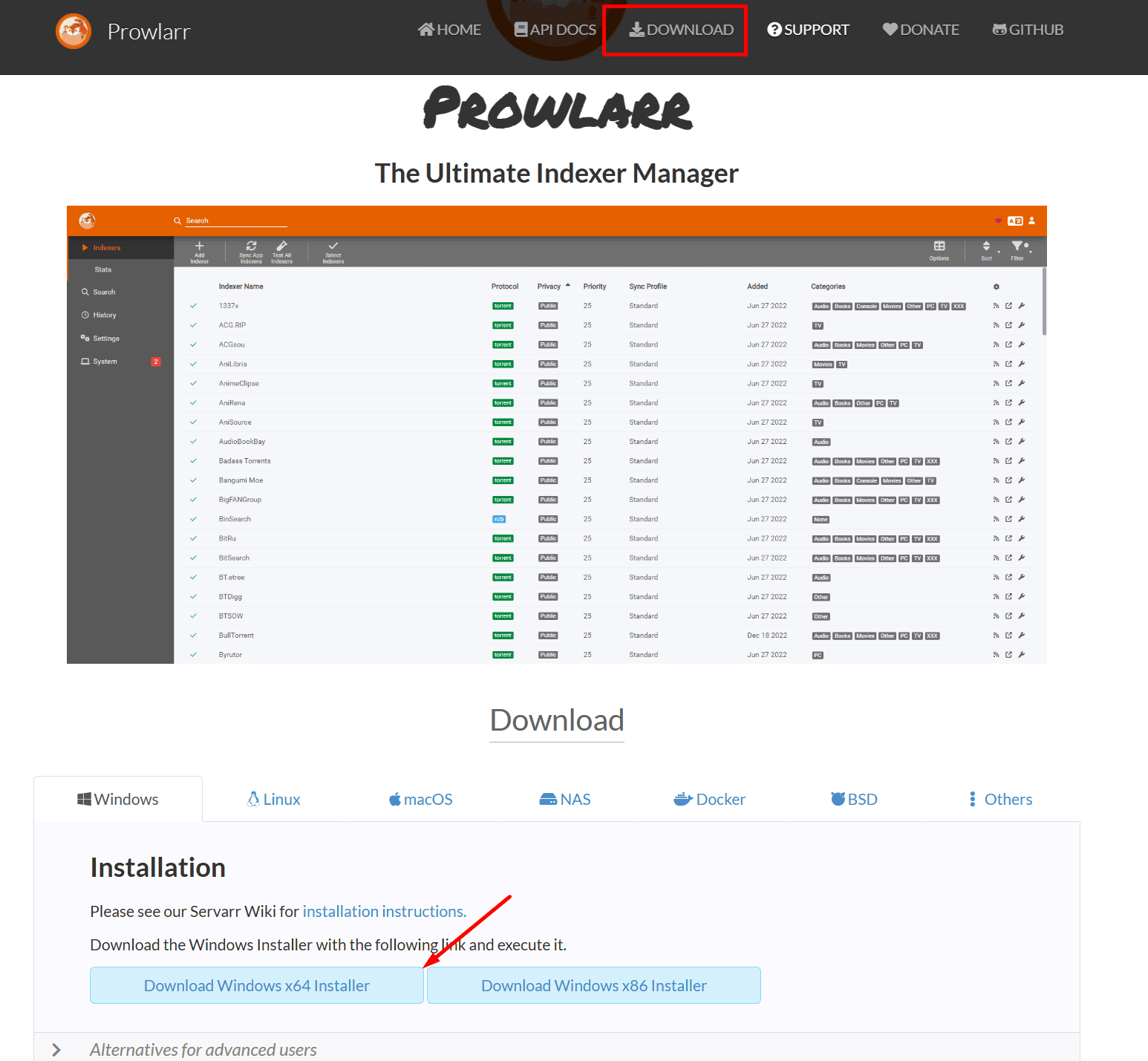
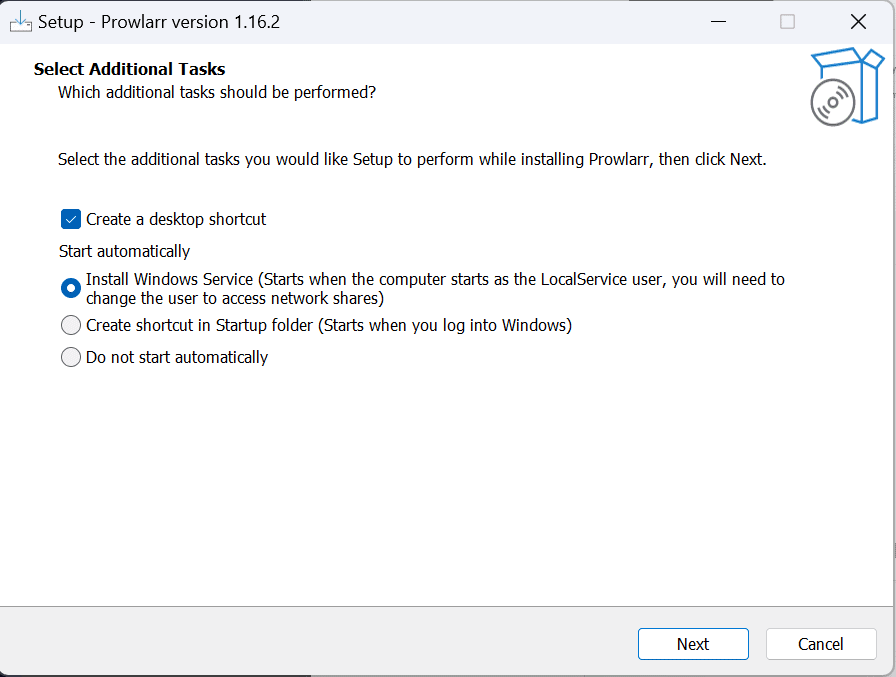
Run the installer, if you don’t want it to start automatically select that option. We recommend that you keep it active.
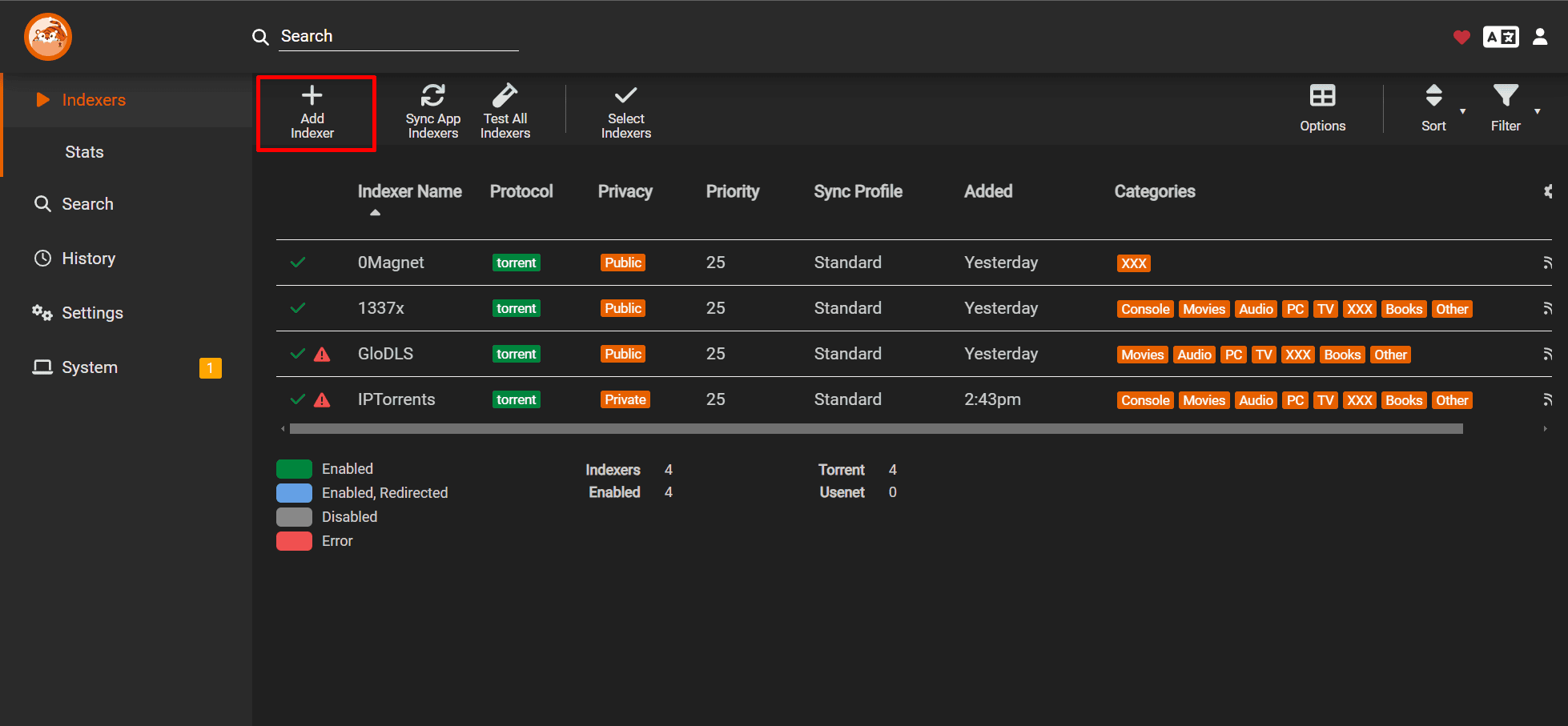
Once installed open prowlarr and select add indexer
In protocol select torrent to NZB according to your requirement
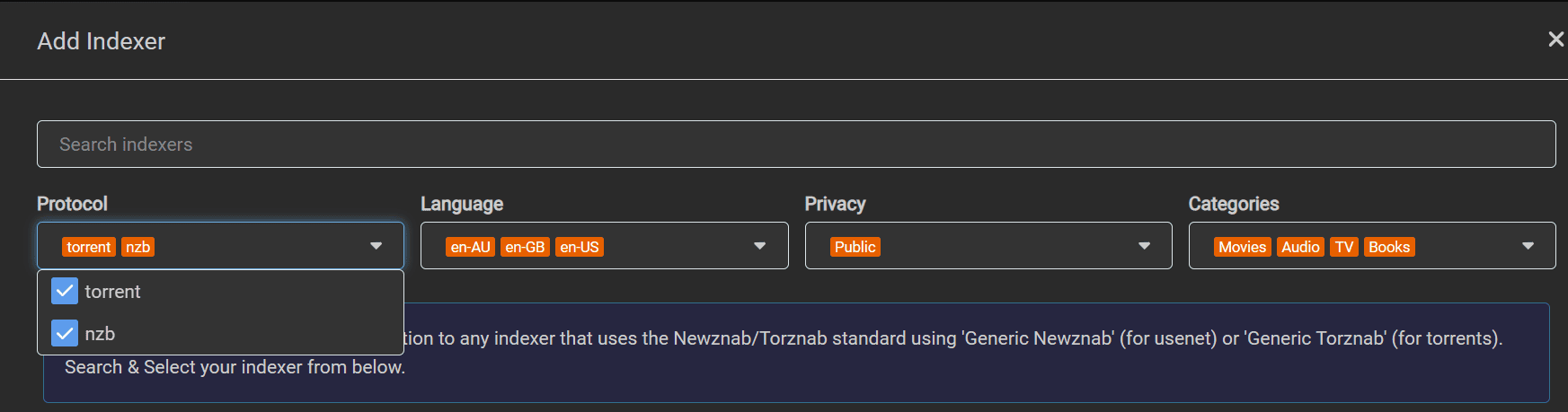
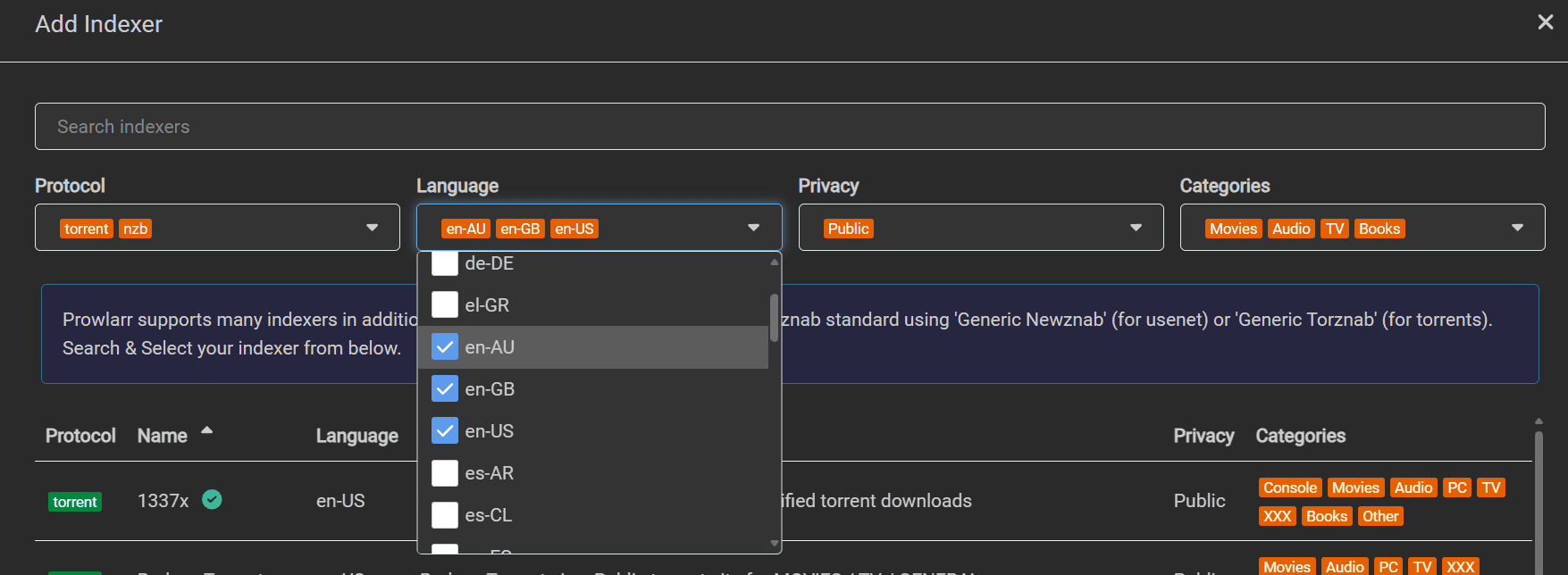
Then choose the language in which you want to search your content from torrent tracker or nzb indexers
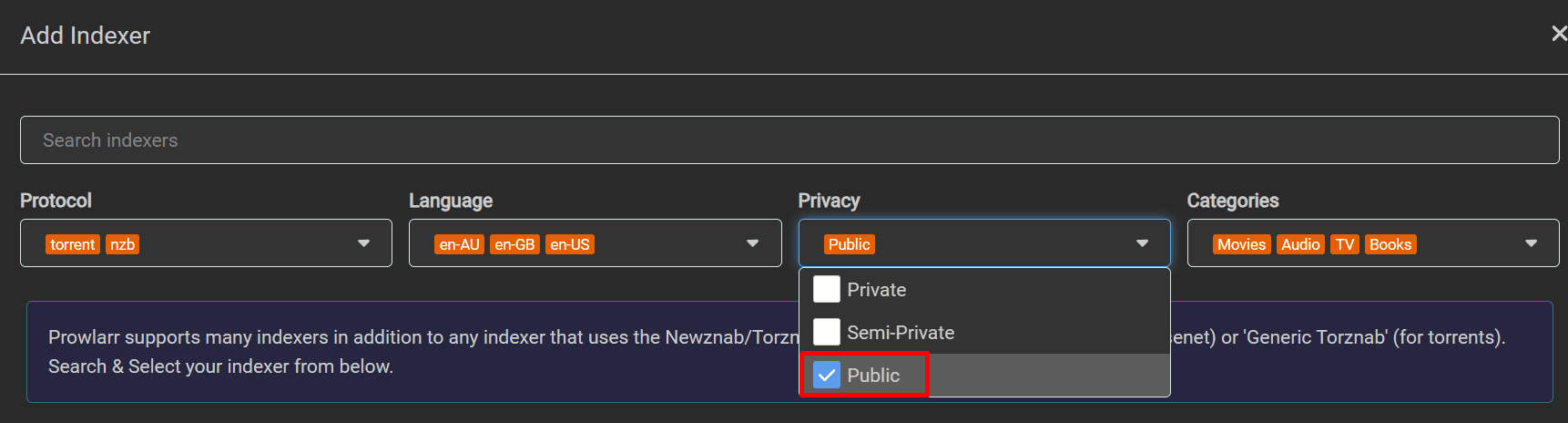
Select the type of tracker you want to select from public and private and semiprivate. Private tracker means you need to login to the private tracker site before you can access to any torrent. Public torrent trackers are open and you don’t need any special sign in to access them.
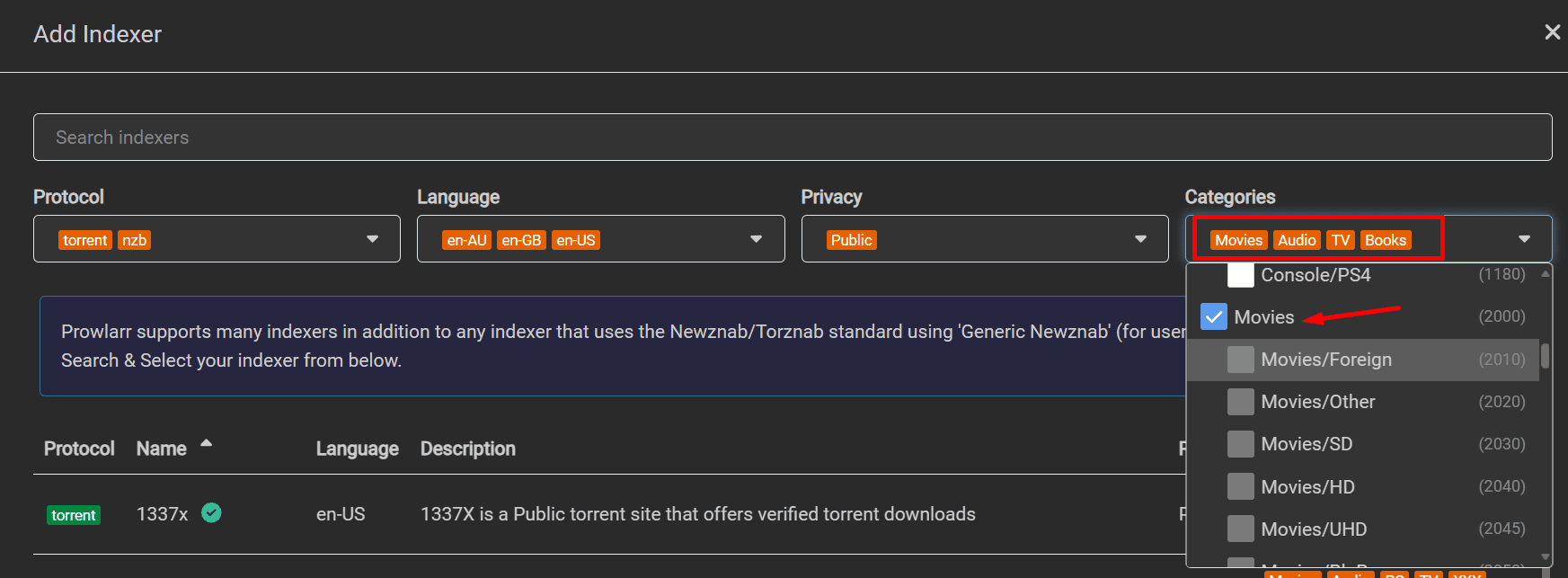
Select the type of content you want from Tv , Movies, Apps etc
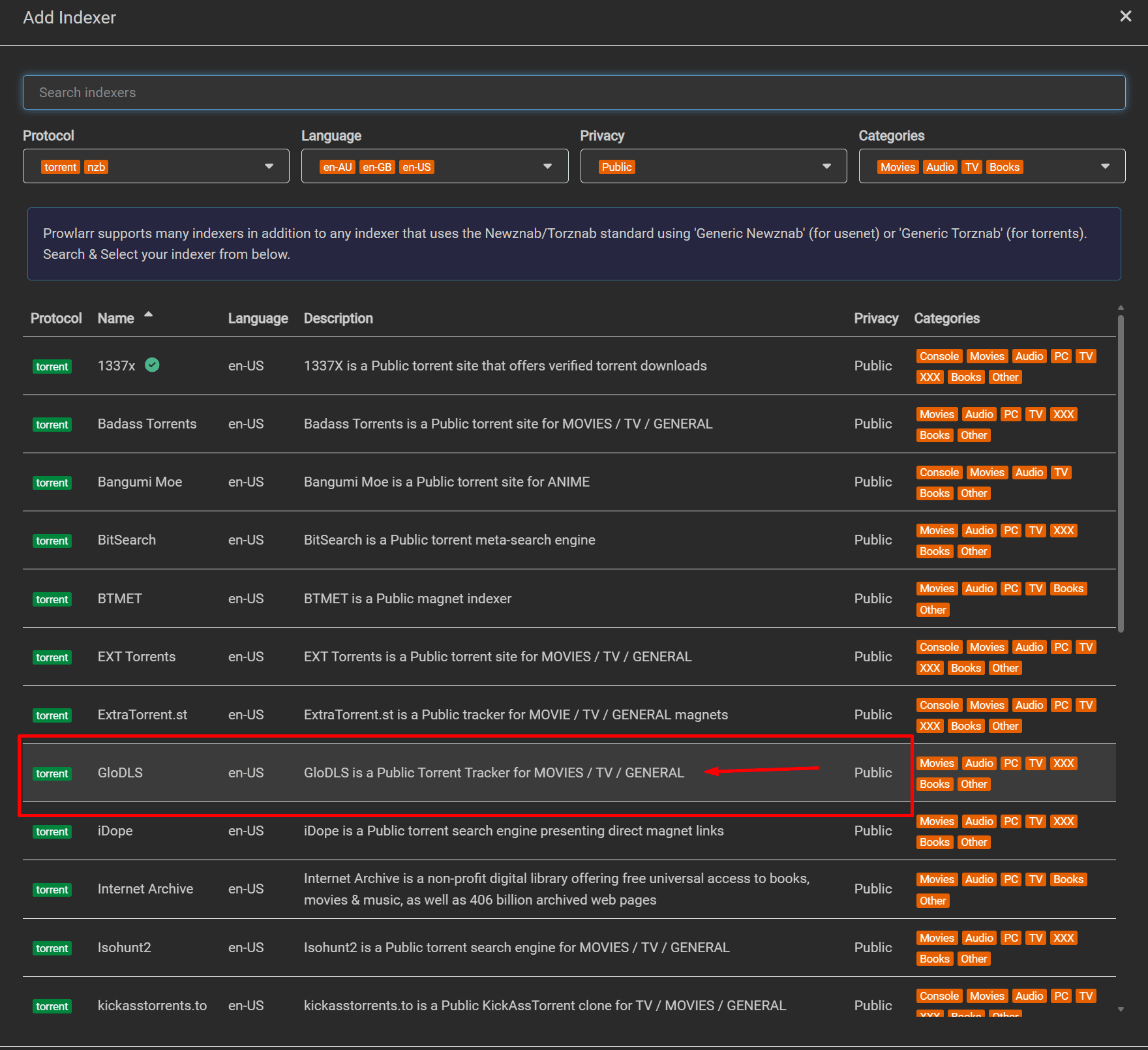
Then select the tracker you want to configure. In this case we are configuring a public tracker GloDLS.
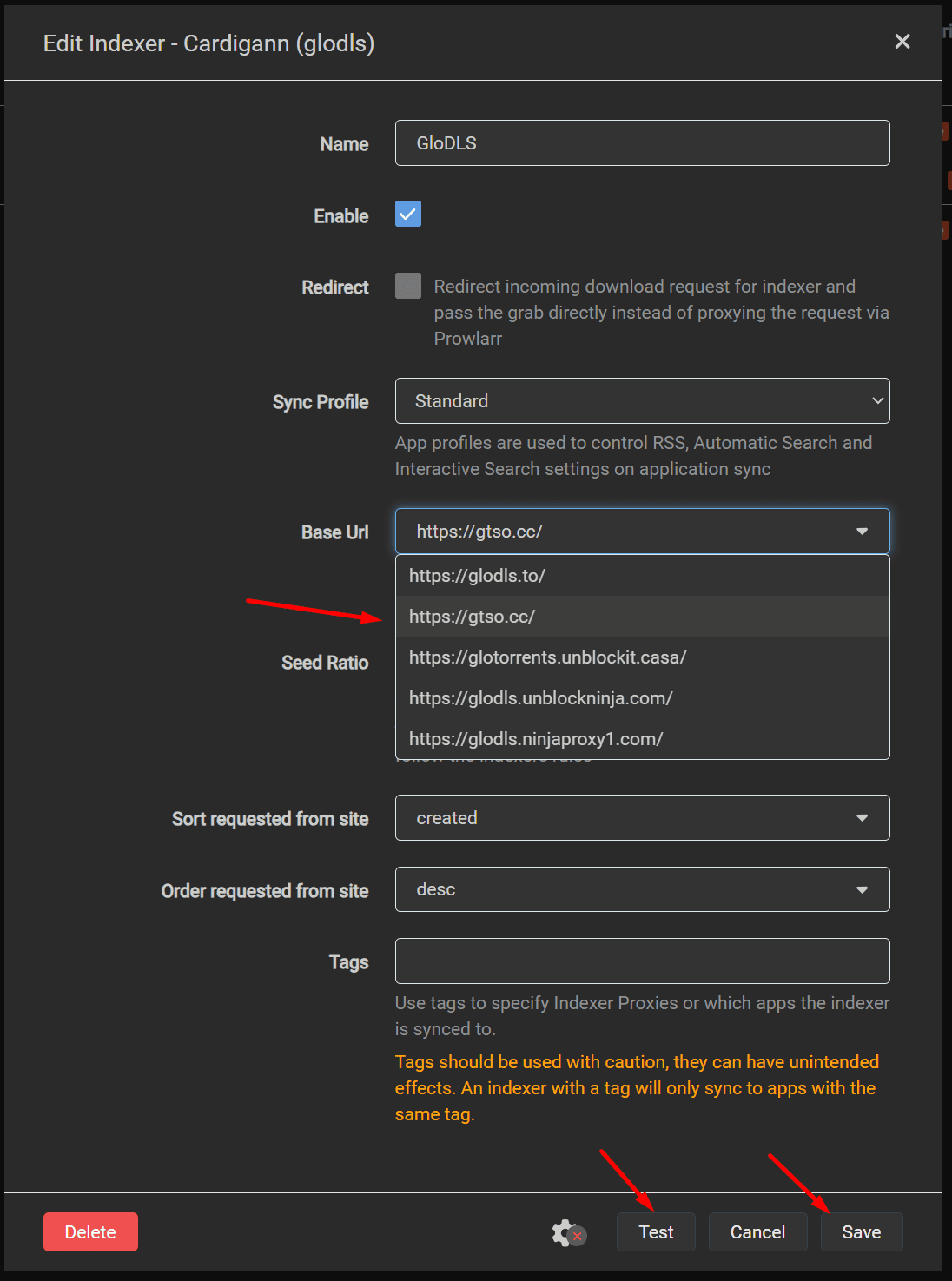
Once you click on the tracker Add Indexer option will open up and select the enable option then click test if it shows up a green tick then click on save.
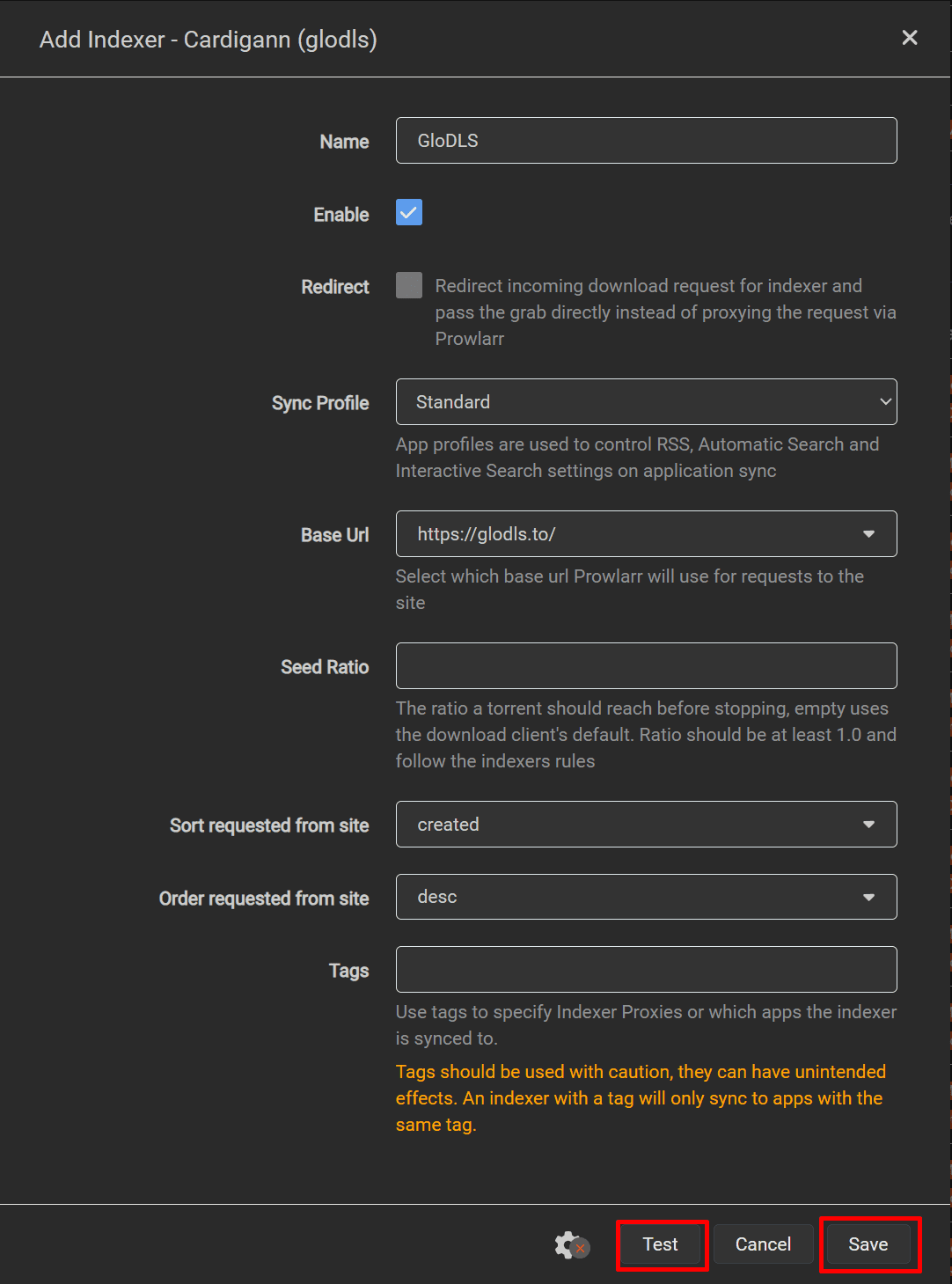
Once you close the torrent tracker, a green tick will appear next to it, indicating a successful addition of the tracker in Prowlarr.

For private tracker with Prowlarr settings:
Search your private tracker in the indexer search and in privacy settings ensure to select privacy.
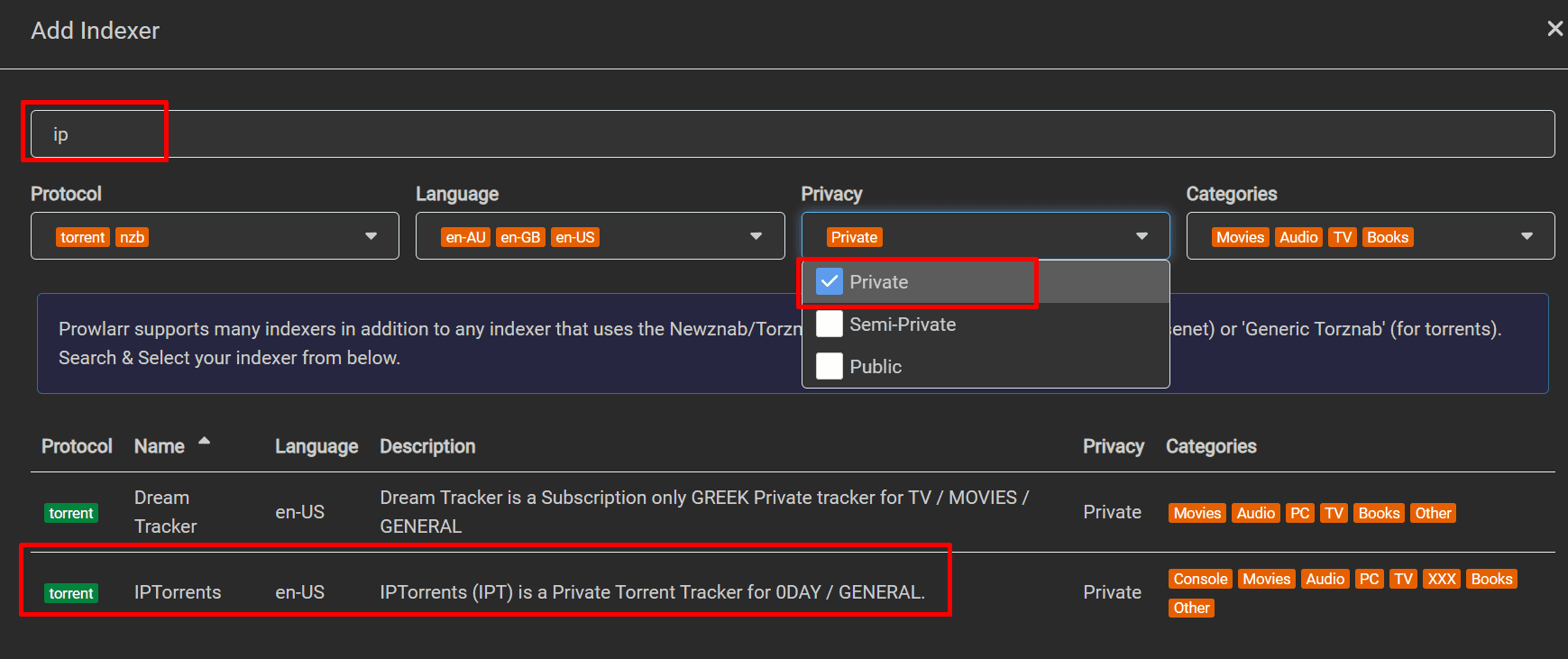
Once you click on your private tracker the below options will open up.
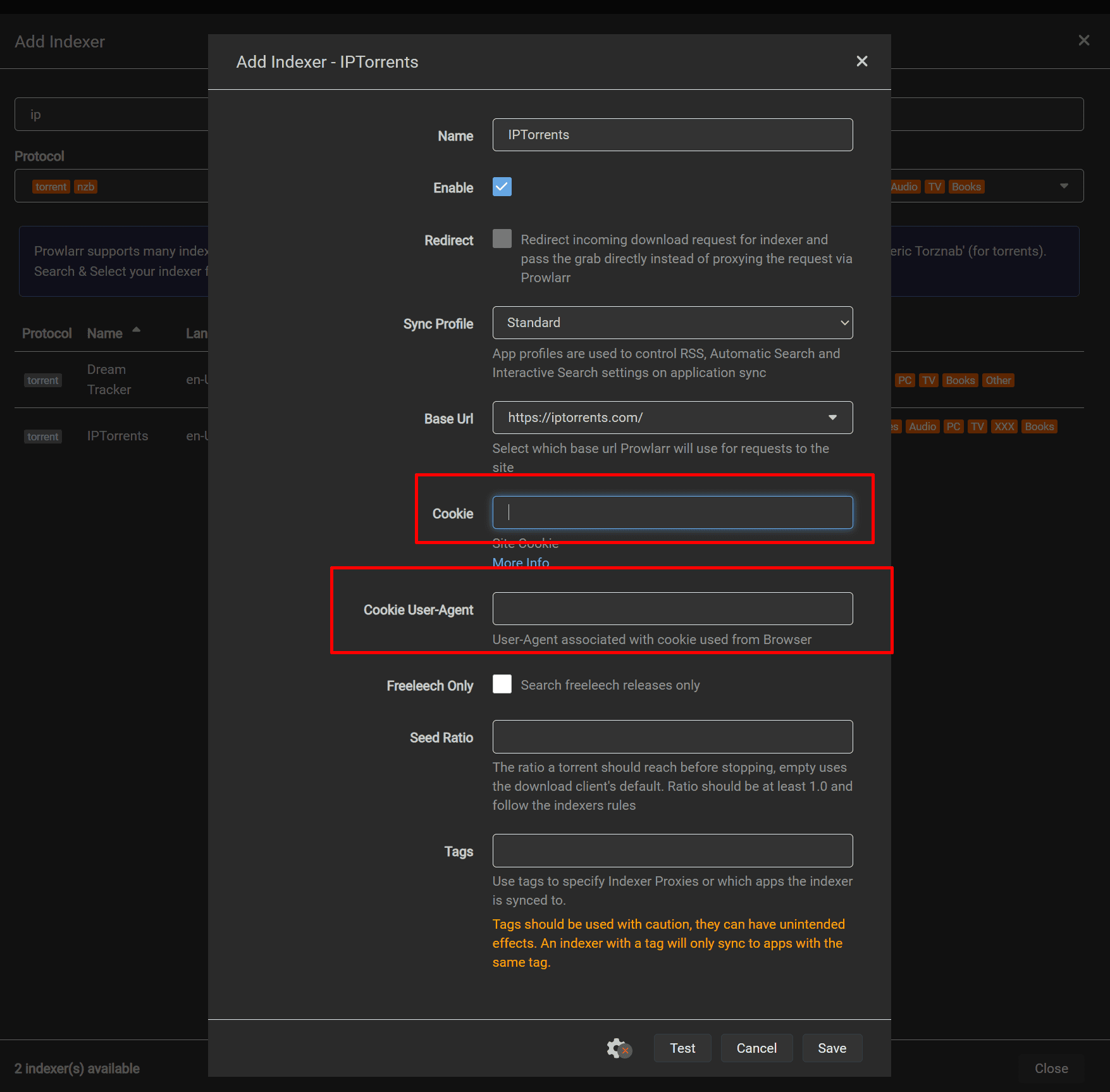
In our example we are using private tracker Iptorrent we have to fill in the fields cookie data and Cookie User-Agent
Login to Iptorrents and right-click anywhere on the webpage and click inspect
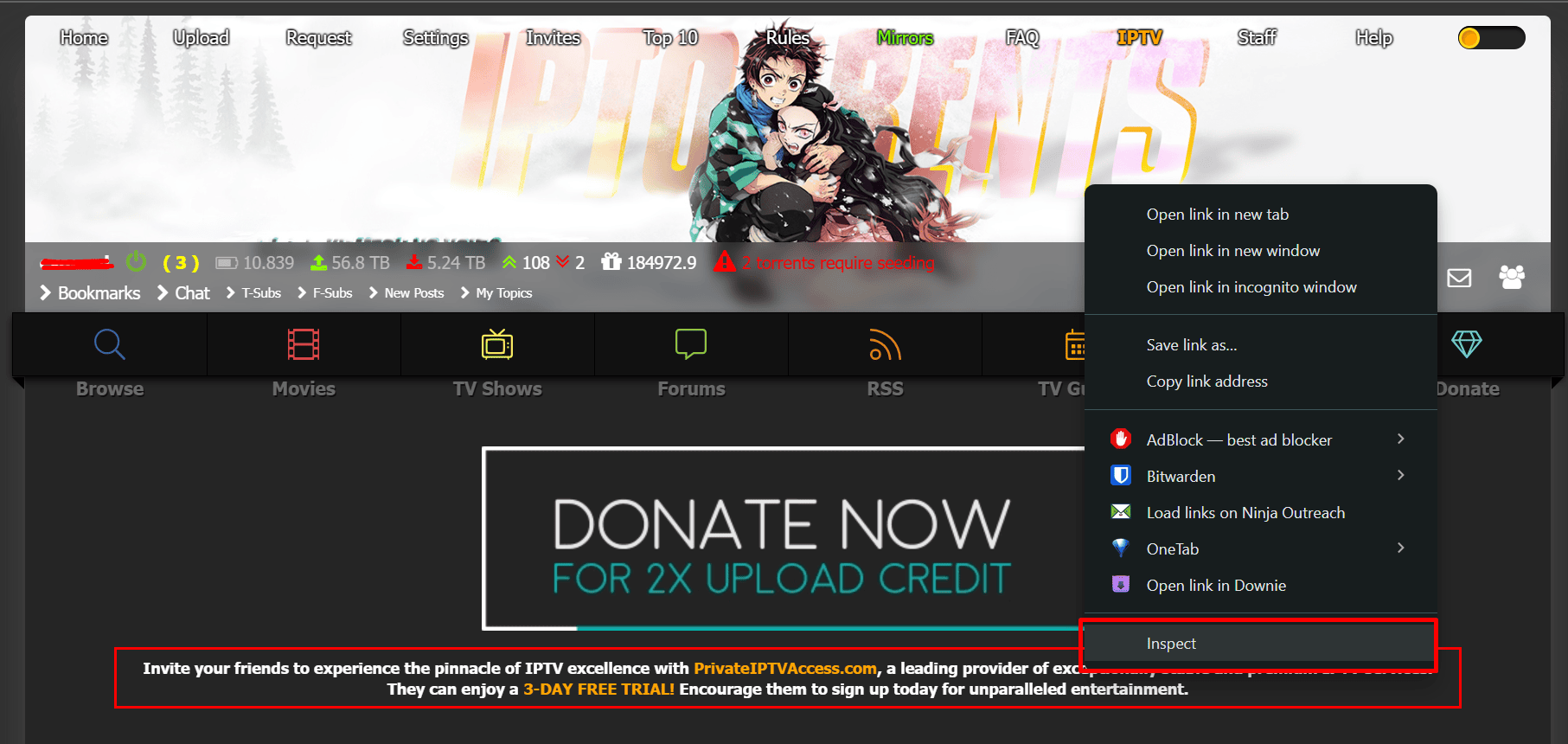
A new section will open in your browser on it click on the Network Tab
Under the section Name, select “t” and then copy all the text in front of the Cookie and User-Agent field as shown in the image below
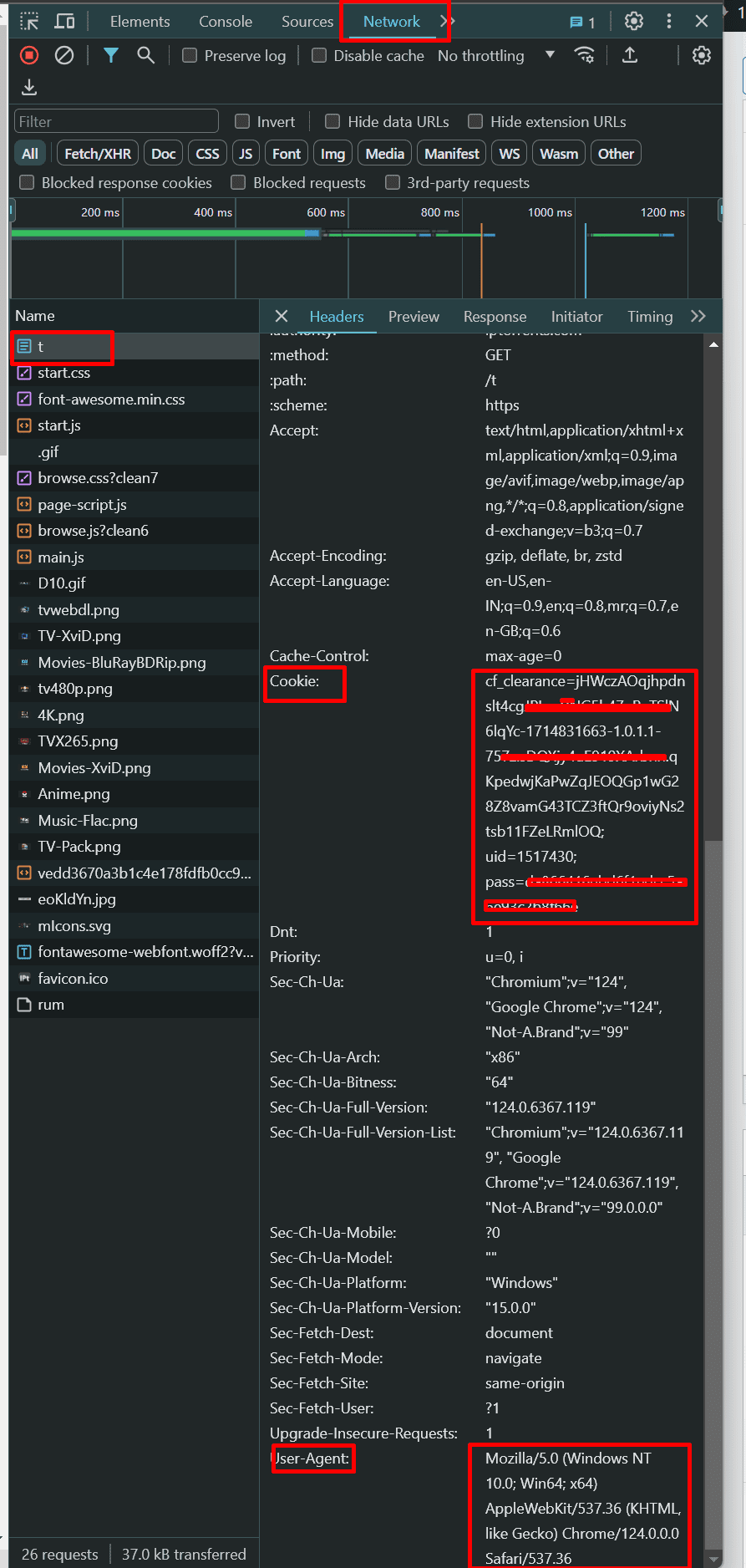
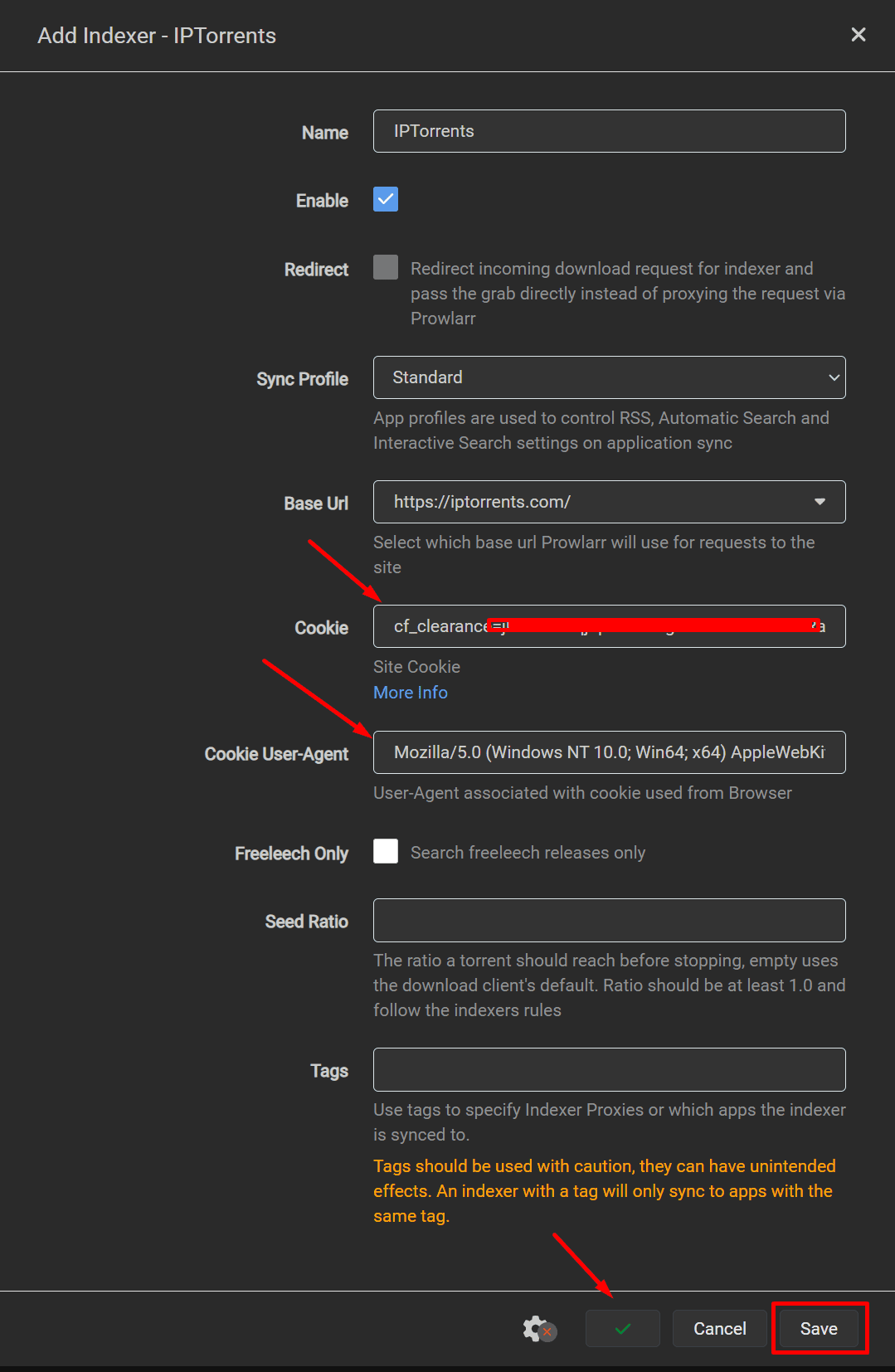
Paste the copied data in the prowlarr as shown in image below against the cookie and Cookie User-Agent field.
Click on Test and a green tick mark will show up which means you have set things correctly and then click on save
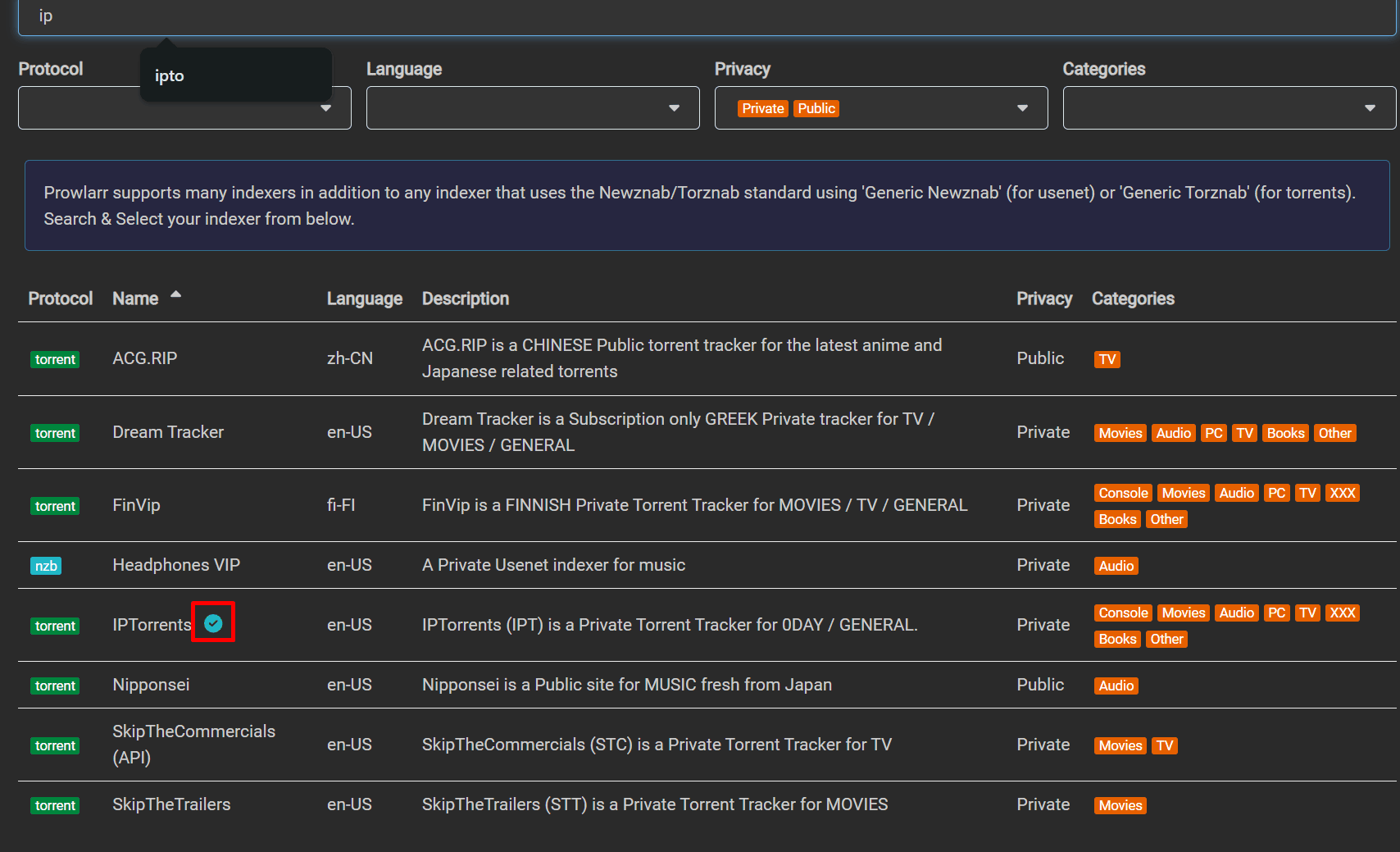
In front of your private tracker, a small green tick mark will show up.
Periodically you can click on test all indexers to check if some of them are dead or there is some error in their settings.
If you see a warning sign, you can either correct the setting or remove the tracker accordingly.
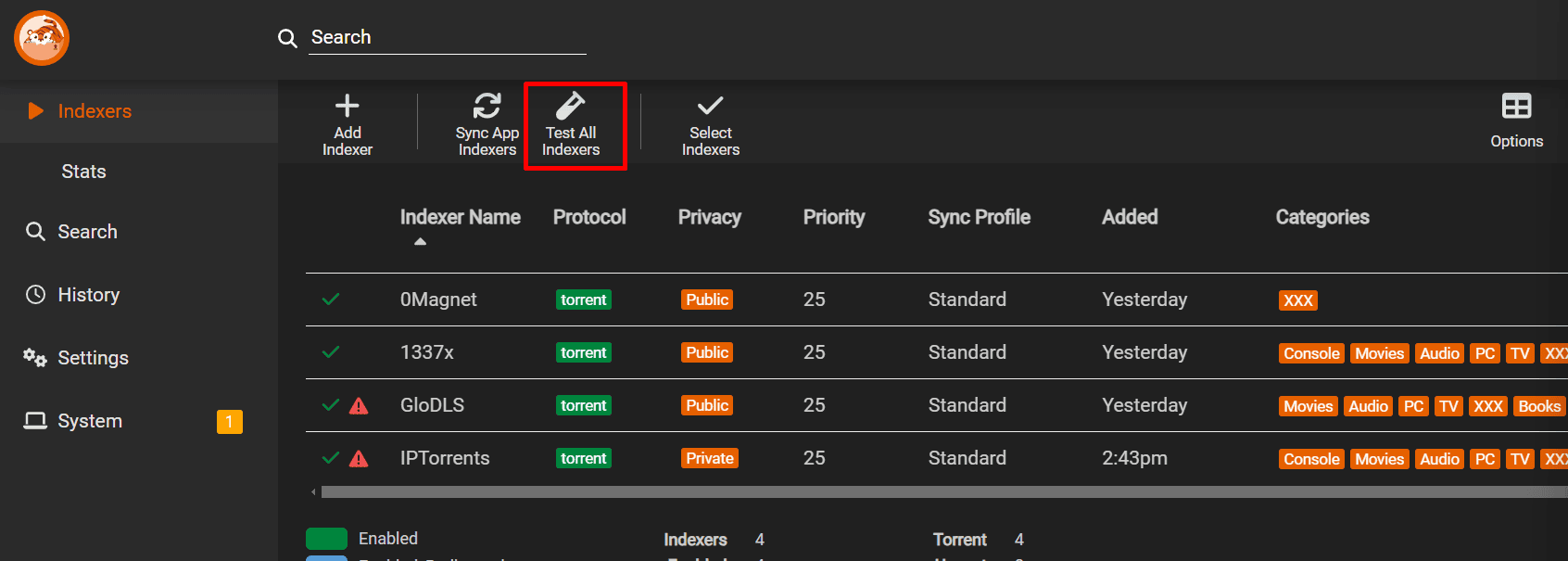
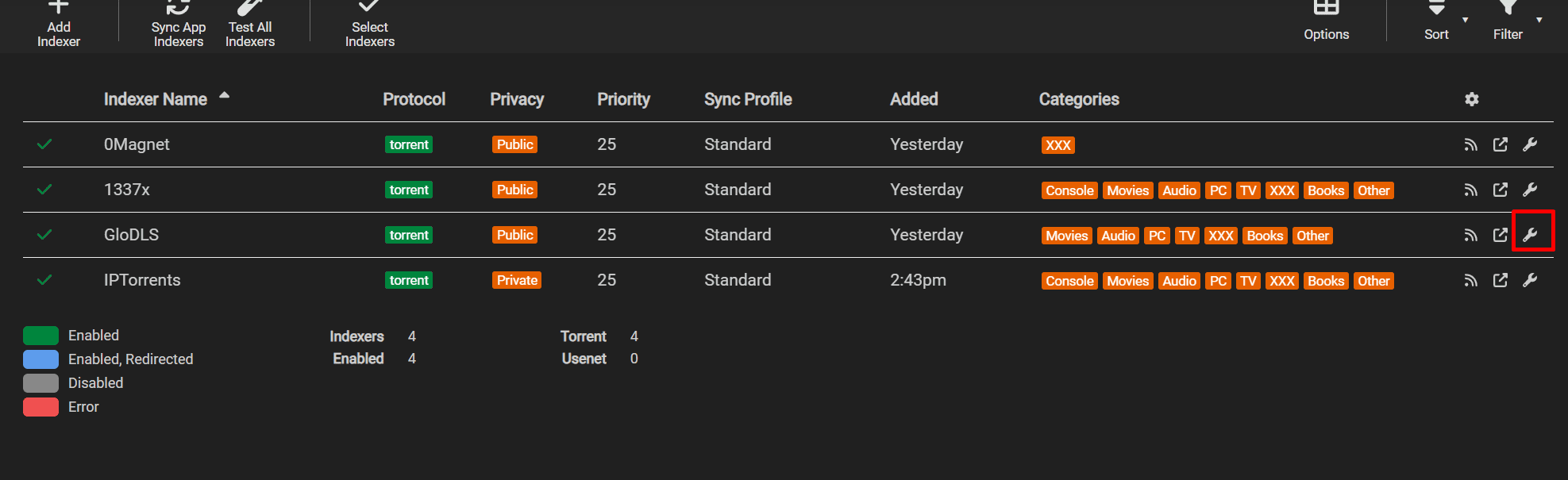
To correct it click on the spanner/settings symbol in front of the tracker.
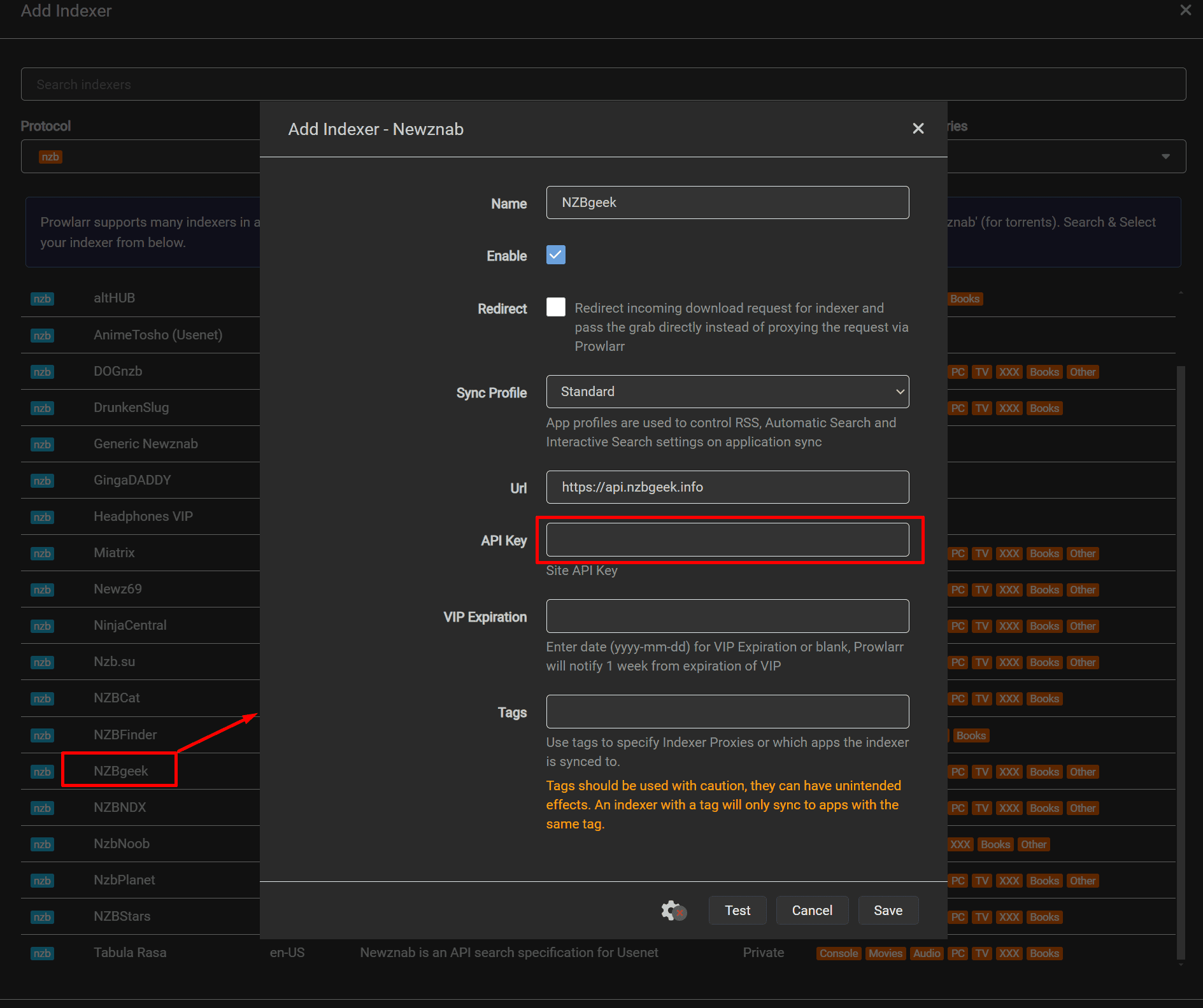
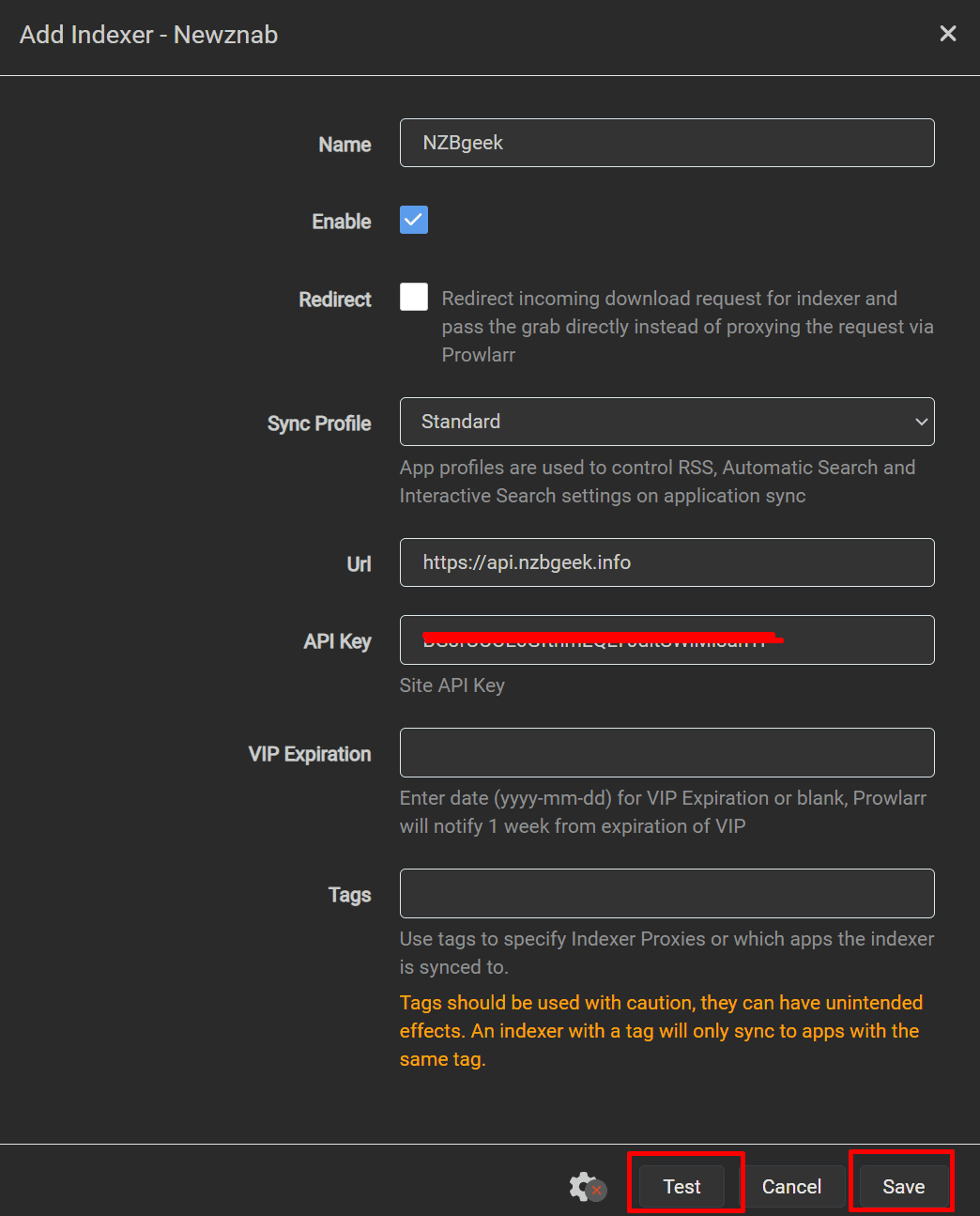
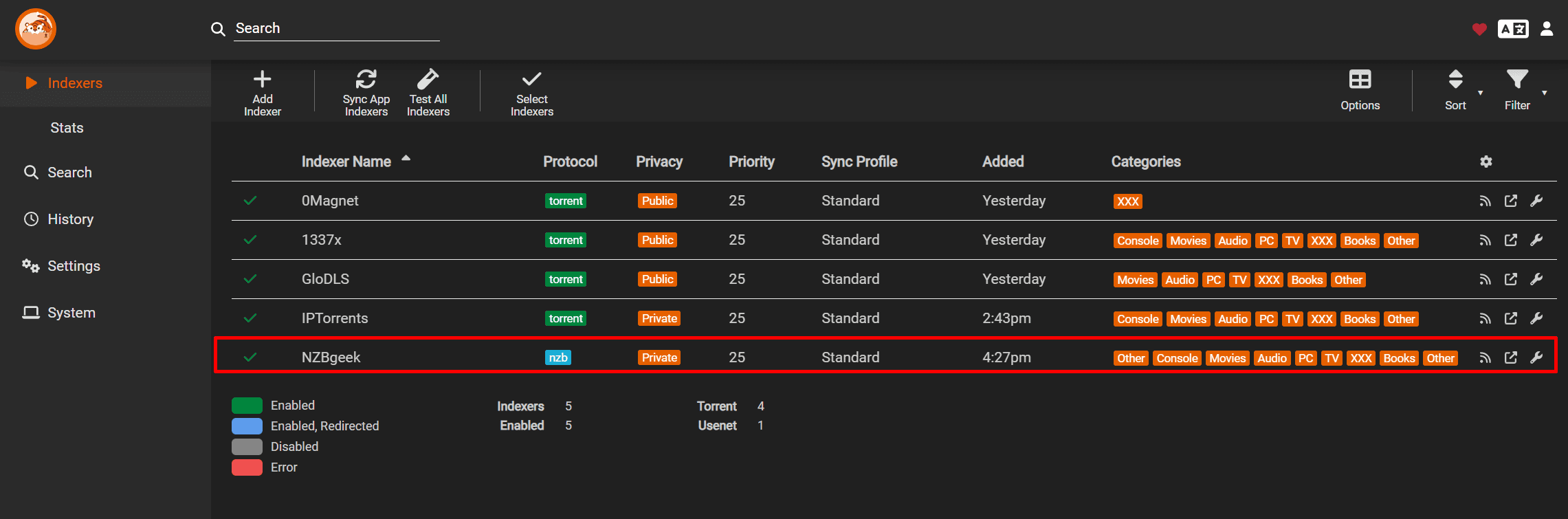
Instruction for using Prowlarr with Usenet
In Protocol select nzb and privacy depending on your Usenet indexer choose public or private


Manage Prowlarr from your phone: Prowlarr in Dashboarr, the free Android and iOS app that connects straight to your seedbox apps.
Every option on every settings page, with defaults and seedbox values, is in the Prowlarr settings reference.
Connecting Prowlarr with other ARR Tools
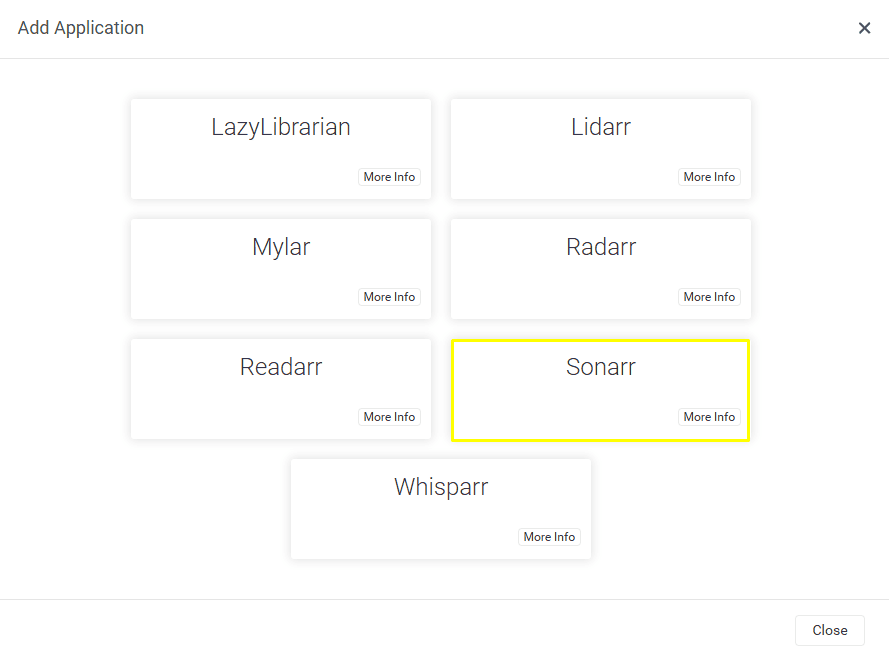
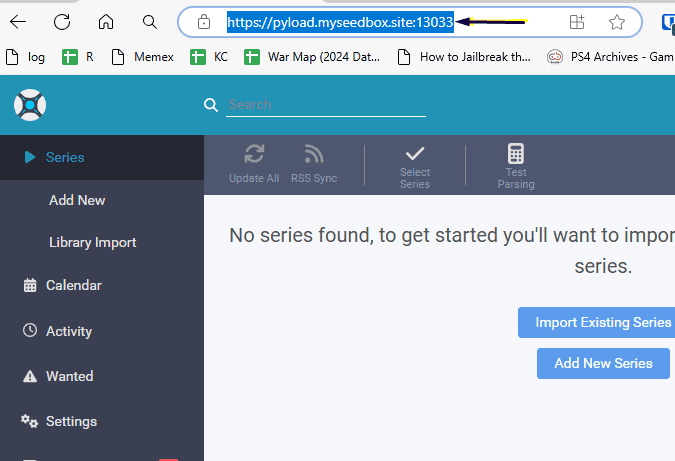
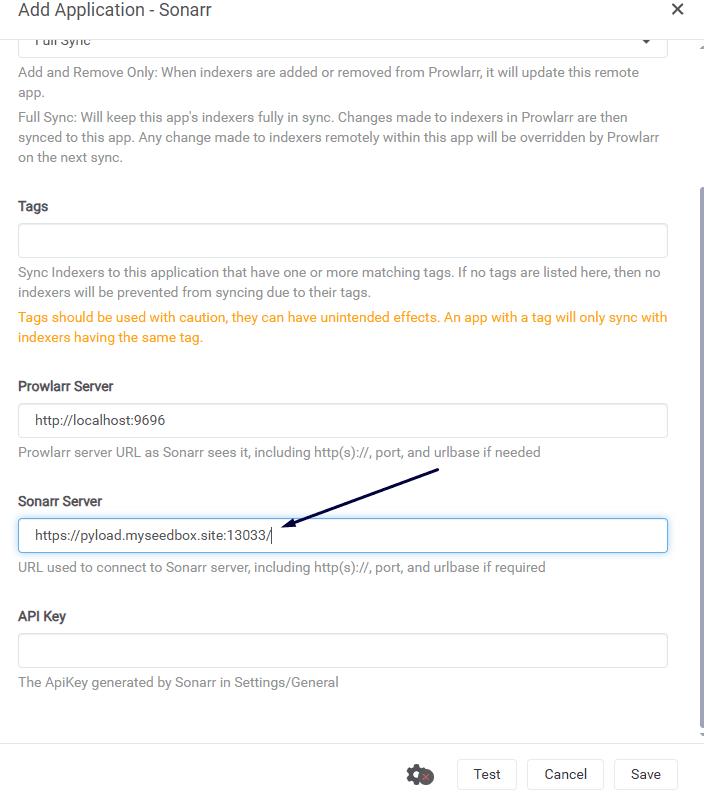
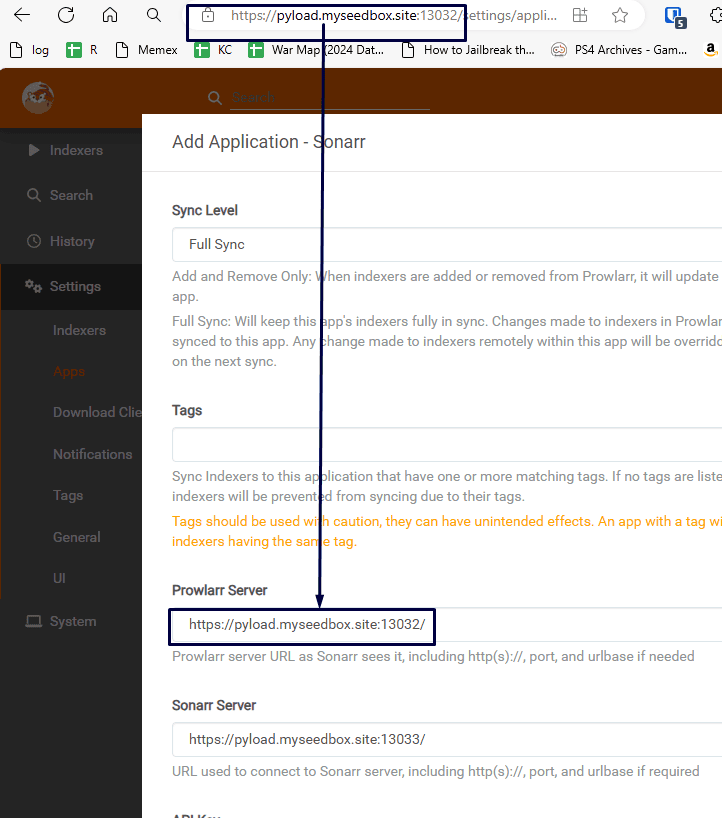
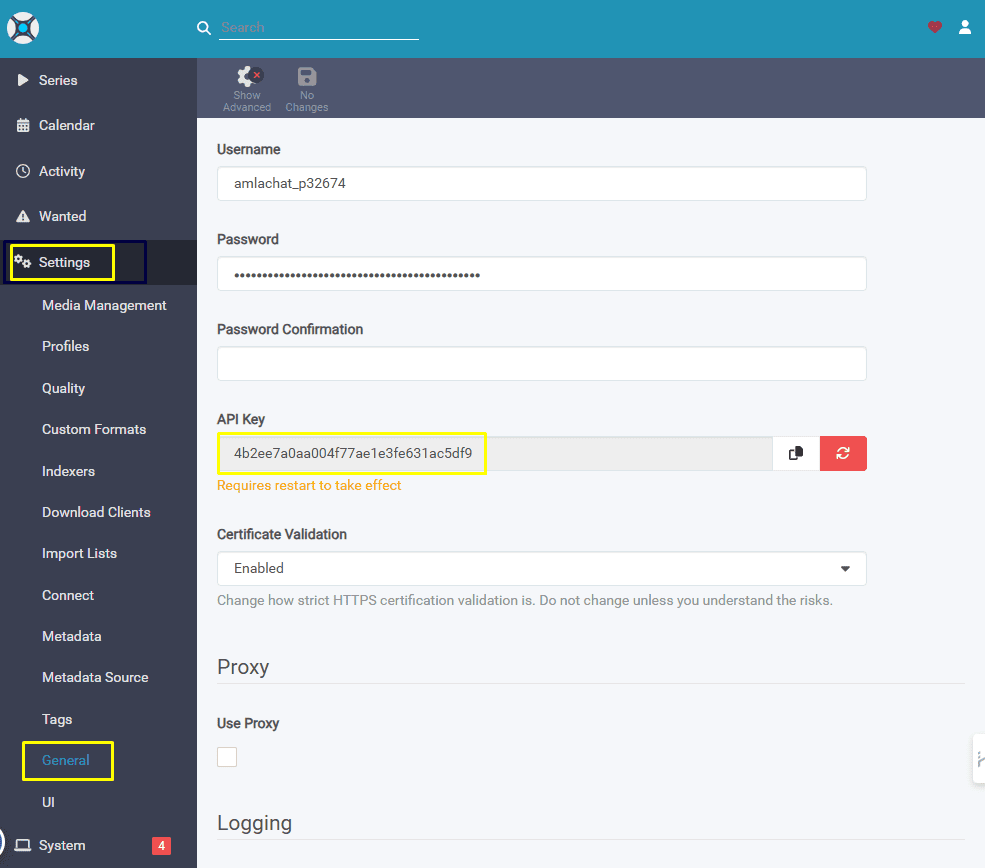
Connecting sonarr with prowlarr
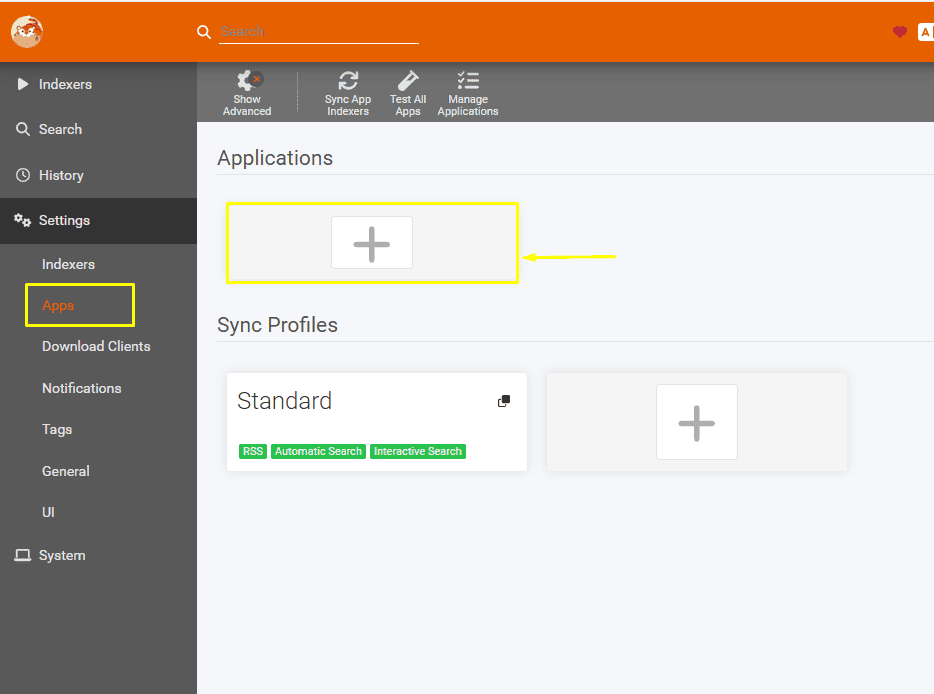
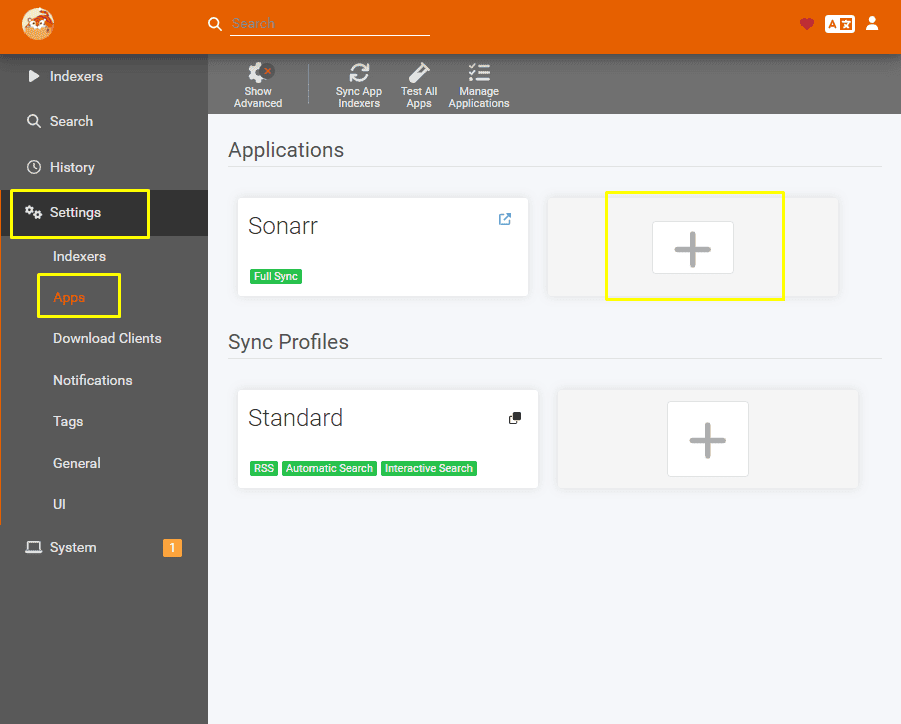
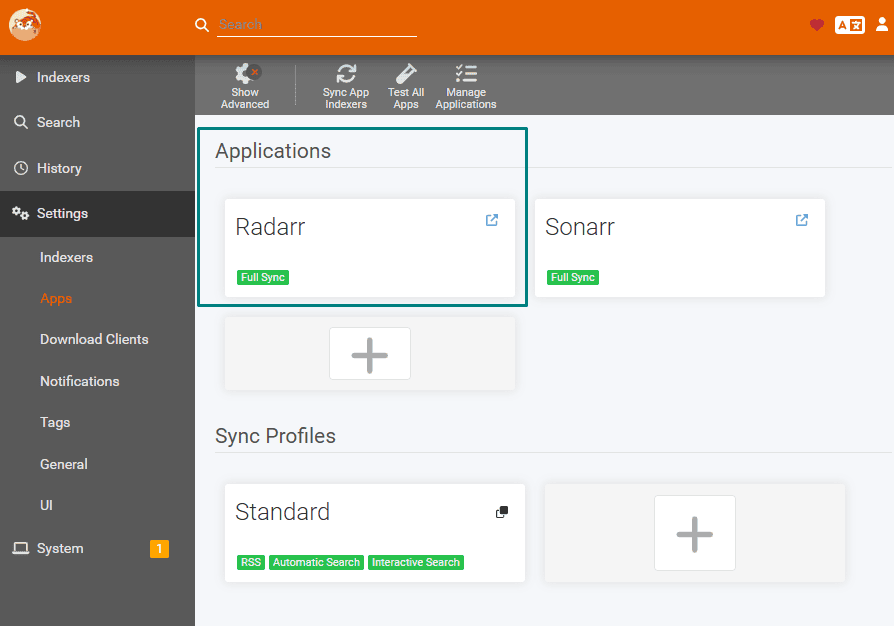
Open prowlarr go to settings and then select apps.
In apps section, click on the plus button under Applications.
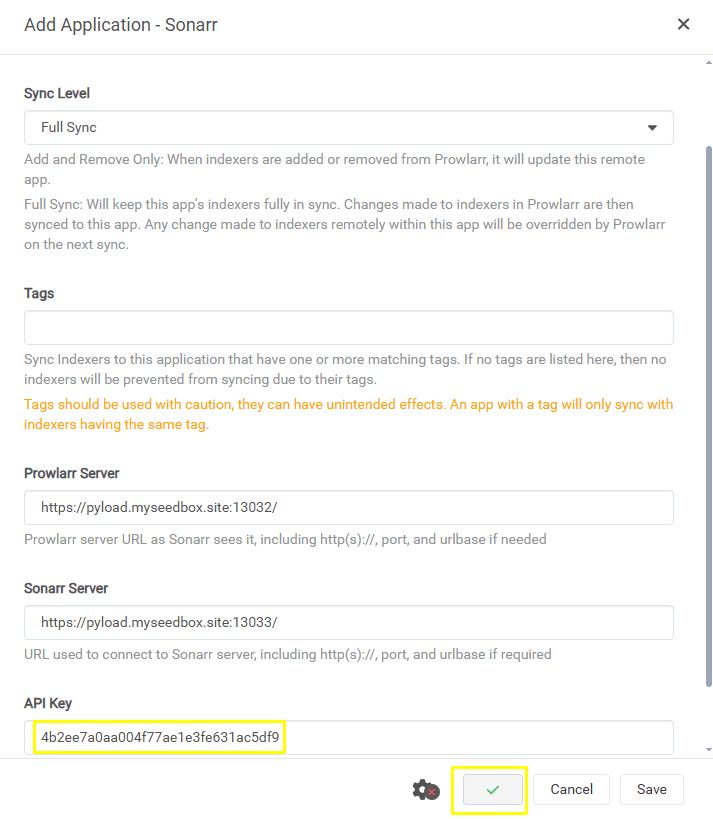
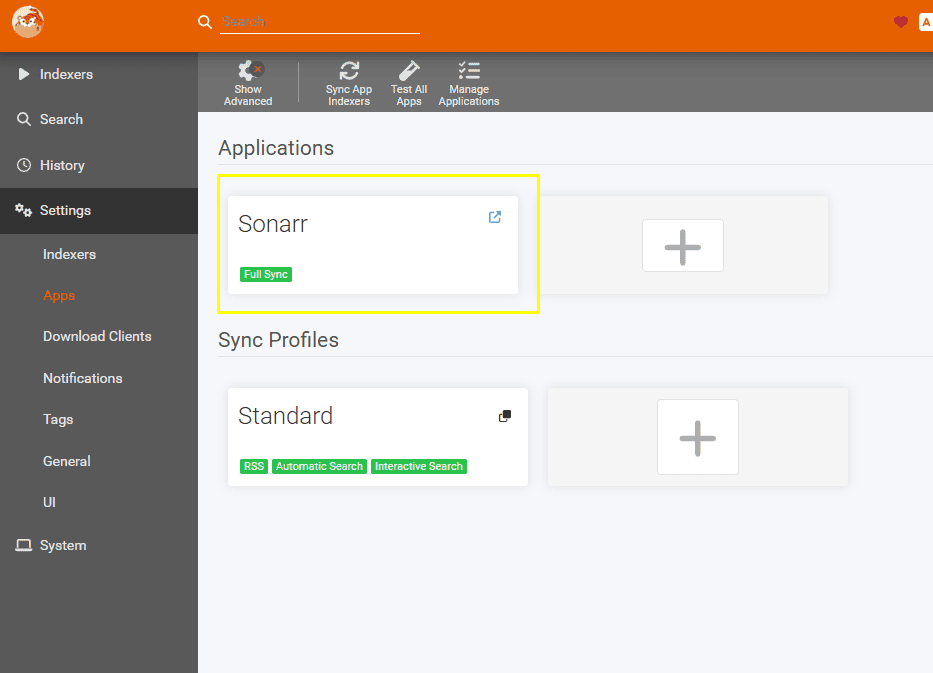
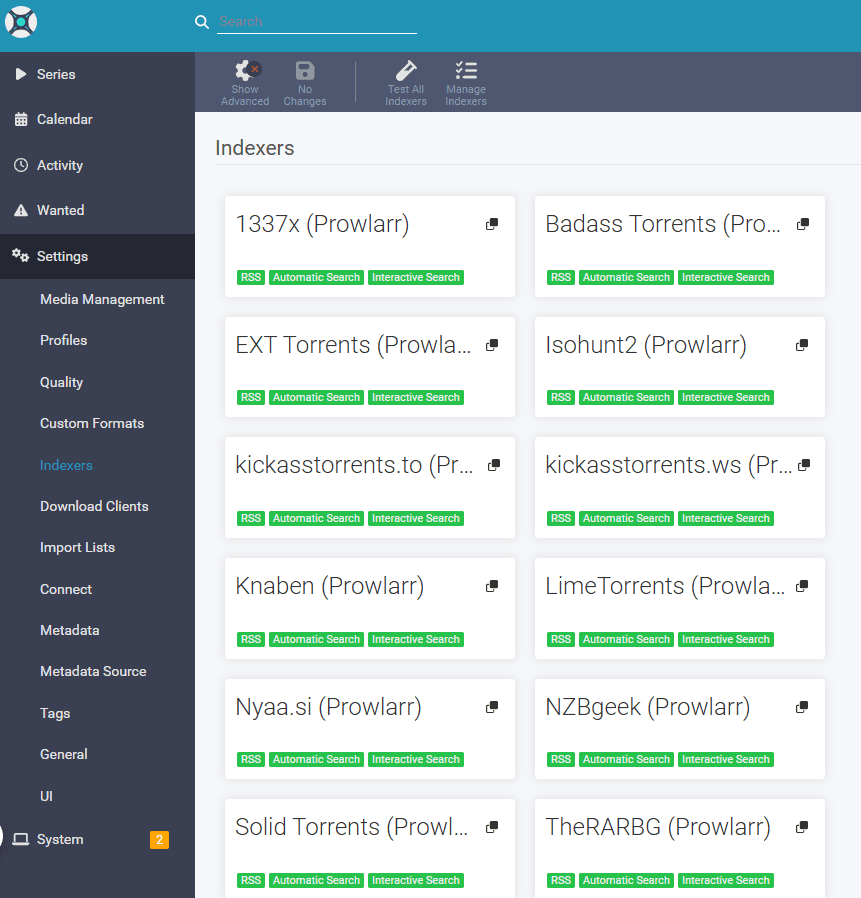
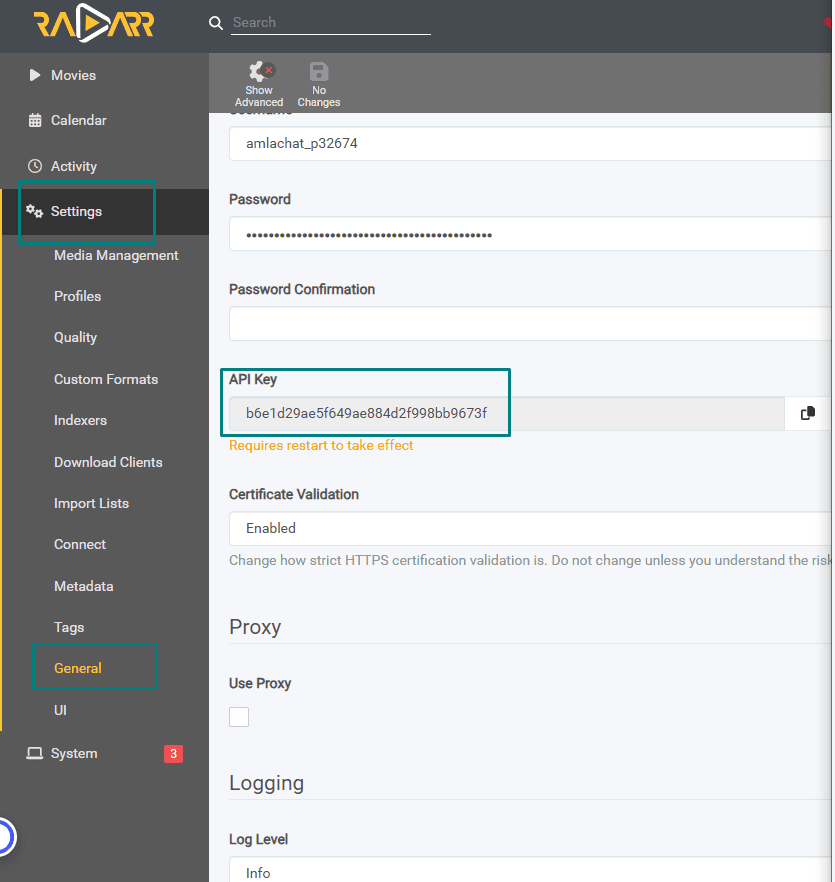
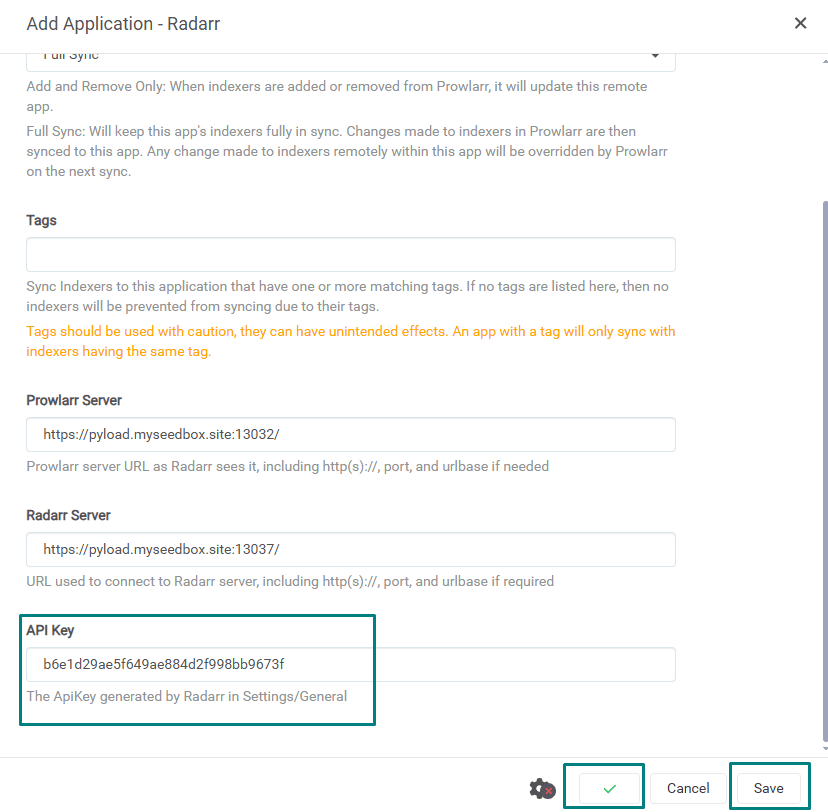
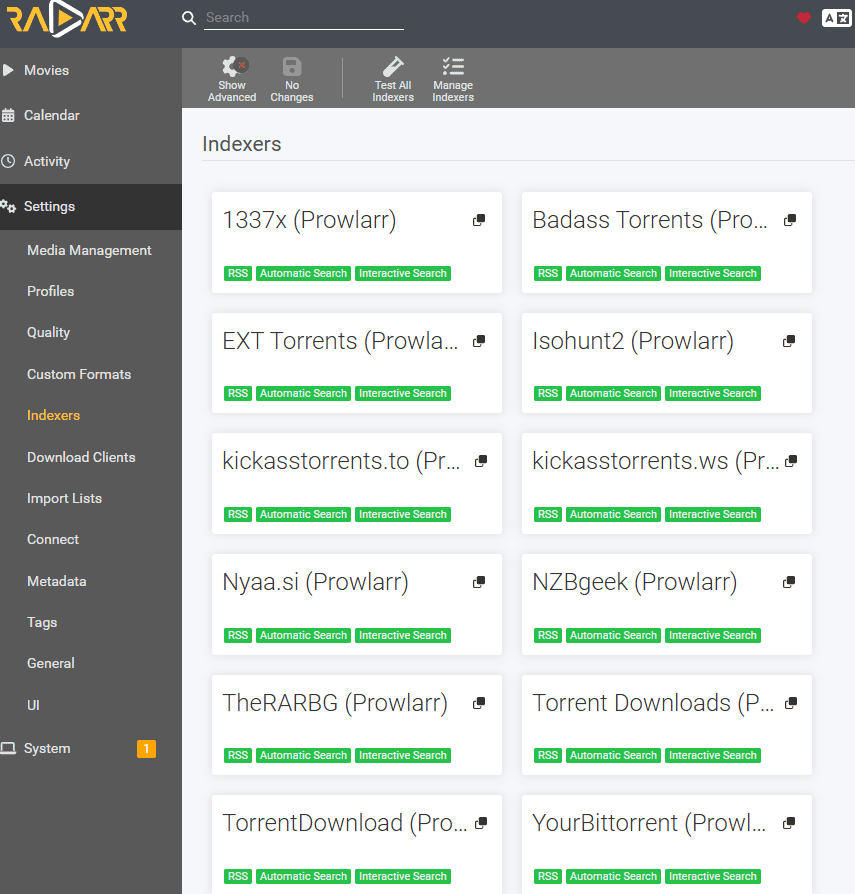
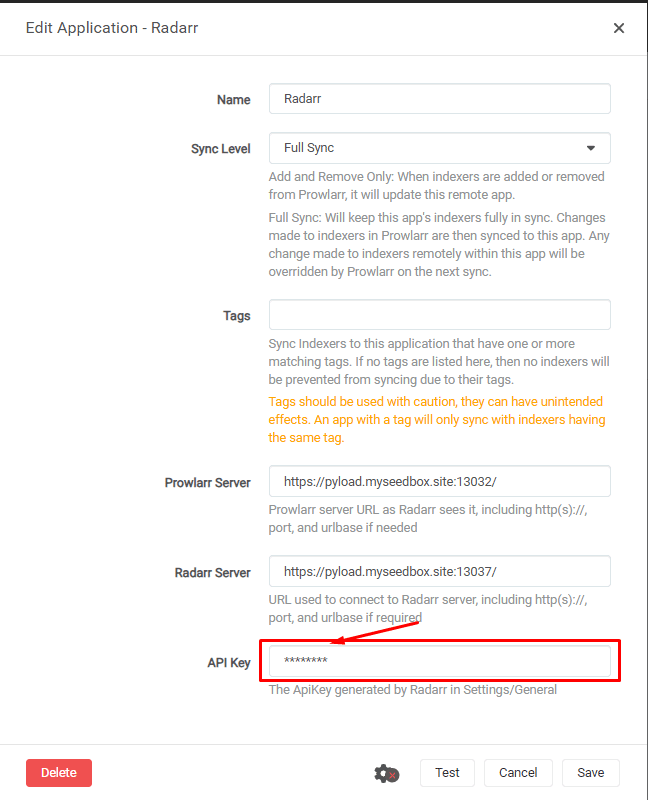
Connecting prowlarr with Radarr
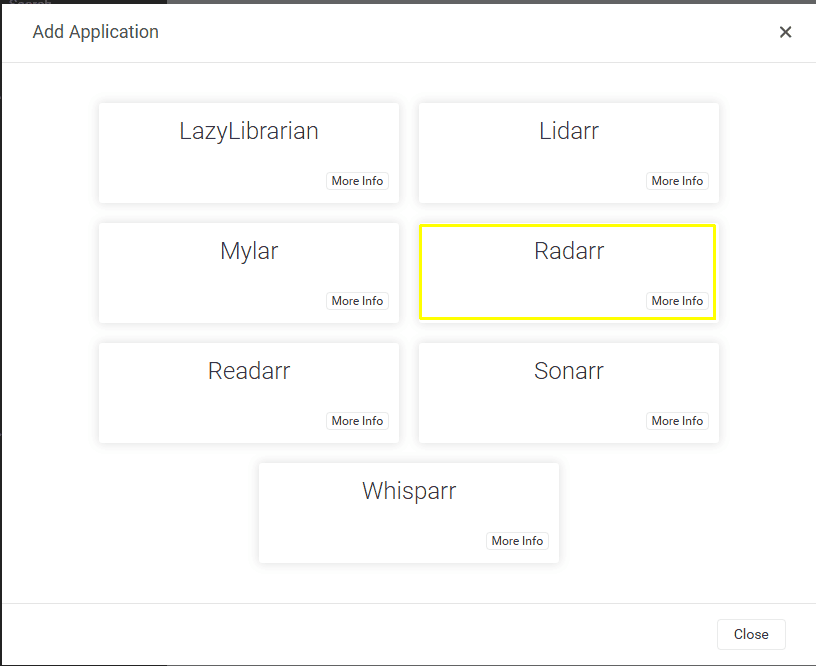
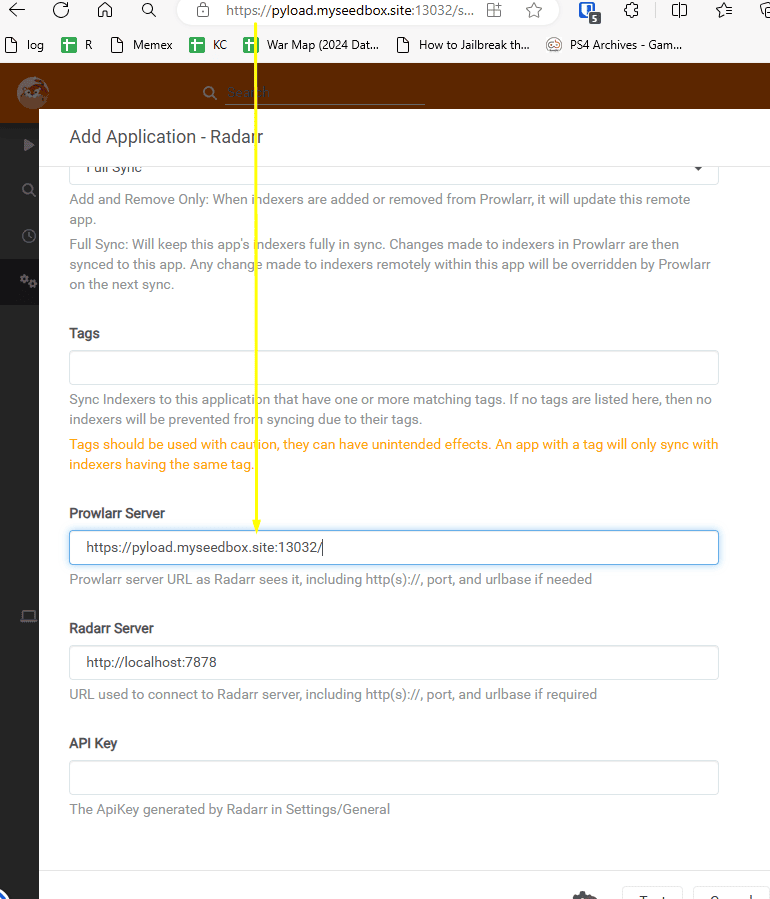
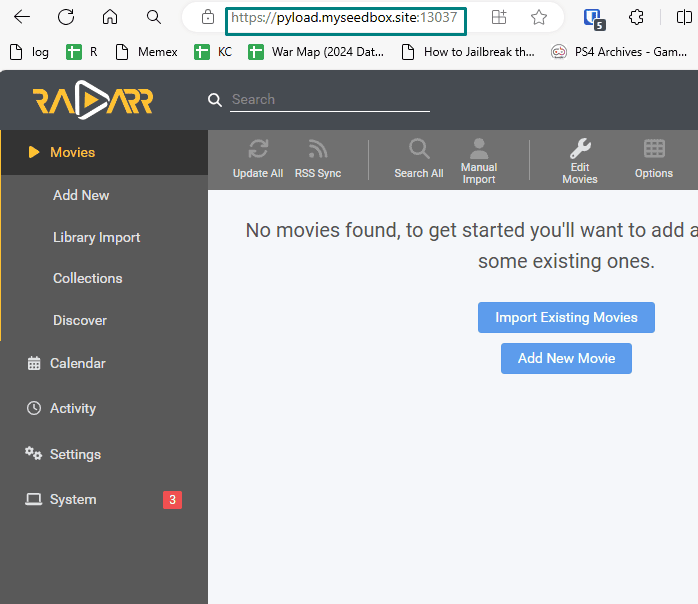
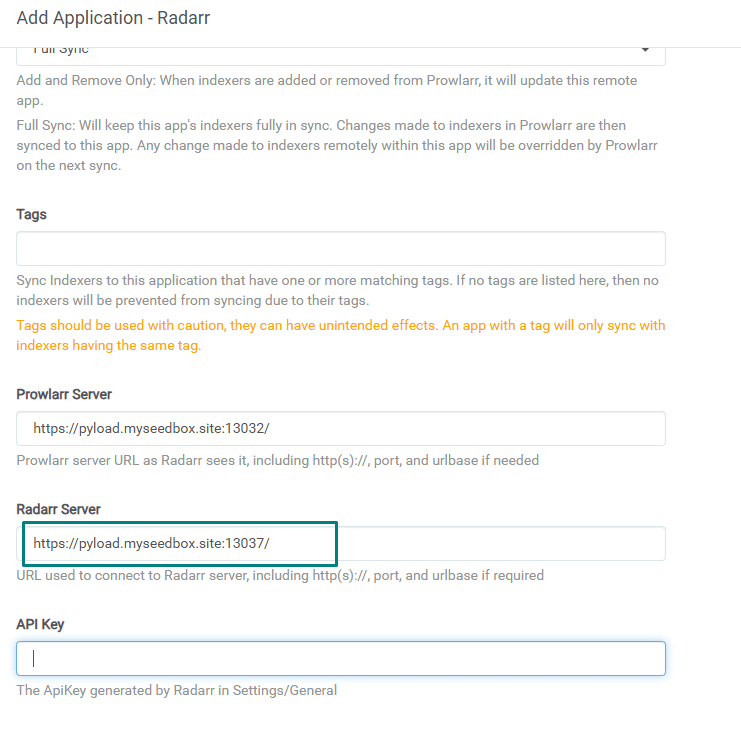
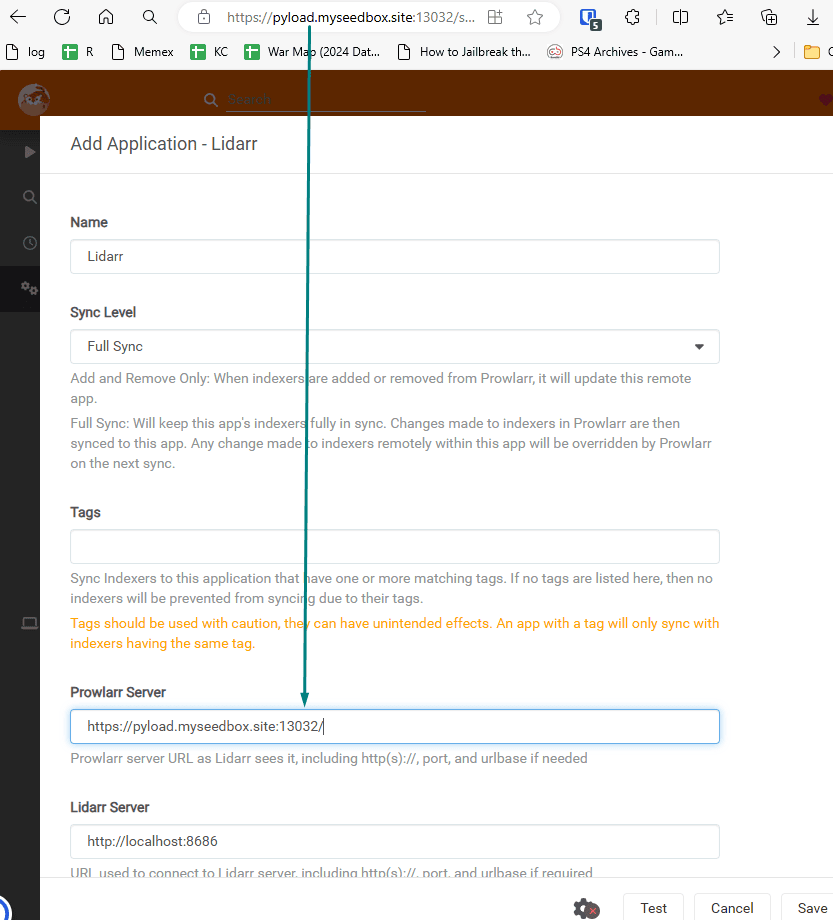
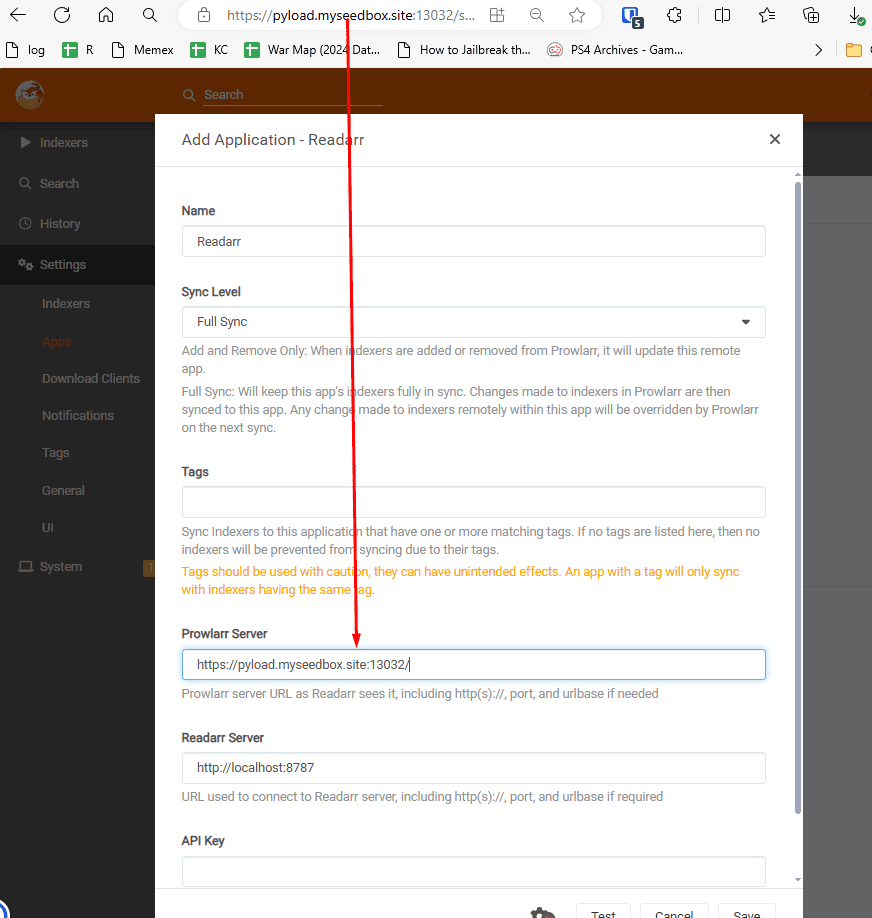
Similar to sonarr for radarr fill in the prowlarr server address in
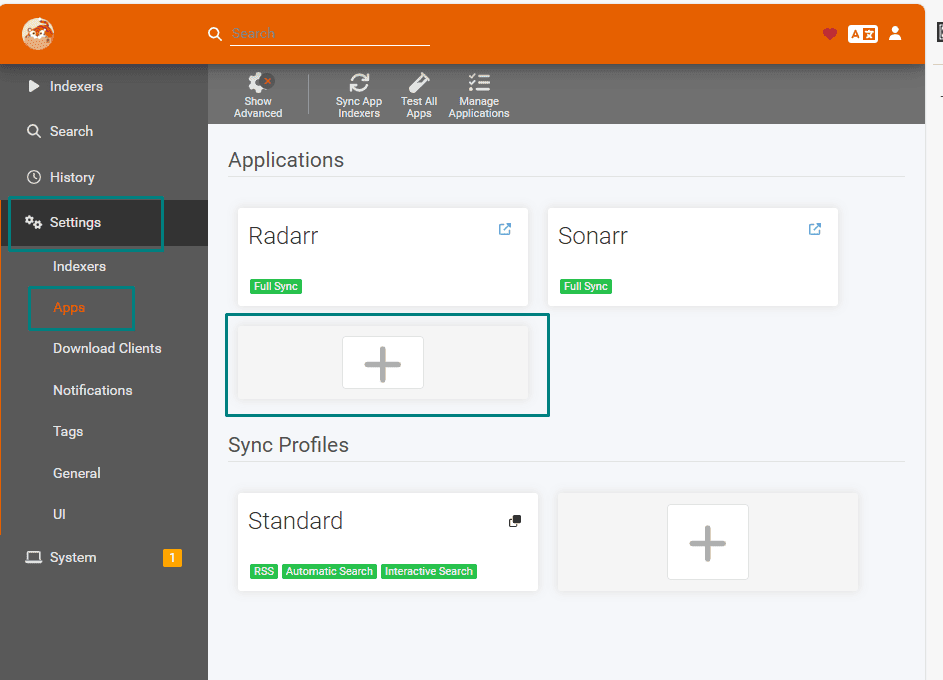
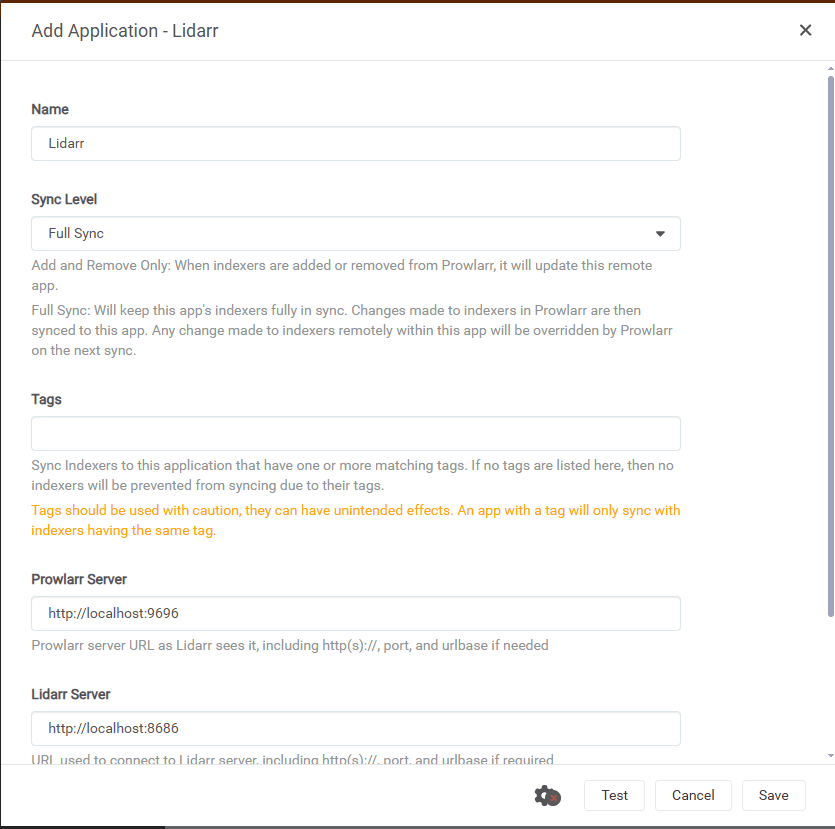
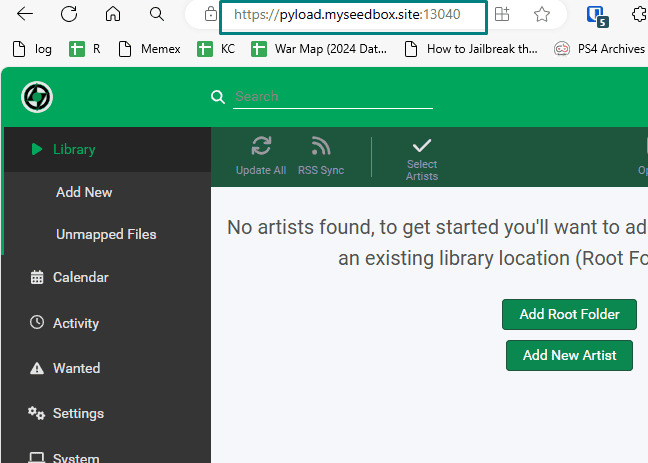
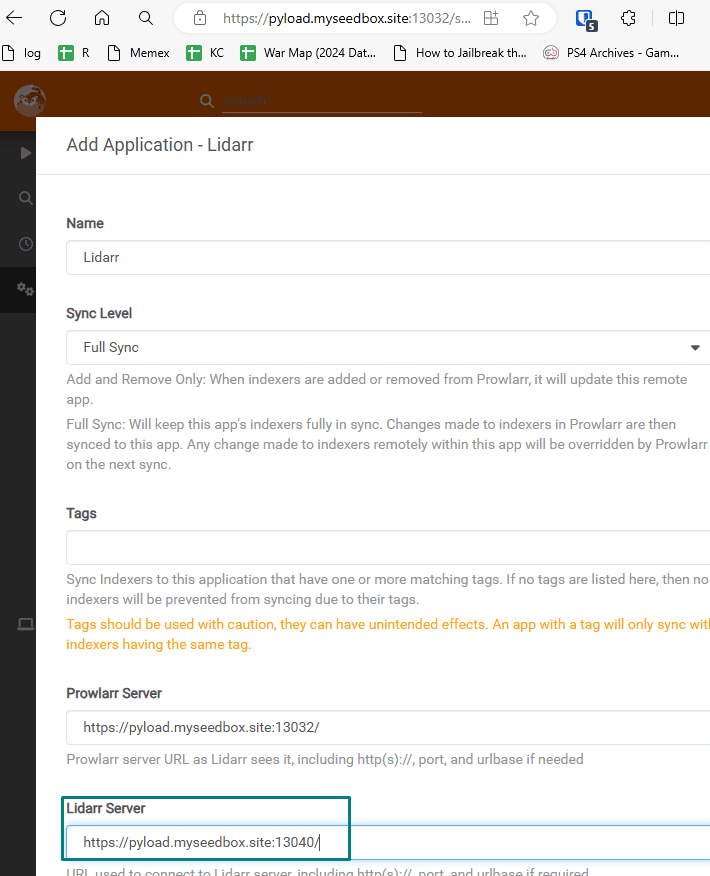
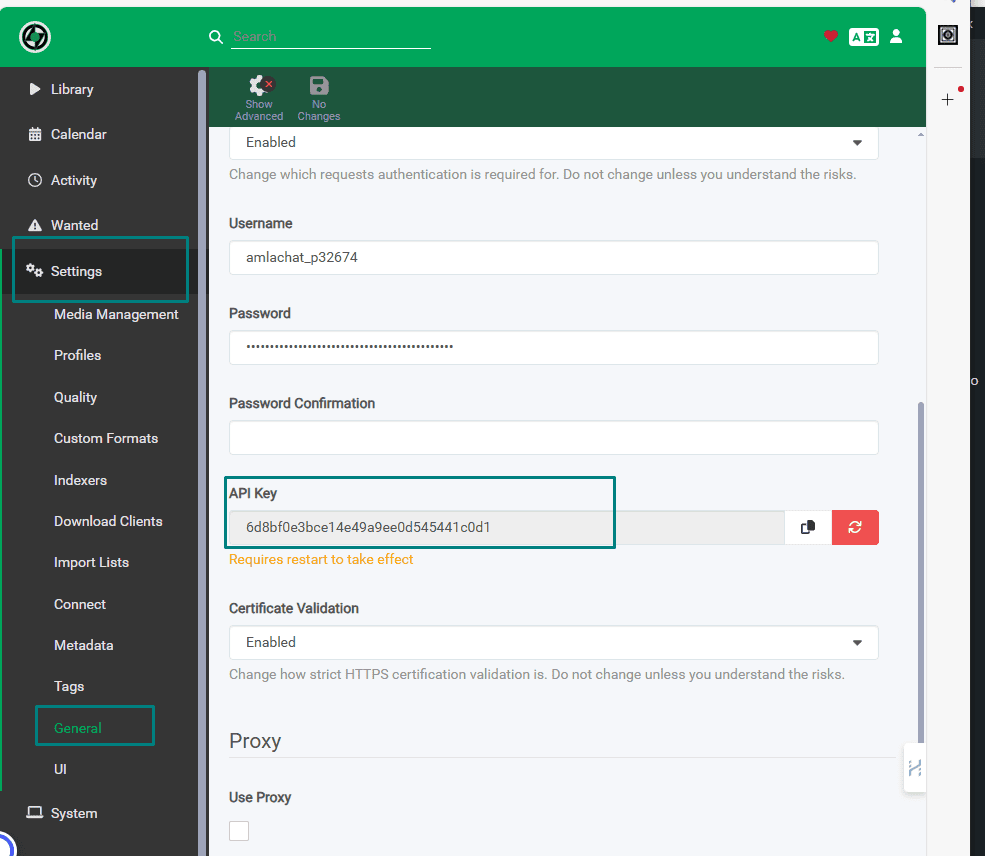
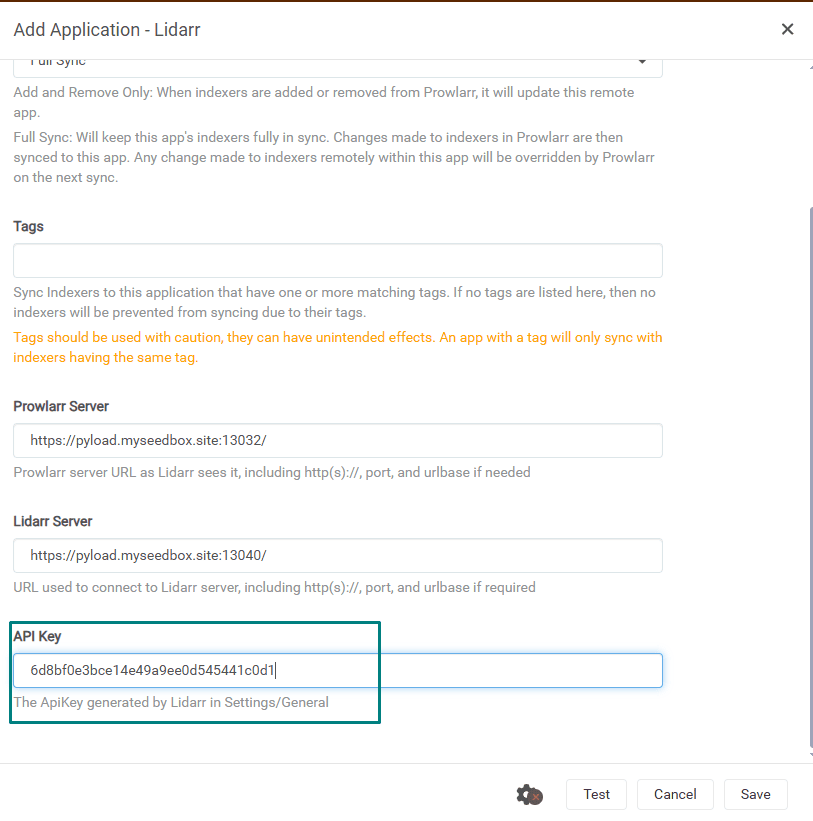
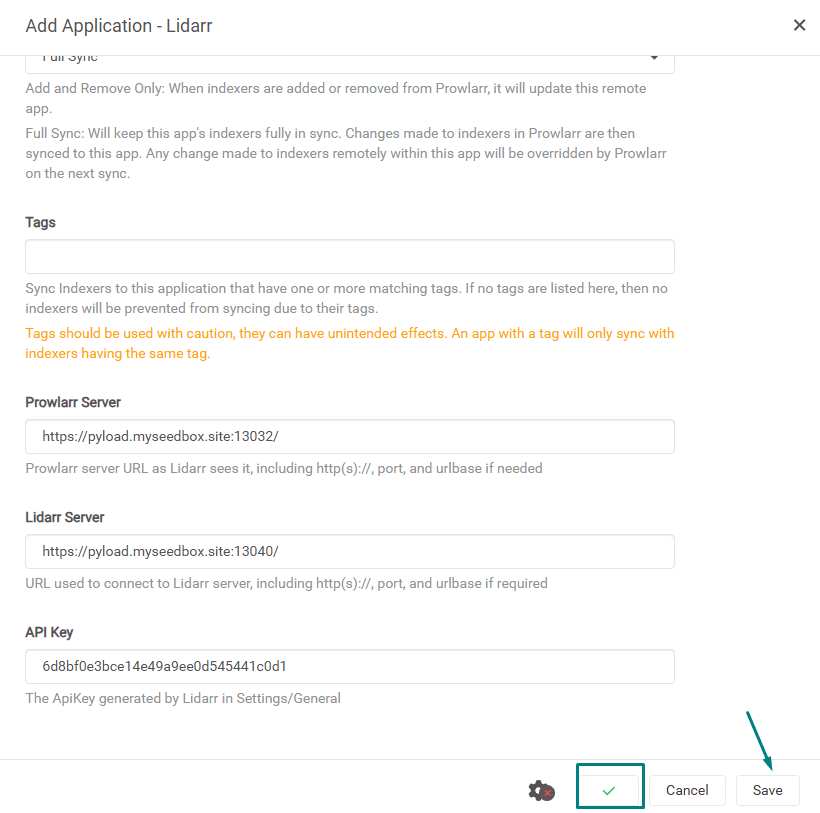
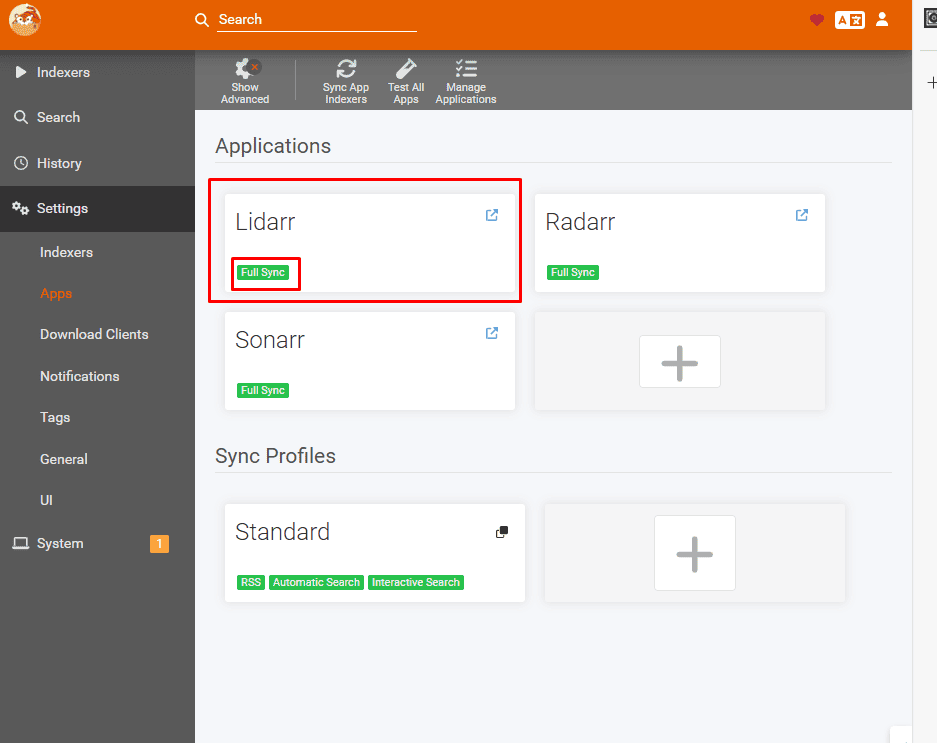
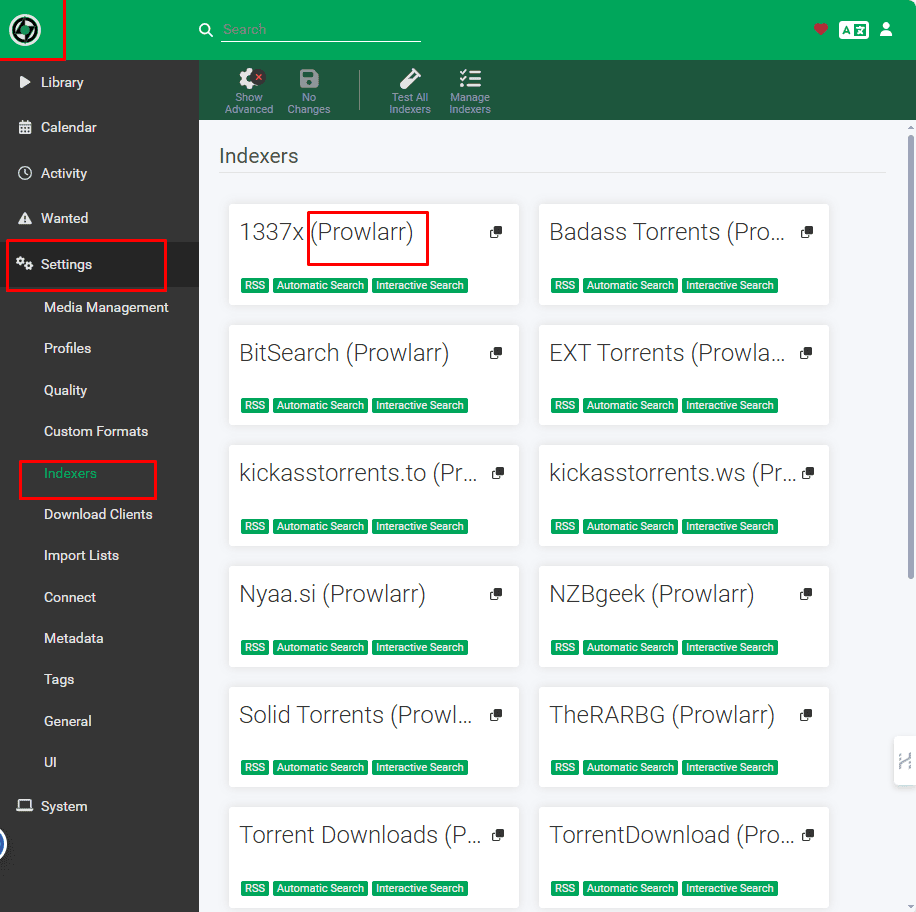
Setting up Lidarr with Prowlarr
Open prowlarr go to settings and then select apps then click on the Plus button.

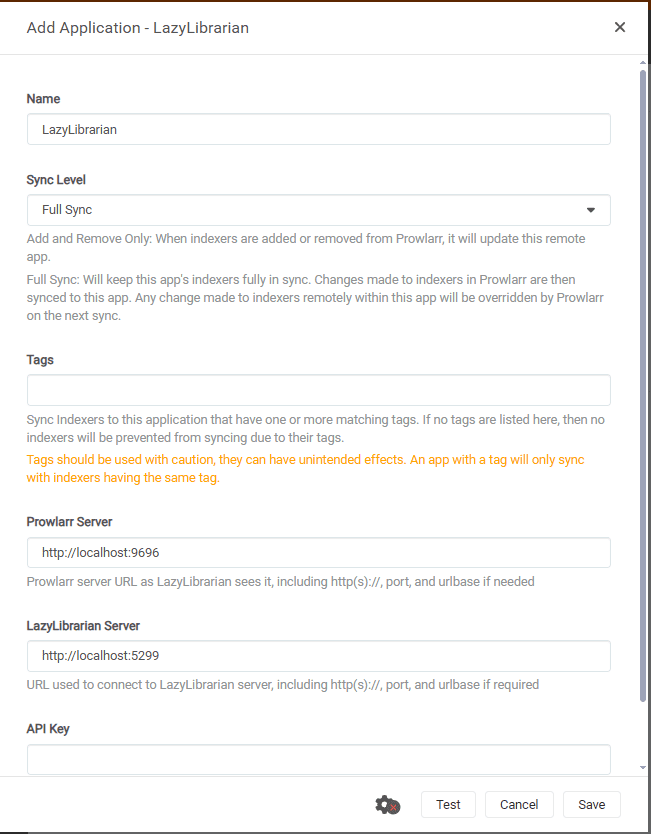
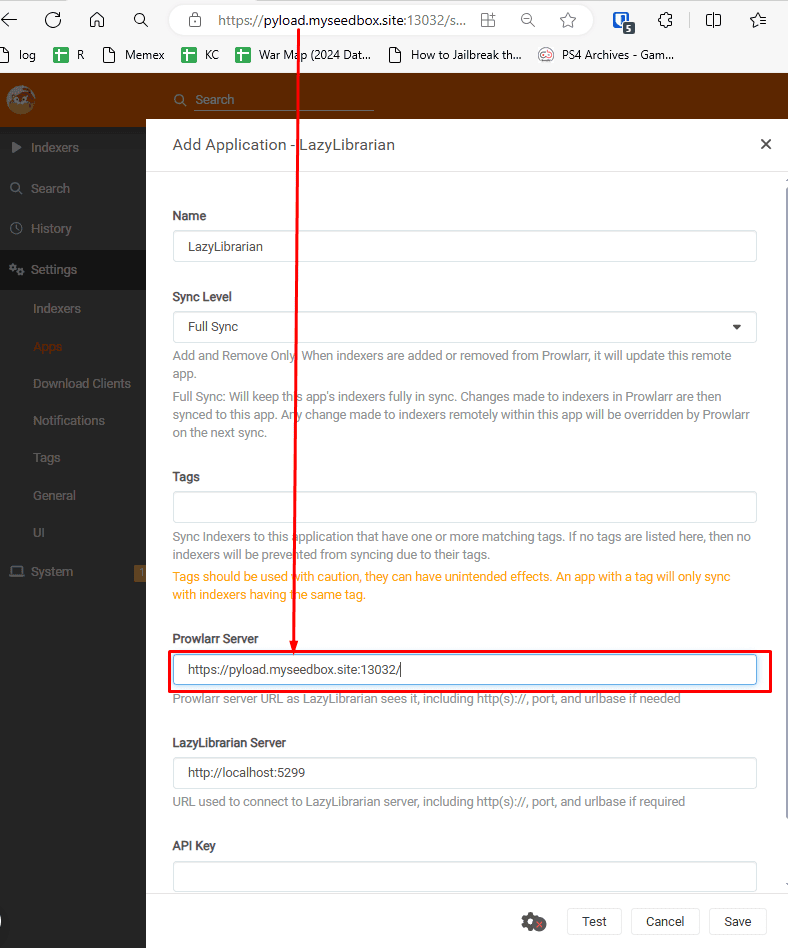
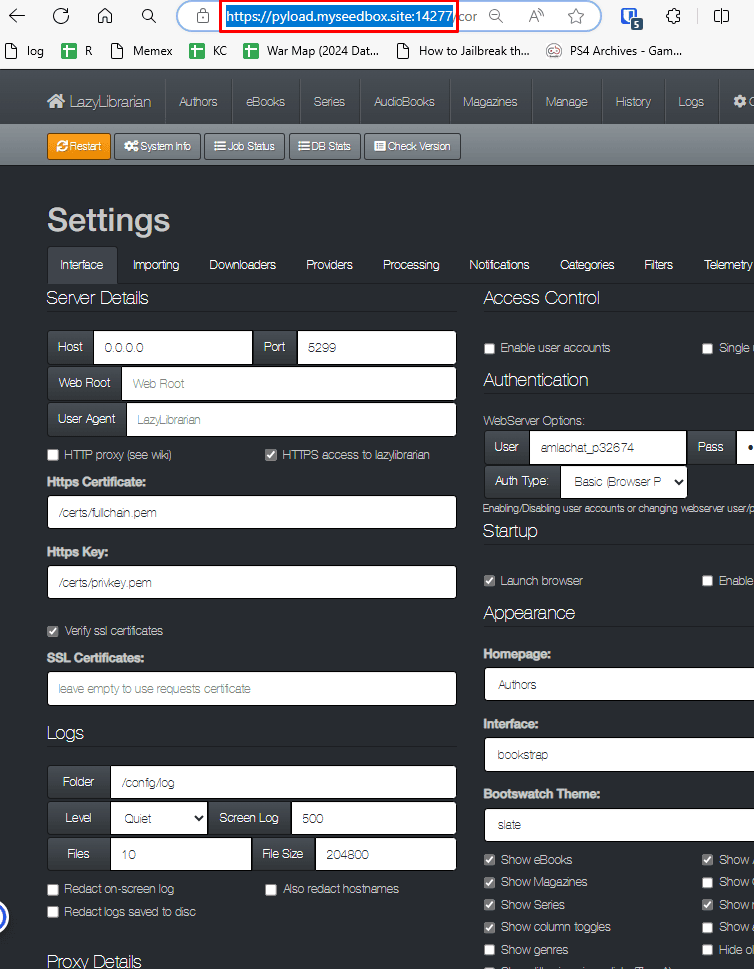
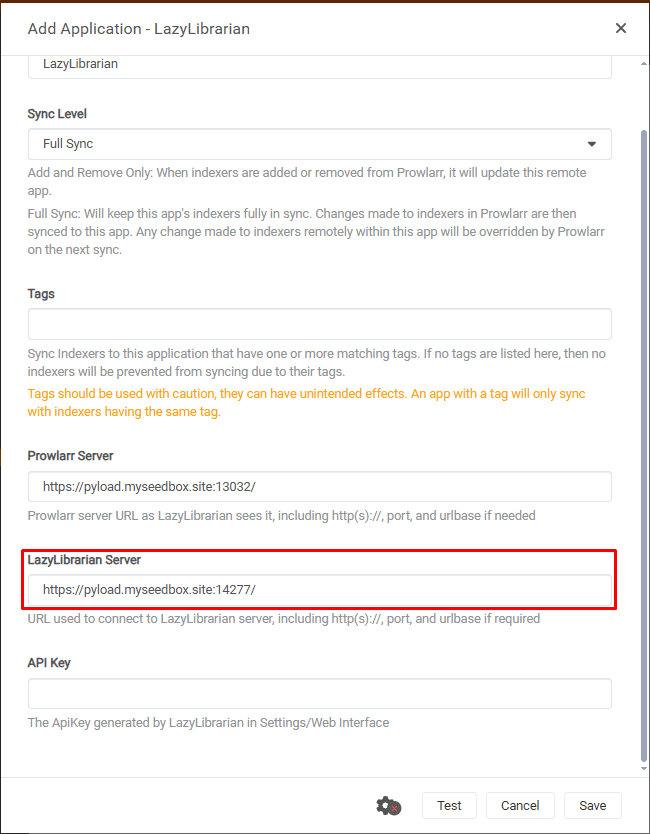
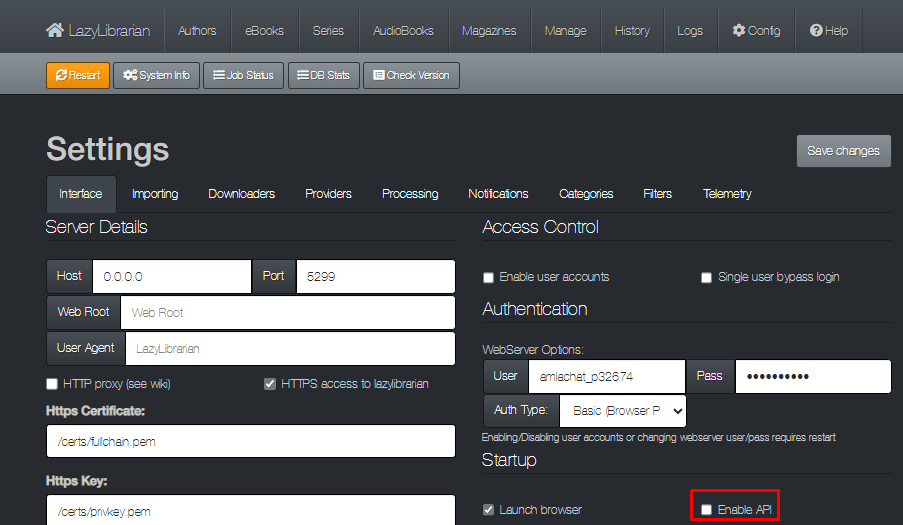
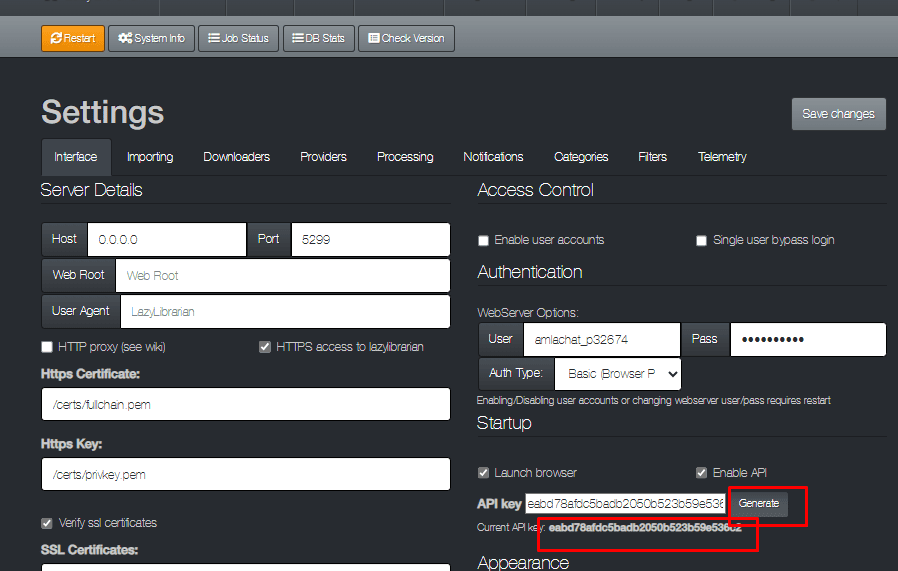
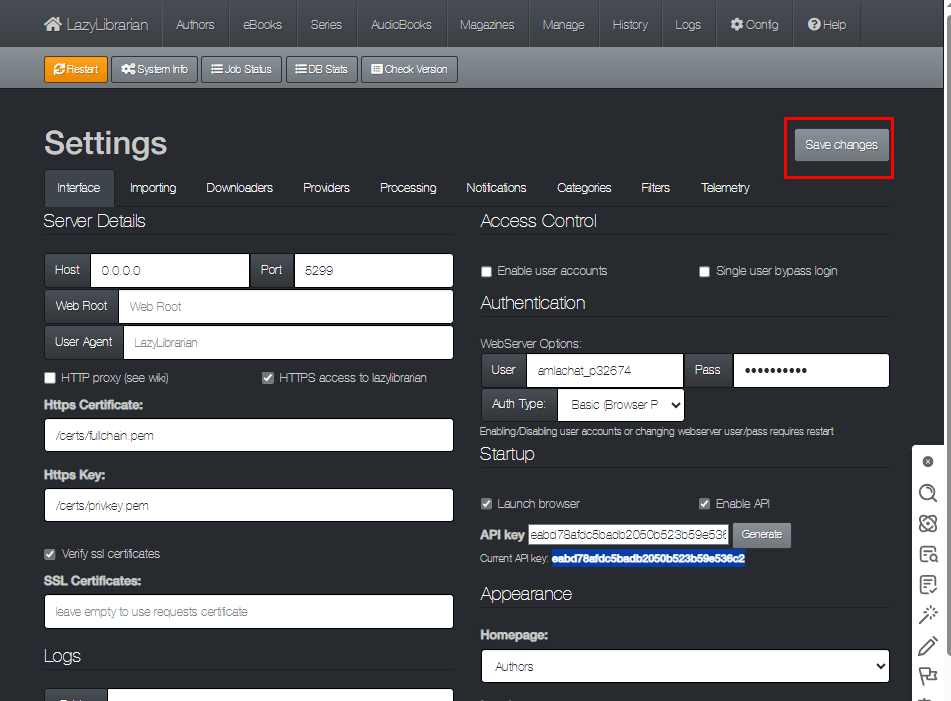
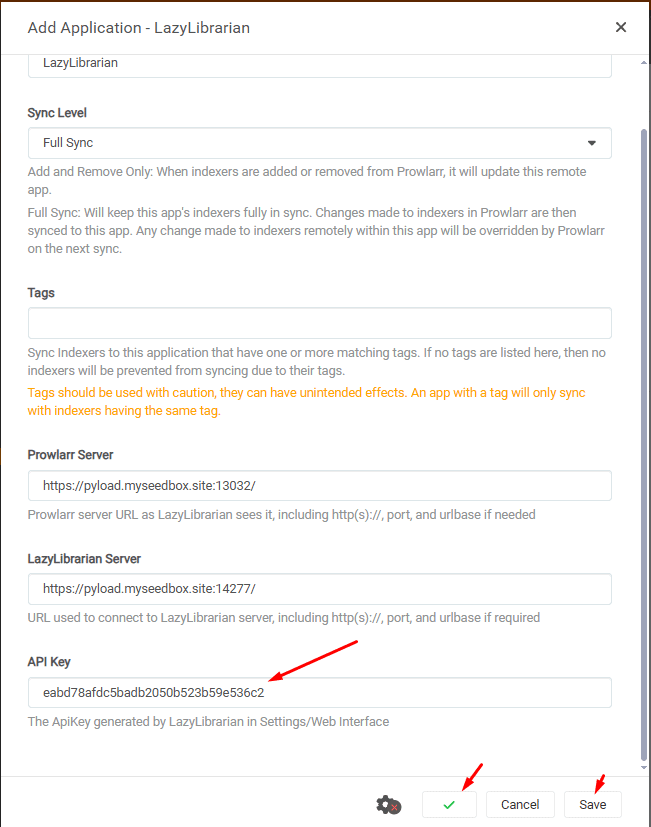
Setting up Prowlarr with LazyLibrarian
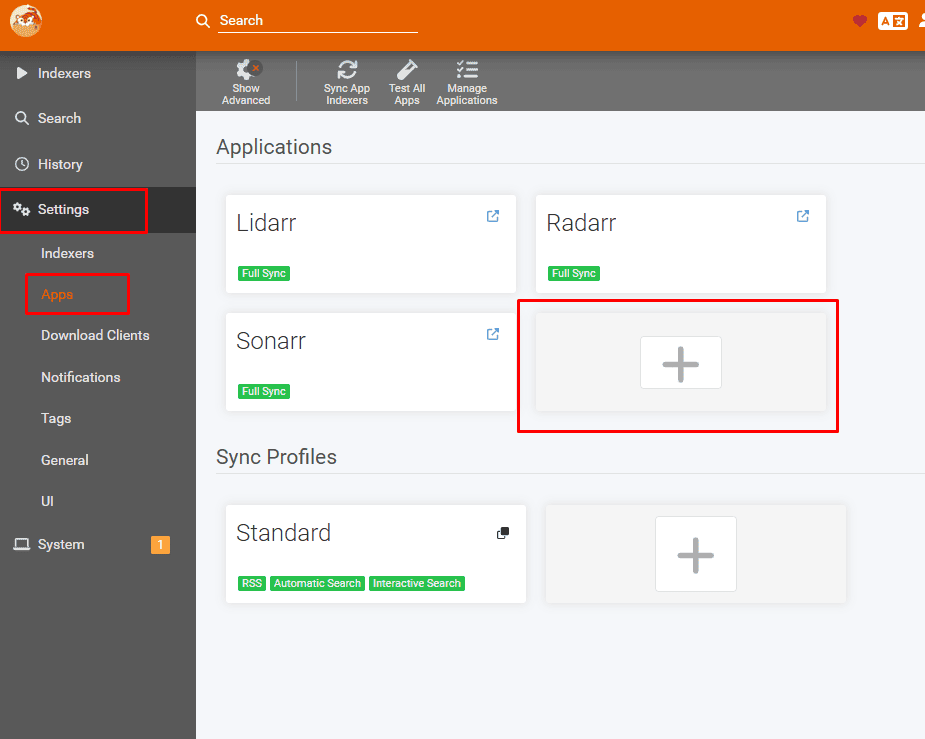
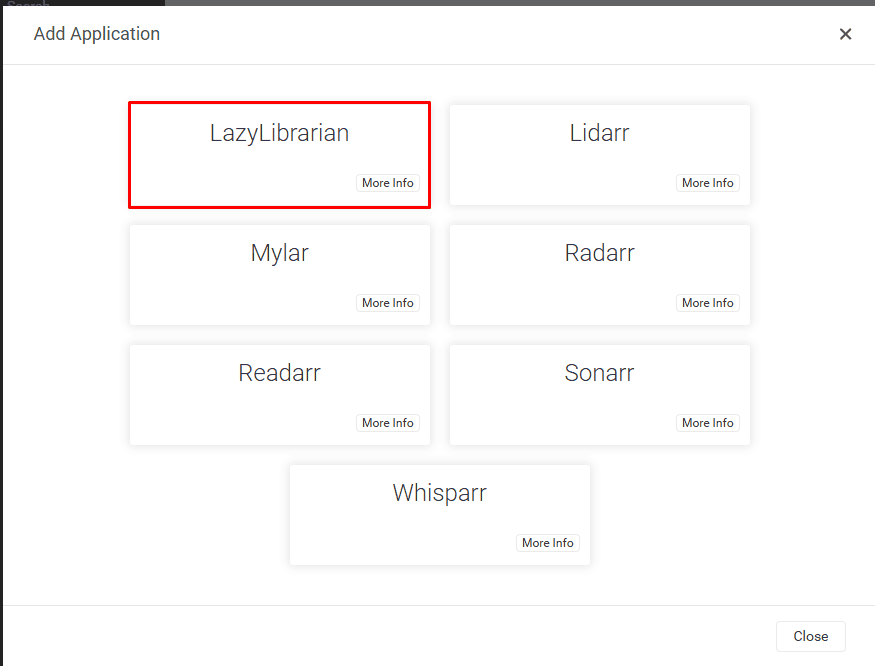
Open Prowlarr and go to settings and then click on apps .
On the right hand side window click on the + button
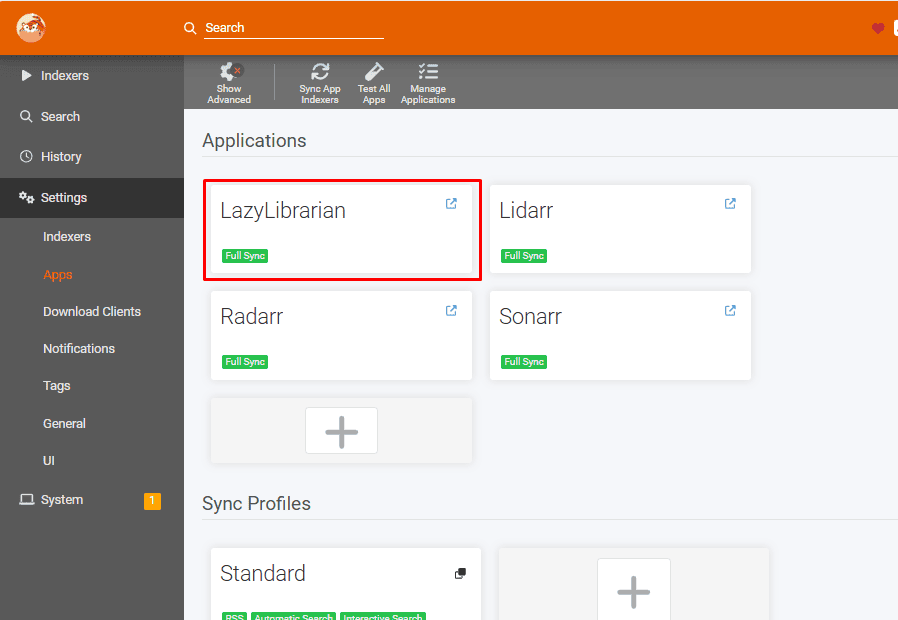
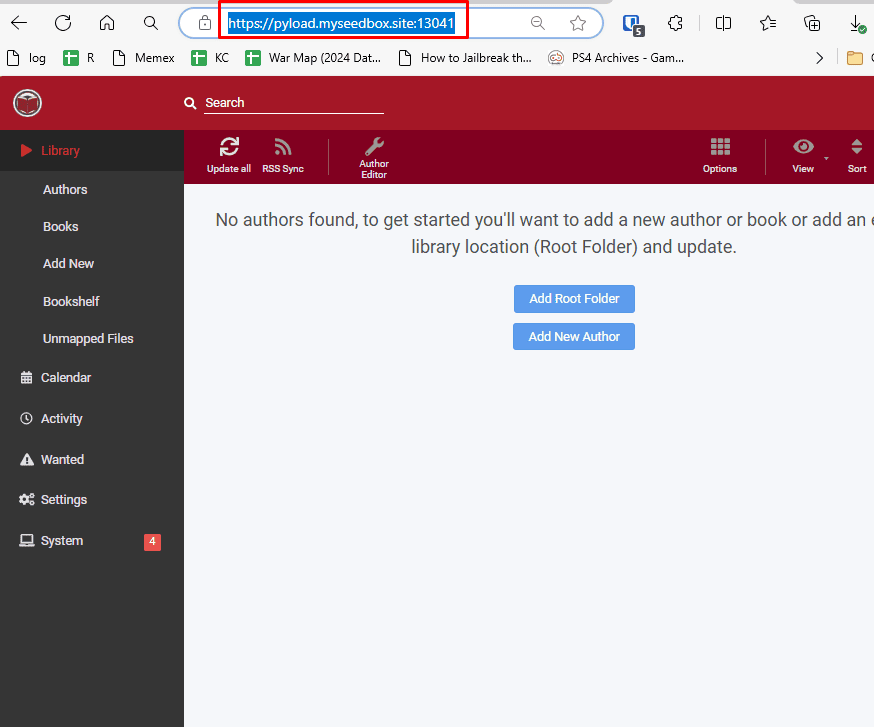
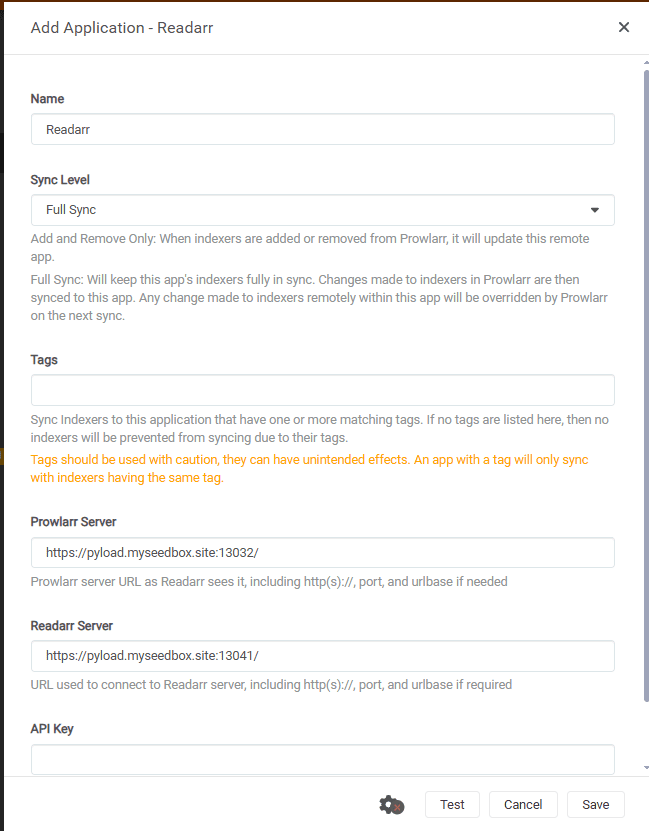
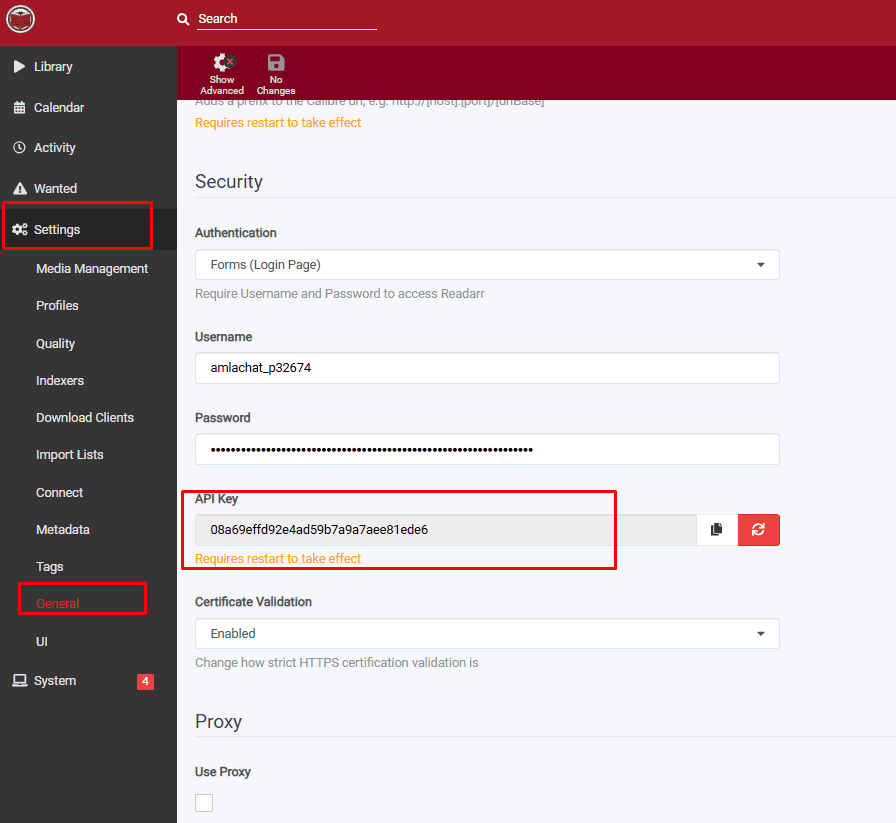
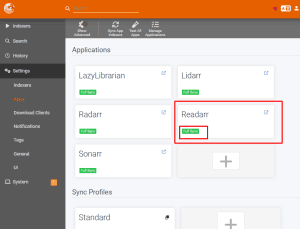
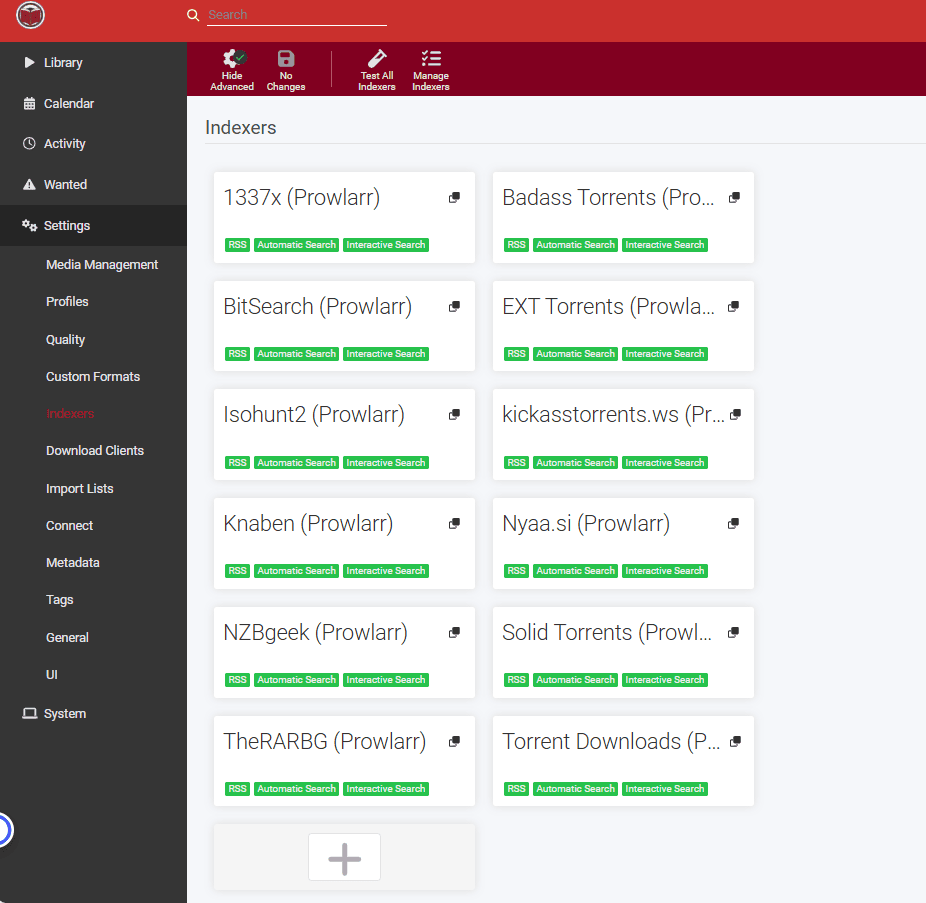
Setting up Readarr With Prowlarr
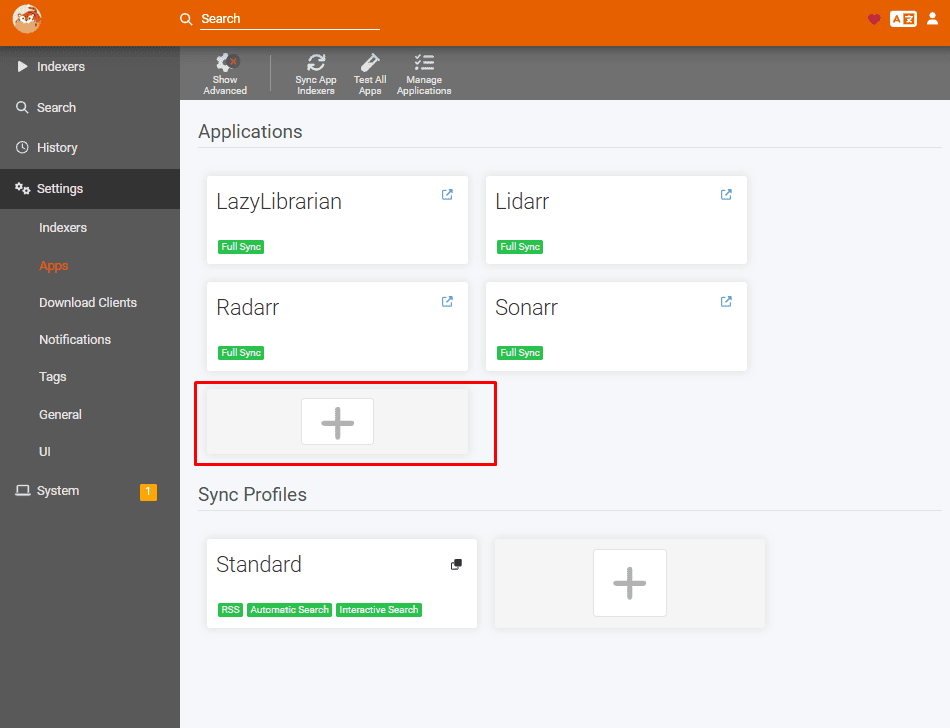
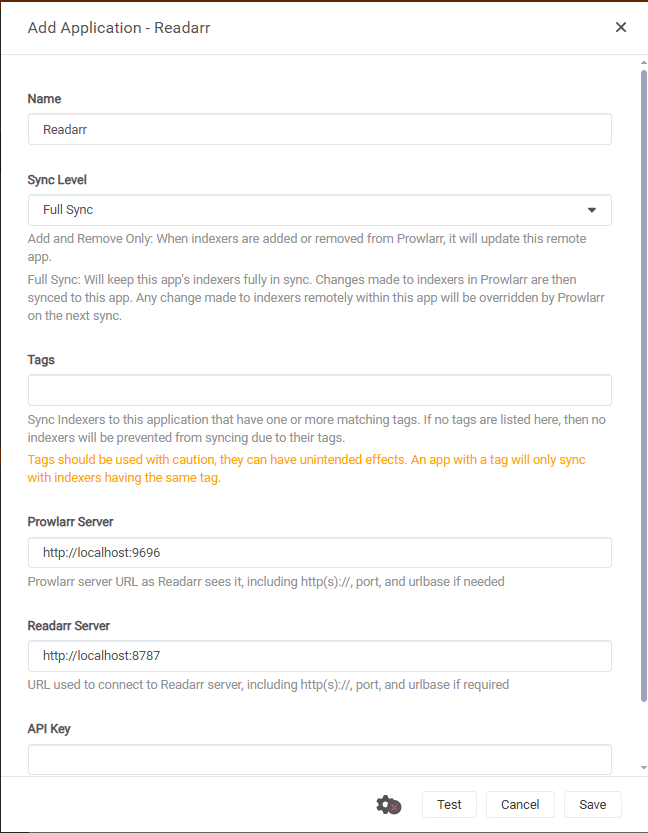
Open Prowlarr go to settings , then click on the Apps.
Click on the plus symbol under applications as shown in the image below
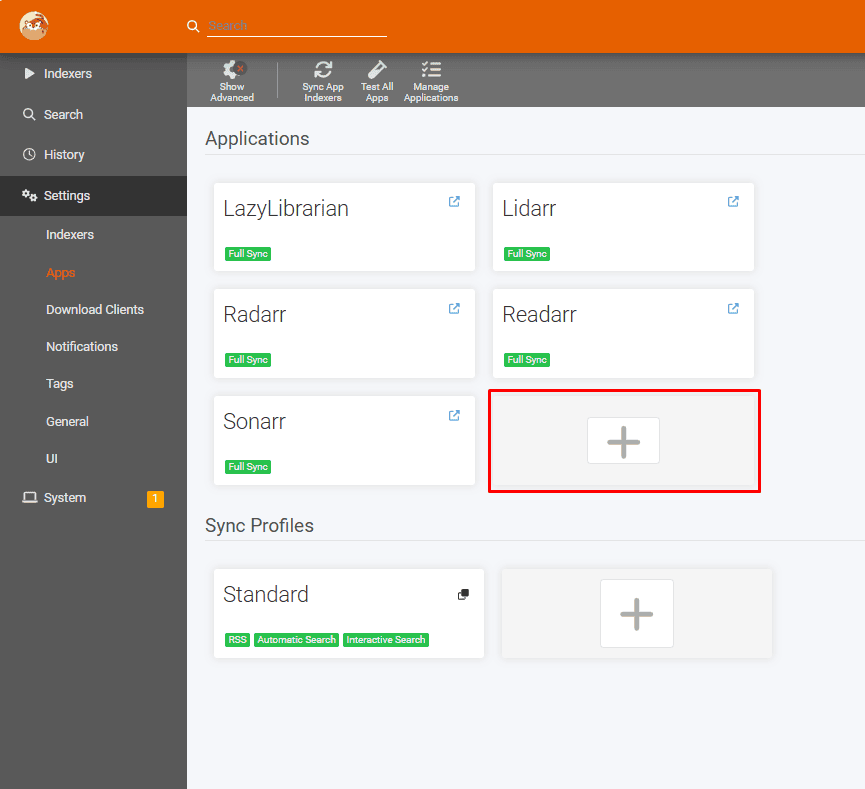
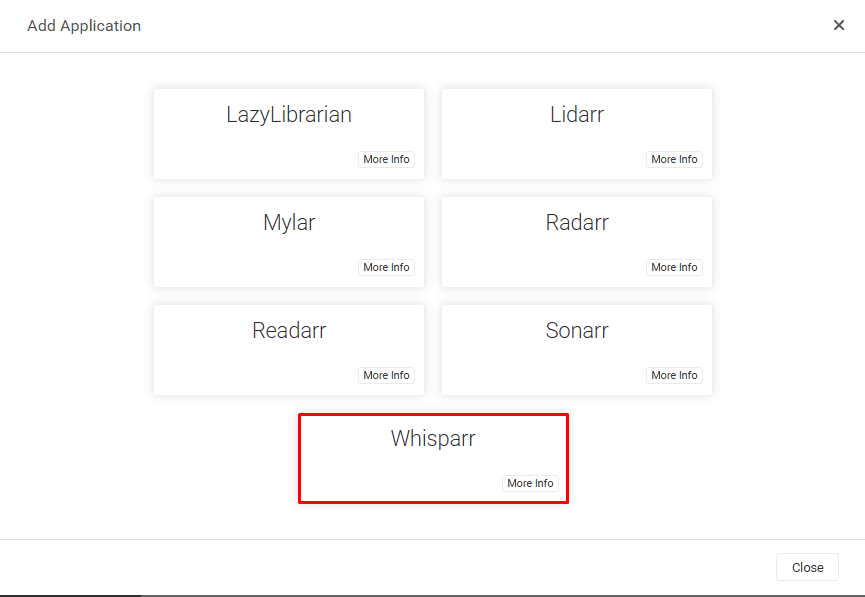
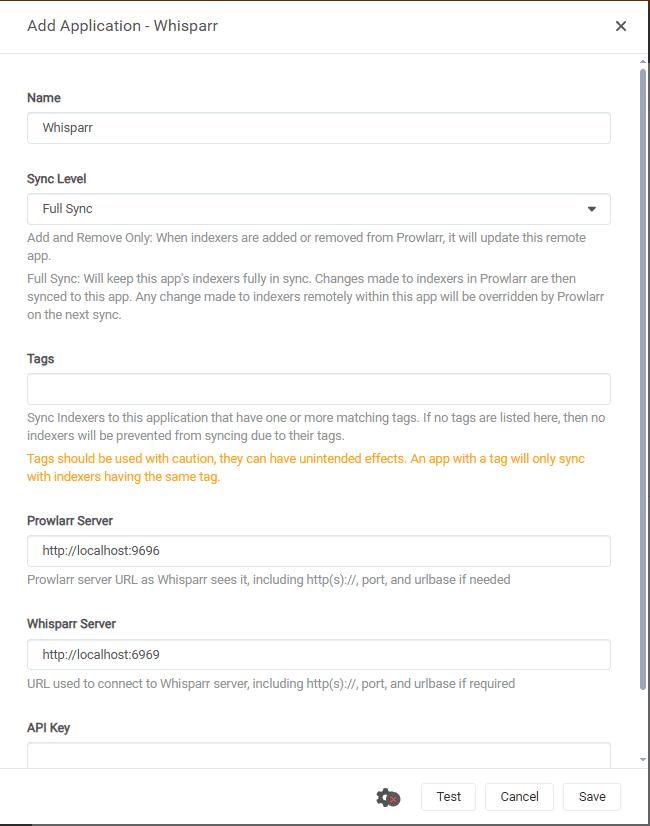
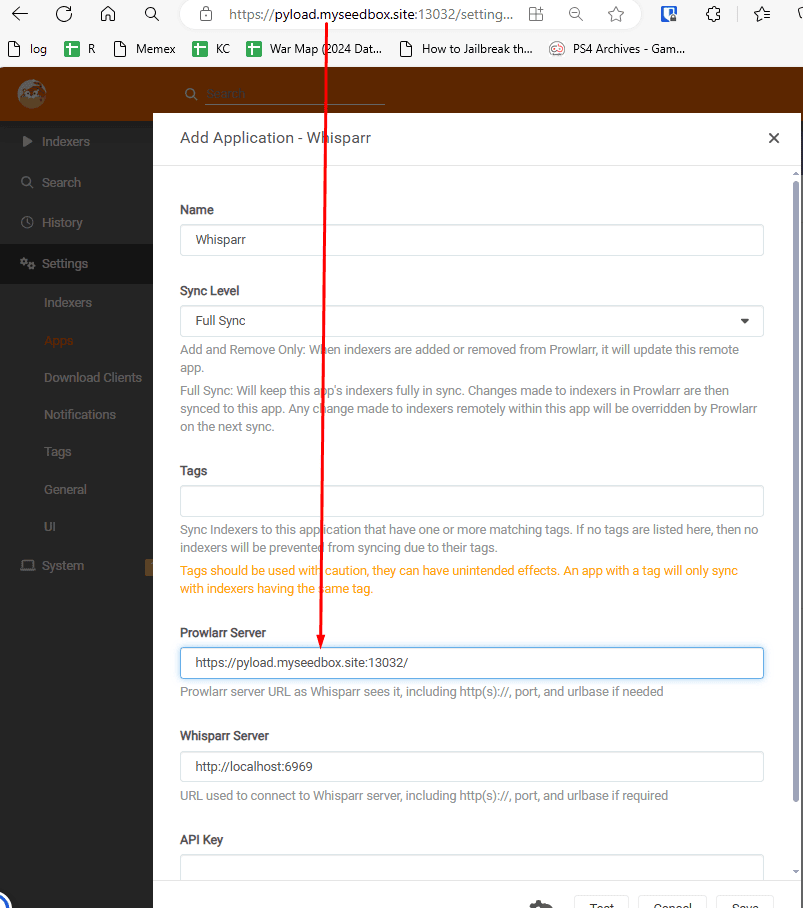
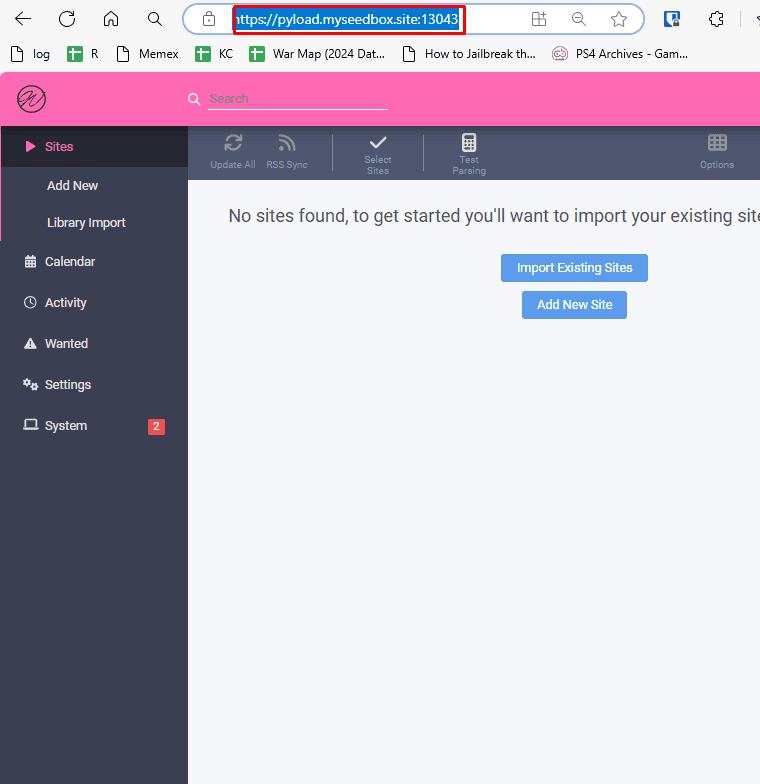
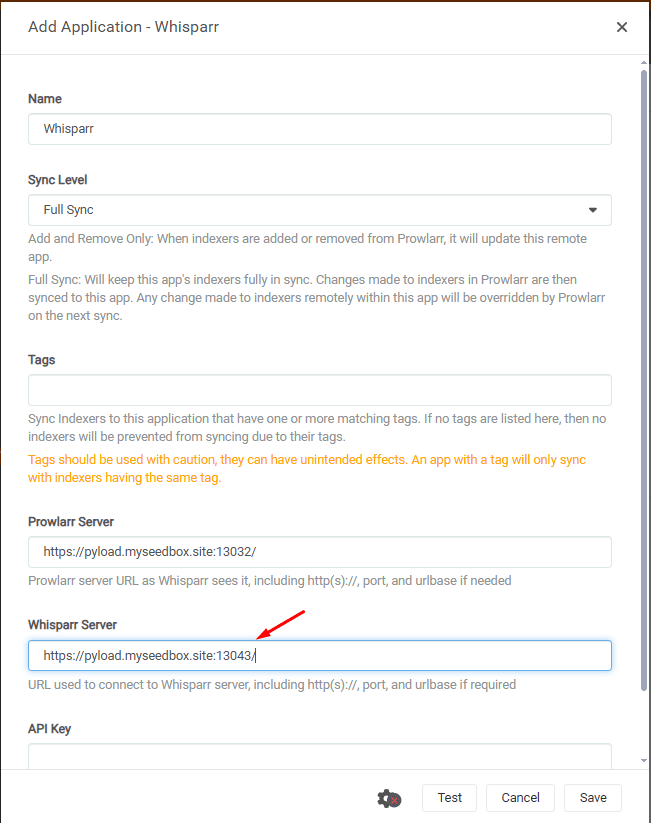
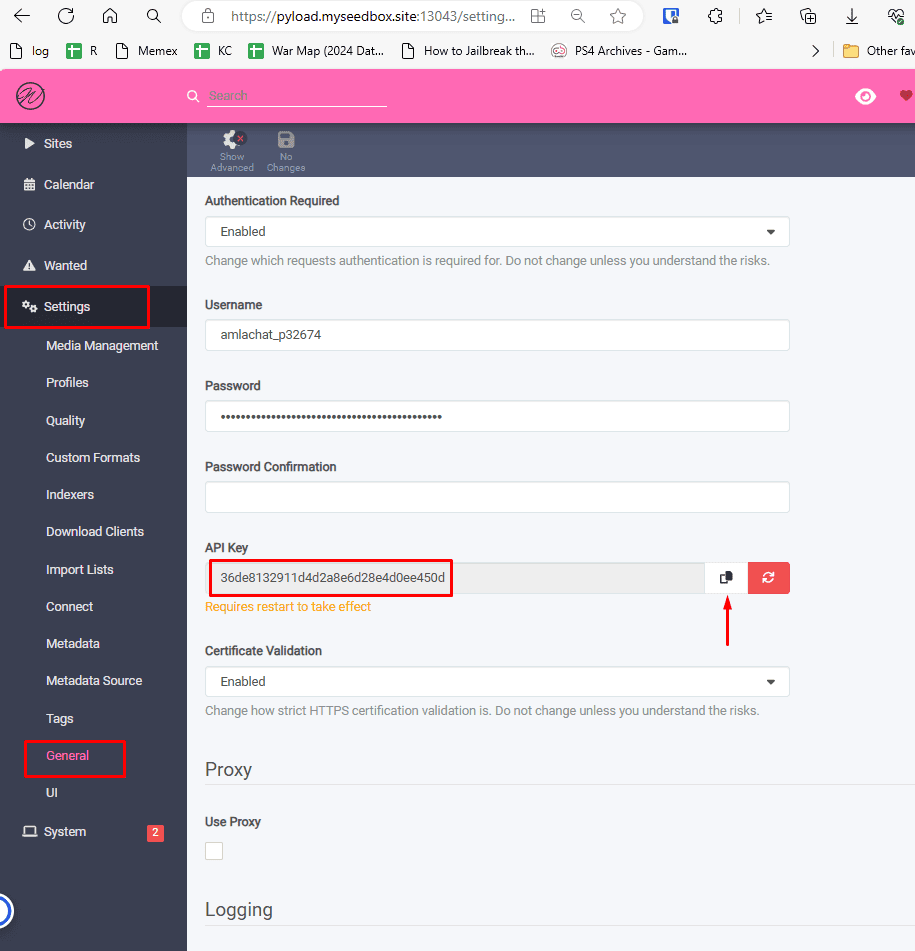
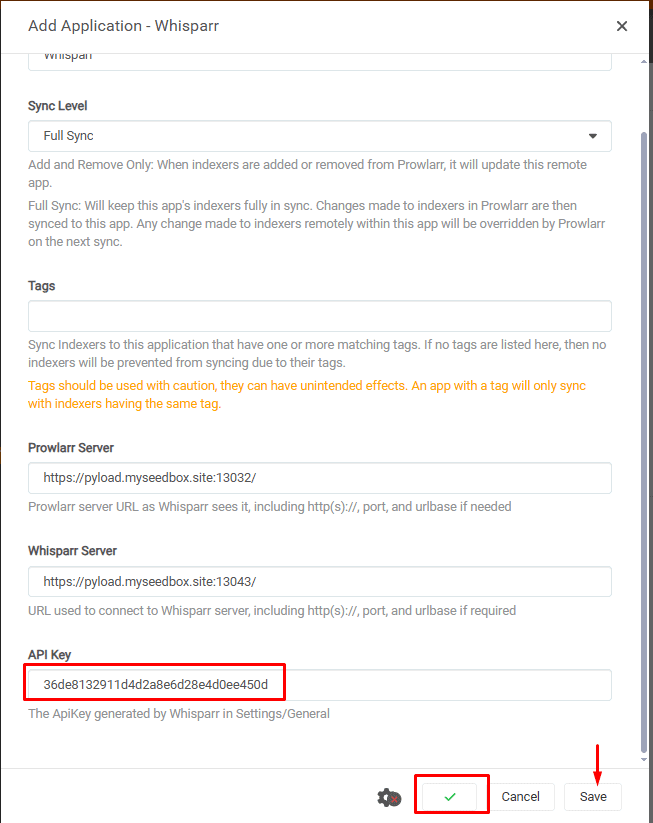
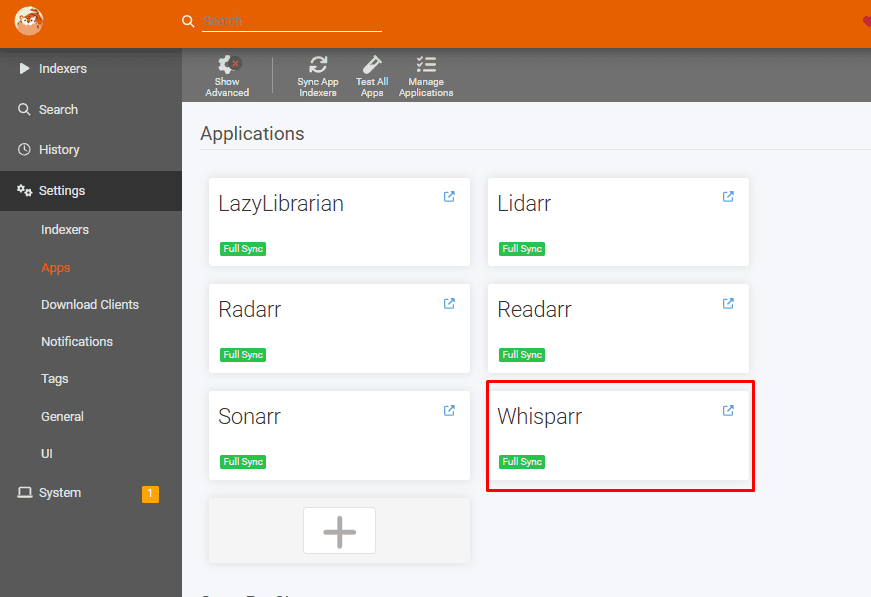
Setting up Whisparr with Prowlarr
Open prowlarr app and go to settings and then select apps.
Under application, select the plus button.
Keep going: Every Prowlarr setting explained · Sonarr settings · Radarr settings · Jackett settings · Auto-rename and organise downloads with EvoSeedboxBot · Control Prowlarr and the *arr apps from your phone (Dashboarr)
Best Indexers for Prowlarr 2026 + Setup Guide - EvoSeedbox
The best indexers for Prowlarr in 2026: public, private and Usenet picks, how to add them, and how to fix Cloudflare-blocked trackers with FlareSolverr.
Price: 5
Price Currency: $
Operating System: Windows,Linux,Mcc OS
Application Category: Torrent Indexor
5
Pros
- 1. Indexer Management and Streamlining
- Central Hub: No more juggling numerous torrent and Usenet indexers separately. Prowlarr acts as a single dashboard and search interface.
- Find Content Faster: Easily search across multiple indexers at once, saving significant time compared to manual searches.
- Indexer Configuration: Add, remove, customize, and test your indexers all within Prowlarr.
- 2. Seamless Automation
- *Works with Your arr Apps: Prowlarr integrates directly with Sonarr (TV shows), Radarr (movies), Lidarr (music), and Readarr (ebooks).
- Automatic Searches: When your *arr apps need something, Prowlarr searches your indexers automatically, minimizing your effort.
- Download Handoff: Prowlarr finds the ideal releases and pushes them directly to your download clients.
- 3. Refinement and Control
- Quality Profiles: Define your preferred formats, resolutions, and sources to ensure Prowlarr targets the right downloads.
- Release Filtering: Set up rules to block or prefer specific release groups or keywords for tailored results.
- Prioritized Searching: Assign weights to different indexers, influencing the order Prowlarr searches them.
- 4. Usability
- Clean Interface: A user-friendly web interface makes it easy to manage settings and monitor activity.
- Notifications: Integrate with services like Discord, Slack, Telegram, etc., to get alerts about download activity.
- Keeping Track: View Prowlarr's search history and logs to understand its workings.
Cons
- Absolutely! While Prowlarr offers many advantages, it's important to be aware of a few potential cons or considerations:
- Setup Complexity:
- Indexer Knowledge: Prowlarr assumes you're somewhat familiar with torrent and Usenet indexers. Adding and configuring them can be daunting for complete beginners.
- Initial Investment: Setting up Prowlarr, integrating it with your *arr apps, and fine-tuning your configurations takes some setup effort.
- Resource Usage:
- Indexing Traffic: Prowlarr regularly queries your indexers for updates. This can generate some network traffic, especially if you have many indexers or tight bandwidth limits.
- Hardware: While not extremely demanding, Prowlarr does need a system to run on (computer, server, etc.).
- Potential Limitations:
- Not All Indexers Supported: Not every single torrent or Usenet indexer is guaranteed to work with Prowlarr, though its support is extensive.
- *Dependence on arr Apps: Prowlarr's primary value is realized when used alongside Sonarr, Radarr, etc. It's not a standalone download manager.
- Evolving Development:
- Occasional Bugs: As with any software under active development, you might occasionally encounter minor bugs or inconsistencies.
- Features in Progress: While Prowlarr is very capable, its developers are continuously adding new features and refinements.
- Who Might Find These Cons a Larger Factor?
- Non-Technical Users: If you prefer absolute plug-and-play solutions, Prowlarr's setup might be a hurdle.
- Limited Bandwidth: On extremely restricted internet connections, the network traffic from indexer polling might be a consideration.
- Very Basic Needs: If your download needs are simple and limited to one or two public indexers, the benefits of Prowlarr might be less pronounced.
Related articles
Put this into practice
EvoSeedbox ships with one-click app installs and up to 10 Gbps per box.


