Renaming, creating folders and deleting
On this page ▾
By the end of this page you will have created a folder, renamed a file and deleted files on your seedbox (or on your PC) from inside evoftp. Rename… and Delete (the evoftp rename delete commands) are on the right-click menu; New folder is on the toolbar.
Creating a folder
- Click inside the pane where you want the folder — the seedbox pane on the right or This PC on the left. The focused pane has the highlight and receives toolbar actions.
- Click New folder on the toolbar. A sheet opens with untitled folder filled in.
- Type the name and press Enter (or click OK). Esc or Cancel abandons it.
You can also right-click empty space in a pane and choose New folder….
Renaming a file or folder
- Select exactly one item. Rename… only appears when a single item is selected.
- Right-click it and choose Rename….
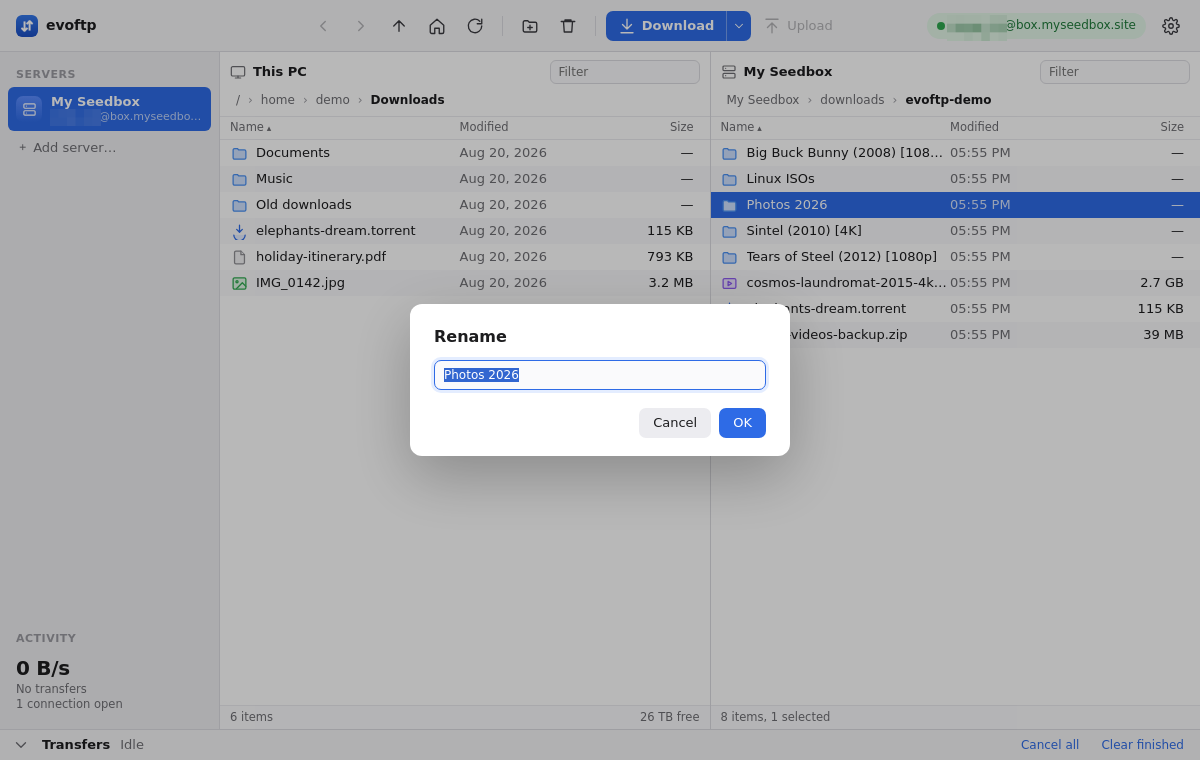
- Edit the name in the sheet and press Enter. The part before the extension is already selected, so you can type straight over it; press End first if you also want to change the extension.
Renaming works the same way on both panes. Leaving the name unchanged, or pressing Esc, does nothing.
Deleting files and folders
- Select one or more items in either pane (Ctrl/⌘-click to add, Shift-click for a range).
- Click Delete on the toolbar, choose Delete from the right-click menu, or press the Delete key.
- evoftp asks first. The dialog names the file, or says how many items, and the default button is Cancel. Click Delete to go ahead.
What happens next depends on which pane you were in:
- Seedbox pane (right) — the dialog says “They will be removed from your seedbox. This cannot be undone.” Folders are removed with everything inside them. There is no server-side recycle bin.
- This PC pane (left) — the dialog says “They will be moved to the Recycle Bin / Trash.” You can get them back from Windows Recycle Bin, macOS Trash or your Linux desktop’s trash.
Deleting files that belong to a running torrent
If you delete a torrent’s files from the seedbox while the torrent is still in rTorrent, the torrent goes into an error state the next time it touches the missing data. Remove the torrent in ruTorrent first (with its data, if you want it gone), then use evoftp only for files that no torrent still owns.
Note: deletion on the seedbox is immediate and permanent — evoftp does not keep a copy, and neither does the server.
Overview: evoftp guide.
Related articles
Put this into practice
EvoSeedbox ships with one-click app installs and up to 10 Gbps per box.
