evoads on iPhone and iPad: Ad-Blocking DNS Profile Setup
On this page ▾
On iPhone and iPad, evoads needs no app. Apple lets a small configuration profile set an encrypted DNS resolver for the whole device, and the evoads panel in your client area generates that profile for you with your personal address already inside. This page covers installing the profile, what it changes, the Apple settings that silently bypass it, and how to remove it.
How it works on iOS
iOS 14 and later support system-wide encrypted DNS through a DNS Settings payload in a configuration profile. Once installed, every app on the device sends its lookups to the resolver named in the profile over DNS-over-TLS (or DNS-over-HTTPS), on Wi-Fi and cellular. The profile is built in your browser from your own keys when you tap the download link; nothing is fetched from a third party, and it contains only the DNS settings, no certificates or restrictions.
Step 1: download the profile
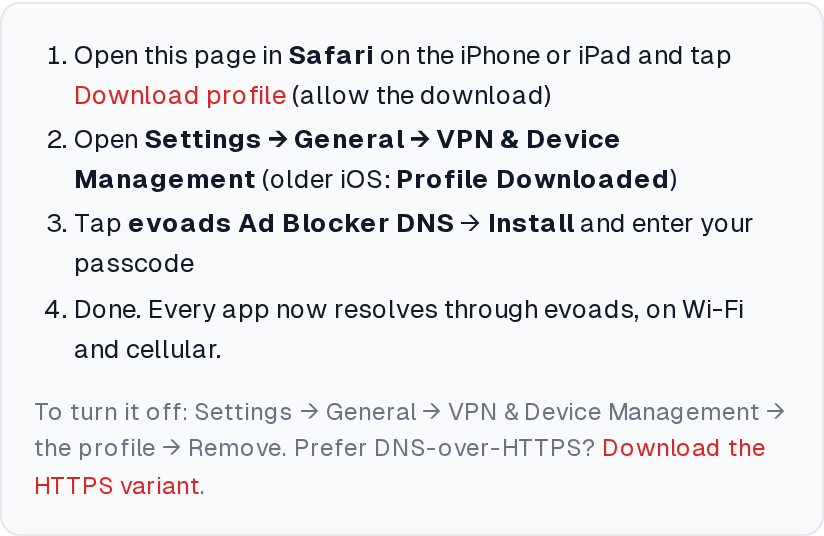
- On the iPhone or iPad, open your client area in Safari. Other browsers cannot hand a profile to iOS.
- Open your seedbox service and tap evoads Ad-Blocker.
- In the iPhone / iPad card tap Download profile. Safari asks “This website is trying to download a configuration profile. Do you want to allow this?” Tap Allow.
The profile is called evoads Ad Blocker DNS. By default it uses DNS-over-TLS on port 853. The tab also offers a DNS-over-HTTPS variant; use it if a network you rely on blocks port 853.
Step 2: install it
- Open Settings. A Profile Downloaded entry appears near the top; tap it. If it is not there, go to Settings → General → VPN & Device Management.
- Tap Install in the top right, enter your passcode, and confirm Install again.
- Tap Done.
iOS switches DNS immediately. There is no icon in the status bar; Settings → General → VPN & Device Management → DNS shows evoads as the active resolver.
Step 3: check it
Open evoseedbox.com/evoads-check in Safari. It should report that the device resolves through evoads. If it does not, one of the Apple features below is in the way.
Apple settings that bypass evoads
These are the usual reasons an installed profile appears not to work.
iCloud Private Relay
With iCloud+, Private Relay routes Safari traffic and DNS through Apple’s relays and ignores the device’s DNS setting for Safari. Either turn it off (Settings → your name → iCloud → Private Relay) or accept that Safari is not filtered while other apps are.
Limit IP Address Tracking
Per network, under Settings → Wi-Fi → (i) next to the network and Settings → Cellular → Cellular Data Options, “Limit IP Address Tracking” sends DNS for Mail and Safari through Apple’s relay. Turn it off for networks where you want evoads to filter everything.
Advanced Tracking and Fingerprinting Protection
Settings → Safari → Advanced. When set to “All Browsing” it can route lookups past the system resolver. “Private Browsing” is a reasonable compromise.
A VPN is connected
iOS disables encrypted-DNS profiles while a VPN is up and uses the VPN’s DNS instead. Your seedbox’s WireGuard tunnel already uses evoads, so that case is fine; other VPNs bypass evoads while connected.
Turning it off and removing it
To pause, go to Settings → General → VPN & Device Management, tap the evoads Ad Blocker DNS profile and choose Remove Profile. Install it again from the client area whenever you like; the address never changes. There is no toggle short of removal, which is a limit of iOS, not of evoads.
Troubleshooting
Safari says the profile could not be downloaded
You are not in Safari, or Safari’s download prompt was dismissed. Open the client area in Safari and try again.
A site or app stops working
Remove the profile for a moment to confirm evoads is the cause, then tell us the site through a support ticket so we can review the blocklist entry.
Captive Wi-Fi (hotel, airport) will not sign in
Captive portals hijack DNS to show their login page and encrypted DNS defeats that. Remove the profile, sign in to the Wi-Fi, reinstall the profile.
Mac users
The same profile works on macOS, but the Mac has a proper evoads app with a menu-bar icon; see evoads for macOS.
← Android · Next: macOS →
Related articles
Put this into practice
EvoSeedbox ships with one-click app installs and up to 10 Gbps per box.
