How to Change Your ruTorrent Client Password
On this page ▾
By going through this guide you’ll be able to reset your rutorrent client password. It is a very simple one-click-based procedure. Let’s get started:
1. Log-in into your account and open your seedbox dashboard:
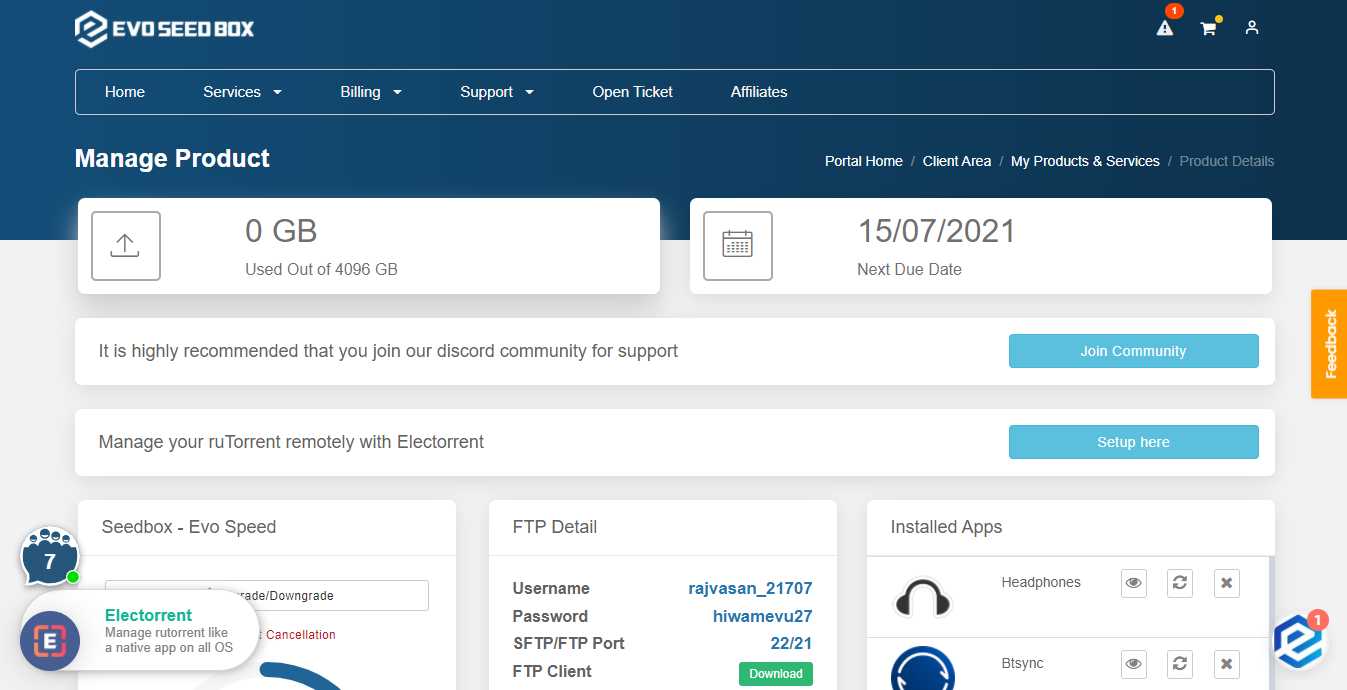
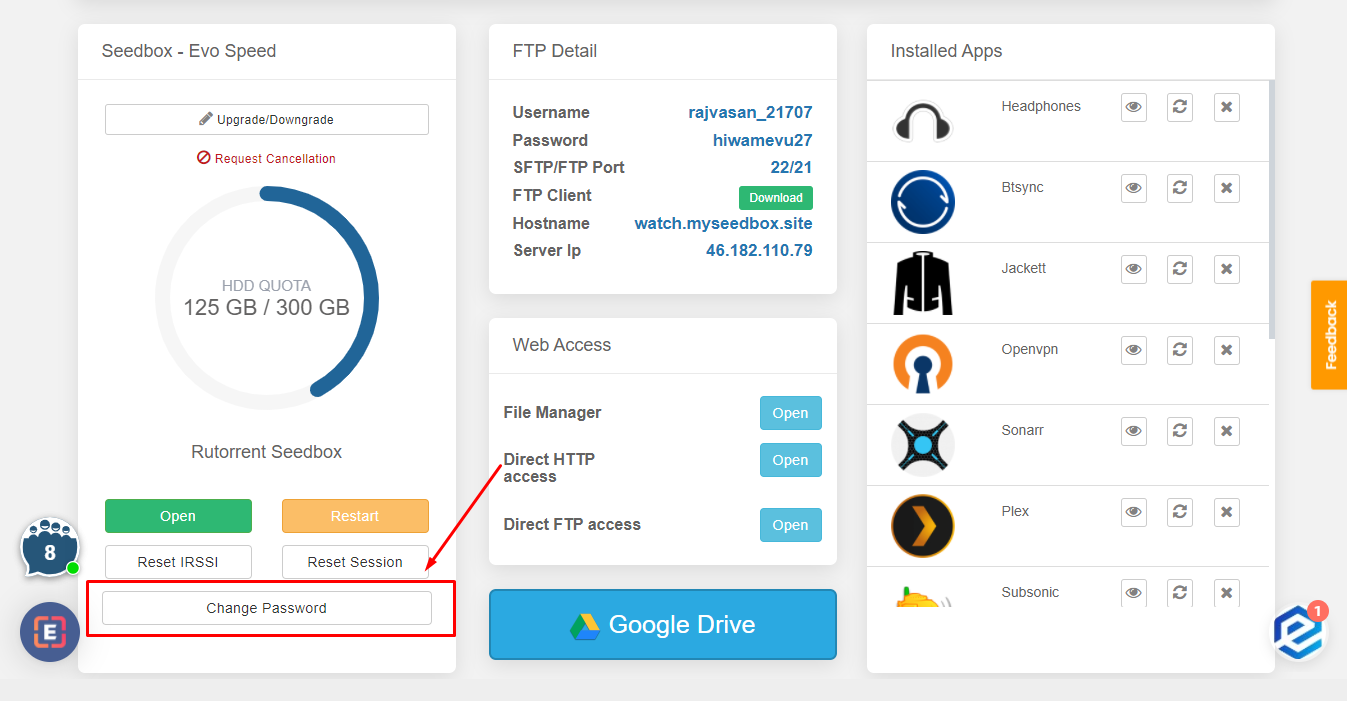
2. Scroll-down to the rutorrent Seedbox section and click on the Change Password Button:
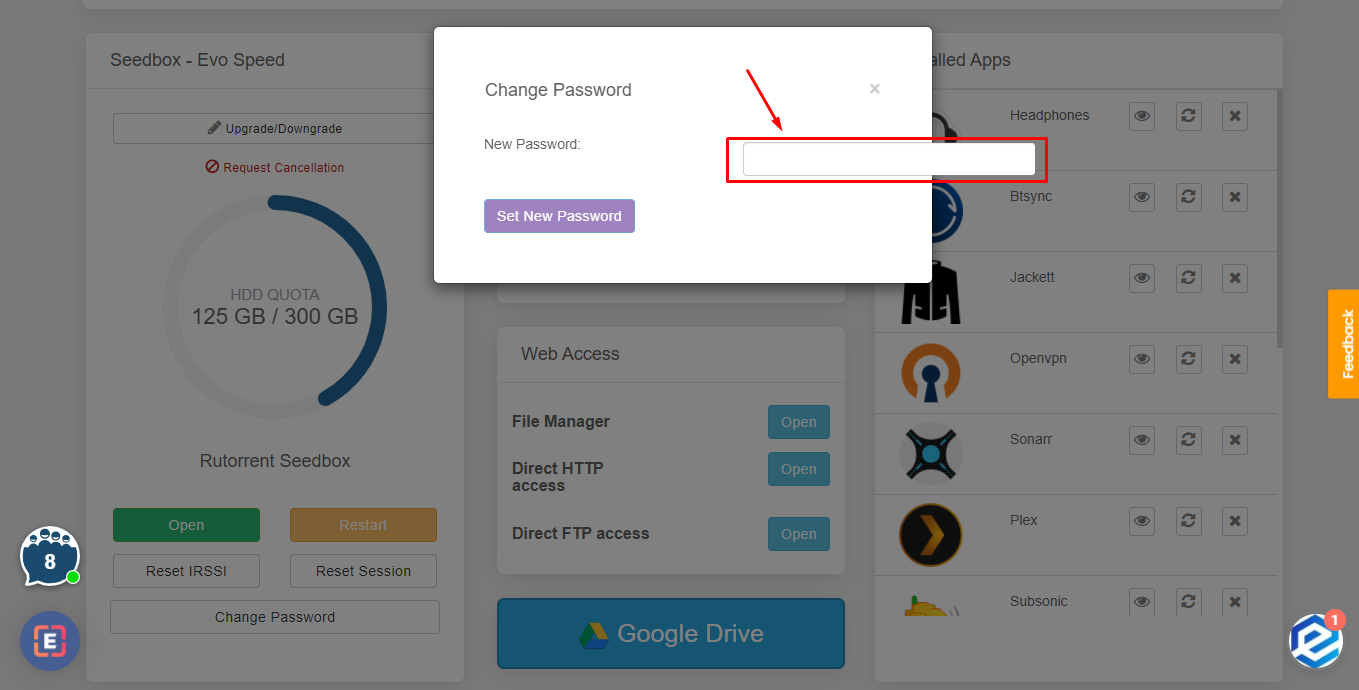
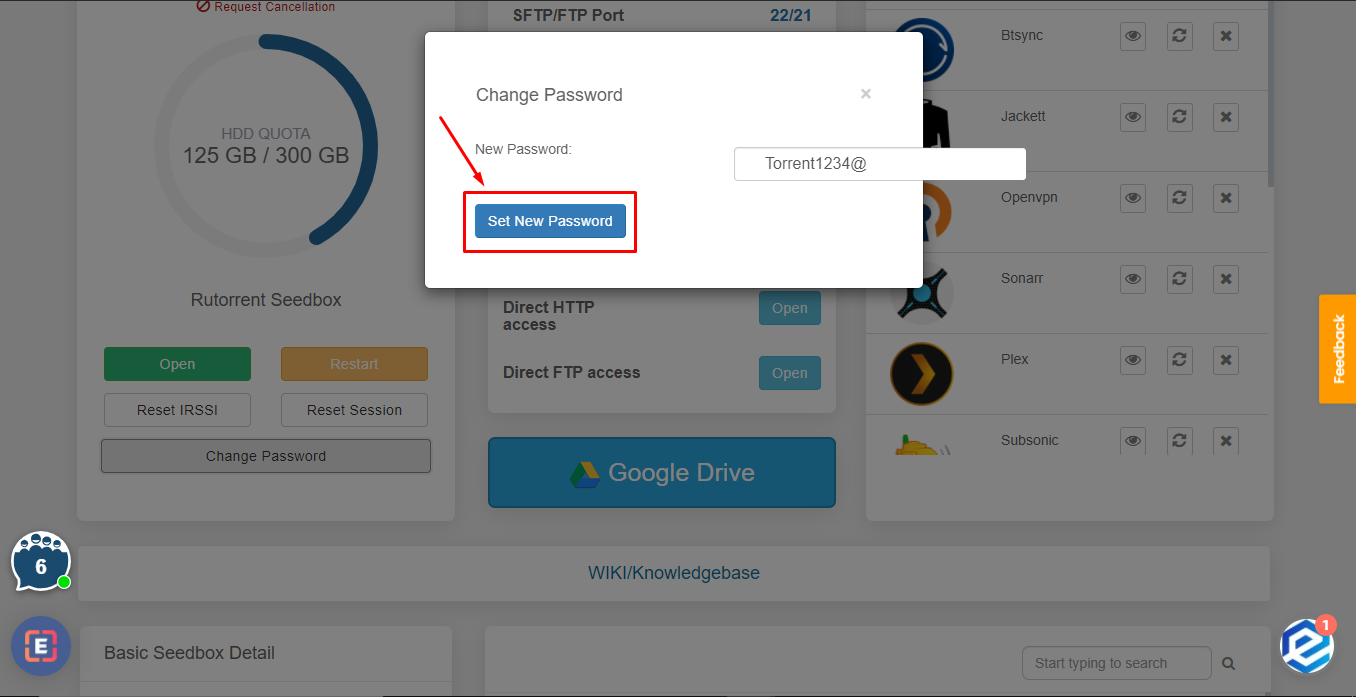
3. Type in the new password and press ‘Set New password’ button.
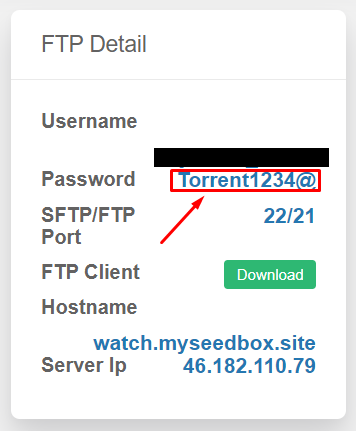
4. You can see the new password in the FTP detail.
Reset Your ruTorrent Password
You can change your seedbox password (used for ruTorrent, FTP, and all installed apps) directly from your dashboard. This is a one-click process.
Steps
- Log in to the client area and open your seedbox dashboard
- Scroll down to the ruTorrent Seedbox section
- Click the Change Password button
- A new password is generated automatically
- Copy the new password immediately using the copy button
Important: Update Your FTP Client
After changing your password, you must update it in:
- FileZilla or any FTP client you use
- Sonarr/Radarr download client settings (if configured)
- Browser extension (Chrome Remote Torrent Adder or Firefox Torrent Control)
- Mobile apps (Transdrone, NZB360)
The ruTorrent quick-launch button in your dashboard automatically uses the new password.
Related articles
Put this into practice
EvoSeedbox ships with one-click app installs and up to 10 Gbps per box.


