Lidarr Setup on a Seedbox
On this page ▾
Lidarr on a seedbox turns a list of artists you follow into a music library that fills itself: it watches your indexers through Prowlarr, sends each wanted album to rTorrent, and moves the finished files into a clean Artist/Album/Track tree that Plex, Navidrome or Jellyfin can scan. This guide covers the EvoSeedbox setup end to end: install, the rTorrent download client, indexers, root folder, profiles, adding artists, and the handful of Lidarr-specific problems (MusicBrainz matching above all) that trip people up. Every screenshot is from a live EvoSeedbox account.
What Lidarr does, and what it does not
Lidarr is the music member of the *arr family. You add an artist, not a song or an album; Lidarr pulls that artist’s discography from MusicBrainz, marks the releases you asked it to monitor, searches your indexers for each one, grabs a release that fits your quality profile, waits for rTorrent to finish, and imports the tracks with correct tags and file names. It is not a player and it does not stream: pair it with Navidrome or Plex for playback. It also will not manage a library you already ripped unless you let it “add existing” during import, which is covered below.
Step 1: install Lidarr from the client area
- Log in to the client area, open your service and scroll to the Apps section.
- Search for Lidarr and click Install. The installer creates the container, wires a root folder under your downloads directory, links Prowlarr if it is already installed, and gives the app its own HTTPS address in the form
https://SERVER.myseedbox.site:13xxx. - Open it from the app card. The login is the same username and password as your seedbox.
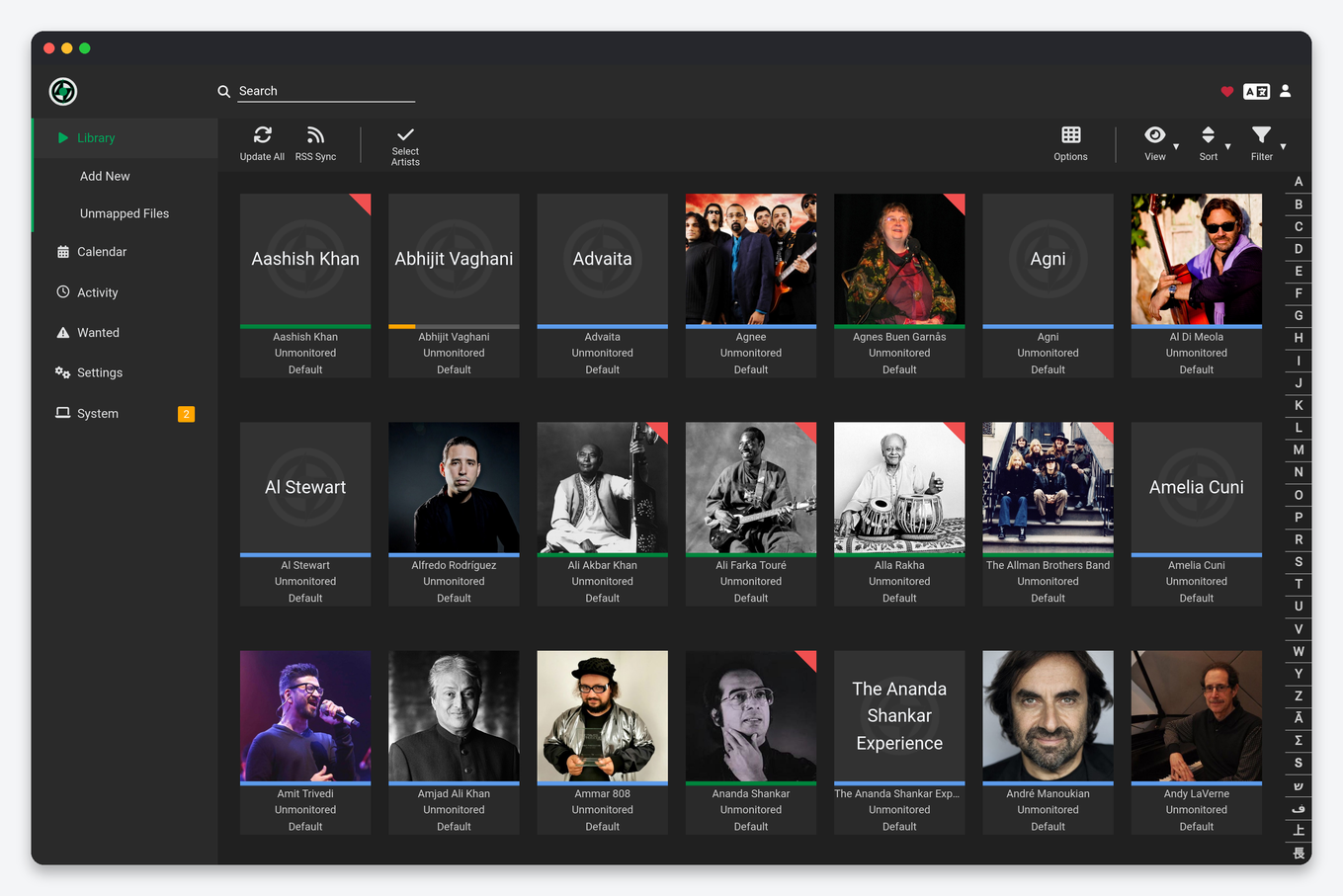
Step 2: confirm the rTorrent download client
On EvoSeedbox the installer already adds rTorrent as Lidarr’s download client, so this step is a check rather than a setup. Open Settings → Download Clients. You should see one card named rTorrent with a green Enabled badge.
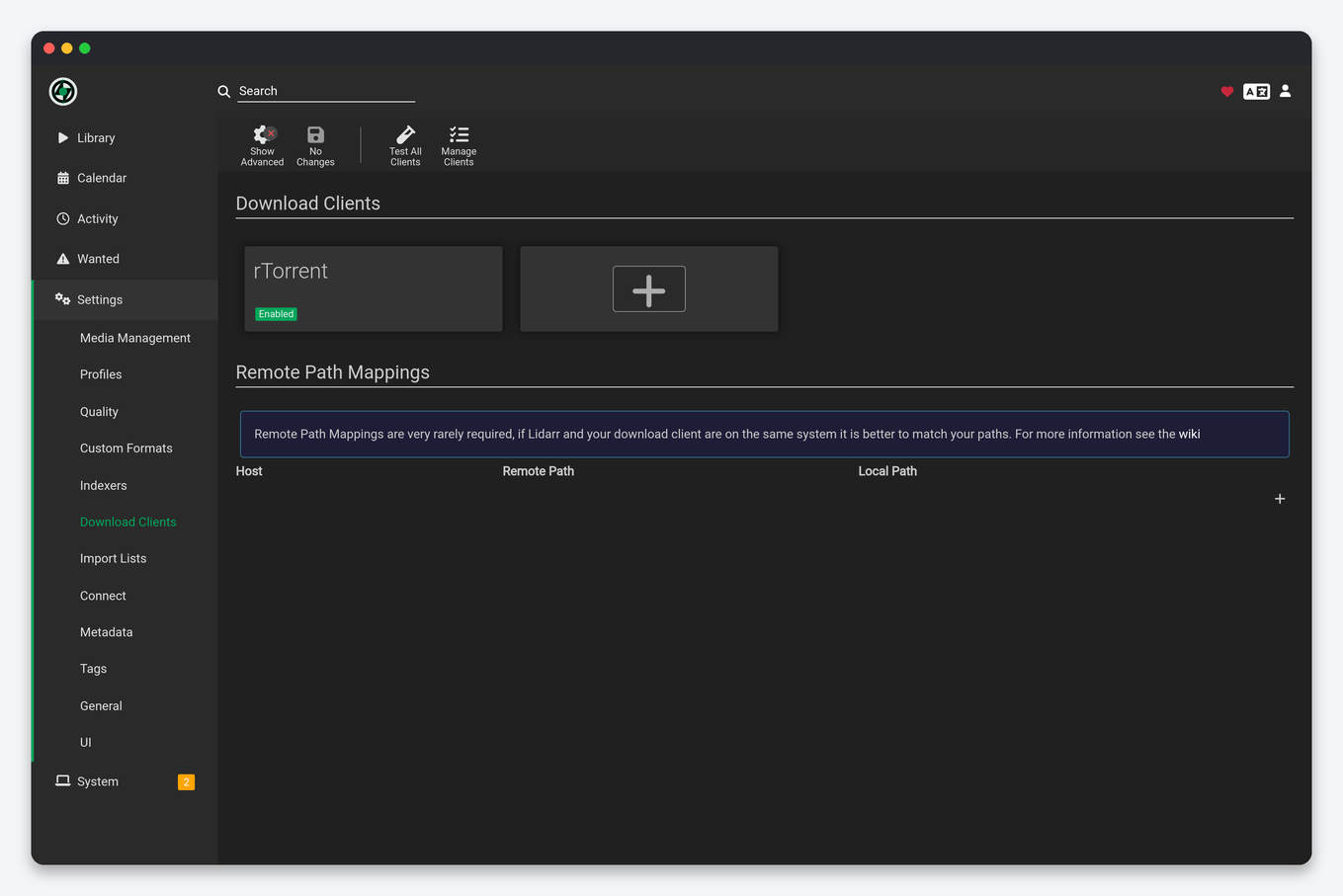
Click the card to see how it is wired. These are the values to restore if you ever delete it by accident:
| Field | Value |
|---|---|
| Name | rTorrent |
| Host | SERVER.myseedbox.site (your server name) |
| Port | 443 |
| Use SSL | on |
| URL Path | rutorrent/plugins/httprpc/action.php |
| Username / Password | your ruTorrent login |
| Category (label) | lidarr |
| Directory | leave empty so rTorrent’s default download directory applies |
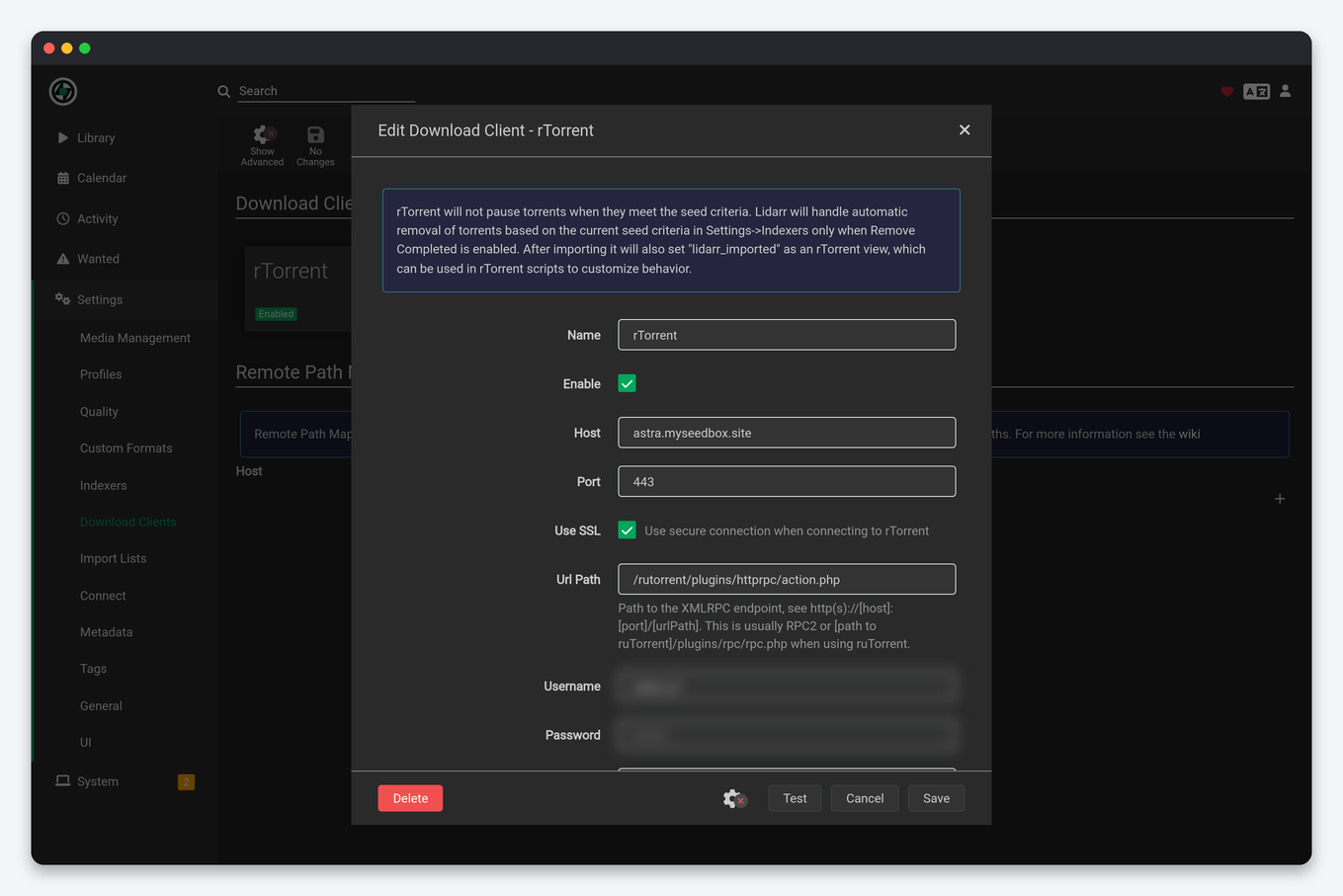
Two details matter. The label is what lets ruTorrent’s Autotools or your own rules treat music differently from TV and movies, and it is what Lidarr looks for when it scans the queue. And remote path mapping is not needed: both apps see /home/USERNAME/downloads at the same path. If you run Lidarr at home against a remote seedbox, that changes; see remote path mapping explained.
Step 3: indexers through Prowlarr
Do not add indexers inside Lidarr one by one. Add them once in Prowlarr and let it push them to every *arr app; Lidarr then shows them under Settings → Indexers with “(Prowlarr)” after each name, and Prowlarr keeps them in sync when you change or remove one.
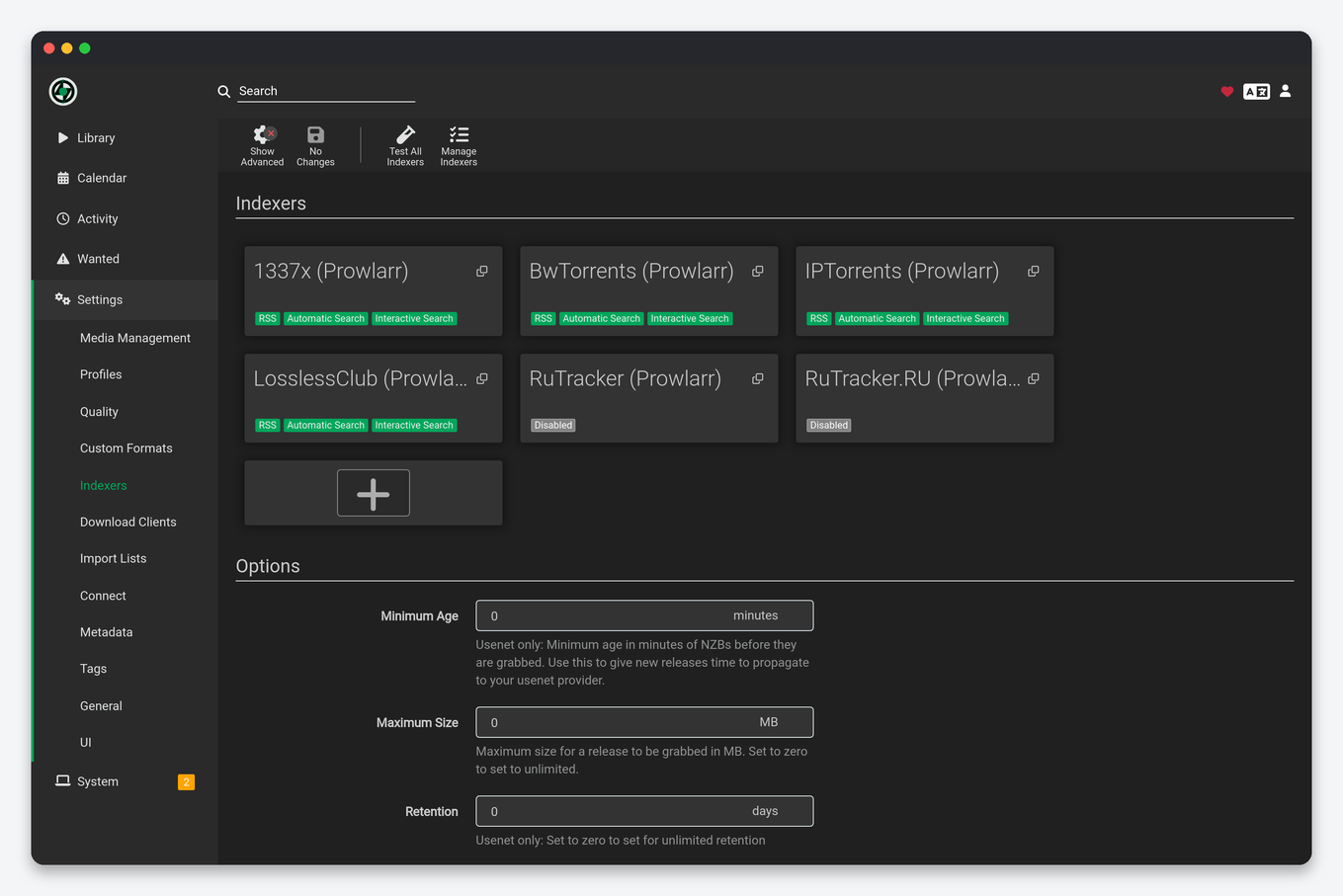
If the list is empty, open Prowlarr → Settings → Apps and check that Lidarr is present with Sync Level: Full Sync; the Prowlarr guide covers the app link and which indexers are worth adding for music. Music-specific trackers matter more for Lidarr than for video: general public indexers carry popular albums but little back catalogue, so a music-focused private tracker is the single biggest quality upgrade you can make.
Step 4: root folder and naming
Open Settings → Media Management. The installer creates a root folder under your home directory (the exact path is shown on the card); imports land there as Artist Name/Album Name/track files. Below it:
- Rename Tracks: switch it on so files get consistent names, then leave the default format unless a player needs something else.
- Replace Illegal Characters: keep on; a colon in an album title otherwise breaks SFTP clients on Windows.
- Import Extra Files: add
lrc,cueif you keep lyrics or cue sheets.
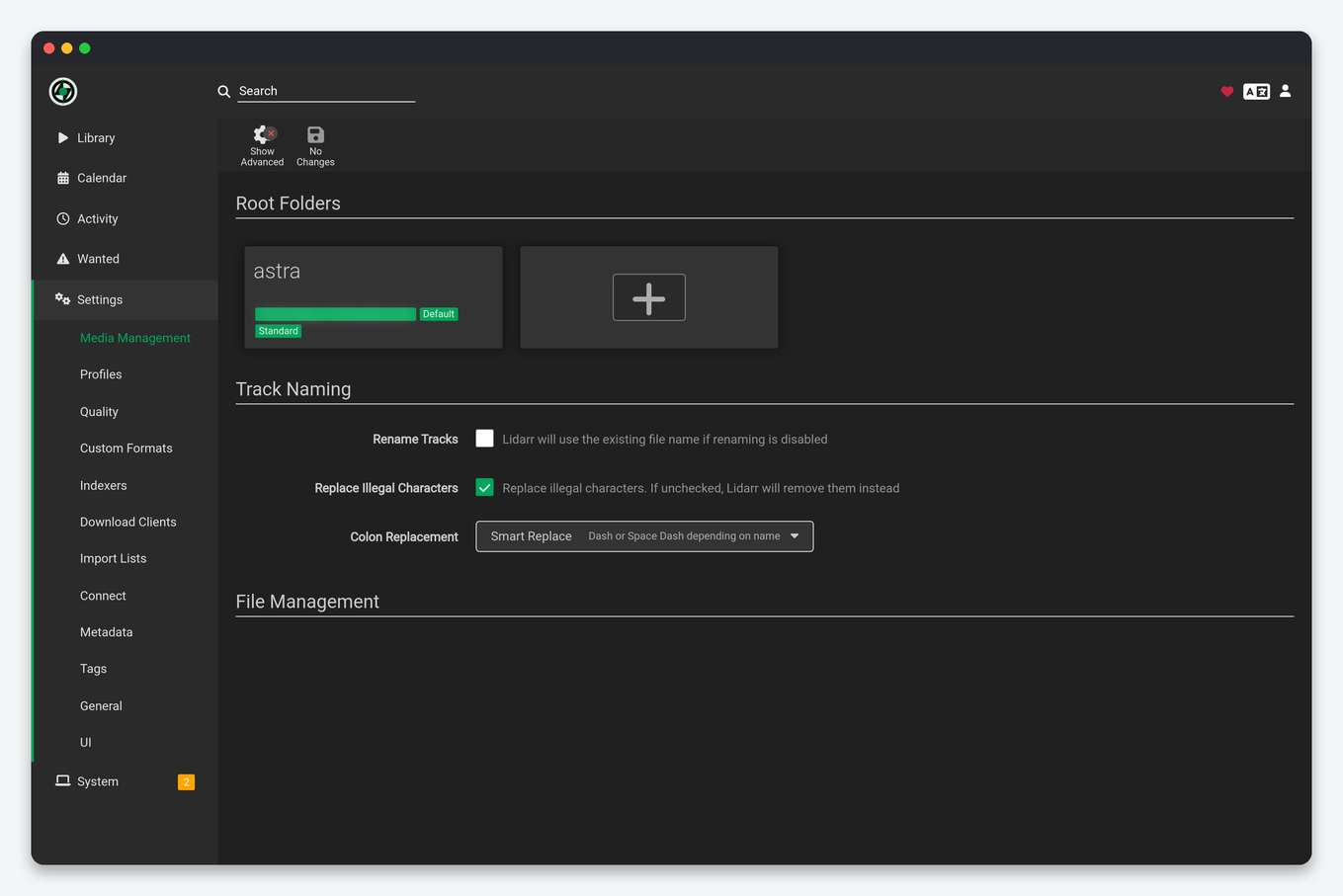
Keep the root folder inside your seedbox home. Mounting cloud storage as a root folder makes every import a full copy over the network and is the most common cause of “import stuck at 0%” tickets.
Step 5: quality and metadata profiles
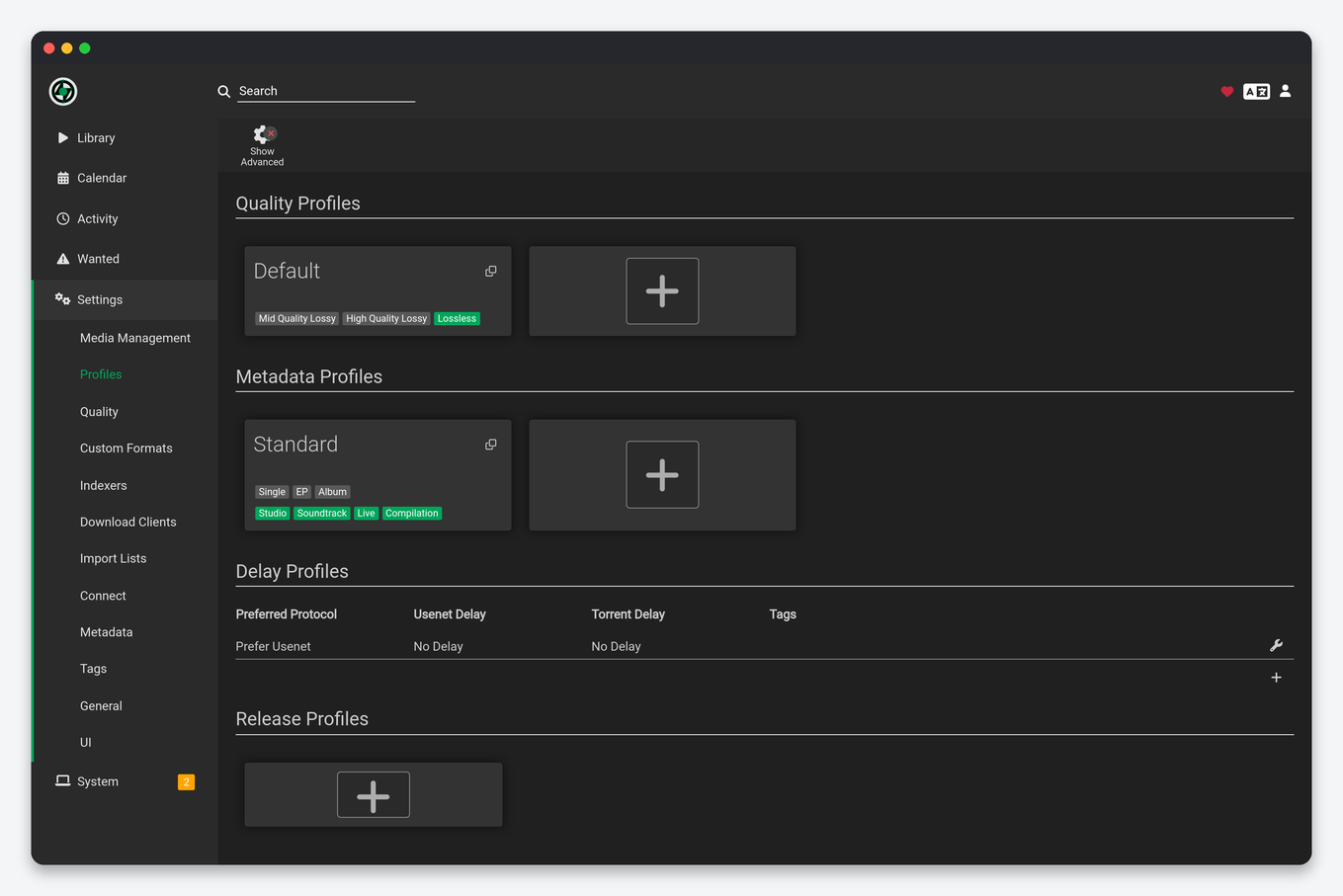
Lidarr has two profile types. The quality profile ranks formats; the metadata profile decides which release types (albums, singles, EPs, live, compilations) count as wanted.
| Goal | Quality profile | Why |
|---|---|---|
| Everyday listening on a phone | MP3-320 or “Any” with MP3-320 at the top | Smallest files, widest availability on public trackers |
| Home audio, keep one lossless copy | Lossless, FLAC preferred, allow MP3-320 as a fallback | FLAC is 3 to 5 times larger; the fallback stops rare albums staying missing forever |
| Archival | Lossless only, upgrade allowed | Lidarr will replace an MP3 with FLAC later if one appears |
For the metadata profile, the default Standard is right for most people. Adding “Live” and “Compilation” multiplies the wanted list several times over for any long-running artist and is the usual reason a new Lidarr setup looks like it wants thousands of albums.
Step 6: add an artist
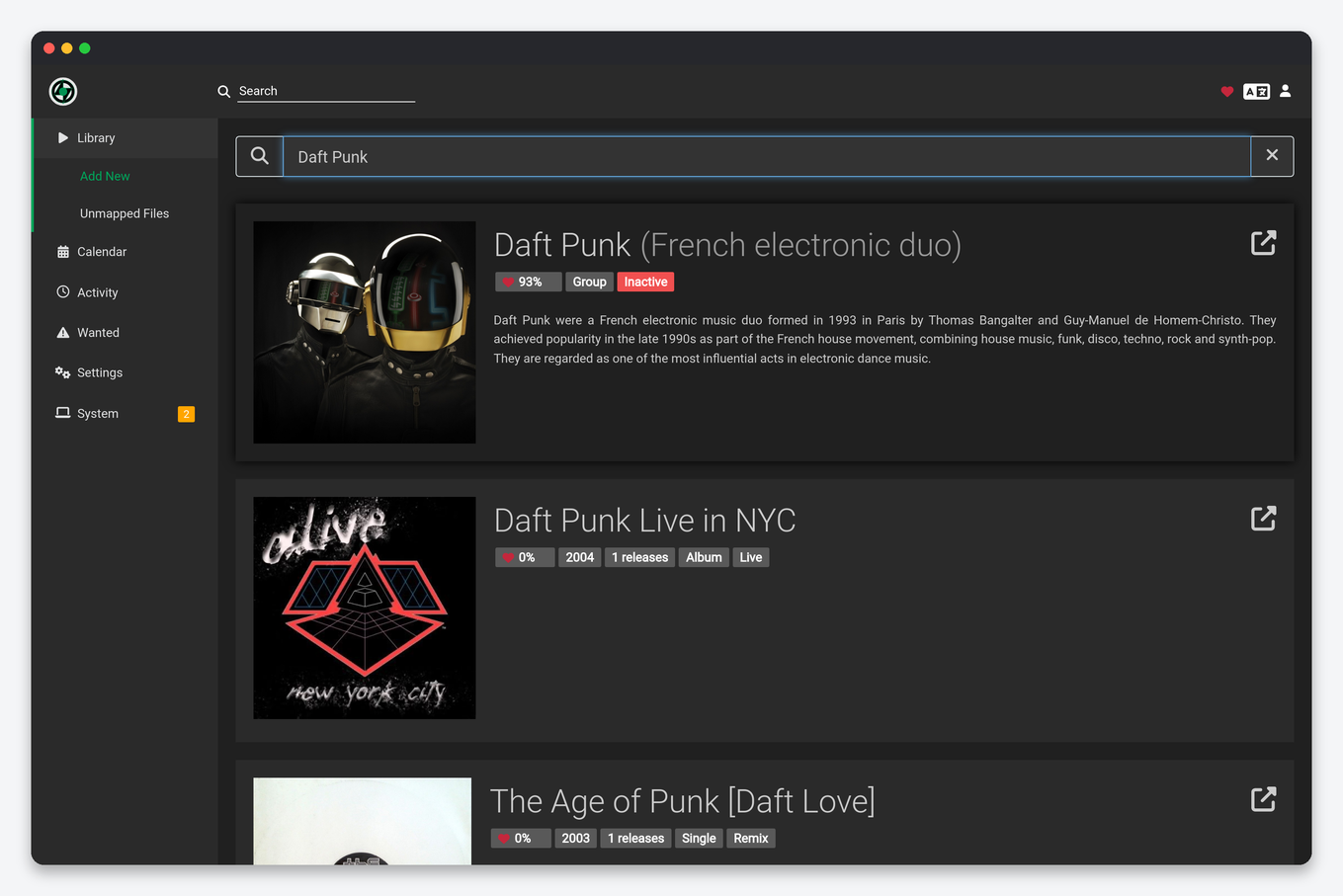
Go to Library → Add New and type the artist. Results come from MusicBrainz, so the disambiguation line (“Group · French electronic duo”) tells you which entry you are picking when names collide. Choose the root folder, the two profiles and whether to monitor all, future or none of the discography, then Add. Tick “Search for missing albums” if you want it to start grabbing immediately.
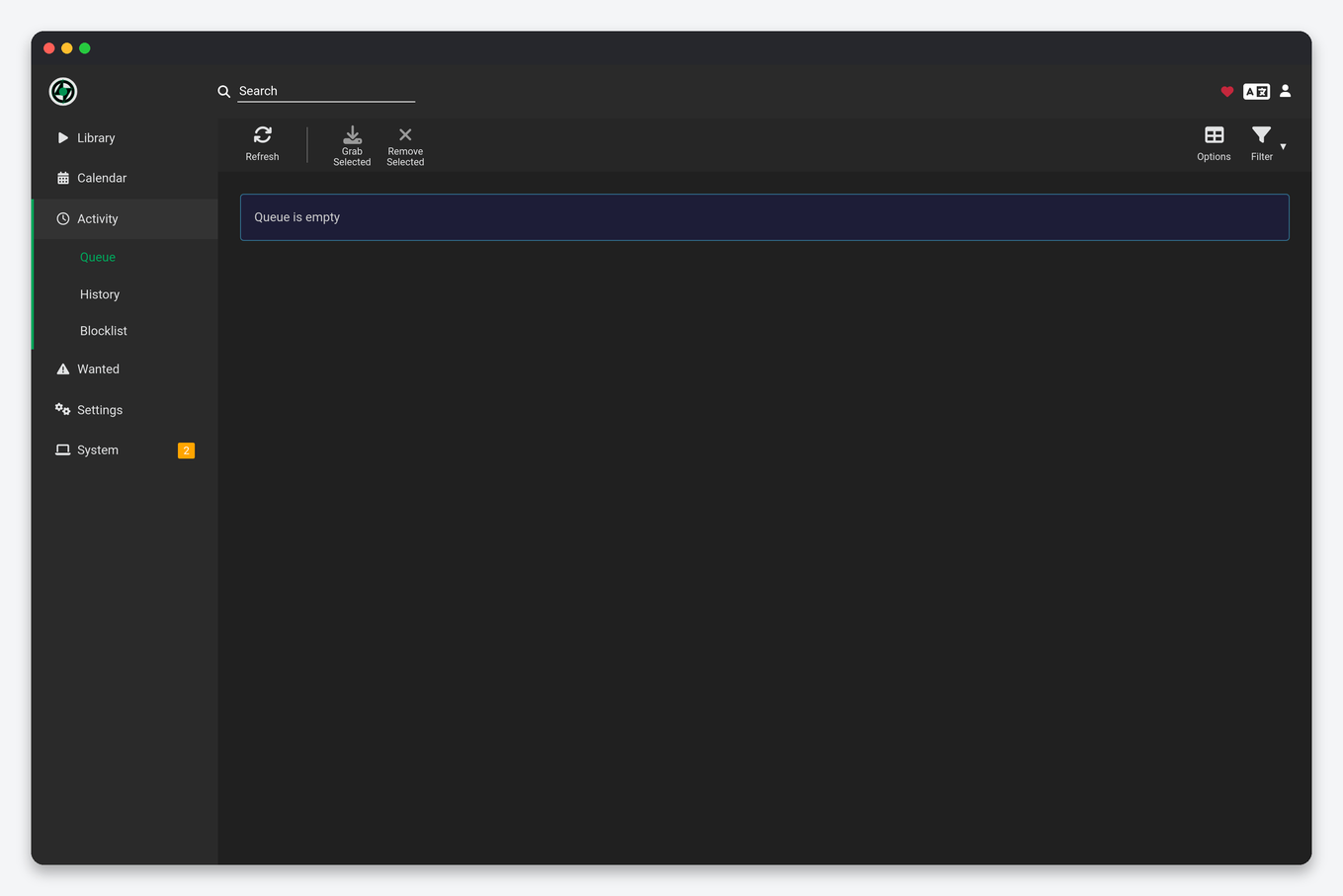
Grabs appear under Activity → Queue with their download client and progress, and the finished torrent shows in ruTorrent under the lidarr label. On EvoSeedbox you can also watch the same queue from your phone with Dashboarr’s Lidarr integration.
Importing a library you already have
If you already have a folder of music on the seedbox, do not add it as a root folder and hope. Use Library → Import → Choose Folder, point it at the existing folder, and let Lidarr match each artist folder to MusicBrainz; it moves nothing, it only records what is there. Then set the same folder as the root folder for future downloads. Badly tagged files can be matched by hand in Wanted → Manual Import.
Every option on every Settings tab, with defaults and seedbox values, is in the Lidarr settings reference.
Troubleshooting
| Symptom | Cause and fix |
|---|---|
| “Indexers unavailable due to failures” in the health banner | A Prowlarr indexer is down or rate-limited. Test it in Prowlarr; the banner clears on the next health check. |
| Album grabbed, downloaded, never imported | Almost always MusicBrainz matching: the release has a different track count than the MusicBrainz entry. Open Activity → Queue, click the warning, and use Manual Import to map it; or switch the album’s monitored release to the matching edition. |
| Everything is “Wanted” but nothing is found | Your indexers do not carry the artist. Check by searching the same title in Prowlarr’s Search tab; if Prowlarr finds nothing, no Lidarr setting will help. |
| Download client test fails | Re-enter the ruTorrent password (it is not your client-area password) and keep the URL path exactly rutorrent/plugins/httprpc/action.php. |
| Thousands of wanted albums after adding one artist | The metadata profile includes live, compilation or “other” types. Edit the profile or set the artist to monitor future albums only. |
| Lidarr keeps upgrading and re-downloading | “Upgrades allowed” with a high cutoff. Set the cutoff to the quality you actually want to keep. |
FAQ
Does Lidarr work with Usenet on a seedbox?
Yes. Install SABnzbd or NZBGet, add it as a second download client in Lidarr, and Prowlarr can supply Usenet indexers alongside torrent ones. See the SABnzbd and NZBGet guides.
Can I import from Spotify or Last.fm?
Lidarr’s Import Lists (Settings → Import Lists) support Spotify playlists, Last.fm tags and MusicBrainz series. Each list adds artists automatically on a schedule; start with a small list, because every artist brings a whole discography of wanted albums.
Which player should I use?
Navidrome is the lightest and speaks the Subsonic protocol used by most mobile players; Plex and Jellyfin work too if you already run them. All three read the folder Lidarr writes.
How much disk does a music library need?
Roughly 10 MB per track in MP3-320 and 30 to 40 MB in FLAC. A 1,000-album lossless library is about 400 GB.
Related: Prowlarr setup · Sonarr · Radarr · Lidarr in Dashboarr
Related articles
Put this into practice
EvoSeedbox ships with one-click app installs and up to 10 Gbps per box.


