evoads: Ad-Blocking DNS for Every Device (Setup Guide)
On this page ▾
evoads is the ad-blocking DNS resolver that comes with every EvoSeedbox plan at no extra cost. Point a phone, computer, router or browser at your personal evoads address and ads, tracking pixels, analytics beacons, malware and phishing domains stop resolving before they load. It works in every app on the device, not only in the browser, and it is already active whenever you connect through your seedbox’s WireGuard VPN. This guide covers what evoads is, where to find your personal keys in the client area, and the exact steps for Android, iPhone and iPad, macOS, Windows, Linux, browsers and routers, plus how to check that it is working.
What evoads does
Every time a device opens a website or an app talks to a server, it first asks a DNS resolver to turn a name such as ads.doubleclick.net into an IP address. evoads is a resolver that answers that question for you, with one difference: names on its blocklists come back as 0.0.0.0, so the ad, tracker or malware host is never contacted. Everything else resolves normally. Because the blocking happens at the DNS layer, it applies to games, smart-TV apps, streaming apps and system services as well as browsers.
- Blocklists: AdGuard DNS filter, HaGeZi Pro, OISD Big and URLhaus, refreshed daily. Around 690,000 domains.
- Encrypted only: DNS-over-HTTPS (DoH) on
dns.evoseedbox.com:8443and DNS-over-TLS (DoT) on port 853. Nobody on your network can read or alter your DNS queries. - Personal address: your DoH URL and Private DNS hostname contain a ClientID unique to your account. Unknown ClientIDs are refused, so the resolver cannot be abused as an open relay.
- Several servers:
dns.evoseedbox.compoints at every healthy evoads node. A node that stops answering is removed from DNS within five minutes. - Included: no add-on to buy, no separate account. It is the same login as your seedbox.
evoads is built on AdGuard Home, the open-source network-wide ad blocker. The mobile app is a fork of Jigsaw’s Intra and the desktop app uses AdGuard’s dnsproxy. All three are open source.
Step 1: open the evoads panel in your client area
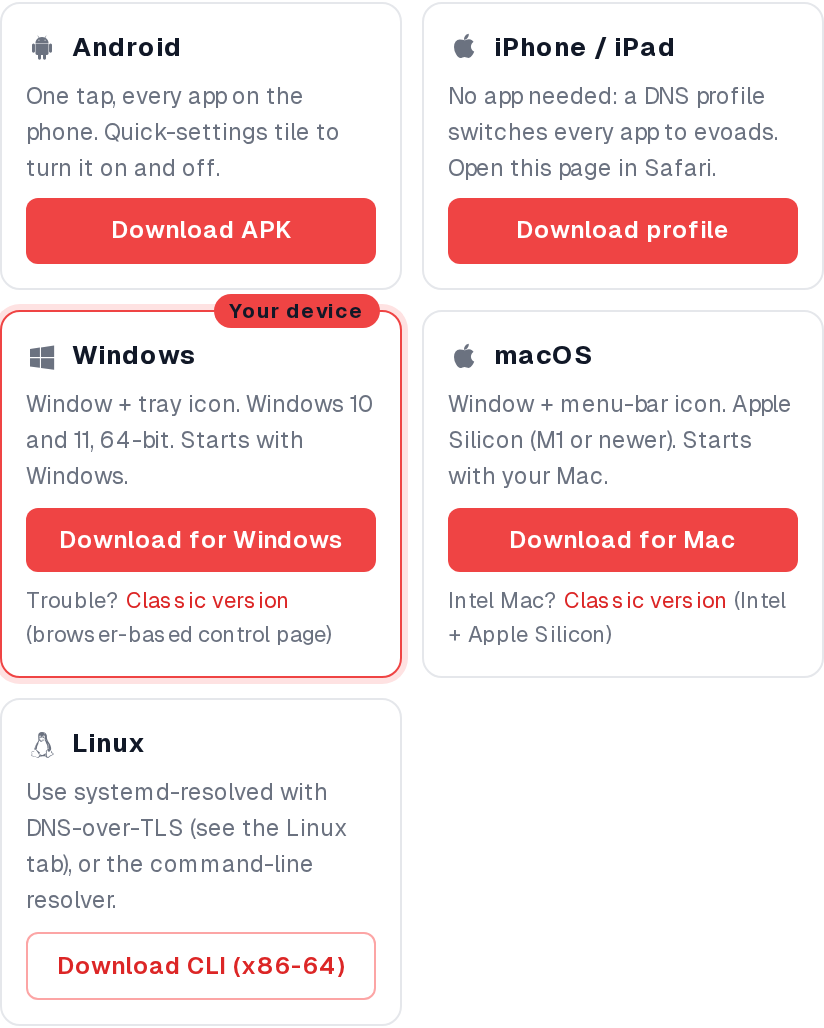
Log in to your client area, open your seedbox service and click evoads Ad-Blocker in the row of quick actions next to ruTorrent and WireGuard VPN. The panel that opens has three parts: a download strip that highlights your current device, your personal keys, and per-platform setup steps.
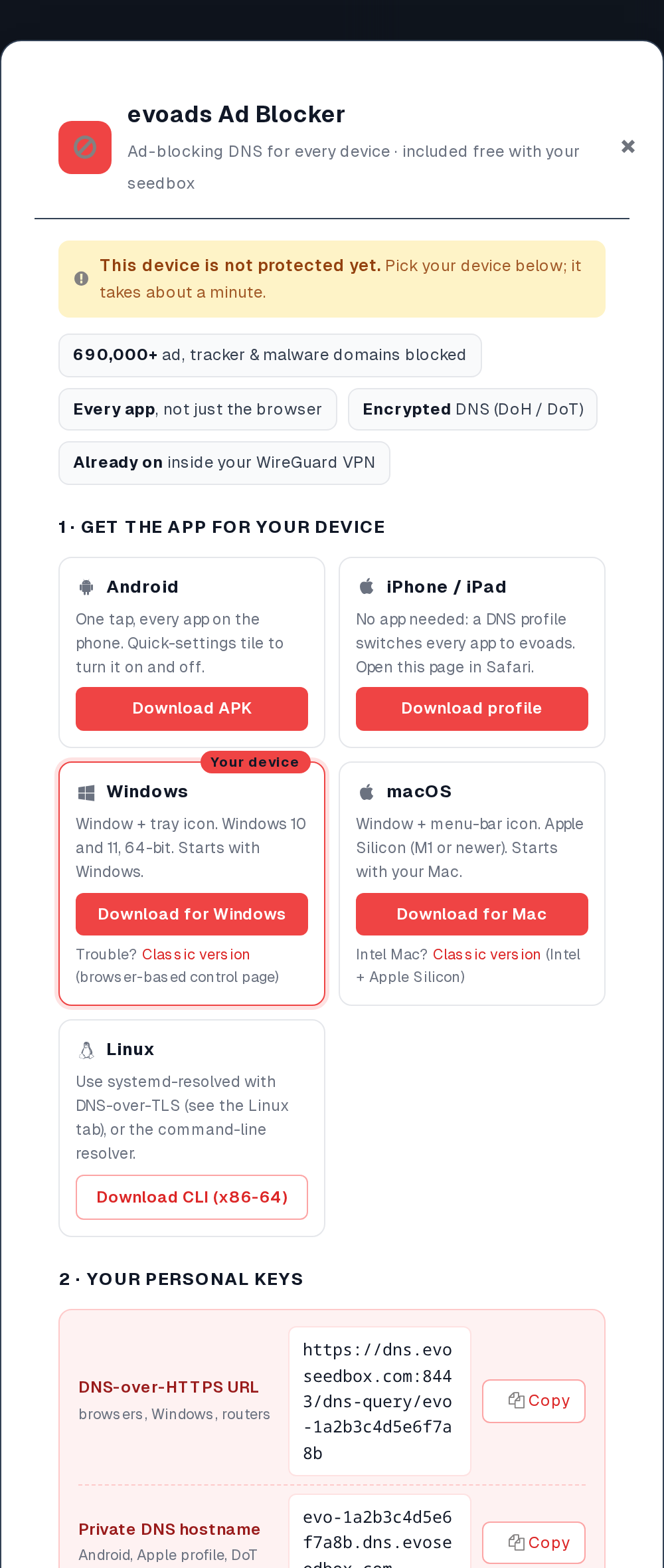
The banner at the top runs a quick test of the browser you are in: it asks your device’s DNS for two well-known ad hosts and reports whether they resolved. If it says not protected yet, follow the steps for your device below and reopen the panel afterwards.
Your personal keys
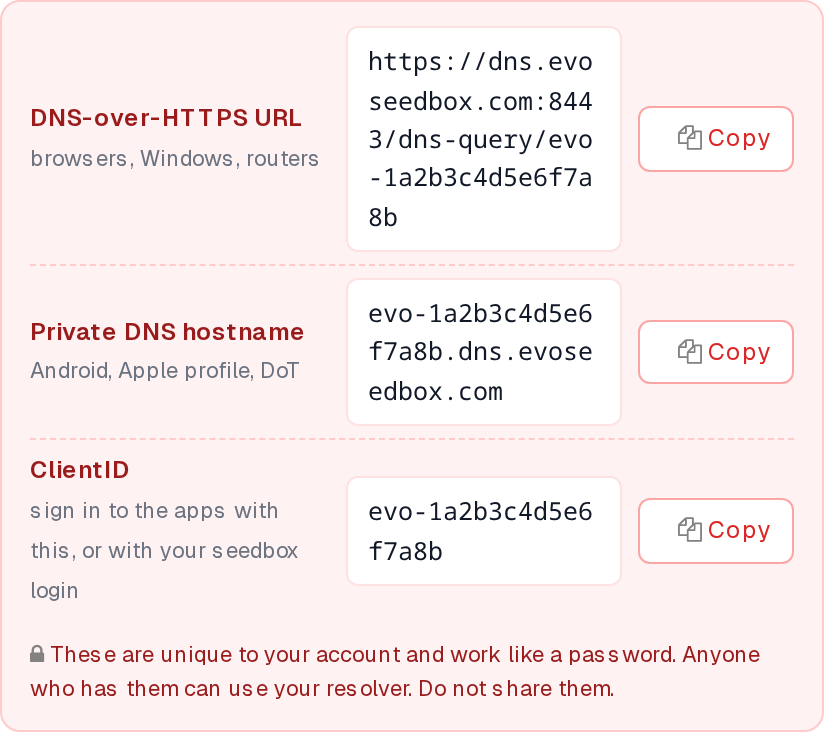
| Key | Looks like | Where you use it |
|---|---|---|
| DNS-over-HTTPS URL | https://dns.evoseedbox.com:8443/dns-query/evo-… |
Chrome, Edge, Brave, Firefox, Windows 11 DoH template, routers with DoH |
| Private DNS hostname | evo-….dns.evoseedbox.com |
Android Private DNS, Apple DNS profile, systemd-resolved, routers with DoT |
| ClientID | evo- followed by 16 characters |
Signing in to the evoads apps (or use your seedbox username and password) |
Treat these like a password. Anyone who has your DoH URL or hostname can send their DNS traffic through your resolver. The Copy button next to each key puts it on the clipboard. The keys never change, so you only need to set a device up once.
Guides in this section
- evoads for Android: the app, the quick-settings tile, and the no-app Private DNS route
- evoads on iPhone and iPad: the DNS profile and the Apple settings that bypass it
- evoads for macOS: menu-bar app on Apple Silicon, classic build on Intel
- evoads for Windows: SmartScreen, the tray app, verifying with nslookup
- evoads on Linux: systemd-resolved DNS-over-TLS and the CLI resolver
- evoads on your router: OpenWrt, pfSense, OPNsense, ASUS, UniFi, Fritz!Box, MikroTik
Step 2: set up your device
Pick the section for your device. Where there is an evoads app it is the quickest route and covers every app on the device. Where there is no app, the built-in setting does the same job.
Android
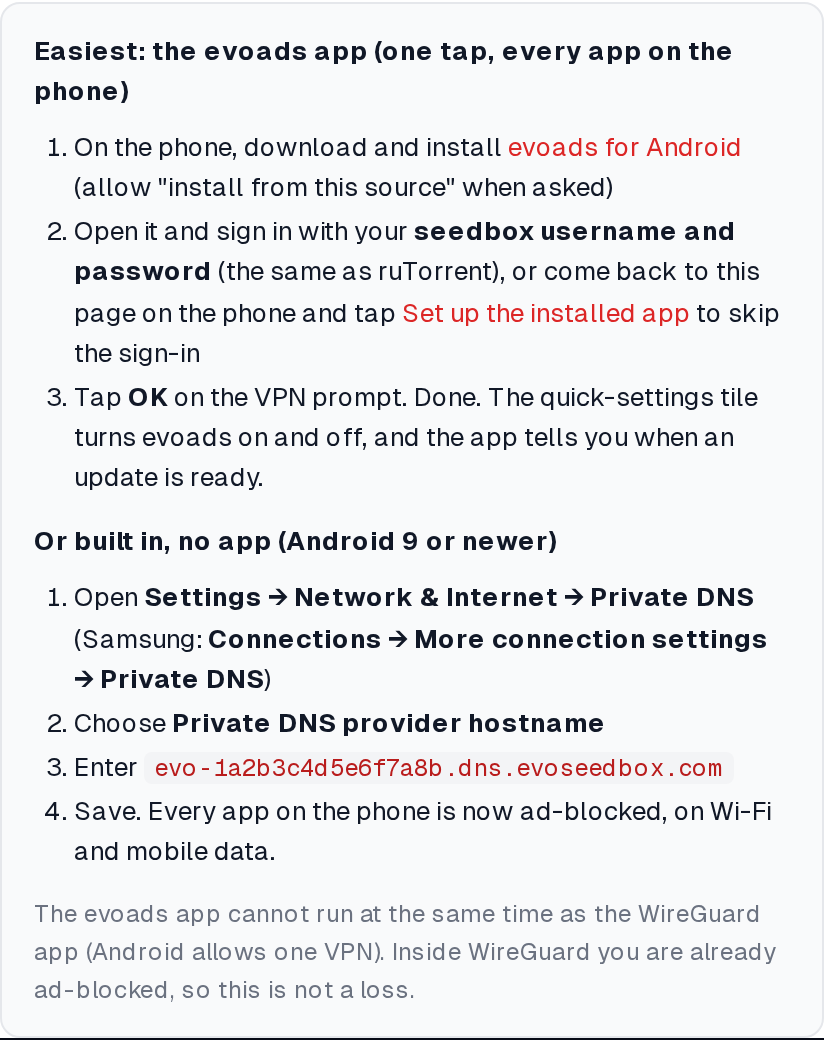
With the evoads app:
- On the phone, download evoads for Android and install it. Android asks you to allow installs from your browser the first time.
- Open the app and sign in with your seedbox username and password (the ones you use for ruTorrent). Alternatively, open the client area on the phone and tap Set up the installed app in the Android card, which opens evoads with your ClientID already filled in.
- Tap OK on the VPN connection request. Android shows a key icon in the status bar while evoads is on.
The app adds a quick-settings tile so you can switch it on and off from the notification shade, and it tells you when an update is available. It uses Android’s VPN slot to catch DNS from every app, but your traffic still leaves the phone directly; only DNS goes to evoads. This also means it cannot run at the same time as the WireGuard app. That is not a loss: inside your seedbox WireGuard tunnel DNS already goes through evoads.
Without an app (Android 9 or newer, every app on the phone):
- Open Settings → Network & Internet → Private DNS. On Samsung phones it is Settings → Connections → More connection settings → Private DNS.
- Choose Private DNS provider hostname.
- Paste your Private DNS hostname from the client area and save.
Private DNS applies on Wi-Fi and mobile data alike. If a captive-portal Wi-Fi (hotel, airport) refuses to connect, switch Private DNS to Automatic until you are through the login page, then switch it back.
iPhone and iPad
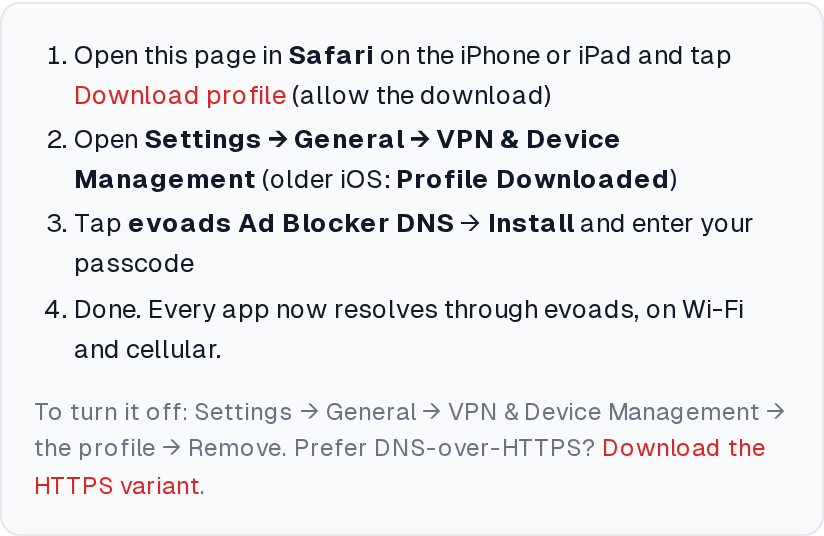
- Open the client area in Safari on the iPhone or iPad, open the evoads panel and tap Download profile. Allow the download when Safari asks.
- Open Settings → General → VPN & Device Management. On older iOS versions the entry is Profile Downloaded near the top of Settings.
- Tap evoads Ad Blocker DNS → Install and enter your passcode.
The profile sets an encrypted DNS-over-TLS resolver for the whole device, on Wi-Fi and cellular. To pause it, go to Settings → General → VPN & Device Management, tap the profile and choose Remove; install it again later from the same panel. The profile is generated in your browser from your own keys, so nothing is downloaded from a third party. iOS turns encrypted DNS off automatically while a VPN is connected, which is fine when the VPN is your seedbox WireGuard tunnel, because that already uses evoads.
macOS
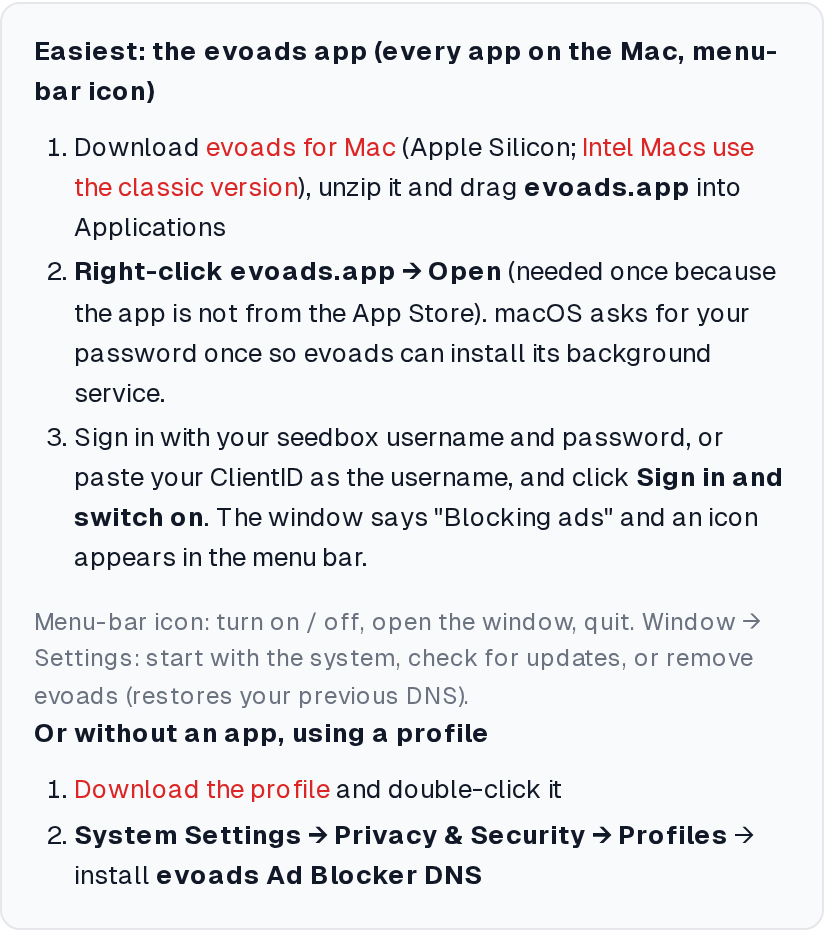
With the evoads app (Apple Silicon Macs, M1 or newer):
- Download evoads for Mac, unzip it and drag evoads.app into Applications.
- Right-click evoads.app and choose Open. This is needed once because the app is not distributed through the App Store. macOS asks for your password so evoads can install its background service.
- Sign in with your seedbox username and password, or paste your ClientID as the username, and click Sign in and switch on. The window reports Blocking ads and an evoads icon appears in the menu bar.
The menu-bar icon turns blocking on and off. The window’s Settings section has Start with the system, Check for updates and Remove evoads, which restores your previous DNS settings and removes the service. Intel Macs should use the classic version, which runs on both Intel and Apple Silicon and is controlled from a page in your browser instead of a window.
Without an app: download the profile from the macOS tab of the panel, double-click it, then open System Settings → Privacy & Security → Profiles and install evoads Ad Blocker DNS.
Windows
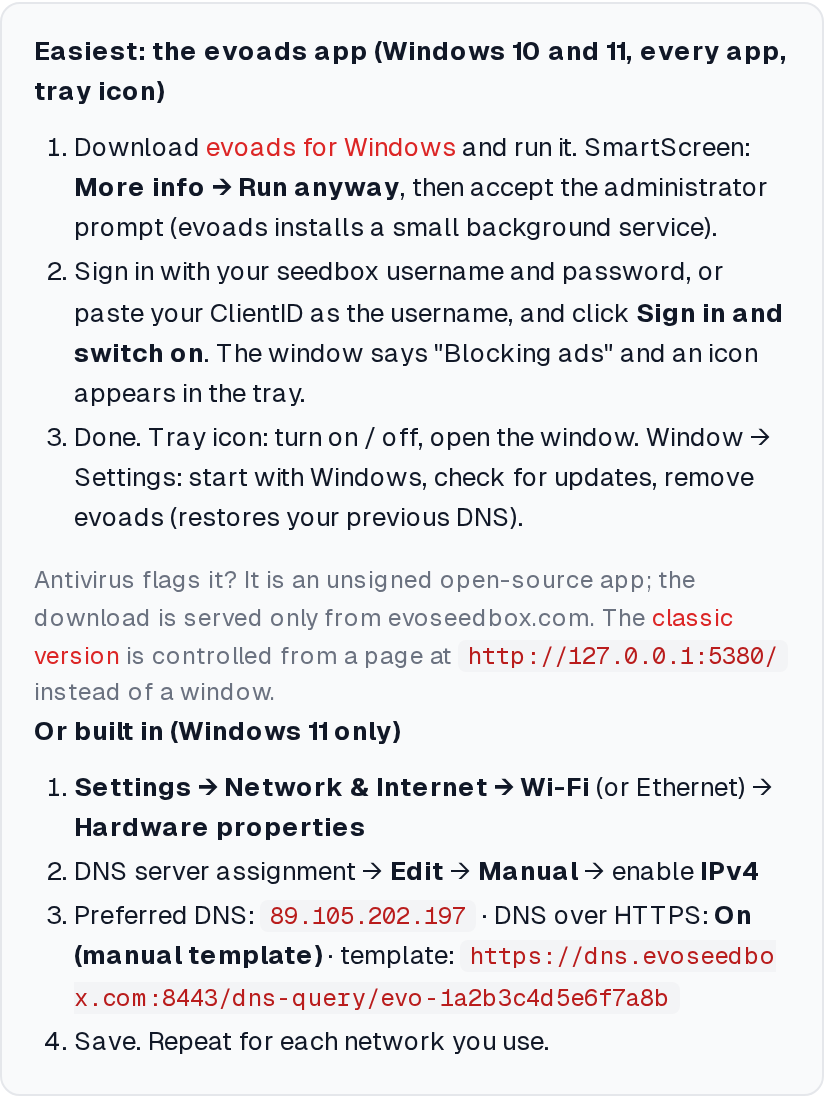
With the evoads app (Windows 10 and 11, 64-bit):
- Download evoads for Windows and run it. SmartScreen shows a warning for apps it has not seen often: click More info → Run anyway. Accept the administrator prompt; evoads installs a small background service that keeps blocking after a reboot.
- Sign in with your seedbox username and password, or paste your ClientID as the username, and click Sign in and switch on. The window reports Blocking ads and an icon appears in the tray.
- Done. The tray icon turns blocking on and off; the window’s Settings section has Start with Windows, Check for updates and Remove evoads.
The app runs a local resolver on 127.0.0.1 and points your active network adapters at it, saving the previous DNS settings so Remove can restore them. If your antivirus quarantines the download, it is reacting to an unsigned executable; the file is served only from evoseedbox.com and the source is open. The classic version is the same service controlled from a page at http://127.0.0.1:5380/ rather than a window.
Without an app (Windows 11 only):
- Open Settings → Network & Internet → Wi-Fi (or Ethernet) → Hardware properties.
- Next to DNS server assignment click Edit, choose Manual and switch on IPv4.
- Preferred DNS:
89.105.202.197. Set DNS over HTTPS to On (manual template) and paste your DoH URL as the template. - Save, and repeat for each network connection you use.
Windows requires a plain IP address in the field even though only the encrypted template is used. Windows 10 does not have this setting; use the app.
Linux
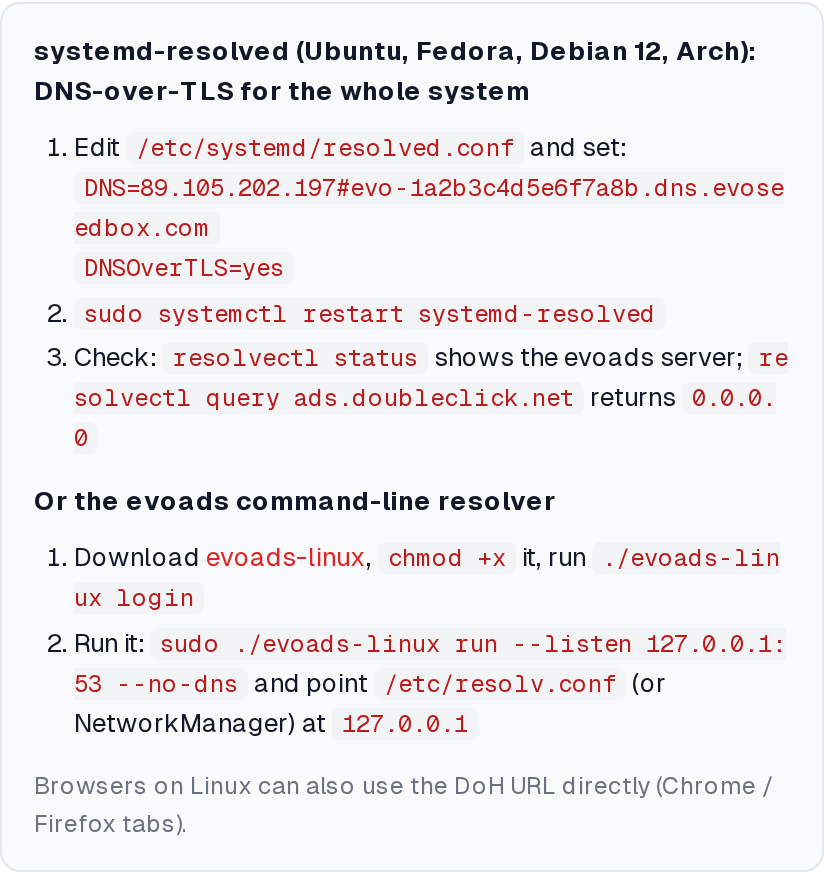
Most current distributions (Ubuntu, Fedora, Debian 12, Arch) use systemd-resolved, which speaks DNS-over-TLS natively:
- Edit
/etc/systemd/resolved.confand setDNS=89.105.202.197#YOUR-HOSTNAME, whereYOUR-HOSTNAMEis your Private DNS hostname, andDNSOverTLS=yes. - Run
sudo systemctl restart systemd-resolved. - Check with
resolvectl status(the evoads server is listed) andresolvectl query ads.doubleclick.net, which should return0.0.0.0.
The hash syntax tells systemd-resolved which name to present to the server, which is how evoads recognises your ClientID over DoT. There is also a command-line build of the evoads resolver at evoseedbox.com/dl/evoads/linux: chmod +x it, run ./evoads-linux login, then sudo ./evoads-linux run --listen 127.0.0.1:53 --no-dns and point /etc/resolv.conf or NetworkManager at 127.0.0.1.
Browsers only: Chrome, Edge, Brave, Firefox
If you want ad blocking in one browser but not the rest of the device, use the DoH URL directly:
- Chrome, Edge, Brave: Settings → Privacy and security → Security → Use secure DNS → With: Custom → paste your DoH URL.
- Firefox: Settings → search “DNS over HTTPS” → Max Protection → provider Custom → paste your DoH URL.
This does not replace a content-blocking extension entirely: DNS blocking removes ad and tracker hosts, while an extension can also hide the empty slots and block first-party ads served from the site’s own domain (YouTube is the usual example). The two work well together.
Router: every device on your network
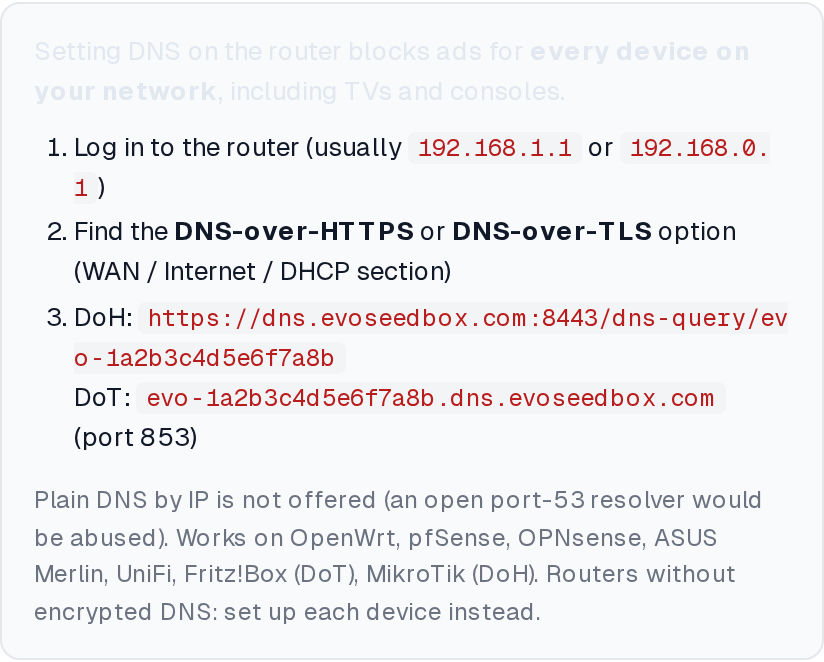
Routers that support encrypted DNS can send the whole household through evoads. Log in to the router (usually 192.168.1.1 or 192.168.0.1), find the DNS-over-HTTPS or DNS-over-TLS option in the WAN, Internet or DHCP section, and enter your DoH URL or, for DoT, your Private DNS hostname on port 853. This works on OpenWrt, pfSense, OPNsense, ASUS routers running Merlin firmware, UniFi, Fritz!Box (DoT) and MikroTik (DoH). evoads does not offer plain unencrypted DNS by IP address, because an open port-53 resolver would be abused within hours; routers that only support plain DNS should hand out no custom server, and each device is set up individually instead.
WireGuard VPN: nothing to do
If you connect through your seedbox’s WireGuard VPN, the tunnel’s DNS server already forwards to evoads. Any device inside the tunnel is ad-blocked without further setup, which is a good reason to keep the WireGuard profile on a phone for public Wi-Fi.
Step 3: check that it works
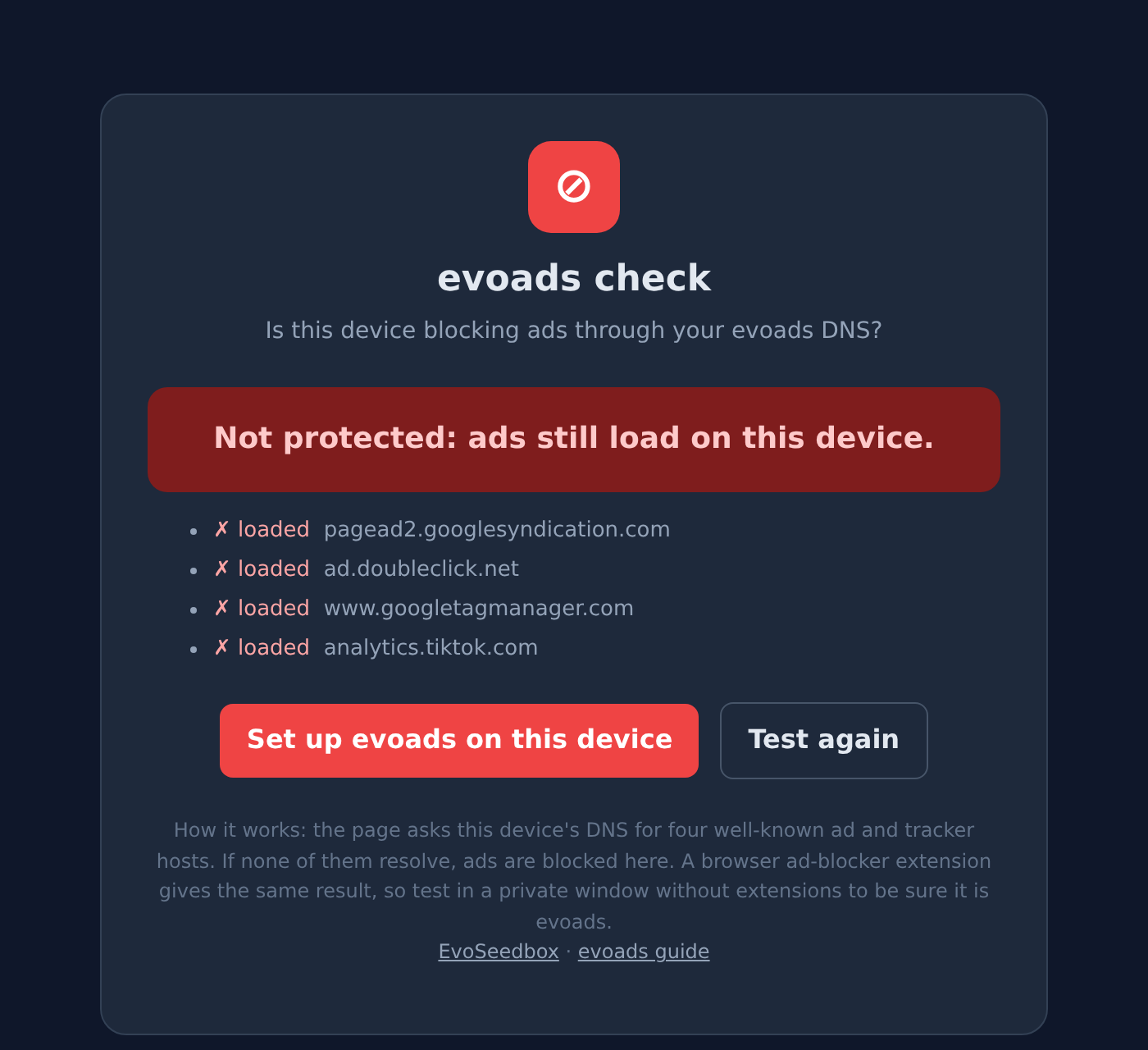
Open evoseedbox.com/evoads-check on the device you just set up. The page asks your device’s DNS for four well-known ad and tracking hosts and shows Protected when none of them resolve. A browser ad-blocking extension produces the same result, so test in a private window with extensions disabled if you want to be sure the DNS layer is doing the work. You can also reopen the evoads panel in the client area; its banner runs the same test.
From a terminal, nslookup ads.doubleclick.net (Windows) or dig ads.doubleclick.net (macOS, Linux) should answer 0.0.0.0. An ordinary website should still resolve normally.
Frequently asked questions
Does evoads hide my IP address or replace a VPN?
No. evoads encrypts and filters DNS lookups only. Your traffic still goes directly from your device to each site. For privacy from your ISP or on public Wi-Fi, use the WireGuard VPN, which includes evoads.
A site or app stopped working after I turned it on.
Some sites load content from domains that also serve ads, and a few tracking-heavy apps refuse to start when their analytics host is unreachable. Turn evoads off for a moment (quick-settings tile, tray or menu-bar icon, or switch Private DNS to Automatic) to confirm it is the cause, then let us know the site or app through a support ticket so we can review the entry. Custom allow-lists per account are not available yet.
Why do I still see some ads?
DNS blocking cannot remove ads served from the same domain as the content, YouTube and some streaming services being the common cases, and it cannot hide the empty space where a blocked ad would have been. A browser content blocker alongside evoads covers those.
Can I use evoads on more than one device?
Yes, on as many as you like. Every device uses the same keys.
Is my browsing history stored?
The resolver keeps a query log for up to 90 days so we can diagnose blocking problems and spot abuse. It is not shared with anyone and is not tied to your billing account beyond the ClientID.
Do I lose evoads if I cancel my seedbox?
Yes. The ClientID is generated from your seedbox account, and it is removed from the resolver when the account is closed. Devices then fall back to failing lookups until you remove the setting, so switch Private DNS or the profile off before cancelling.
Where do the apps come from and are they safe?
The Android app is a fork of Intra by Jigsaw (Google) with the analytics removed and the resolver fixed to evoads. The desktop app is written in Go on top of AdGuard’s dnsproxy. Both are unsigned because they are distributed outside the app stores, which is why Android, Windows SmartScreen and macOS Gatekeeper each show a one-time warning. Downloads are served only from evoseedbox.com.
Related articles
Put this into practice
EvoSeedbox ships with one-click app installs and up to 10 Gbps per box.
