Navidrome Settings Explained: Personal, Users, Players and Transcoding
On this page ▾
This is the setting-by-setting reference for Navidrome as installed on an EvoSeedbox: the Personal, Users, Players and Transcoding pages in the web interface, plus the server options the installer sets for you and what they mean. Labels were captured from the running app (the current Navidrome release). Getting your music folder scanned and connecting a Subsonic app for the first time is in the Navidrome guide; this page is for everything in the settings menu after that. Navidrome has fewer knobs than the *arr apps on purpose: most behaviour is decided by server configuration, and the interface only exposes what a user or admin should change at runtime.
How Navidrome is laid out on the seedbox
Navidrome runs as your user in a container. Your library is /home/<user>/downloads/music, mounted read-only as /music, so anything Lidarr or ruTorrent puts there is picked up; the database, image cache and transcoding cache live in the app’s config folder mounted as /data. The installer configures the server through environment variables: a library scan every hour (ND_SCANSCHEDULE=1h), sessions that stay logged in for 120 hours, a 500 MB transcoding cache, a 1 GB image cache, info-level logging, and transcoding configuration locked in the interface (ND_ENABLETRANSCODINGCONFIG=false). The web interface is at your Navidrome HTTPS link from the client area, and the same address is what Subsonic-compatible apps use.
Personal
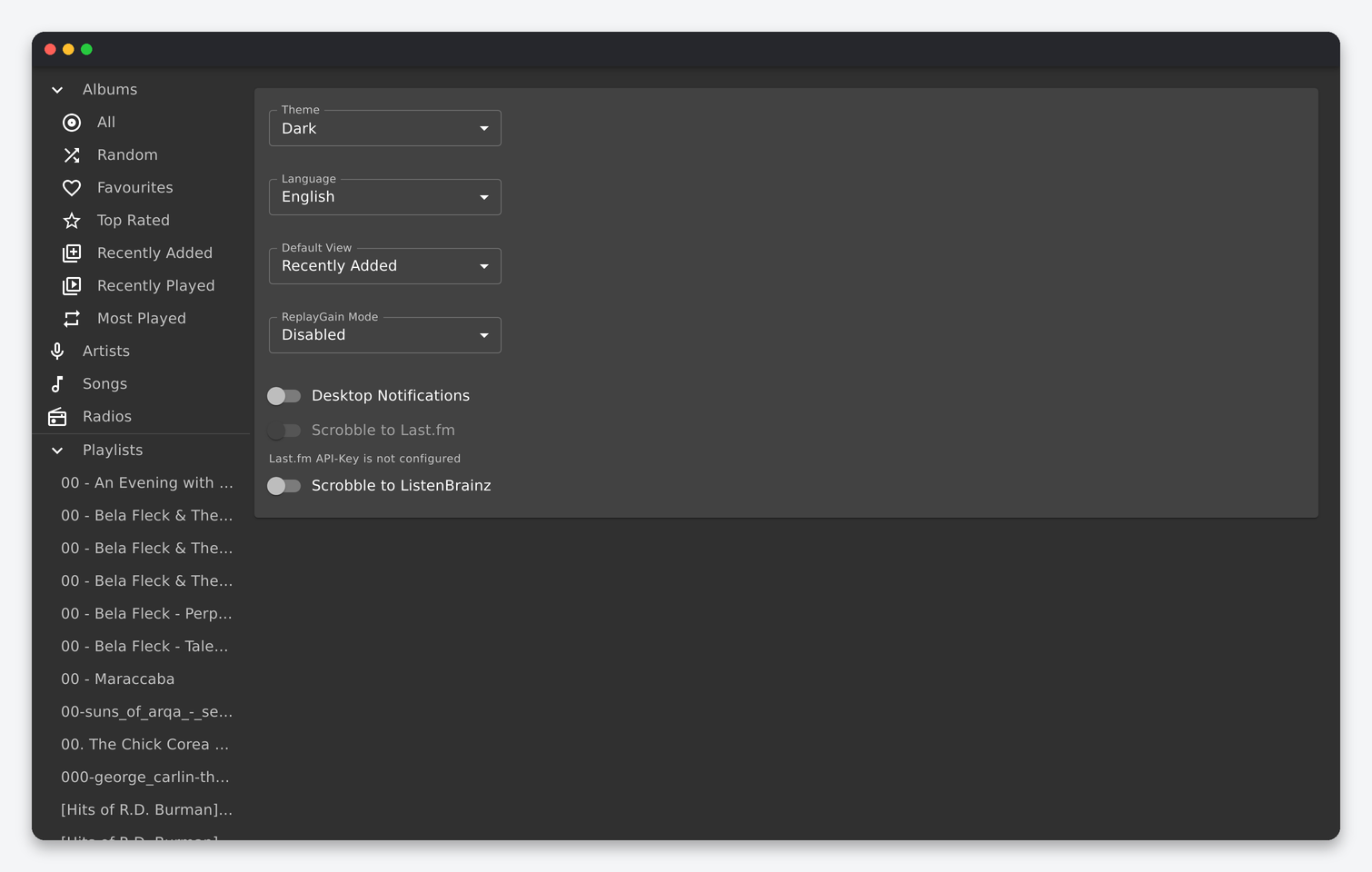
| Setting | What it does | Default | Seedbox |
|---|---|---|---|
| Theme | Interface skin for the web player (Dark, Light, Spotify-ish, Nord and others). | Dark | Your choice. |
| Language | Interface language. | English | Your choice. |
| Default View | The album list opened at login: Recently Added, Most Played, Random and so on. | Recently Added | Recently Added shows what Lidarr just imported. |
| ReplayGain Mode | Volume normalisation in the web player: Disabled, Track or Album, using the ReplayGain tags in your files. | Disabled | Album if your files are tagged (most Lidarr imports are); it evens out loudness between releases without changing the audio. |
| Desktop Notifications | Browser notification on track change. | Off | Your choice. |
| Scrobble to Last.fm | Send plays to Last.fm after linking your account. | Off, greyed out | Greyed out until a Last.fm API key is configured on the server, which the one-click install does not include. Open a ticket if you want it enabled. |
| Scrobble to ListenBrainz | Send plays to ListenBrainz with a user token. | Off | Works out of the box: paste your ListenBrainz token. Scrobbles from Subsonic apps are forwarded too when the player has scrobbling on. |
Users
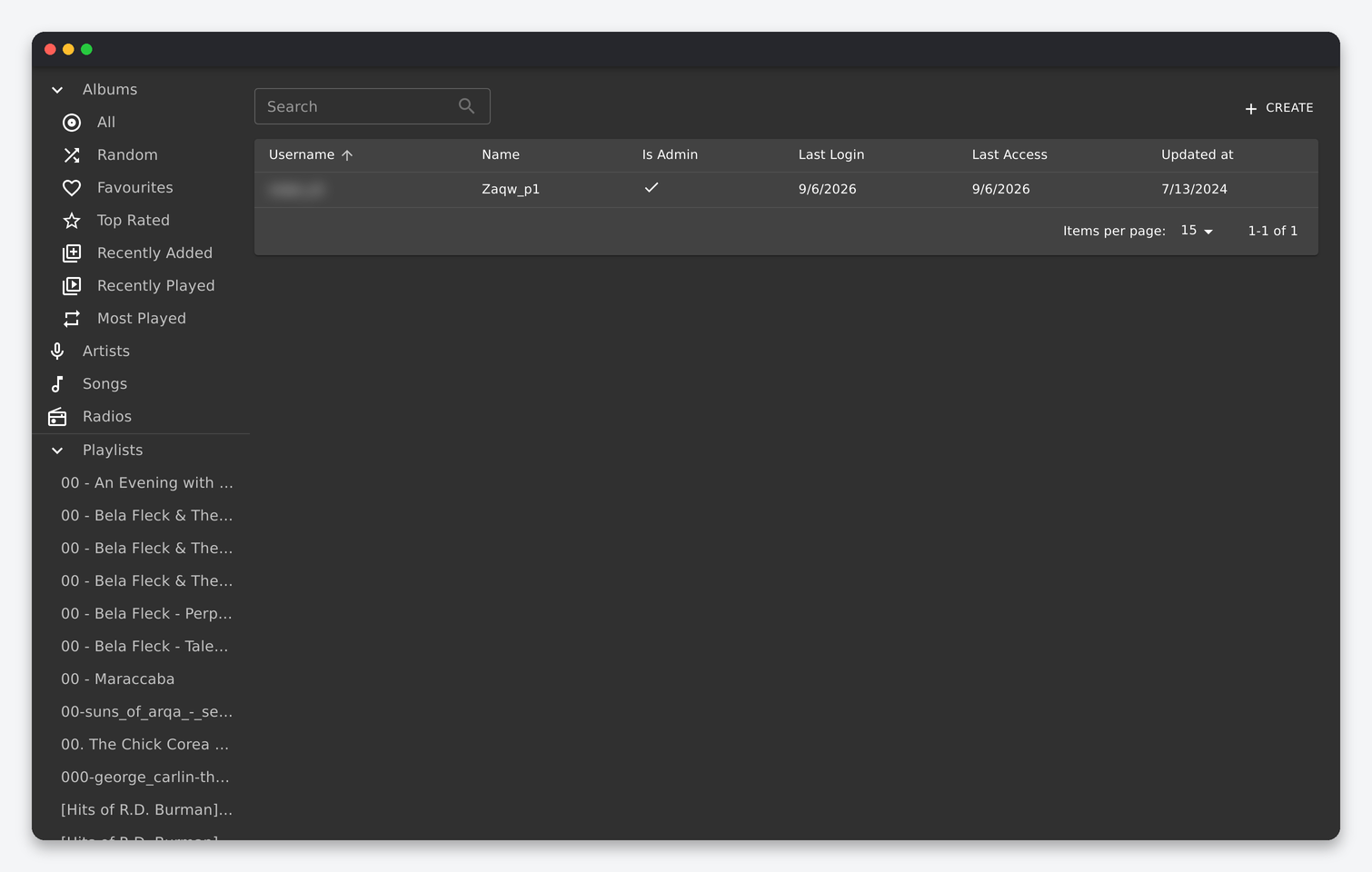
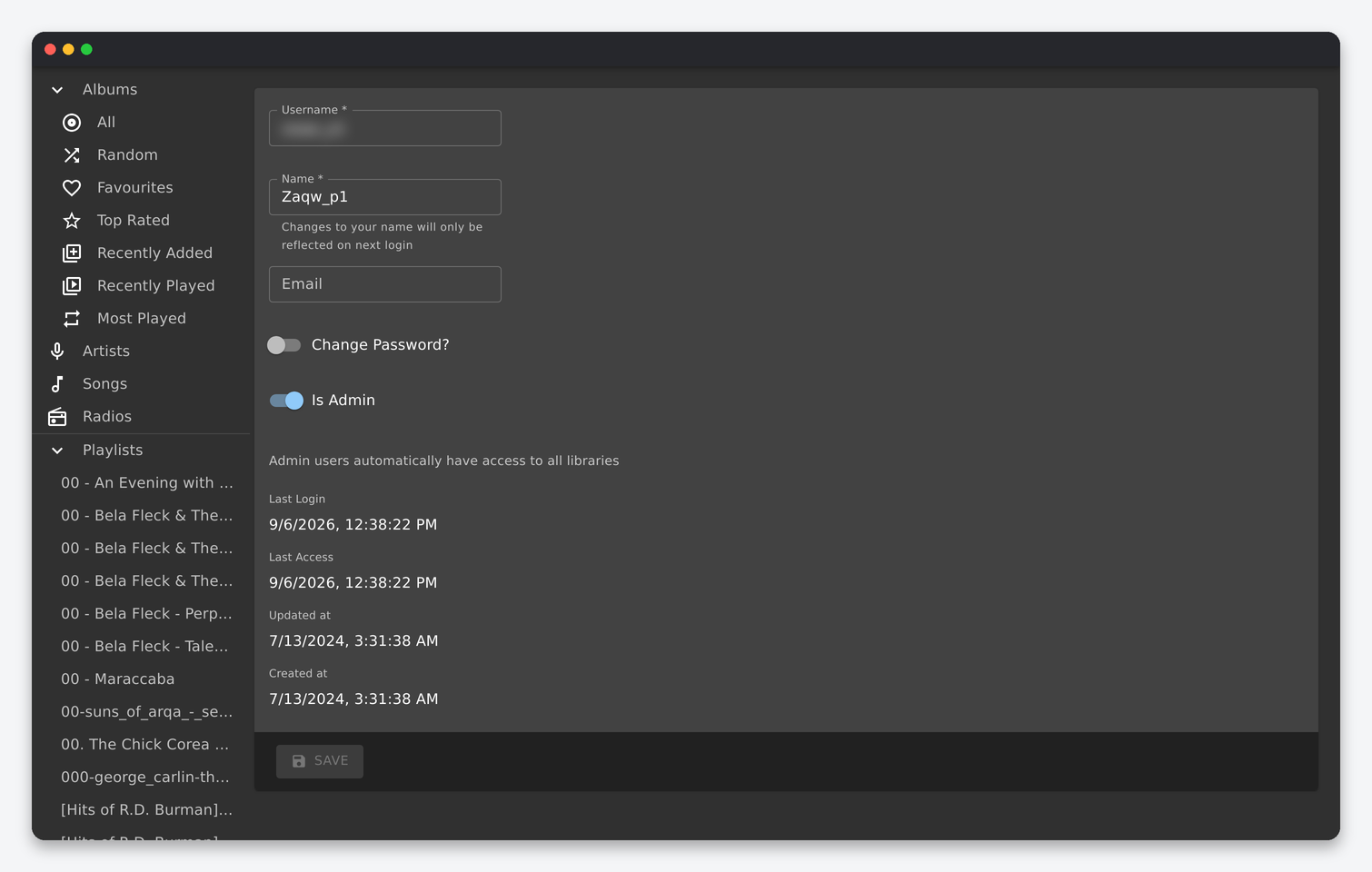
| Setting | What it does | Seedbox |
|---|---|---|
| Username | Login name, also used by Subsonic apps. | Your seedbox username for the first account; anything for the others. |
| Name | Display name. Changes show after the next login. | – |
| Optional; used for Gravatar avatars if enabled on the server. | Optional. | |
| Change Password? | Reveal the password fields. | Subsonic apps send the password with every request (hashed with a salt, but derived from the password), so use a password you do not use elsewhere. |
| Is Admin | Admins see every library and can manage users, players and transcodings. | Only your own account. Create non-admin users for family and friends; they get their own playlists, favourites and play counts but see the same library. |
| Last Login / Last Access / Updated / Created | Read-only activity fields. | Last Access also updates when a Subsonic app polls, which is how you notice a shared login. |
Each user has separate favourites, ratings, playlists and play history, and Navidrome’s “Most Played” and “Recently Played” are per user. Playlists can be marked public to share them with every user.
Players
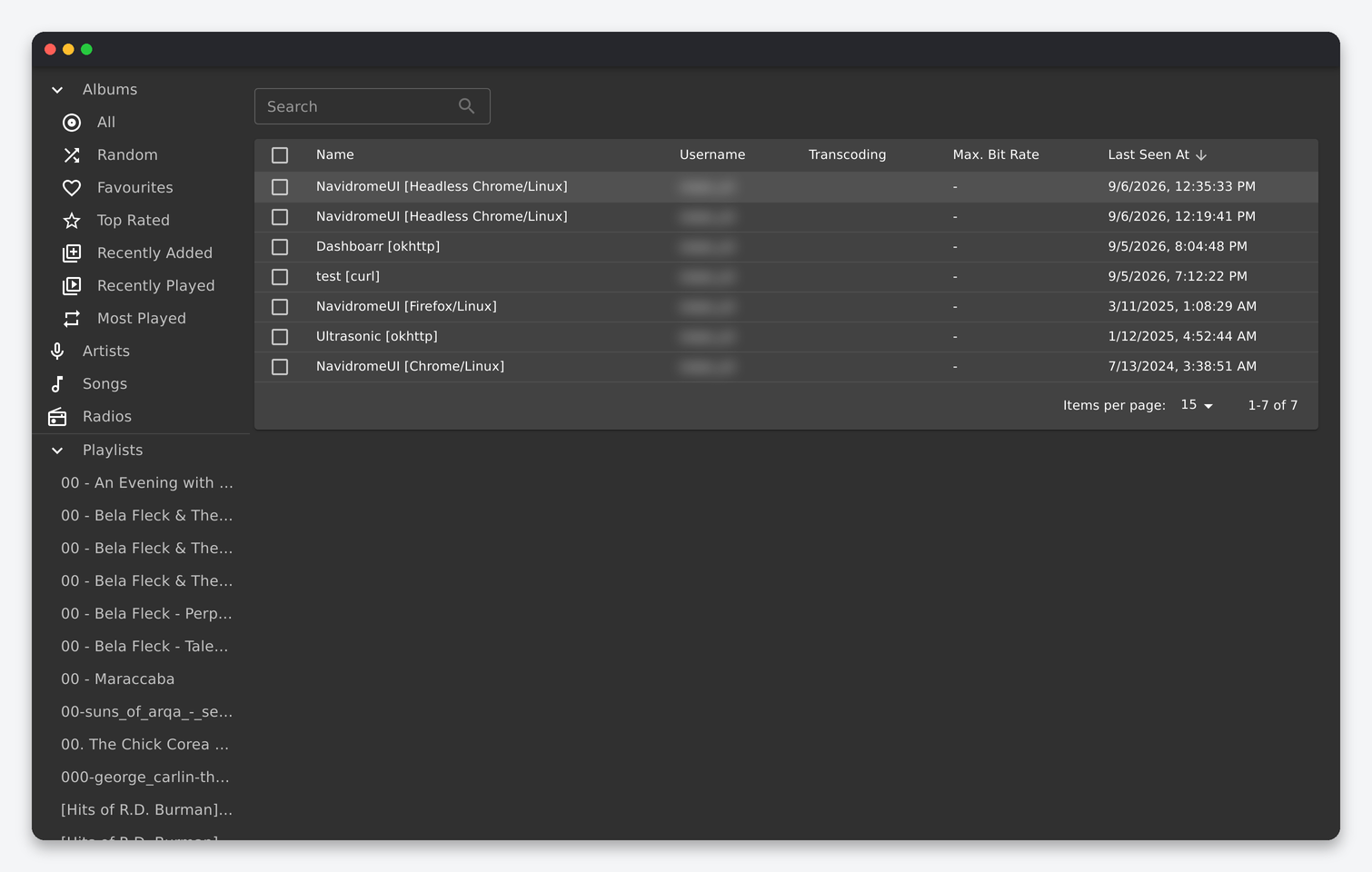
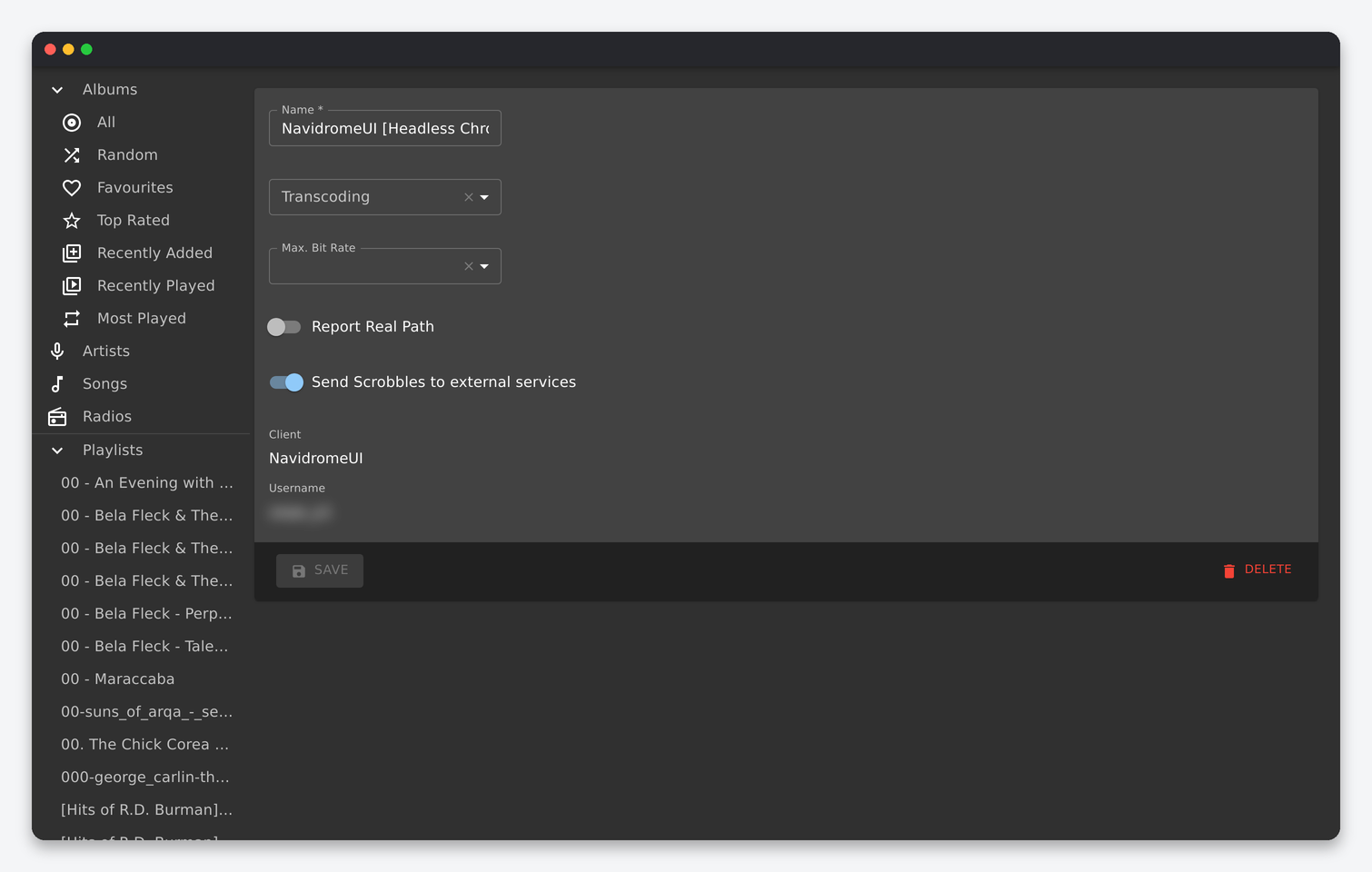
A player is created automatically the first time a client (the web interface, a Subsonic app such as Symfonium, Ultrasonic, play:Sub or DSub, or Dashboarr) talks to the server, named after the client and user agent. Settings per player:
| Setting | What it does | Seedbox |
|---|---|---|
| Name | Label, editable. | Rename “NavidromeUI [Chrome/Linux]” to something you recognise. |
| Transcoding | Which transcoding profile (from the Transcodings page) this player receives, or none for the original file. | None for players on Wi-Fi and for the web player on a fast connection; “opus audio” or “aac audio” for phones on mobile data. |
| Max. Bit Rate | Bit rate for the chosen transcoding; empty uses the profile’s default. | 128 for opus or 192 for aac on mobile is transparent for most listeners and cuts a FLAC library’s traffic by around 90 percent. |
| Report Real Path | Return the real file path in the API instead of an opaque one. | Off. Only tools that read files directly need it, and they cannot reach the seedbox filesystem anyway. |
| Send Scrobbles to external services | Forward this player’s plays to ListenBrainz or Last.fm. | On for your main players, off for test clients. |
Most Subsonic apps also have their own “max bit rate on mobile” setting, which they send with each stream request; the server-side player setting is the ceiling that applies even if the app asks for more. Delete stale players (old phones, test clients) from the list; it is only bookkeeping and they are recreated on the next connection.
Transcodings
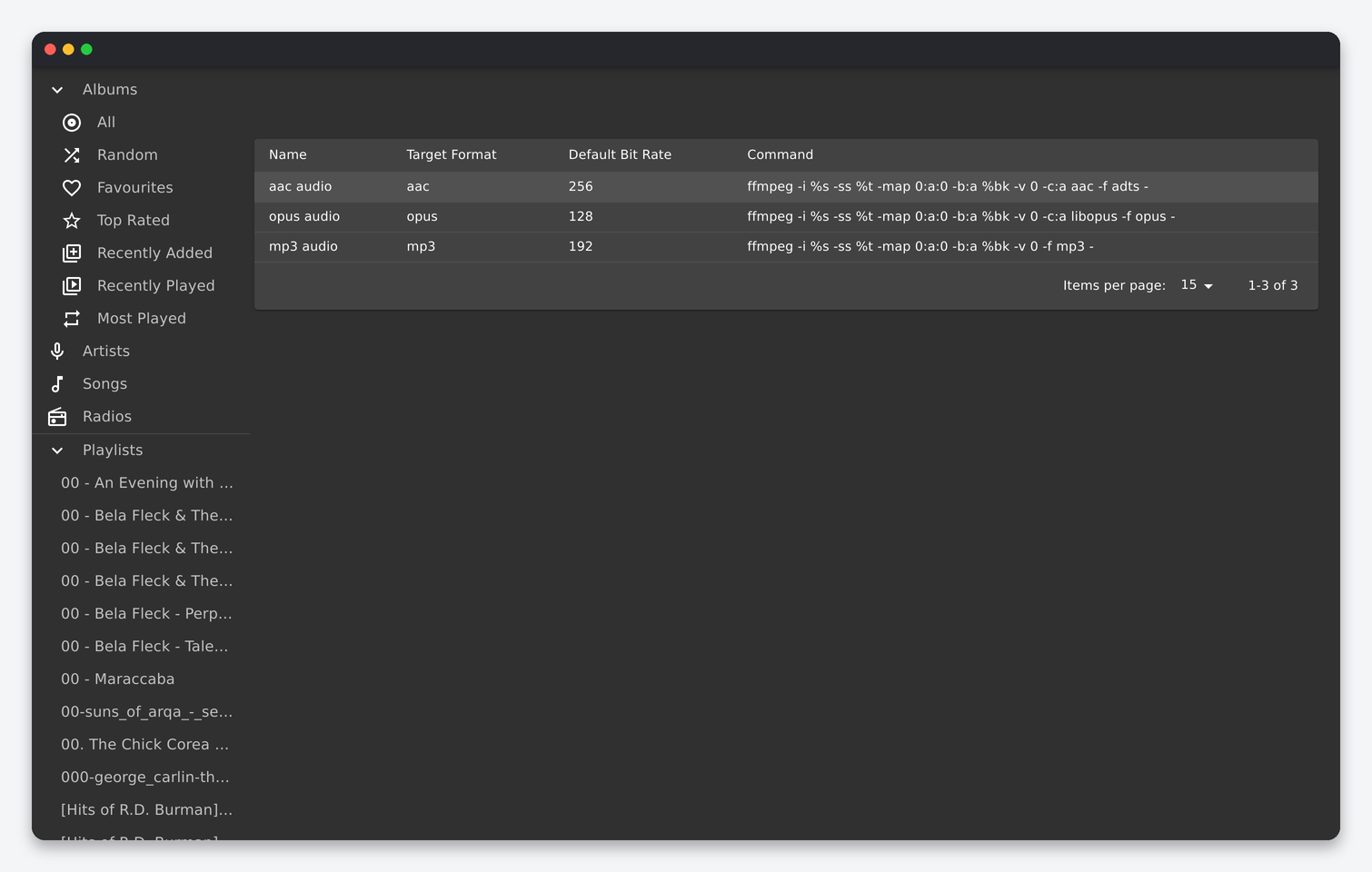
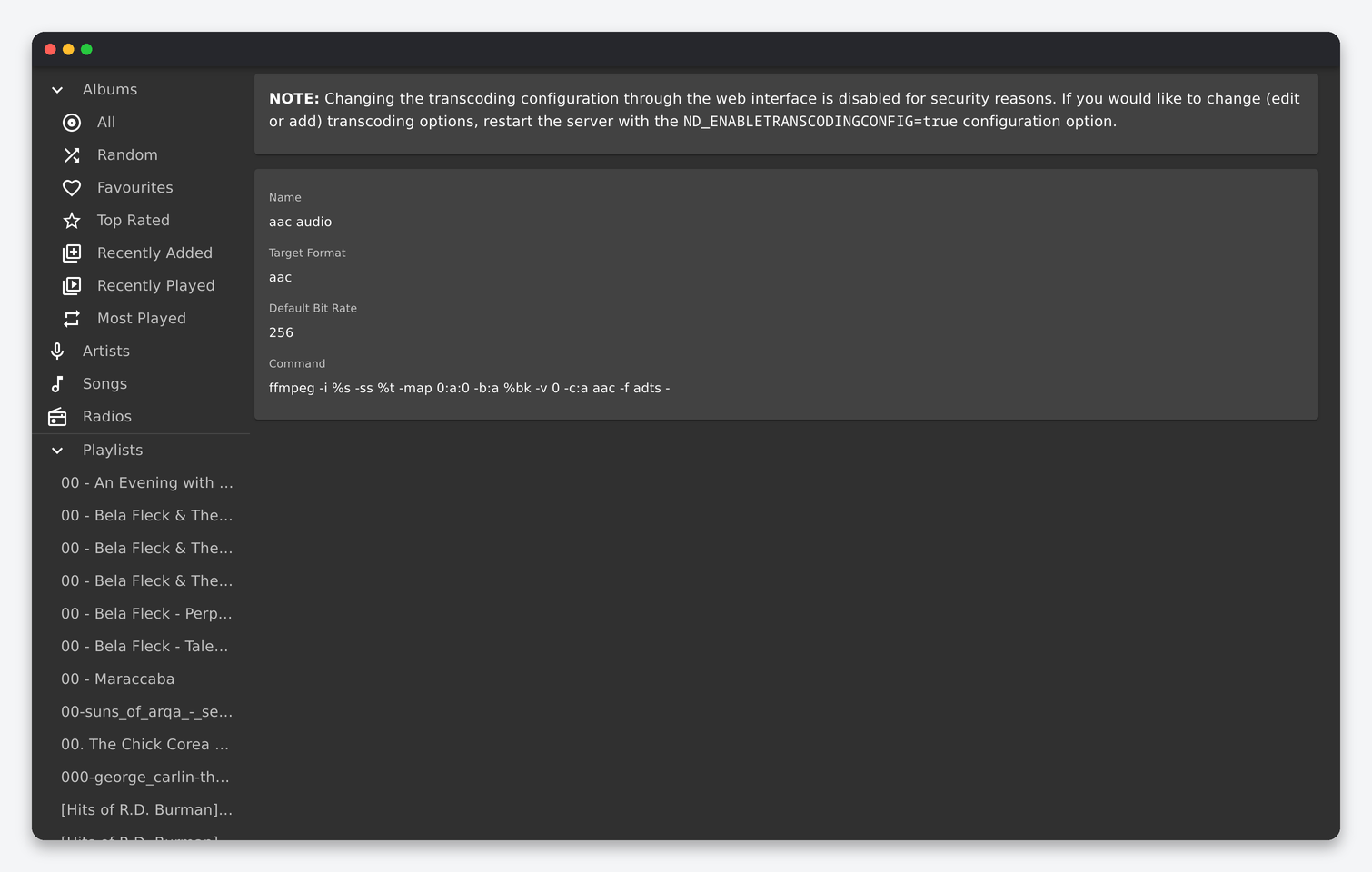
Three profiles ship by default: aac audio (256 kbps), opus audio (128 kbps) and mp3 audio (192 kbps), each an ffmpeg command line with placeholders for the file, seek offset and bit rate. Editing or adding profiles through the interface is disabled on the seedbox, as the page says, because the command runs as your user and Navidrome treats it as a security setting; the three defaults cover every common client. Opus is the best quality per bit and is supported by Android apps and browsers; aac is the safe choice for iOS apps; mp3 is for old car stereos and DLNA renderers. Transcoded output is cached under /data/cache up to the 500 MB limit, so a track transcoded once is served from cache the next time.
Server configuration you cannot change from the interface
Navidrome reads its server options from the environment the installer provides. The ones worth knowing, with their values on an EvoSeedbox:
| Option | Value | What it means |
|---|---|---|
| ND_MUSICFOLDER | /music (your downloads/music) | The library root. Point Lidarr’s root folder at /home/<user>/downloads/music and everything it imports appears here. |
| ND_SCANSCHEDULE / ND_SCANINTERVAL | 1h | Full scan every hour. The scan is incremental and cheap; you can also trigger one from the activity menu (the icon top right) at any time. |
| ND_SESSIONTIMEOUT | 120h | How long a web login lasts without activity. |
| ND_TRANSCODINGCACHESIZE / ND_IMAGECACHESIZE | 500M / 1000M | Disk reserved for transcoded audio and resized cover art, inside your quota. |
| ND_ENABLETRANSCODINGCONFIG | false | Transcoding profiles are read-only in the interface. |
| ND_LOGLEVEL | info | Log verbosity; the log is in the config folder. |
Options such as ND_LASTFM_APIKEY (for Last.fm scrobbling), ND_ENABLESHARING (public share links), ND_ENABLEDOWNLOADS, ND_DEFAULTTHEME or ND_UILOGINBACKGROUNDURL are server-wide and need a change to the container definition; ask support through a ticket if you want one of them.
Settings that are not under Settings
- Activity menu (top right icon): start a quick or full scan and see the scan progress.
- Album and artist pages: share links (when sharing is enabled), download (when downloads are enabled), and the three-dot menu with “Show in playlist” and tag information.
- Playlists: public flag, and smart playlists defined as
.nspJSON files placed in the music folder. - Your Subsonic app: caching, offline downloads and the mobile bit-rate cap live in the app, with the server’s player setting as the ceiling.
FAQ
Which settings should every seedbox user change?
A transcoding profile and bit rate on each phone’s player entry, ReplayGain Album in Personal, a non-admin user for each person you share with, and ListenBrainz scrobbling if you keep listening history.
New albums from Lidarr do not appear.
Wait for the hourly scan or start one from the activity menu. If they still do not appear, Lidarr’s root folder is not under downloads/music, or the files have no readable tags (Navidrome indexes by tags, not folder names).
Can I change the transcoding commands?
Not from the interface on the seedbox; the three built-in profiles are what the players can choose from. The bit rate is adjustable per player.
Where is the database?
navidrome.db in the config folder, next to the cache directory and the log. It holds users, playlists, ratings and play counts; the music itself is never modified.
Related: Navidrome on a seedbox · Lidarr settings reference · Navidrome in Dashboarr
Related articles
Put this into practice
EvoSeedbox ships with one-click app installs and up to 10 Gbps per box.
