Downloading files and folders
On this page ▾
By the end of this page you will have pulled files or a whole folder from your seedbox onto your PC with evoftp, and know what the Transfers drawer is telling you while it runs. An evoftp download always goes from the seedbox pane on the right into the folder open in the This PC pane on the left.
Choosing where the files will land
- In the This PC pane, open the folder you want the files in. When evoftp starts, this pane is at the Download folder from Settings (your Downloads folder unless you changed it).
- Check the breadcrumb above the pane — that path is where every download from now on is written.
Starting the download
- In the seedbox pane, select the files or folders you want (selecting files and folders).
- Click Download in the toolbar, or press Ctrl/⌘+D.
You can also drag the selection from the seedbox pane and drop it on the This PC pane, or double-click a single file. All four do the same thing.
A message at the bottom confirms it: Downloading 3 items to C:\Users\you\Downloads.
Downloading a folder
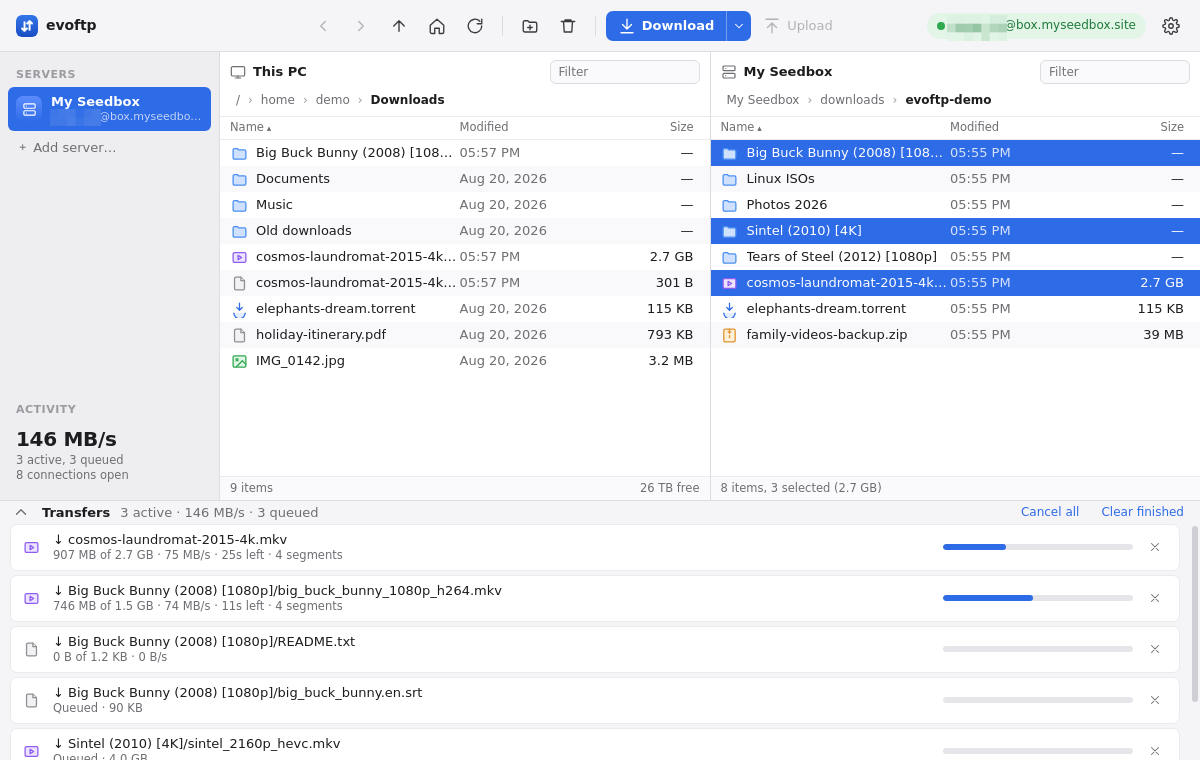
Select the folder and download it like a file. evoftp first scans it — the drawer shows Scanning folder… and a running count of files found — then creates the same folder tree on your PC and queues every file inside. Files are transferred up to three at a time (the Balanced profile default) and appear in the drawer as folder/file.
Reading the Transfers drawer
Each row shows one file. While it runs the line under the name reads, for example, 1.2 GB of 4.0 GB · 38 MB/s · 1m 14s left · 4 segments:
- Done of total — bytes written so far.
- Speed — this file’s rate over the last three seconds.
- Left — time remaining at that speed.
- Segments — how many connections are pulling this file at once; shown only when it is more than one. Files under 8 MB always use one.
Rows waiting their turn say Queued, finished rows say Done, and a row that hit a problem says Failed with the reason. The sidebar’s Activity section adds the total speed and the number of connections open.
Where the file is while it downloads
evoftp writes each file straight into place in the destination folder, at its full size from the first second, with a small <file>.evoftp-part file beside it that tracks progress. The sidecar disappears when the file completes. Do not open or move the file until its row says Done.
Note: evoftp has no overwrite prompt yet. A file that already exists in the destination is downloaded again from the start, unless its .evoftp-part sidecar is still there, in which case the download resumes.
Overview: evoftp guide.
Related articles
Put this into practice
EvoSeedbox ships with one-click app installs and up to 10 Gbps per box.
