Connecting with the .evoftp connection file
On this page ▾
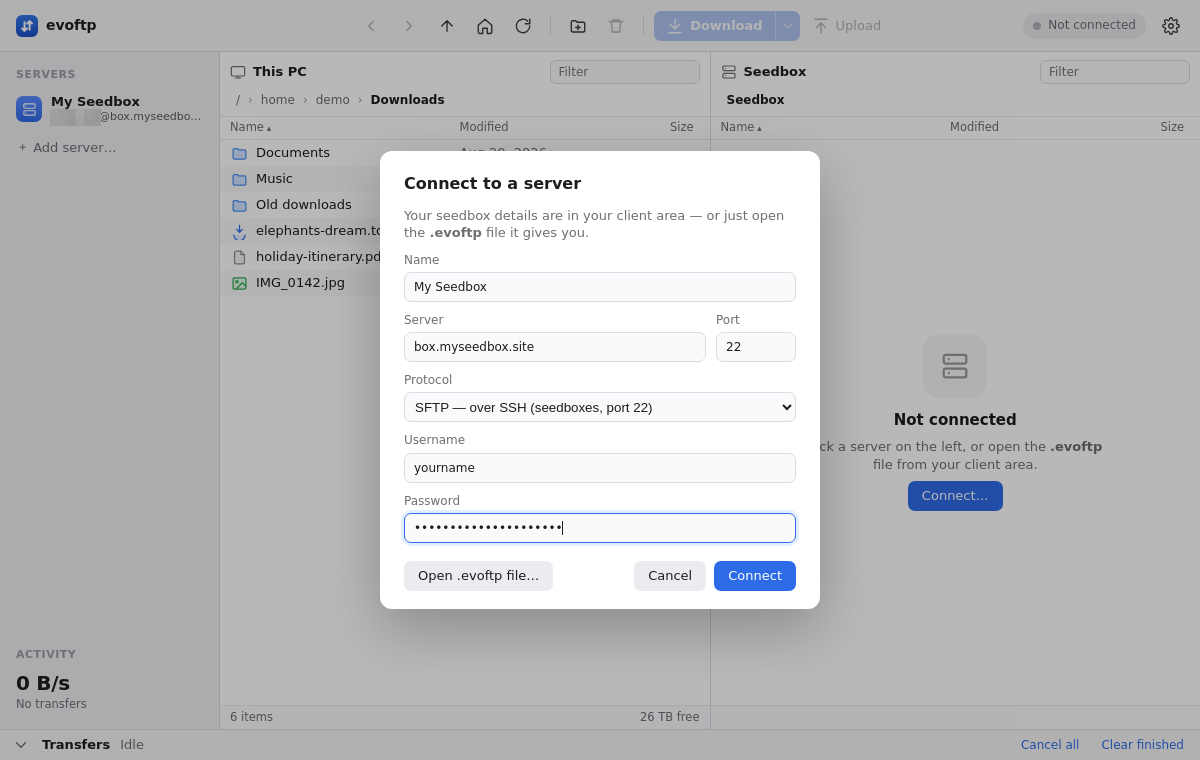
By the end of this page your seedbox is saved in the evoftp sidebar and connected, without typing a hostname or password. The evoftp connection file (yourname.evoftp) from your client area carries all the details; double-clicking it does the rest.
Getting the connection file
- Log in to your client area and open your seedbox service page.
- In the Desktop app row, click Connection file.
- Your browser saves a small file called
yourname.evoftp.
The file is built in your browser at the moment you click, from the credentials shown on that page. It is never stale: if you change your seedbox password, click Connection file again and the new file has the new password.
Opening it
- Double-click the
.evoftpfile. - evoftp opens, or comes to the front if it is already running, adds the server to the sidebar and connects.
You only need the file once. The server stays in the sidebar afterwards, so next time just click it. If you open a second file for the same server later, evoftp updates the saved entry rather than adding a duplicate.
Note: The file holds your seedbox password in plain text. Once the server is in the sidebar, delete the file or keep it somewhere private.
Opening it from inside evoftp
If double-clicking did nothing (the file type is not registered with your system yet), do this:
- Start evoftp.
- Click Connect… (or + Add server… in the sidebar).
- Click Open .evoftp file… and pick the file.
You can also make the double-click work for next time: on Windows run the exe once from its permanent folder; on macOS right-click the file → Open With → evoftp and tick “Always Open With”; on Linux right-click → Open With → the AppImage.
Using an evoftp:// link instead
A link of the form evoftp://username:[email protected]:22/downloads?name=My%20seedbox does the same job as the file: clicking it opens evoftp and adds the server. Port 22 and the path are optional; name is the label shown in the sidebar. Adding &protocol=ftps (or ftp, ftps-implicit) switches the protocol; without it the link means SFTP. Plain ftp://, ftps:// and sftp:// URLs passed to evoftp on the command line are understood too.
What is in the file
It is plain JSON, so you can write one yourself for any server:
{"name": "My seedbox", "host": "box.myseedbox.site", "port": 22,
 "username": "yourname", "password": "…", "path": "/downloads"}
name — the sidebar label. host — the server hostname. port — defaults to the protocol’s standard port (22 for SFTP) if left out. username and password — your login. path — the remote folder to open first; leave it out to start in your home folder. protocol — optional: sftp (the default), ftps, ftp or ftps-implicit; the client-area file is always SFTP.
If the login fails
The password in the file is your seedbox (SFTP) password, which can differ from your client-area password. Download a fresh connection file and open it: the sidebar entry is updated in place. You can also right-click the server in the sidebar → Edit… and correct it by hand.
Overview: evoftp guide.
Related articles
Put this into practice
EvoSeedbox ships with one-click app installs and up to 10 Gbps per box.
