Get Warned Before Your Seedbox Runs Out of Space
On this page ▾
A full disk means stalled downloads and unhappy *arr apps. This flow checks free space every hour and messages you once it drops under your threshold, so you can clean up in time.
Set Up Telegram (Complete Guide)
You need two things from Telegram: a bot token (so Liteflow can send messages) and a chat ID (so it knows where to send them). Both take about two minutes and you only do this once — every Telegram flow can reuse the same connection.
1. Create your bot with BotFather
- In Telegram, search for @BotFather (the official one has a blue verification tick) and open the chat.
- Send
/newbot. - When asked for a name, type anything — this is the display name, for example My Seedbox.
- When asked for a username, it must be unique and must end in
bot, for examplejohns_seedbox_bot. If Telegram says it is taken, try another. - BotFather replies with a message containing your token. It looks like
7123456789:AAF3k9…— a number, a colon, then a long string. Copy the whole thing.
Keep the token private. Anyone who has it can send messages as your bot. If it ever leaks, send /revoke to BotFather to get a new one, then update the connection in Liteflow.
2. Start a chat with your bot
Telegram bots cannot message you until you message them first. Open the chat with your new bot (BotFather gives you a t.me/… link) and press Start or send any message. Skipping this step is the number-one cause of a “chat not found” error later.
3. Find your chat ID
Either method works — use whichever you prefer.
Method A — the official way, no third-party bot. In a browser, open this address with your token in place of YOUR_TOKEN:
https://api.telegram.org/botYOUR_TOKEN/getUpdatesYou will see text like this — your chat ID is the number after "chat":{"id"::
{"ok":true,"result":[{"update_id":12345,"message":{"message_id":1,"from":{"id":987654321,…},"chat":{"id":987654321,"first_name":"John","type":"private"},"text":"/start"}}]}If the result is empty ("result":[]), send your bot another message and reload the page.
Method B — a helper bot. Search for @getmyid_bot in Telegram, press Start, and it replies with Your user ID. For a private chat with your own bot, your user ID is the chat ID. This is the method the Telegram step in Liteflow suggests in its hint box.
Sending to a group or channel instead
- Group: add your bot to the group, send a message in the group, then use Method A — the group’s chat ID is a negative number (for example
-1001234567890for a supergroup). By default bots only see messages that mention them or start with/; to let the bot read everything in a group, send/setprivacyto BotFather, pick the bot, and choose Disable. - Channel: add the bot as a channel administrator (Post Messages permission), then use
@yourchannelnameas the chat ID for public channels, or the numeric ID from Method A for private ones.
4. Connect Telegram in Liteflow
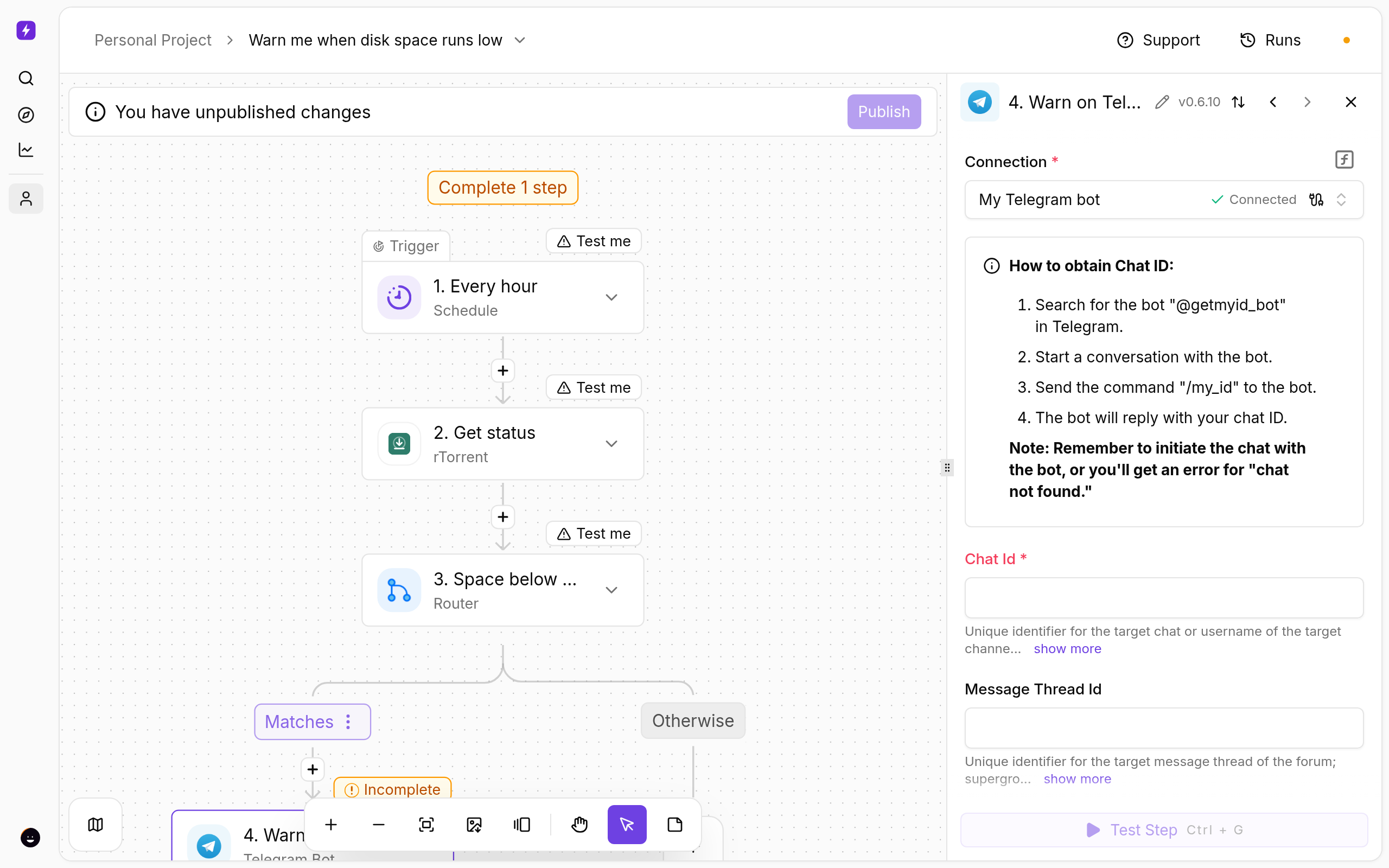
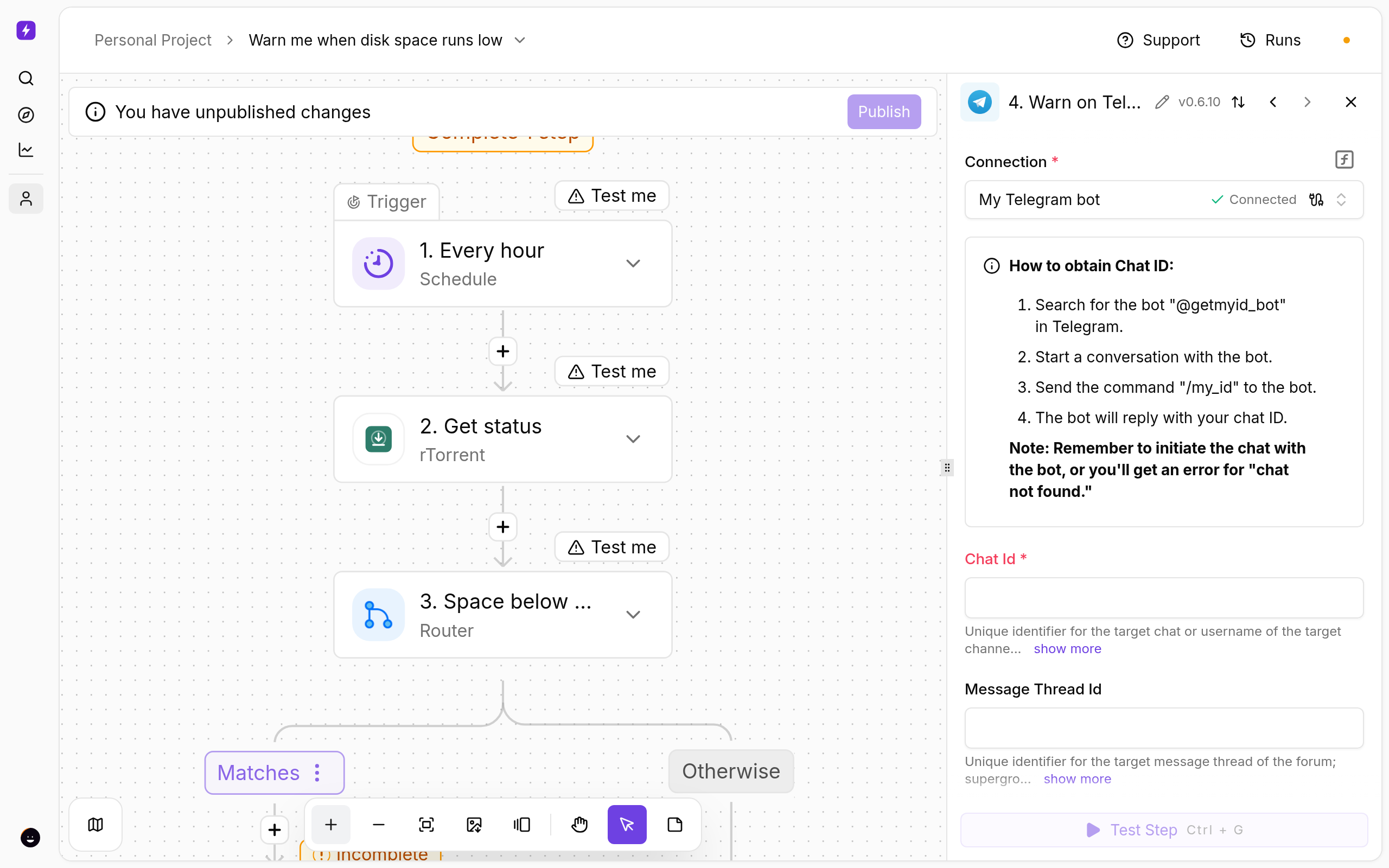
- In the flow, click the Telegram step. Under Connection choose Create connection.
- Give it a name (for example My Telegram bot) and paste the bot token. Save.
- Enter your Chat ID in the Chat Id field.
- Click Test step. A message should appear in your Telegram chat within a few seconds. If it does, you are done — the same connection is now available to every other Telegram flow you build.
Formatting the message
- The Message box accepts plain text with values from earlier steps; click into it to insert fields such as the torrent name or ratio.
- Set Format to Markdown or HTML if you want bold or links. In Markdown, characters like
_and*in torrent names can break the message — use HTML (<b>…</b>) for anything that includes release names. - Turn on Disable Web Page Preview if your messages contain links and you do not want big preview cards.
- Disable Notification sends the message silently — handy for the daily report.
Telegram errors and what they mean
| Error in the run | Cause | Fix |
|---|---|---|
Unauthorized |
Wrong or revoked token | Copy the token again from BotFather (the whole string including the part before the colon) and update the connection. |
chat not found |
You never messaged the bot, or the chat ID is wrong | Open the bot, press Start, then re-check the chat ID with Method A. |
bot was blocked by the user |
You blocked or deleted the bot chat | Unblock it and press Start again. |
not enough rights / CHAT_WRITE_FORBIDDEN |
Bot is not an admin of the channel, or the group restricts bots | Make the bot a channel administrator, or allow bots in the group settings. |
can't parse entities |
Markdown broken by _ or * in a torrent name |
Switch Format to HTML, or leave it unset for plain text. |
Open the template
- From the client area, open your seedbox service and click Open Liteflow on the Automation card.
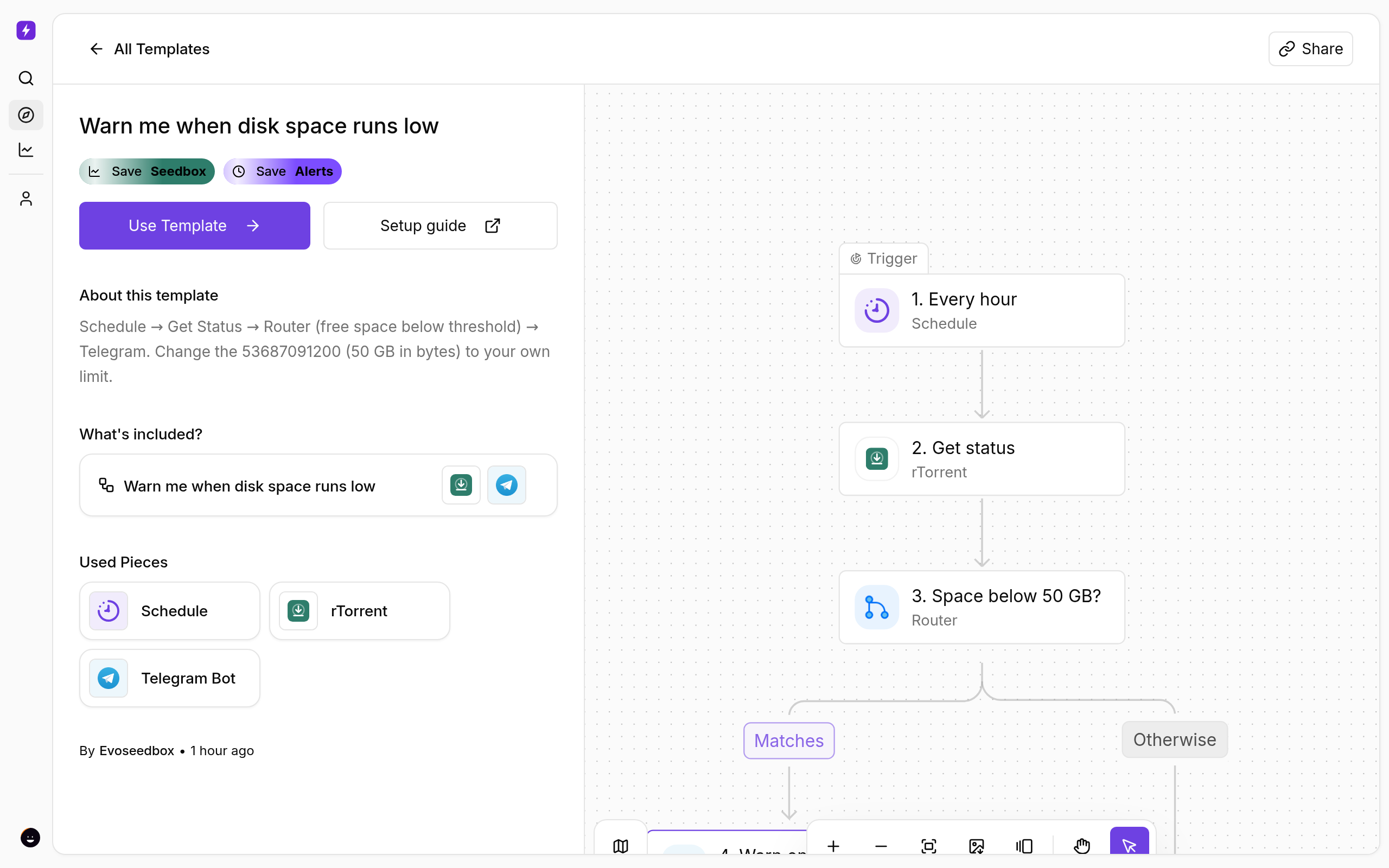
- Click Create New → Start from Template and choose Warn me when disk space runs low.
- Click Use Template, keep Personal Project, and Confirm. The flow opens in the builder with every step in place.
Set your threshold
- Click the Space below 50 GB? Router step. The condition compares free bytes with
53687091200(50 GB). Replace it with your own limit in bytes — for example 100 GB is107374182400. - Click Warn on Telegram, create the connection with your bot token and enter your chat ID.
How often
The trigger runs every hour. Once you are under the limit you will get one message per hour until you free space — change the trigger to Every Day for a gentler reminder.
Test and publish
- Click a step and use Test step to see real data from your seedbox before going live.
- Click Publish. The flow is now on; the switch on the Automations page turns it off again.
- Open Runs whenever you want to see what fired and what each step returned.
If Something Does Not Work
- Never fires — open Runs: if the Router always takes Otherwise, your threshold is lower than your free space (remember it is in bytes).
- No message arrives — open Runs. A red Telegram step usually means a wrong chat ID, or you never sent the bot a first message.
- The seedbox step fails — open Connections and reconnect My seedbox (rTorrent). It uses the same username and password as ruTorrent.
Variations
- Add a second branch that stops seeding the largest completed torrents when space is critical.
- Post to Discord instead by swapping the Telegram step for Post to Discord.
More
New to Liteflow? Start with Liteflow: Automate Your Seedbox. Want a template that is not here? Click Suggest it on the Automation card in the client area.
Related articles
Put this into practice
EvoSeedbox ships with one-click app installs and up to 10 Gbps per box.
