Extracting an Archive with ruTorrent
On this page ▾
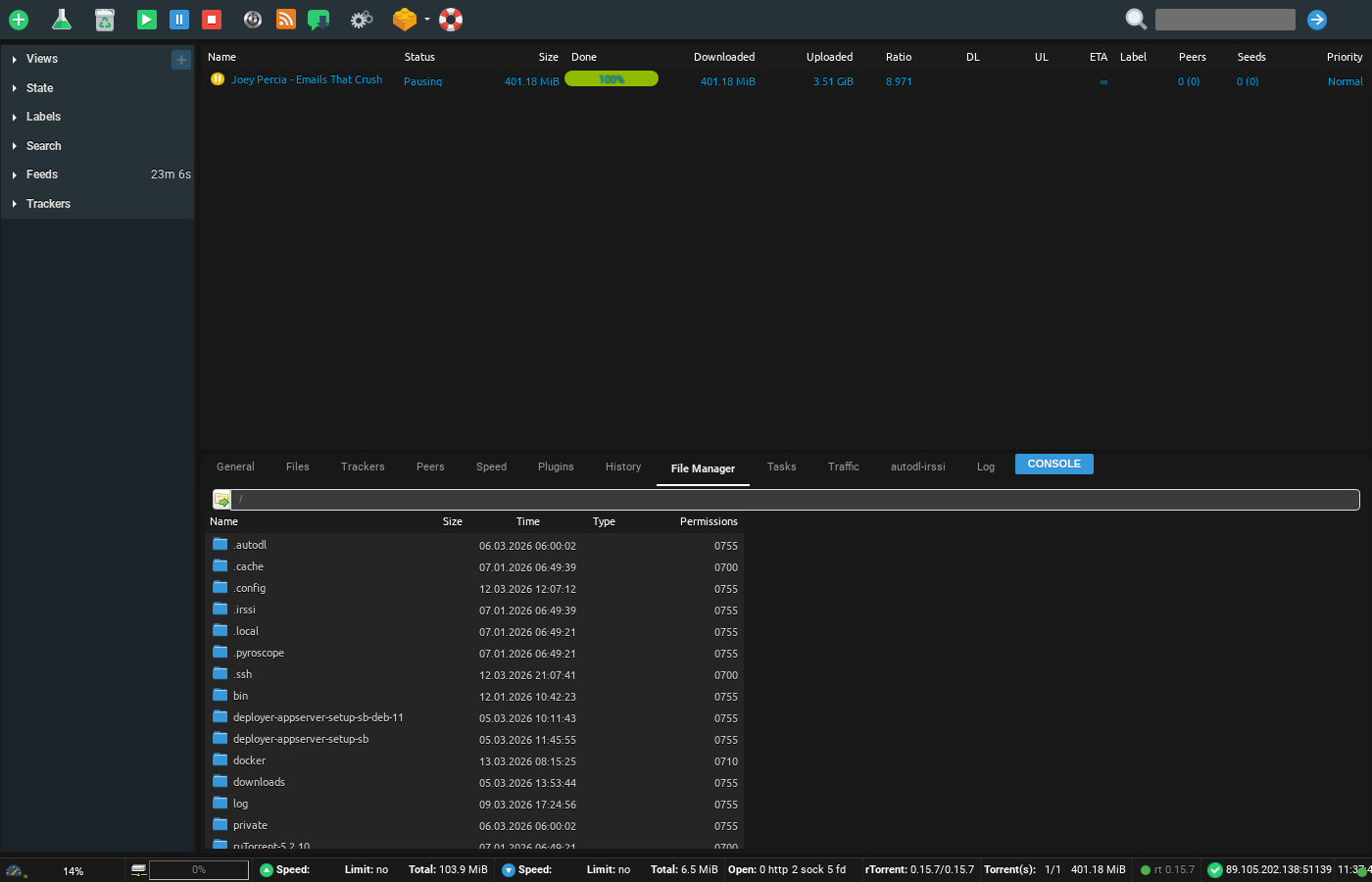
Because sometimes you only want to remove a few files from an archive.
1. With ruTorrent running, use the Filemanager tab to navigate to the archive you want to expand.
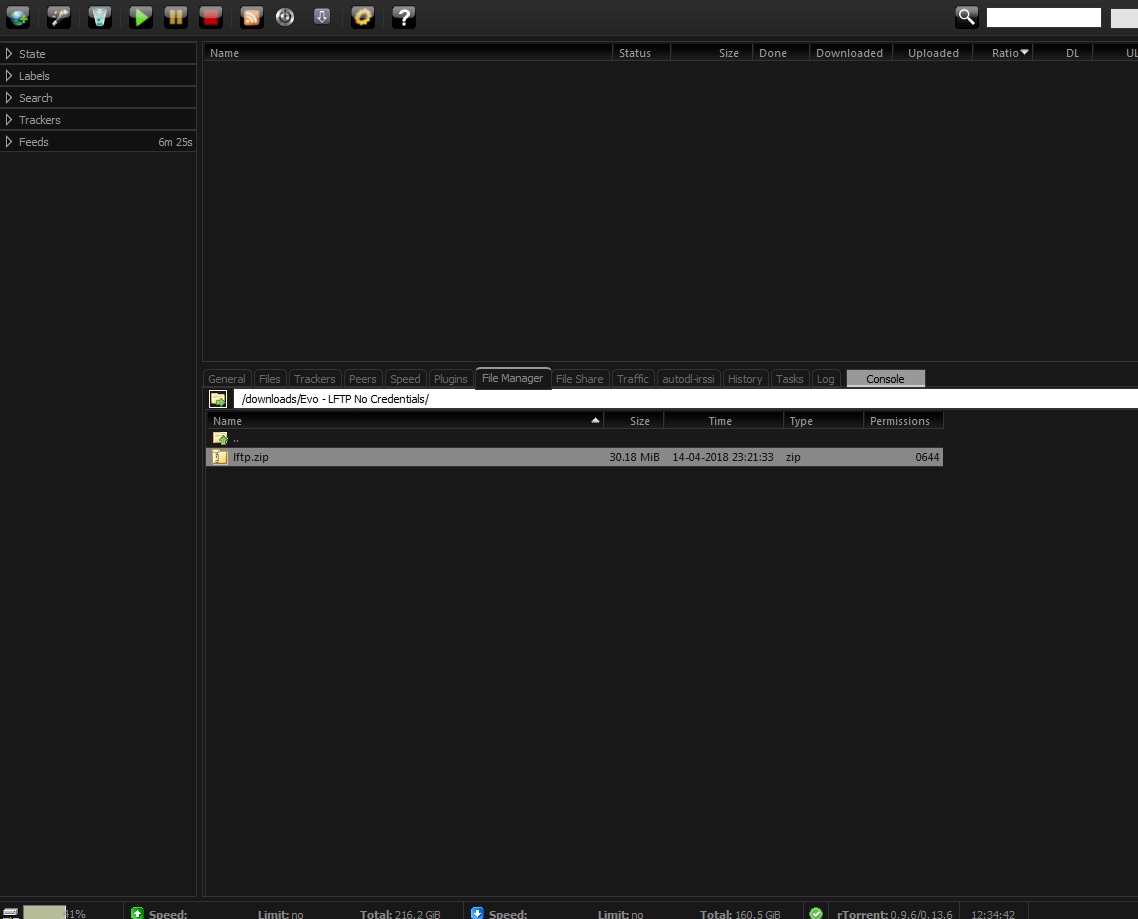
2. Right clicking on the archive with open a menu box. Select "extract here"
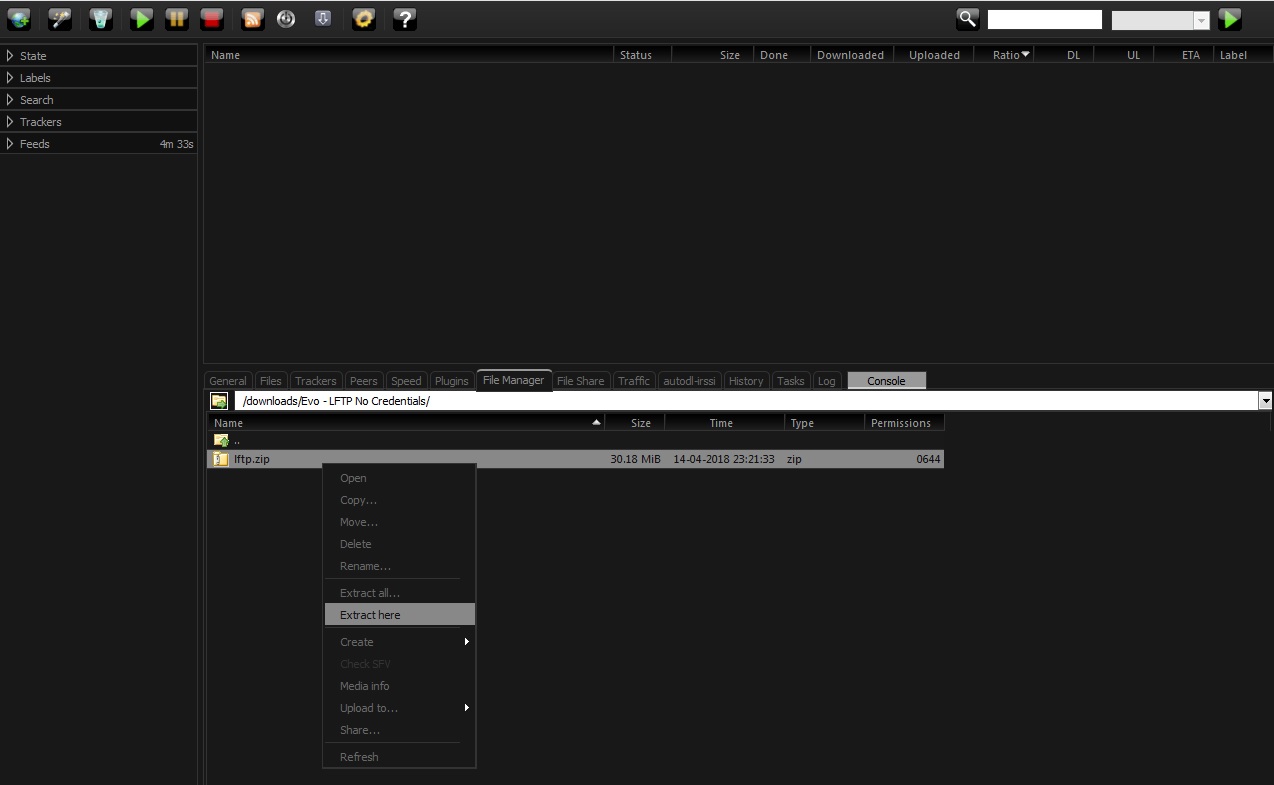
3. Make sure you are happy with the destination directory and click start.
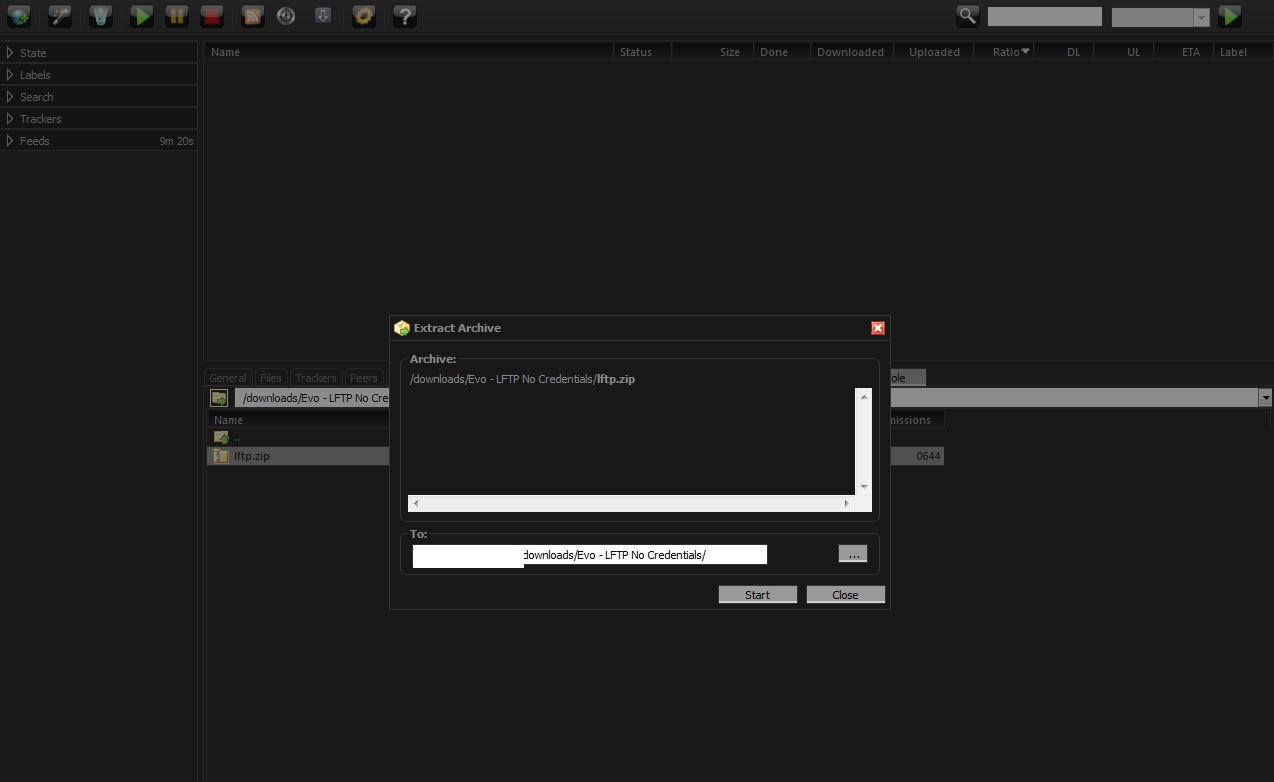
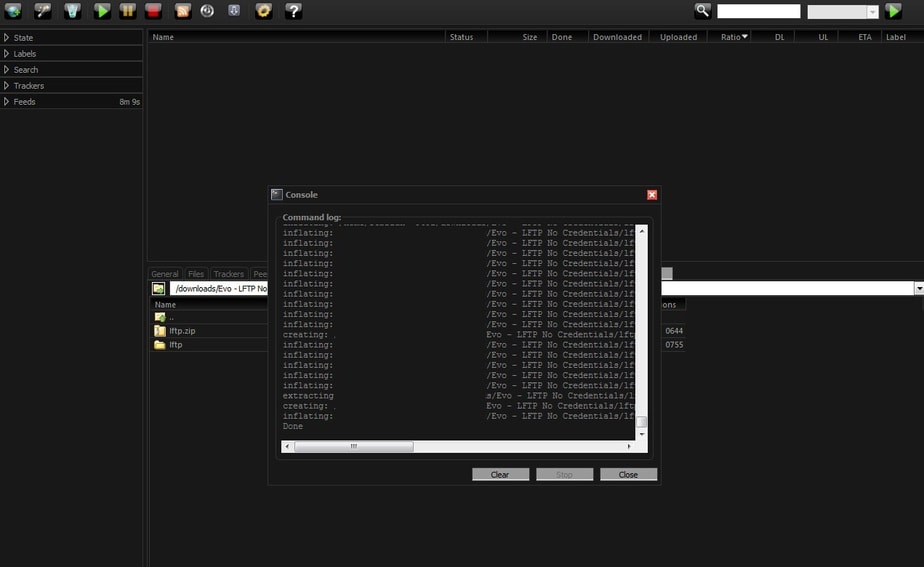
4. A dialog box will pop up as ruTorrent expands the archive. Once it finishes, click close and your new archive will be waiting for you!
Extracting Archives on Your Seedbox
Many torrents are distributed as compressed archives (.rar, .zip, .tar.gz). You can extract them directly on your seedbox without downloading the archive to your PC first.
Steps to Extract
- Open ruTorrent and go to the File Manager tab
- Navigate to the archive file (.rar, .zip, .tar.gz, .7z)
- Right-click on the archive file
- Select Extract here (extracts to the current folder) or Extract to… (choose a destination)
- Wait for extraction to complete — progress appears in the ruTorrent console
Supported Archive Formats
- .rar — Most common in torrent scene releases (including multi-part .r00, .r01)
- .zip — Universal format, supported everywhere
- .tar.gz / .tar.bz2 — Common on Linux
- .7z — High compression ratio
Tips
- Multi-part RAR archives (.r00, .r01, etc.) extract automatically — just extract the main .rar file
- If extraction fails, the archive may be corrupted or incomplete. Re-download the torrent first.
- After extraction, you can delete the archive to save storage space
Related
To create archives, see Creating an Archive.
Related articles
Put this into practice
EvoSeedbox ships with one-click app installs and up to 10 Gbps per box.


