Advanced tuning: segments, files, connections, window
On this page ▾
By the end of this page you will know what each of the four evoftp advanced settings does and which values are safe. Most people never need this section; if a profile fits, use the profile and stop here.
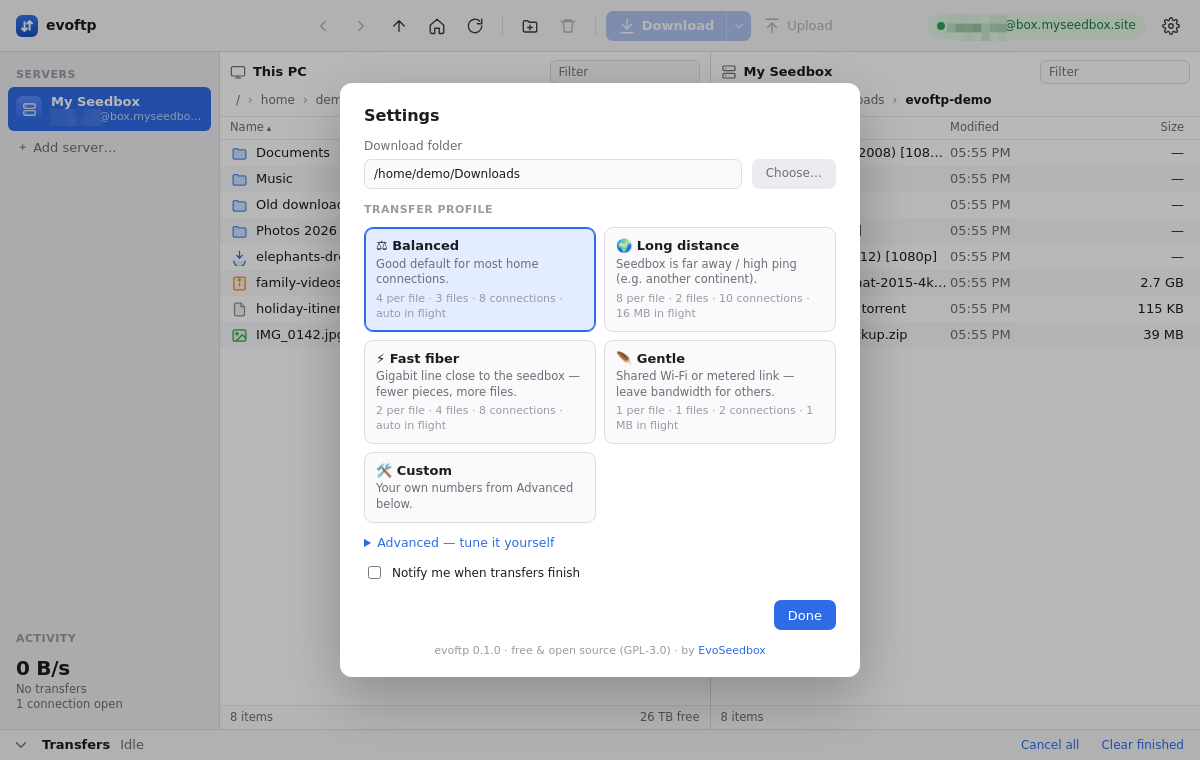
Opening the Advanced section
- Click the gear icon at the top right.
- Click Advanced — tune it yourself to expand it. Clicking the Custom card expands it too, and it opens on its own when your saved settings are already Custom.
- Adjust, then click Done. The toast confirms the numbers that were saved.
Understanding the four settings
Connections per file (segments), 1–8 — big files are split into this many pieces, each on its own connection. More segments help when a single connection to the seedbox is slower than your line, which is usual over long distances. Files under 8 MB are never split. Download ▾ overrides this per download.
Files at once, 1–5 — how many files transfer in parallel when you queue a folder. Raise it for folders of small and medium files; lower it if you want one file to finish first.
Total connections, 2–12 — the hard cap on open SSH connections to your seedbox. Segments and parallel files share this pool: 4 segments times 3 files would want 12, but with a cap of 8 the files share the connections and wait for free ones. Whatever the other sliders say, evoftp never opens more than this.
Data in flight per connection — Auto (from ping), 1 MB, 2 MB, 4 MB, 8 MB or 16 MB. How much data each connection keeps requested ahead of what has arrived. A long round trip needs more in flight to stay full; Auto measures the ping and sizes it, and is the right choice unless a distant seedbox stays slow, in which case try 16 MB.
Knowing how Custom is chosen
evoftp does not store “Custom” as a separate mode. Whenever the sliders match a built-in profile exactly, that profile is highlighted; the moment any value differs, the highlight moves to Custom. Moving a slider back to a profile’s numbers highlights that profile again. Clicking a profile card writes its numbers into the sliders.
Staying within sane limits
- Do not look for a way past 12 Total connections — the slider stops there on purpose. Every connection is a separate SSH login, and the cap is what keeps the server from seeing a flood from one client.
- Eight segments is the most a file gets. In our tests, 8 segments with 16 MB in flight brought a distant seedbox to line speed; beyond that the limit is your line, not the split.
- If a change makes things slower, click Balanced to return to the defaults (4 · 3 · 8 · Auto).
- Test with one large file and watch the sidebar speed; change one setting at a time.
Note: these settings shape downloads only. Uploads use a single connection per file regardless of the sliders.
Overview: evoftp guide.
Related articles
Put this into practice
EvoSeedbox ships with one-click app installs and up to 10 Gbps per box.
