evoads for Android: Block Ads in Every App Without Root
On this page ▾
The evoads app for Android turns on ad-blocking DNS for every app on the phone with one sign-in. It is included with your EvoSeedbox plan, needs no root and no browser extension, and works on Wi-Fi and mobile data alike. This page covers installing it, signing in, what the on-screen states mean, the quick-settings tile, updates, and the built-in Private DNS alternative for phones where you would rather not install anything.
What the app does
Android lets one app at a time act as a VPN. evoads uses that slot only to catch DNS lookups: every name a game, browser or streaming app asks for is answered by your personal evoads resolver, and names on the blocklists come back as 0.0.0.0. Your actual traffic does not go through a tunnel; it leaves the phone directly, so speed is unchanged and there is nothing to route or slow down. The app is a fork of Intra, Jigsaw’s open-source DNS-over-HTTPS client, with the analytics removed and the resolver fixed to evoads.
Because it occupies the VPN slot, it cannot run at the same time as another VPN app, including the WireGuard app for your seedbox. That is not a loss: inside your seedbox WireGuard tunnel DNS already goes through evoads, so switch to WireGuard when you need the tunnel and back to evoads when you do not.
Requirements
- An active EvoSeedbox plan and its seedbox username and password (the ruTorrent login).
- Android 5 or newer. The APK is 64-bit and 32-bit, ARM and x86.
- Permission to install apps from your browser (Android asks once).
Step 1: install
- On the phone, open evoseedbox.com/dl/evoads/android. The APK downloads.
- Tap the download notification. If Android says the browser is not allowed to install unknown apps, tap Settings, allow it, and go back.
- Tap Install. Google Play Protect may show “app not verified” because the app is not on the Play Store; choose Install anyway.
The app appears as evoads with a red icon.
Step 2: first run and sign in
- Open evoads. A three-page introduction explains what the app does; tap Next twice and Accept on the last page.
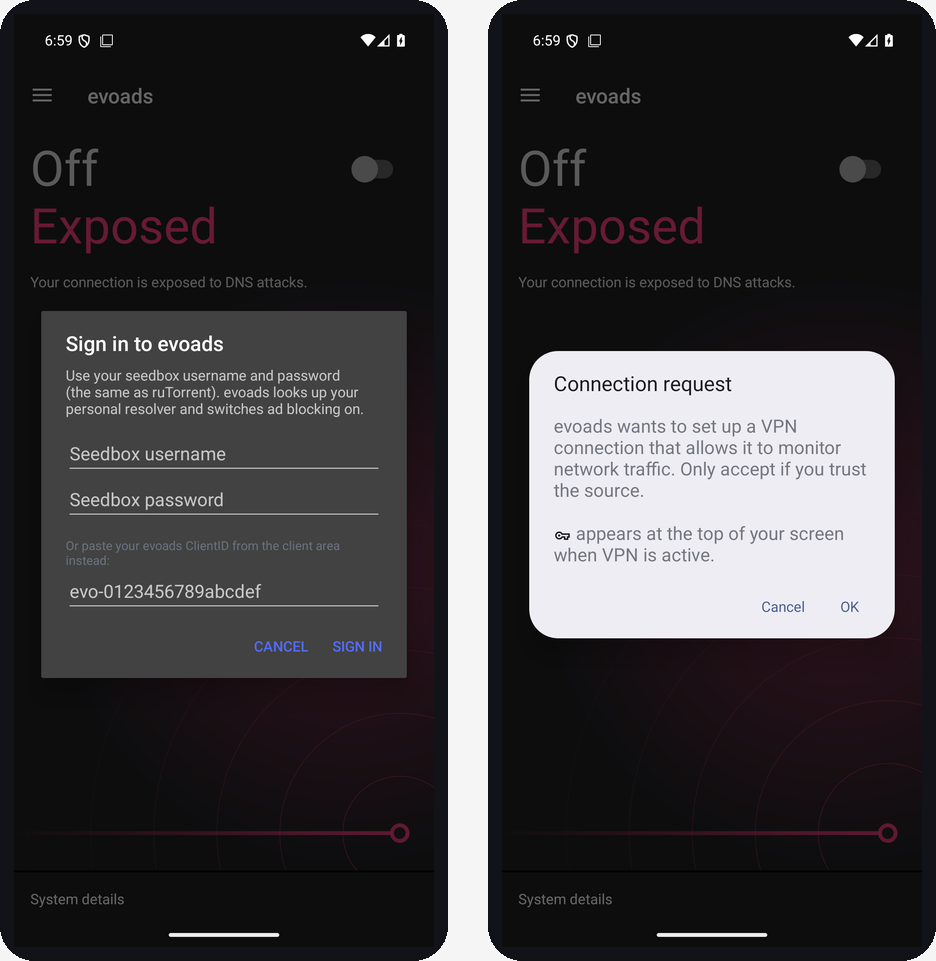
- The Sign in to evoads dialog asks for your seedbox username and seedbox password, the same pair you use for ruTorrent. Tap Sign in. The app looks up your personal resolver and stores its ClientID on the phone; your password is not kept.
- Android shows a Connection request: “evoads wants to set up a VPN connection that allows it to monitor network traffic.” Tap OK. A key icon appears in the status bar while evoads is on.
The dialog also has a field for pasting your ClientID from the client area instead of the username and password; it starts with evo- and works like a password. If you press Sign in with an empty field the dialog says “Enter your username and password, or a ClientID.”
Wrong credentials return a sign-in error. After eight failed attempts in fifteen minutes the login service pauses that address; wait and try again.
Step 3: on, off and what you see
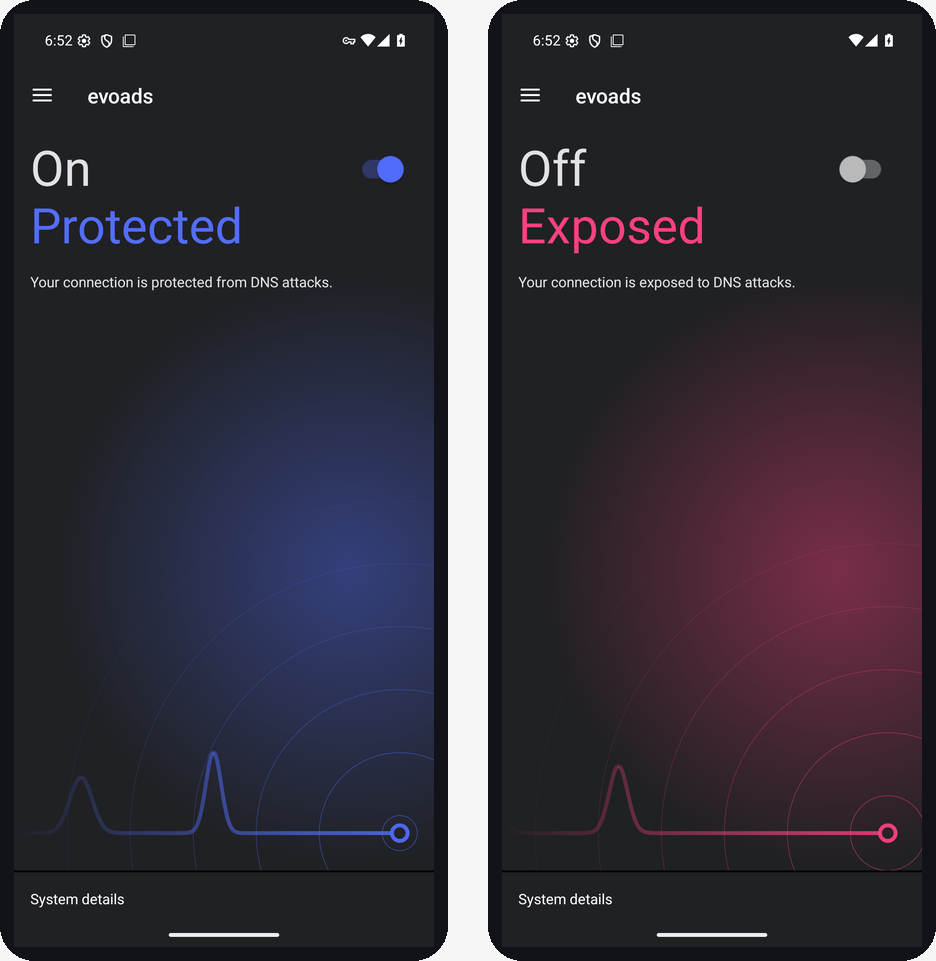
- On / Protected with a blue screen means every app’s DNS goes through your evoads resolver. The status bar shows the key icon.
- Off / Exposed with a pink screen means the phone is back on the network’s own DNS.
- On / Waiting… with “Your device is offline” appears right after the first sign-in and stays until the first lookup passes through. Open any website and it flips to Protected within a few seconds; on a phone with apps running in the background this happens on its own.
- A persistent notification shows the state and offers a quick way to stop the service.
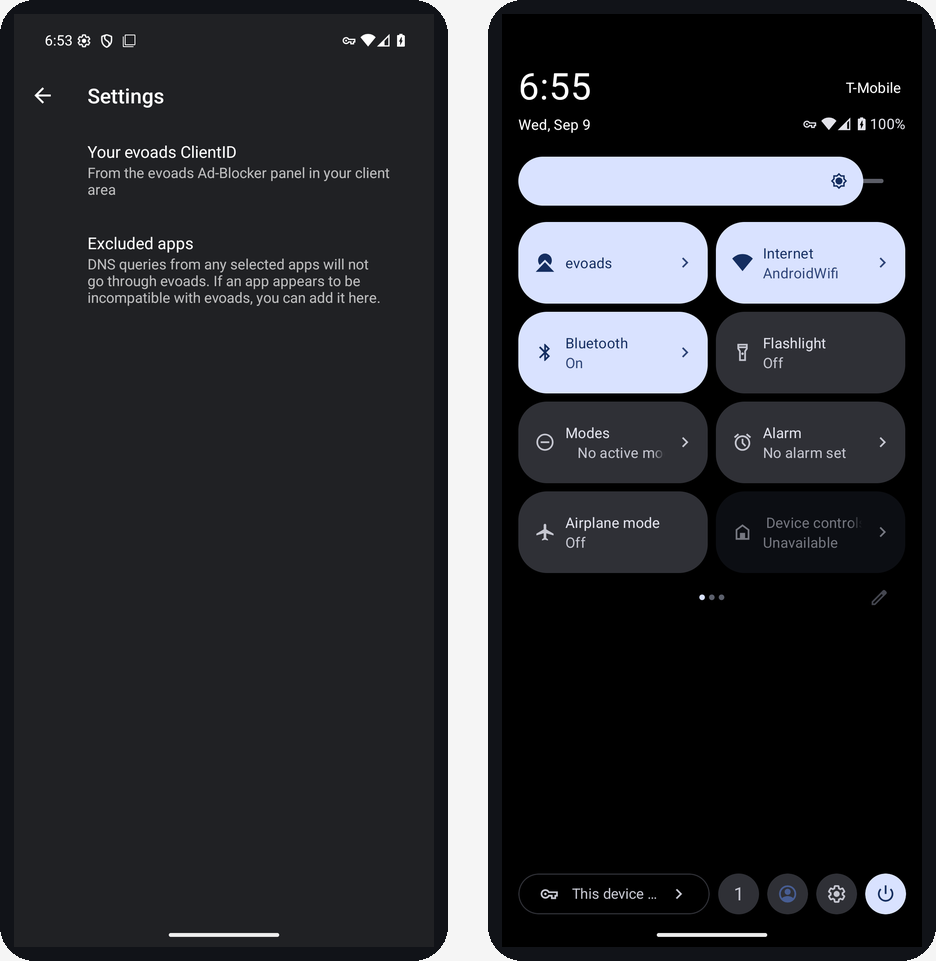
- Quick-settings tile: pull the notification shade down twice, tap the pencil (edit) button, and drag the evoads tile into the visible set. From then on one tap toggles ad blocking without opening the app.
- Settings → Your evoads ClientID shows the ID the sign-in resolved and lets you paste a different one. Excluded apps lets you take an app out of evoads if it misbehaves with ad blocking; its lookups then bypass the resolver.
- The menu (three lines, top left) has Home, Settings, Support and the source-code and licence links.
When you connect the WireGuard app, Android moves the VPN slot to it and evoads shows Off. Tap the evoads tile to switch back afterwards.
Updates
The app checks for a new version at most every six hours when opened. When one is available a dialog offers Download, Later or Skip this version. Download opens the new APK in your browser; install it over the existing app and your sign-in is kept.
Without the app: Android Private DNS
Android 9 and newer can point the whole phone at an encrypted DNS resolver with no app at all:
- Settings → Network & Internet → Private DNS. On Samsung: Settings → Connections → More connection settings → Private DNS.
- Choose Private DNS provider hostname.
- Paste your Private DNS hostname from the evoads panel (it looks like
evo-….dns.evoseedbox.com) and save.
This uses DNS-over-TLS and applies on Wi-Fi and mobile data. It cannot show query counts or a tile, and some captive-portal Wi-Fi networks (hotels, airports) refuse to connect until you set Private DNS back to Automatic for the login page. The app and Private DNS should not both be active: pick one.
Checking it works
Open evoseedbox.com/evoads-check in the phone’s browser. It should report that the device resolves through evoads. Note that Chrome on Android has its own “Use secure DNS” setting; leave it on Automatic or off, because a custom provider there bypasses the system resolver.
Troubleshooting
Ads still show in one app
Ads served from the same domain as the content (YouTube, some streaming apps) cannot be removed by DNS blocking. Everything from third-party ad networks is.
“Another VPN is active”
Disconnect the other VPN app first. Android only allows one at a time.
Websites do not load at all
Turn evoads off with the tile. If the site loads, a blocklist entry is in the way; tell us the site through a support ticket. If it still does not load, the problem is elsewhere (Wi-Fi, mobile data).
The app says the service is unreachable
Your phone cannot reach dns.evoseedbox.com on port 8443. Some corporate or school networks block it; mobile data will work.
Removing evoads
Turn it off, then uninstall like any app. Android drops the VPN configuration with it.
Related articles
Put this into practice
EvoSeedbox ships with one-click app installs and up to 10 Gbps per box.
