How to Connect Jellyfin with Your Seedbox
On this page ▾
How Jellyfin Works
  JELLYFIN vs PLEX
  ═══════════════════════════════════════════════════════

  Feature              Jellyfin            Plex
  ───────              ────────            ────
  Price                Free ✓              Free + Plex Pass
  Open source          Yes ✓               No
  Mobile apps          Free ✓              Requires Plex Pass
  Hardware transcode   Free ✓              Requires Plex Pass
  Live TV/DVR          Free ✓              Requires Plex Pass
  Plugins              Community ✓         Official store
  External sharing     Via URL             Plex Friends ✓
  Offline sync         Not yet             Plex Pass ✓

  ┌──────────────────────────────────────────────────┐
  │  Jellyfin = 100% free, all features included.    │
  │  Plex = polished UI, better mobile experience.   │
  │  Both work great on your seedbox.                │
  └──────────────────────────────────────────────────┘
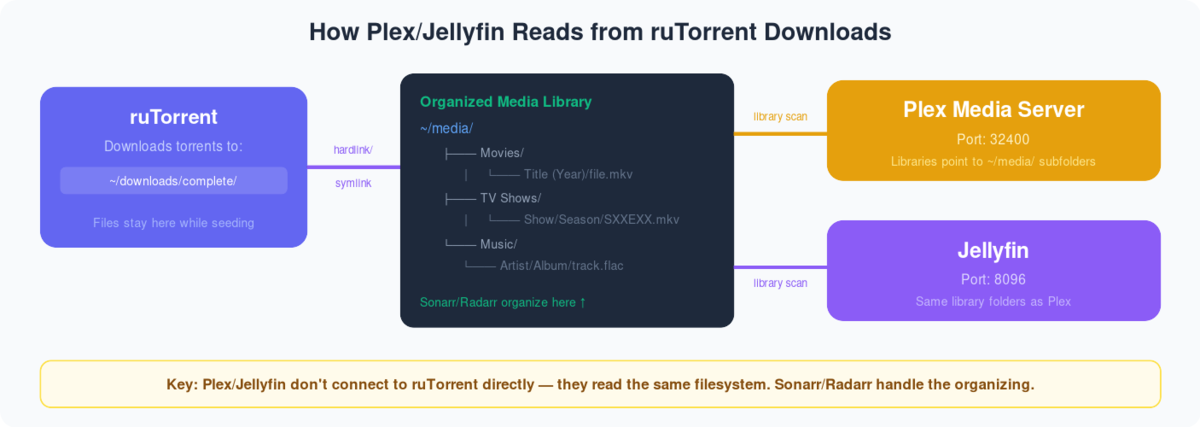
Connecting Jellyfin with our seedbox and configuring it is very simple — just follow the steps below and you will be ready to stream your media:
Step 1: Log in to your Evoseedbox client area and look for Jellyfin in the apps section
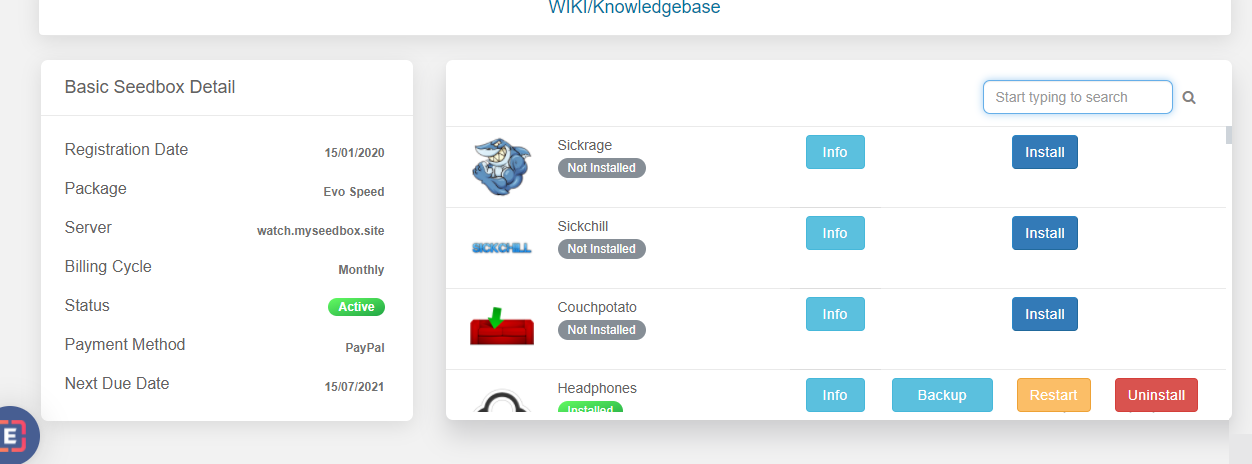
Step 2: Click on the install button and Jellyfin will install automatically on your seedbox.
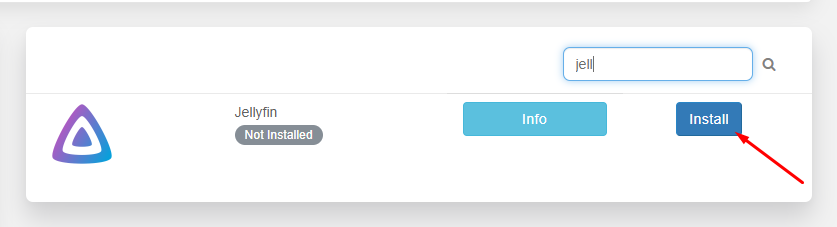
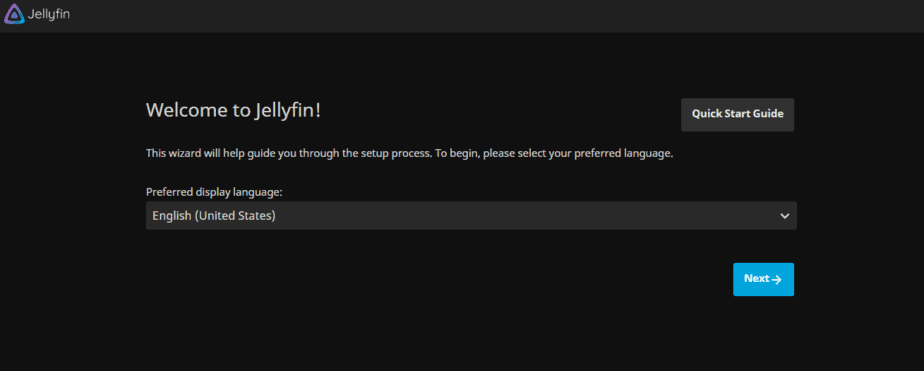
Step 3: Once installation completes, open Jellyfin from your client area. Select your preferred language from the dropdown menu and click Next.
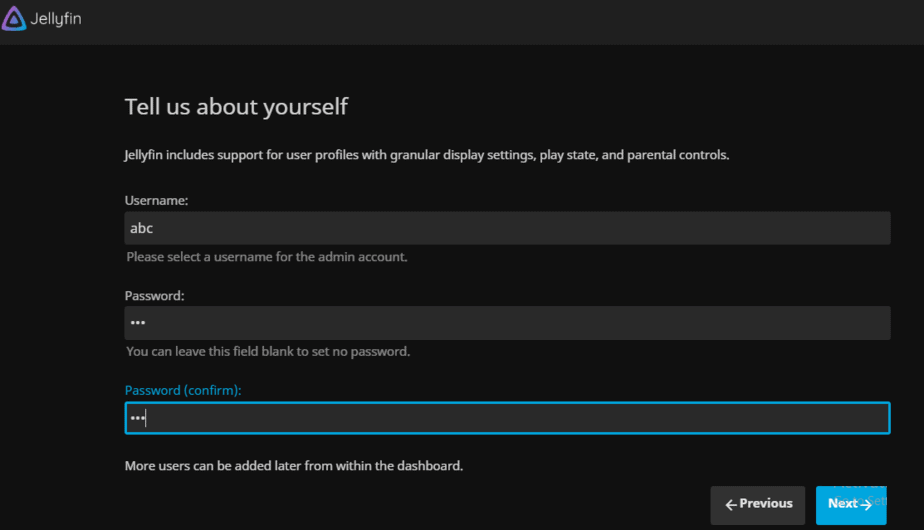
Step 4: Now set a username and password that you will use every time you log in to your Jellyfin account. You can leave the password blank if you don’t wish to set one.
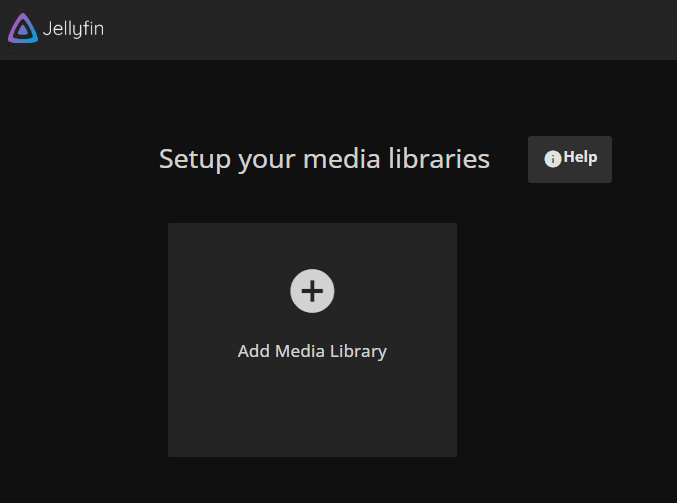
Step 5: Next, set up a media library — the content you want to stream using Jellyfin. Click on Add Media Library.
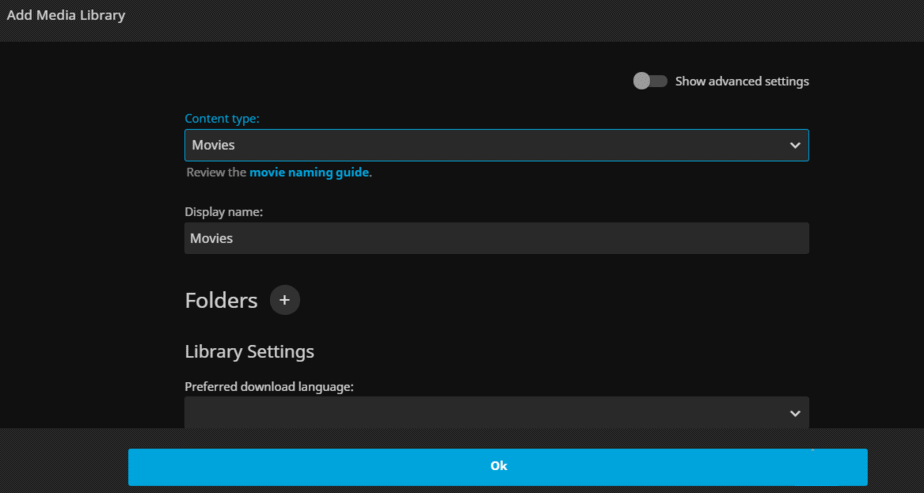
Step 6: For the content type, choose the type of media — movies, TV shows, music, etc. Write the name you wish to give the library; this folder name is displayed when you use Jellyfin to stream your media.
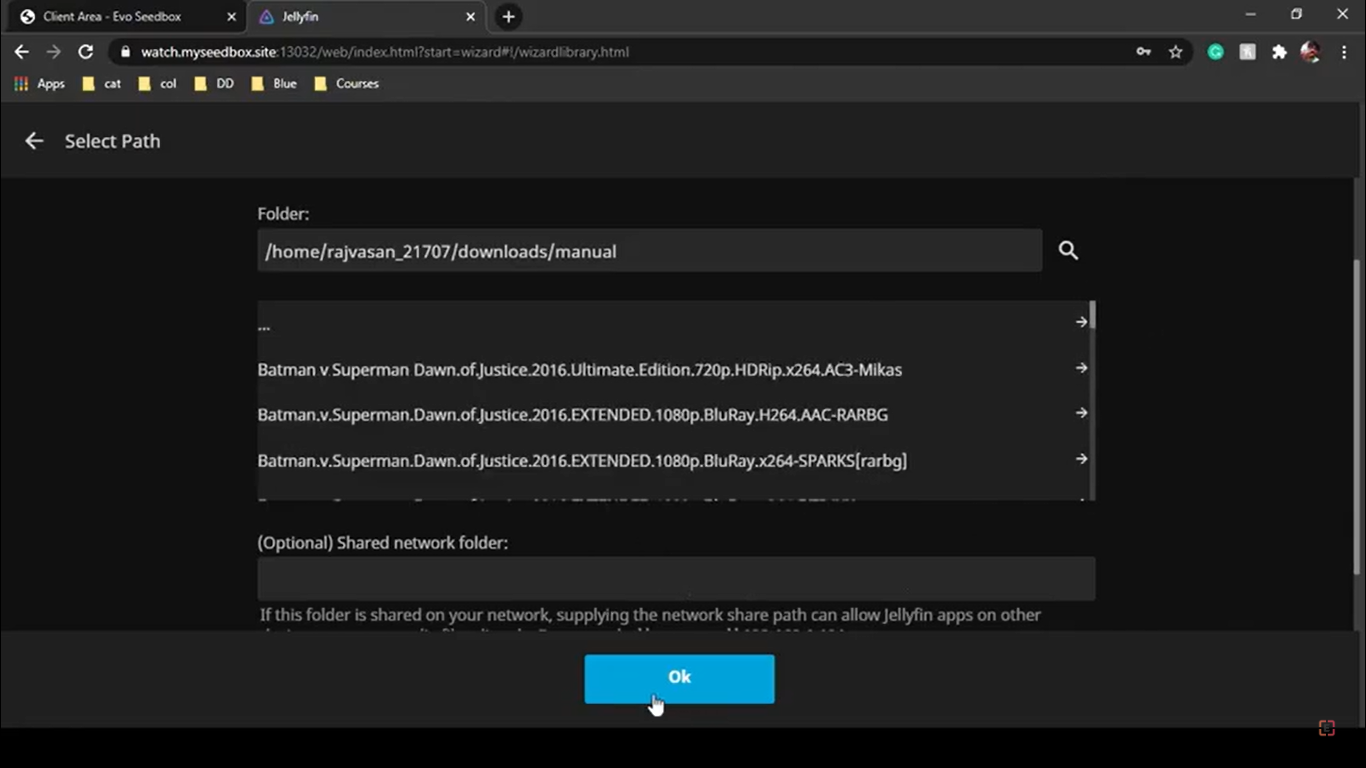
Step 7: Click on the “+” icon beside Folders and set the path for your media — select the folder where your movies and TV shows are downloaded.
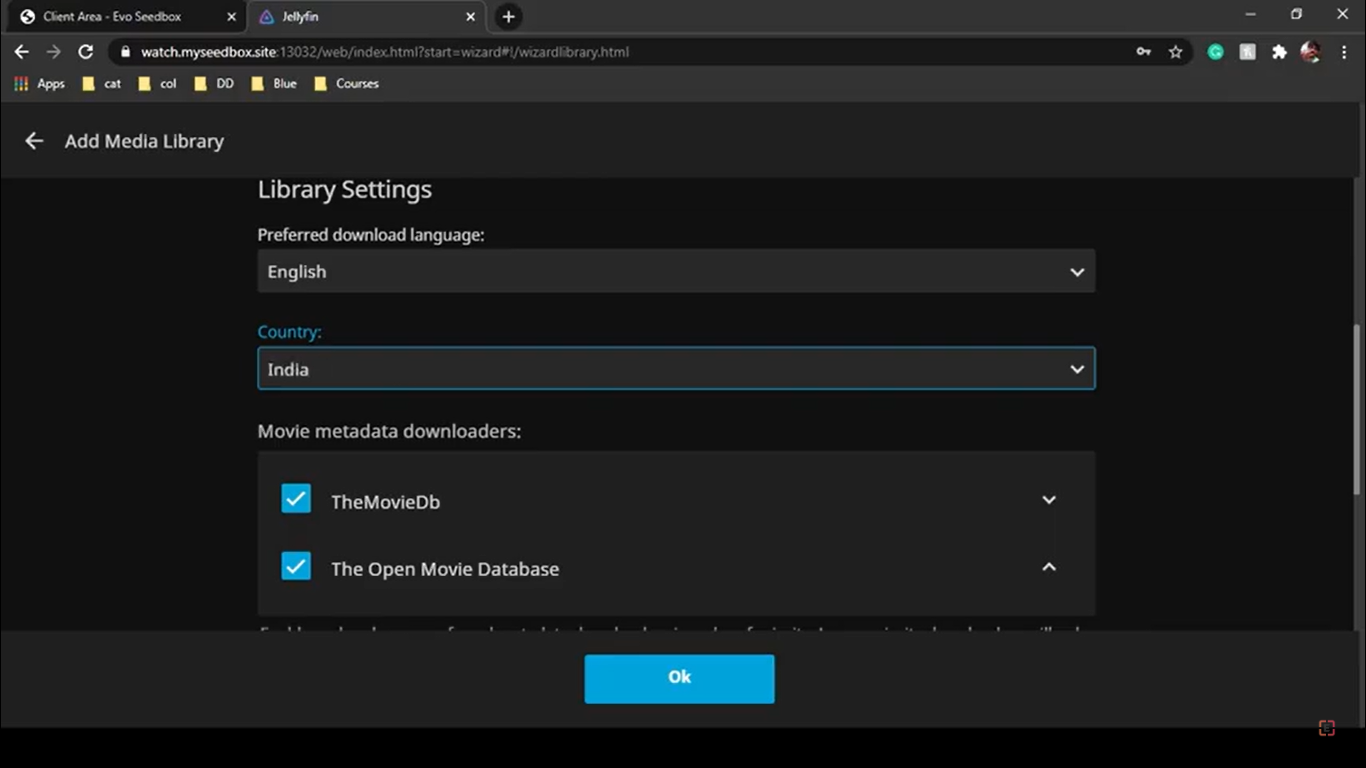
Step 8: Select the preferred language for downloading metadata (ratings, cast, genre, etc.) for your library, then click OK.
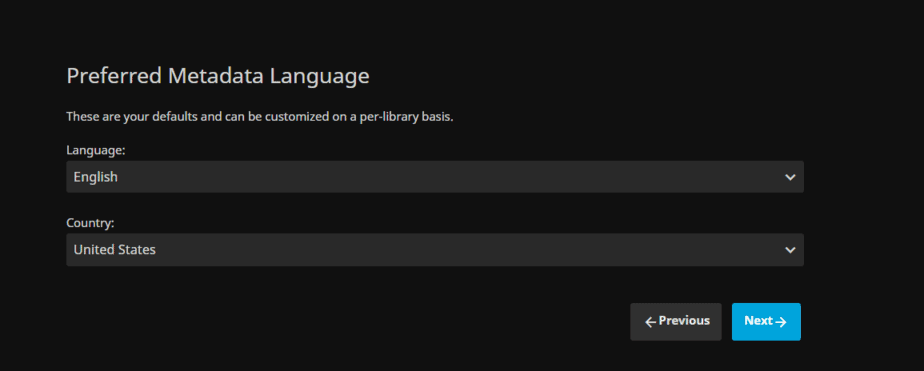
Step 9: Click Next — your preferred metadata languages are already set.
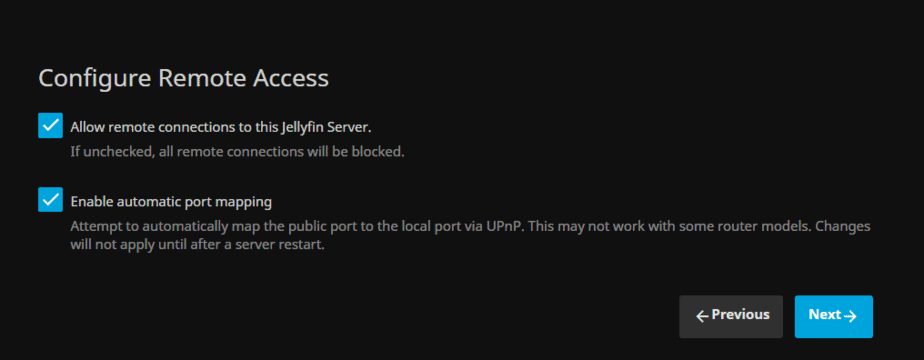
Step 10: Tick both boxes and click Next. Allowing remote connections lets you stream your media from other devices, like your Android phone.
Step 11: Click Finish and you are done configuring Jellyfin for your seedbox.
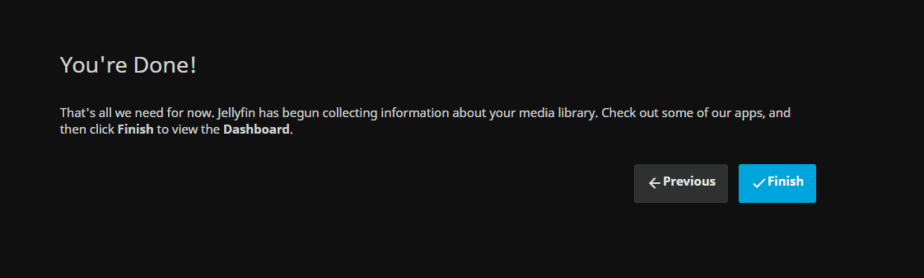
That’s the whole process of configuring Jellyfin with a seedbox. You will now be redirected to a sign-in page — log in with the username and password you configured earlier.
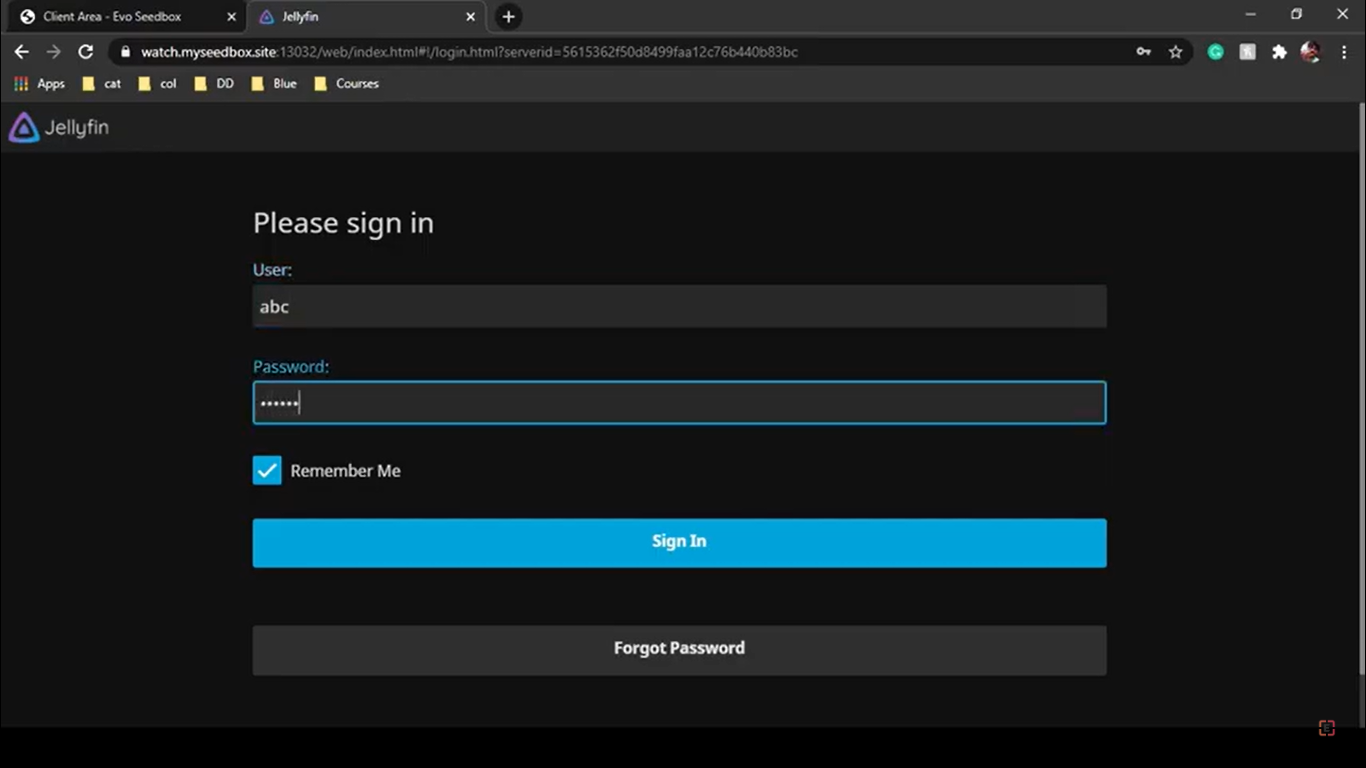
Once you sign in you can view the library you created. Jellyfin automatically shows the metadata it has fetched — you can see the movie posters it pulled from the internet.
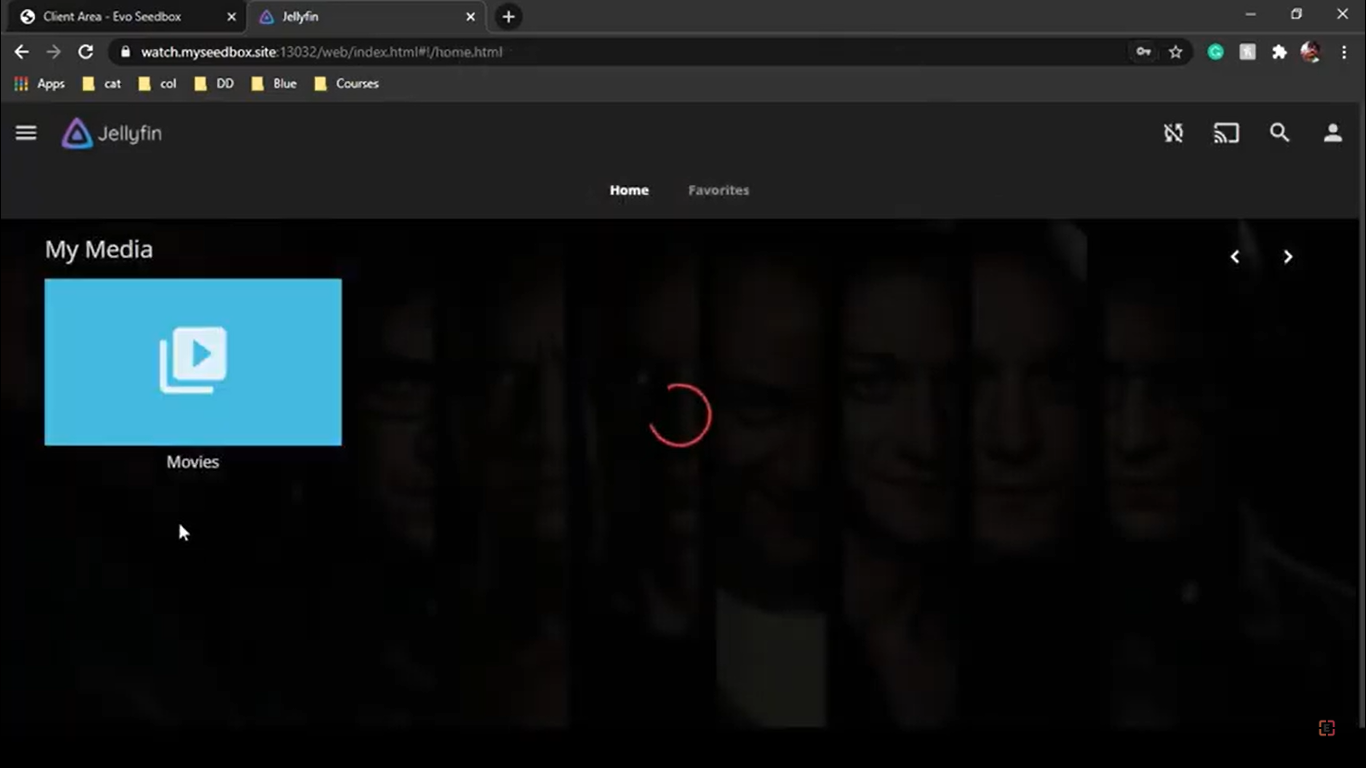
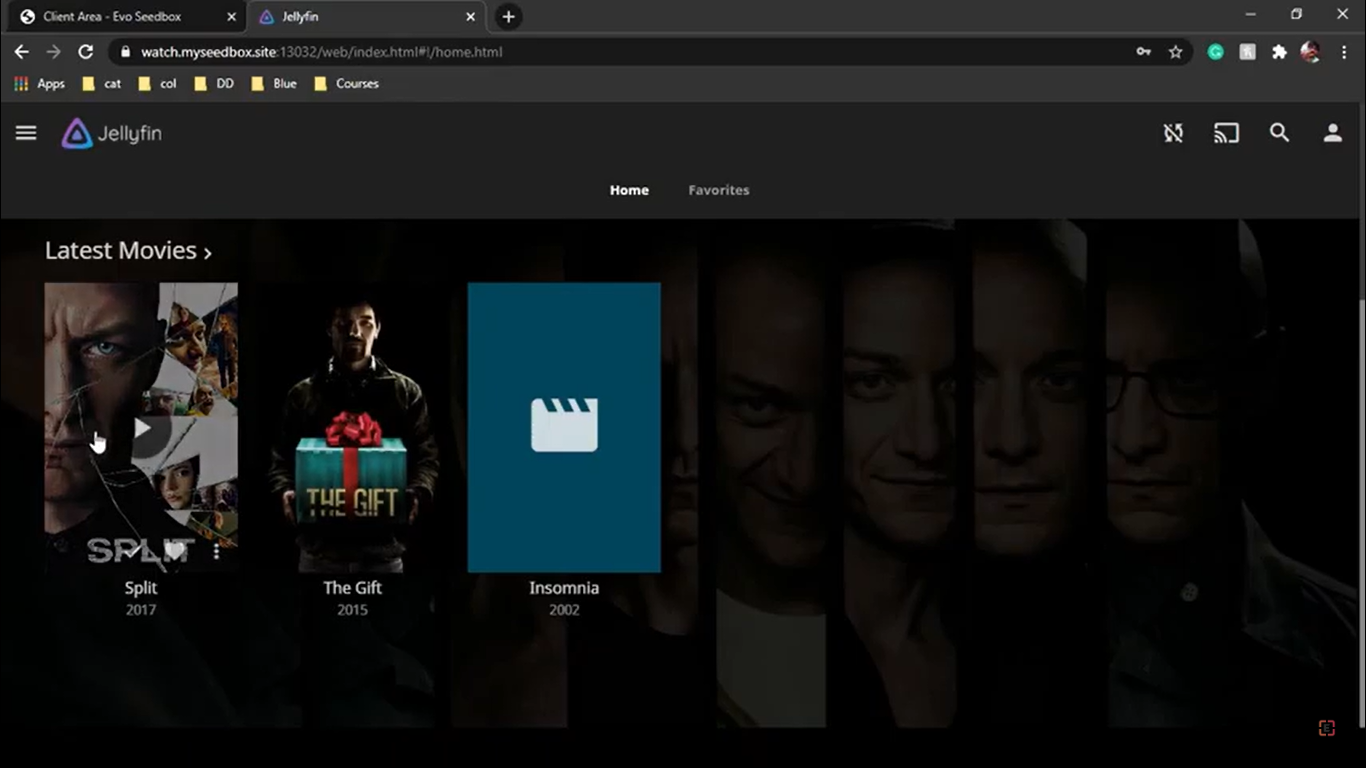
You are now all set to enjoy your movie night — or just watch an episode over lunch from your phone.
The Jellyfin Ecosystem
  RECOMMENDED JELLYFIN STACK
  ═══════════════════════════════════════════════════════

  Jellyseerr ───▶ Sonarr (TV) ────▶ Renames & ───▶ Jellyfin
  (requests)      Radarr (Movies)    moves files     (streams)
                  ▲                                   │
                  │                                   ▼
               Prowlarr ◀─────────────────────── Jellystat
               (indexers)                         (analytics)

  Optional:
  ├── Bazarr        (automatic subtitles)
  ├── Jellyseerr    (request & discovery UI)
  └── Homarr        (dashboard for all apps)
Frequently Asked Questions
Is Jellyfin really completely free?
Yes — Jellyfin is open source with every feature included: free mobile apps, hardware transcoding, and Live TV support, with no premium tier. That’s its biggest advantage over Plex.
Can I run Jellyfin and Plex side by side?
Yes. Both can be installed from your dashboard and pointed at the same media folders — many users trial Jellyfin alongside an existing Plex setup before switching.
How do friends request new content?
Install Jellyseerr — the request-and-discovery UI built for Jellyfin. Requests flow to Sonarr/Radarr automatically; see the Jellyseerr setup guide.
Which codec should my library use for smooth streaming?
Direct play is always smoothest. H.264 has the widest device support; H.265 halves file sizes but older devices may force transcoding — the trade-offs are covered in H.264 vs H.265.
Related Pages
- Jellyfin seedbox hosting — one-click Jellyfin on EvoSeedbox
- Jellyseerr setup guide
- H.264 vs H.265 video codecs
- All one-click seedbox apps
- How to Use Emby with Your Seedbox
Related articles
Put this into practice
EvoSeedbox ships with one-click app installs and up to 10 Gbps per box.


