How to Update an App
On this page ▾
To update the app
Step 1: Go to your seedbox dashboard
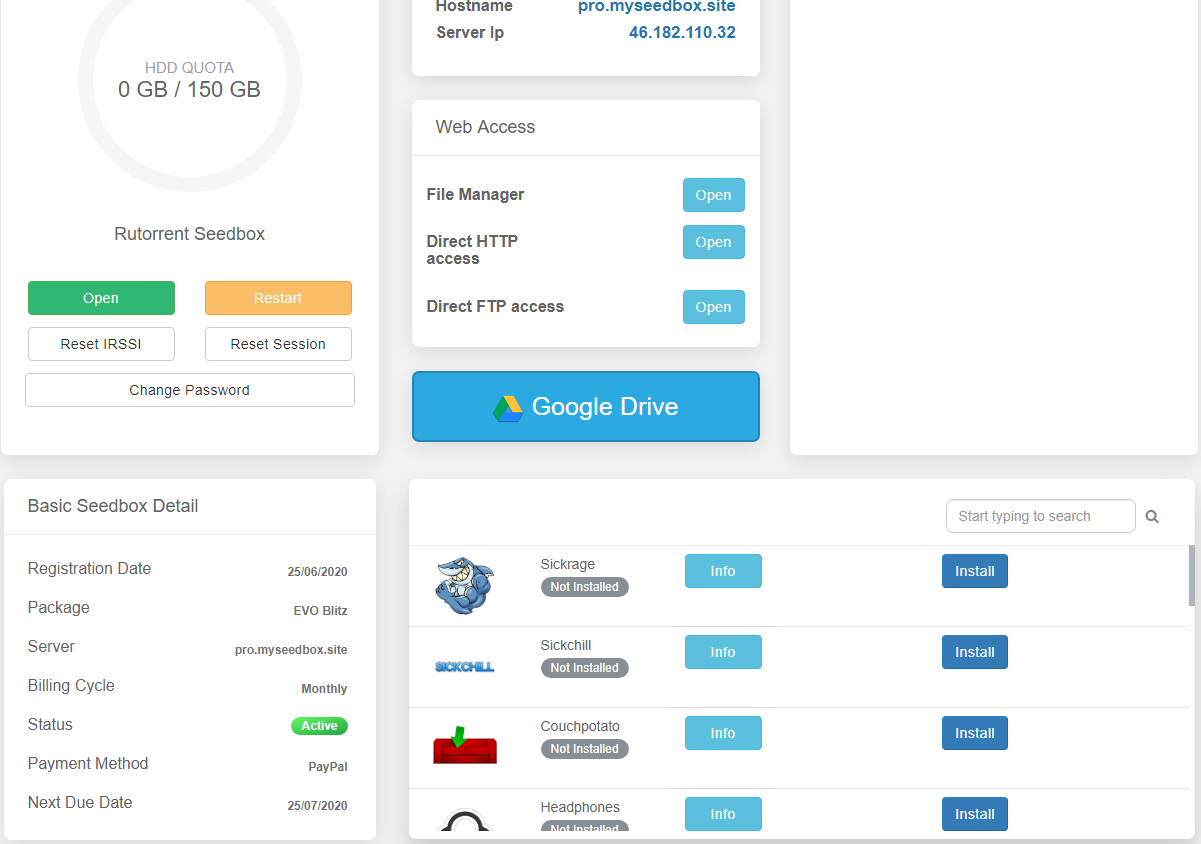
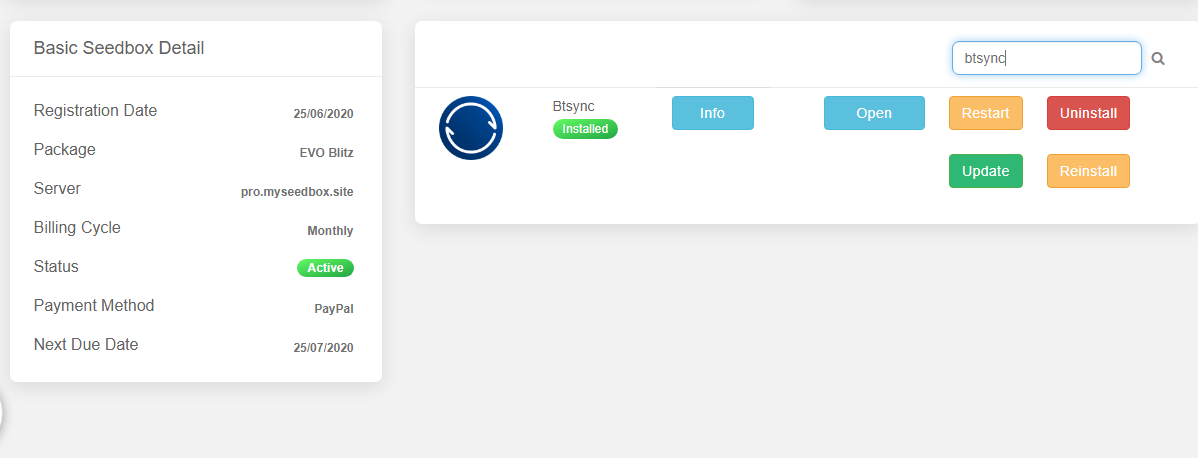
Step 2: In the apps section search for the app you want to update:
(In this example we have used btsync )
Step 3: Click on the update button
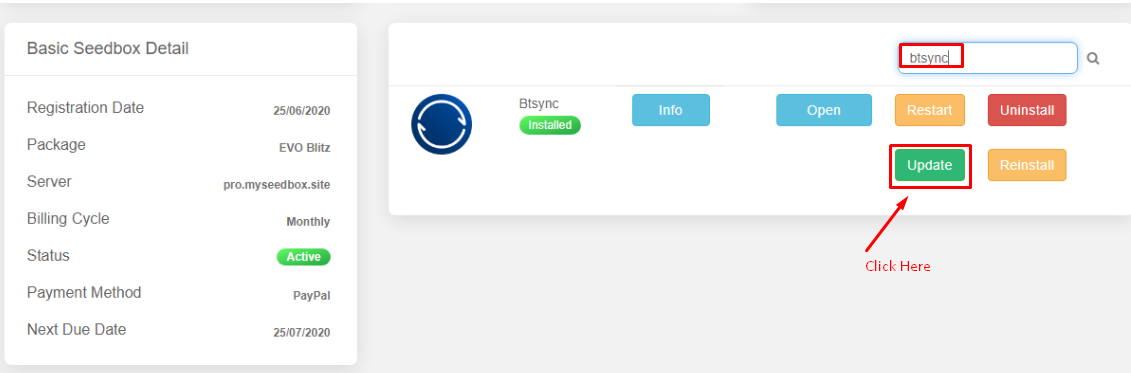
If a recent docker based update is available, it will get updated.
Please, note opensource tools are not known for their consistency , we advise you to take your own judgement on updates, we do not provide app level support, and any fixes you will have to find in opensource tool forum.
Updating Apps on Your Seedbox
Apps on your Evoseedbox can be updated directly from the dashboard when a new version is available.
Steps
- Log in to your client area and open your seedbox dashboard
- In the apps section, find the app you want to update
- If an update is available, an Update button appears next to the app
- Click Update and wait for the process to complete (usually 10–30 seconds)
Good to Know
- Updates use Docker containers — your data and settings are preserved during updates
- Not all apps update at the same time. Open-source tools update when new Docker images are published by the maintainers.
- If no Update button appears, you are already running the latest version
- If an app breaks after updating, restart your seedbox or contact support
Related articles
Put this into practice
EvoSeedbox ships with one-click app installs and up to 10 Gbps per box.


