Audiobookshelf: Self-Hosted Audiobook Server on Your Seedbox
On this page ▾
Audiobookshelf is a self-hosted audiobook and podcast server that turns your seedbox into a personal streaming library for audiobooks. Listen from any device with the Audiobookshelf mobile app, pick up where you left off across devices, and manage your entire audiobook collection with a beautiful web interface.
Why Use Audiobookshelf?
- Stream audiobooks — Listen from anywhere without downloading files first
- Progress sync — Pause on your phone, resume on your laptop. Automatically synced
- Beautiful library — Automatic metadata fetching with cover art, narrators, and series info
- Mobile apps — Native iOS and Android apps with offline download support
- Podcast support — Subscribe to podcasts alongside your audiobook library
How It Works
  AUDIOBOOKSHELF ARCHITECTURE
  ═══════════════════════════════════════════════════════

  Your Audiobook Files              Audiobookshelf          Your Devices
  (on seedbox)                      Server

  ┌──────────────────┐          ┌──────────────────┐    ┌───────────┐
  │ ~/downloads/     │          │                  │    │ 📱 Phone  │
  │   audiobooks/    │──reads──▶│  Scans library   │◀───│   (app)   │
  │                  │          │  Fetches metadata │    └───────────┘
  │ ~/audiobooks/    │          │  Streams audio    │    ┌───────────┐
  │   Author/        │          │  Tracks progress  │◀───│ 💻 Browser│
  │     Book/        │          │                  │    └───────────┘
  │       ch01.mp3   │          │  Port: 80 (int)  │    ┌───────────┐
  │       ch02.mp3   │          │  HTTPS via proxy  │◀───│ 🖥️ Desktop│
  └──────────────────┘          └──────────────────┘    └───────────┘

  Files stay on your seedbox — Audiobookshelf streams them.
  No duplication. No extra storage needed.
Step 1: Install Audiobookshelf
- Log in to your EvoSeedbox Client Area
- Go to Services > your seedbox
- Find Audiobookshelf in Apps and click Install
- Wait 1-2 minutes, then click Open
  WHAT GETS INSTALLED
  ───────────────────

  ┌───────────────────────────────┐
  │ Docker: advplyr/audiobookshelf│
  │ Internal port: 80             │
  │                               │
  │ Mounts:                       │
  │ • ~/downloads ──▶ /downloads  │
  │ • ~/.config/audiobookshelf/   │
  │   ├── config ──▶ /config      │
  │   ├── metadata ──▶ /metadata  │
  │   └── audiobooks ──▶ /audiobooks│
  └───────────────────────────────┘
Step 2: First-Time Setup
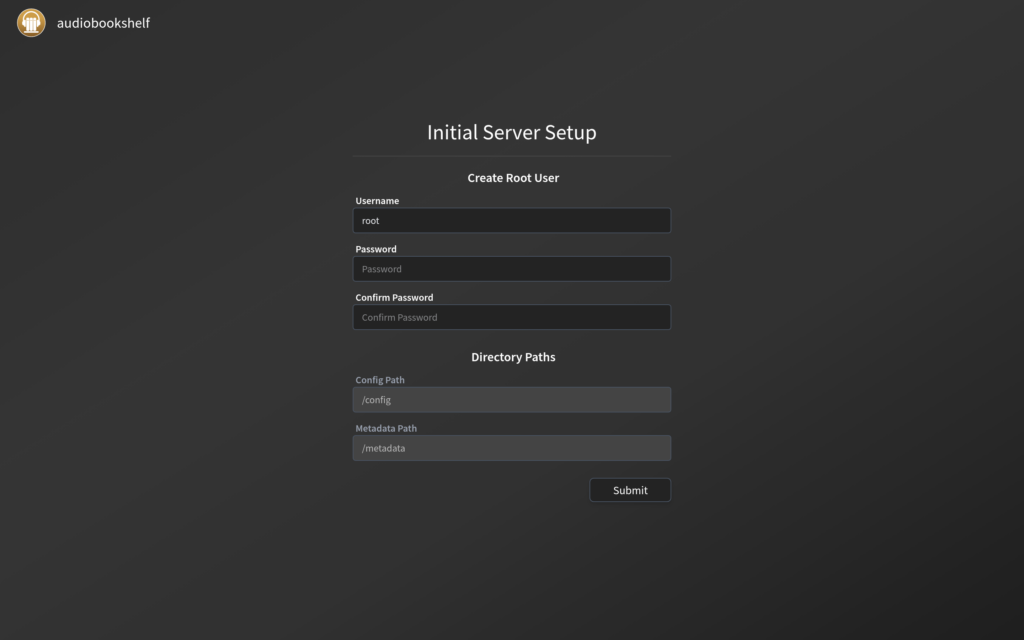
When you first open Audiobookshelf, you’ll create an admin account and set up your library:
- Create admin account — Choose a username and password for Audiobookshelf
- Add a library — Click “Add your first library”
- Set library type — Choose Audiobook (or Podcast)
- Set library folder — Point it to where your audiobooks are stored
  RECOMMENDED LIBRARY PATHS
  ═════════════════════════════════════════════════

  Library Type       Path Inside Container
  ────────────       ─────────────────────
  Audiobooks         /downloads/audiobooks
                     (maps to ~/downloads/audiobooks)

  Podcasts           /downloads/podcasts
                     (maps to ~/downloads/podcasts)

  ┌─────────────────────────────────────────────────┐
  │  Create folders first:                          │
  │  Use Filegator to create ~/downloads/audiobooks │
  │  before adding the library in Audiobookshelf    │
  └─────────────────────────────────────────────────┘
Step 3: Add Your Audiobooks
Audiobookshelf works best with organized folder structures:
  RECOMMENDED FOLDER STRUCTURE
  ═══════════════════════════════════════════════

  ~/downloads/audiobooks/
  │
  ├── Brandon Sanderson/
  │   ├── The Way of Kings/
  │   │   ├── chapter01.mp3
  │   │   ├── chapter02.mp3
  │   │   └── cover.jpg          ◀── Optional
  │   └── Words of Radiance/
  │       └── ...
  │
  ├── Andy Weir/
  │   └── Project Hail Mary/
  │       ├── Part1.m4b          ◀── Single file works too
  │       └── cover.jpg
  │
  └── Terry Pratchett/
      └── Guards! Guards!/
          └── audiobook.m4b

  Format: Author / Book Title / audio files
  Supported: MP3, M4A, M4B, FLAC, OGG, WMA
After adding files, Audiobookshelf automatically scans the library and fetches metadata (cover art, description, narrator, duration) from online databases.
Step 4: Listen on Your Devices
Mobile Apps (Recommended)
- iOS: Audiobookshelf on App Store
- Android: Audiobookshelf on Google Play
To connect the app:
- Open the app and enter your Audiobookshelf server URL (shown in your client area)
- Log in with the account you created in Step 2
- Your entire library appears — tap any book to start listening
- Enable offline download to listen without internet
Web Browser
Simply open Audiobookshelf via the client area or direct URL. The web player works in any browser with full playback controls, chapter navigation, and speed adjustment.
  PLAYBACK FEATURES
  ═════════════════

  ┌─────────────────────────────────────────────────┐
  │  ◀◀  10s    ▶ / ⏸     10s  ▶▶                  │
  │                                                 │
  │  ├────────────●──────────────┤  1:23:45 / 8:30  │
  │                                                 │
  │  Speed: 1.0x  │  Sleep Timer  │  Chapters ▼     │
  └─────────────────────────────────────────────────┘

  • Adjustable playback speed (0.5x to 3.0x)
  • Sleep timer (15min, 30min, 1hr, end of chapter)
  • Chapter navigation
  • Bookmarks
  • Progress auto-saved across all devices
Getting Audiobooks onto Your Seedbox
  HOW TO ADD AUDIOBOOKS
  ═══════════════════════════════════════════════

  Method 1: Torrent (via ruTorrent)
  ──────────────────────────────────
  Download audiobook torrents → auto-saved
  to ~/downloads/ → move to ~/downloads/audiobooks/

  Method 2: Upload (via Filegator)
  ────────────────────────────────
  Upload M4B/MP3 files directly to
  ~/downloads/audiobooks/Author/Title/

  Method 3: Readarr (automated)
  ─────────────────────────────
  Set up Readarr to monitor and auto-download
  audiobooks → saves directly to library folder

  After adding files → Audiobookshelf auto-scans ✓
Troubleshooting
Books Not Appearing in Library
- Make sure files are in the correct folder structure (Author/Title/files)
- Click the Scan button in library settings to force a re-scan
- Check file format — MP3, M4A, M4B, FLAC, and OGG are supported
Mobile App Can’t Connect
- Use the HTTPS URL from your client area (not HTTP)
- If behind a VPN, make sure the server URL is accessible from your network
- Check that your Audiobookshelf container is running (visit the URL in a browser first)
Wrong Metadata / Cover Art
- Click the book → Edit → Match to search for the correct metadata
- You can manually upload a cover image and edit all metadata fields
- Include a
cover.jpgfile in the book folder for guaranteed correct art
Related Guides
- Audiobookshelf seedbox hosting — plans & what’s included
- Readarr: Automate Ebook & Audiobook Downloads
- Calibre Setup Guide
- Filegator: Web File Manager
- Disk Usage & Quotas
Frequently Asked Questions
Does Audiobookshelf work with the official mobile apps?
Yes — install the Audiobookshelf app from the App Store or Play Store, enter your seedbox’s HTTPS URL from the client area, and log in with your Audiobookshelf account. Progress syncs automatically between devices.
Can several people use my Audiobookshelf?
Yes. Audiobookshelf has its own user system — create additional accounts under Settings → Users, each with their own listening progress and library permissions.
Which audio formats are supported?
MP3, M4A, M4B, FLAC and OGG all work. M4B with embedded chapters gives the best experience; for MP3 collections keep one folder per book so chapters are detected from the file order.
Does streaming audiobooks count against my bandwidth?
Download traffic to your devices doesn’t count against your plan’s upload-bandwidth allowance — that allowance applies to torrent uploads only. Stream as much as you like.
Related articles
Put this into practice
EvoSeedbox ships with one-click app installs and up to 10 Gbps per box.


