Rclone Google Drive Setup
On this page ▾
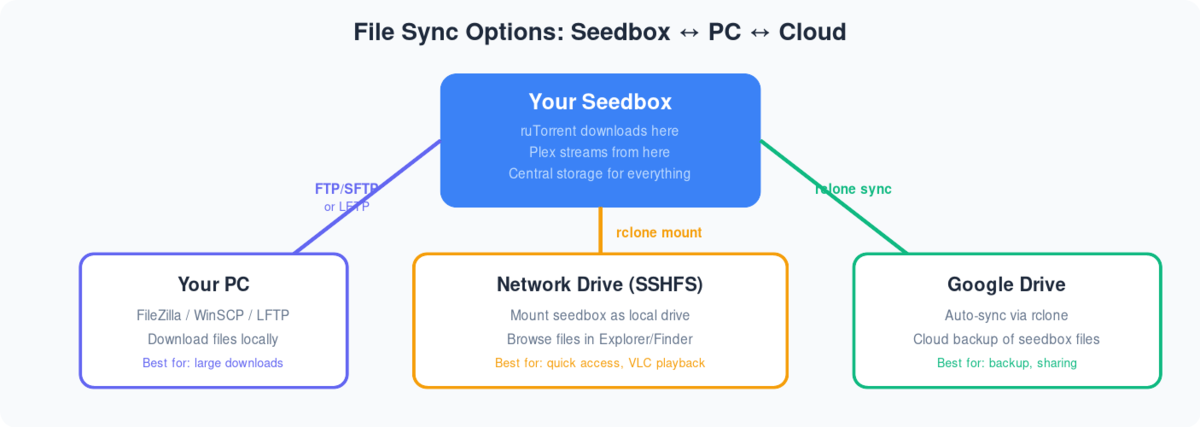
Following are the step-by-step instructions to setup rclonebrowser:
- Installerer rclonebrowser from your clientarea dashboard
- Visit the rclonebrowser’s URL and login
- The initial window would have three tabs
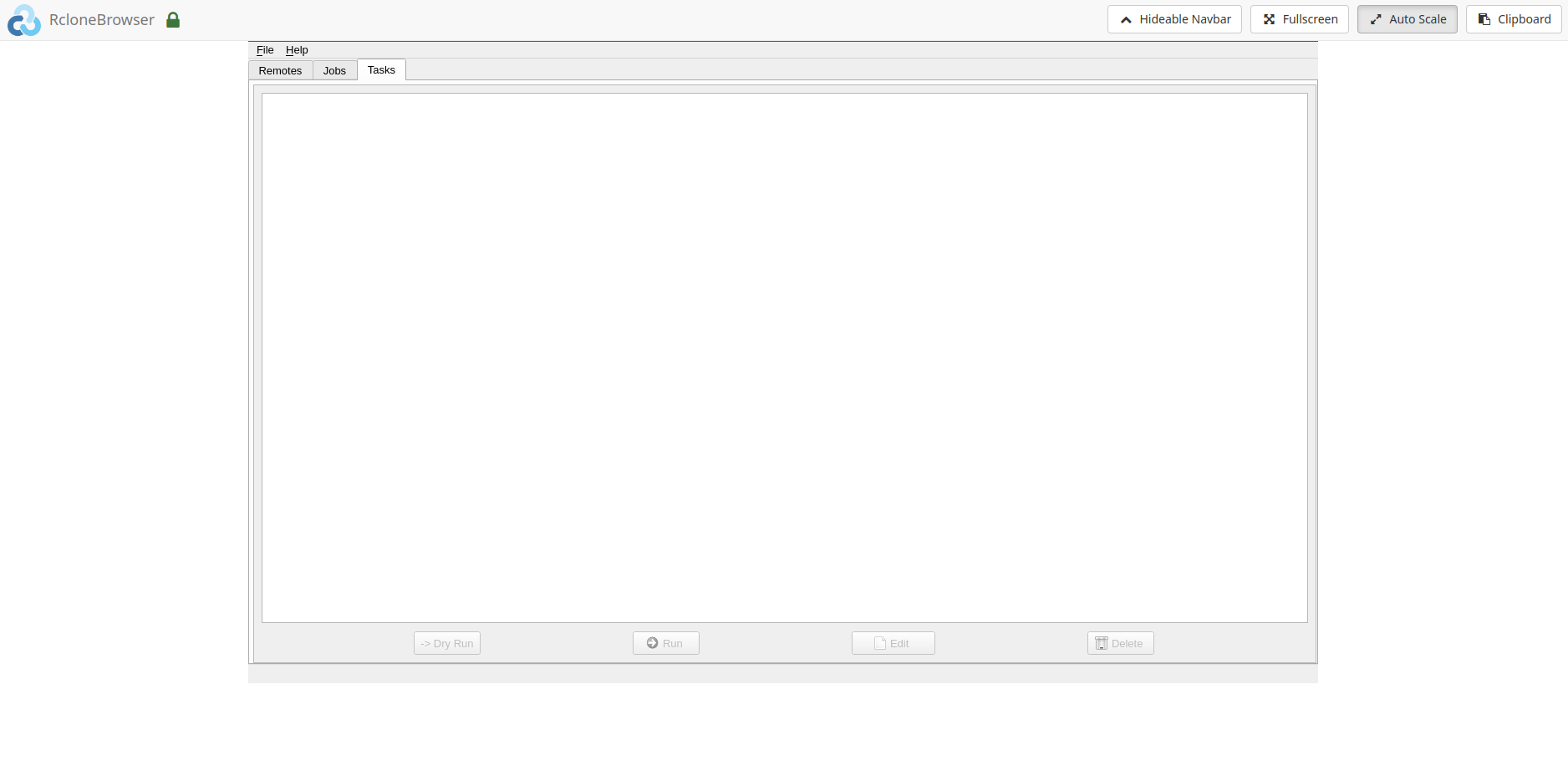
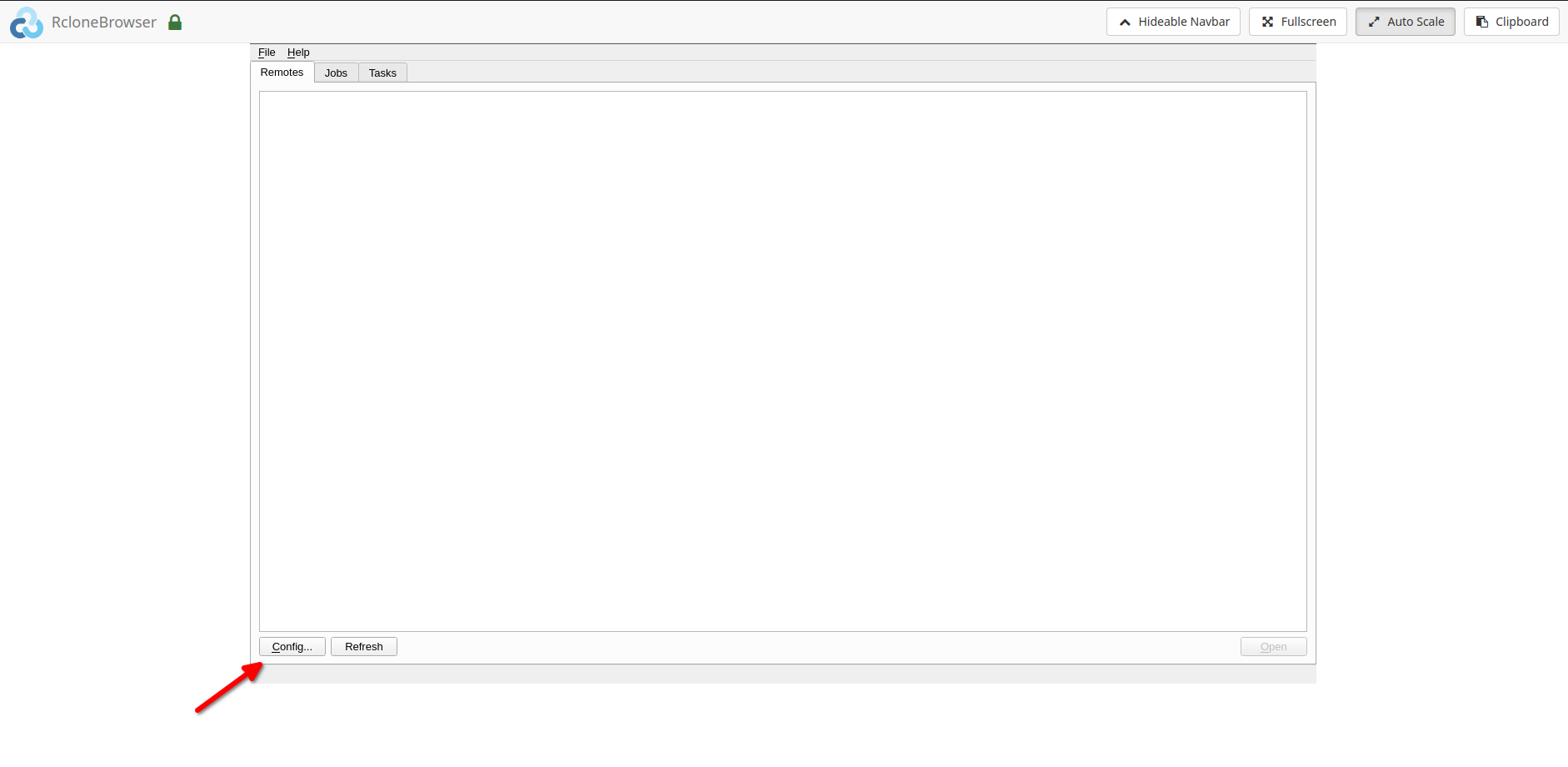
4. Allez à the remotes tab and cliquez sur config
5. Follow the onscreen instructions to complete the further steps
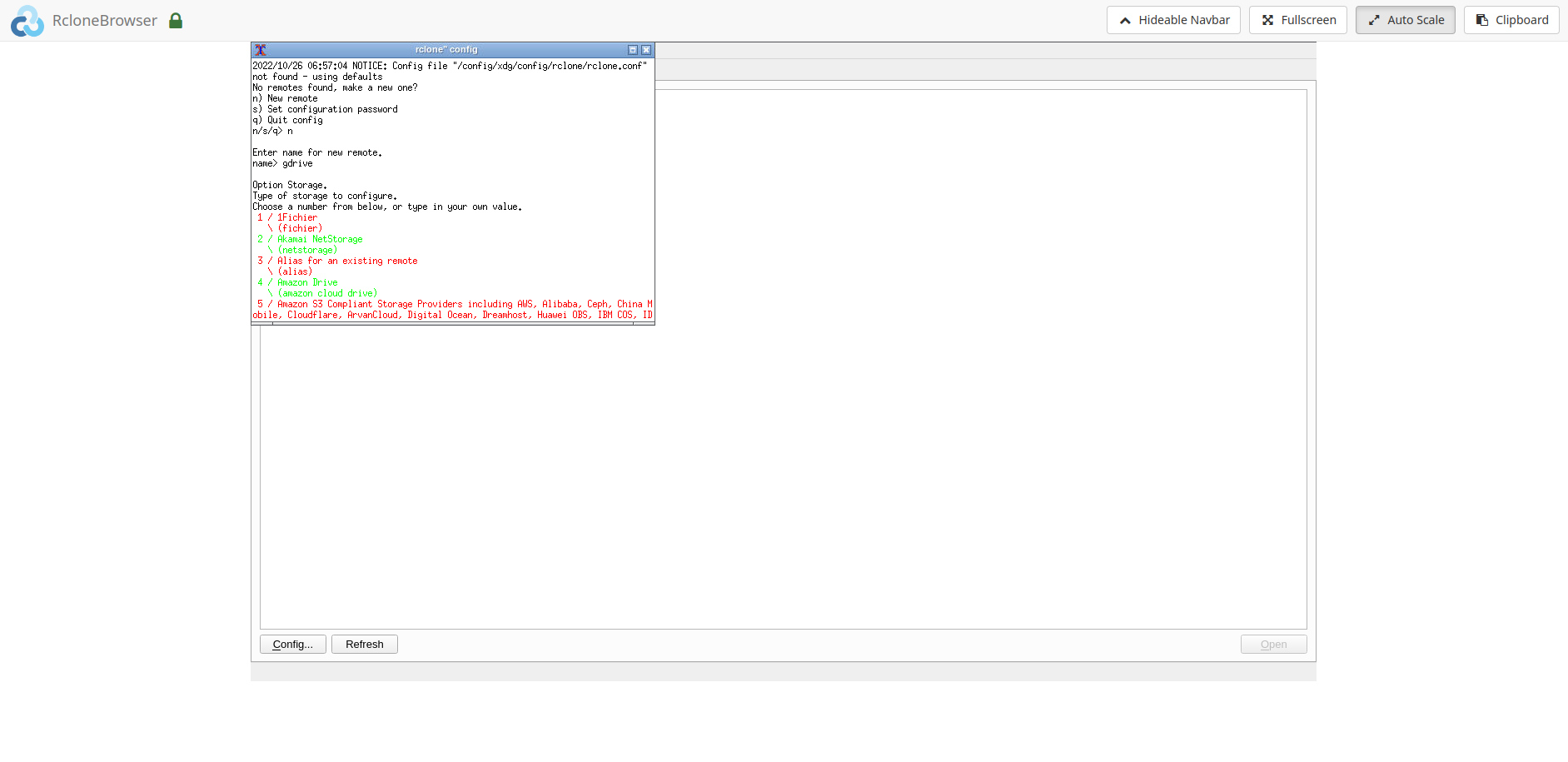
6. The final steps would require the followings:
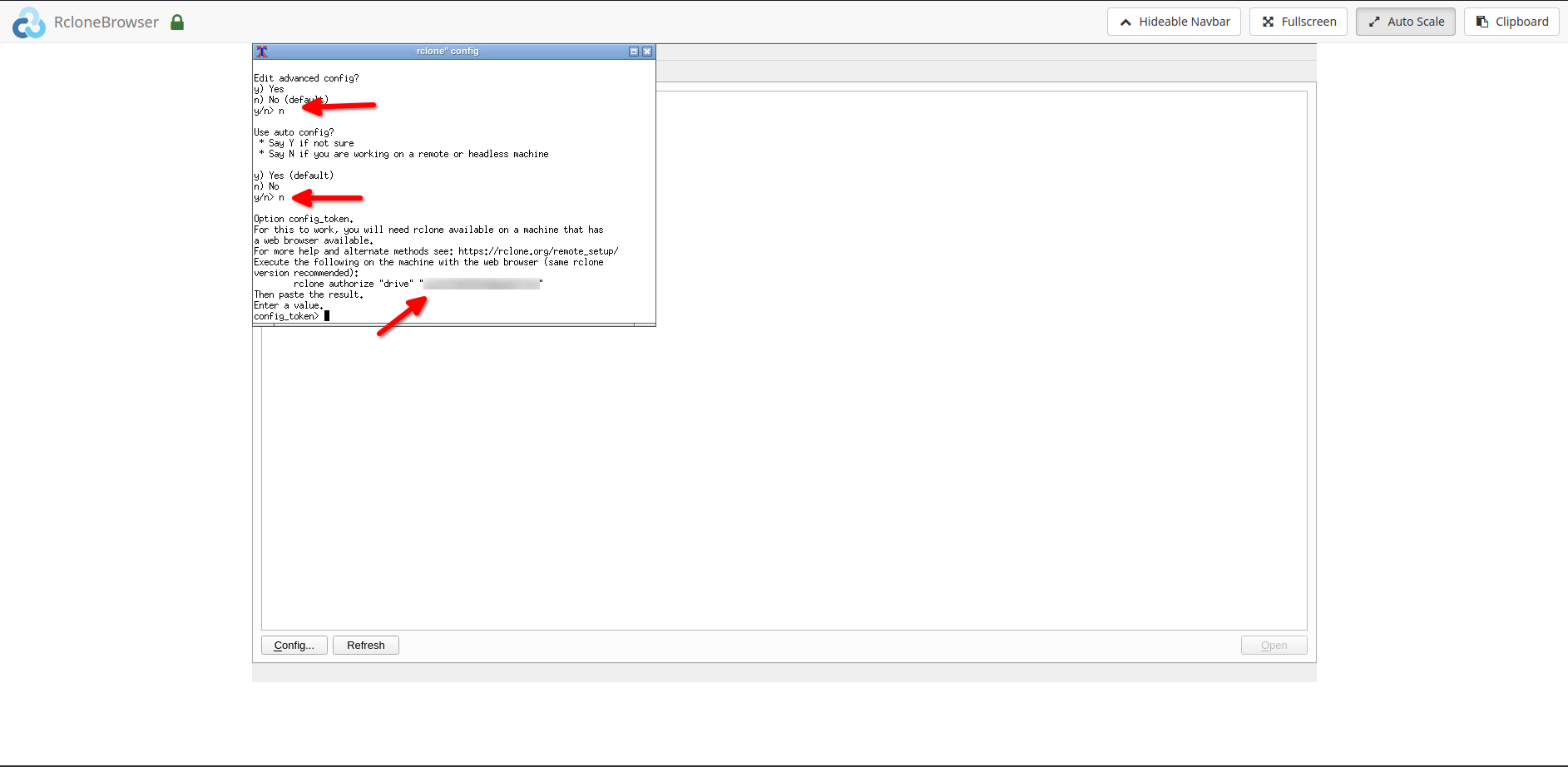
6.1. Please enter ‘n’ when asked for ‘auto config’
6.2. Après the above step, please do the followings:
6.2.1. Installerer rclone on your local system.
6.2.2. Copier the rclone command i.e. ‘rclone authorize drive ’
6.2.3. Run the above command on your local system, you would be directed in your browser to give rclone permission to access your drive.6.2.4. Copier the ‘config token’ from your command window and paste it into rclonebrowser.
Remarque : For copying and pasting please use the ‘clipboard’ option in the rclonebrowser.
- Après completing the above step réussily, vous pouvez now access your remote. To access your remote, cliquez sur the open button by selecting the remote in the rclonebrowser.
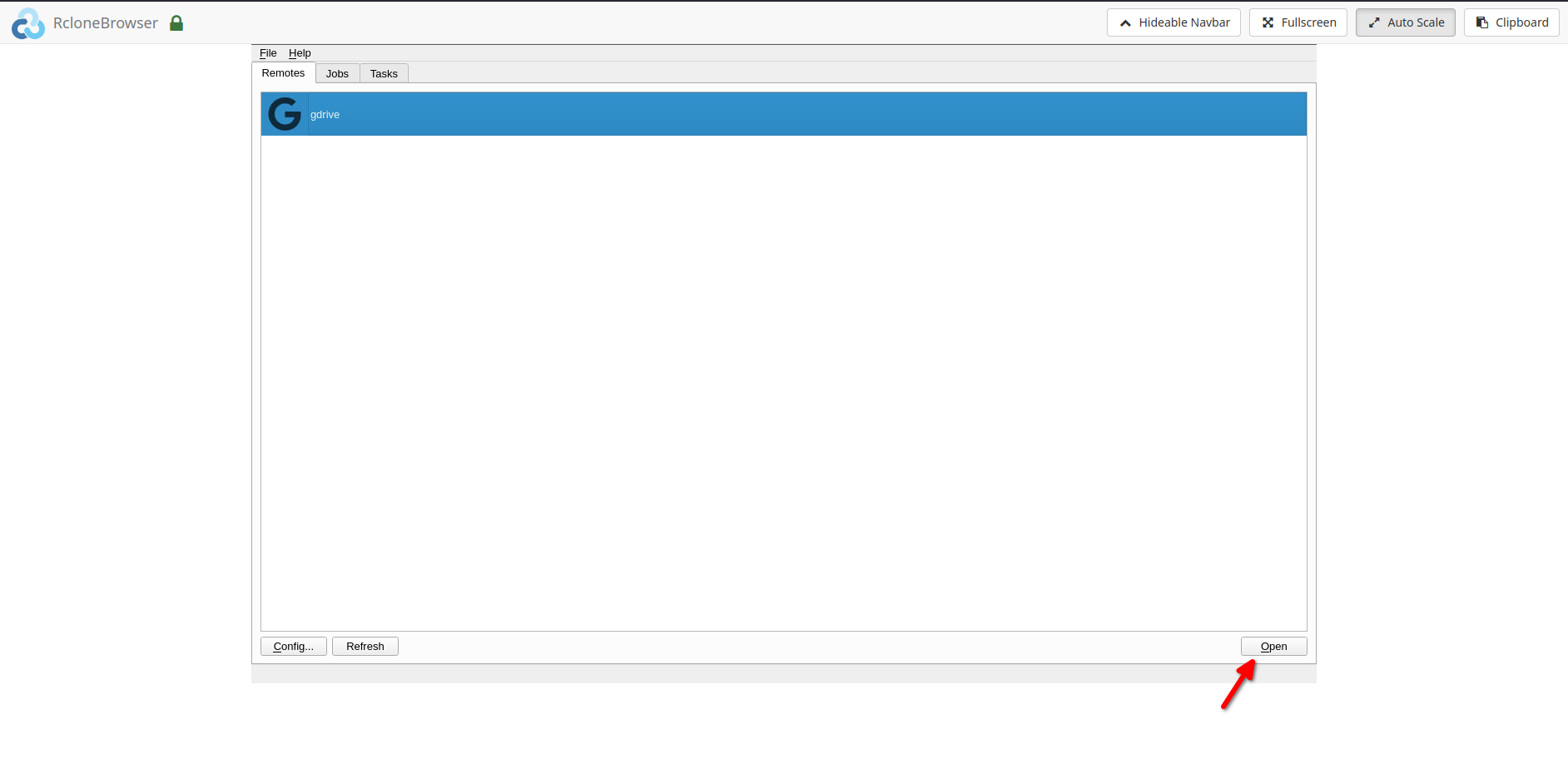
- Your remote would open in a new tab.
Mount option and data sharing:
- Vous pouvez mount your remote under the directory ‘/media’ in rclonebrowser.
- The same can be accessed under the ‘/home//rclone’ directory on votre seedbox.
- Vous pouvez also access votre seedbox ‘downloads’ directory in rclonebrowser under the ‘/home//downloads’ directory. Please note that this is read-only. Writes can be done from votre seedbox if needed.
Guides connexes
Put this into practice
EvoSeedbox ships with one-click app installs and up to 10 Gbps per box.


