Prowlarr the ultimate guide : One ARR to rule them all
9 min readUpdated apr 13, 2026
On this page ▾
Ready to take your media server to the next level? Tired of endlessly scrolling through torrent sites or wrestling with Usenet? Meet Prowlarr, your new secret weapon for automating your download dreams!
Imagine this:
Movies and Shows Galore: Your favorite content magically appears on your server, ready to watch, without you lifting a finger.
Lightning-Fast Searches: Prowlarr scours the depths of the internet, unearthing the best torrents and Usenet releases in record time.
Quality Control: No more blurry videos or crackling audio. Set your quality standards, and Prowlarr delivers.
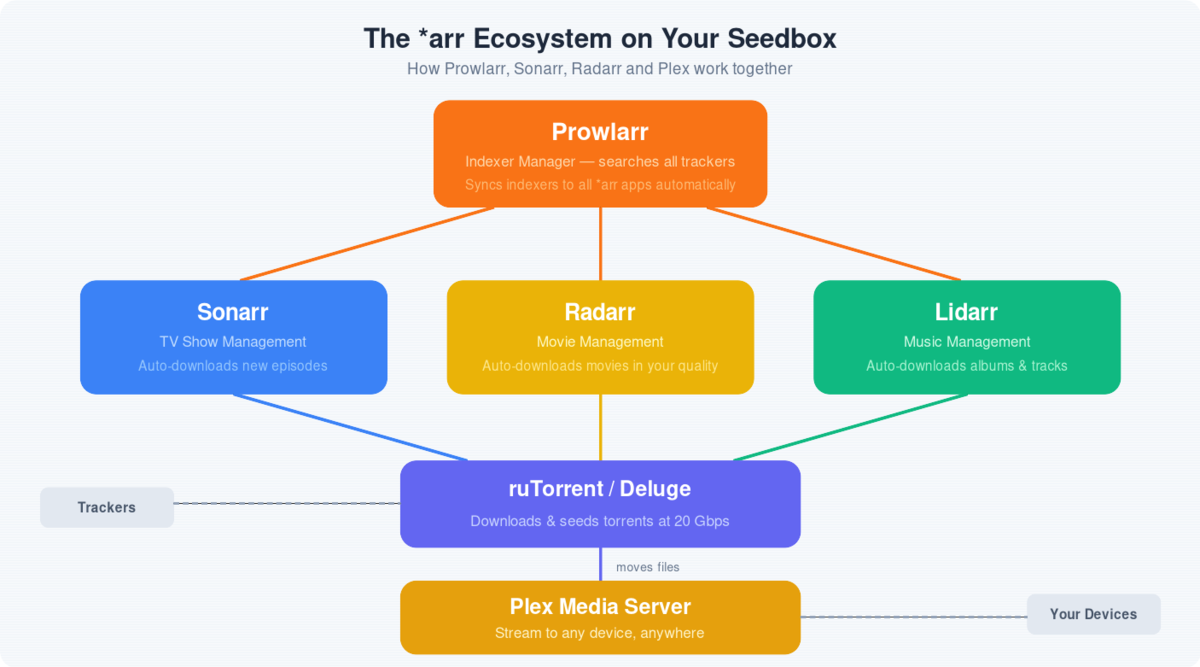
With Prowlarr, building your ultimate media library is a breeze. It works hand-in-hand with your trusty tools like Sonarr, Radarr, Lidarr, and Readarr, finding and grabbing those must-have files while you sit back and relax.
Unleash the power of automation. Try Prowlarr today and watch your media server transform!
Installing Prowlerr
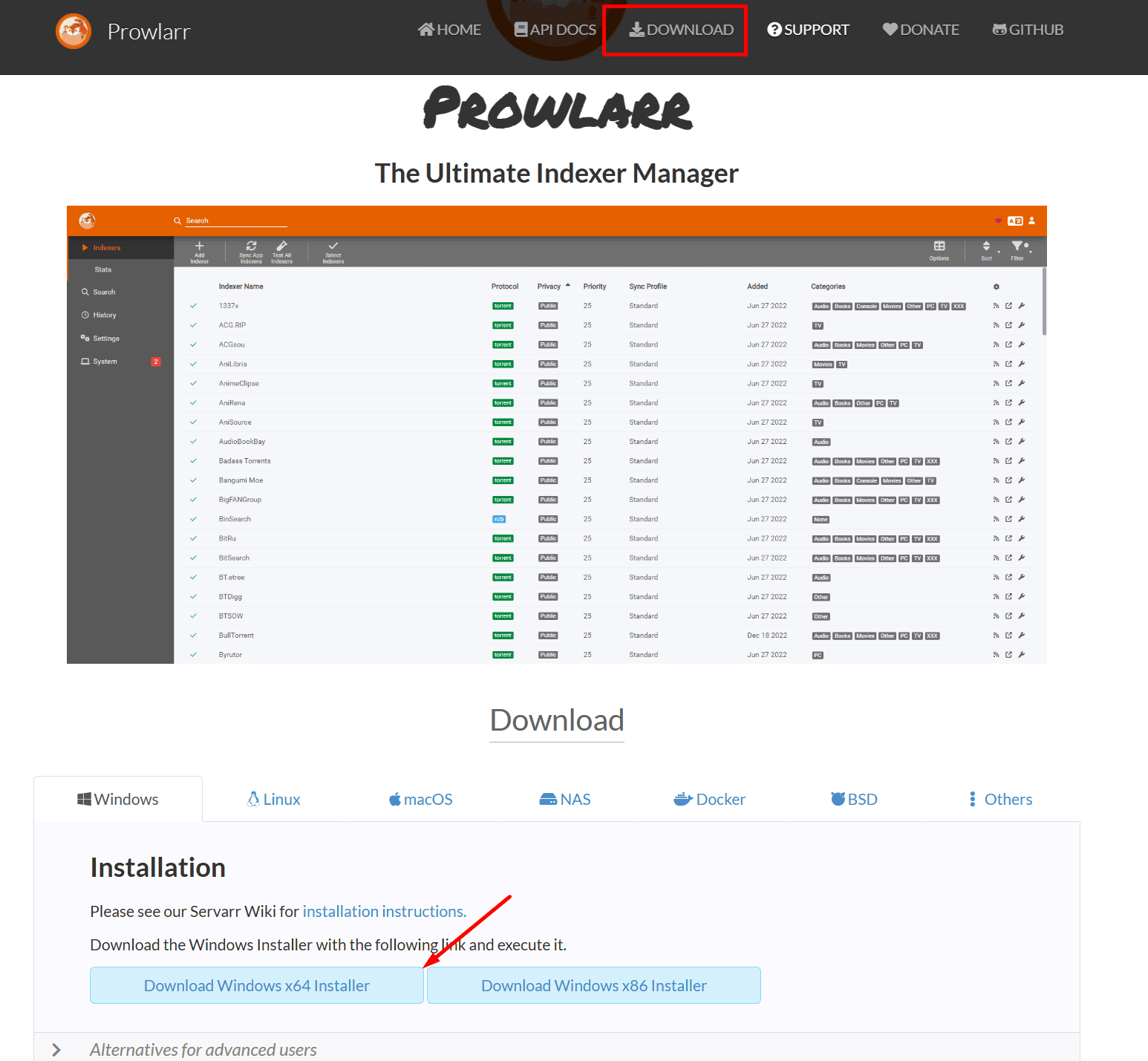
Windows : Installing prowlarr in windows is pretty straightforward from the official site : Prowlarr
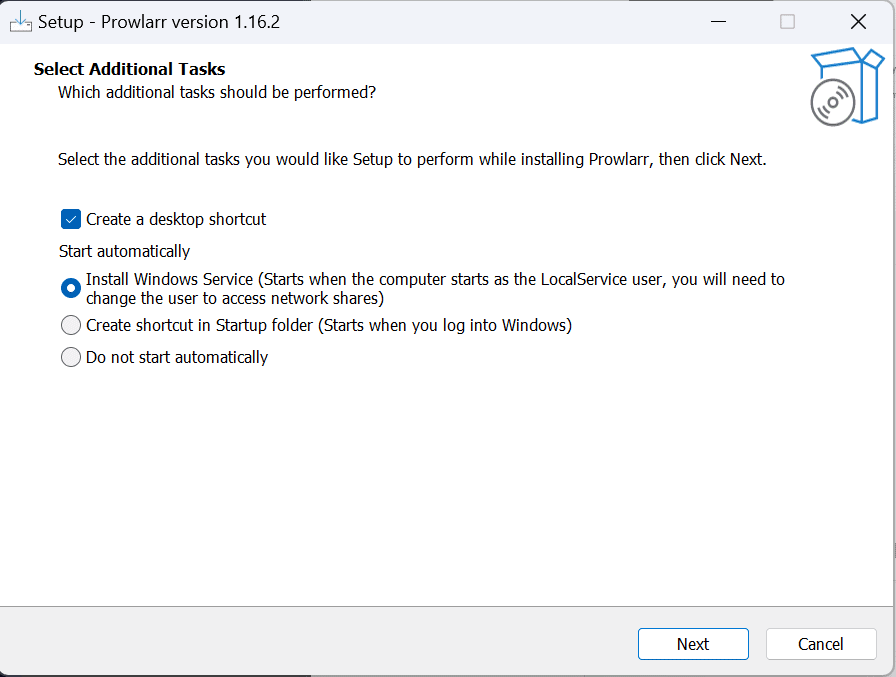
Run the installer, if you don’t want it to start autoamtically select that option. We recommend that you keep it active.
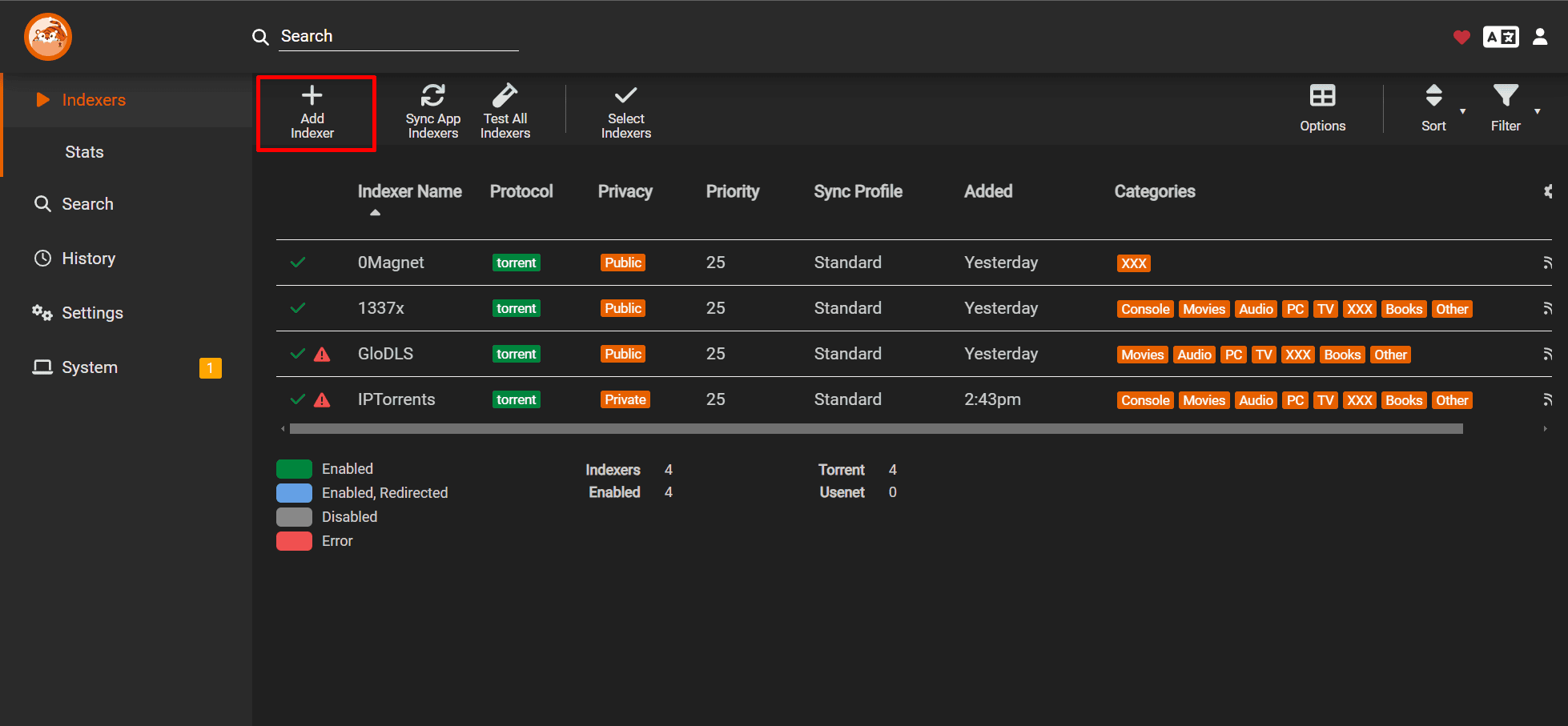
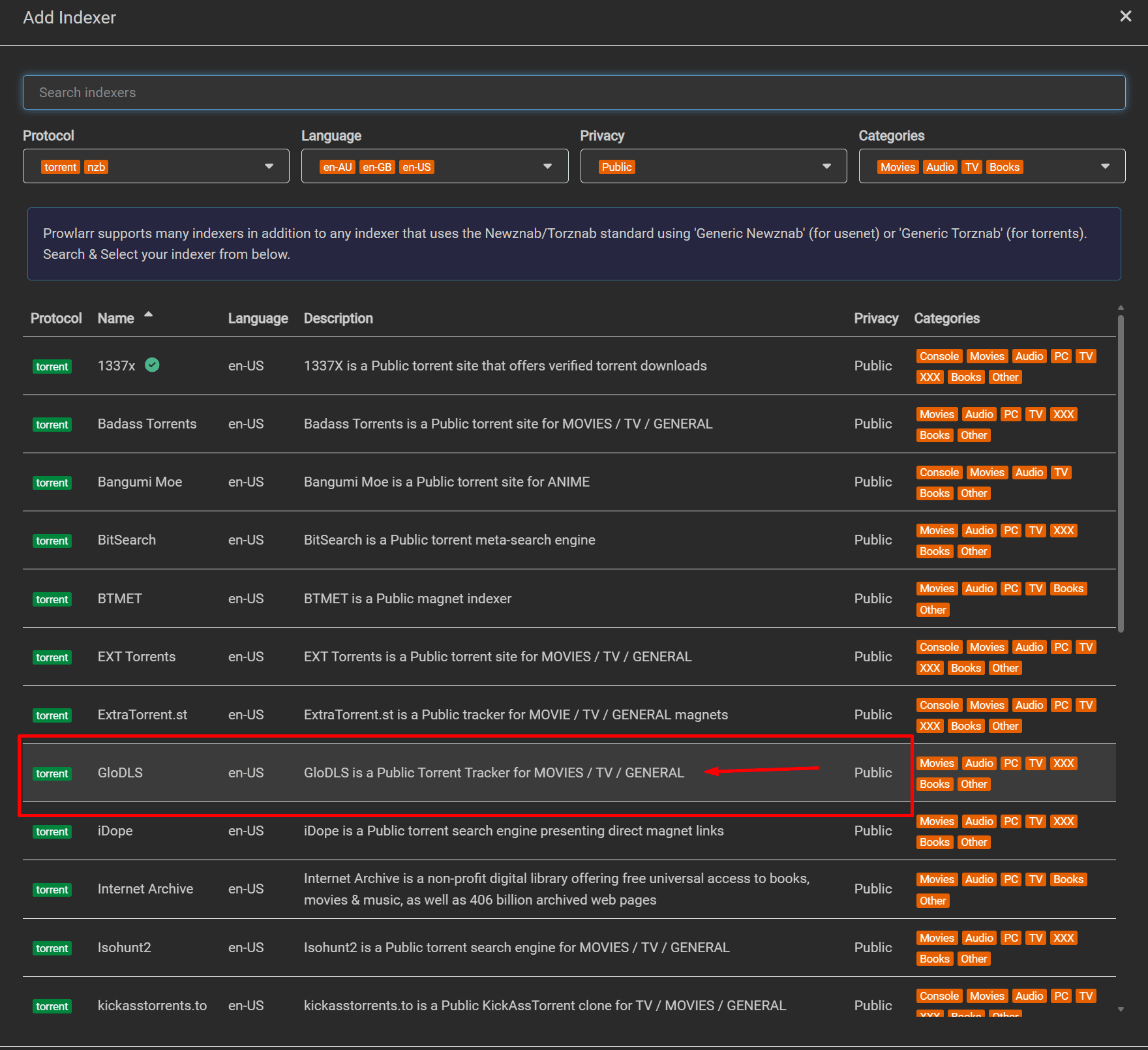
Once installed open prowlarr and select add indexer
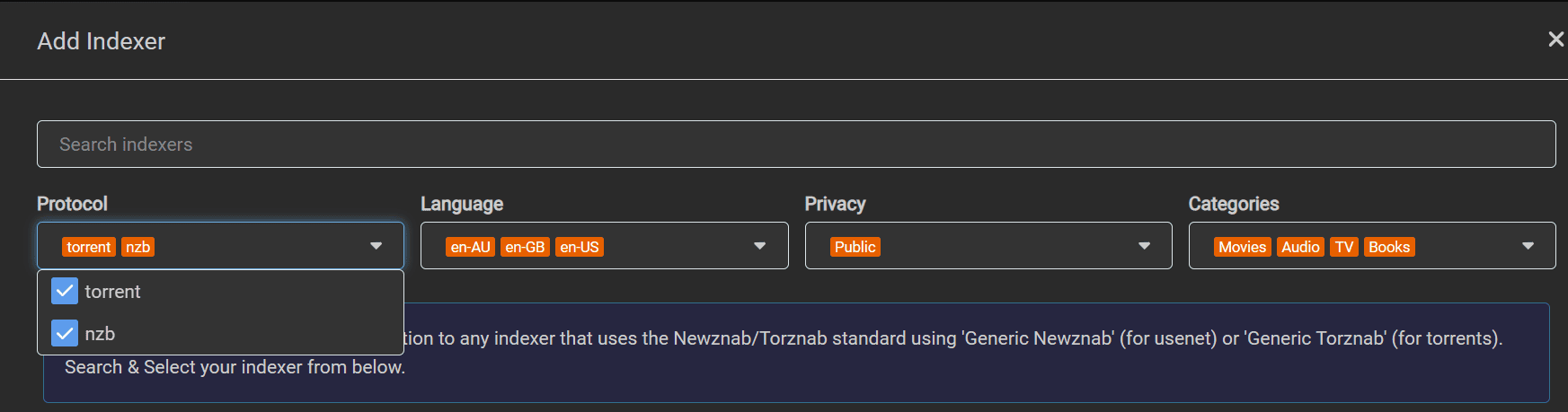
In protocol select torrent to NZB according to your requirement
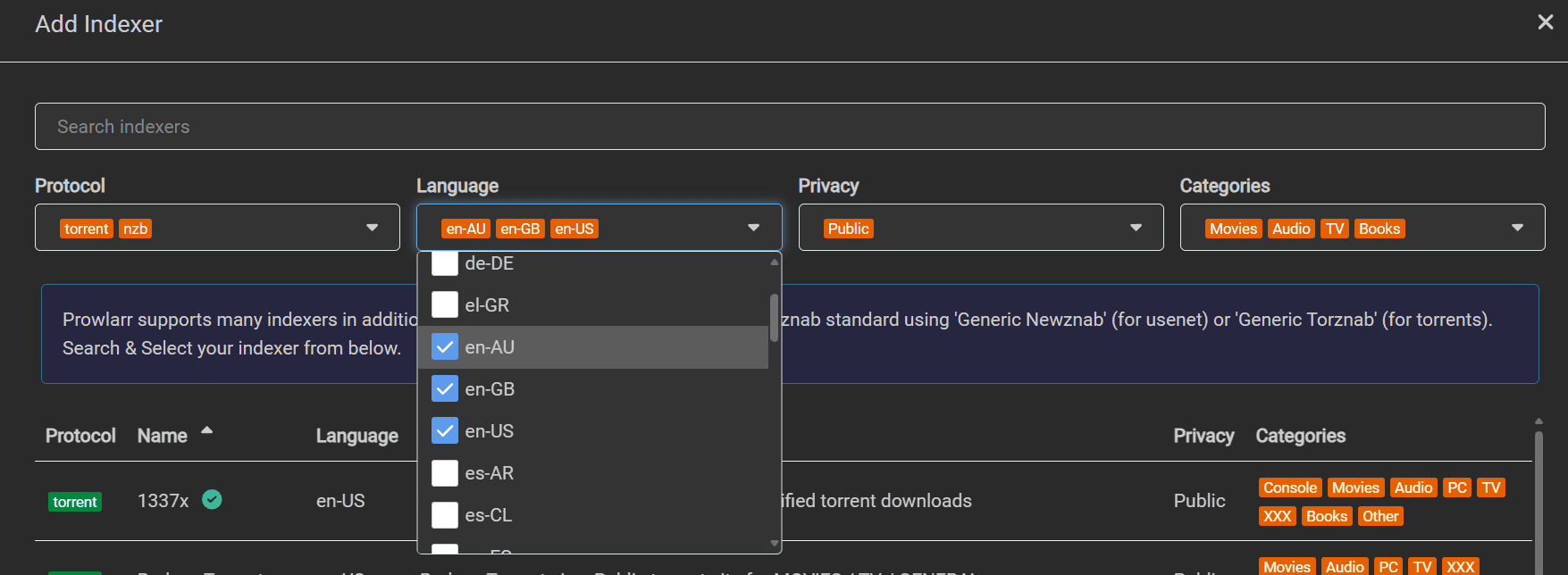
Then choose the language in which you want to search your content from torrent tracker or nzb indexers
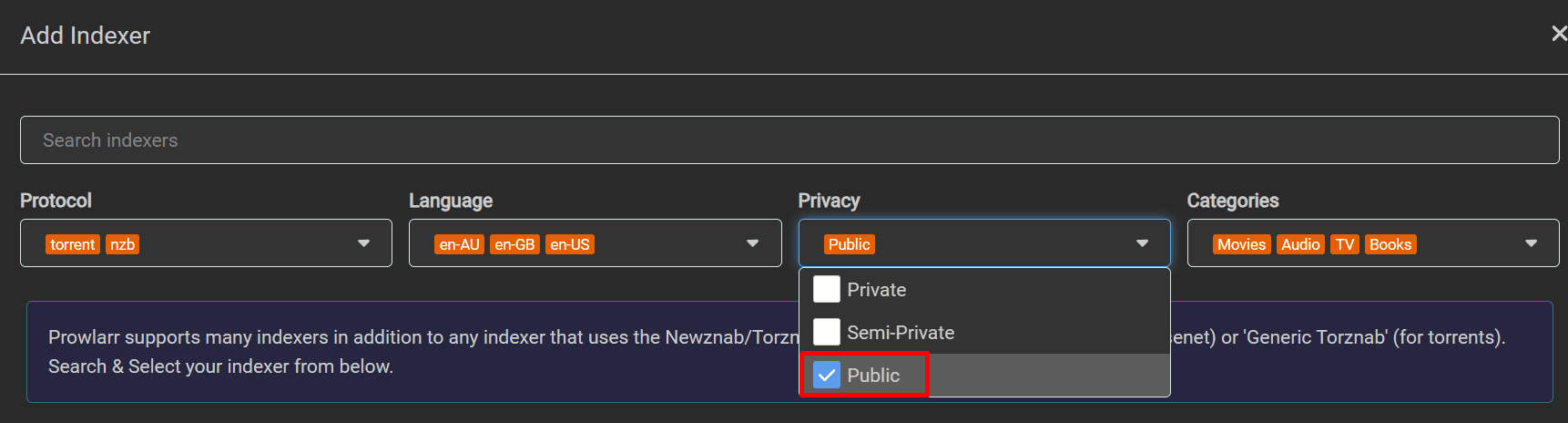
Select the type of tracker you want to select from public and private and semiprivate. Private tracker means you need to login to the private tracker site before you can access to any torrent. Public torrent trackers are open and you don’t need any special sign in to access them.
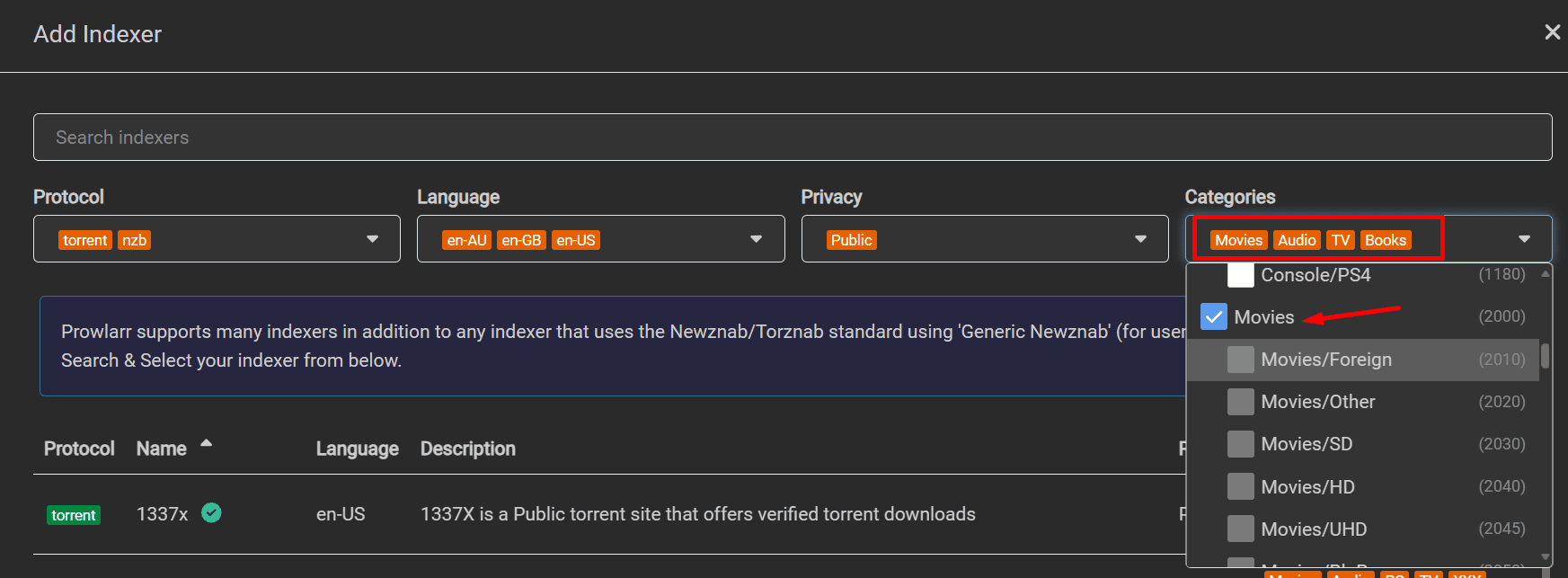
Select the type of content you want from Tv , Movies, Apps etc
Then select the tracker you want to configure. In this case we are configuring a public tracker GloDLS.
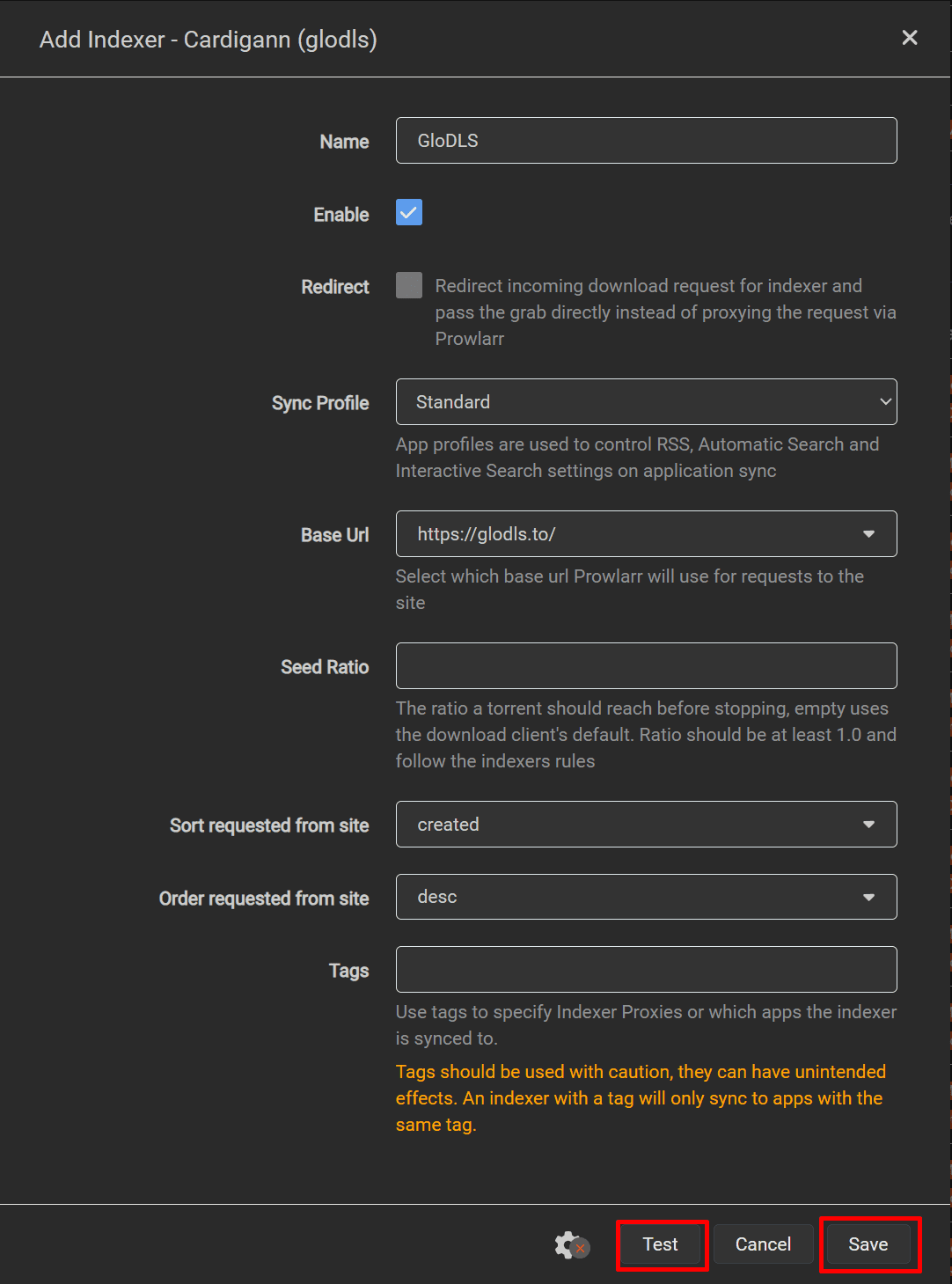
Once you click on the tracker Add Indexer option will open up and select the enable option then click test if it shows up a green tick then click on save.
Once you close the torrent tracker, a green tick will appear next to it, indicating a successful addition of the tracker in Prowlarr.
For private tracker with Prowlarr settings:
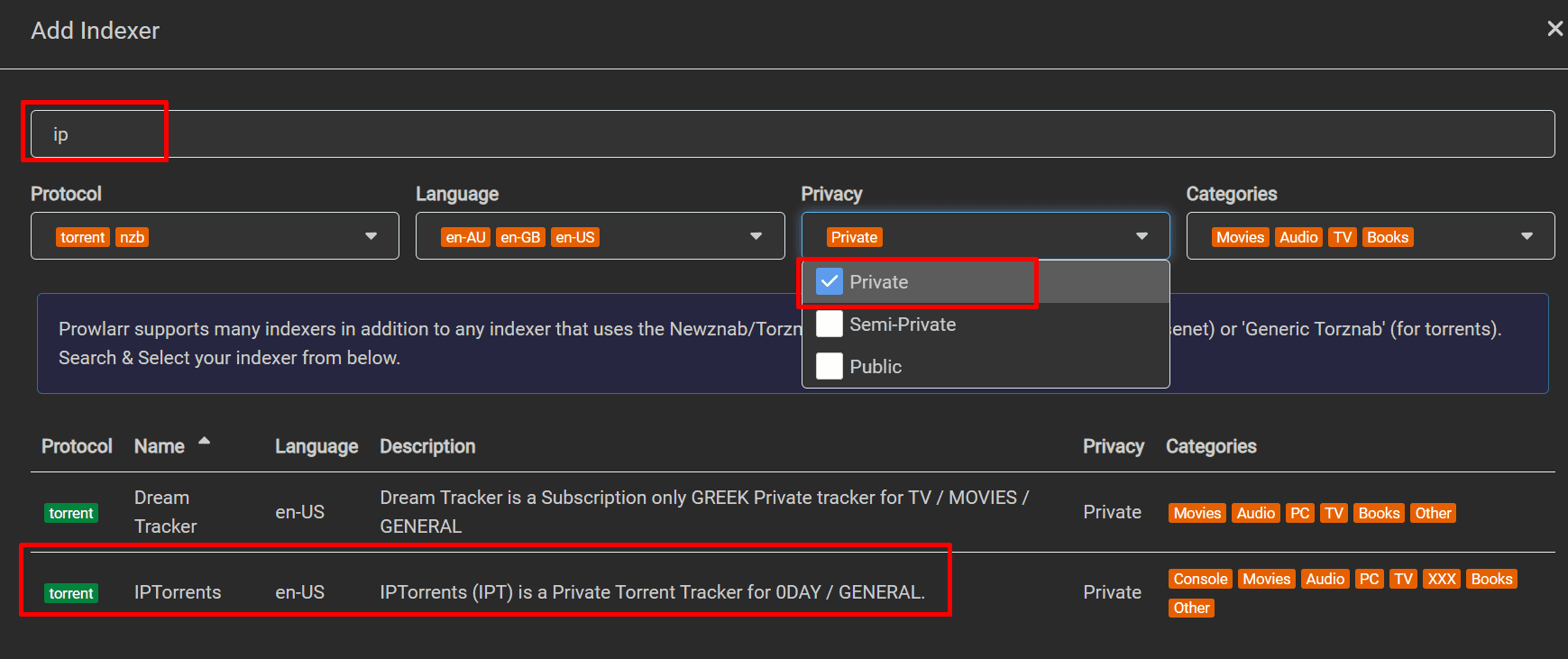
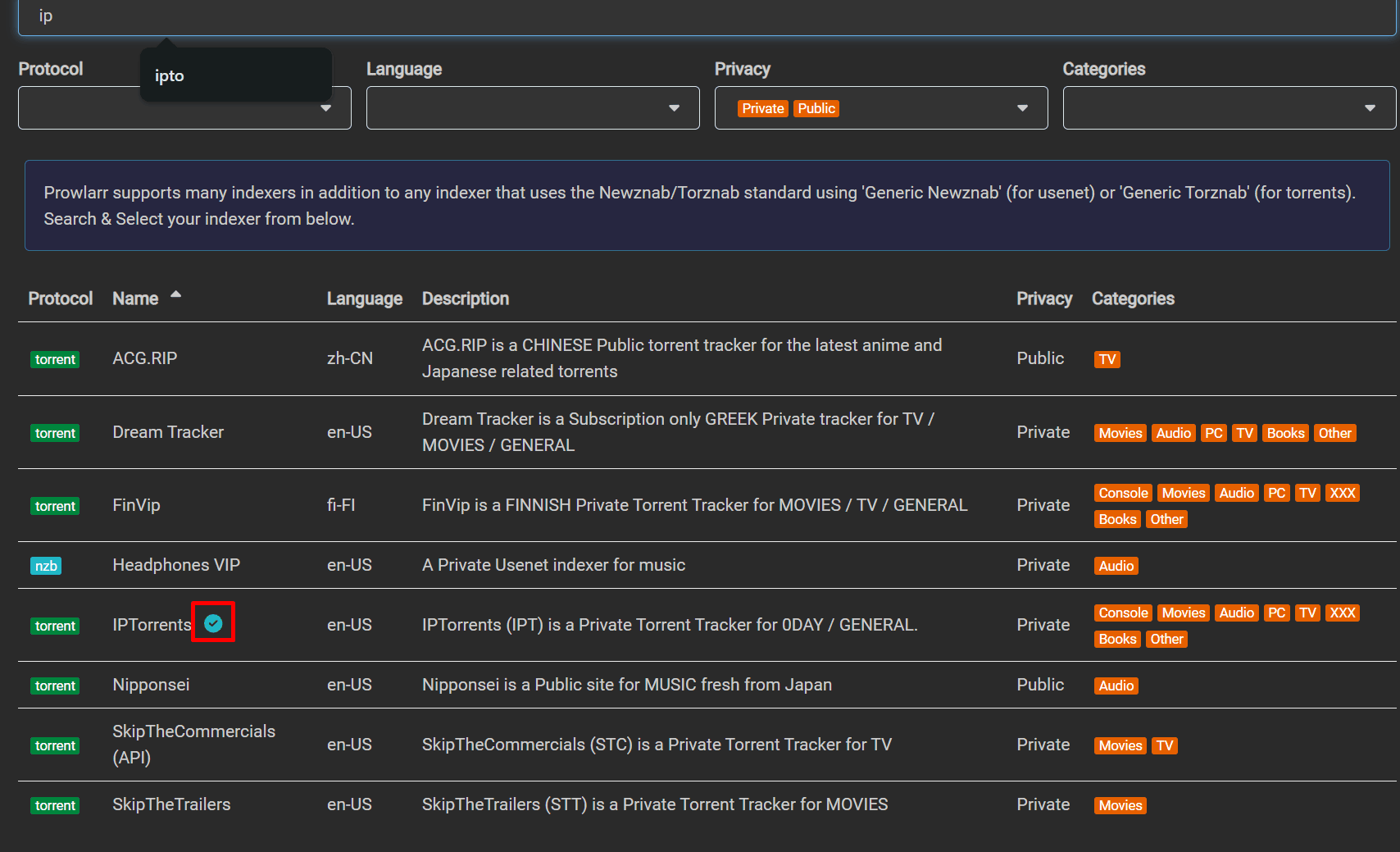
Search your private tracker in the indexer search and in privacy settings ensure to select privacy.
Once you click on your private tracker the below options will open up.
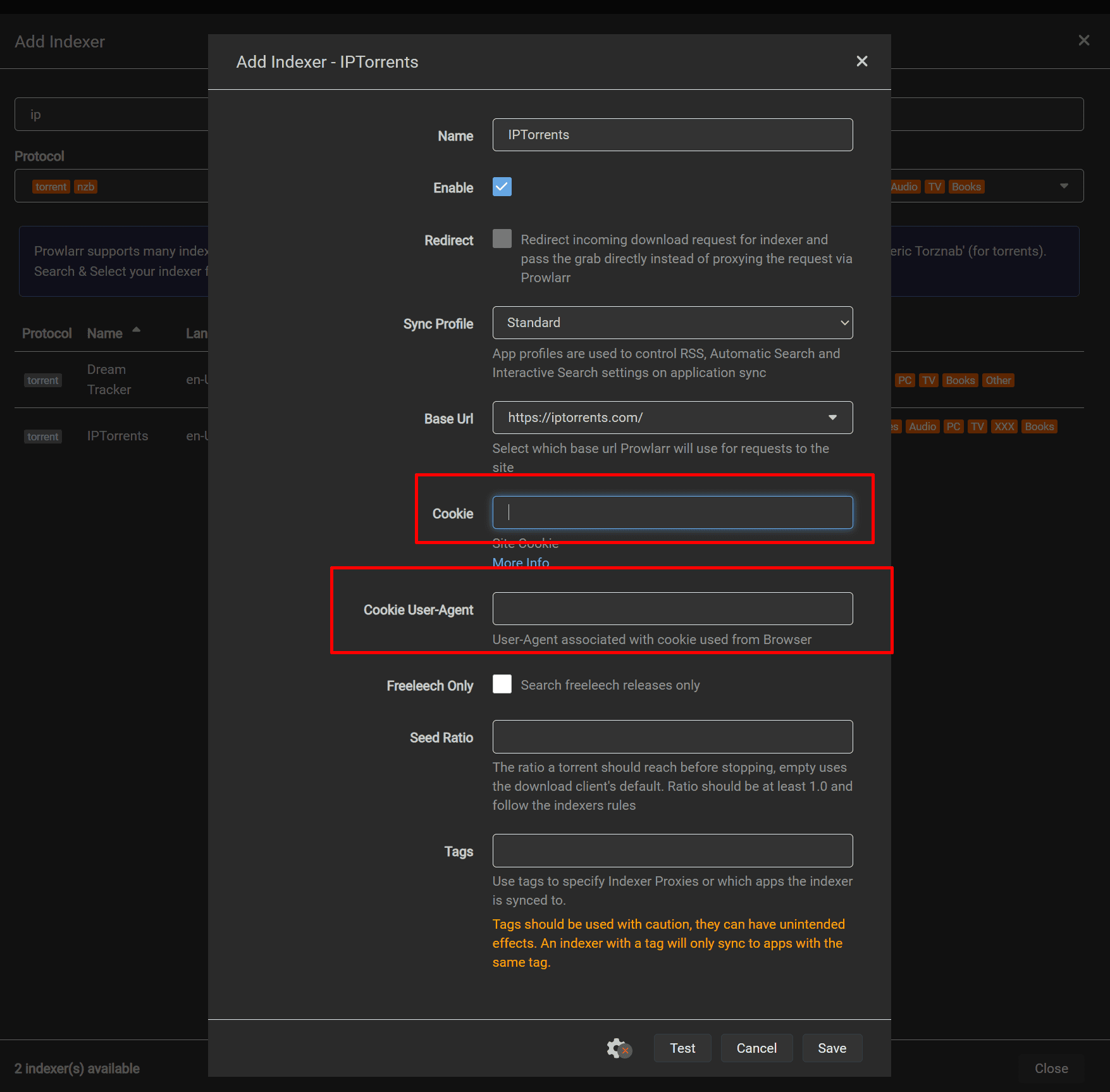
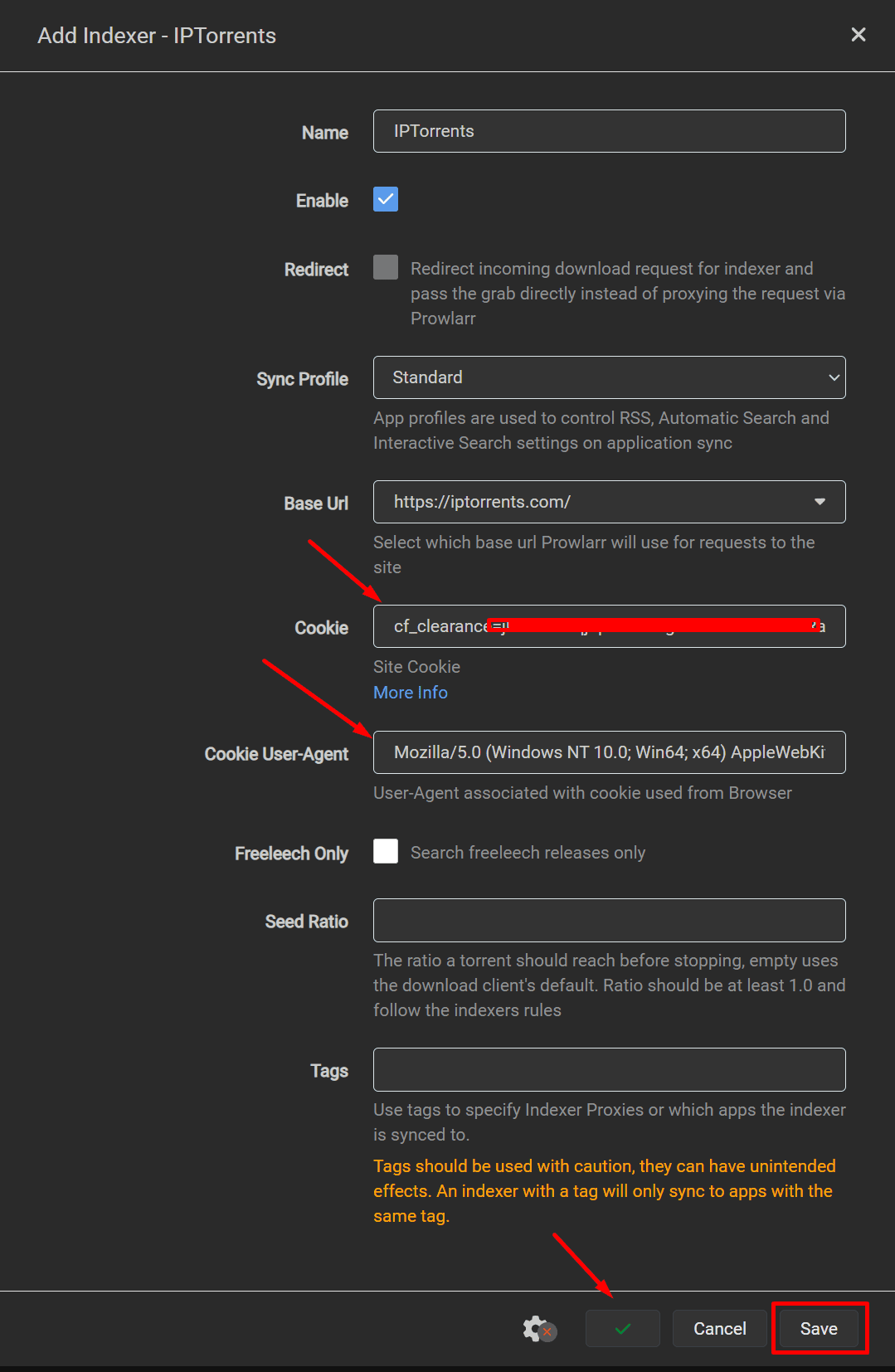
In our example we are using private tracker Iptorrent we have to fill in the fields cookie data and Cookie User-Agent
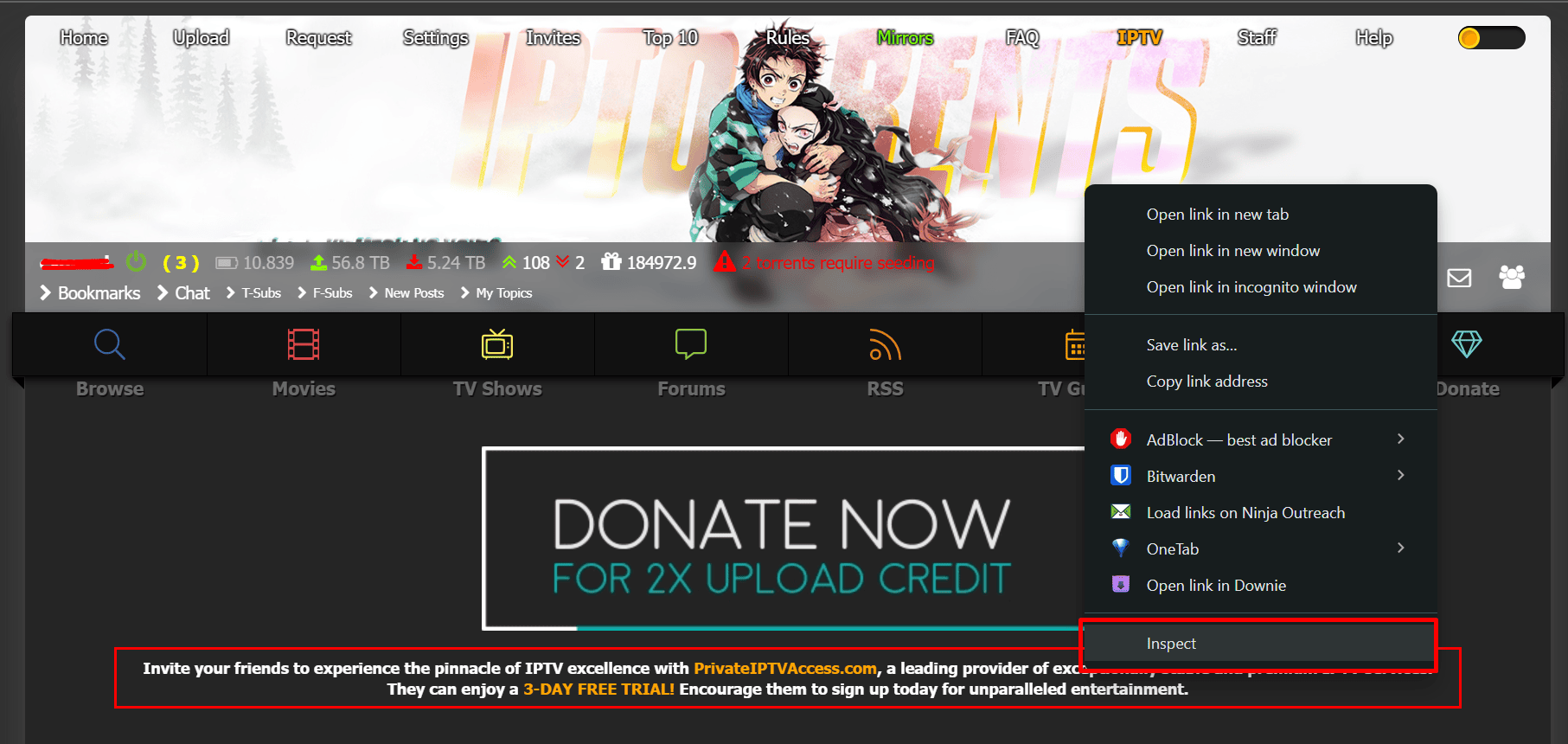
Login to Iptorrents and right-click anywhere on the webpage and click inspect
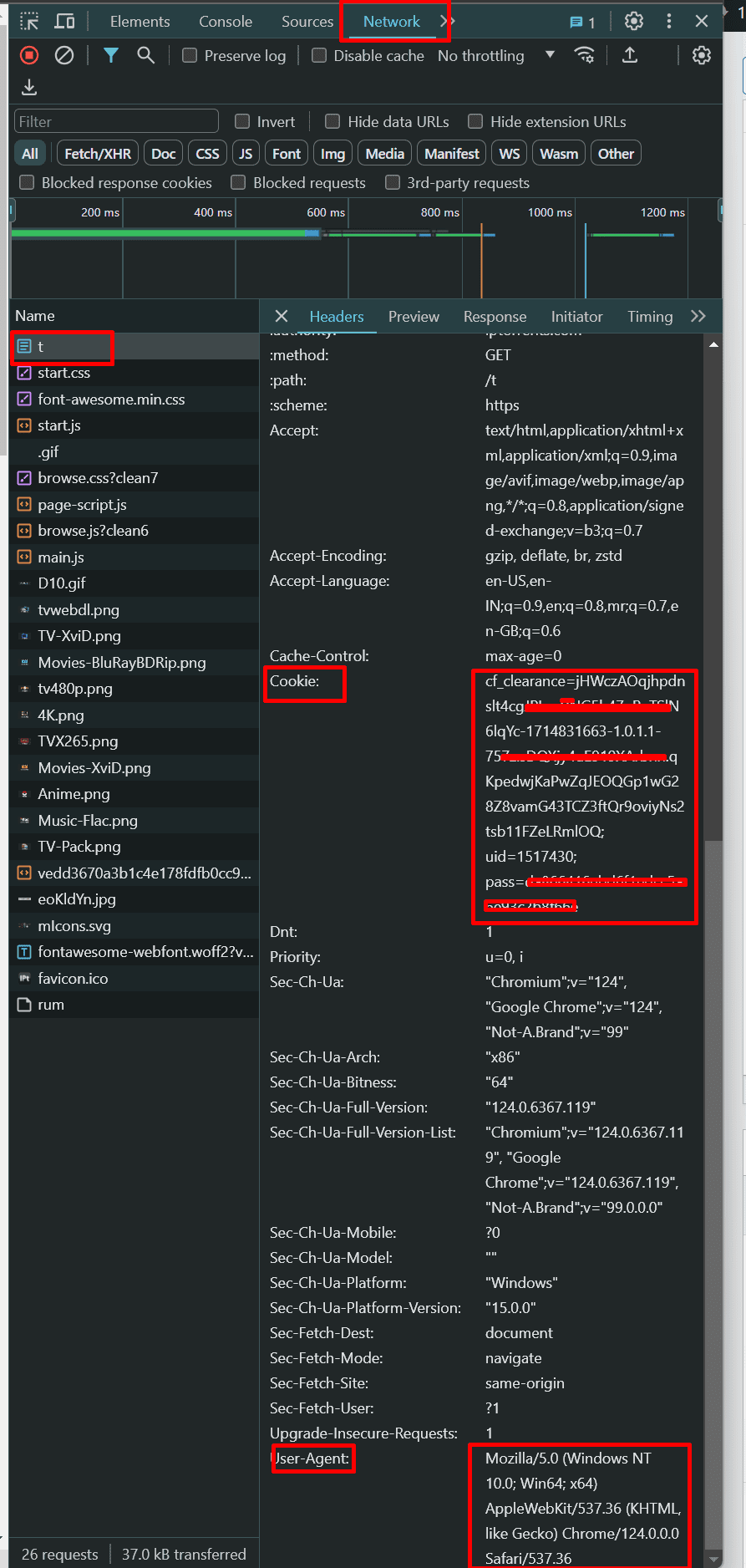
A new section will open in your browser on it click on the Network Tab
Under the section Name, select “t” and then copy all the text in front of the Cookie and User-Agent field as shown in the image below
Paste the copied data in the prowlarr as shown in image below against the cookie and Cookie User-Agent field.
Click on Test and a green tick mark will show up which means you have set things correctly and then click on save
In front of your private tracker, a small green tick mark will show up.
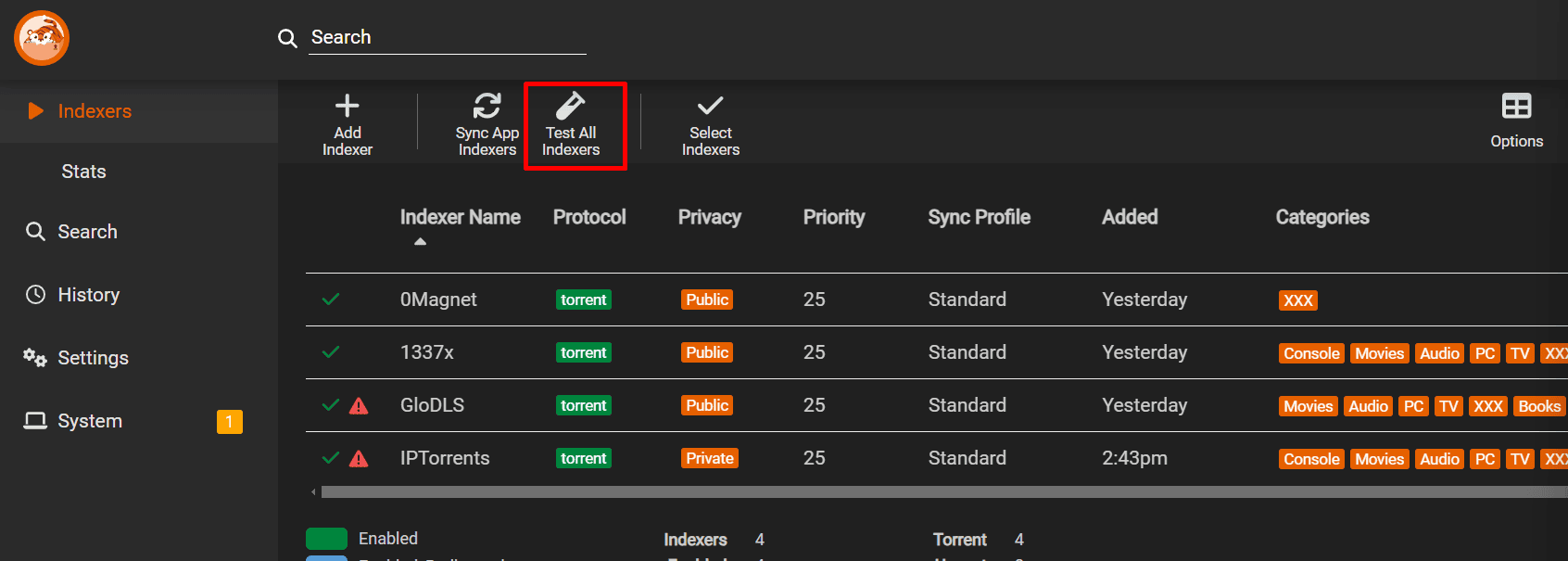
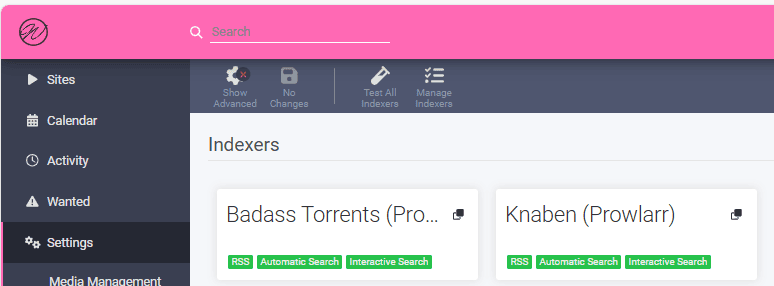
Periodically you can click on test all indexers to check if some of them are dead or there is some error in their settings.
If you see a warning sign, you can either correct the setting or remove the tracker accordingly.
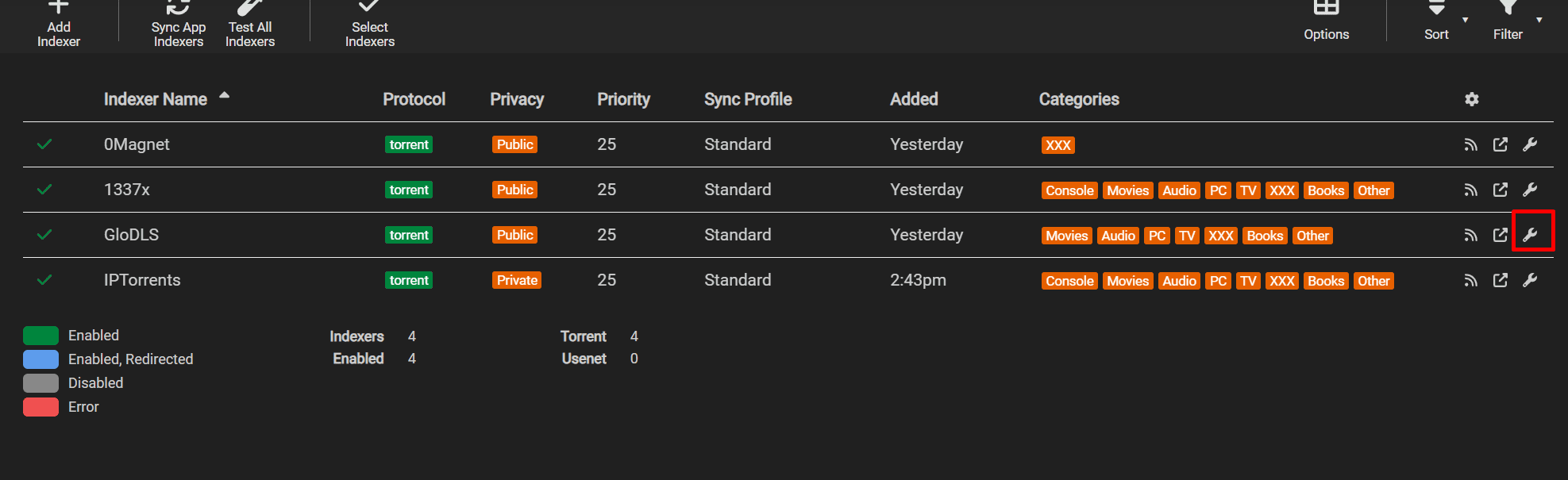
To correct it click on the spanner/settings symbol in front of the tracker.
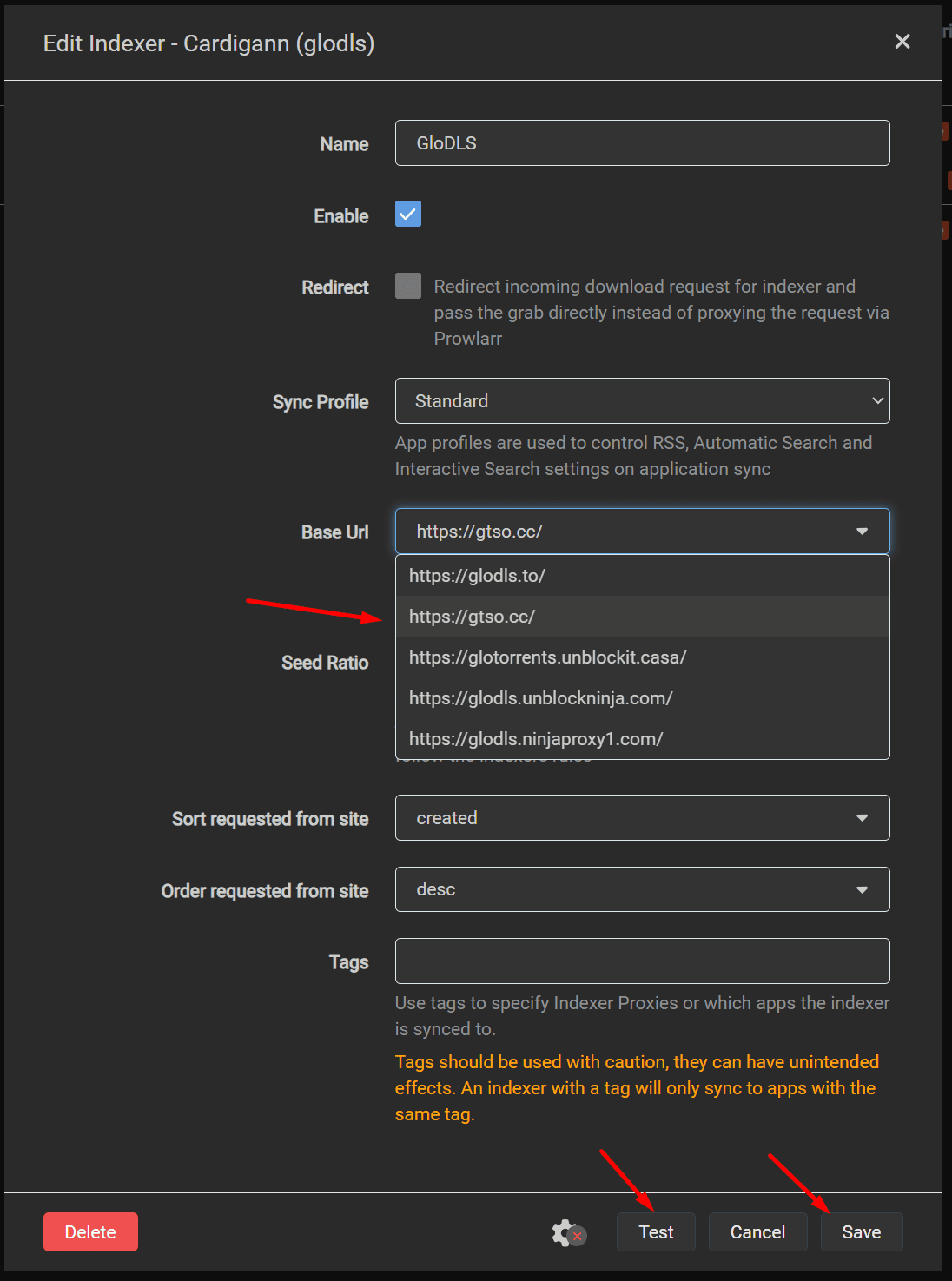
In case your selected link is dead, you can choose an alternative, test to confirm it is working and then hit save to rectify the
issue with the tracker, as shown in the image below.
Instruction for using Prowlarr with Usenet
In Protocol select nzb and privacy depending on your Usenet indexer choose public or private
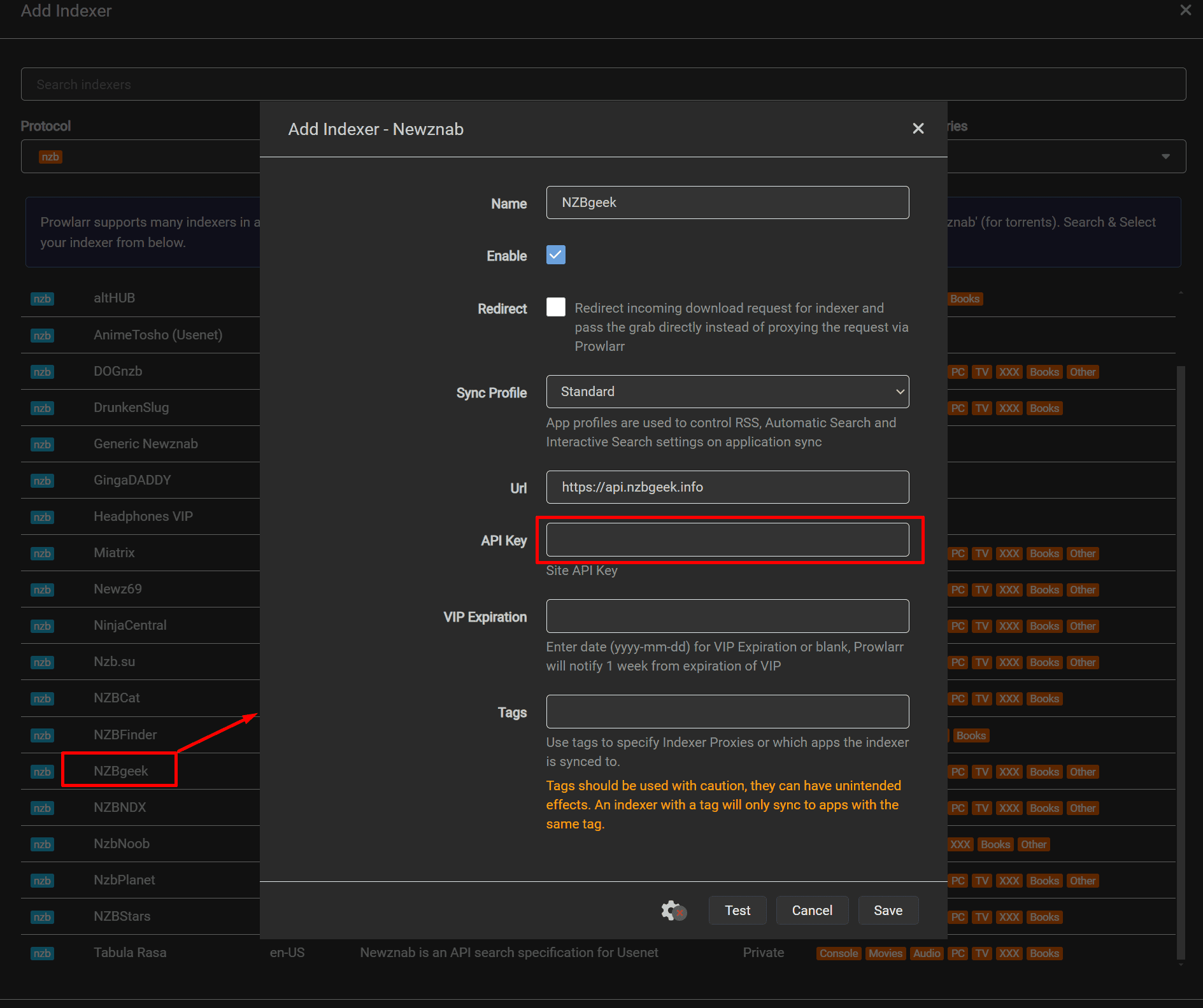
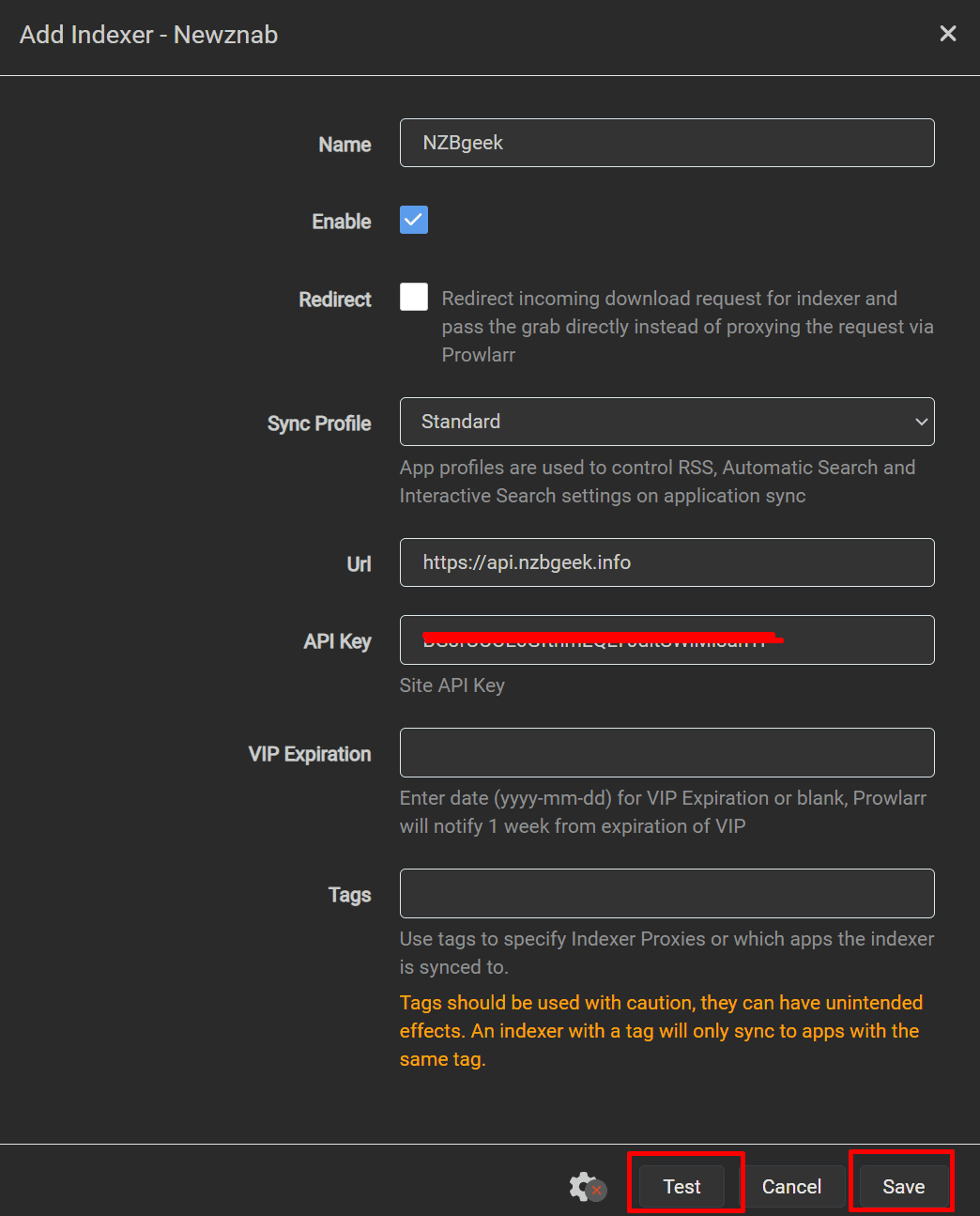
In or case we are using example of private usenet indexer Nzbgeek , once we click on it there below option
will open up which will require the api key
Go to Nzbgeek or your usenet indexer profile and copy your api key as shown below .
And add ito prowlarr in API key section as shown in the image below. Click on test if you get a geen
tick mark it means you have set everything up okay and then click save.
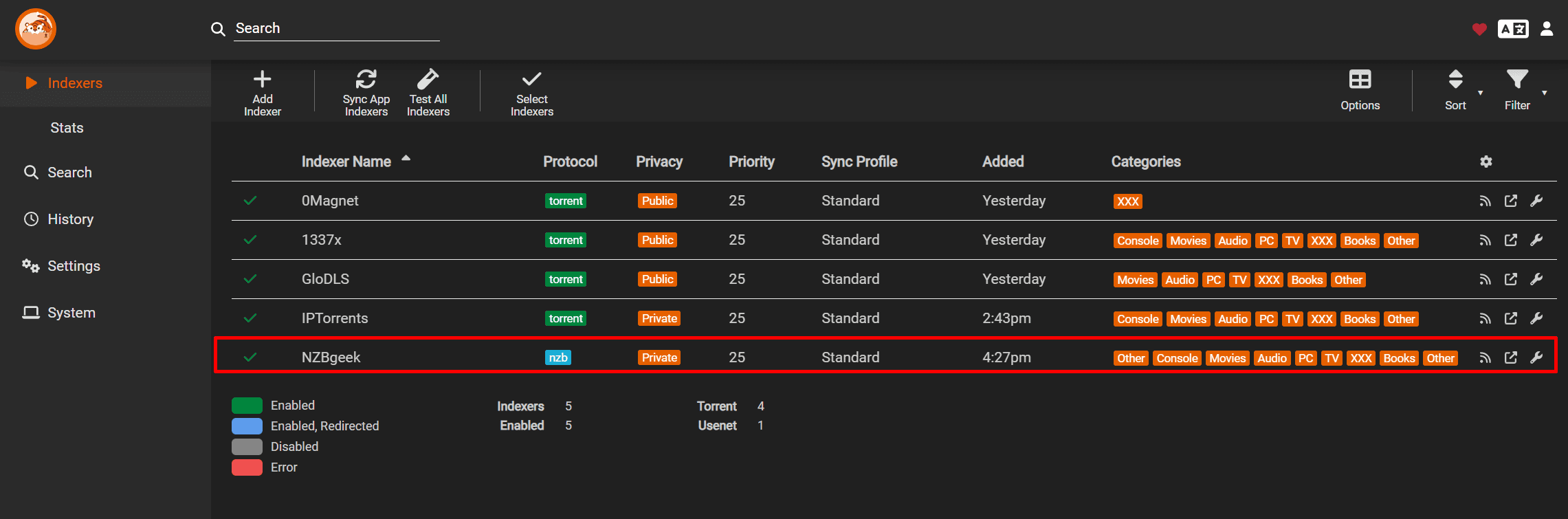
Once you save it, you will receive a small green tick mark against your nzb indexers name.
Connecting Prowlarr with other ARR Tools
Connecting sonarr with prowlarr
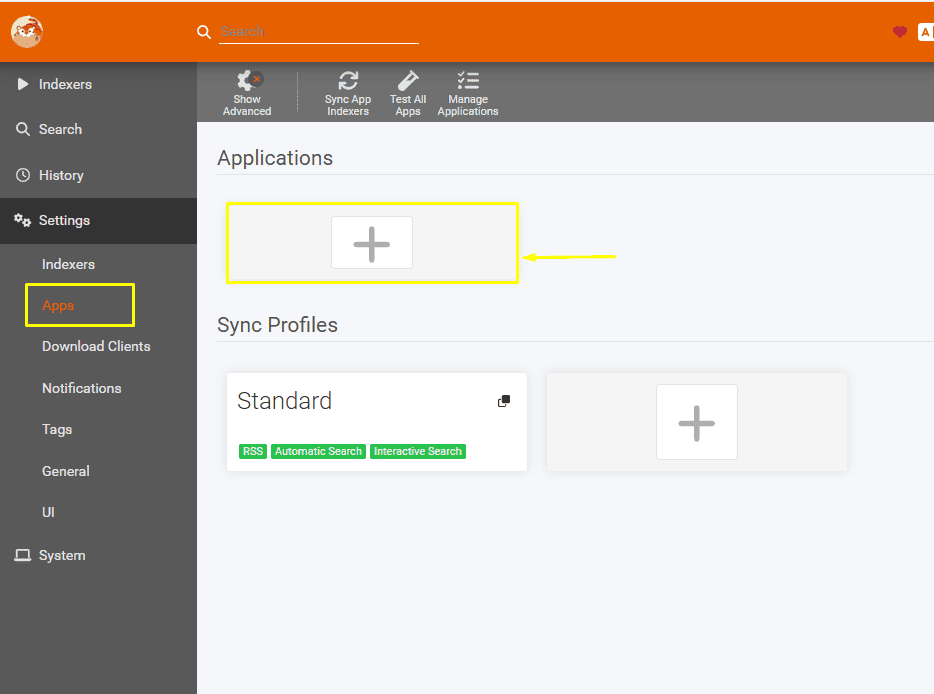
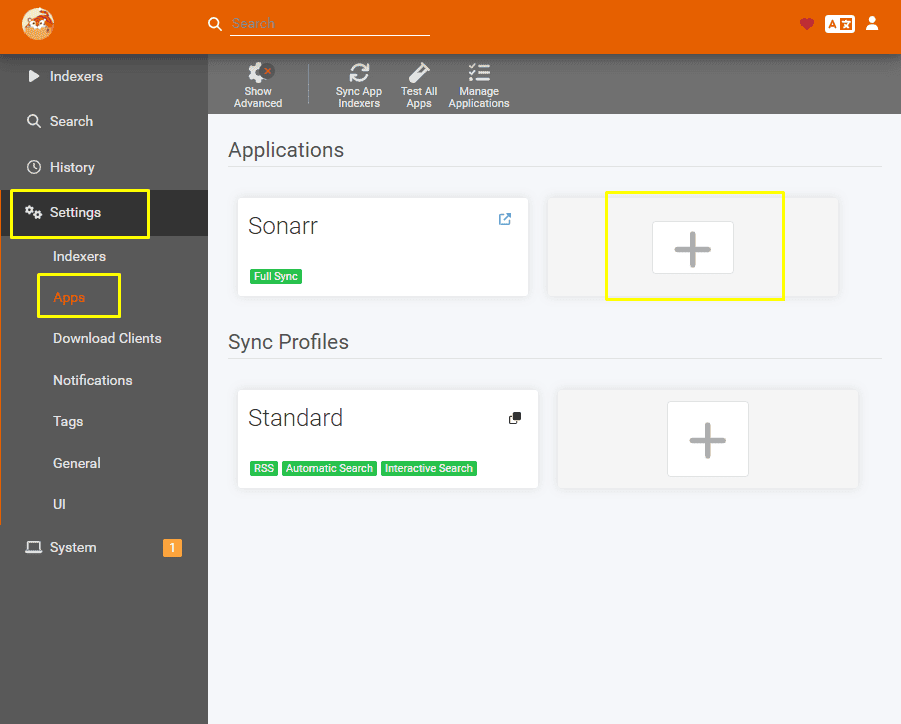
Open prowlarr go to settings and then select apps.
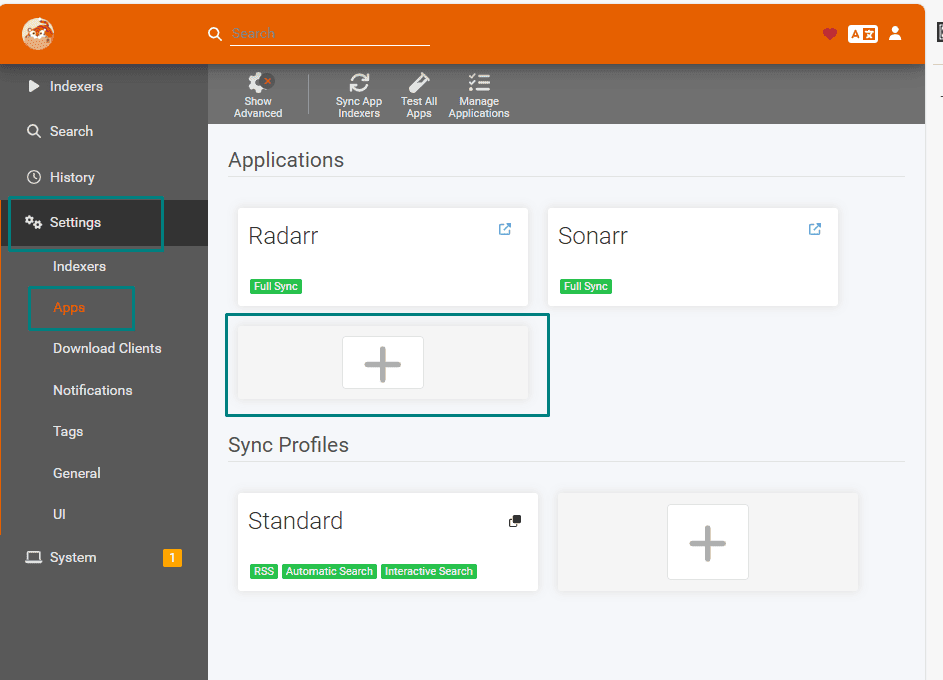
In apps section, click on the plus button under Applications.
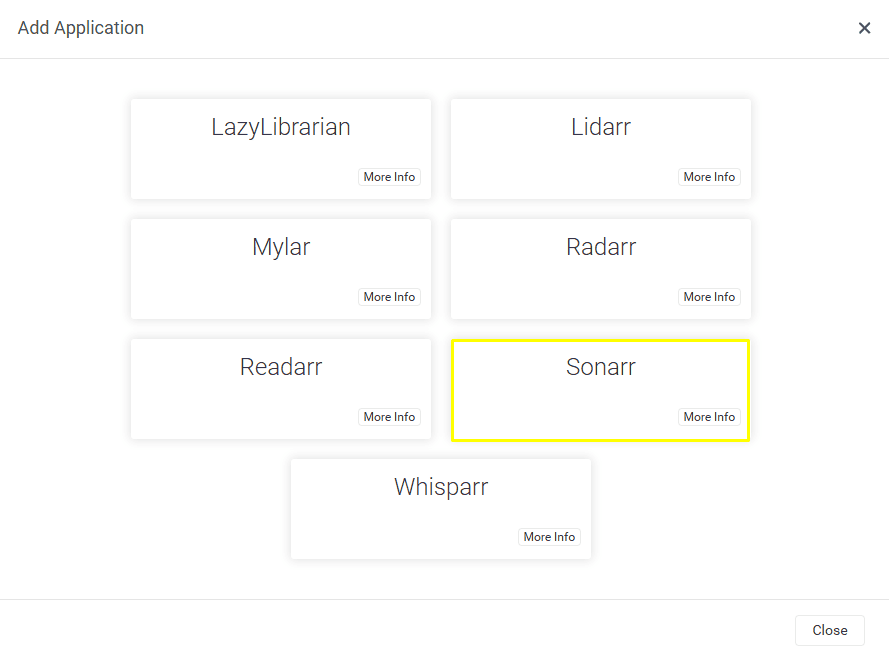
Once the Add application pop up opens click on the Sonarr tab.
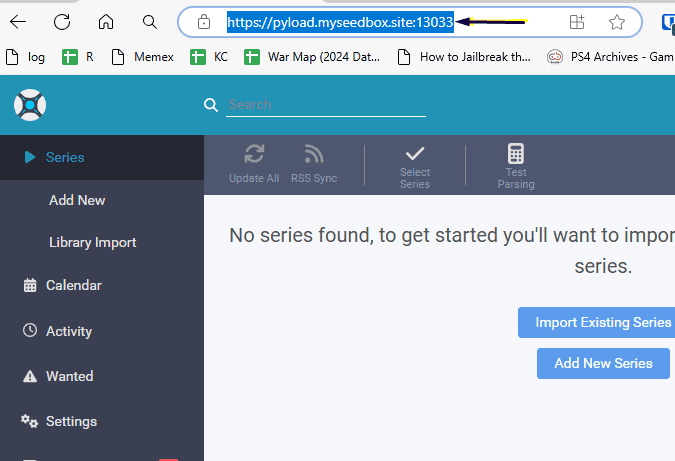
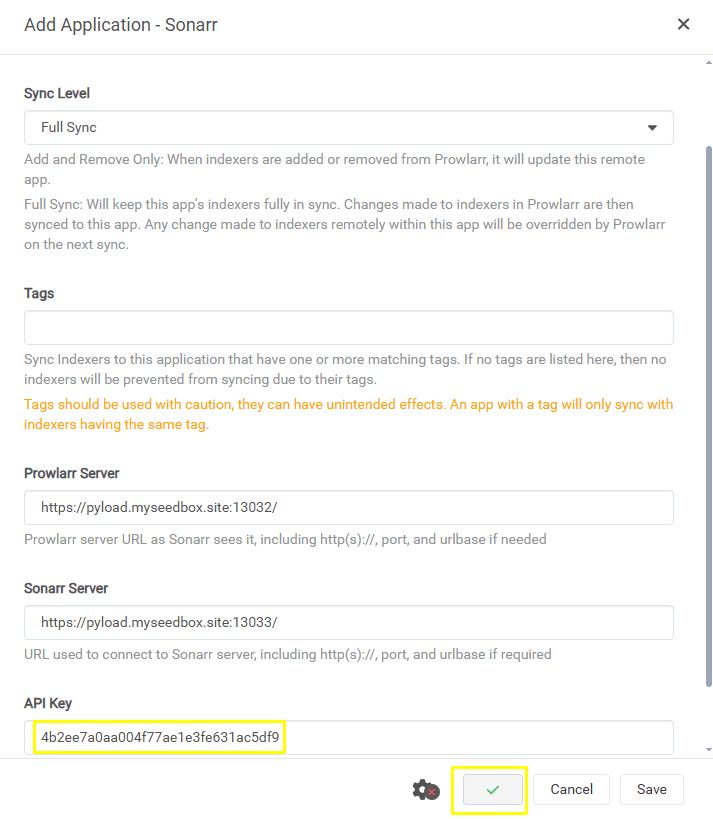
copy the url on which your sonarr is running as shown in the image below.
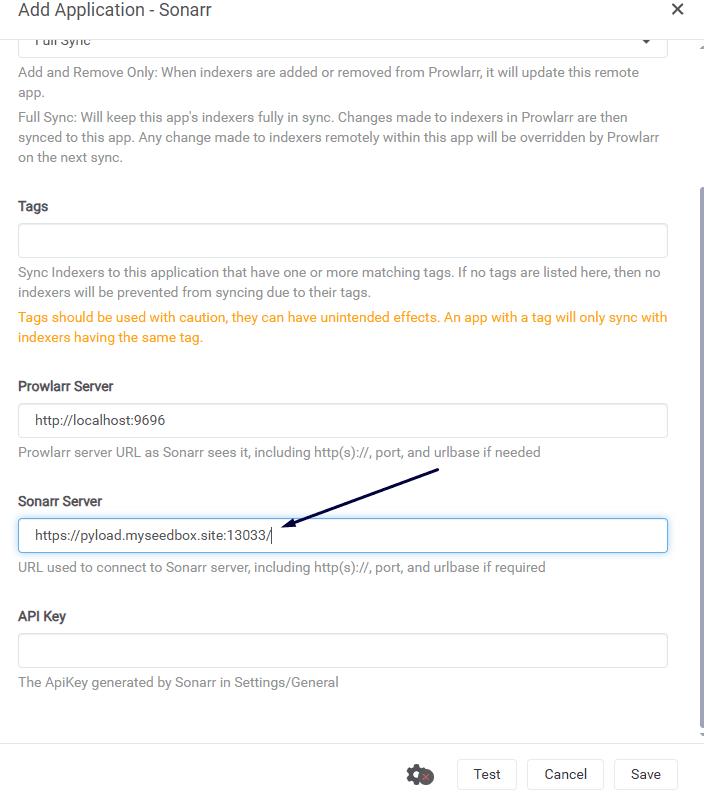
Copy and paste the link in prowlarr sonarr settings under the Sonarr Server field.
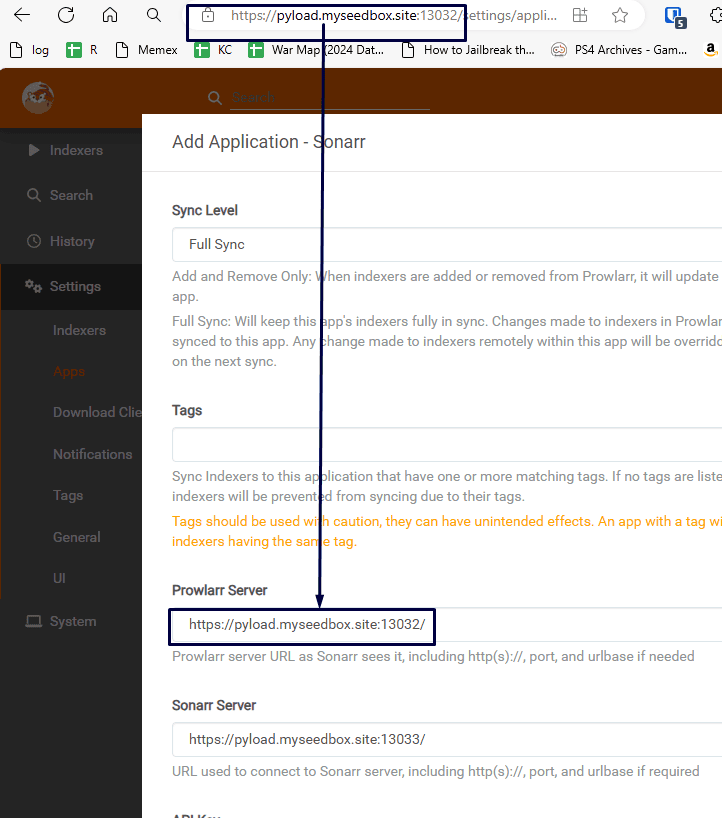
Similarly Copy the prowlarr link and put it in the Prowlarr Server settings as well
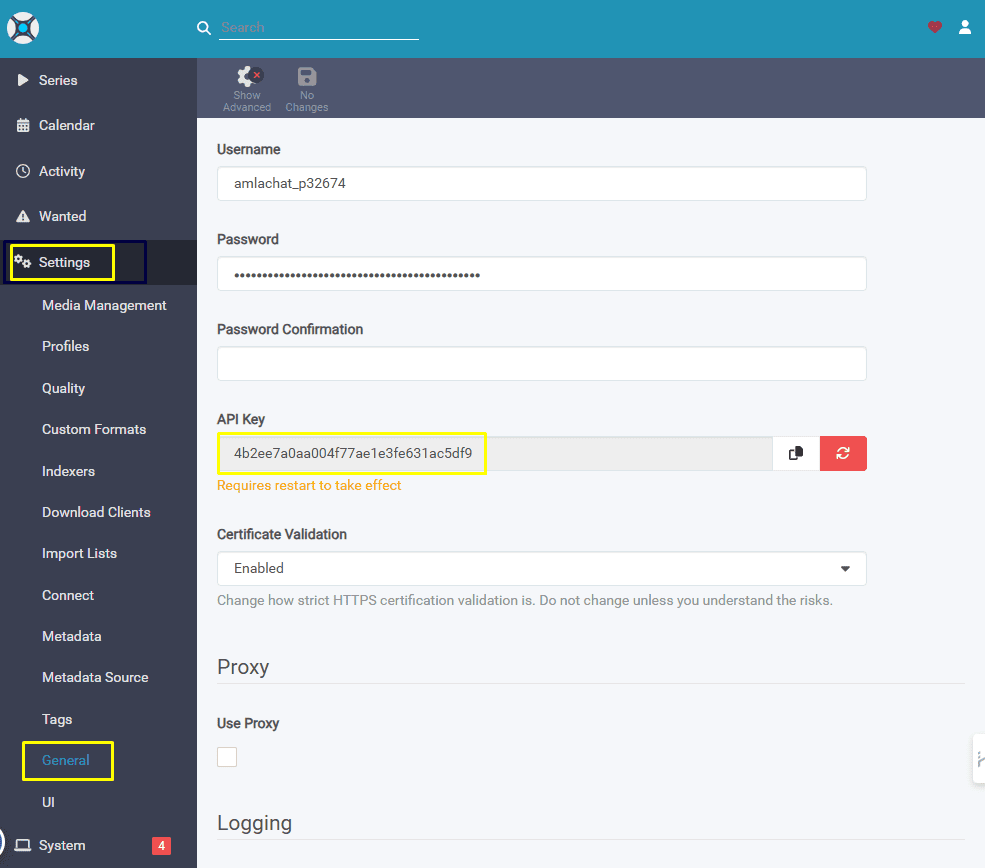
Now go to Sonarr then go to Settings scroll down a a little then click general and then copy the API
Copy the api in prowlarr sonarr settings and finally it should look like the screenshot below and then
hit test, and if you see a tick mark, then click on save
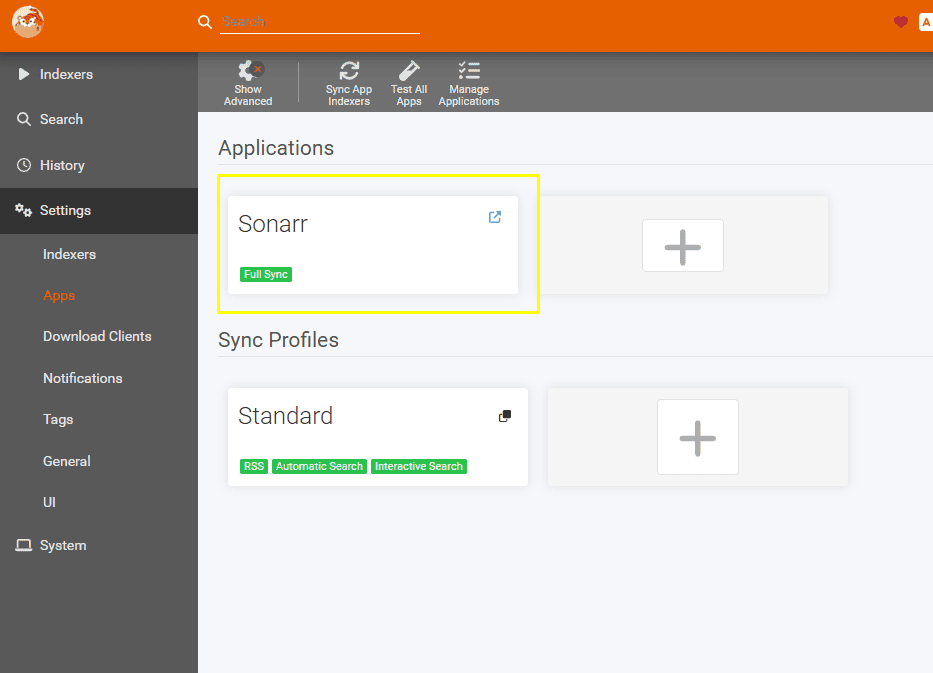
It should show up on your prowlarr like this if it shows full sync that means that you have successfully connected.
Please remember: You don’t set prowlarr as an indexer in sonarr, radarr, etc. In prowlarr, set up the indexers you’d like to use, then in prowlarr settings, connect it to sonarr etc and it will push your chosen indexers for you.
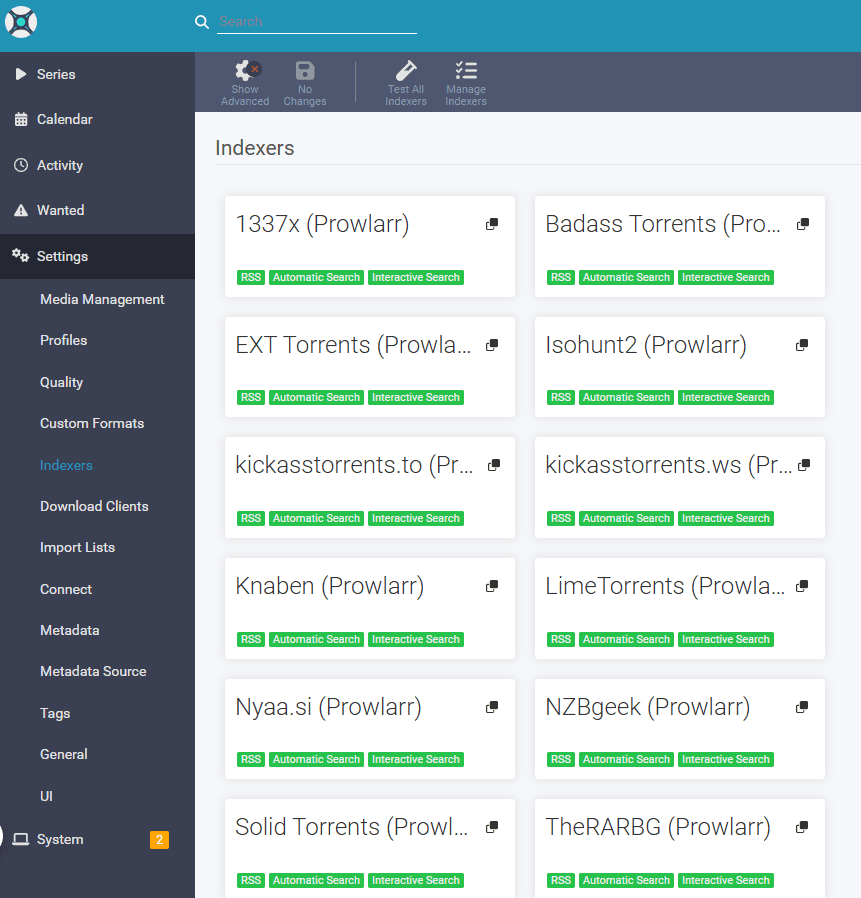
Thats it now you have connected sonarr with prowlarr and inf you go to your sonarr settings and then indexers it should automatically show up the indexers you have configured in prowlarr
Connecting prowlarr with Radarr
Open prowlarr go to settings selects apps and then click the + button under applications
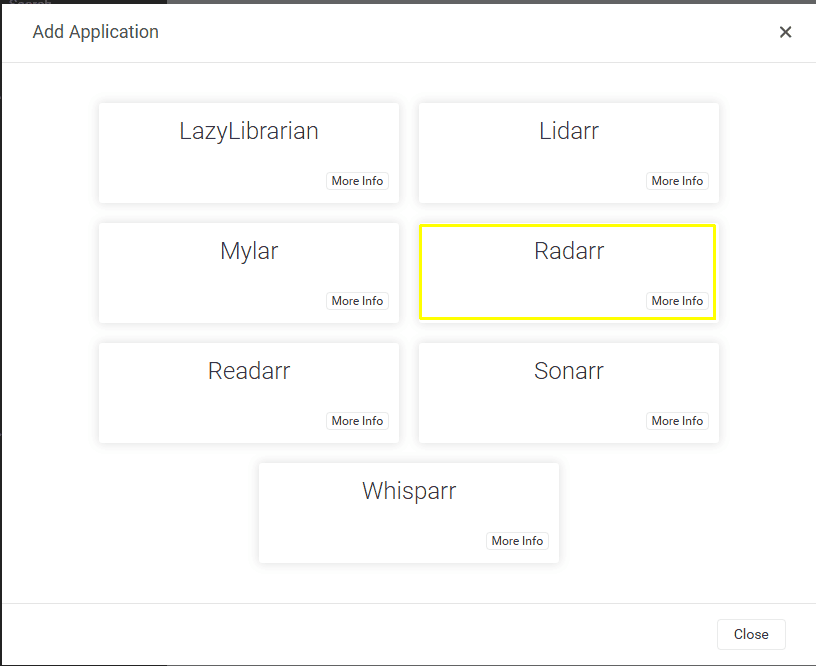
In add application select Radarr
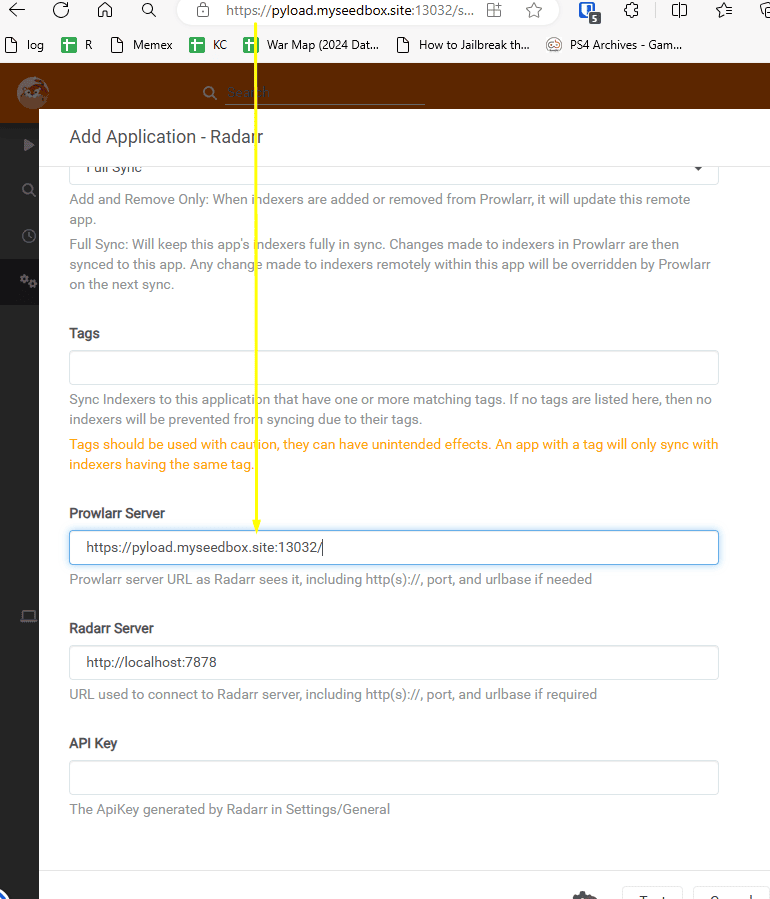
Similar to sonarr for radarr fill in the prowlarr server address in
Add Application – Radarr settings
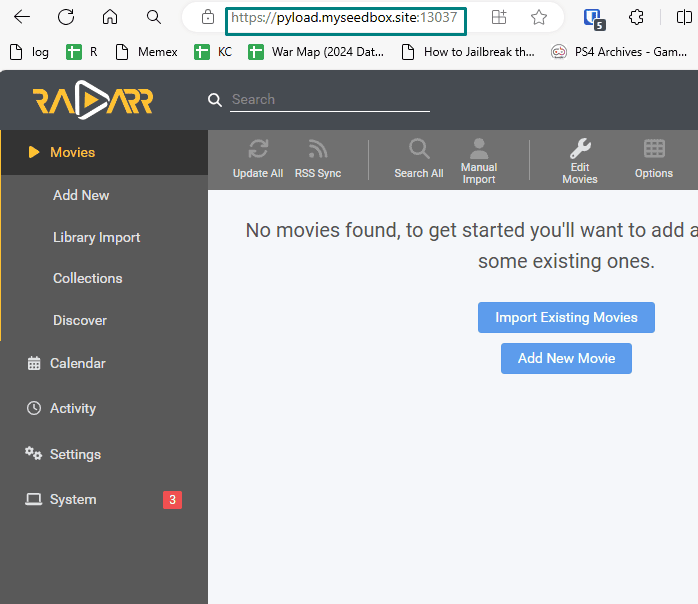
copy your radar web link address
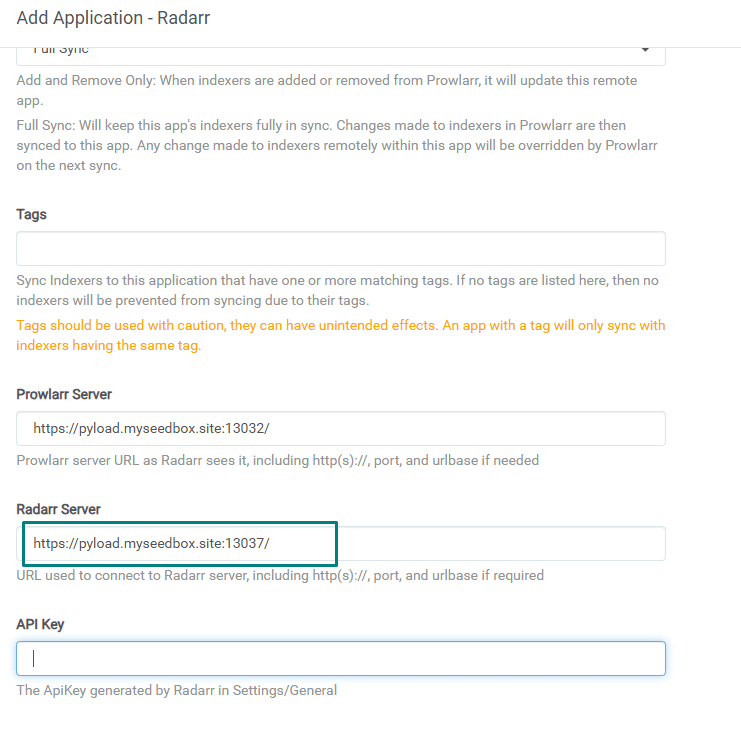
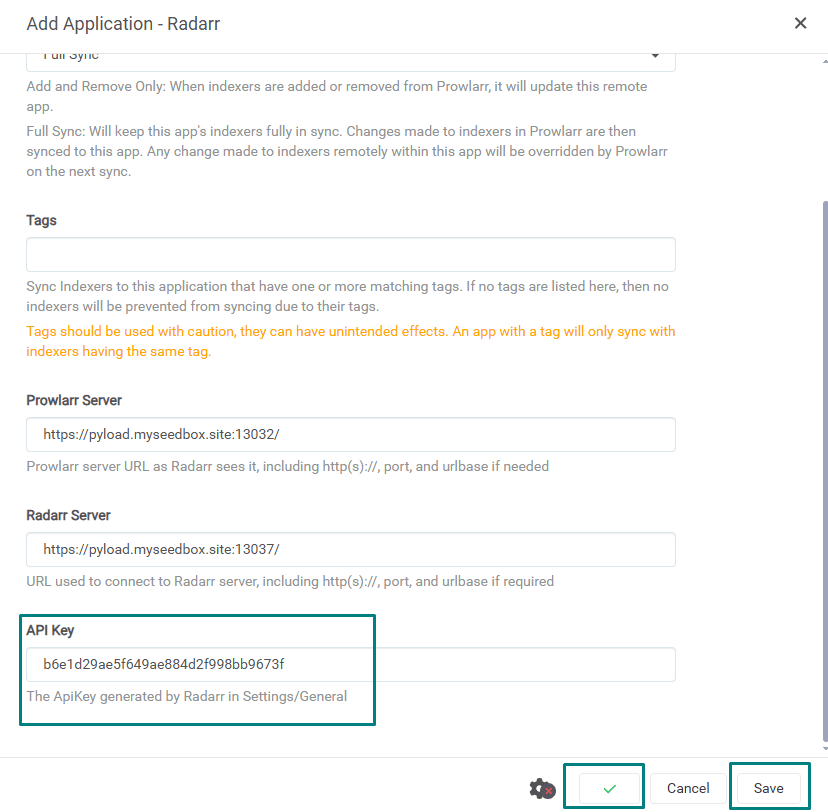
and paste it in the Radarr Server field as shown in the image below.
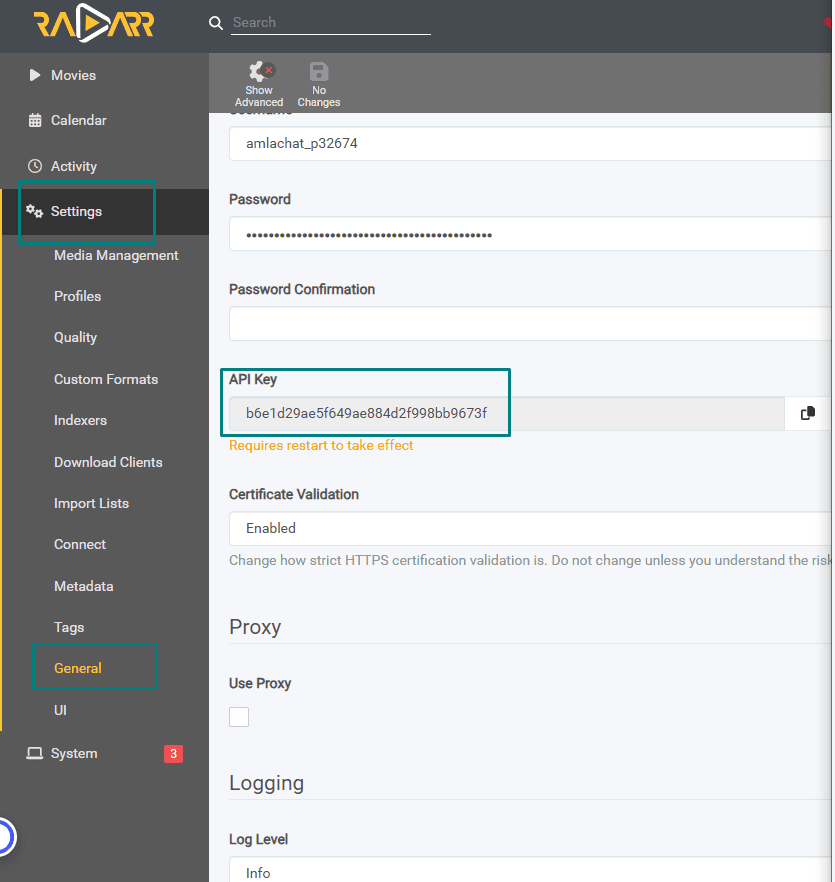
Now go to radarr then slick on settings, then select general and scroll down till you see the API Key and copy it
then paste it in the prowlarr settings and then click on test and if a green tick shows up click on save
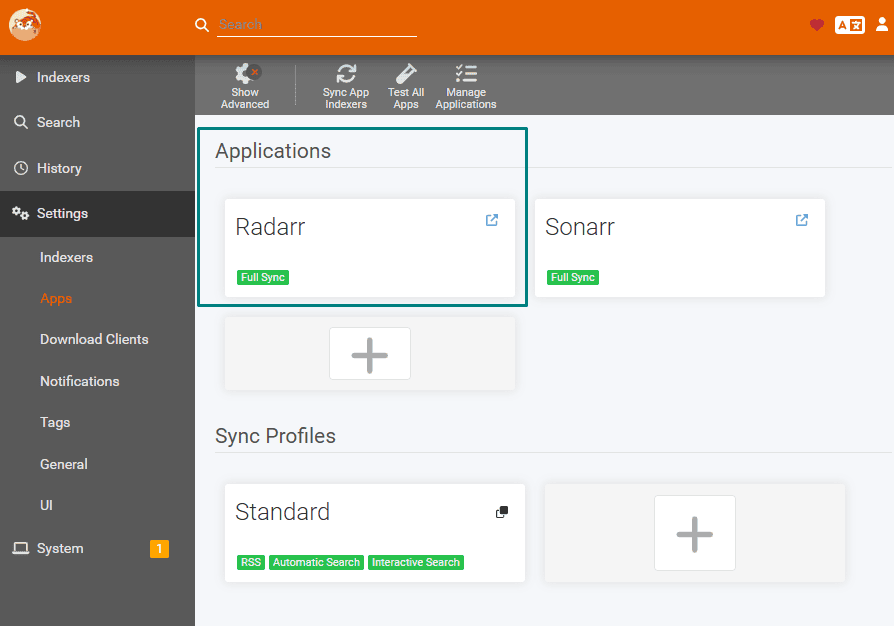
It should now show up with Green Fullsync tag on your prowlarr apps section
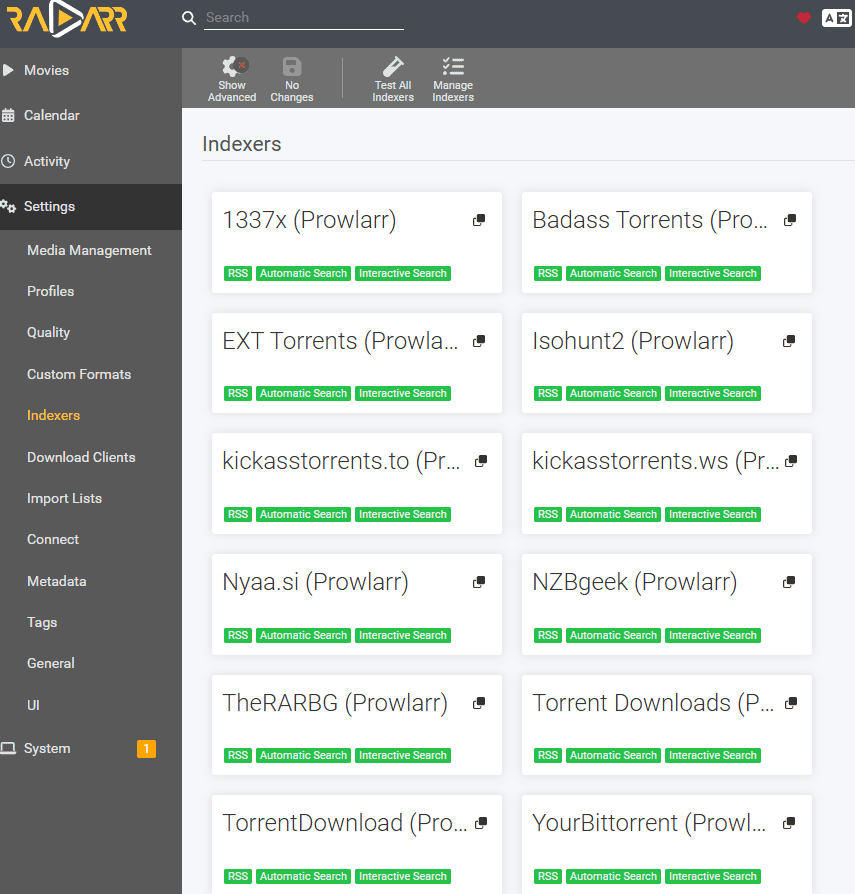
Now go to Radarr and click on settings and then on indexers . It will show automatically populate all indexers configured in prowlarr
Setting up Lidarr with Prowlarr
Open prowlarr go to settings and then select apps then click on the Plus button.
In Add Application select Lidarr
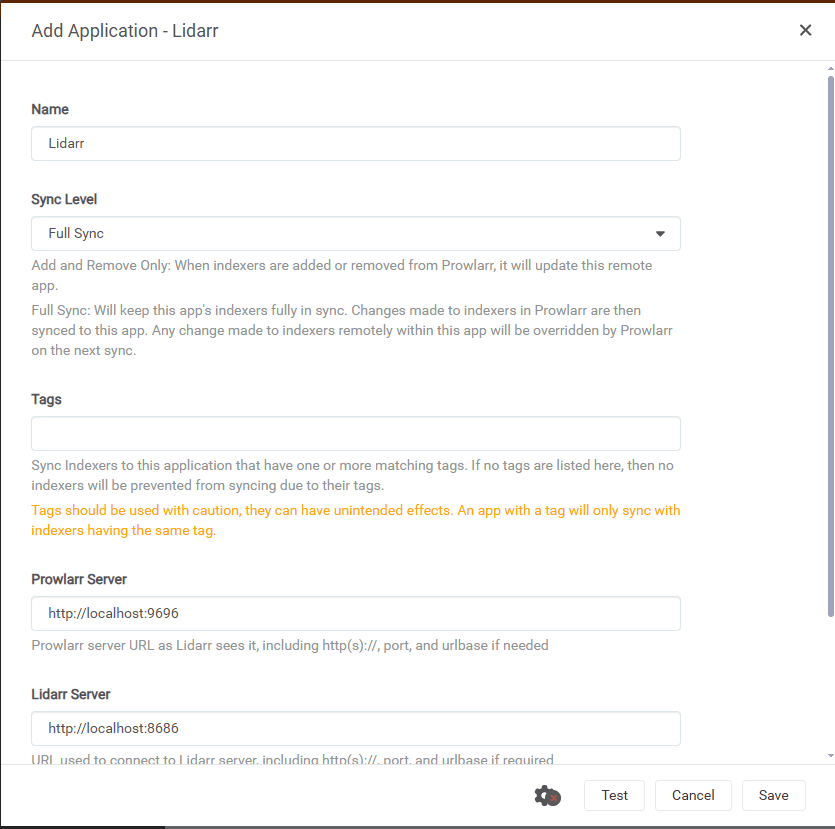
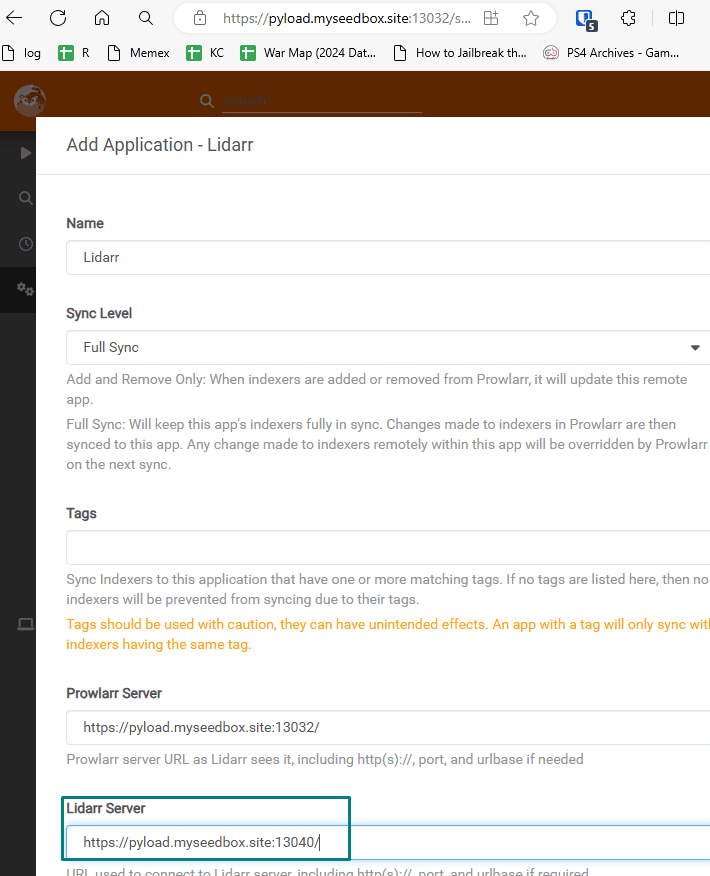
The below settings pop-up will open up in prowlarr and we have to fill in each field.
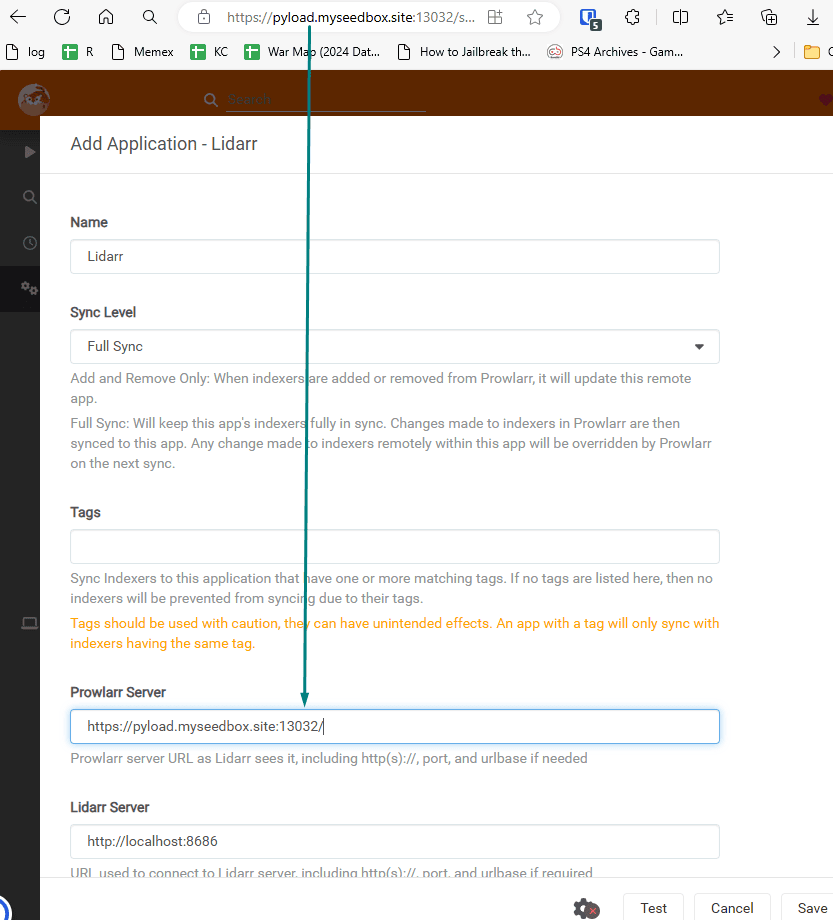
Put the prowlarr server address in Prowlarr server field.
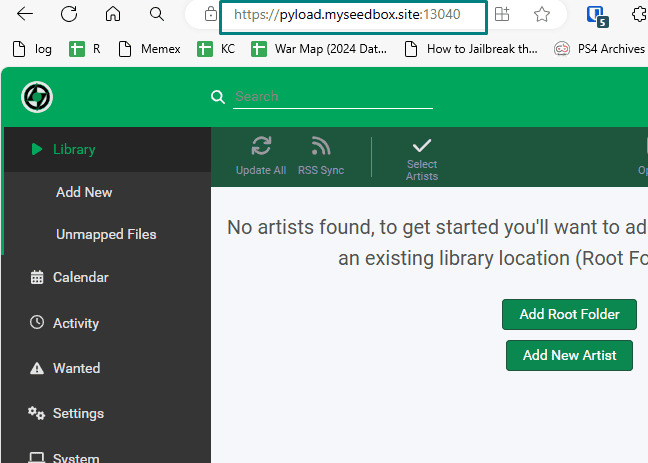
Then copy the link to your lidarr along with the port
And Paste the link in Lidarr server field
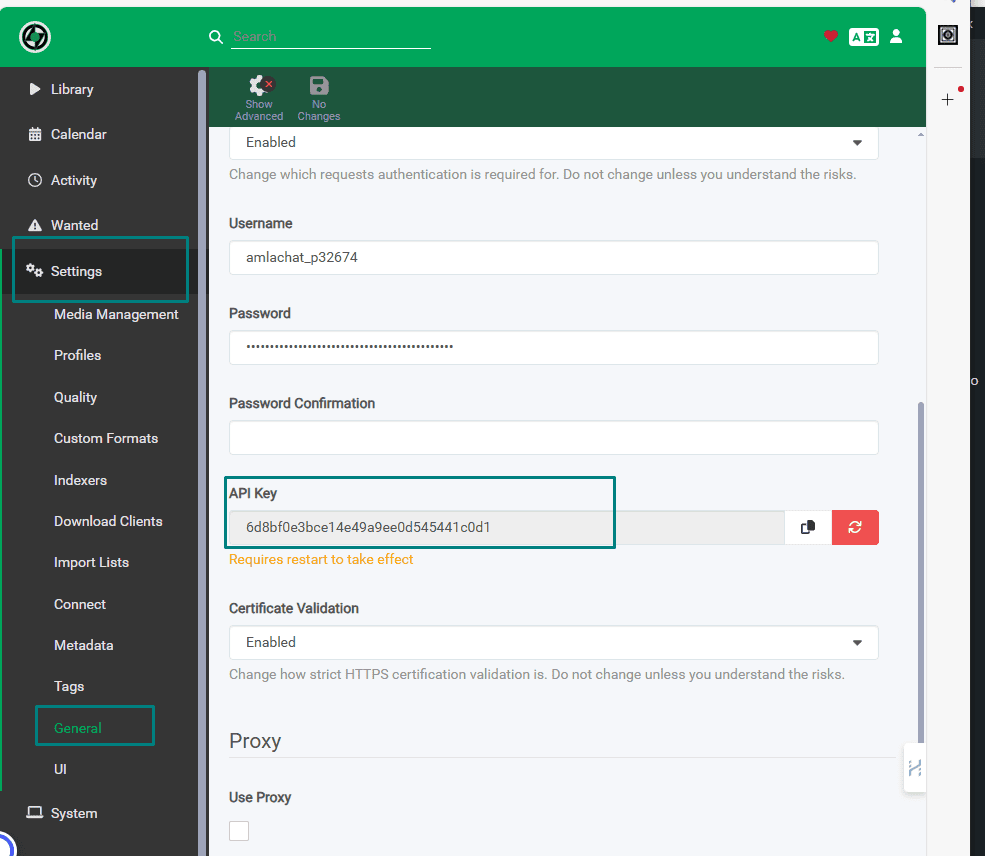
Then Go to your lidar settings , click on general and then copy the API key.
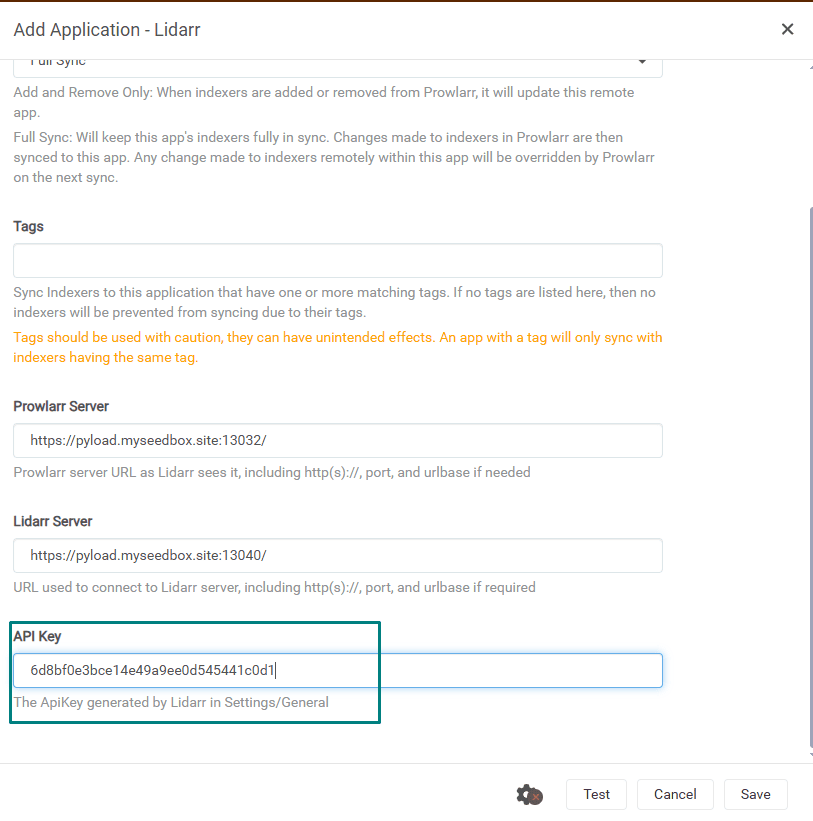
Paste it in the prowlarr Lidarr api field
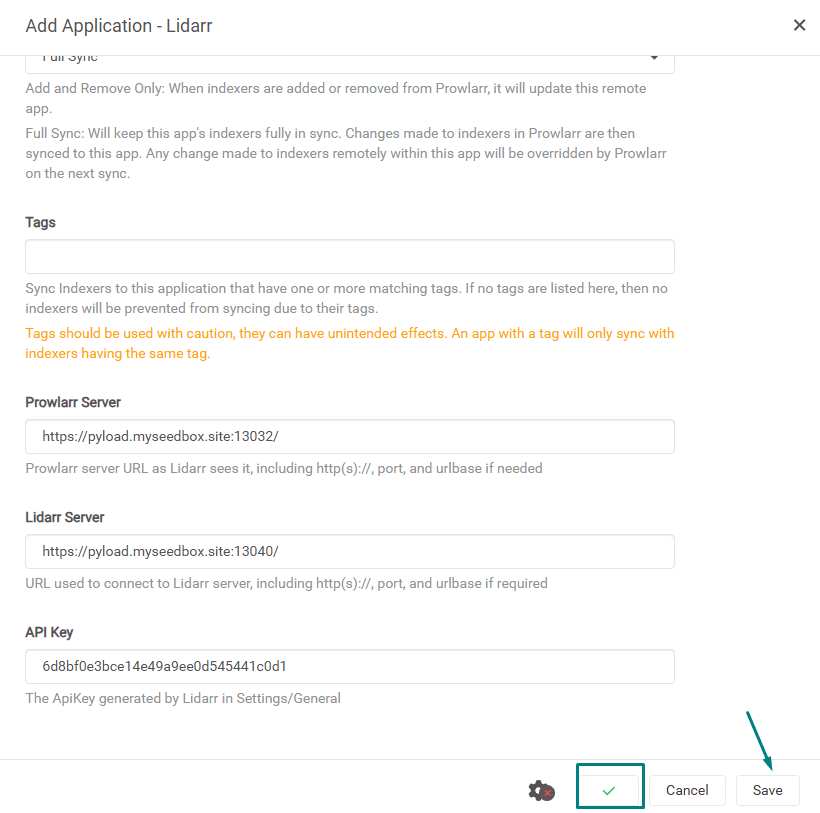
And then click on the test. If everything is okay, it will show a small green tick.
Then click on save
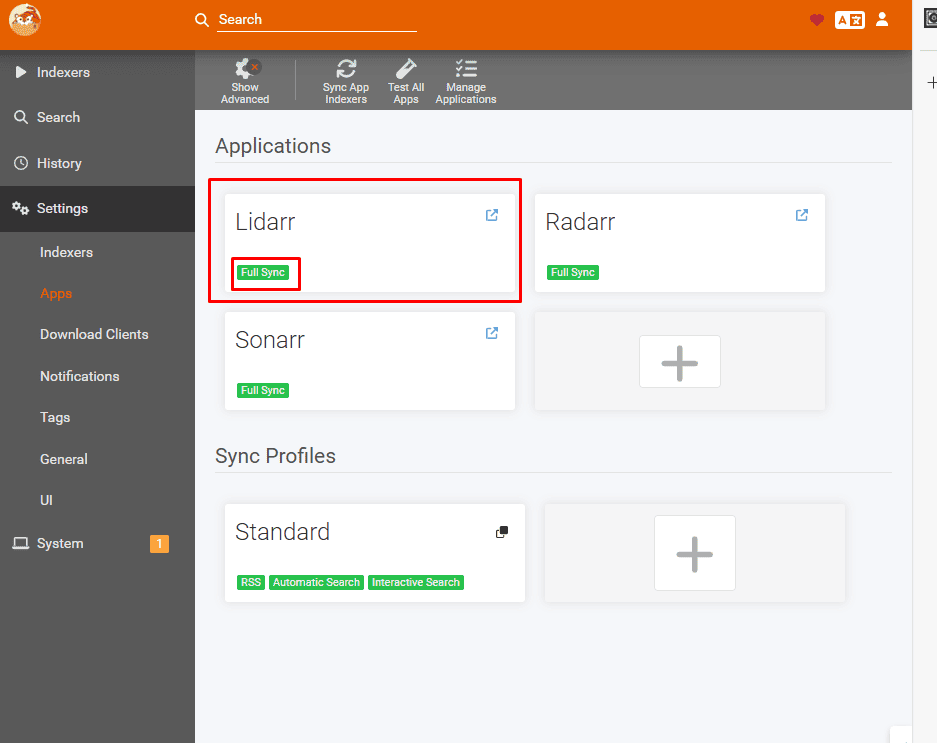
If you have set it up correctly, it will now show up under Applications and full sync should be in green colour as shown in image below.
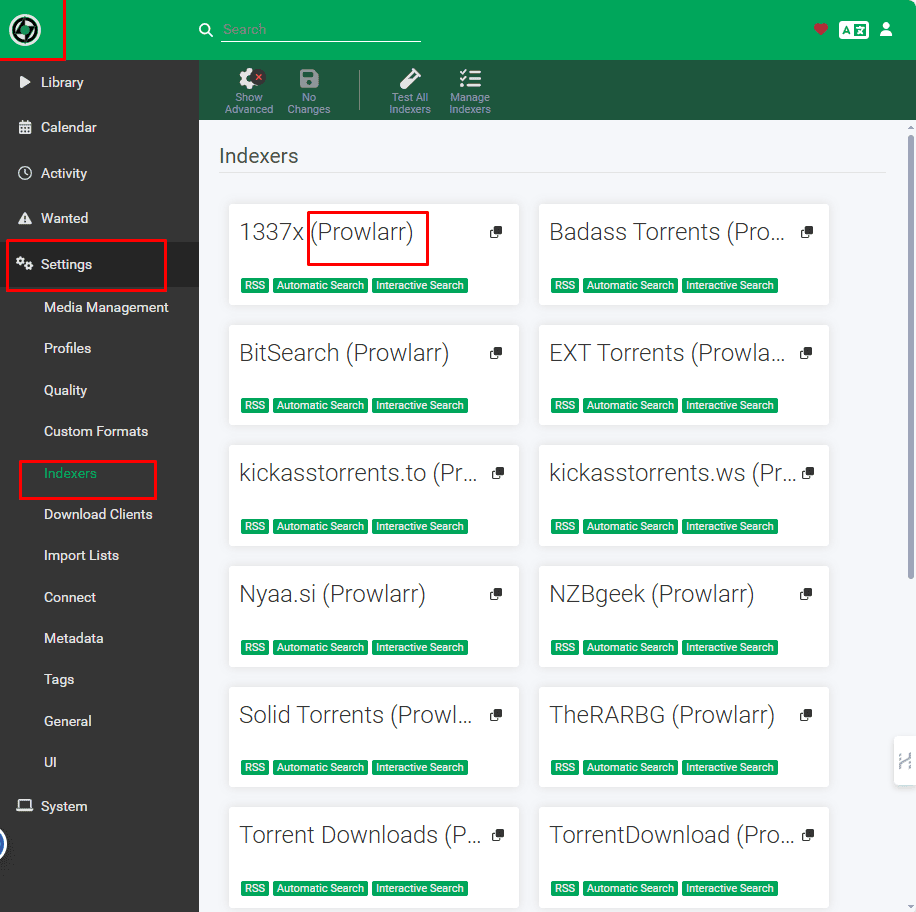
Now you can go to Lidarrr, then go to settings and then select Indexers ,
all your Prowlerr indexers will show up automatically.
Setting up Prowlarr with LazyLibrarian
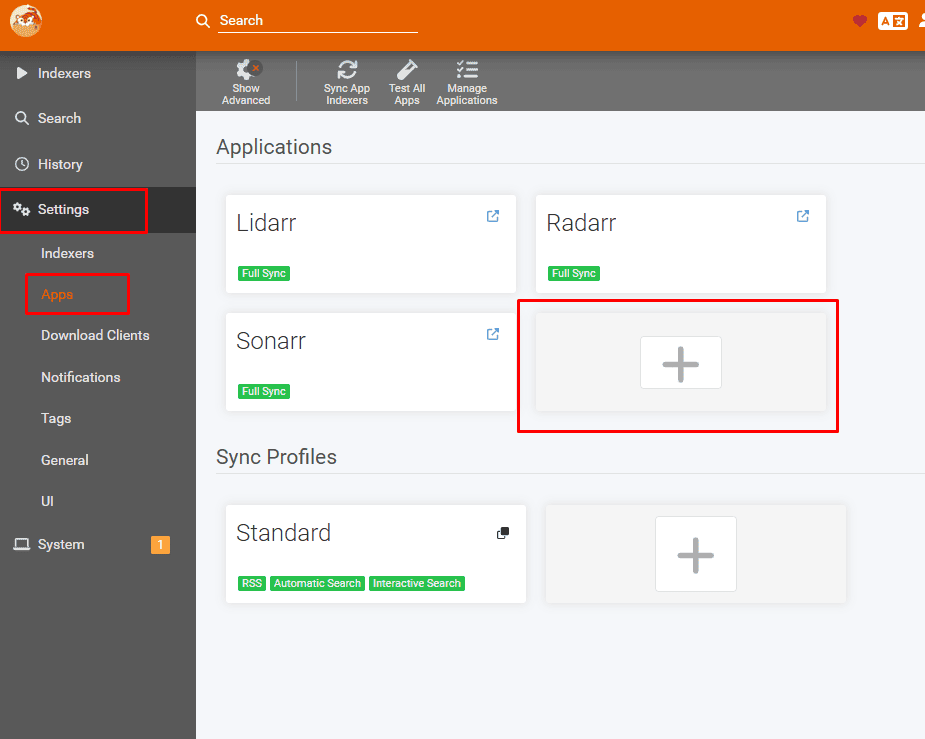
Open Prowlarr and go to settings and then click on apps .
On the right hand side window click on the + button
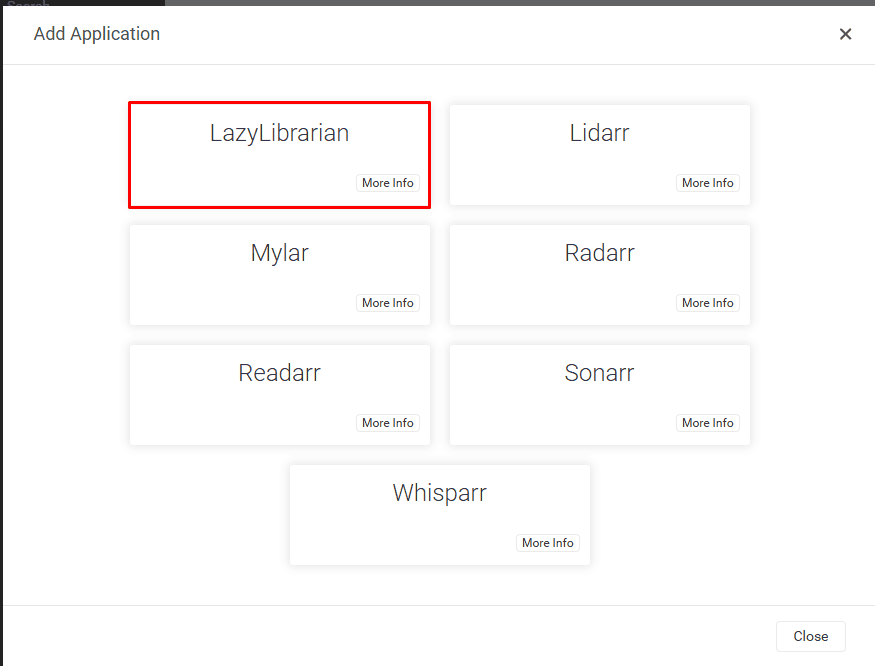
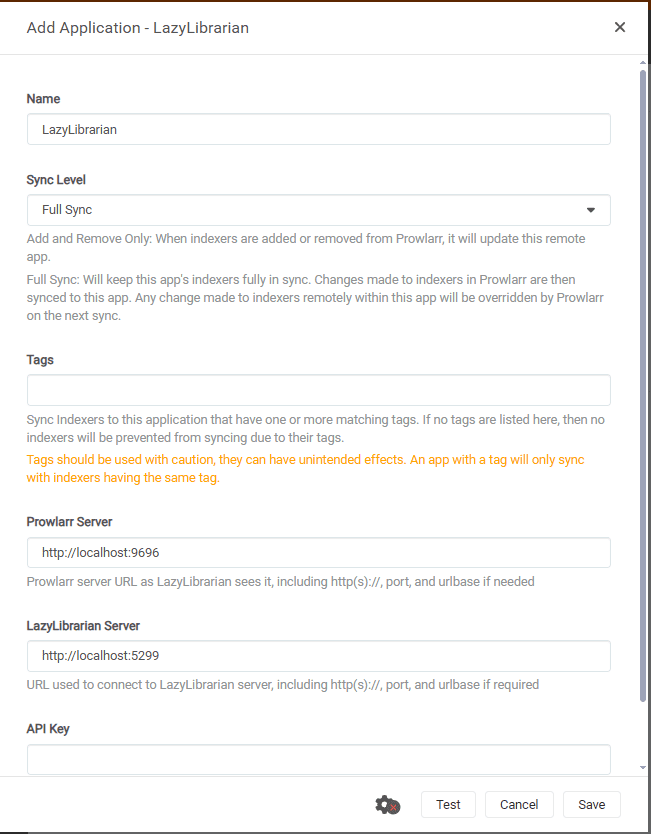
A popup will show up and choose Lazy librarian from the options
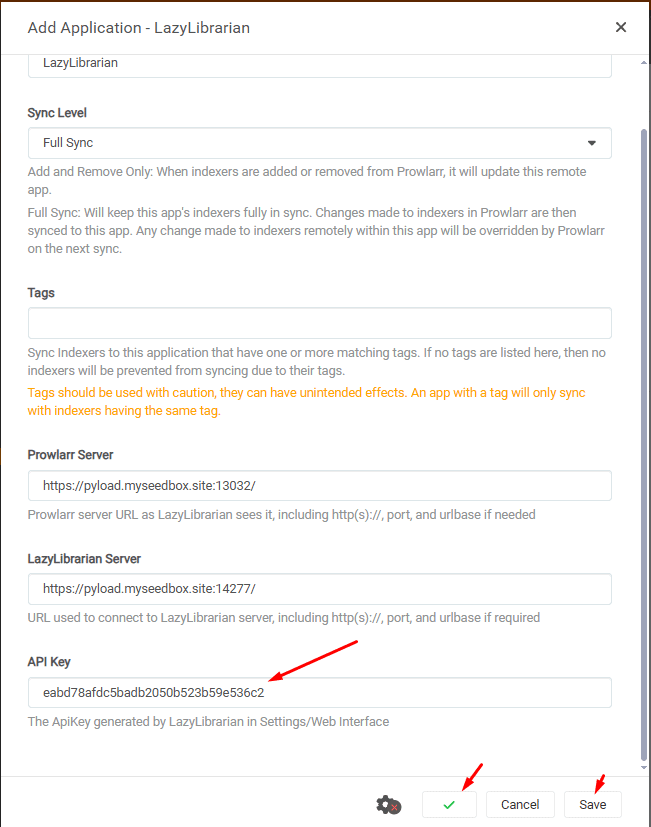
On clicking it the below setting window ill open and we have to fill up the fields one by one.
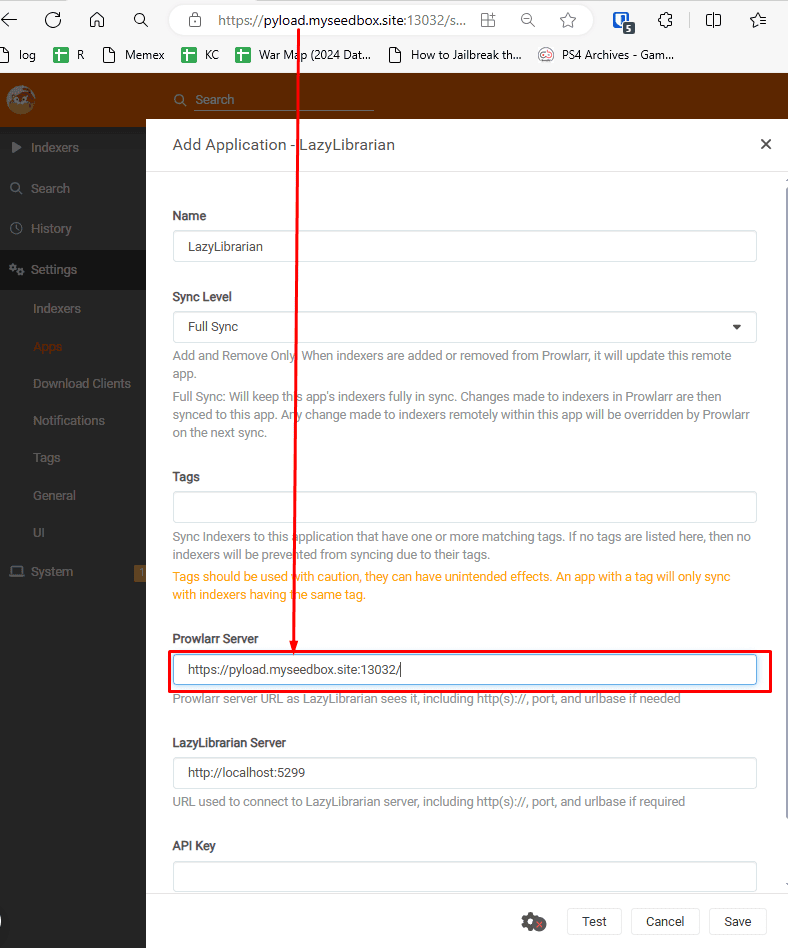
Copy the prowlarr web link along with the port number in the Prowlarr server field.
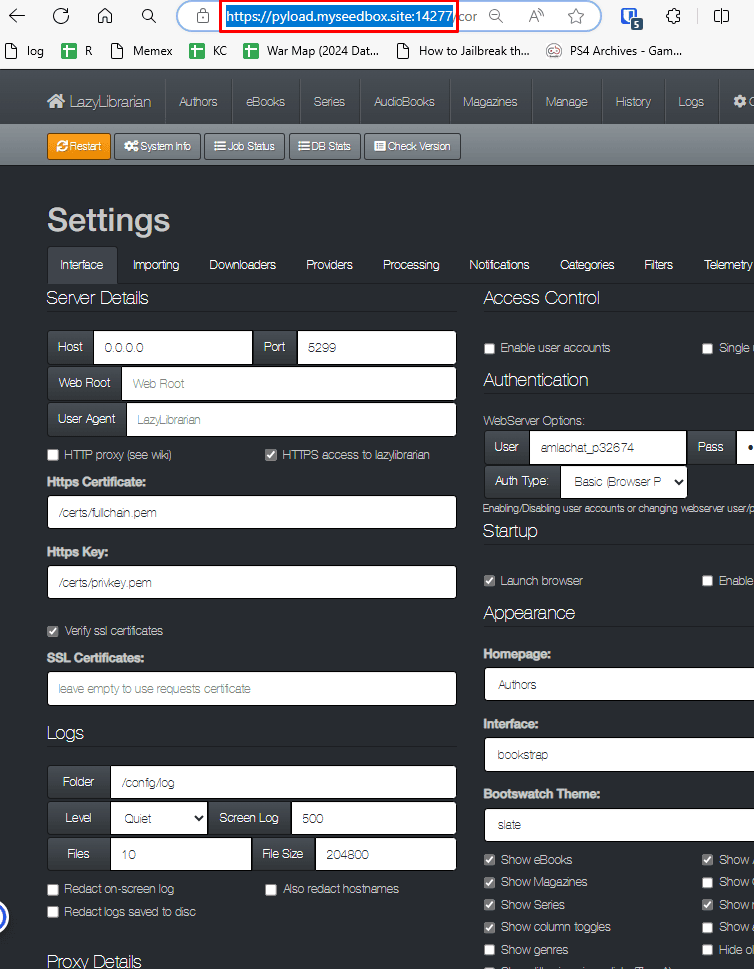
Now go to lazy librarian and copy the link of your lazylibrarian along with the port number
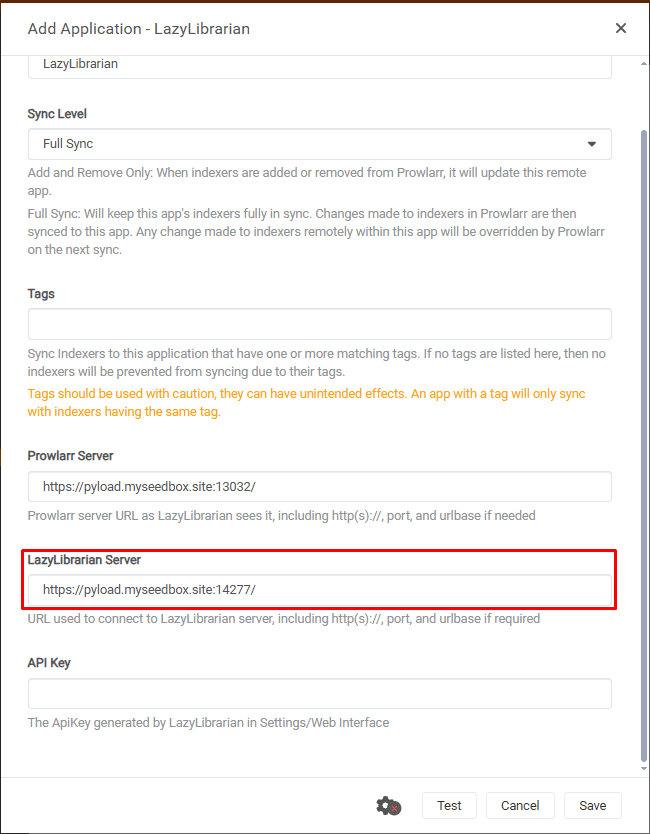
Paste it in prowlarr lazy librarian server field.
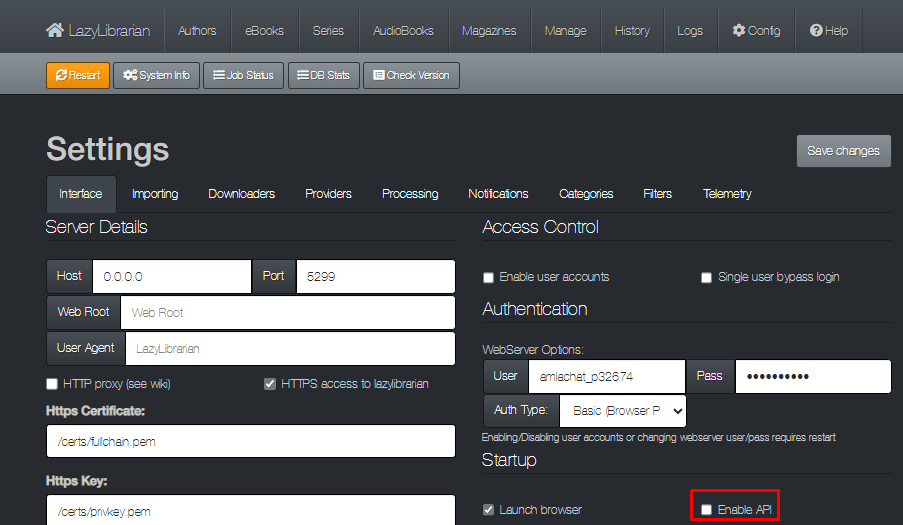
Now go to lazylibrarian and select settings and then check the radiobox Enable API.
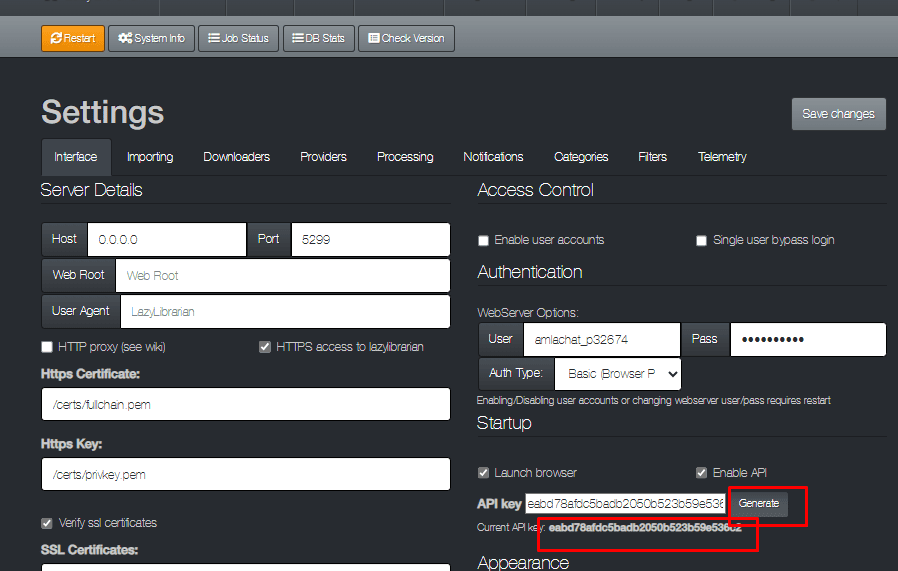
Click on generate and copy the api
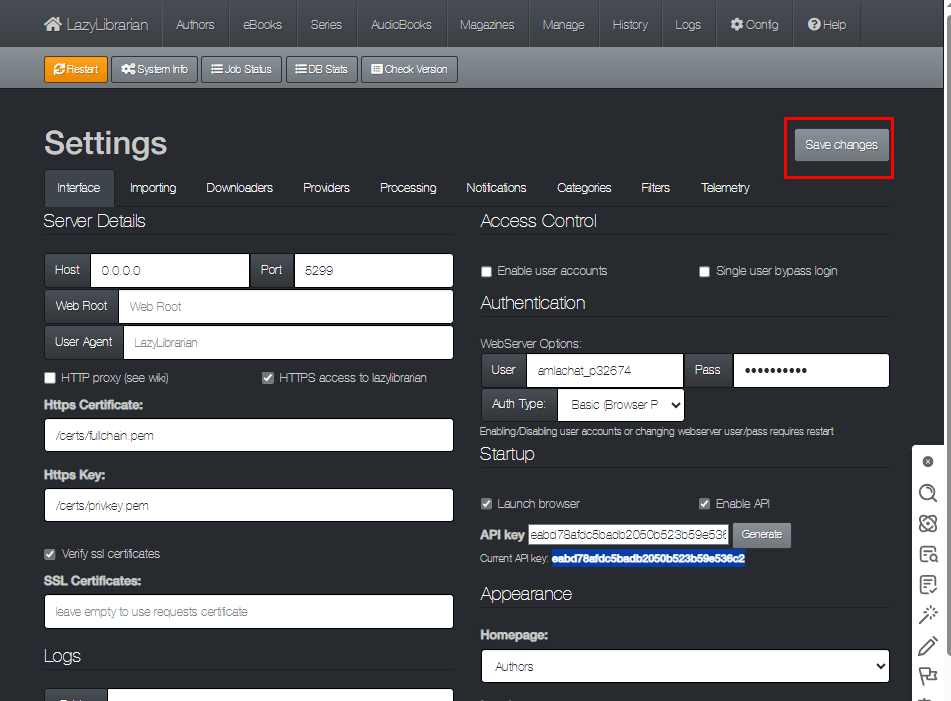
Please ensure to click save changes so that api creation is registered and enabled.(please dont forget this step)
copy and paste it in prowlarr lazy librarian API field.
Once done click on the test if all your settings are correct. A small green tick will show up .
Now you can successfully click on the save button.
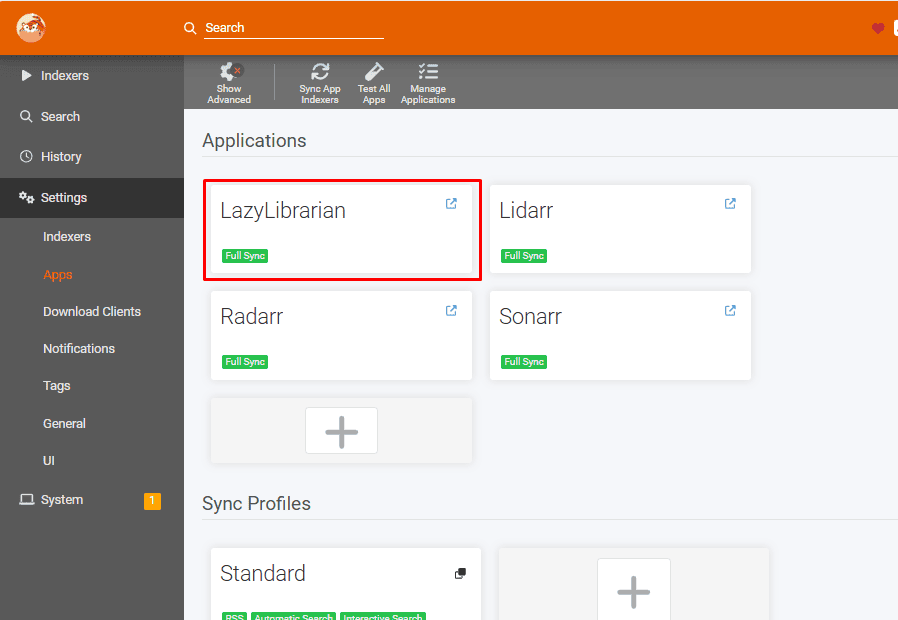
LazyLibrarian will now show up in your prowlarr Apps section and Full Sync should be in green.
Thats it Prowlarr is now connected to Lazylibrarian and all the prowlerr trackers are linked to it.
Setting up Readarr With Prowlarr
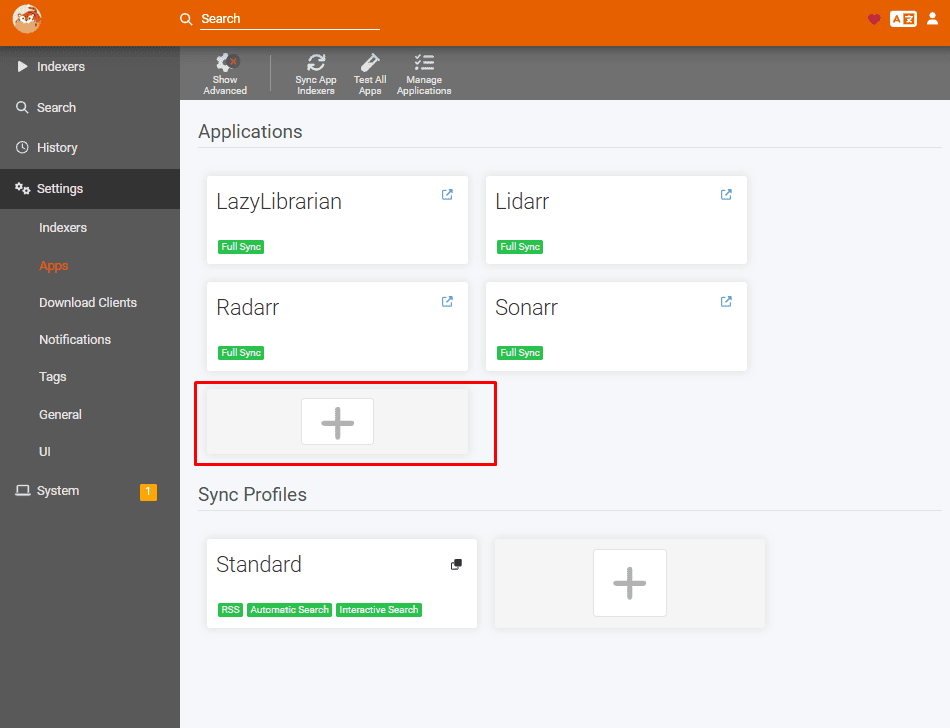
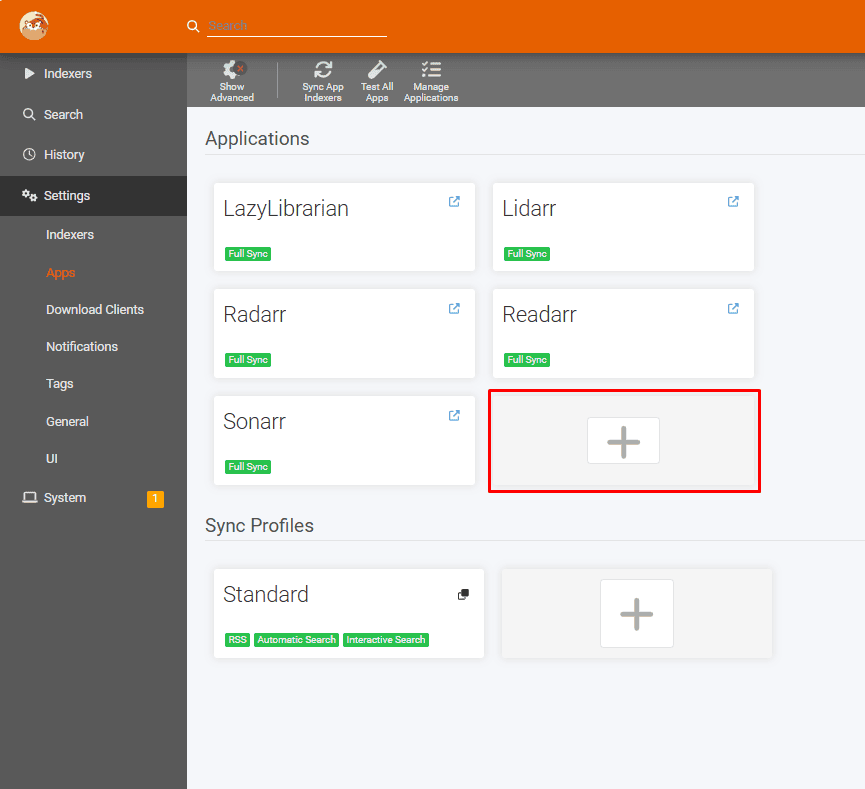
Open Prowlarr go to settings , then click on the Apps.
Click on the plus symbol under applications as shown in the image below
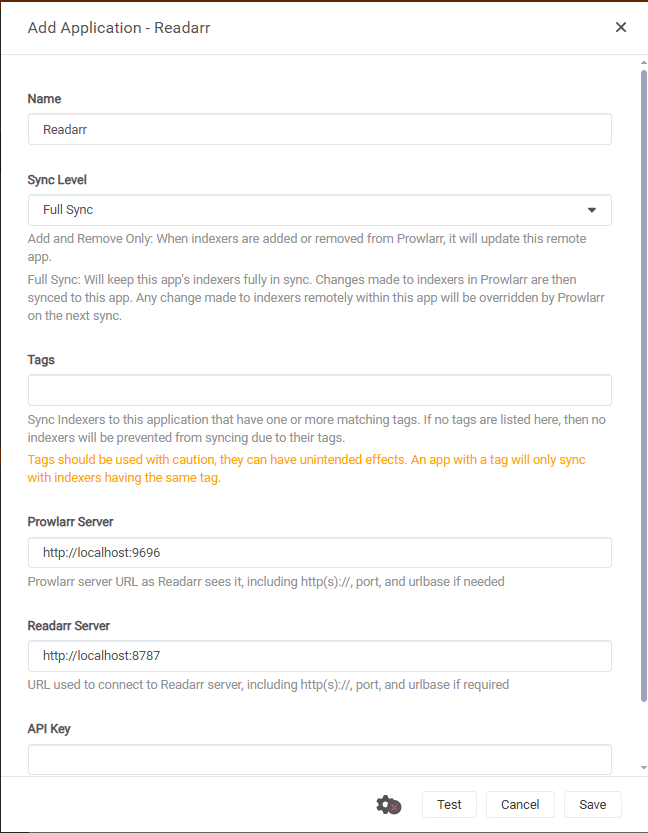
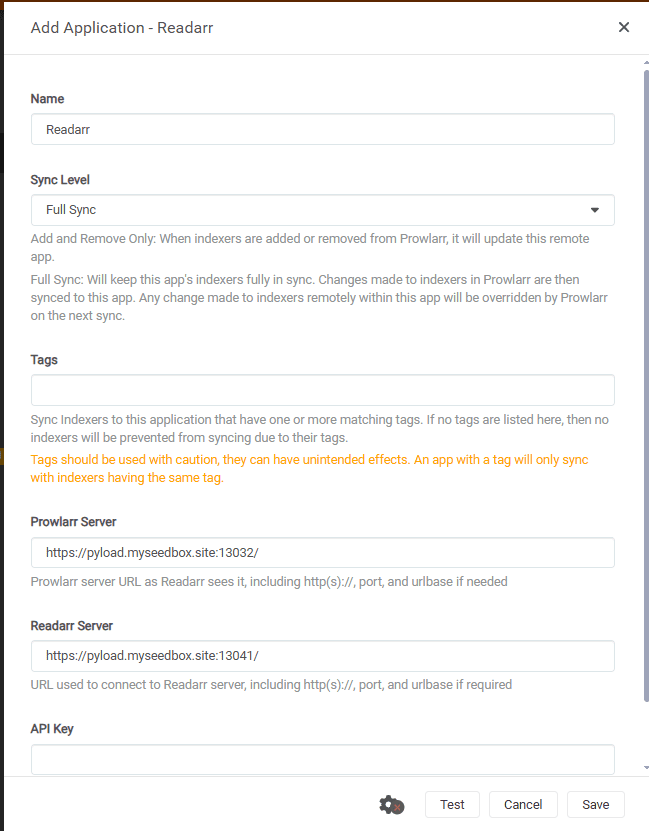
Once clicked, the Readarr Application settings will open up as shown in image below
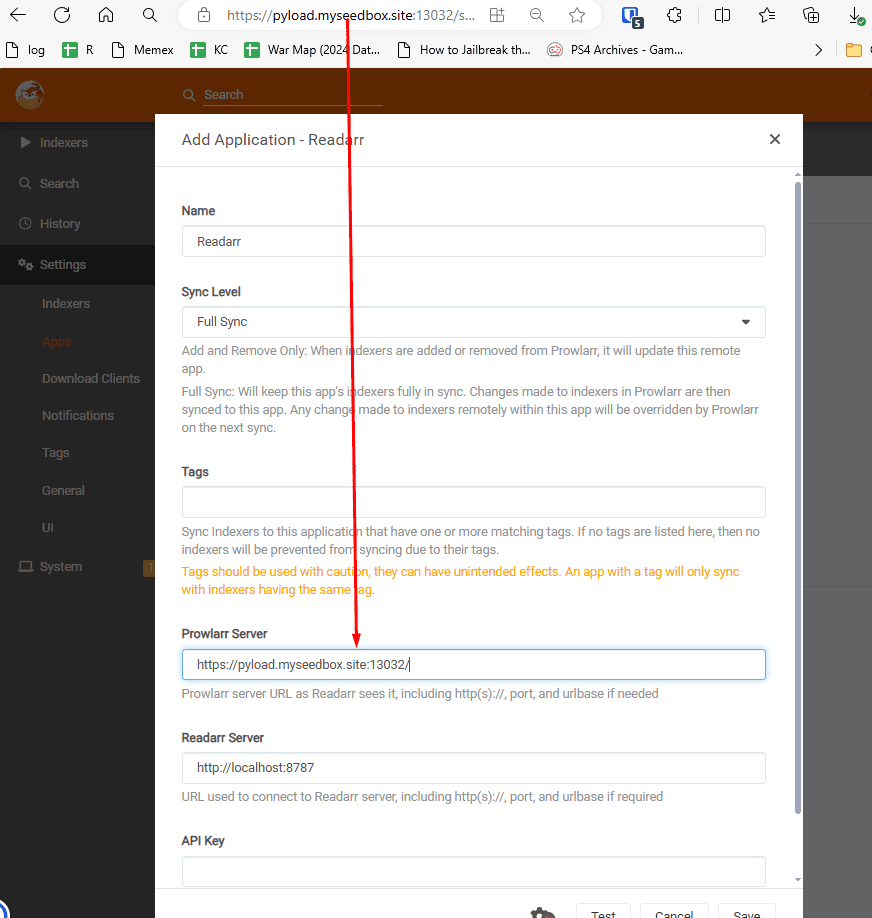
Copy your prowlarr link along with the porn number in the Prowlarr server field
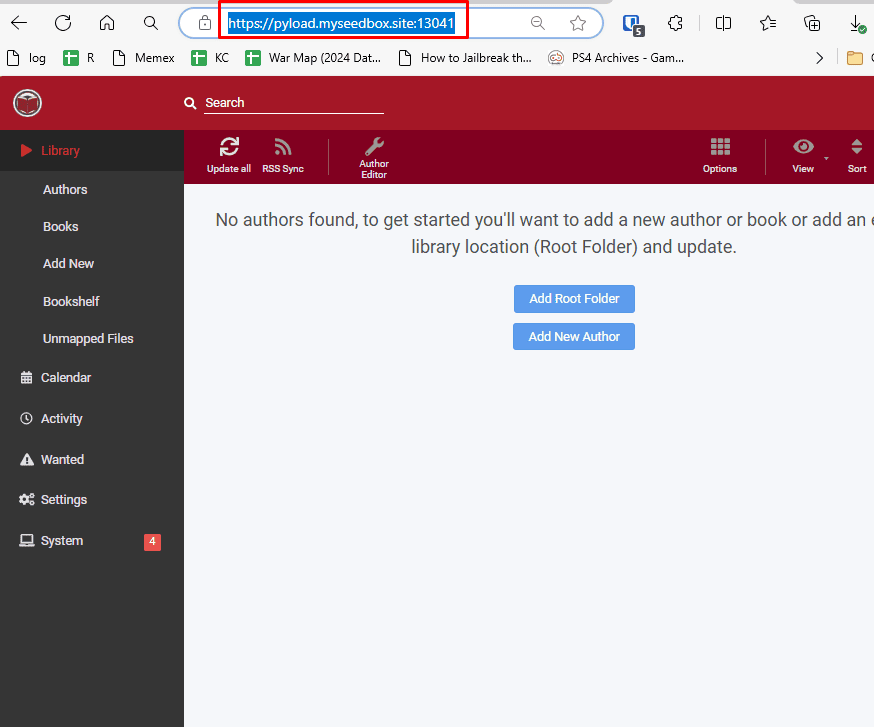
Then go Readarr and copy the link along with the port number on which it is running
Paste the link under Readarr Server as shown in image below.
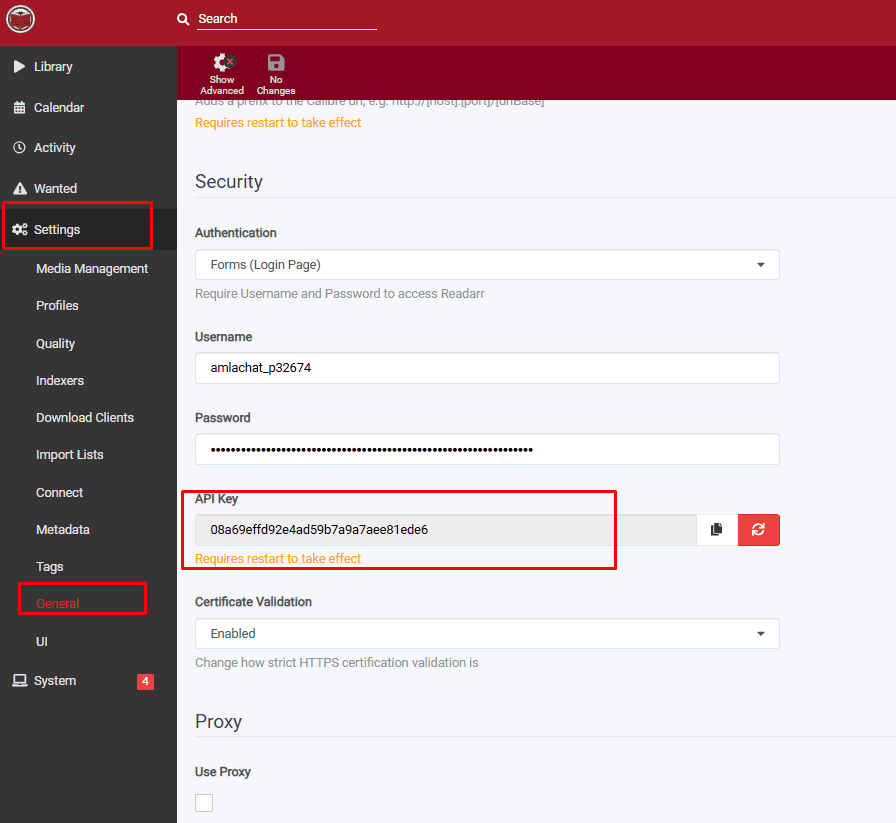
then go to your Readarr app, then go to settings and then click on general.
Scroll a little and you will find the api key and just copy it.
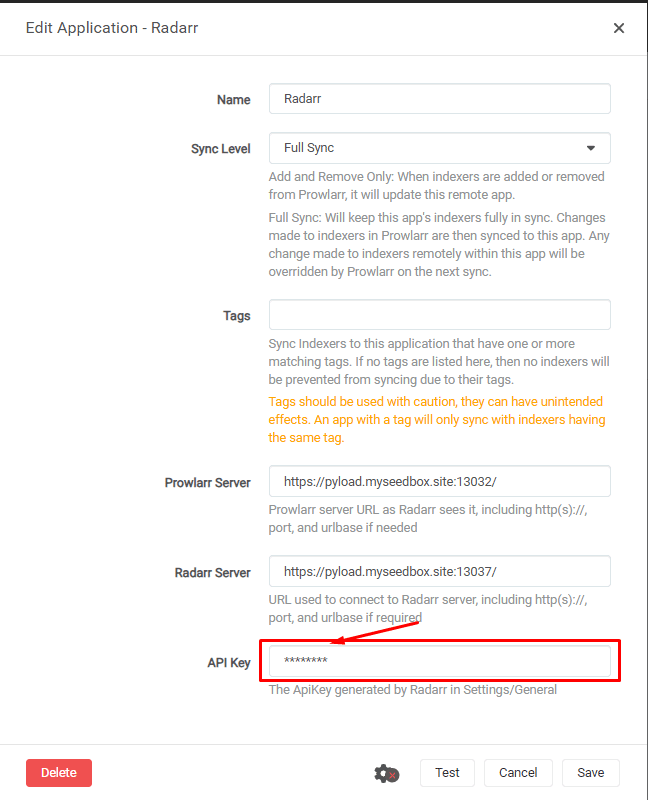
Paste it in the API KEY field in Prowlarr Radarr settings.
Click on test and then click on save.
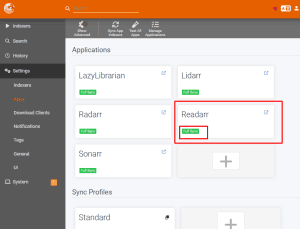
Now Readarr app will show up in Prowlarr under the apps section will Full sync in green colour.
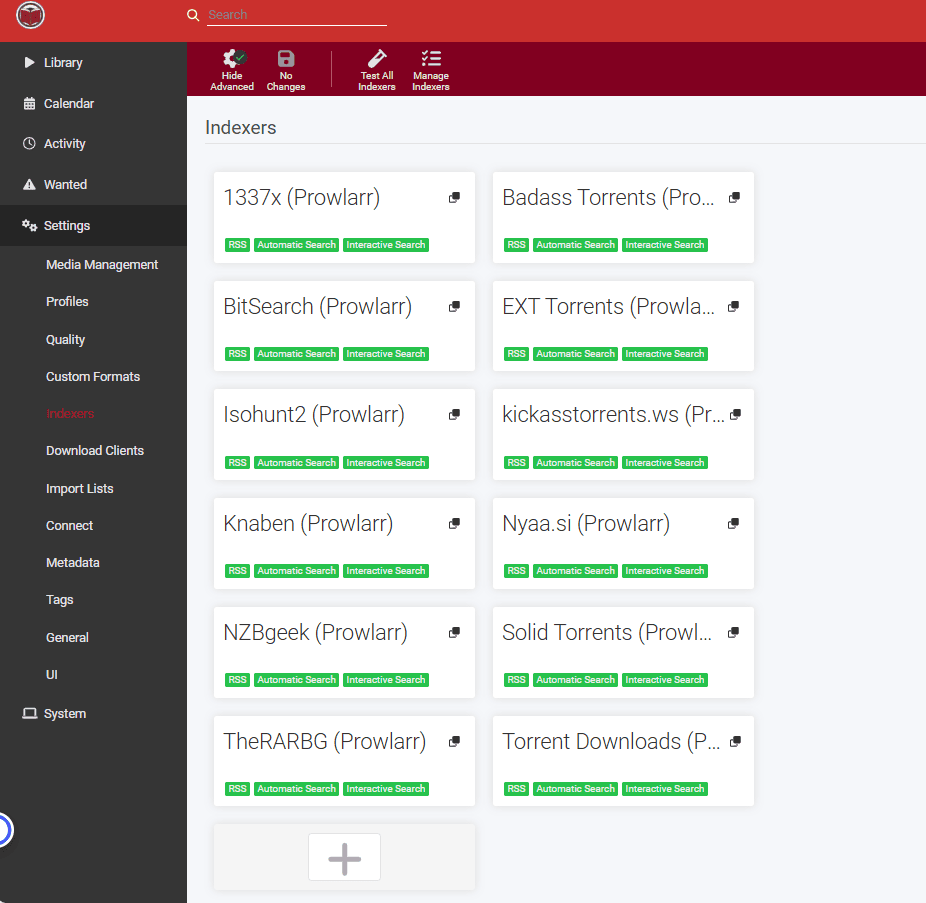
Now you can go to your Readarr app then go to settings and then indexers.
Your prowlarr indexers should automatically show up.
Setting up Whisparr with Prowlarr
Open prowlarr app and go to settings and then select apps.
Under application, select the plus button.
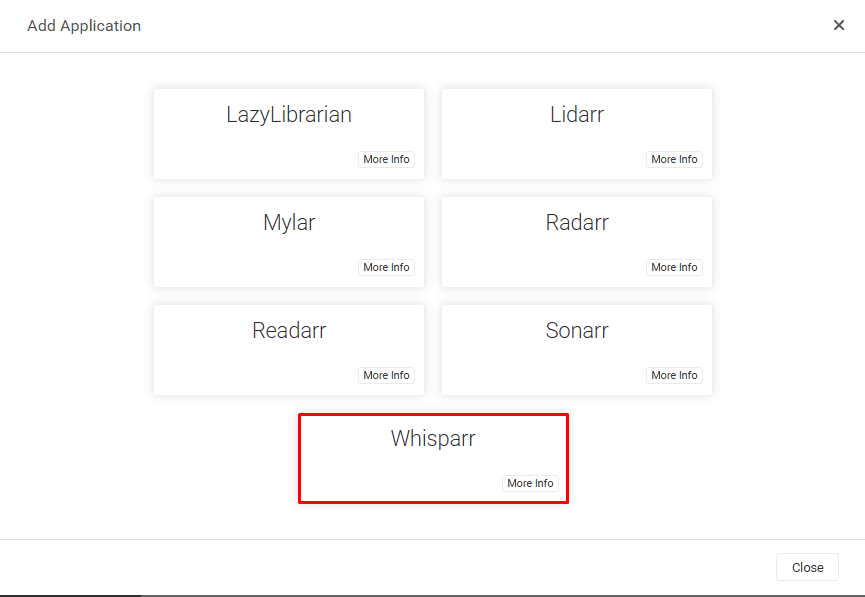
Once you click on the plus button the following options will open up from which select Whisparr
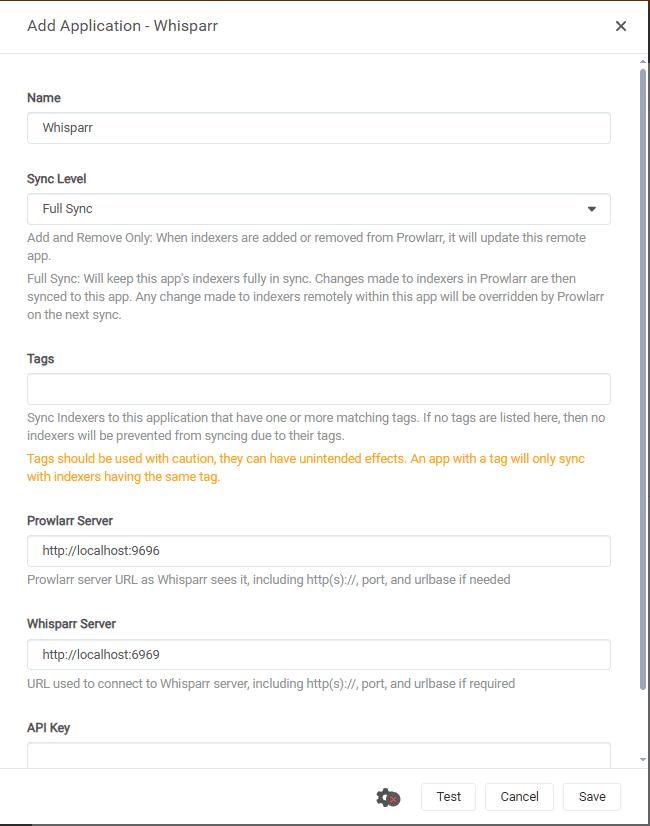
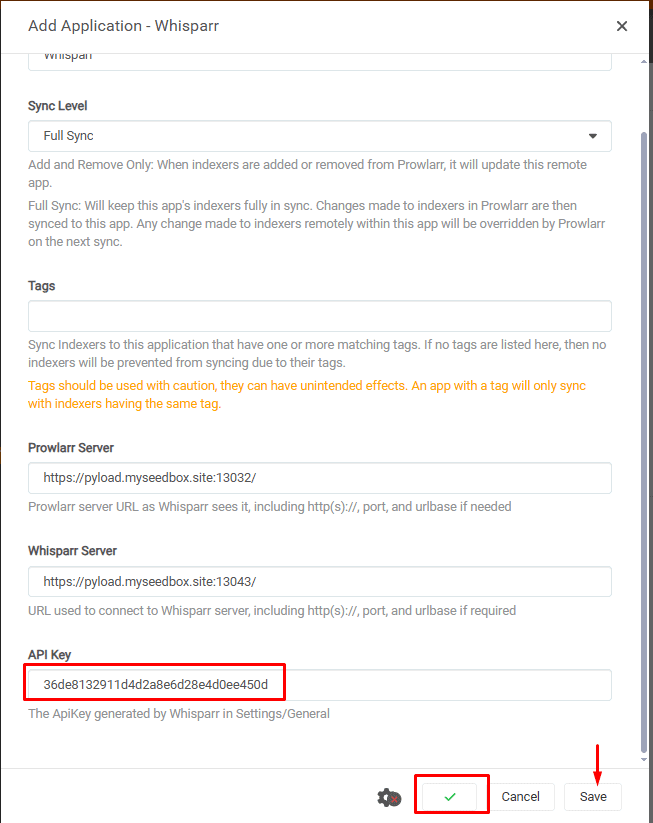
Add Application – Whisparr settings would open up we have to fill up a few settings to connect prowlarr to whisparr.
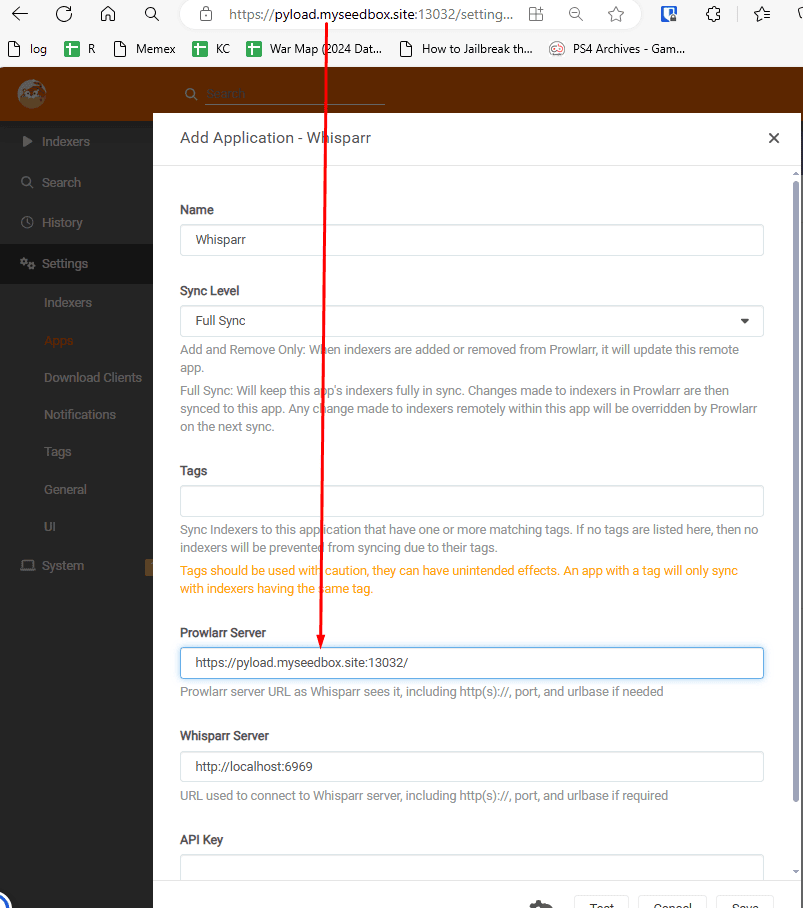
Copy the link on which your prowlarr app is running along with the port number and paste it in the
Prowlarr server field.
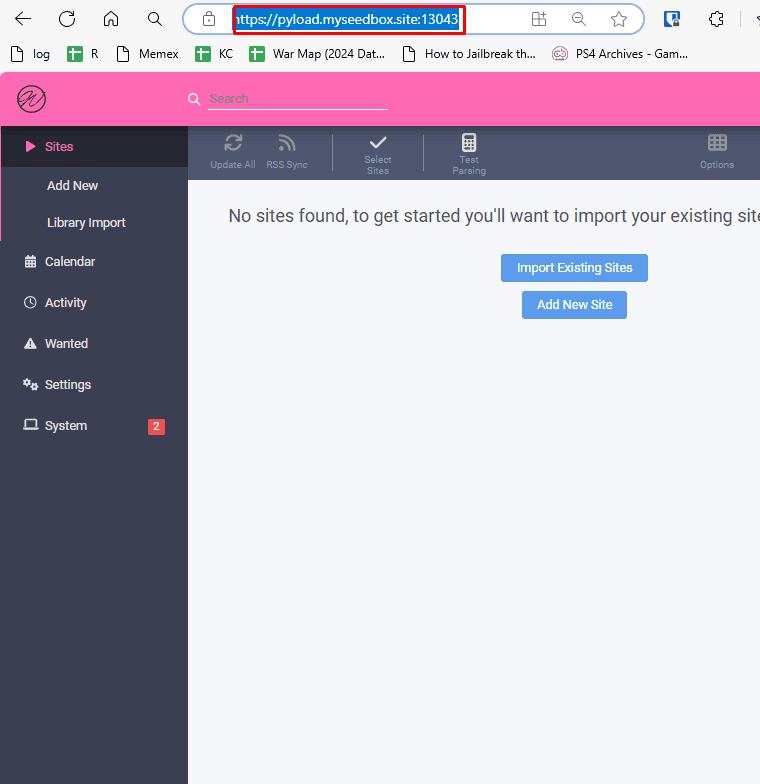
Now go to your Whisparr app and copy its link along with the port number.
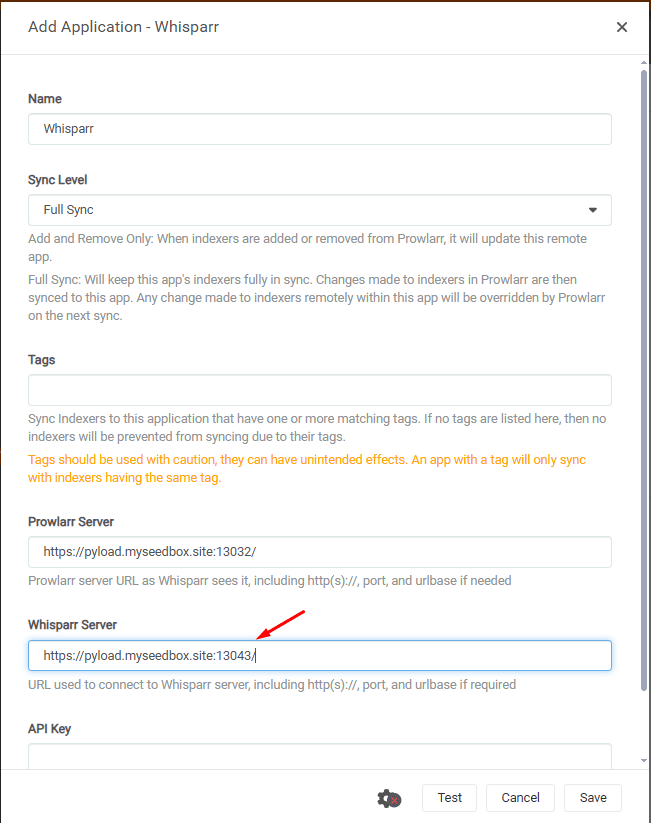
Pate it under Whisparr Server field in Prowlarr settings.
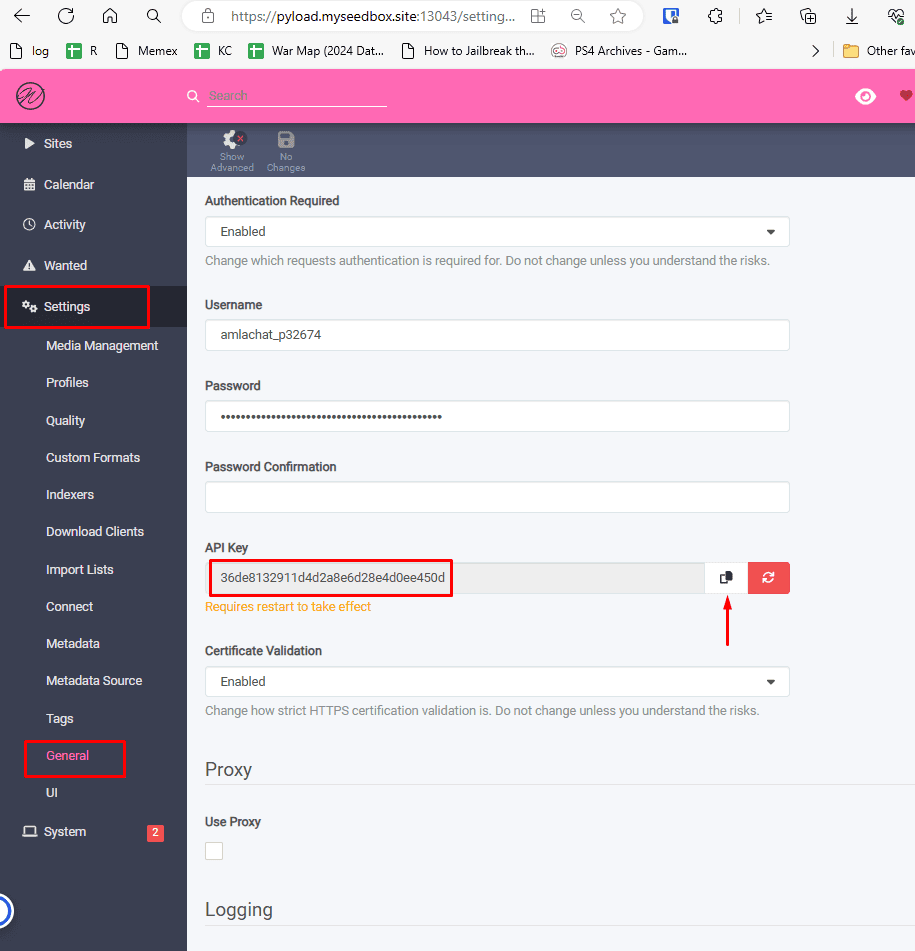
Now go to your Whisparr app and then go to settings and then go to general
Scroll a bit and you will find the API Key , copy it
Paste it in Add Application – Whisparr settings in prowlarr in the API Key field as shown in the image below.
Click on test and a green small tick shows up. It means all your settings are correct and then click on save.
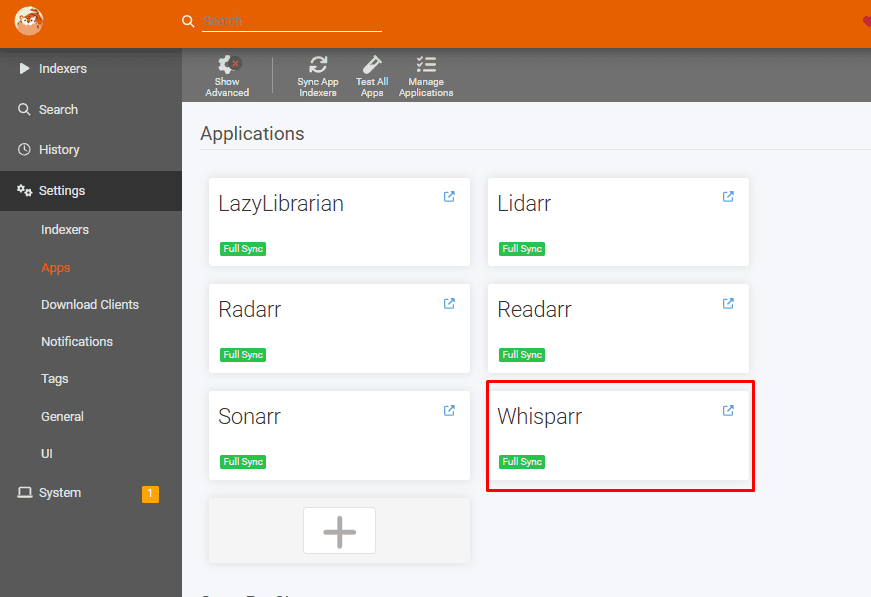
If you have done the steps correctly under your Prowlarr apps Whisparr will show up with green Full sync symbol as shown in image below.
Now go to your Whisparr app, then go to settings and then go to Indexers and you will see the indexers from prowlarr will populate automatically.
That’s it, all apps with Prowlarr are now connected and any indexer added in Prowlarr will get auto-populated in your ARR apps.
Put this into practice
EvoSeedbox ships with one-click app installs and up to 10 Gbps per box.