OpenSSH チュートリアル
On this page ▾
開く SSH is a connectivity tool for secure remote access to あなたのSeedbox. It is based on SSH protocol. It encrypts your traffic to eliminate eavesdropping, connection hijacking and other cyber security attacks.
方法: access あなたのSeedbox using 開く SSH on the Windows system.
For accessing あなたのSeedbox using 開くSSH you first need to install 開くSSH on あなたのSeedbox.Let’s look into the installation of 開くssh on evoseedbox.
1. Login あなたの クライアントエリア and search for 開くSSH in アプリs section.
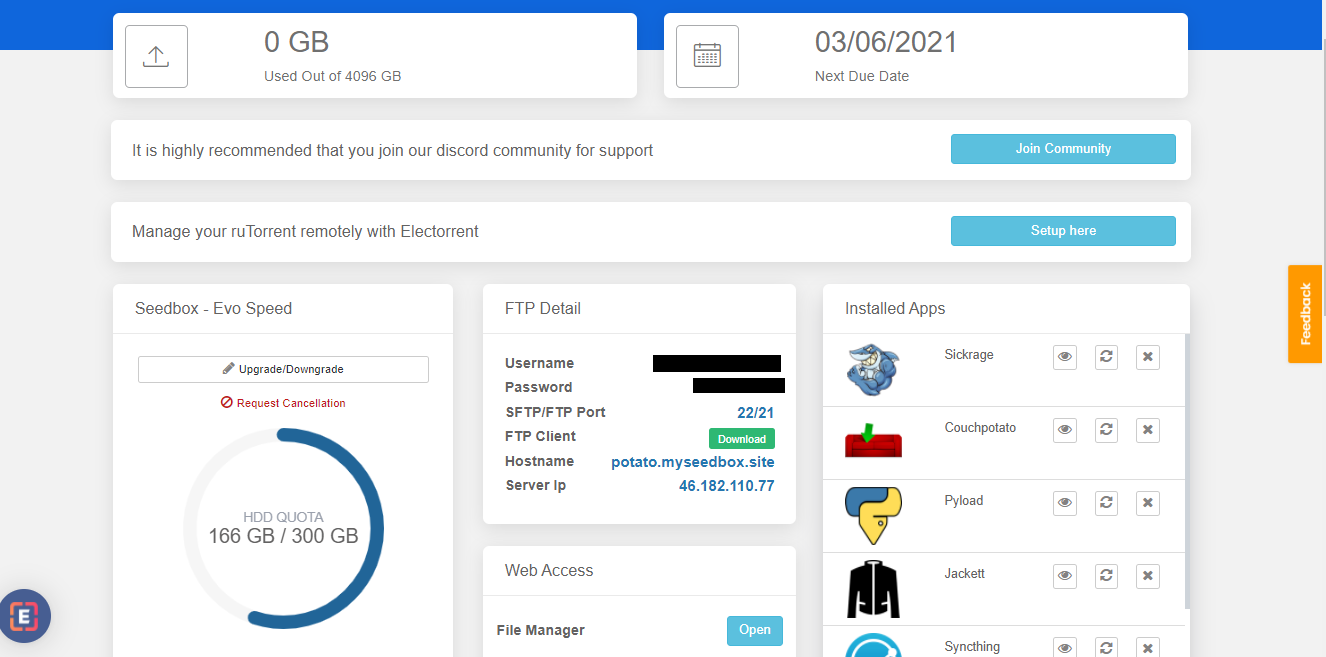

2. クリックしてください: the install ボタン and once the installation is complete open アプリ from the installed app section as 以下に表示.

You will be able to see a pop-up where your host id and port number which will be used for creating a connection.
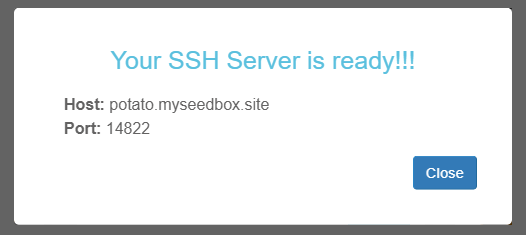
This completes our 開くSSH installation on our Seedbox.To use 開くssh on windows we need to first install openssh client on our windows too. This link will guide you how to check if 開くssh is installed or not and また how to install it if not already installed.
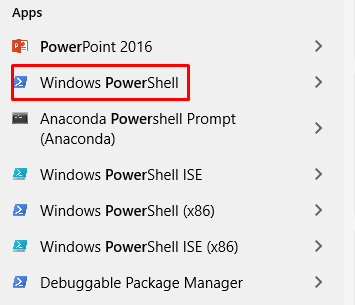
3. Once 開くssh client is installed.開く powershell on windows by searching ‘Power Shell’ in windows apps.
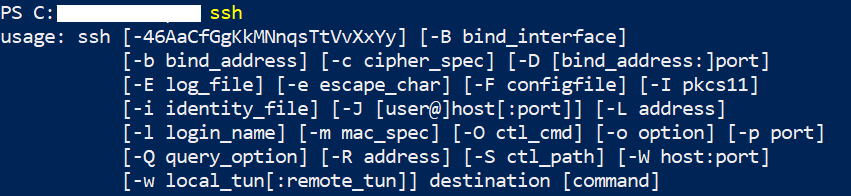
4. On opening the Power Shell type ‘ssh’ and hit enter. If 開くssh is correctly installed 表示されます see the openssh usage guide as 以下に表示.
5. Now to connect to あなたのSeedbox type ssh command with the ユーザー名 provided in the FTP detail and hostid(provided in 開くSSH window).
Following format should be used:
‘ssh ユーザー名@hostid -p port no’

You will asked to enter パスワード which できます get from the FTP detail.

6. After entering the パスワード you should be able to use 開くssh as 以下に表示.

Using 開くssh on Ubuntu
Similar to Windows , first install openssh on あなたのSeedbox and note the host id and port no as reference for making connection. Now lets try connecting あなたのSeedbox using 開くssh on ubuntu system.
- 開く terminal あなたの system and type following command:
‘sudo apt update ‘
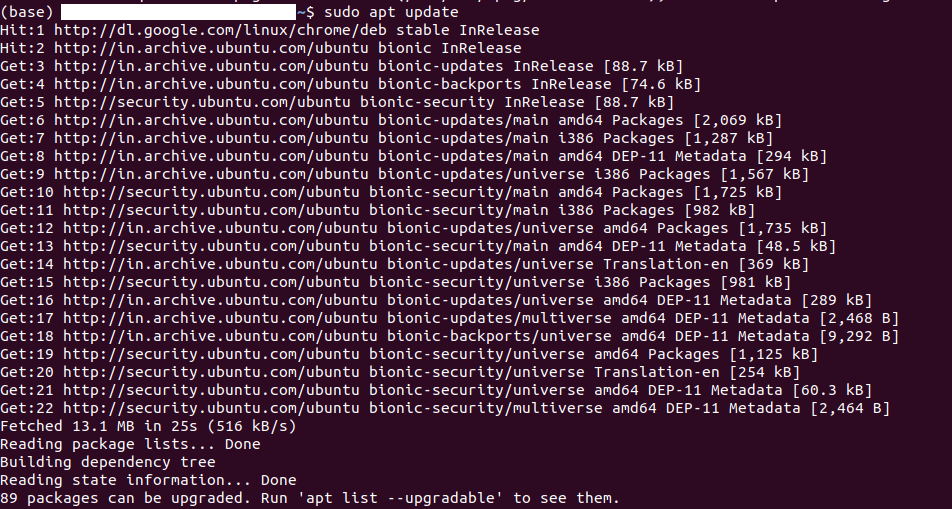
2. Once the above command execution is complete . Type ‘ sudo apt install openssh-client’ and press enter.

もし face an error as shown in the screenshot above, you need to kill the ongoing process which is using apt.
3. Type ‘ ps aux | grep -i apt’ and press enter which will list all プロセス ids which are currently using ‘apt’.

4. Kill プロセス using the command ‘sudo kill <process id>’. After th process has been terminated try again to install openssh client using the same command ‘sudo apt install openssh-client’
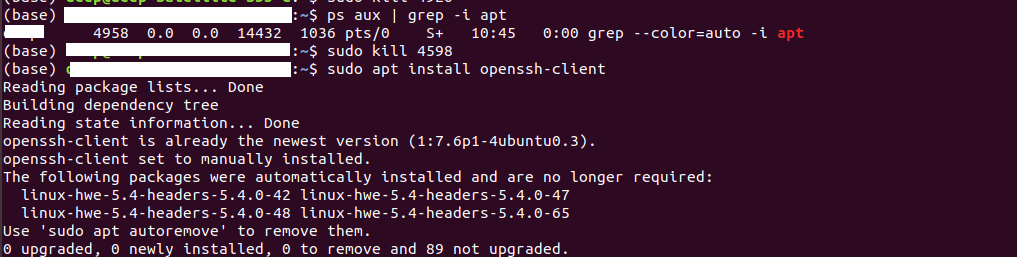
5. できます now test your installation by creating a connection to あなたのSeedbox as mentioned in the windows openssh connection section. Ex. ssh <ユーザー名>@<host id> -p <port no.>

You will be prompted to enter パスワード and accept SH256 signature after which connecting process will be complete.
Put this into practice
EvoSeedbox ships with one-click app installs and up to 10 Gbps per box.


