Requestrr is a chatbot used to simplify using services like Sonarr/Radarr/Ombi via the use of chat. Current platform is Discord only, but the bot was built around the ideology of quick adaptation for new features as well as new platforms.
Install Requestrr onto your seed box.

Once it's installed, click the eye icon and launch the application. You'll be asked to make a new account, go ahead and do that, then log in.
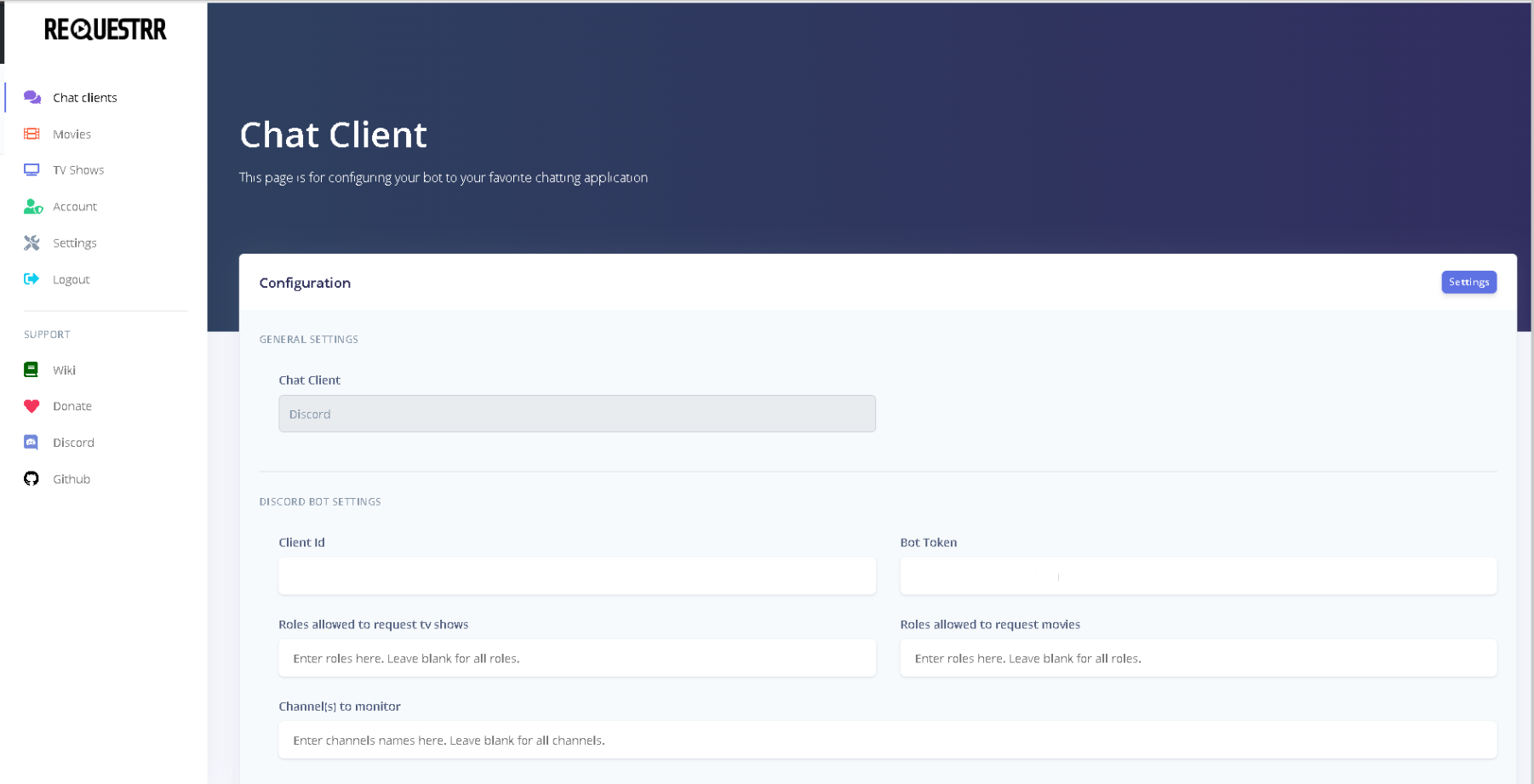
This is what you will see.
Next log into your discord account in your web bowser. And navigate to the Developer Portal.
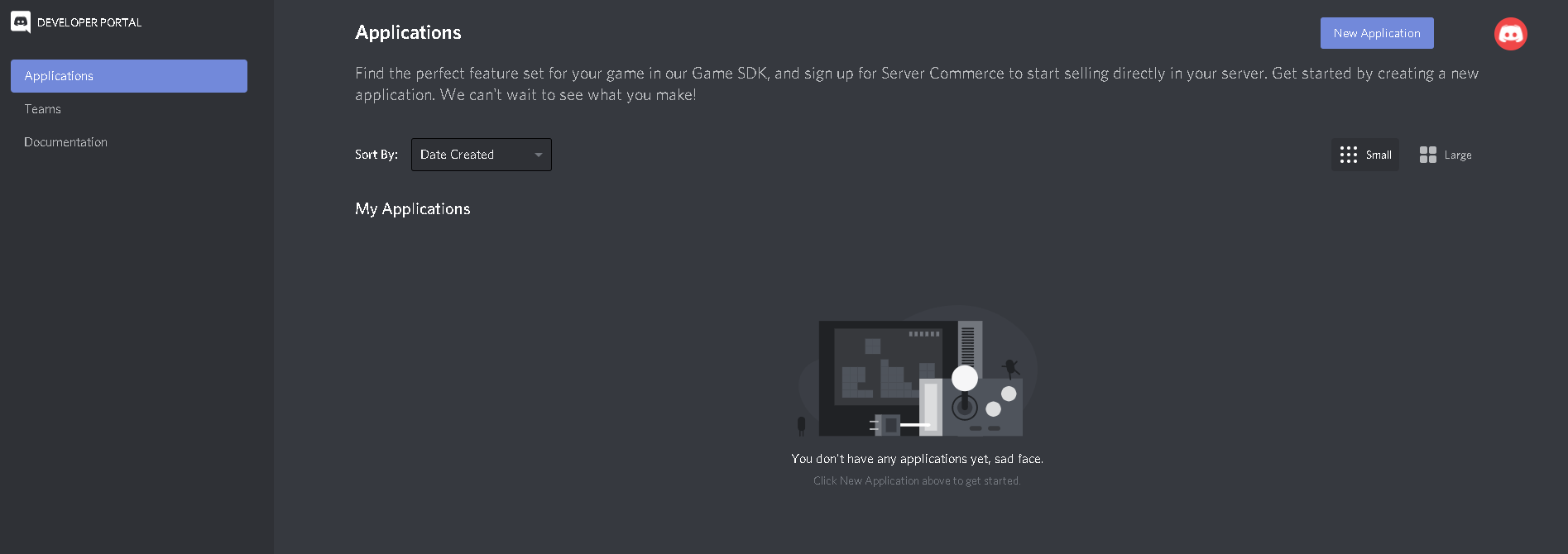
Click "New Application" and name it Requestrr
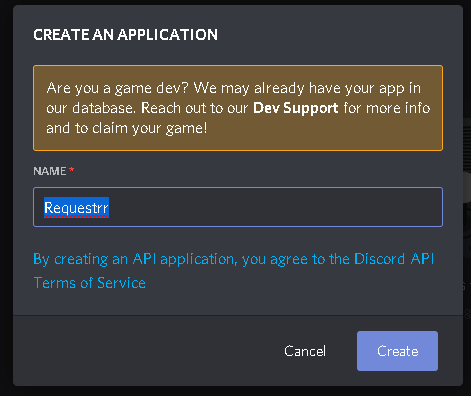
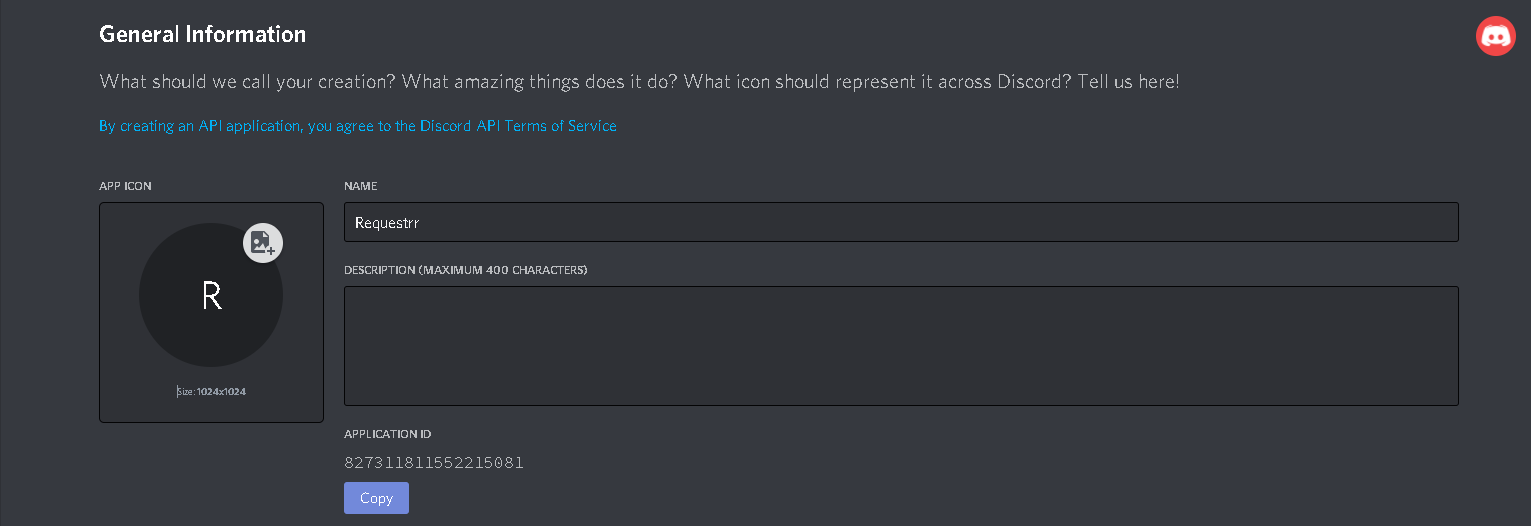
This is what you will see once the application is created.
Copy the Application ID and paste it into the "Client ID" field from your chat client area(The 2nd picture in this guide.)
Now we need to go back to developer portal and make the bot. Click on the name of the Requestrr application from the above link.
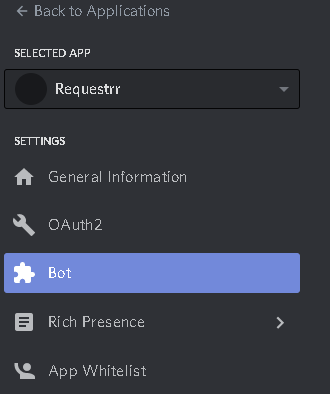
Now click on "Bot" on the left side, and then on the right side of your screen, click add bot.
From here you MUST enable these settings. (Presence intent AND Server membrs intent ) This will not work if you do not enable them.
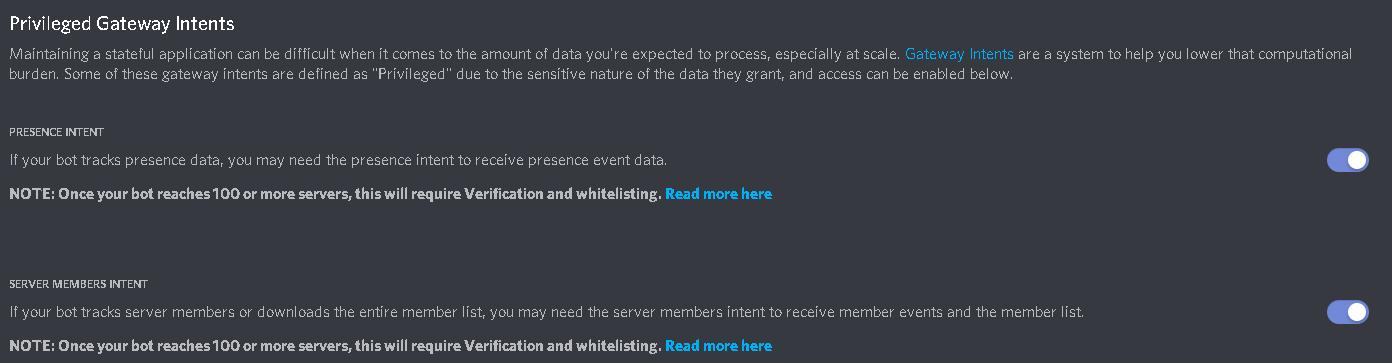
Once those are enabled, scroll back up and under "Token", press copy.
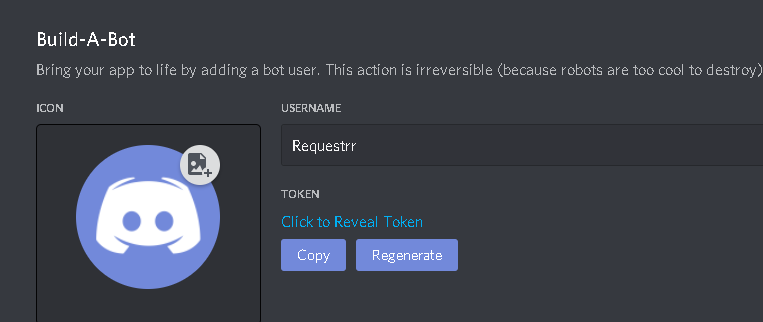
Paste that into the field called "Bot Token" from image 2 of this guide.
Now scroll down to the bottom and click "Test Settings"
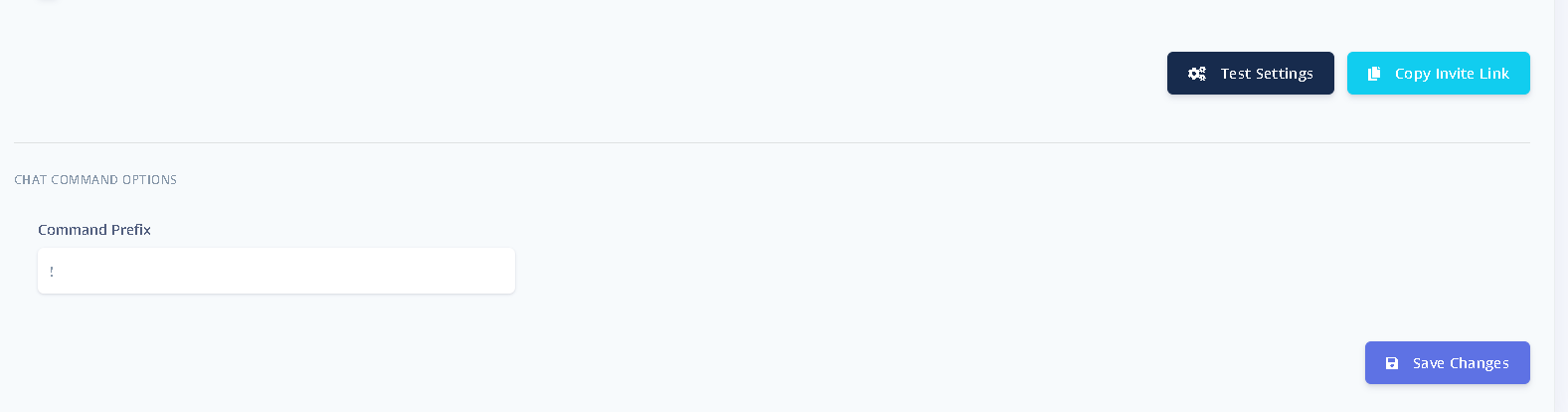
The error will tell you what is wrong, if anything. If no errors, click "Save changes"
Now go to your discord settings and make a new server by clicking the "+" sign and selecting the appropriate options for your set up.

Now that your server is completed, click the copy invite link from where you did the test settings and saved changes.

Paste that into your web browser and you will be asked what server should the bot join. Select your server. Once the bot has joined, it's time to make sure everything is working.
In your server chat type "!ping", and the bot will reply "!pong" if it is connected.
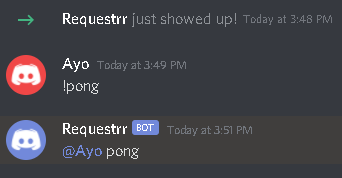
Congrats! The hard part is now done.


