Requestrr Part 1 – Instellen van the Discord Bot
On this page ▾
Requestrr is a chatbot wordt gebruikt om simplify using services like Sonarr/Radarr/Ombi via the use of chat. Current platform is Discord only, but the bot was built around the ideology of quick adaptation for new features as well as new platforms.
Installereneren Requestrr onnaar uw seed box.

Once it's installed, click the eye icon and launch de application. You'll be asked to make a new account, go ahead and do that, then log in.
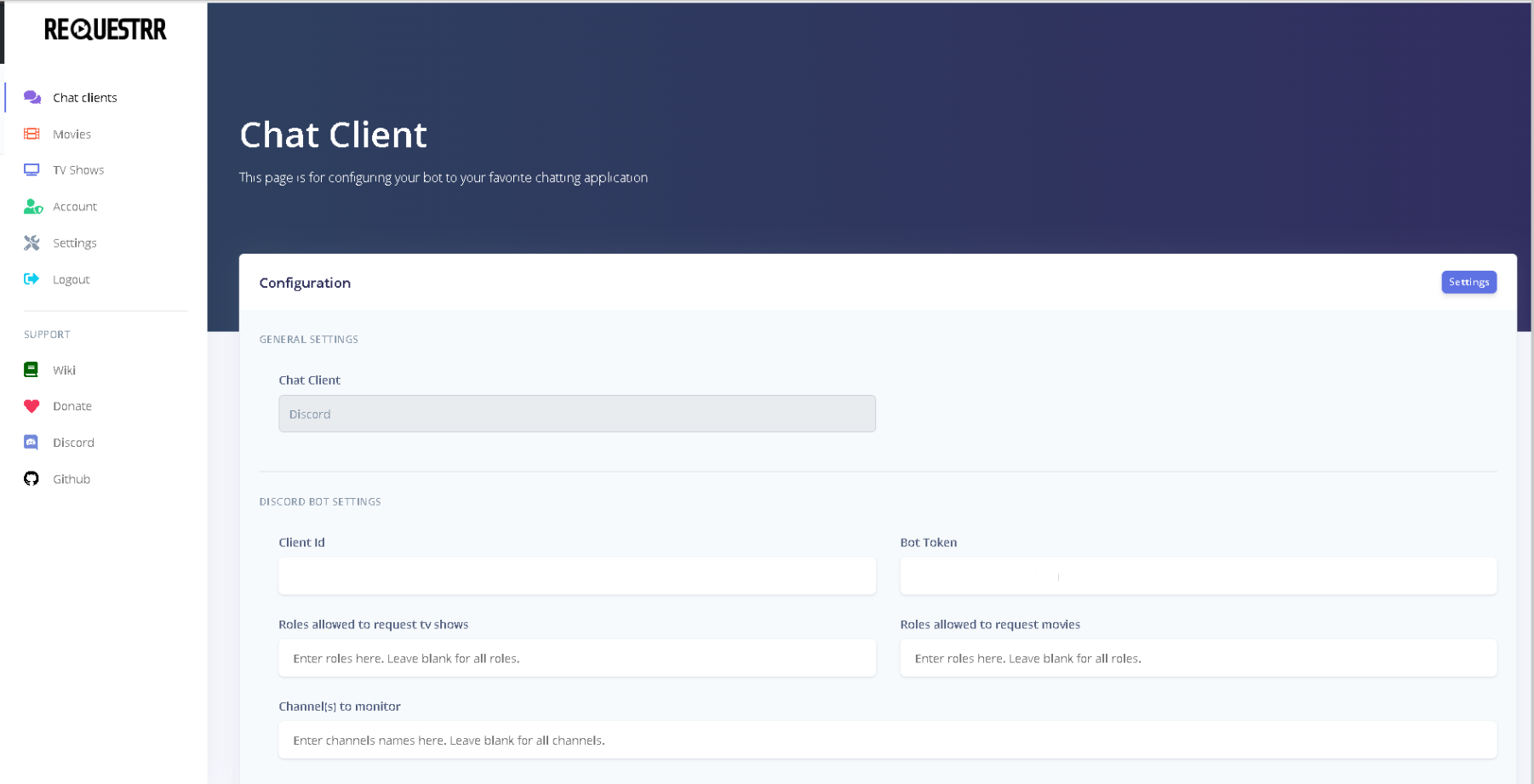
Dit is what u zult see.
Next log innaar uw discord account in uw web bowser. And navigate to the Developer Portal.
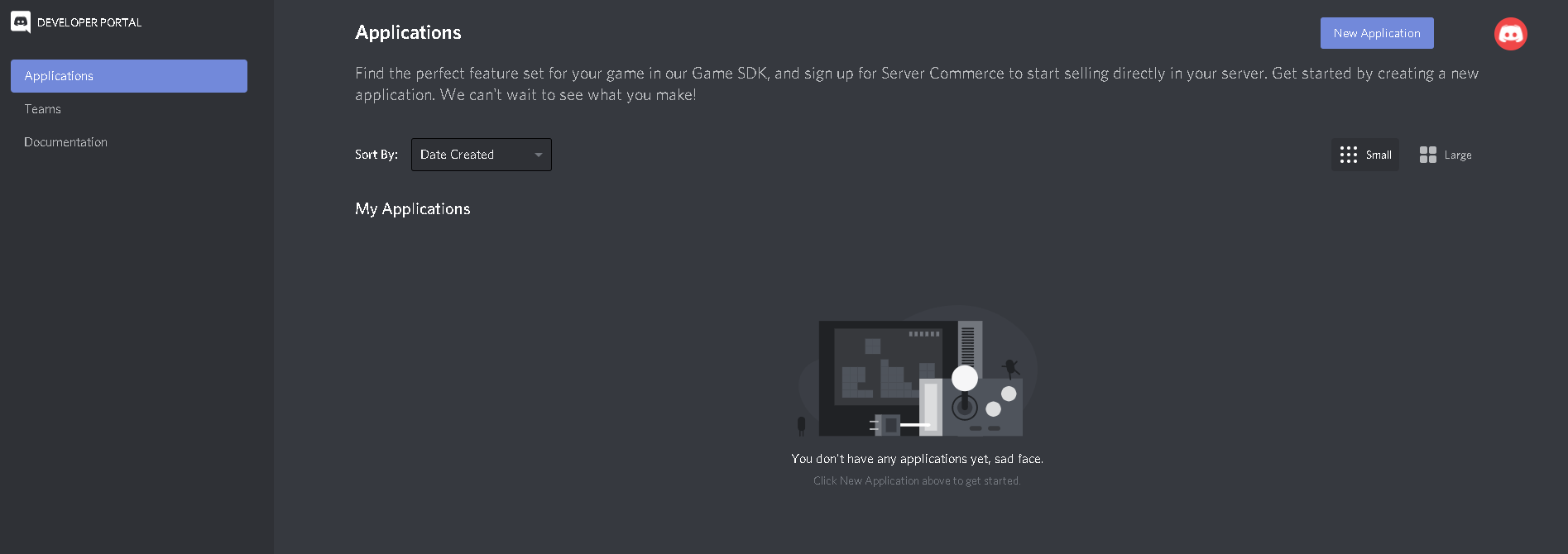
Click "New Application" and name it Requestrr
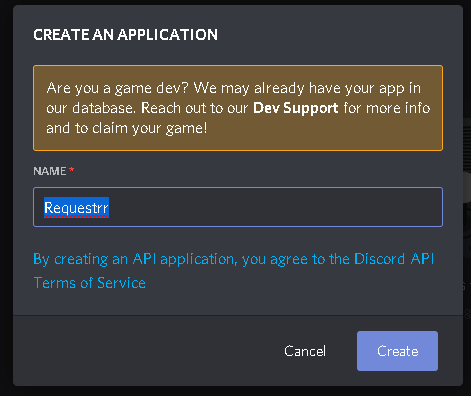
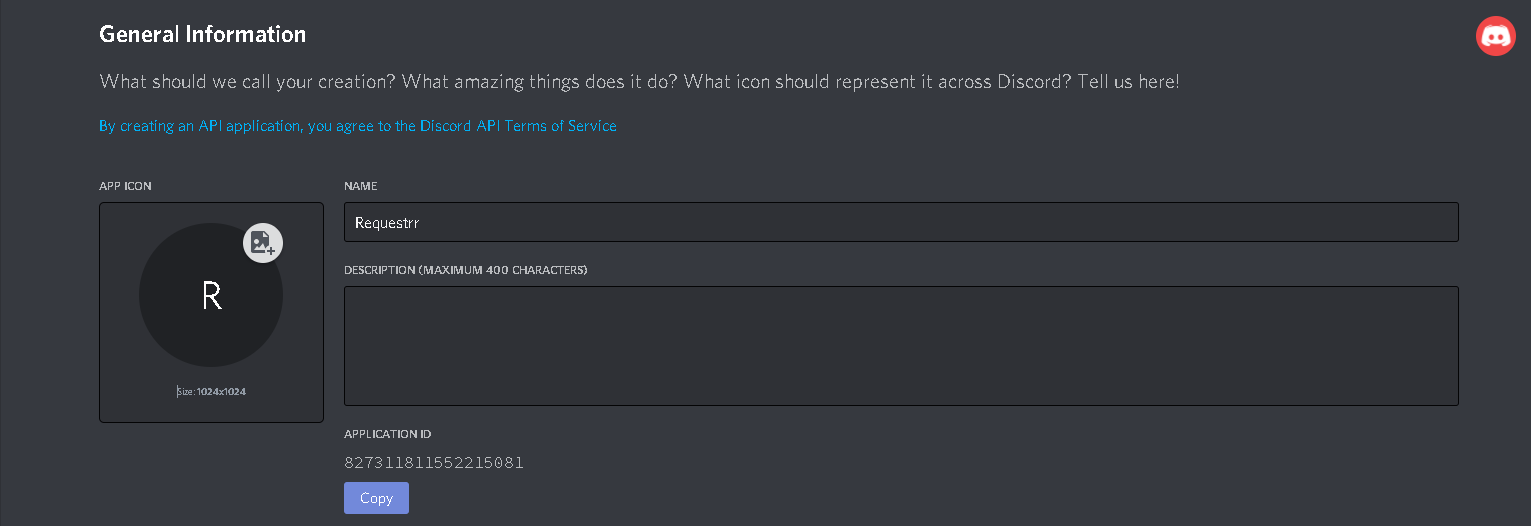
Dit is what u zult see once de application is created.
Copy the Application ID and paste it into the "Client ID" field van uw chat klantengebied(The 2nd picture in this guide.)
Now we need to go back to developer portal and make the bot. Klik op the name of the Requestrr application from the above link.
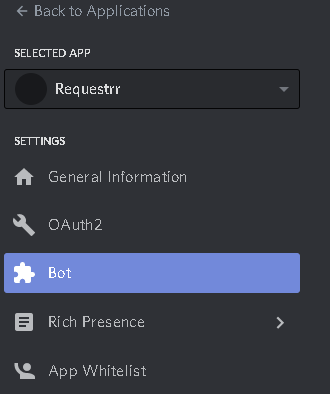
Now click on "Bot" on the left side, and then on the right side of your screen, click add bot.
From here you MUST enable these settings. (Presence intent AND Server membrs intent ) This will not work if you do not enable them.
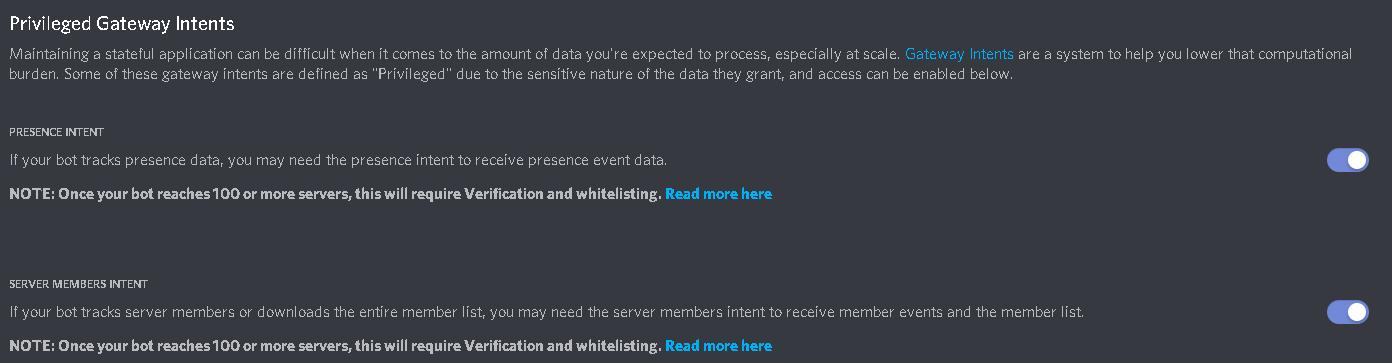
Once those are enabled, scroll back up and under "Token", press copy.
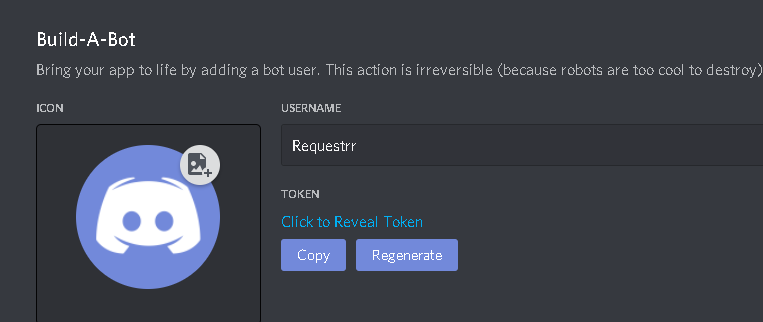
Paste that into the field called "Bot Token" from image 2 of this guide.
Now scroll down to the bottom and click "Test Settings"
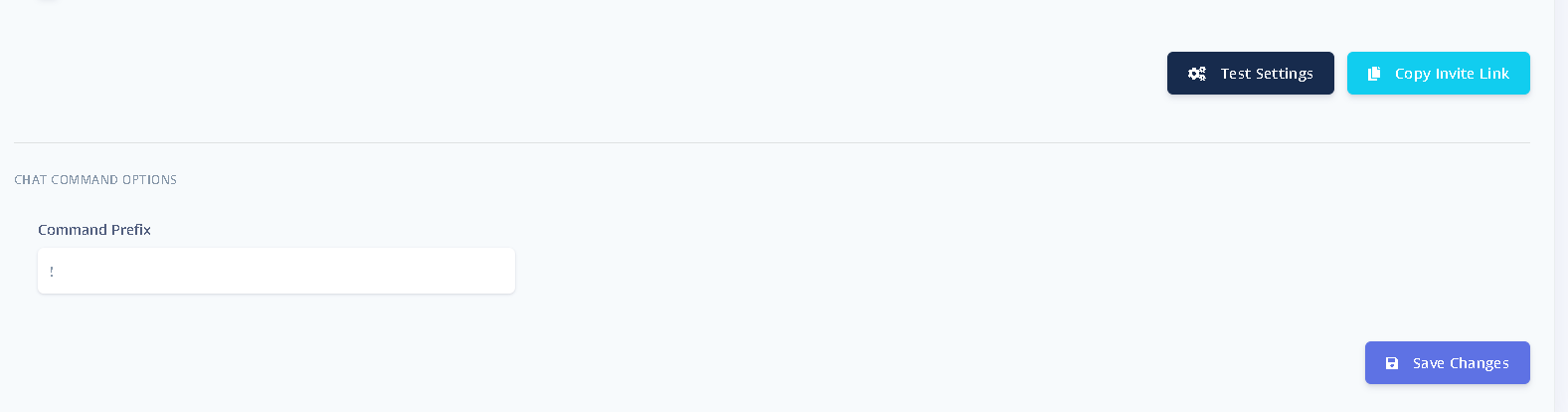
The error will tell you what is wrong, if anything. If no errors, click "Opslaan changes"
Now go naar uw discord settings and make a new server by clicking the "+" sign and selecting de appropriate options for your set up.

Now that your server is completed, click the copy invite link from where you did the test settings and saved changes.

Paste that innaar uw web browser and u zult be asked what server should the bot join. Selecteereer your server. Once the bot has joined, it's time to make sure everything is working.
In your server chat type "!ping", and the bot will reply "!pong" if it is connected.
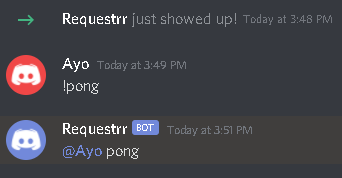
Congrats! The hard part is now done.
Put this into practice
EvoSeedbox ships with one-click app installs and up to 10 Gbps per box.


