Installing Fliebot from the client area:
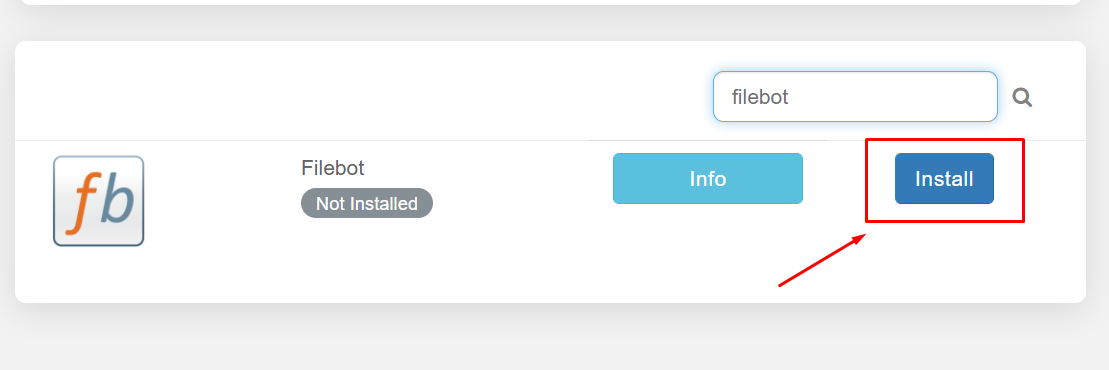
From your client area, search for the file bot and click on the install button.
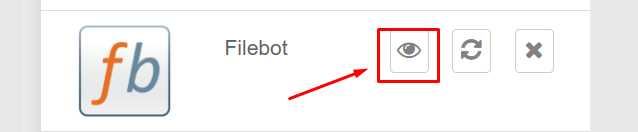
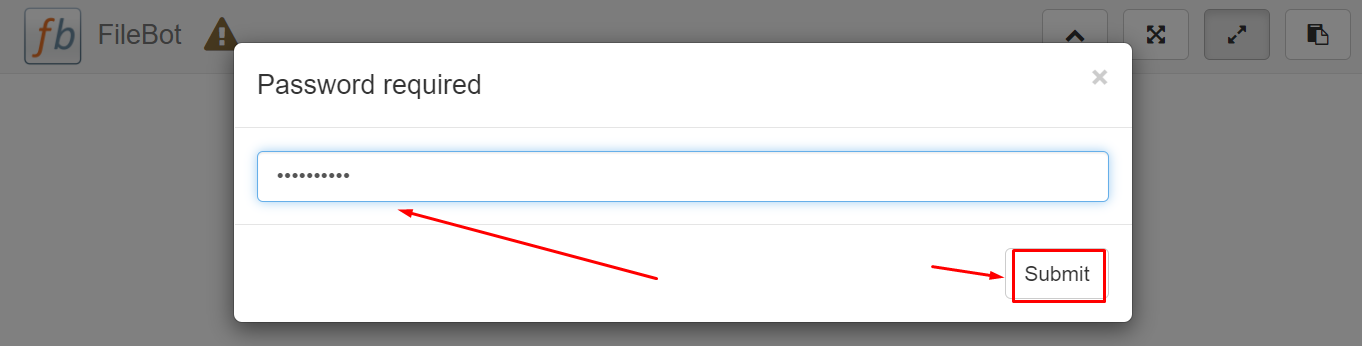
When you open the app from the installed apps section you will be prompted to enter a password, your password is the password mentioned in the FTP detail.
Renaming files using Filebot:
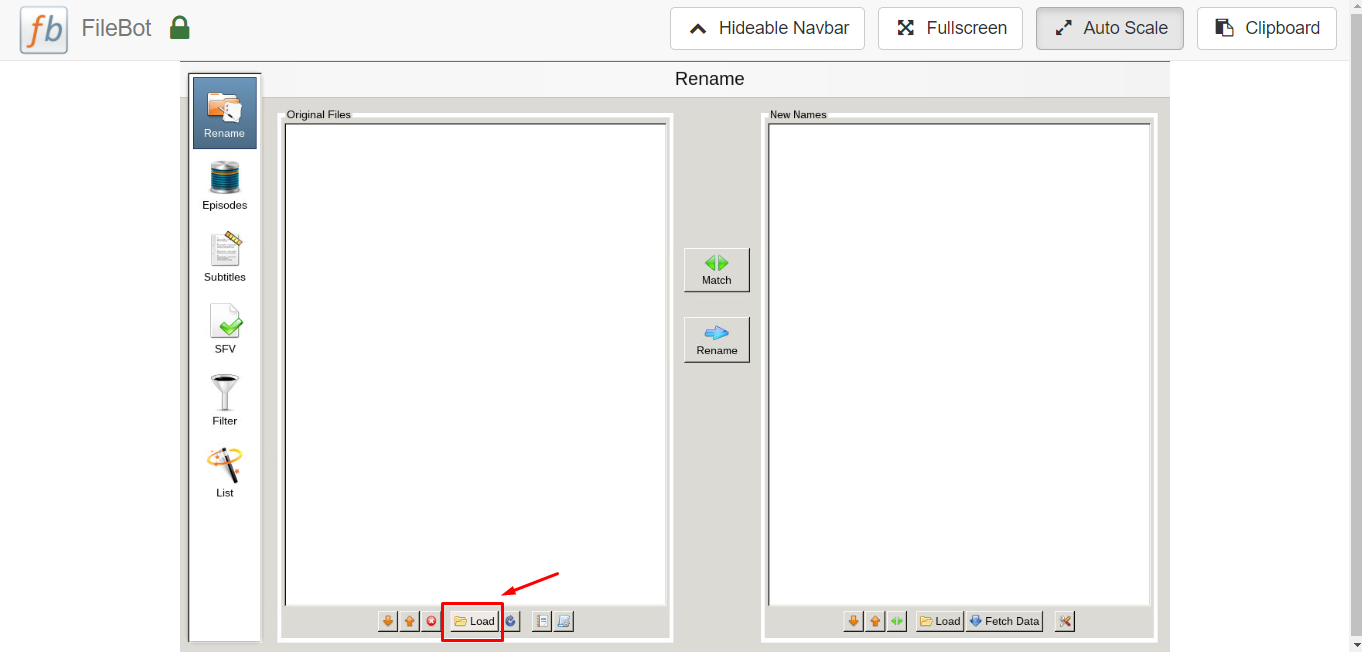
After opening the filebot press the Load button at the bottom.
This screen will pop up. Then press “../” → home/ → Your folder(should be 1 option)→ then select what folder contains the files you want to use. Reference your FTP client if you are unsure where to navigate next by following the file path.
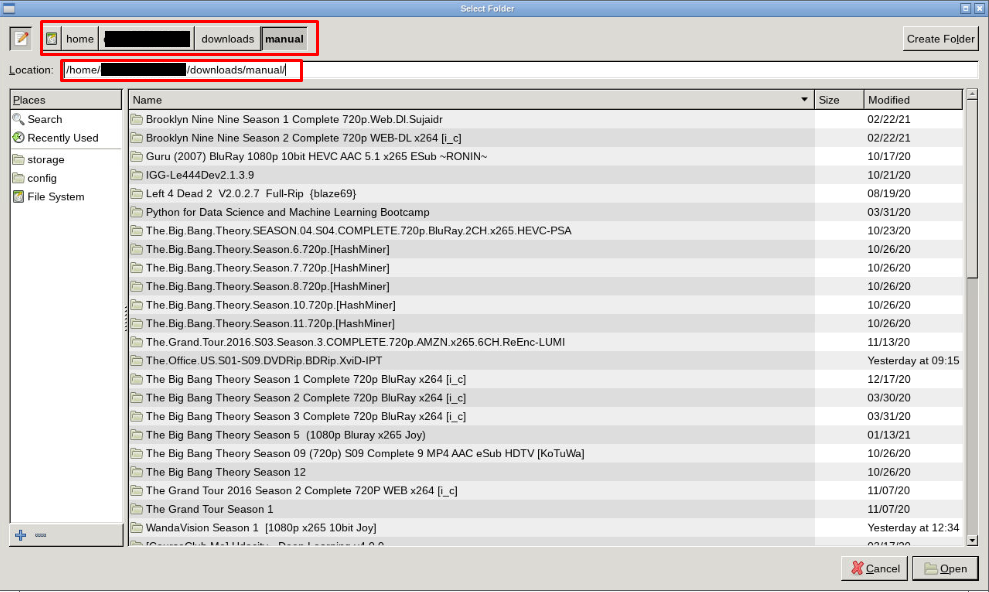
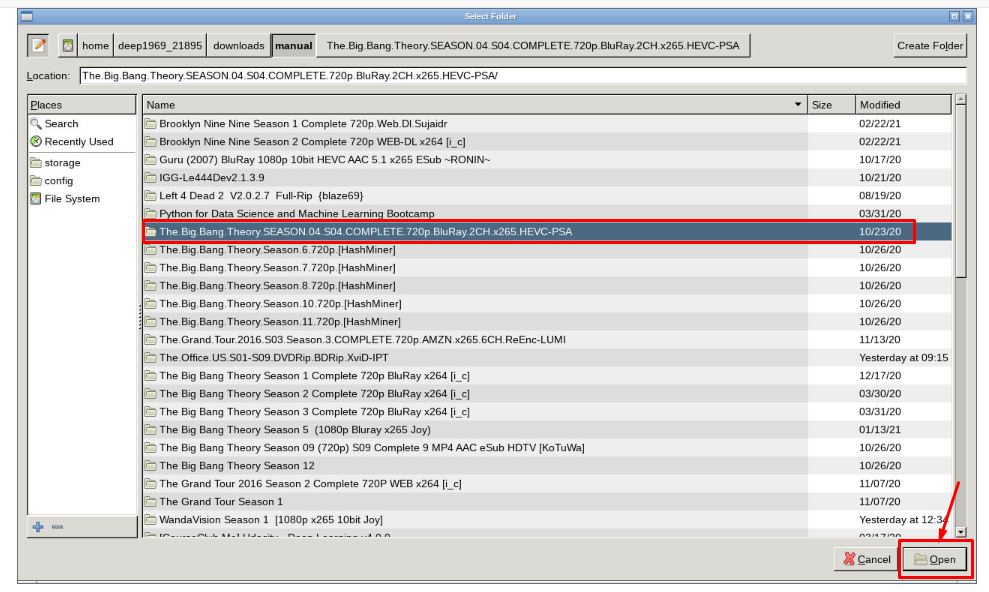
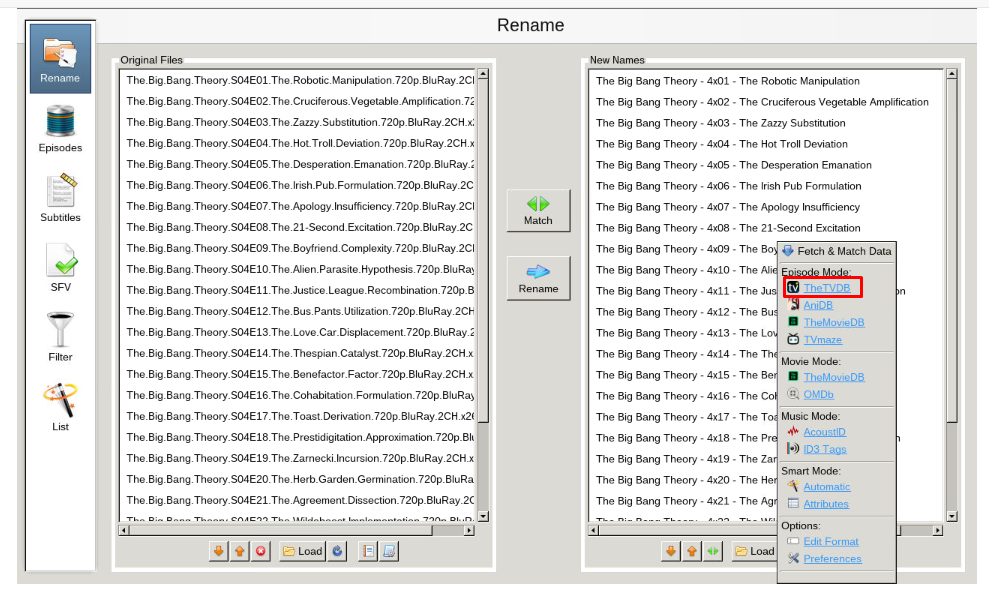
After selecting and opening the desired folder you can fetch new names.
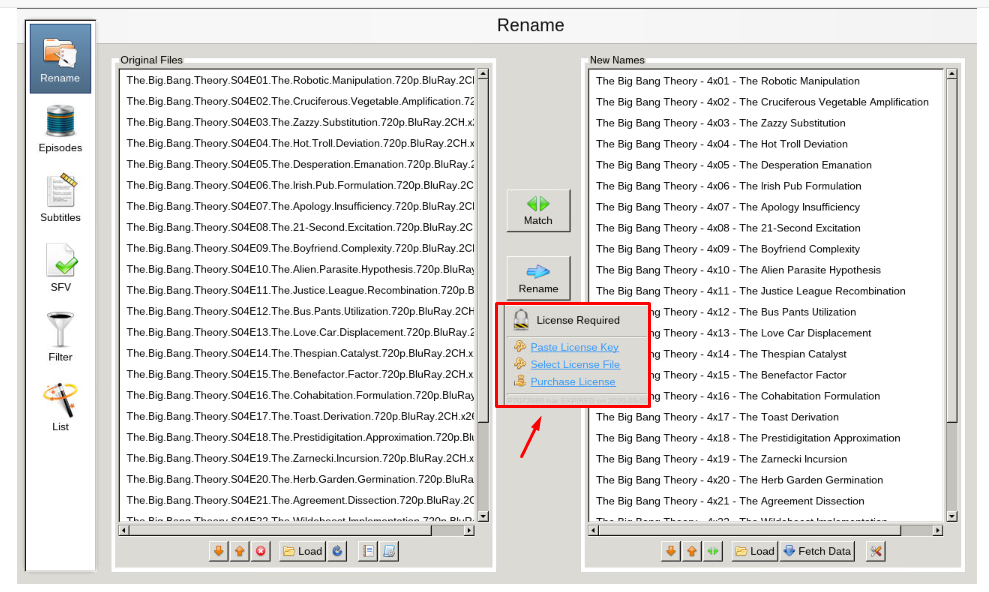
After fetching new names click on ‘Rename’ button to rename the files , it will prompt you for a license key. You can purchase this key at here.
Searching subtitles using Filebot:
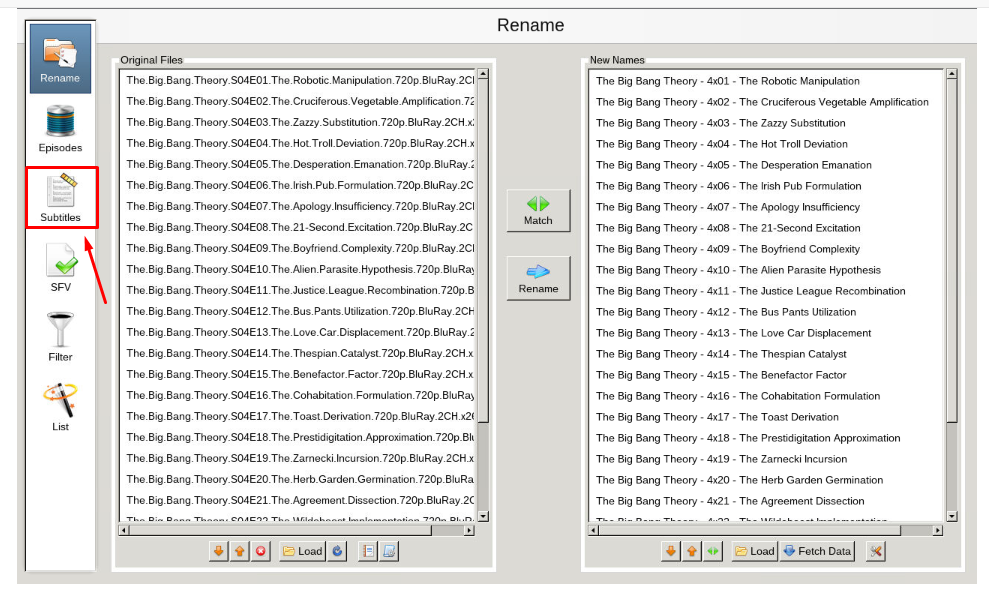
From the home screen of filebot select ‘subtitles’ tab
Next, select the language you want and click find. You may be promoted to select your show/movie from the list, select the best fit for search.
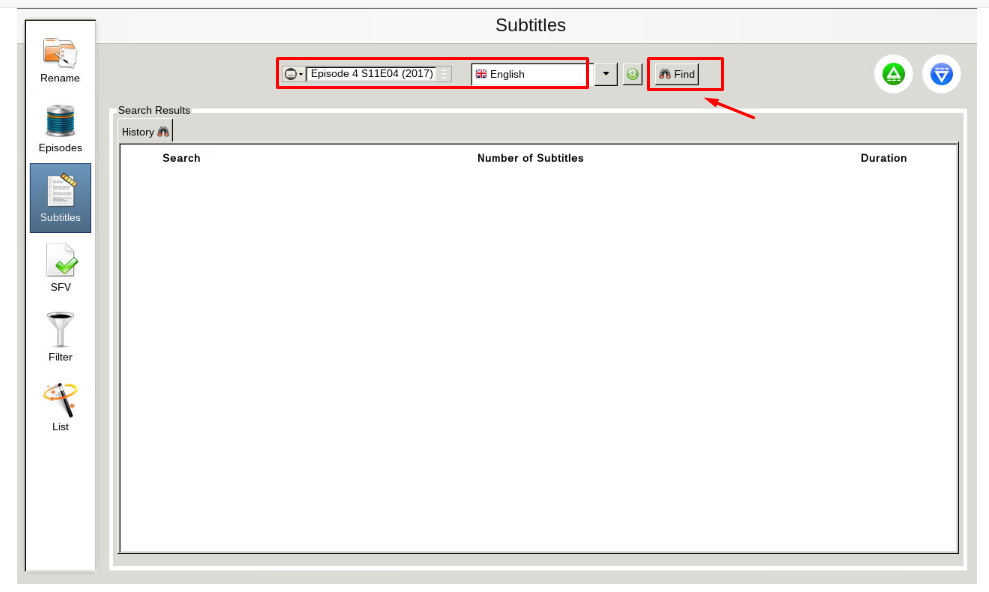
After you select your show, you will get a list generated that has subtitle options. Select your desired subtitles and download them.
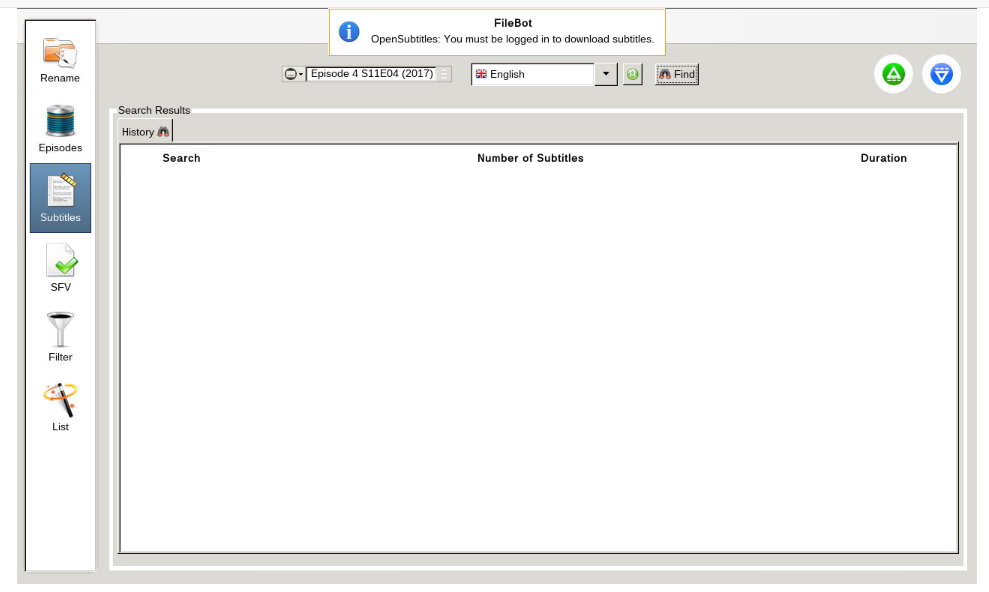
Please note, you will need to register an account at opensubtitles.org. There is a limit on the number of subtitles you can download. If you are a VIP at opensubtitles, you will have less limits than free, or unregistered users.


