FileBot – Renaming Files
On this page ▾
Installerering Fliebot from the espace client:
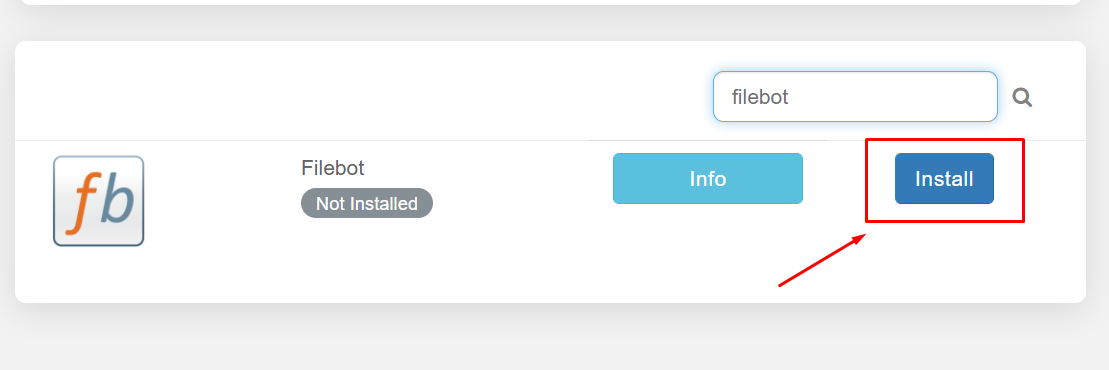
From your espace client, search for the file bot and cliquez sur the install button.
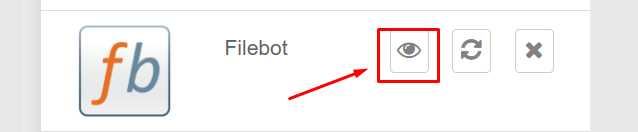
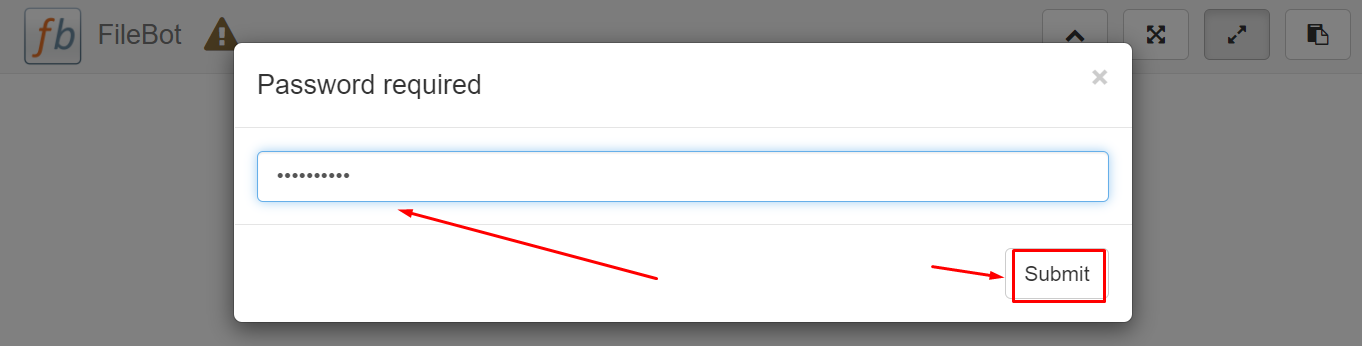
Quand you open the app from the installed apps section you will be prompted to enter a mot de passe, your mot de passe is the mot de passe mentioned in the FTP detail.
Renaming files using Filebot:
Après opening the filebot press the Load button at the bottom.
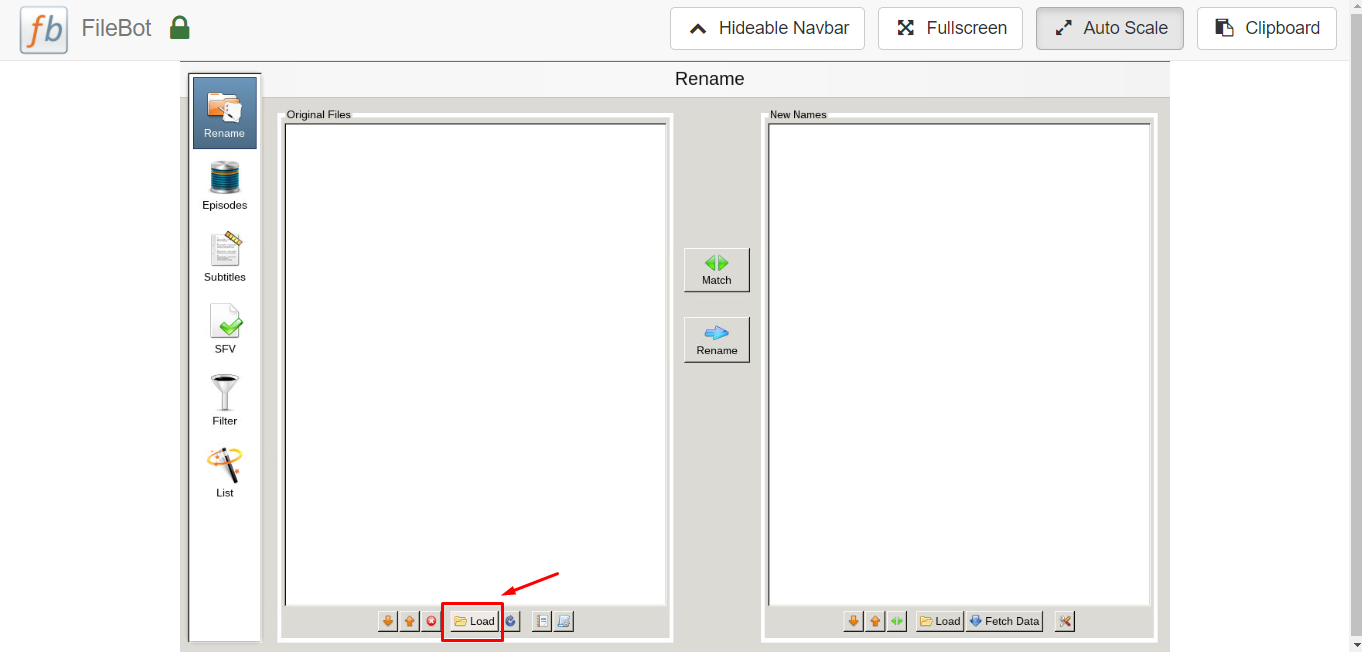
This screen will pop up. Then press “../” → home/ → Your folder(should be 1 option)→ then select what folder contains the files you want to use. Reference your FTP client if you are unsure where to navigate next by following the file path.
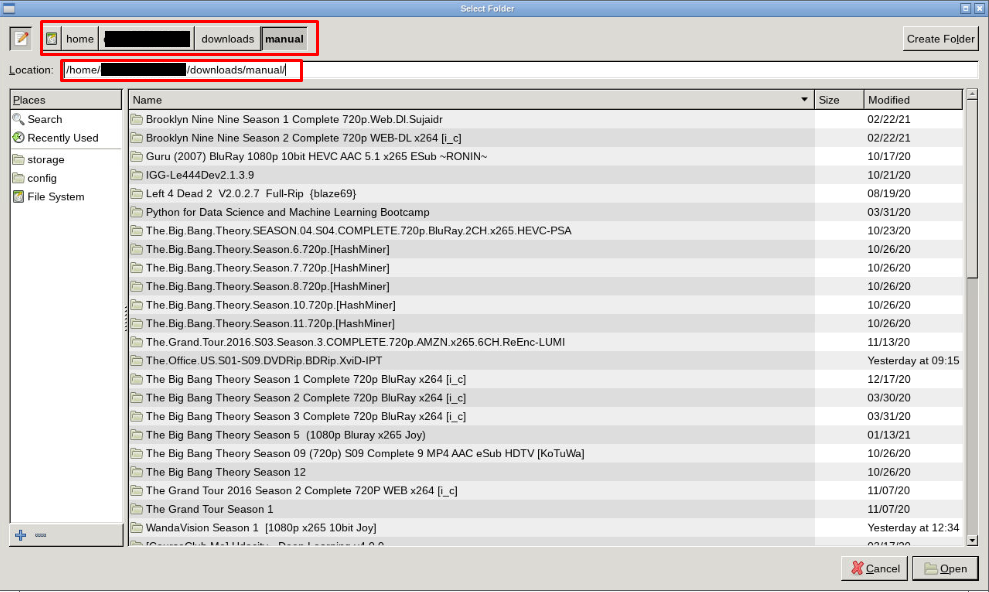
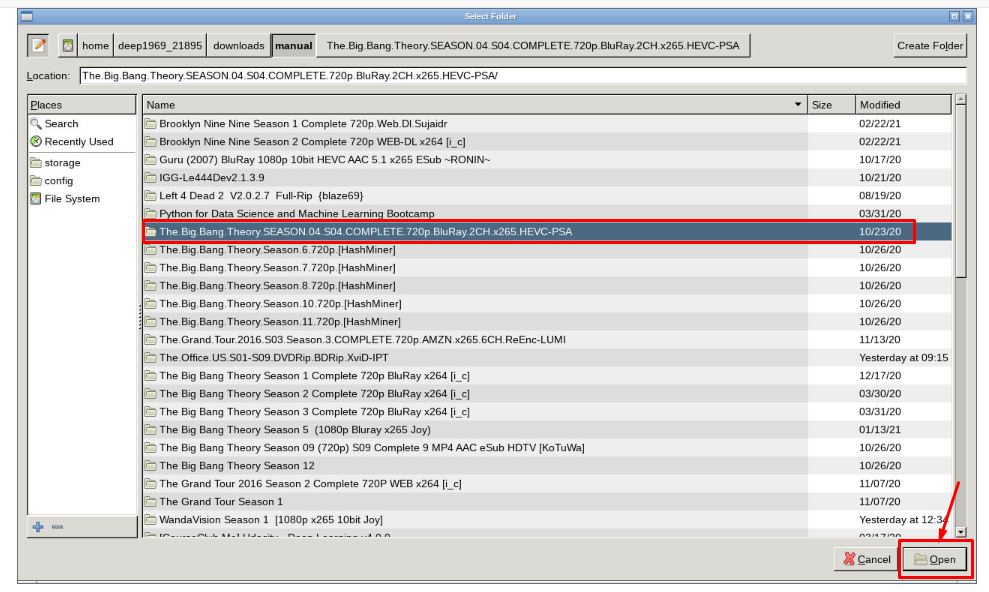
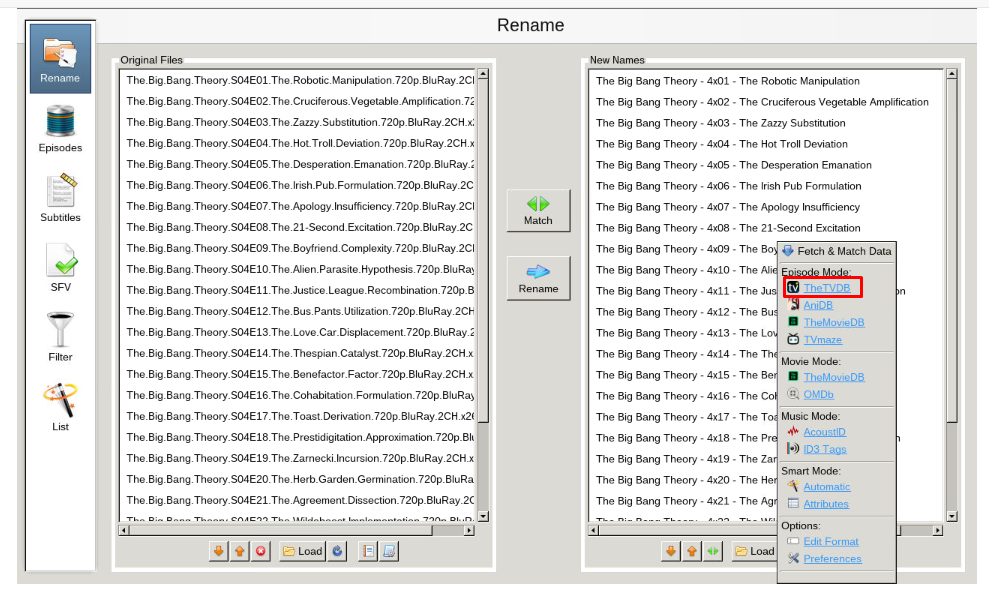
Après selecting and opening the desired folder vous pouvez fetch new names.
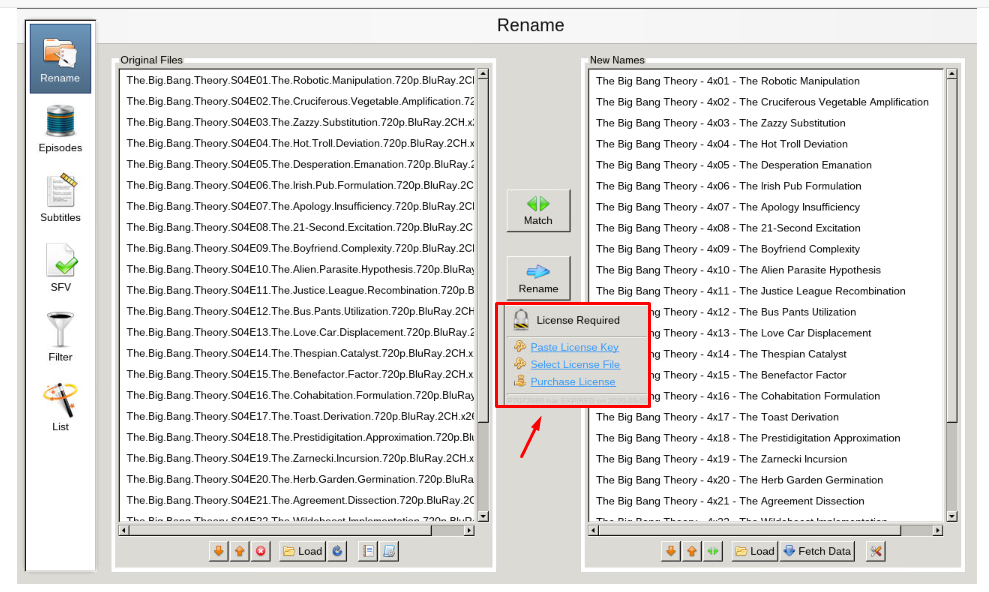
Après fetching new names cliquez sur ‘Rename’ button to rename the files , it will prompt you for a license key. Vous pouvez purchase this key at here.
Recherchering subtitles using Filebot:
From the home screen of filebot select ‘subtitles’ tab
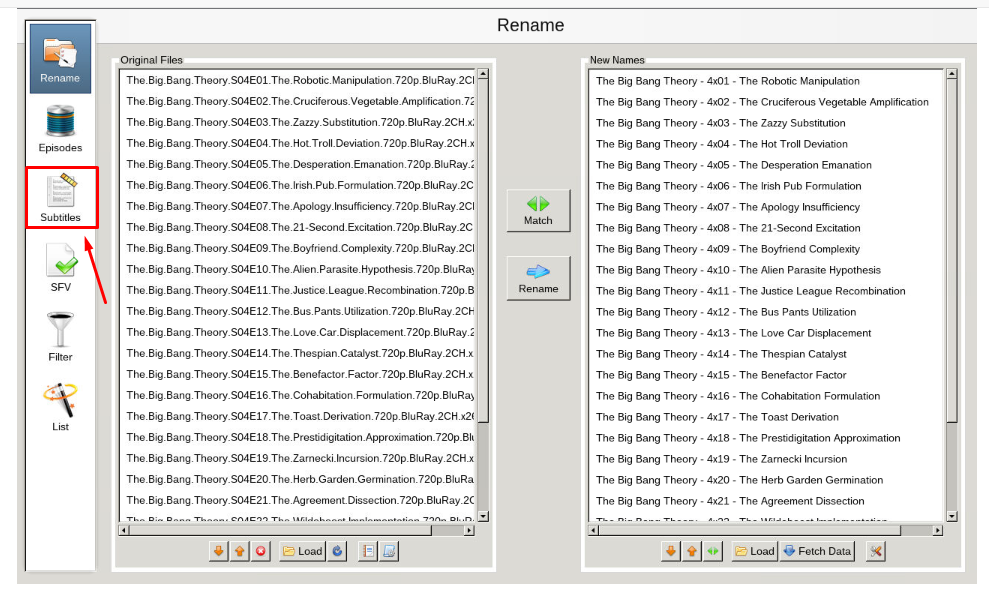
Next, select the language you want and click find. You may be promoted to select your show/movie from the list, select the best fit for search.
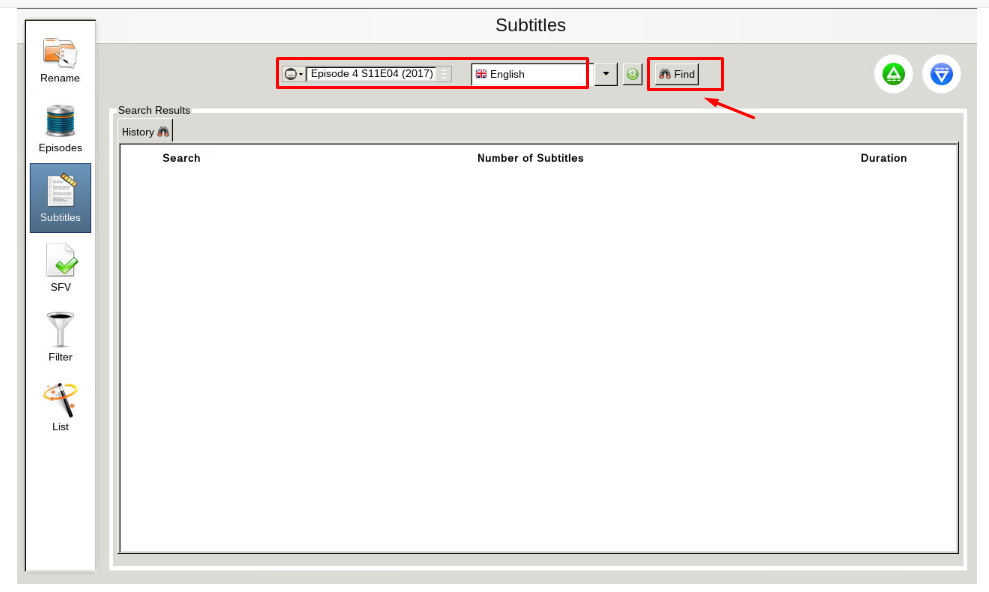
Après you select your show, you will get a list generated that has subtitle options. Sélectionnez your desired subtitles and download them.
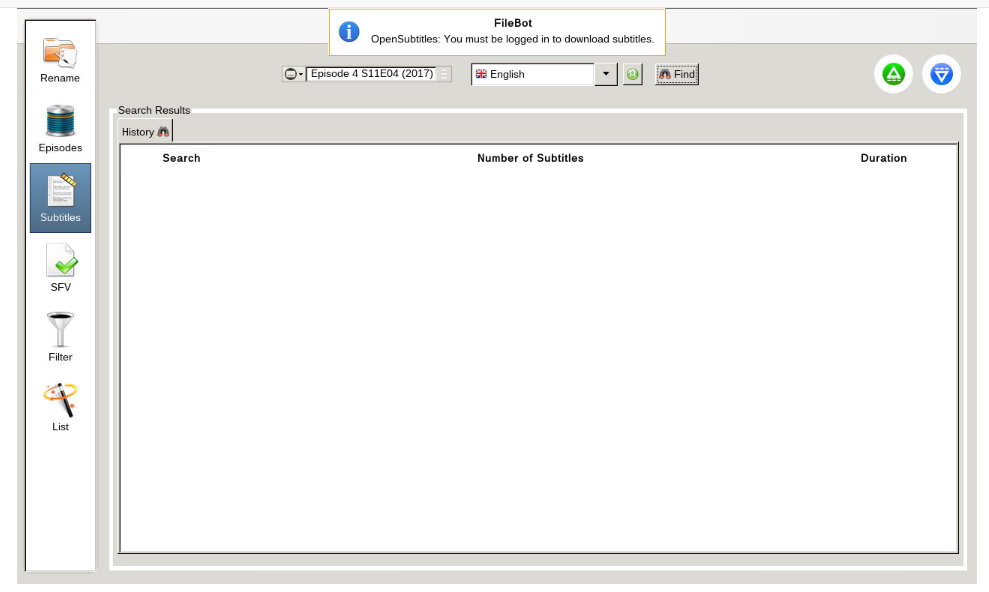
Please note, you will need to register an account at opensubtitles.org. There is a limit on the number of subtitles vous pouvez download. Si vous are a VIP at opensubtitles, you will have less limits than free, or unregistered users.
Put this into practice
EvoSeedbox ships with one-click app installs and up to 10 Gbps per box.


