Evoseedbox Evoseedbox Evoseedbox Evoseedbox
  • English
    • Nederlands (Dutch)
    • Français (French)
    • Deutsch (German)
    • 日本語 (Japanese)
    • 한국어 (Korean)
    • Português (Portuguese (Portugal))
    • Español (Spanish)
    • العربية (Arabic)
    • Русский (Russian)
    • Türkçe (Turkish)
  • Home
  • Wiki
  • Forum
  • Pricing
Client Area

Getting Started

12
  • Basics of Getting Started
  • Login Details
  • FTP Credentials
  • Choosing a Seedbox Plan
  • How to Use Your Seedbox Dashboard
  • How to Reset Your Seedbox
  • How to Restart Your Seedbox
  • Unavailable Applications in Seedbox
  • Getting Started with One-Click Installs
  • How to Update an App
  • What Is a Seedbox? Complete Beginner’s Guide
  • Understanding Seedbox Architecture

ruTorrent

18
  • ruTorrent – Getting Started
  • How to Log into ruTorrent
  • Adding a Torrent to Your Seedbox
  • Fix Torrent with a Red Cross Error
  • Guide to Increase Download and Upload Queues in ruTorrent
  • Restarting ruTorrent on Seedbox
  • How to Change Your ruTorrent Client Password
  • How to Create Torrents Using ruTorrent
  • Extracting an Archive with ruTorrent
  • Creating an Archive with ruTorrent
  • Using Watch Folder for Large Torrents
  • Setting Up Irssi with ruTorrent
  • Chrome Remote Torrent Adder
  • Firefox Torrent Control Remote Torrent Adder
  • MediaStream Plugin User Guide
  • AutoTools: Auto-Move Completed rTorrent Downloads
  • Torrent Seeding Rules and Upload Limits Explained
  • Common ruTorrent Errors and How to Fix Them

File Management

17
  • How to Transfer Data from a Previous Provider to Your Seedbox via FTP
  • How to Get Faster FTP Downloads
  • How to Get Maximum Transfer Speed Using FTP in FileZilla
  • Why Do I Have Slow FTP Download Speeds?
  • Sync Files Between Your Seedbox and PC
  • How to Access Your Seedbox Files Using HTTP Access
  • How to Transfer Files from Your Seedbox to Google Drive
  • Rclone Google Drive Setup
  • Duplicati Backup Setup
  • FileBot – Renaming Files
  • SCP File Transfer Guide: Copy Files To and From Your Seedbox
  • Rclone Browser: Visual File Management for Cloud Sync
  • Create Additional FTP Users on Your Seedbox
  • Mount Your Seedbox via SSHFS and WebDAV
  • Filegator: Web File Manager for Your Seedbox
  • SFTP Setup Guide: Secure File Transfer for Your Seedbox
  • How to Use BTSync with Your Seedbox

Streaming

20
  • How to Use Secure Server Connections in Plex
  • How to Add Libraries in Plex and Synchronize Your Streaming Content
  • Synclounge Setup Guide
  • Tautulli Setup Guide
  • How to Stream Videos from Seedbox on VLC
  • How to Use Emby with Your EvoSeedbox
  • How to Use Peerflix with Your EvoSeedbox
  • How to Stream from Seedbox with Kodi (Complete Setup Guide)
  • Improving Plex Server Performance on Your Seedbox
  • 4K Plex Streaming Guide for Seedbox Users
  • Automatic Plex Collections: Organize Your Library in 6 Steps
  • Plex Library Permissions and User Management on Seedbox
  • HandBrake Guide: Video Encoding on Your Seedbox
  • Understanding Video Codecs: H.264 vs H.265 for Seedbox Users
  • Create a Self-Hosted Streaming Service on Your Seedbox
  • Naming Your Plex Media Server Correctly
  • Audiobookshelf: Self-Hosted Audiobook Server on Your Seedbox
  • Navidrome: Self-Hosted Music Streaming on Your Seedbox
  • How to Connect Jellyfin with Your Seedbox
  • Setting Up Plex on Your Seedbox

Automation

18
  • How to Use Lidarr with Your EvoSeedbox
  • What is Medusa and How to Use It with Your Seedbox
  • Ombi Setup Guide
  • Requestrr Part 1 – Setting Up the Discord Bot
  • Getting Started with Overseerr on Your Seedbox
  • Bazarr Setup Guide: Automatic Subtitles for Your Seedbox
  • Readarr Setup Guide: Automate Ebook Downloads on Your Seedbox
  • Remote Path Mapping Explained: Fix Sonarr and Radarr Import Errors
  • Sonarr and Radarr Quality Settings Guide (Including 4K)
  • Quick Setup: Complete *arr Stack (Sonarr + Radarr + Prowlarr + Deluge)
  • Connect Home Sonarr/Radarr to Your Remote Seedbox
  • Prowlarr Setup: Unified Indexer Manager for Your Seedbox
  • Autobrr Setup: Automated Torrent Grabbing for Your Seedbox
  • Jellyseerr Setup: Media Requests for Jellyfin on Your Seedbox
  • How to Use Radarr with Your Seedbox
  • Setting Up Sonarr on Your Seedbox
  • How to Use Jackett with Your Seedbox
  • How to Use CouchPotato with Your Seedbox

Apps & Tools

24
  • Beginner’s Guide to Nextcloud
  • Calibre Setup Guide
  • How to Set Up ZNC
  • Electorrent Setup Guide
  • What is JDownloader and How to Use It
  • What is Pyload and How to Use It
  • Mattermost Guide
  • Setting Up TeamSpeak
  • NZB360 Android App Setup
  • Installing and Setting Up Clarkson
  • Evobot User Guide
  • The Definitive Guide to Deluge on Your Seedbox (2026)
  • Seedbox Remote Desktop: X2Go and noMachine Setup Guide
  • Docker for Beginners: A Seedbox User’s Guide
  • NZBGet Setup Guide: Usenet Downloads on Your Seedbox
  • SyncThing Setup: Peer-to-Peer File Sync for Your Seedbox
  • Portainer Setup: Manage Docker Containers on Your Seedbox
  • SABnzbd Setup Guide: Usenet Downloads on Your Seedbox
  • Homarr: Dashboard for All Your Seedbox Apps
  • Calibre-Web: Access Your Ebook Library from Anywhere
  • Docker App Management: How Your Seedbox Apps Work
  • Deemix Setup Guide
  • OwnCloud Setup Guide
  • How to Use Subsonic with Your EvoSeedbox

Networking & VPN

13
  • OpenVPN Connect Setup
  • Reroute Your Seedbox
  • OpenSSH Tutorial
  • WireGuard VPN Setup: Complete Guide for Every Platform
  • Linux Basics for Seedbox Users: Essential Commands
  • SSH Key Authentication: Passwordless Login to Your Seedbox
  • Nano Text Editor Guide for Seedbox Users
  • SSL Certificate Setup for Seedbox Web Services
  • Seedbox Speed Test: Monitor Your Performance with LibreSpeed
  • Understanding and Managing Your Seedbox Bandwidth
  • Split Tunneling with WireGuard on Android
  • Authelia: How Authentication Works on Your Seedbox
  • WireGuard VPN Setup: Connect Securely to Your EvoSeedbox

Troubleshooting

4
  • Why You Are Not Able to Access Your Seedbox
  • 5 Quick Troubleshooting Tips for Your Seedbox
  • Understanding Disk Usage and Quotas on Your Seedbox
  • Why Is My Seedbox Slow?

Account & Billing

1
  • How to Terminate My Service
View Categories
  • Home
  • Docs
  • File Management
  • Sync Files Between Your Seedbox and PC

Sync Files Between Your Seedbox and PC

2 min read

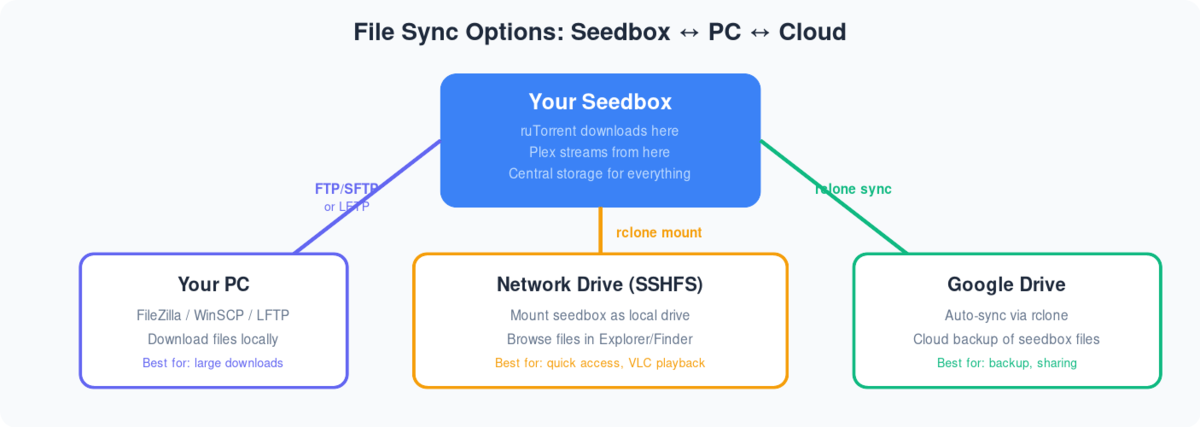
Diagram showing three ways to sync files from seedbox: FTP to PC, SSHFS network drive, and rclone to Google Drive

Syncing files in Seedbox and PC can make file management easier. All you have to do is add the file to a dedicated sync folder and it will make sure that the file is available on both your seedbox and your PC.

For this, we are going to use an application called Syncthing. All you have to do is configure it once.

We are assuming the Syncthing is installed on your seedbox and your PC.

Click here to download Syncthing for pc.

Let us now begin the configuration.

How to use Syncthing to sync files between your device and seedbox

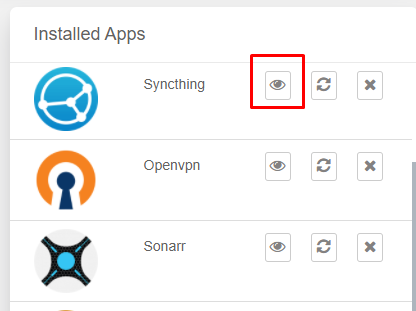
Step 1: Open the Syncthing application on your seedbox.
Sync Flies Between Your Seedbox And Pc

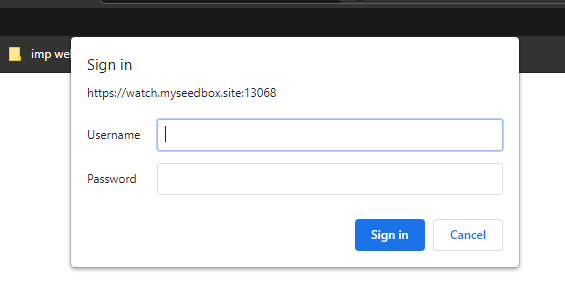
Step 2: Enter your FTP credentials

Sync Flies Between Your Seedbox And Pc

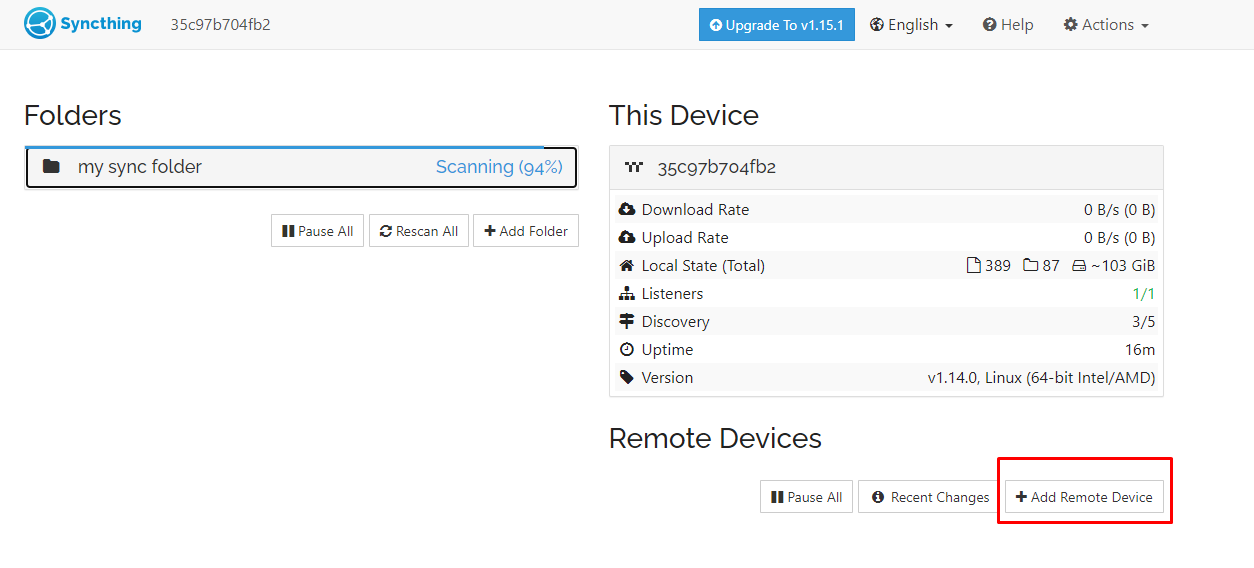
Step 3: Add a remote device, a.k.a your PC
Sync Flies Between Your Seedbox And Pc

Step 4: Open Syncthing on your device and find the device ID in the action menu.

A Pop-up will appear, copy the code written.
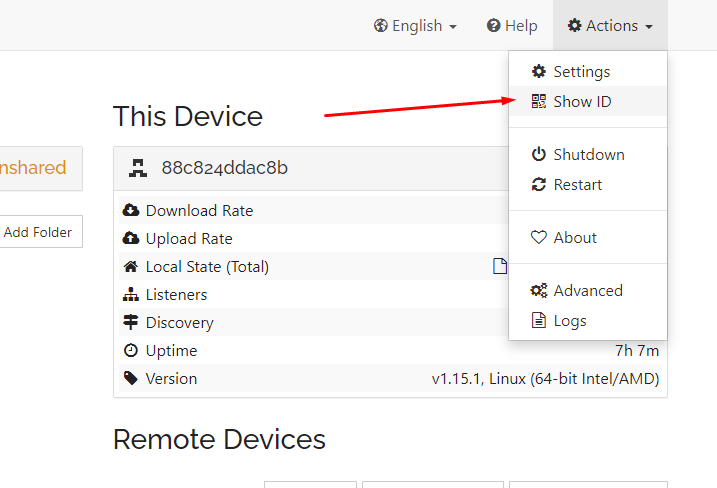
Sync Flies Between Your Seedbox And Pc

Step 5: Add in the details and click on save.
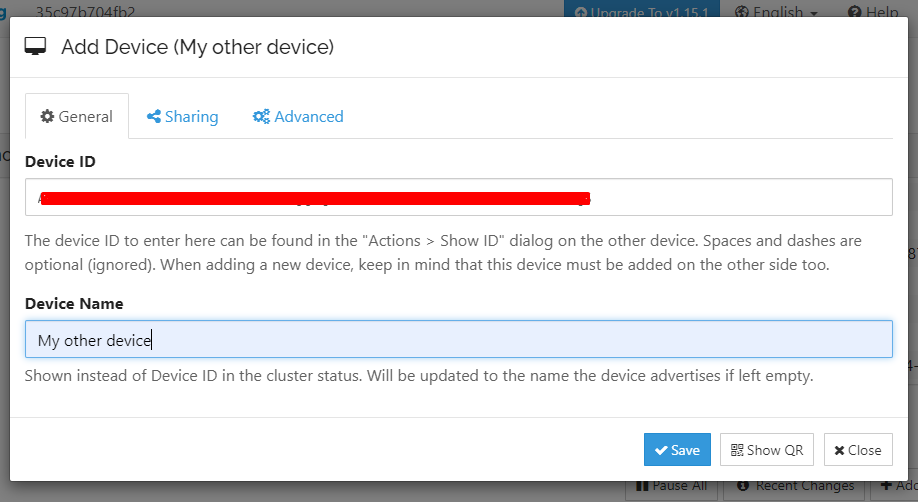
Sync Flies Between Your Seedbox And Pc

Step 6: Go to the Syncthing app on your device and accept the request.

A pop-up will appear, check the details, and click on the Save button.
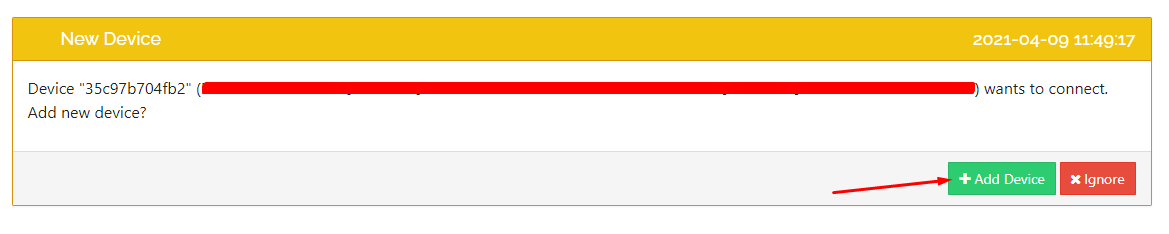
Sync Flies Between Your Seedbox And Pc

Bueno, both your devices are connected now. It is time to create folders and actually starts syncing files.

Adding folders in Syncthing to sync files.

Step 1: Add a folder which you will use to sync files.
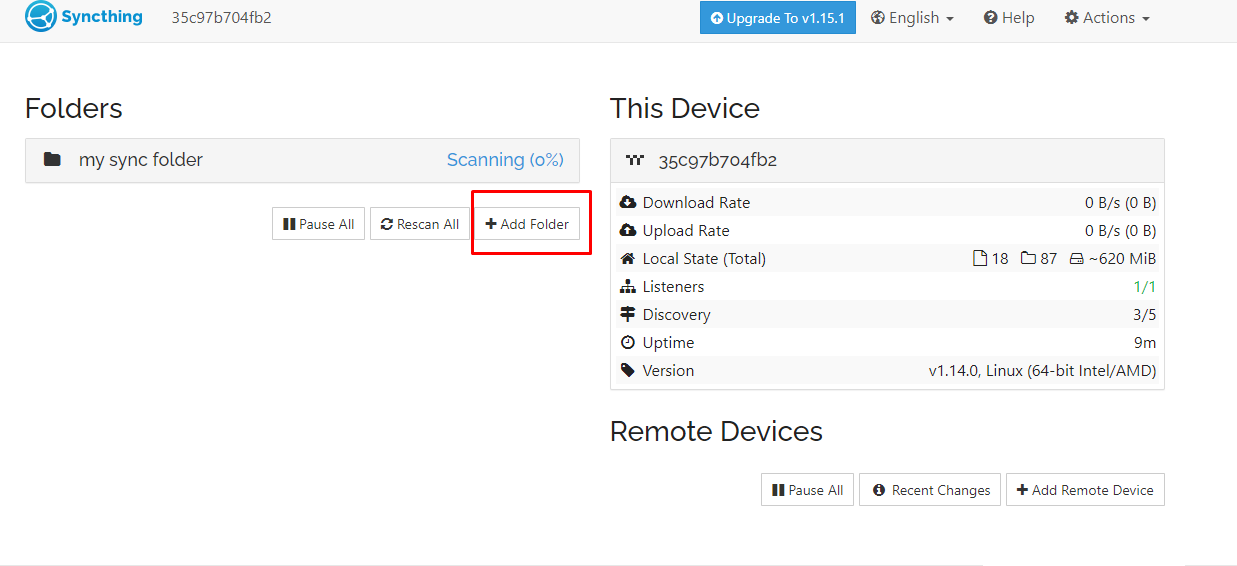
Sync Flies Between Your Seedbox And Pc

Step 2:  Fill in all the information and click on save.
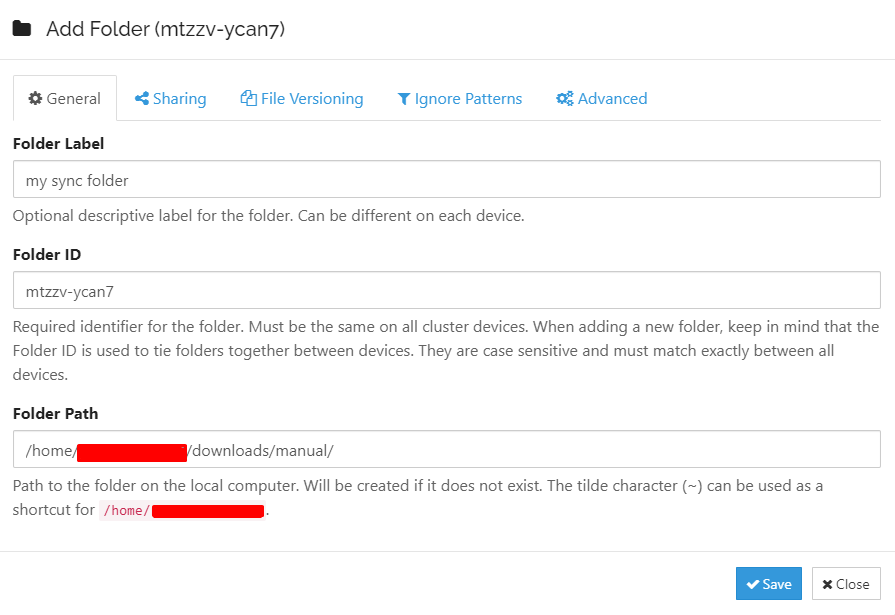
Sync Flies Between Your Seedbox And Pc

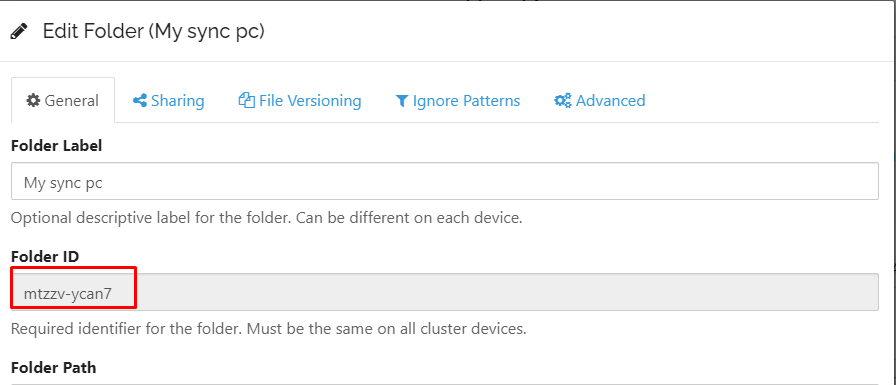
Step 3: Do the same for your PC. Make sure the folder ID is the same as the folder ID of the seedbox.

In this case, the folder ID is: mtzzv-ycan7
Sync Flies Between Your Seedbox And Pc

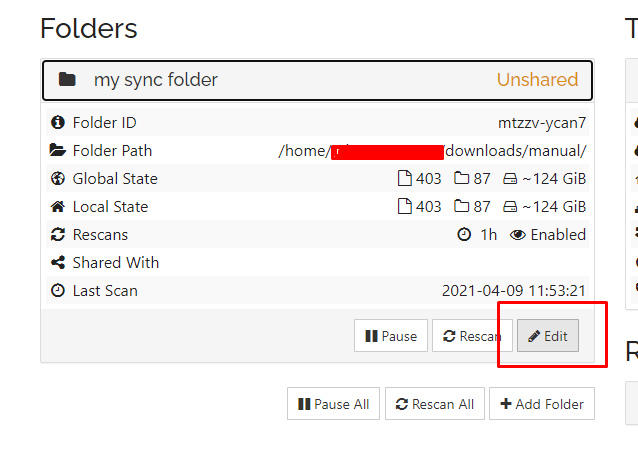
These folders are added but not shared by default. Therefore, you need to manually approve the folder to be shared.

Step 4: Click on the folder from your seedbox and click on the edit button.
Sync Flies Between Your Seedbox And Pc

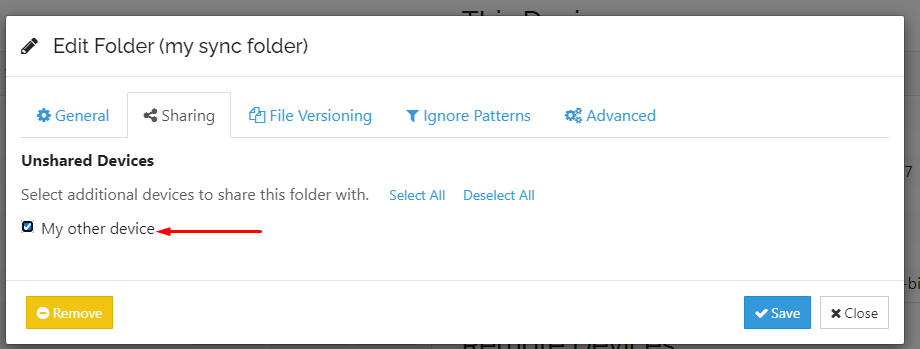
Step 5: Go to the “Sharing tab” and check your device(PC) you want the folder to sync with. Click on save.
Sync Flies Between Your Seedbox And Pc

Step 6: Open Syncthing on your device(PC) and click on share.

Sync Flies Between Your Seedbox And Pc

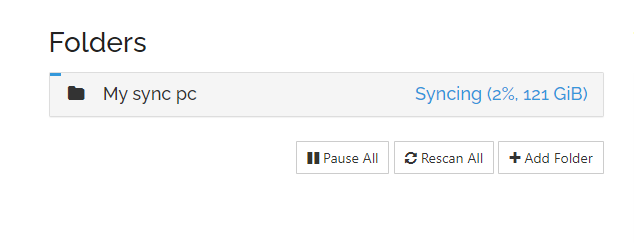
The scanning process will start automatically.
Sync Flies Between Your Seedbox And Pc

Once it is complete then the sync has been done. Now all you have to do is add any file you want to sync in this folder. It doesn’t matter if it is from a PC or your seedbox.

If you still have any doubt then please get in touch with us using chat or raise a ticket.

Updated on March 15, 2026

What are your Feelings

  • Happy
  • Normal
  • Sad

Share This Article :

  • Facebook
  • X
  • LinkedIn
  • Pinterest
Why Do I Have Slow FTP Download Speeds?How to Access Your Seedbox Files Using HTTP Access

We create amazing Seedboxes
for everyone to use 😊

Important Links

Scholarship for CS

Refund Policy

Privacy Policy

Terms of service

Cookie Policy

Acceptable Use Policy

Get in Touch

Contact Us

[email protected]

© 2025 Evoseedbox | All rights reserved. By Evo Created with ❤️

  • Nederlands (Dutch)
  • English
  • Français (French)
  • Deutsch (German)
  • 日本語 (Japanese)
  • 한국어 (Korean)
  • Português (Portuguese (Portugal))
  • Español (Spanish)
  • العربية (Arabic)
  • Русский (Russian)
  • Türkçe (Turkish)
Evoseedbox
  • English
    • Nederlands (Dutch)
    • Français (French)
    • Deutsch (German)
    • 日本語 (Japanese)
    • 한국어 (Korean)
    • Português (Portuguese (Portugal))
    • Español (Spanish)
    • العربية (Arabic)
    • Русский (Russian)
    • Türkçe (Turkish)
  • Home
  • Wiki
  • Forum
  • Pricing
Client Area