Sync Files Between Seedbox and PC
On this page ▾
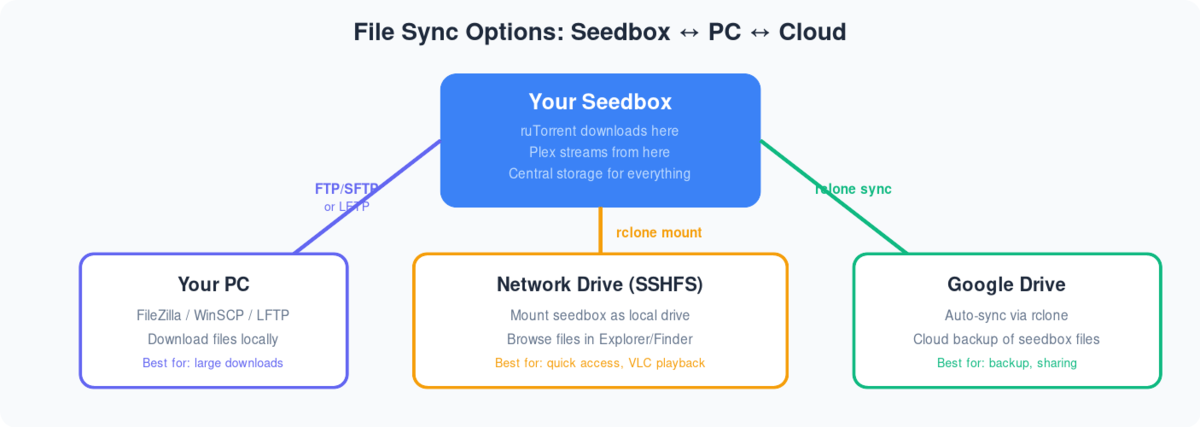
Syncing files in Seedbox and PC can make file management easier. All you 必要があります do is add the file to a dedicated sync folder and なります make sure that the file is 利用可能 on both あなたのSeedbox and your PC.
For this, we are going to use an application called Syncthing. All you 必要があります do is 設定する it once.
We are assuming the Syncthing is installed on あなたのSeedbox and your PC.
Click here to download Syncthing for pc.
Let us now begin the configuration.
方法: use Syncthing to sync files between your device and seedbox
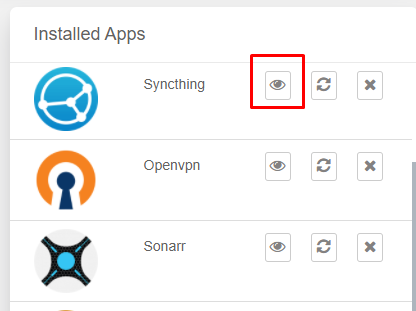
ステップ 1: 開く the Syncthing application on あなたのSeedbox.
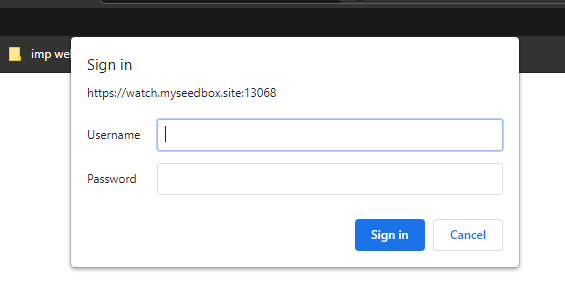
ステップ 2: Enter your FTP 認証情報
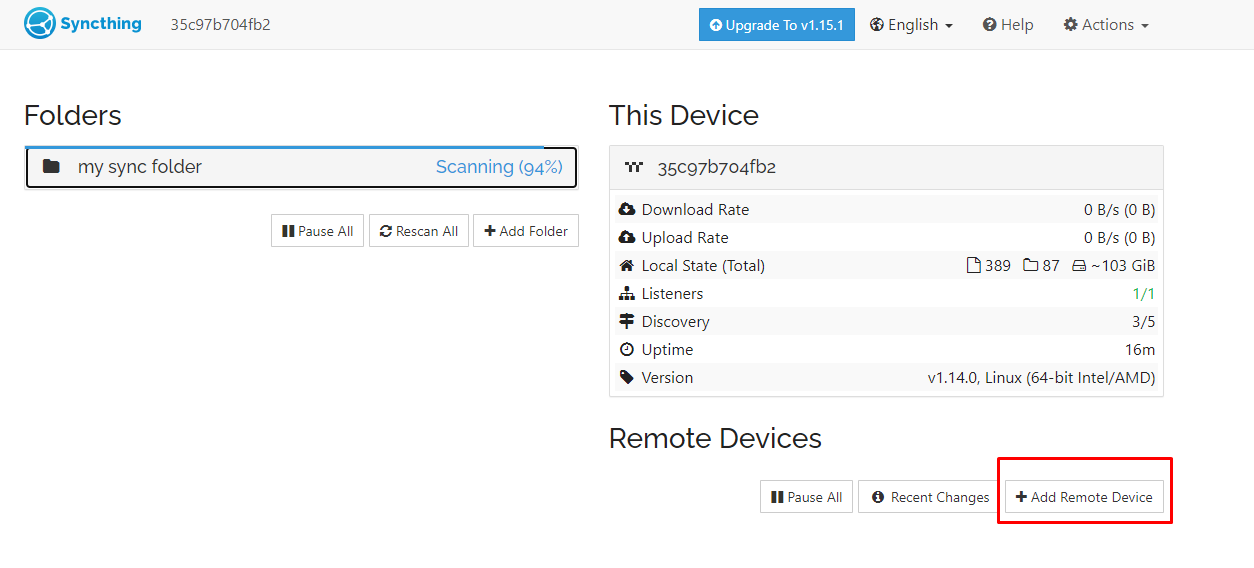
ステップ 3: Add a remote device, a.k.a your PC
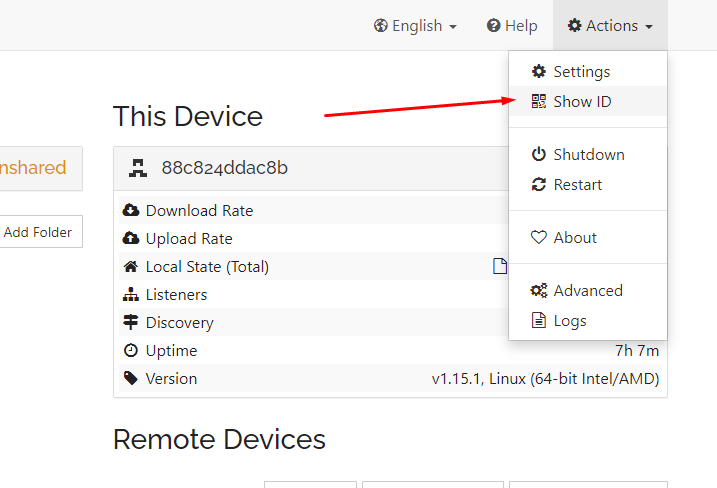
ステップ 4: 開く Syncthing あなたの device and find the device ID in the action menu.
A Pop-up will appear, copy the code written.
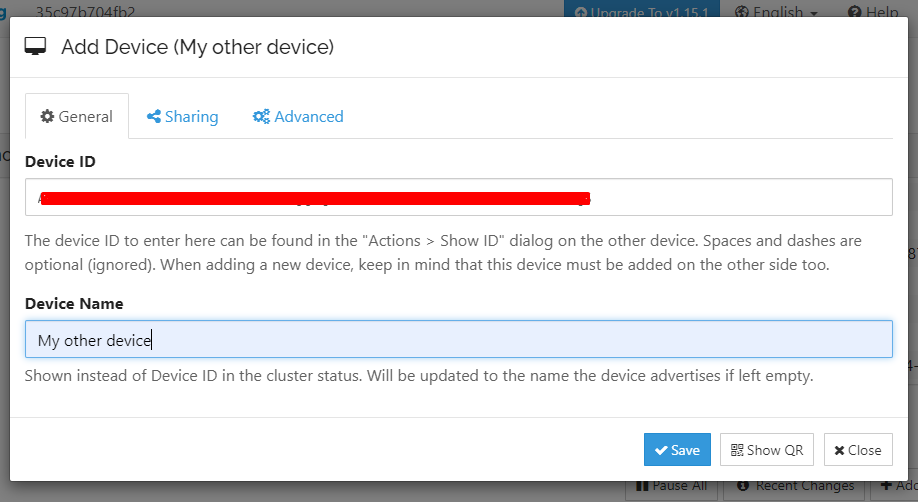
ステップ 5: Add in the details and click on save.
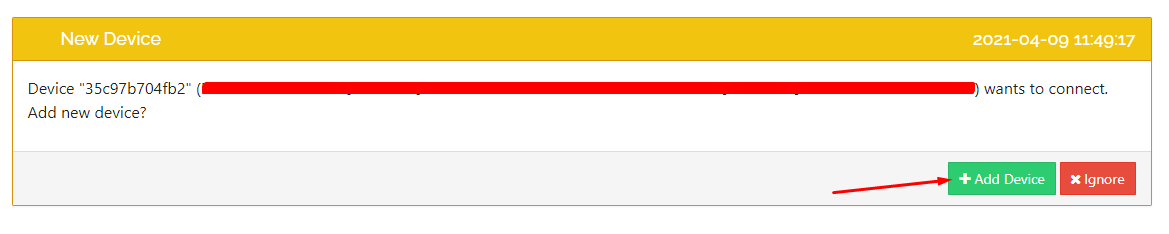
ステップ 6: 移動: the Syncthing app あなたの device and accept the request.
A pop-up will appear, check the details, and click on the 保存 ボタン.
Bueno, both your devices are connected now. It is time to create folders and actually starts syncing files.
Adding folders in Syncthing to sync files.
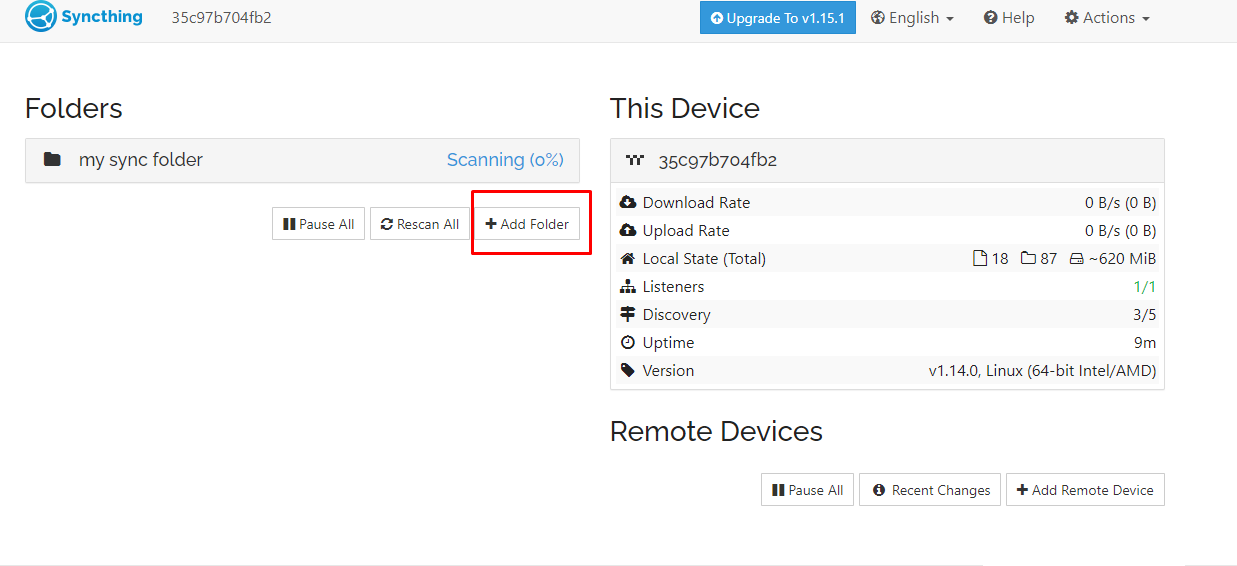
ステップ 1: Add a folder which 表示されます use to sync files.
ステップ 2: Fill in all the information and click on save.
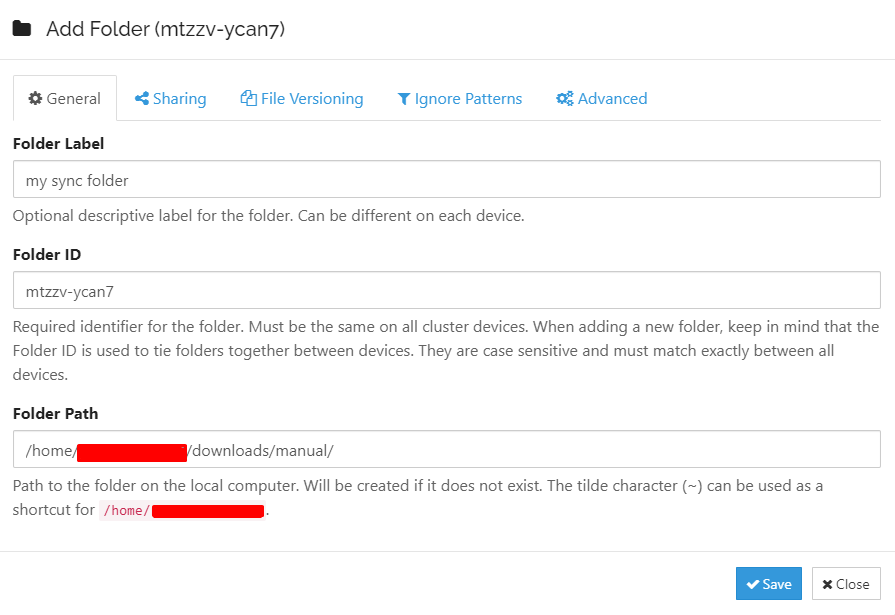
ステップ 3: Do the same for your PC. Make sure the folder ID is the same as the folder ID of the seedbox.
In this case, the folder ID is: mtzzv-ycan7
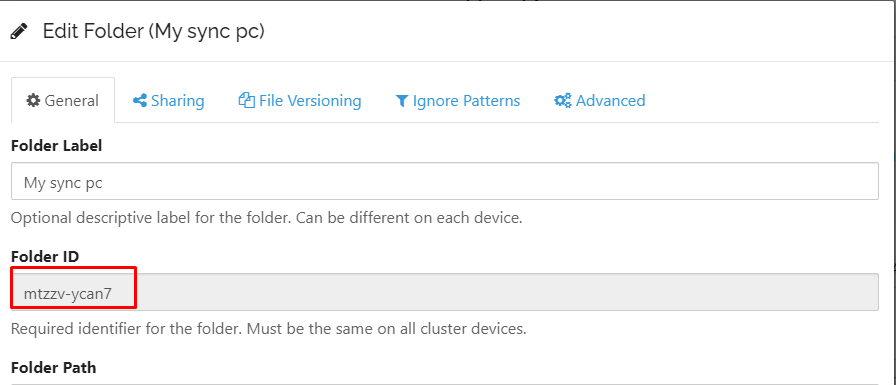
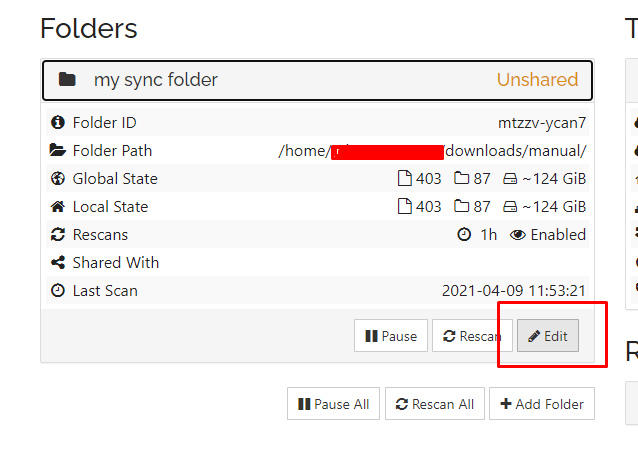
These folders are added but not shared by default. そのため, you need to manually approve the folder to be shared.
ステップ 4: クリックしてください: the folder from あなたのSeedbox and click on the edit ボタン.
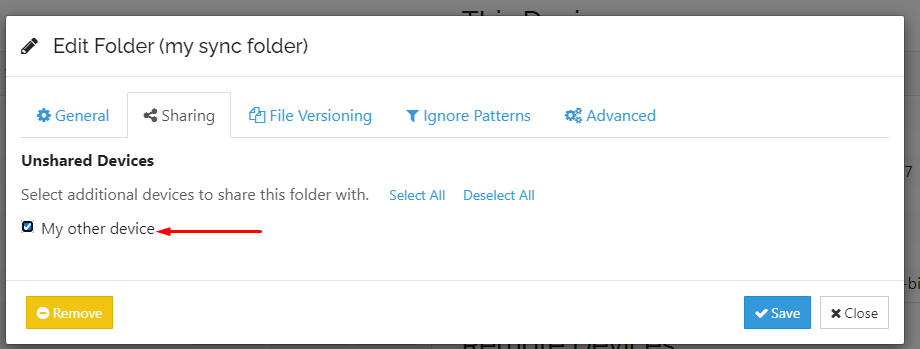
ステップ 5: 移動: the “Sharing tab” and check your device(PC) you want the folder to sync with. クリックしてください: save.
ステップ 6: 開く Syncthing あなたの device(PC) and click on share.

The scanning process will start automatically.
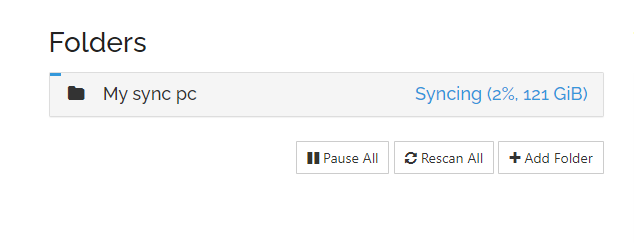
Once it is complete then the sync has been done. Now all you 必要があります do is add any file you want to sync in this folder. It doesn’t matter if it is from a PC or あなたのSeedbox.
もし still have any doubt then please get in touch with us using chat or raise a ticket.
Put this into practice
EvoSeedbox ships with one-click app installs and up to 10 Gbps per box.


