How Sonarr Works #
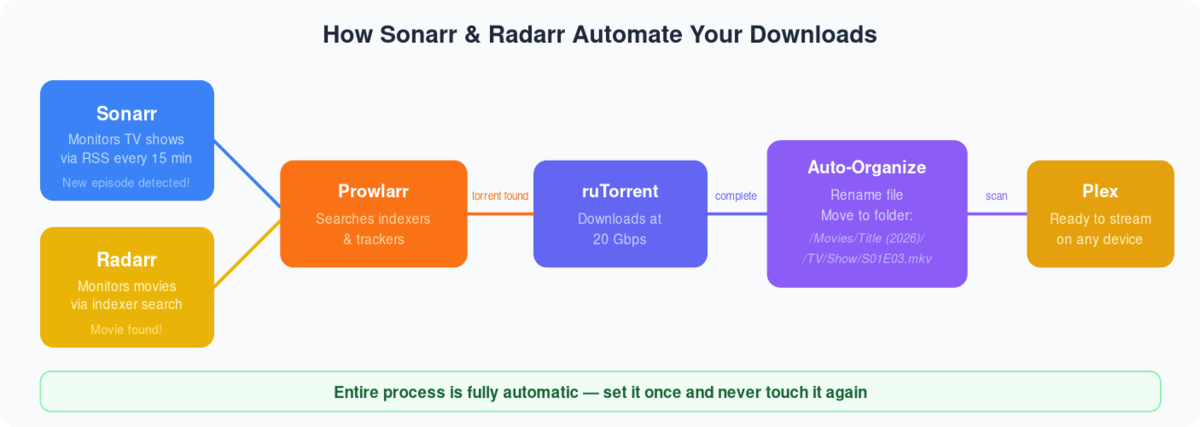
  SONARR AUTOMATION PIPELINE
  ═══════════════════════════════════════════════════════

  1. MONITOR              2. SEARCH              3. DOWNLOAD

  You add a TV show       Sonarr searches        rTorrent downloads
  to your library         your indexers          the episode
       │                       │                      │
       ▼                       ▼                      ▼
  ┌──────────┐           ┌──────────┐           ┌──────────┐
  │  Sonarr  │──search──▶│ Prowlarr │──found───▶│ rTorrent │
  │          │           │ /Jackett │           │          │
  │ Monitors │           │          │           │ Downloads│
  │ for new  │           │ Queries  │           │ torrent  │
  │ episodes │           │ indexers │           └────┬─────┘
  └──────────┘           └──────────┘                │
                                                Completed
  4. ORGANIZE              5. STREAM                 │
                                                     ▼
  ┌──────────┐           ┌──────────┐          ┌──────────┐
  │  Sonarr  │──library──▶│  Plex /  │──▶ 📱💻 │  Rename  │
  │ renames  │           │ Jellyfin │          │  & move  │
  │ & moves  │           │          │          │  to lib  │
  └──────────┘           └──────────┘          └──────────┘
Understanding Quality Profiles #
  QUALITY PROFILE GUIDE
  ═══════════════════════════════════════════════════════

  Profile          Resolution    Size/Episode    Best For
  ───────          ──────────    ────────────    ────────
  SD               480p          200-500 MB      Slow connection
  HD-720p          720p          500 MB-1.5 GB   Good balance
  HD-1080p         1080p         1.5-4 GB        Most users ✓
  Ultra-HD         2160p/4K      5-15 GB         4K displays
  Any              Best match    Varies          "Just get it"

  ┌──────────────────────────────────────────────────┐
  │  Recommended: HD-1080p for most users.           │
  │  See our quality settings guide for fine-tuning. │
  └──────────────────────────────────────────────────┘
Sonarr Key Settings #
  IMPORTANT SETTINGS TO CONFIGURE
  ═══════════════════════════════════════════════════════

  Settings → Media Management:
  ├── Rename Episodes: YES ✓
  ├── Standard Format: {Series Title} - S{season:00}E{episode:00}
  ├── Root Folder: /downloads/tv-shows/
  └── Import Extra Files: srt,sub (subtitles)

  Settings → Download Clients:
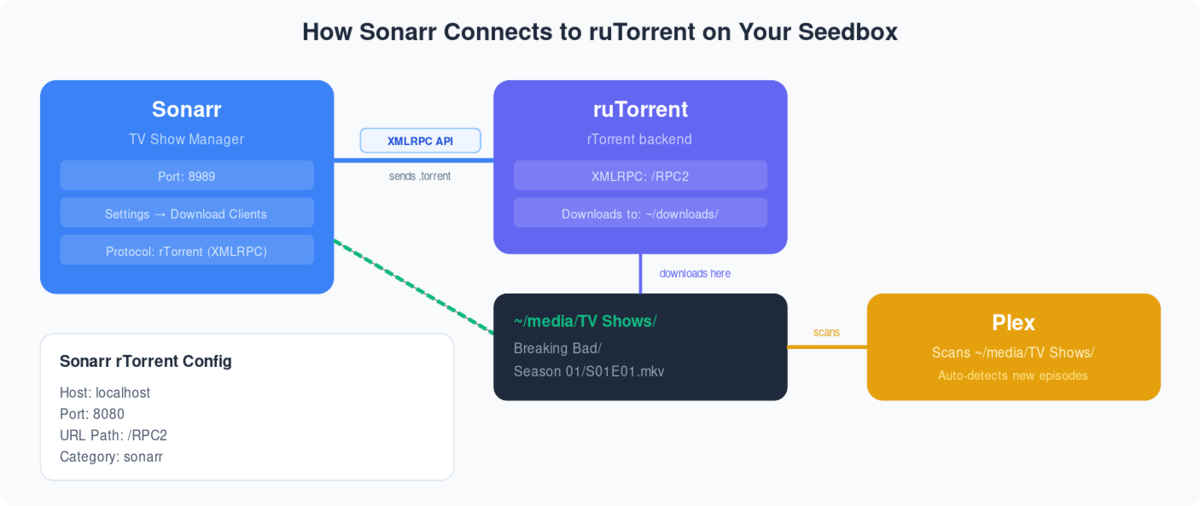
  └── rTorrent (pre-configured on your seedbox ✓)

  Settings → Indexers:
  └── Managed by Prowlarr (recommended)
      or add manually via Jackett
For detailed quality settings including 4K, see our Sonarr and Radarr Quality Settings Guide. To connect Prowlarr for unified indexer management, see our Prowlarr Setup Guide.
What You Need #
  SONARR ECOSYSTEM
  ══════════════════════════════════════

  Required:
  ├── Sonarr           (this guide)
  └── Indexers via Prowlarr or Jackett

  Recommended:
  ├── Prowlarr         (unified indexers)
  ├── Plex or Jellyfin (streaming)
  └── Bazarr           (subtitles)

  Install order: Prowlarr → Sonarr → Plex
- First login to your client area:

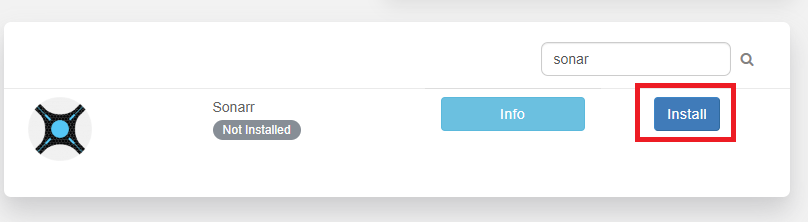
2. Search for Sonarr in the application section and choose Install:
3. Wait for it to finish installing:

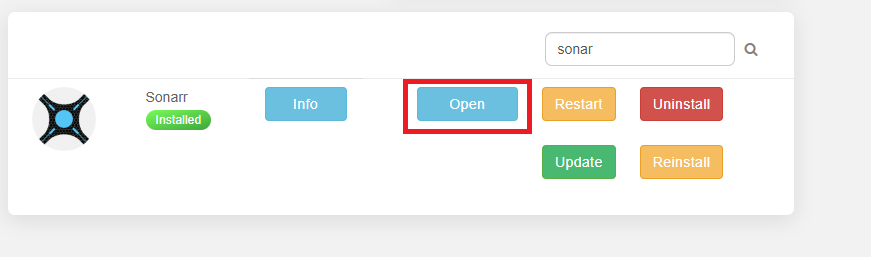
4. Open Sonarr application:
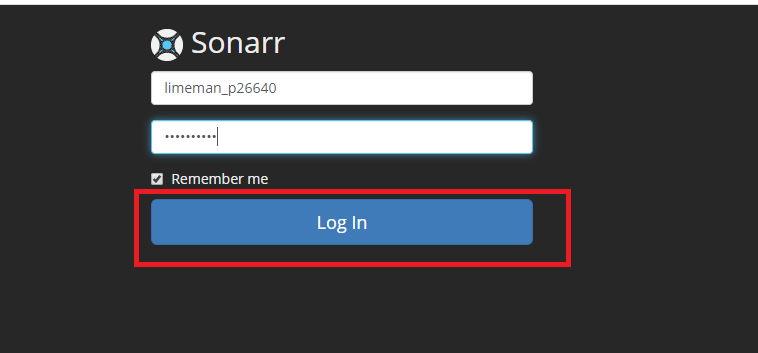
5. Login with your credentials:
5. Click on Settings than choose Indexers:
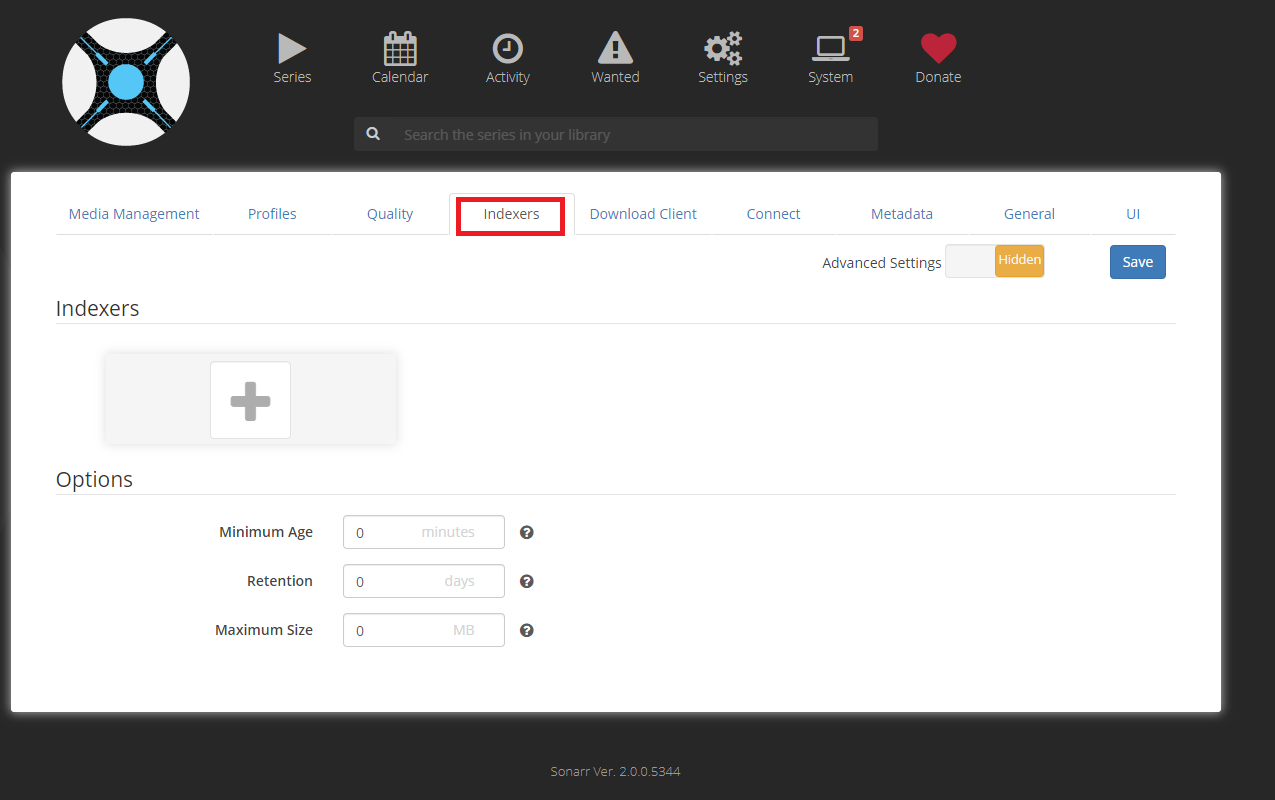
6. Input any RSS torrent feed, Usenet indexers, or api key you have. If your tracker does not have an RSS feed you can create one with Jackett:

5. Click on Profiles and adjust any of the profiles to your liking by adding and removing quality:

6. On the quality tab you can move the sliders to change size cut offs of specific quality definitions if you like:

7. On the connect tab you can set notifications to various applications to let you know when Sonarr has downloaded a new episode:


8. You can adjust episode naming if you with from the Media Management tab:

9. Download client tab leave at its defaults:

10. Click on the Series button and put a series you want to add into the search below choose the Profile you wish and click the + button to add it:
Trouble Shooting #

11. Go to your Show and ensure it is watching for whatever seasons you wish to download:

12. It is setup to sync every 15 minutes on its own and pull new shows, if you wish to search now click the magnifier glass:

TroubleShooting #
Reinstall #
- Search for Sonarr under applications and click Reinstall:
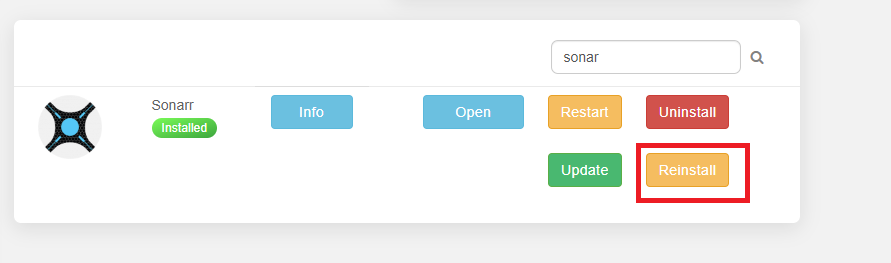
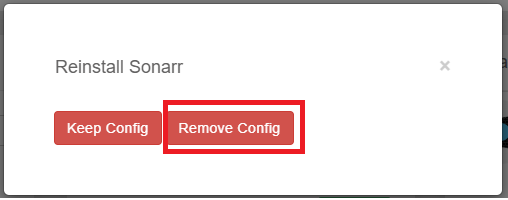
2. Chose Remove Config: