Direct Play vs Transcoding #
  PLAYBACK MODES
  ═══════════════════════════════════════════════════════

  Direct Play (best)             Transcode (fallback)
  ┌──────────────────────┐      ┌──────────────────────┐
  │ File plays as-is     │      │ Server converts video │
  │ No CPU usage         │      │ Uses CPU heavily      │
  │ Full quality         │      │ May reduce quality    │
  │ Fastest streaming    │      │ Slower start          │
  └──────────────────────┘      └──────────────────────┘

  When does transcoding happen?
  ├── Device can't play format (e.g., HEVC on old TV)
  ├── Subtitles are "burned in" (image-based subs)
  ├── Bandwidth too low for full quality
  └── Client requests lower quality

  ┌──────────────────────────────────────────────────┐
  │  TIP: Use MP4/MKV with H.264 + SRT subtitles    │
  │  for maximum Direct Play compatibility.          │
  └──────────────────────────────────────────────────┘
The Complete Media Stack #
  RECOMMENDED PLEX ECOSYSTEM
  ═══════════════════════════════════════════════════════

  Discovery          Download           Organize          Stream
  ─────────          ────────           ────────          ──────

  Overseerr ───▶ Sonarr (TV) ────▶ Renames & ───▶ Plex
  (requests)     Radarr (Movies)    moves files     (streams)
                 ▲                                  │
                 │                                  ▼
              Prowlarr ◀──────────────────────── Tautulli
              (indexers)                          (analytics)
How Plex Works on Your Seedbox #
  PLEX STREAMING ARCHITECTURE
  ═══════════════════════════════════════════════════════

  Your Seedbox                              Your Devices

  ┌──────────────────────────┐
  │ Media Files              │
  │ /downloads/movies/       │
  │ /downloads/tv-shows/     │            ┌───────────┐
  │ /downloads/music/        │            │ 📱 Phone  │
  └───────────┬──────────────┘            │  (app)    │
              │                           └─────┬─────┘
              ▼                                 │
  ┌──────────────────────────┐            ┌─────▼─────┐
  │     Plex Media Server    │◀──stream──▶│ 💻 Browser│
  │                          │            └─────┬─────┘
  │  Scans library           │                  │
  │  Fetches metadata        │            ┌─────▼─────┐
  │  Transcodes if needed    │◀──stream──▶│ 📺 TV     │
  │  Streams to devices      │            │ (app)     │
  │                          │            └───────────┘
  │  Port: 32400             │
  └──────────────────────────┘       Direct Play = best quality
                                     Transcode = compatibility
  PLEX SETUP CHECKLIST
  ═══════════════════════════════

  1. Install Plex          ✓ One-click from client area
  2. Claim server          ✓ Link to your Plex account
  3. Add libraries         → Point to /downloads/movies etc
  4. Enable remote access  → Settings → Remote Access
  5. Install app on device → plex.tv/downloads
  6. Stream!               🎬
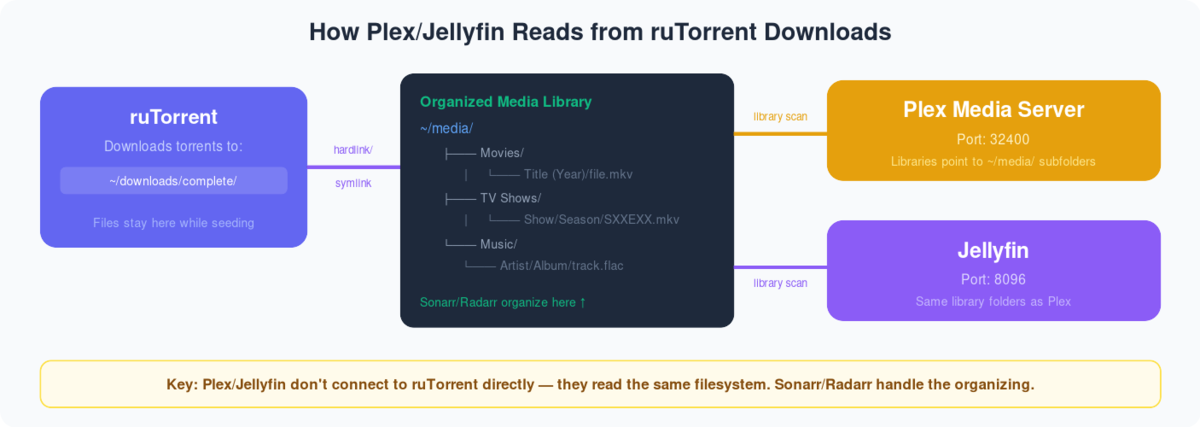
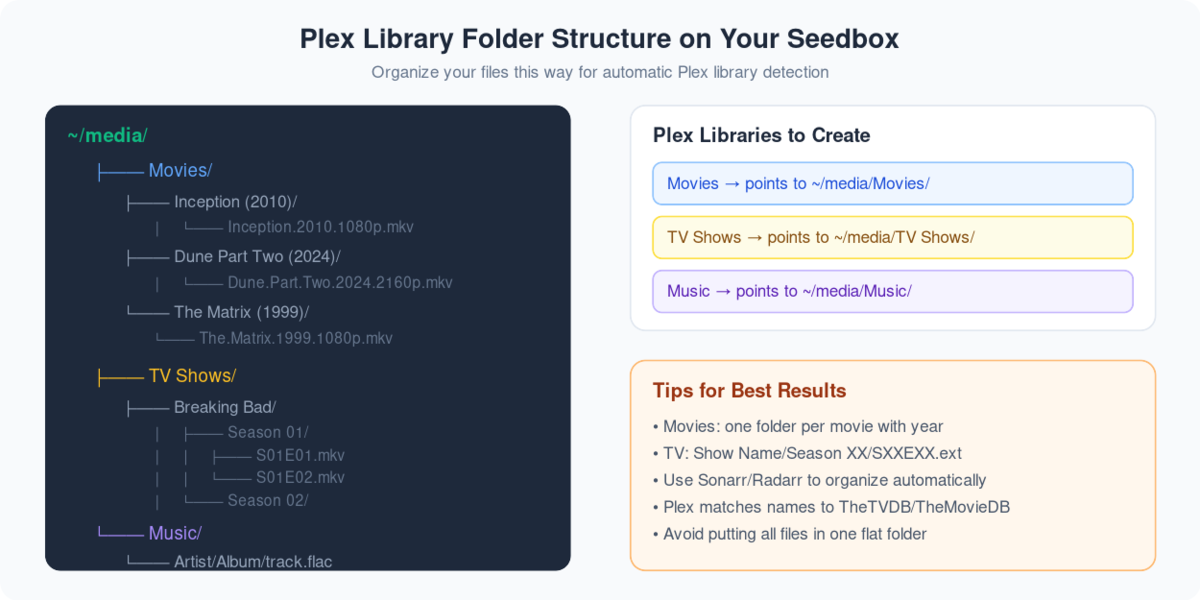
Plex is an application that can bring a Seedbox to life. Plex is an application that can make your remote server seedbox to a media center.
Using Plex, you can stream and manage your media files on the go!
Before accessing the benefits of Plex, you have to take a few steps to configure it with your seedbox.
You will need a Seedbox and a Plex account. This Plex account can be a free one. Plex pass has added benefits, so if you are a power user then go for it!
Steps to set-up Plex #
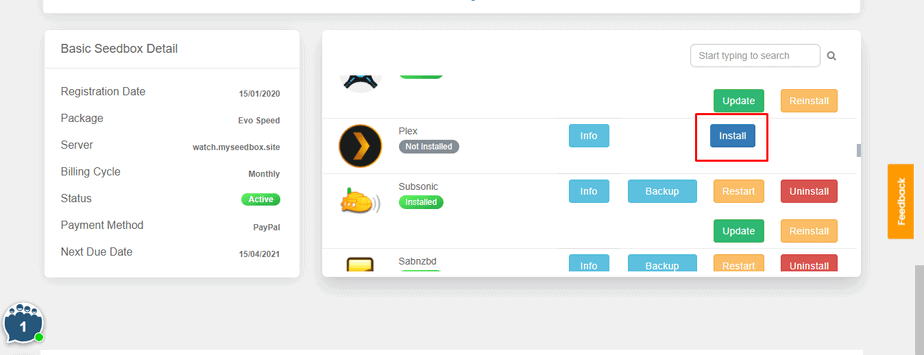
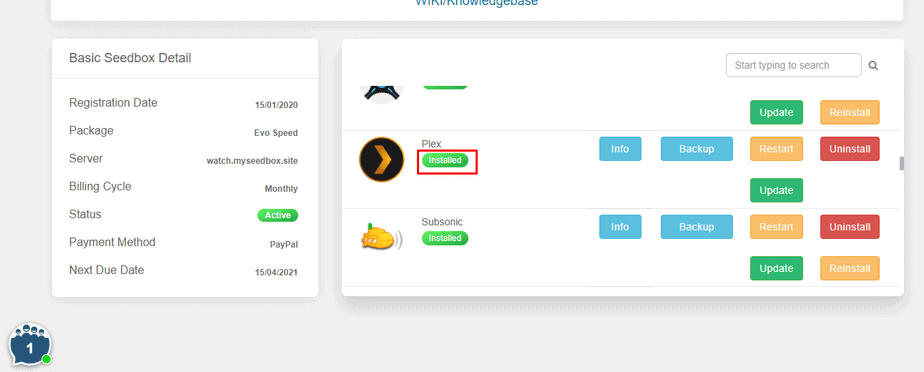
Step 1: Log in to your Seedbox account and install Plex.
Step 2: Generate a Plex code.
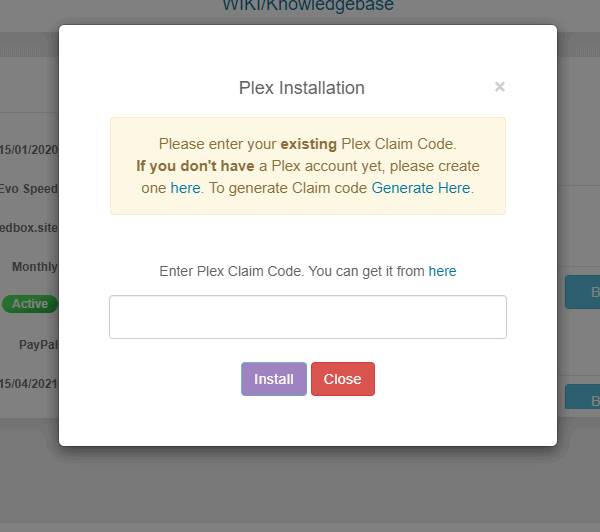
Step 3: Copy your Plex code and paste it in the section.
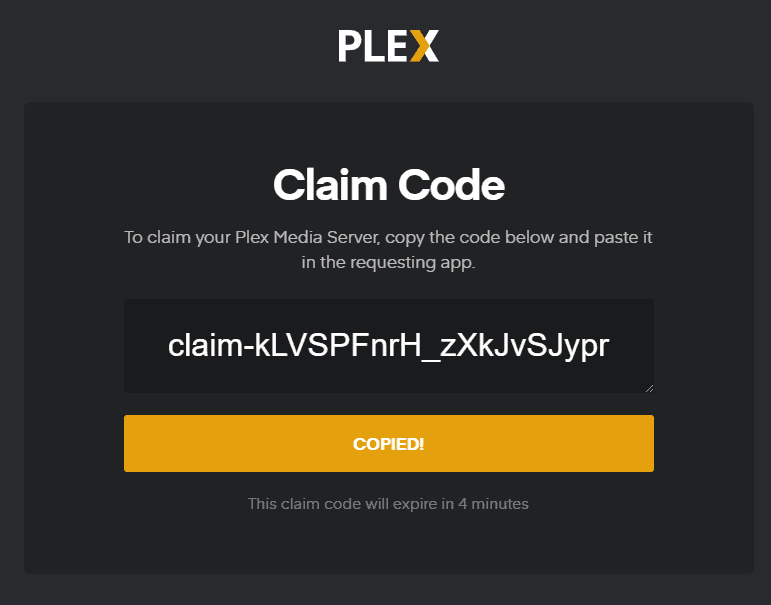
Step 4: Your Plex is installed and configured with your Seedbox.
How to Set up Plex? #
After you have configured your seedbox with your Plex account, you will see the following screen.
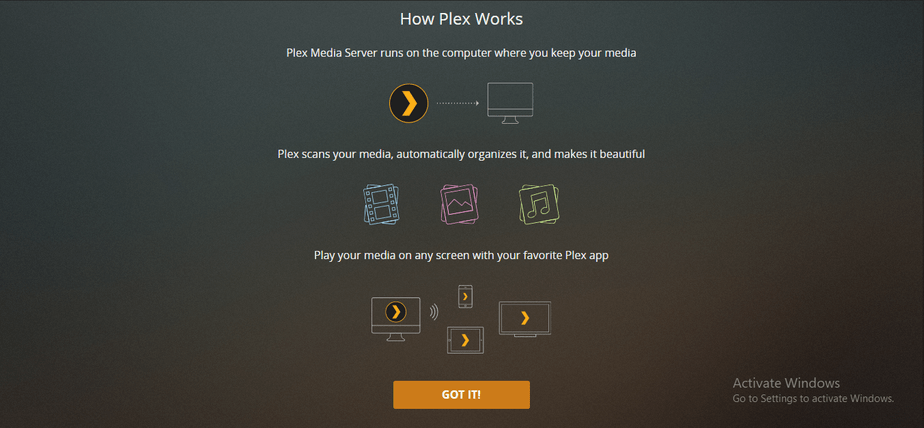
Click and the “GOT IT!” button and move to the first step of setting up.
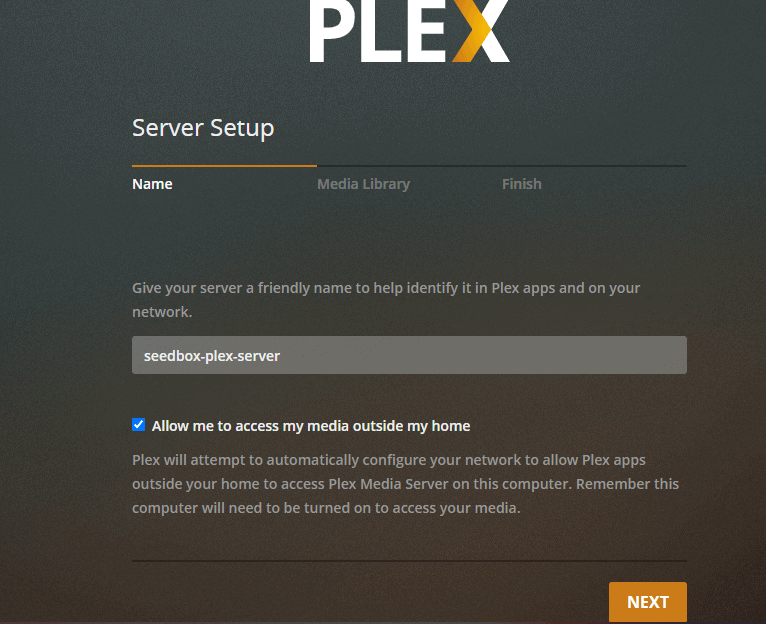
Step 1: Name your media server.
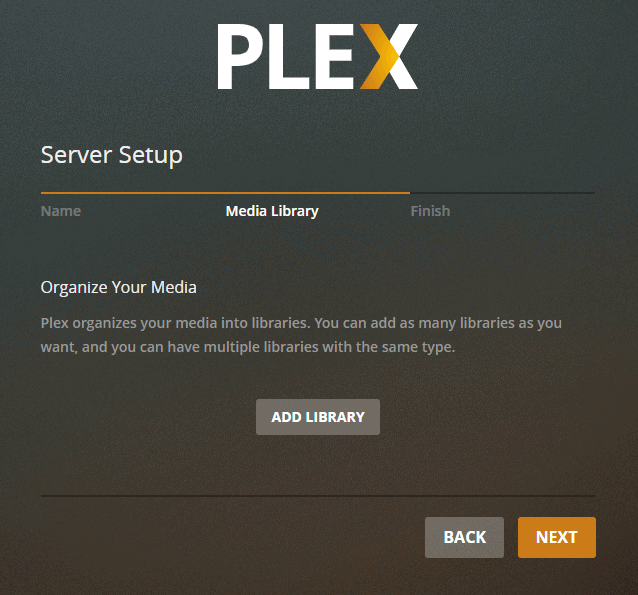
Step 2: Add library to your Plex Media Center.
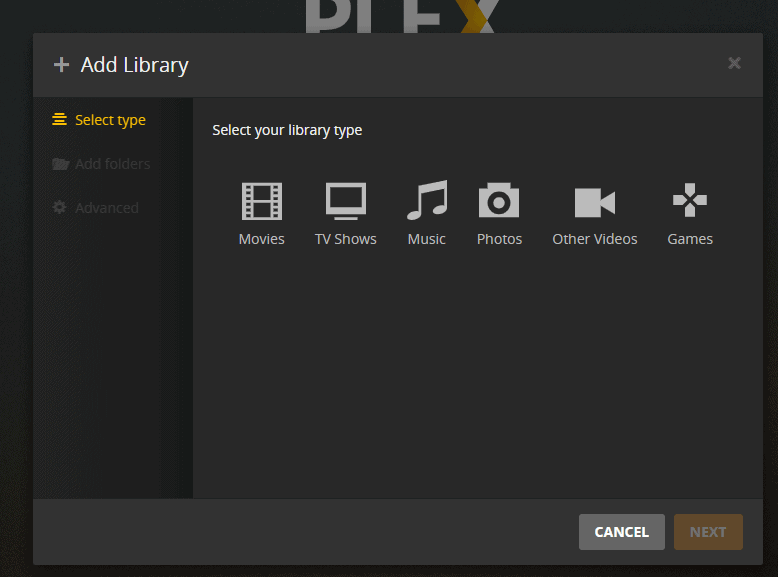
Step 3: Select the type of media you want to add.
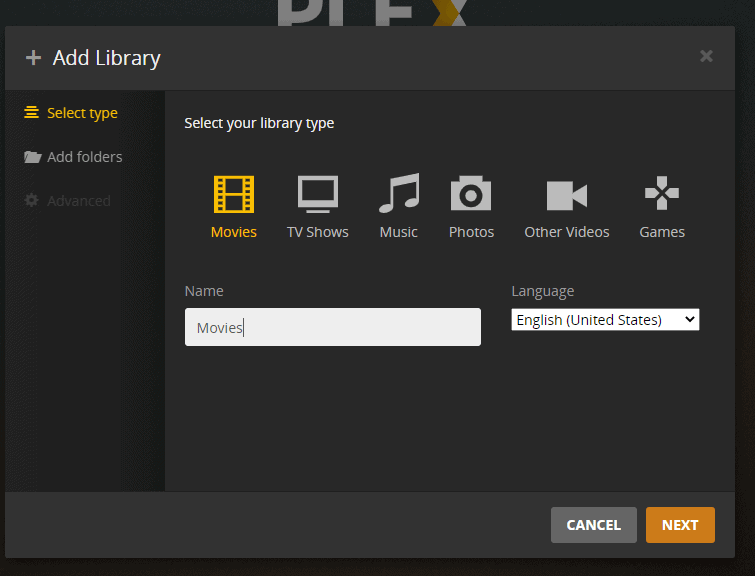
Step 4: Name your folder, select the language and click on next.
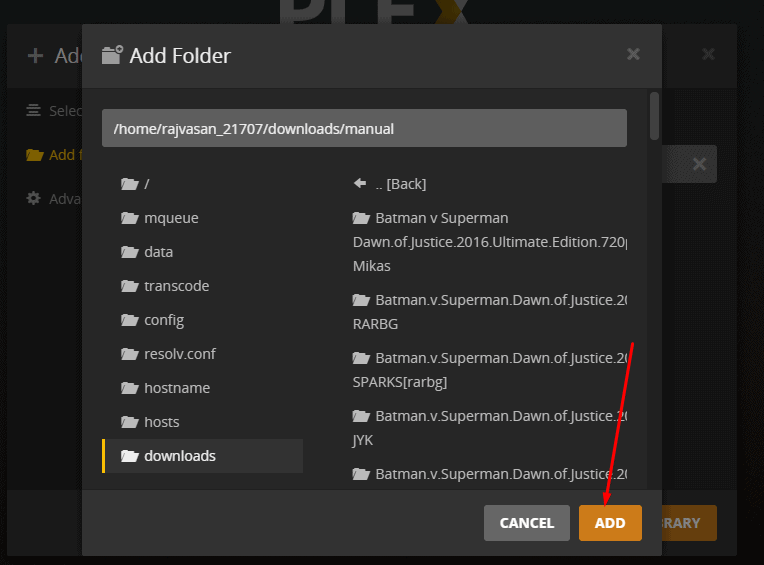
Step 5: Browse and add the movie folder from your seedbox.
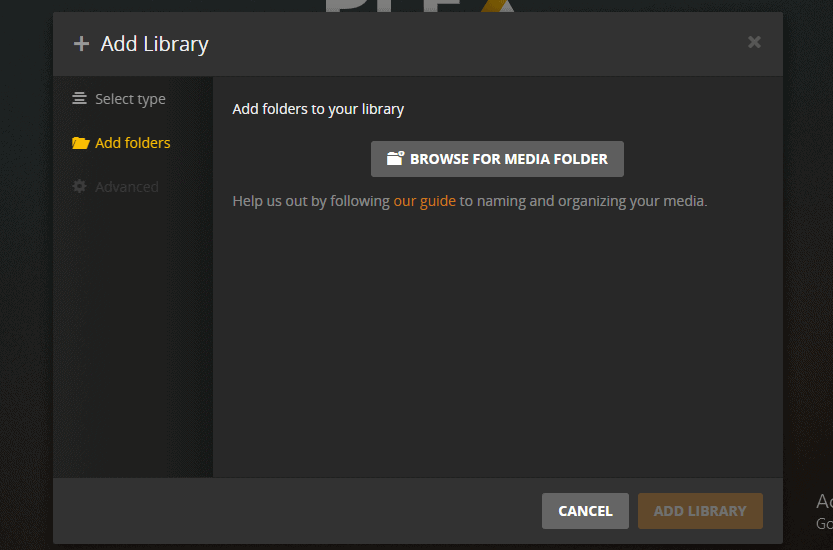
Step 6: Set the path and click on the Add button
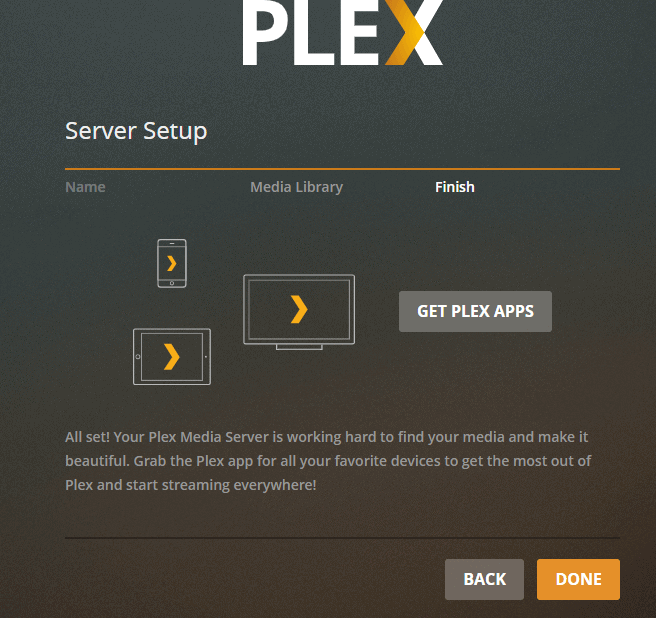
Step 7: Click on done and your Plex server setup is complete.
Streaming 4K in Plex #
Transcoding 4K media to play on Plex will not be possible as it requires a lot of CPU power. But, you can directly stream 4K media on Plex. To do that, change the settings to stream at original quality.
Note: This will require a high-speed internet connection. Somewhere around 150Mbps.
Plex Scanner Option #
There are two different scanning options given in Plex. One is timed out and detects new media. Choose anyone for optimum results.


